The dialer's softphone uses your browser's access to your microphone and speakers. Almost every audio problem comes down to that permission, the headset, or another app holding the microphone. Start with the audio test, then find your symptom below. This article is for agents and supervisors.
Start with the audio test
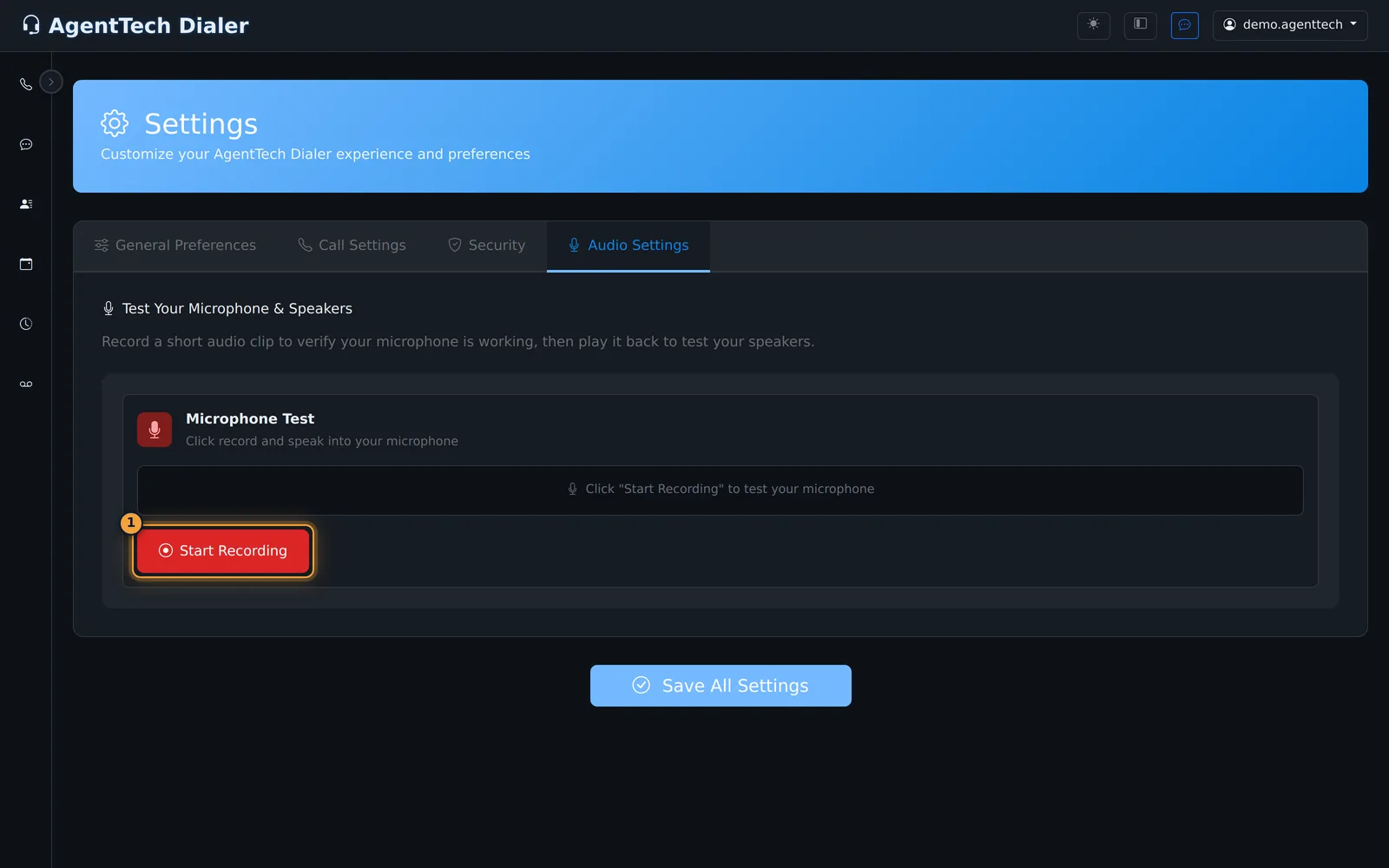
- Open Settings from the user menu (your username, top right) and select Audio Settings.
- Select Start Recording, say a few words, then select Stop Recording.
- Select Play Recording. If you hear yourself, your microphone and speakers work; Discard removes the clip.
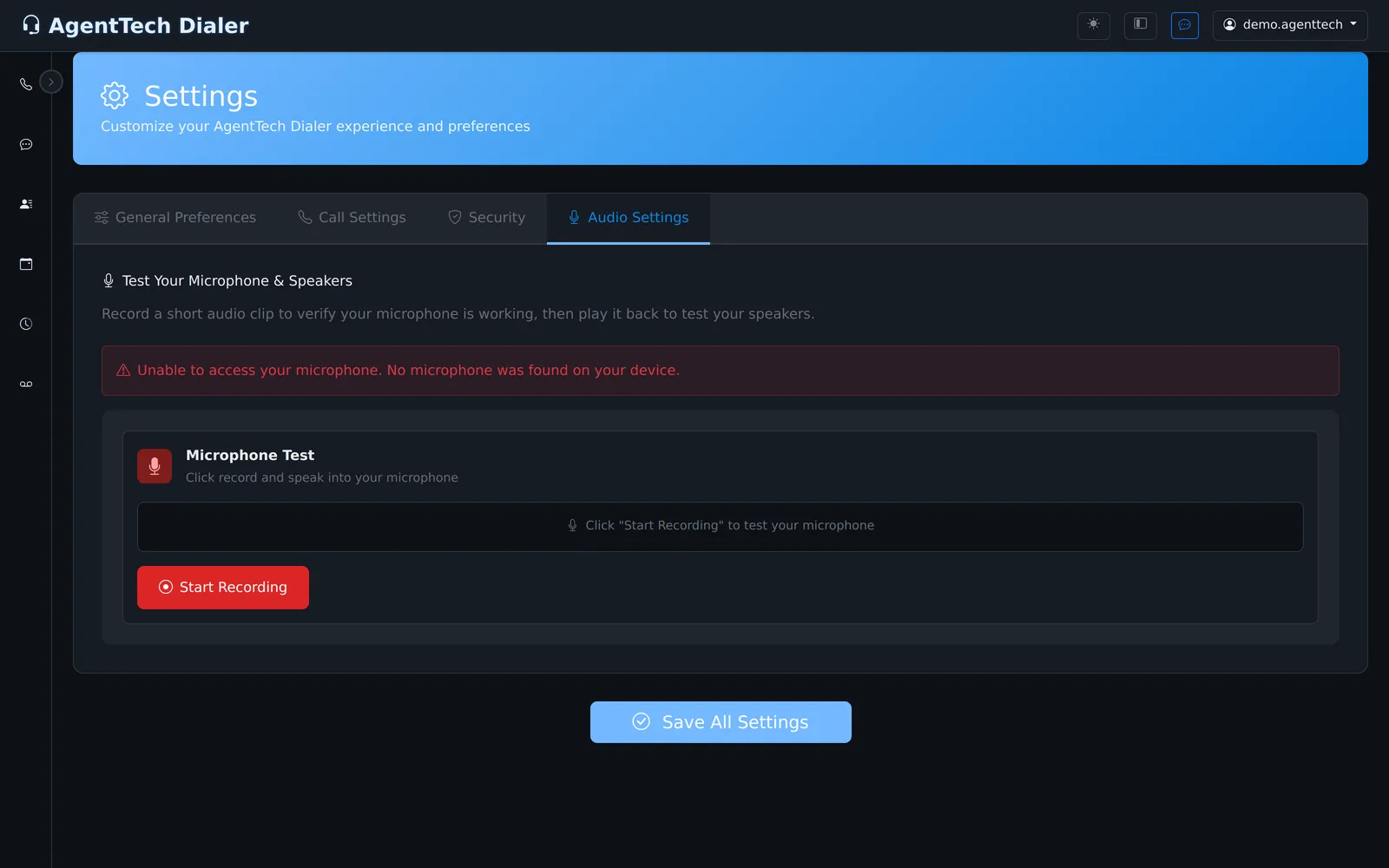
If the test cannot reach your microphone, it says "Unable to access your microphone." followed by the reason.
| Message | Cause | Fix |
|---|---|---|
| Please allow microphone access in your browser settings. | The browser blocked the dialer from your microphone. | Allow it (see below), then run the test again. |
| No microphone was found on your device. | No microphone or headset is connected, or the computer does not see it. | Plug the headset in (try another USB port), check it is chosen as the input device in your computer's sound settings, then test again. |
| Your microphone may be in use by another application. | Another app (a meeting app, another softphone) is holding the microphone. | Close the other app or end its call, then test again. |
| Please check your microphone connection and try again. | Something else went wrong reaching the device. | Unplug and reconnect the headset, then test again. |
Allow microphone access
The dialer asks for your microphone the first time you use it. If you chose Block:
- Select the site icon at the left of the address bar.
- Set Microphone to Allow.
- Reload the page, or open the dialer again, then set your status back to Available.
In the dialer, a blocked microphone shows "Microphone access is required. Please allow microphone access and try again." or "Microphone not available. Please check permissions."
Callers can't hear me
- Check that Mute in the call bar is off.
- Check the headset's own mute switch or button.
- Make sure the right microphone is the input device in your computer's sound settings; laptops often default to the built-in microphone.
- Run the audio test. If your own recording is silent, the problem is the microphone, not the call.
I can't hear the caller
- Turn up the volume on the headset and in your computer's sound settings, and check the headset is the output device.
- Make sure the dialer tab is not muted in the browser (right-click the tab).
- Run the audio test and play the clip back. If you hear nothing, fix the output device first.
Echo, delay or choppy audio
- Use a headset rather than laptop speakers; speakers let the caller's voice back into your microphone.
- Close large downloads, video streams and unused tabs.
- Prefer a wired network connection, or sit closer to the Wi-Fi router.
- Close other apps that use the microphone or camera.
My status went to Disconnected during the day
The dialer checks its connection and your microphone regularly. When you are Available and it can no longer take calls for you, it sets you to Disconnected and tells you why:
| Message | What to do |
|---|---|
| Status changed to Disconnected - Microphone access lost | Reconnect the headset or allow the microphone again, then set Available. |
| Status changed to Disconnected - LiveKit disconnected | Your connection to the call service dropped. Check your network and set Available again. |
| Status changed to Disconnected - SIP registration lost | The phone line registration dropped. Set Available again once the page reconnects. |
For other reasons your status changes, such as leaving the dialer page, see Why Am I Not Getting Calls?.
Supervisors: whisper and barge need a microphone
Listen works without a microphone. Whisper asks for microphone access first, and Barge In without microphone access lets you hear the call but not speak ("Microphone access denied. You can hear but not speak."). Allow the microphone as above. See Listen, Whisper & Barge In.
Before you call support
Run the audio test and note the exact message, your browser and headset model. Then see Getting Help & Contacting Support.
Related articles
Was this article helpful?
Can't find what you are looking for? Our support team can help.
Submit a support ticket