Transcript
Contacts keeps the people you call, text, and email. Here is how to add one, keep notes, and tidy your list.
Open Contacts. Search and filters sit under Filters and Search, and Grid or List switches the view.
Select Add Contact, and enter the first and last name. They are the only required fields.
Add whatever else you have, like the date of birth, email, and phone numbers.
Open Tags and Sharing to choose tags, the contact owner, and who else can see the contact.
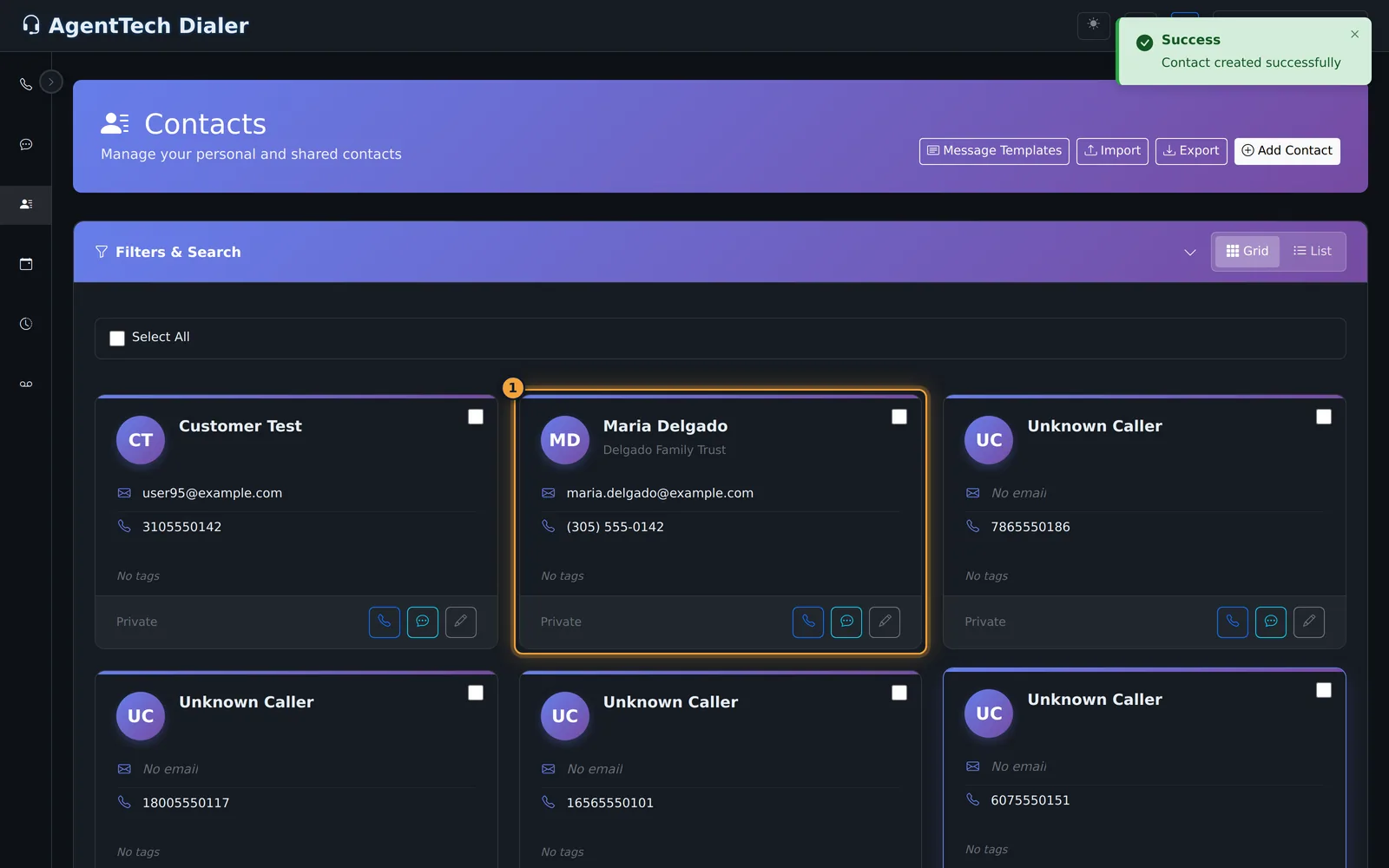
Select Save Contact. The contact appears as a card, with Call, Send SMS, and Edit.
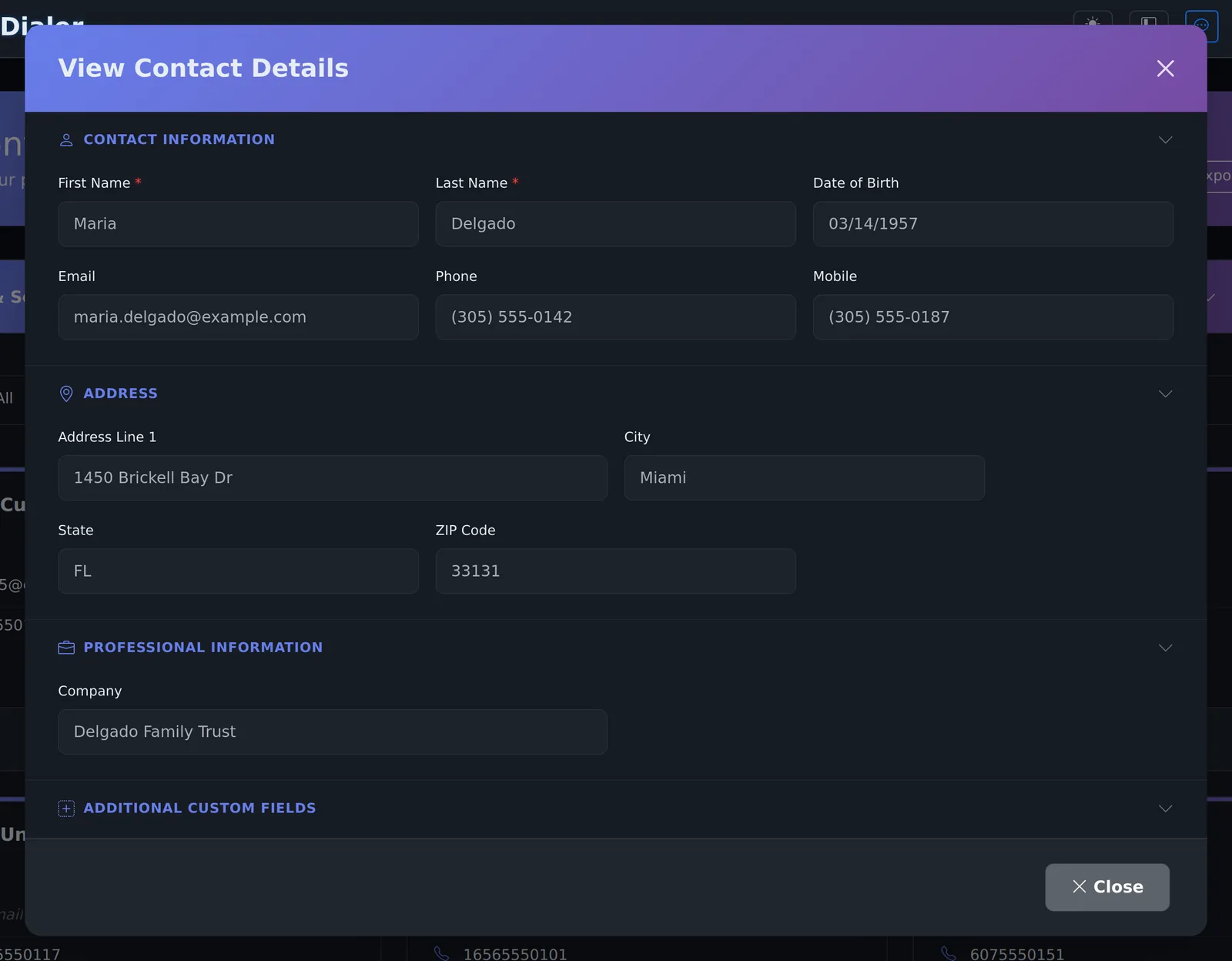
Select a contact to see its details. Empty fields are hidden, so it stays easy to read.
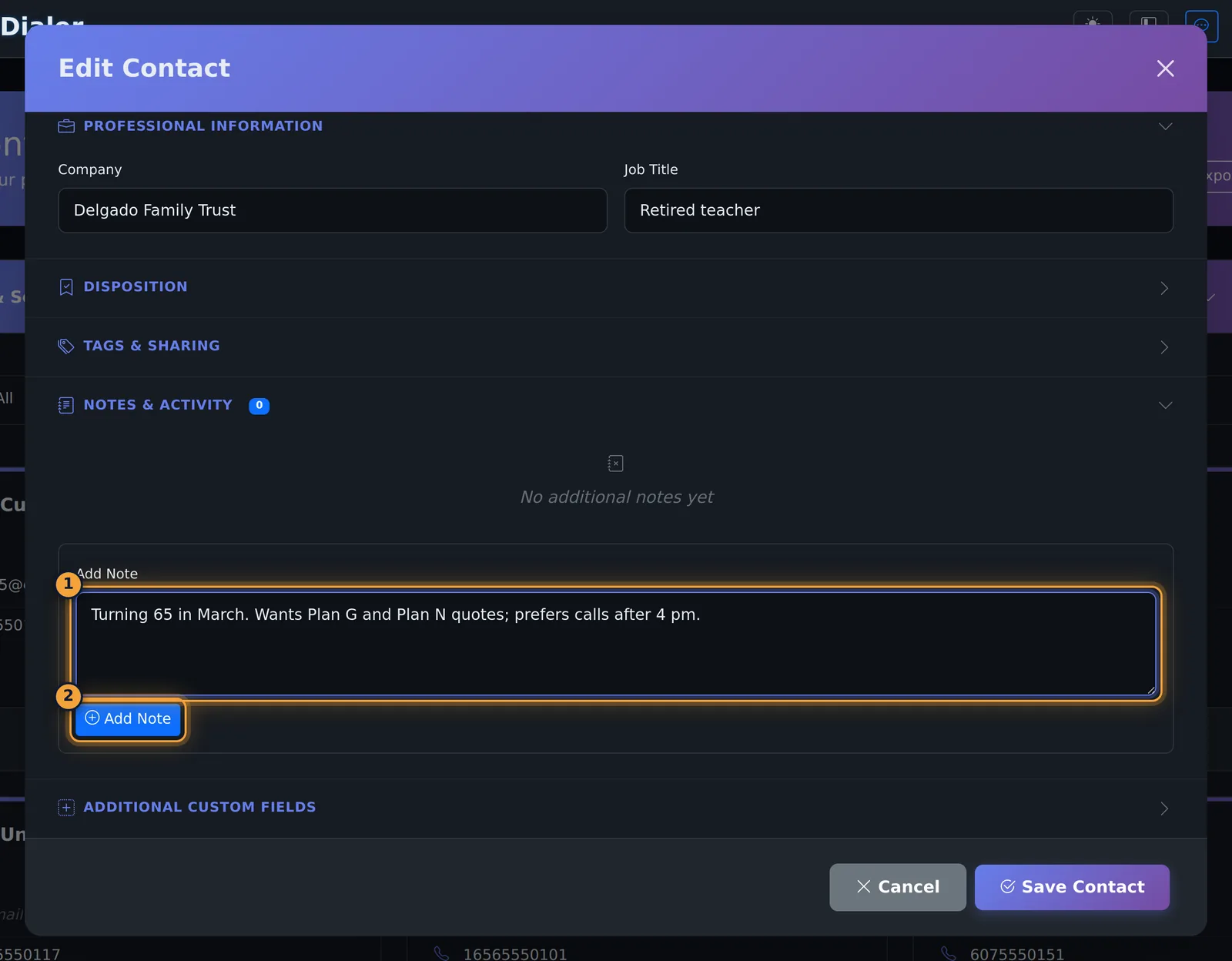
To change a contact, select Edit on the card. Open Notes and Activity, type the note, and select Add Note.
The note is saved right away, with your name and the time. You don't need to save the contact.
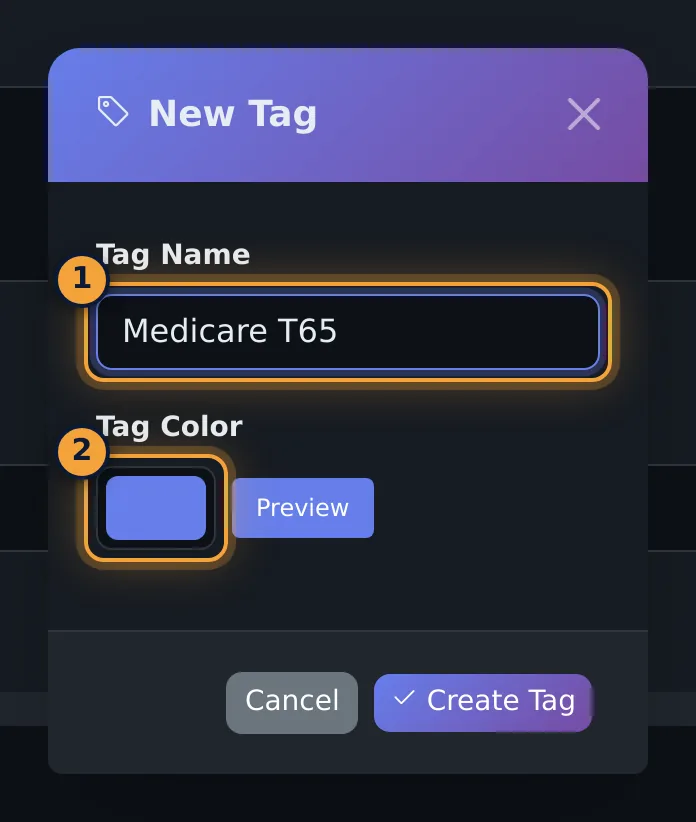
To make a new tag, open Tags and Sharing, and select Create New Tag. Name it, pick a color, and select Create Tag.
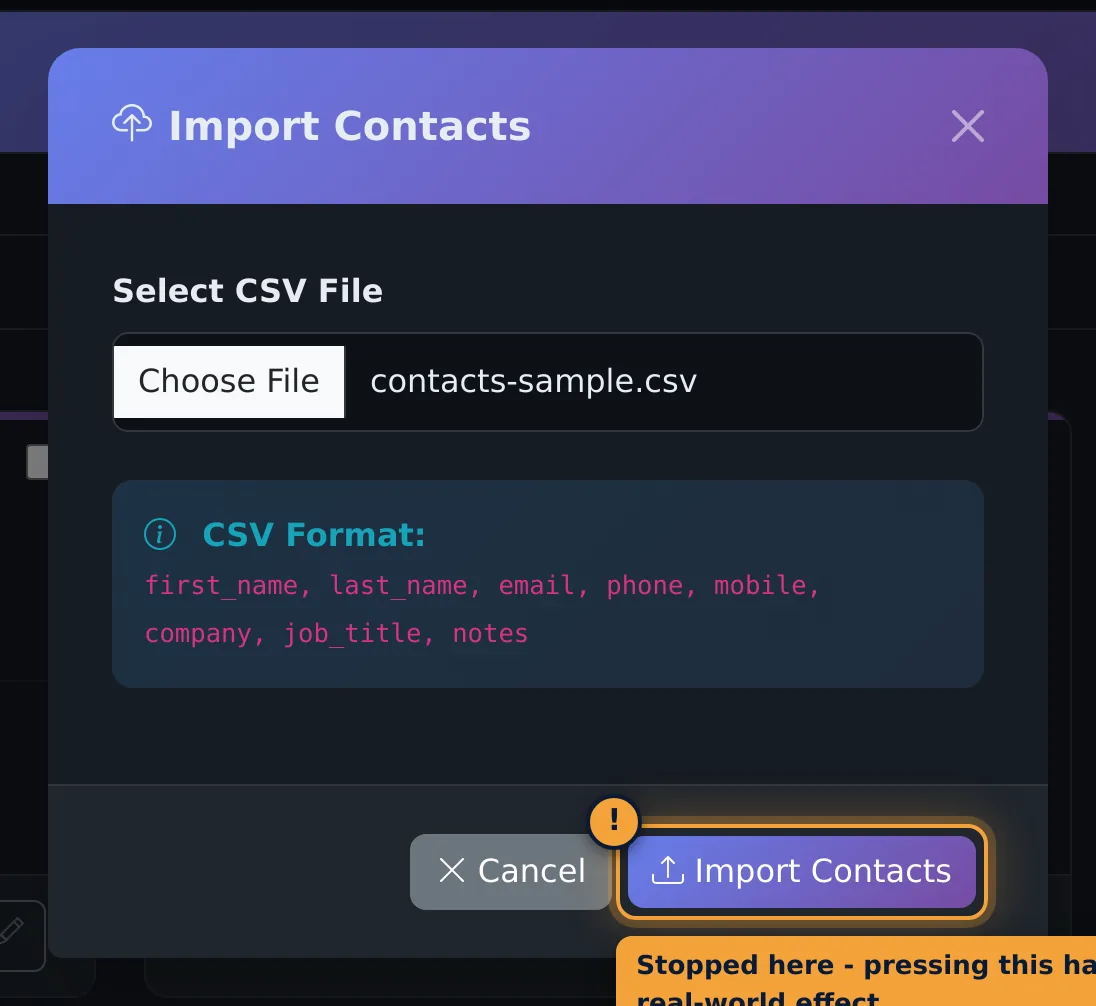
Import takes a CSV file, with the columns shown in the window. Export downloads your list as a CSV.
To delete a contact, switch to List, open its actions menu, and select Delete.
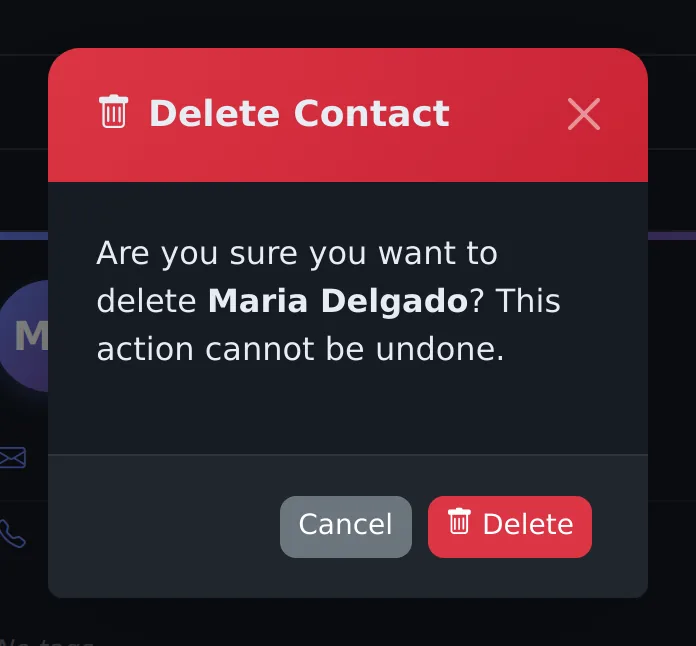
Confirm with Delete. This can't be undone.
Next, learn how to text your contacts in SMS Messaging.
Contacts keeps the people you call, text and email, with their details, disposition, tags, notes and who can see them. Calls from numbers you do not have yet add an Unknown Caller contact automatically. This article is for agents and supervisors.
The Contacts page
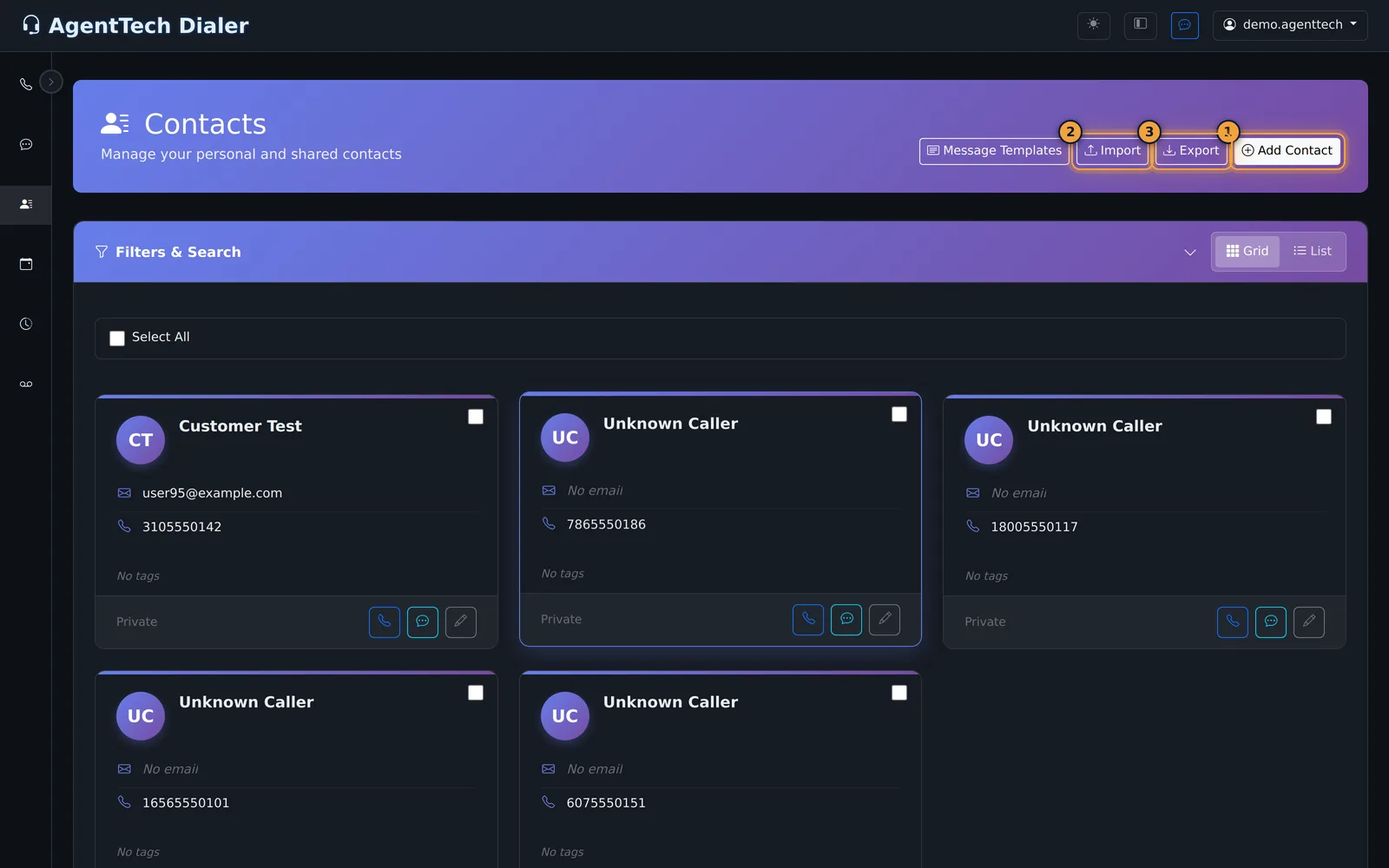
- Search by name, email, phone or company, and filter by disposition, tag, created date, a custom field, or Hide Unknown Callers.
- Switch between Grid and List. In List view each row has an actions menu: View, Call, Send Text, Send Email (when the contact has an email), Edit and Delete.
- Tick contacts (or Select All) for bulk Send Text, Send Email or Delete Selected.
- Message Templates opens the SMS and email templates you can use when you write to contacts. See SMS & Email Templates.
Add a contact
- Select Add Contact.
- Enter First Name and Last Name (required) and any of Date of Birth, Email, Phone and Mobile.
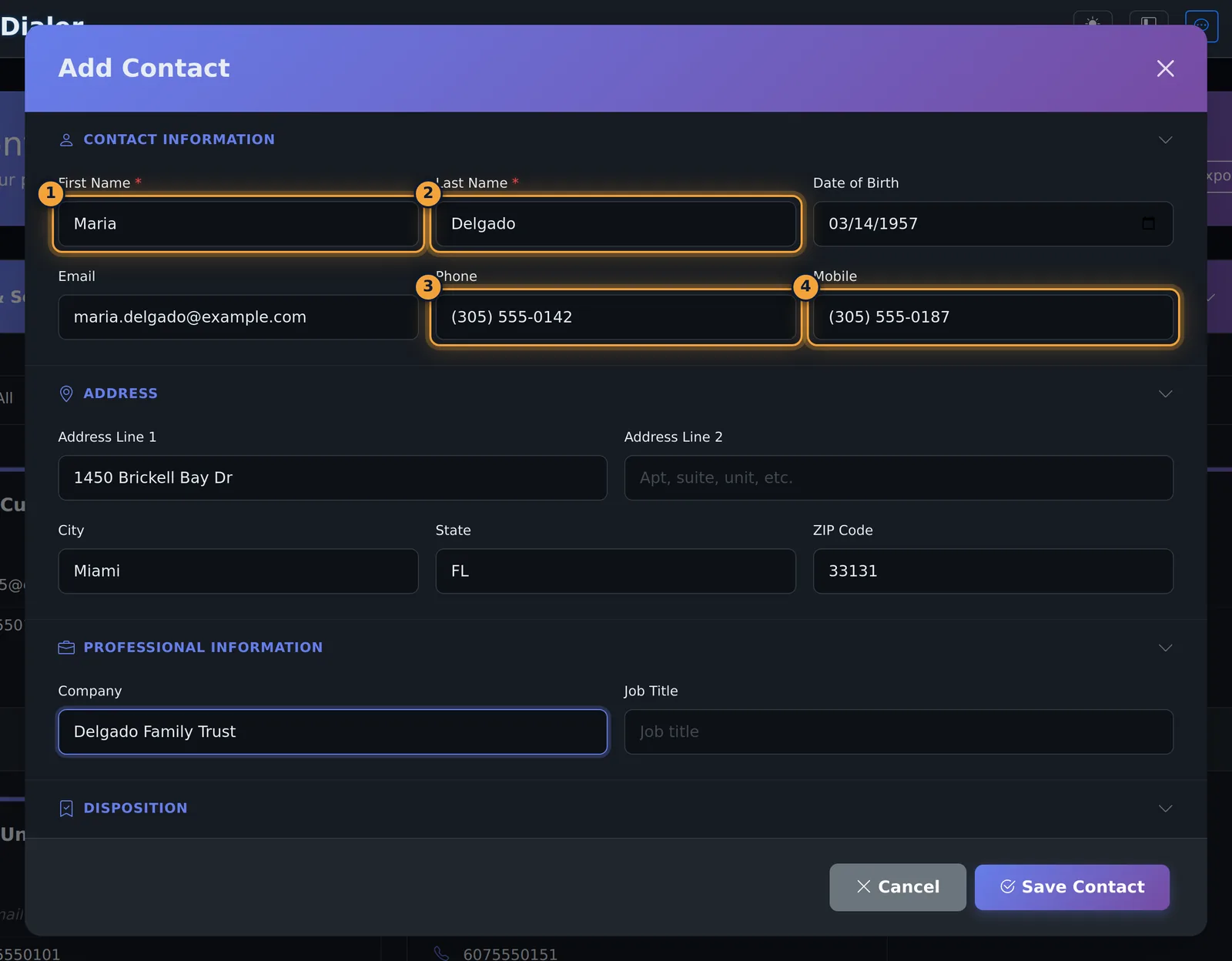
- Open the other sections as needed: Address, Professional Information (Company, Job Title), Disposition, Tags & Sharing, Additional Custom Fields.
- Under Tags & Sharing, choose tags, the Contact Owner and who can see the contact.
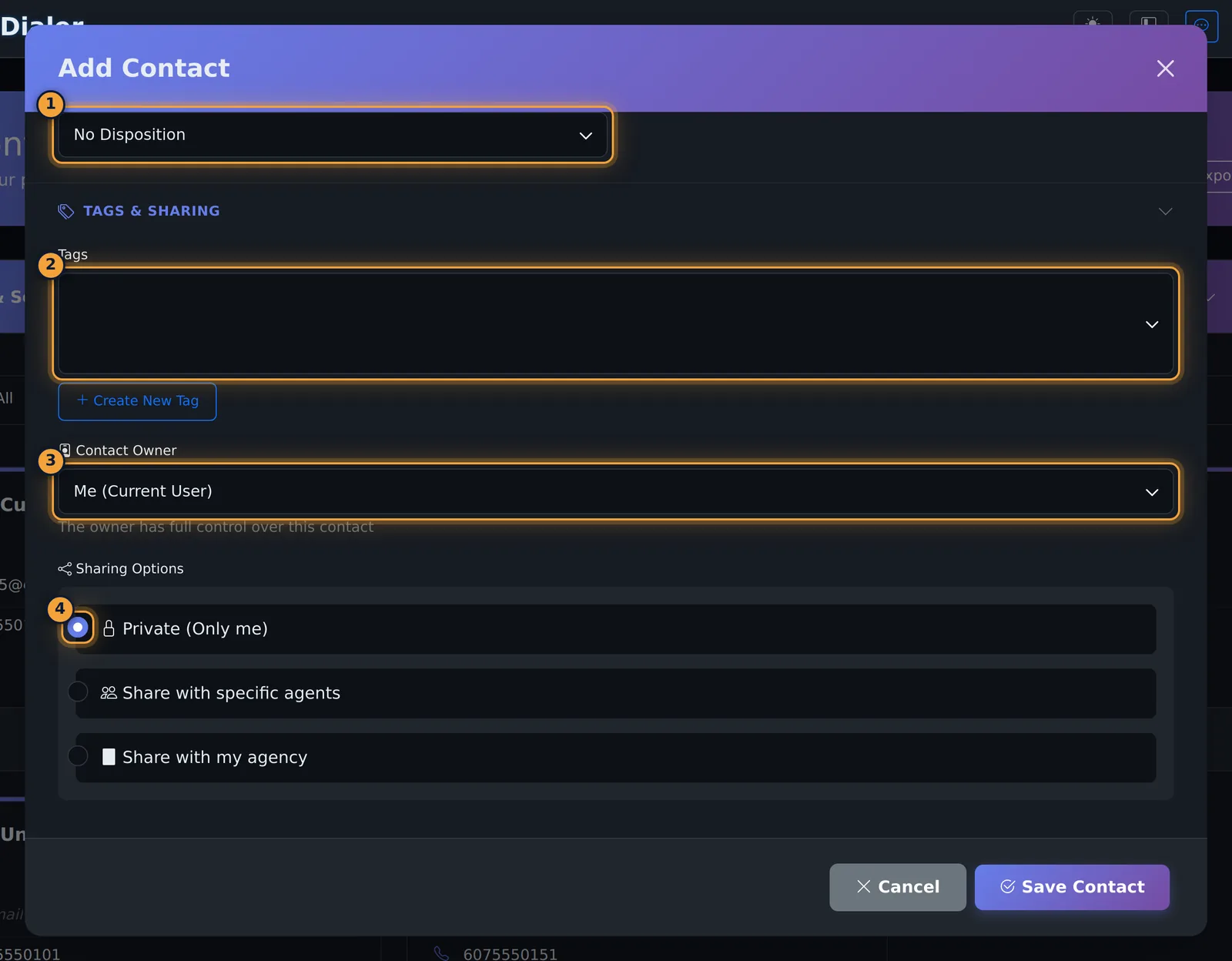
| Sharing option | Who sees the contact |
|---|---|
| Private (Only me) | You (and the owner) |
| Share with specific agents | The agents you pick |
| Share with my agency | Everyone in your agency |
- Select Save Contact. The contact appears as a card with Call, Send SMS and Edit buttons.
View and edit
Selecting a contact opens View Contact Details, a read-only view that hides empty fields. Use the card's Edit button to change it, then Save Contact.
Add a note
- Edit the contact and open Notes & Activity.
- Type in Add Note and select the Add Note button. The note is saved straight away with your name and the time; you do not need to save the contact.
Create a tag
Under Tags & Sharing select Create New Tag, enter a Tag Name, pick a color and select Create Tag. The tag is then available for every contact and in the tag filter.
Import and export
- Select Import, choose a CSV file and select Import Contacts. The columns are
first_name, last_name, email, phone, mobile, company, job_title, notes.
- Export downloads the listed contacts as a CSV file.
Delete a contact
In List view open the contact's actions menu and select Delete (or tick several contacts and select Delete Selected), then confirm with Delete. This cannot be undone.
Common problems
- You cannot see a colleague's contact: it is Private or shared with other agents; ask the owner to share it.
- Too many Unknown Caller cards: tick Hide Unknown Callers in the filters.
- Email buttons say Email Not Configured: see Sending Emails.
Related articles
Was this article helpful?
Can't find what you are looking for? Our support team can help.
Submit a support ticket