Transcript
Here is your first shift: sign in, check your headset, go Available, and take your first call.
Open the dialer in Chrome or Edge, and sign in with the Username and Password your admin gave you.
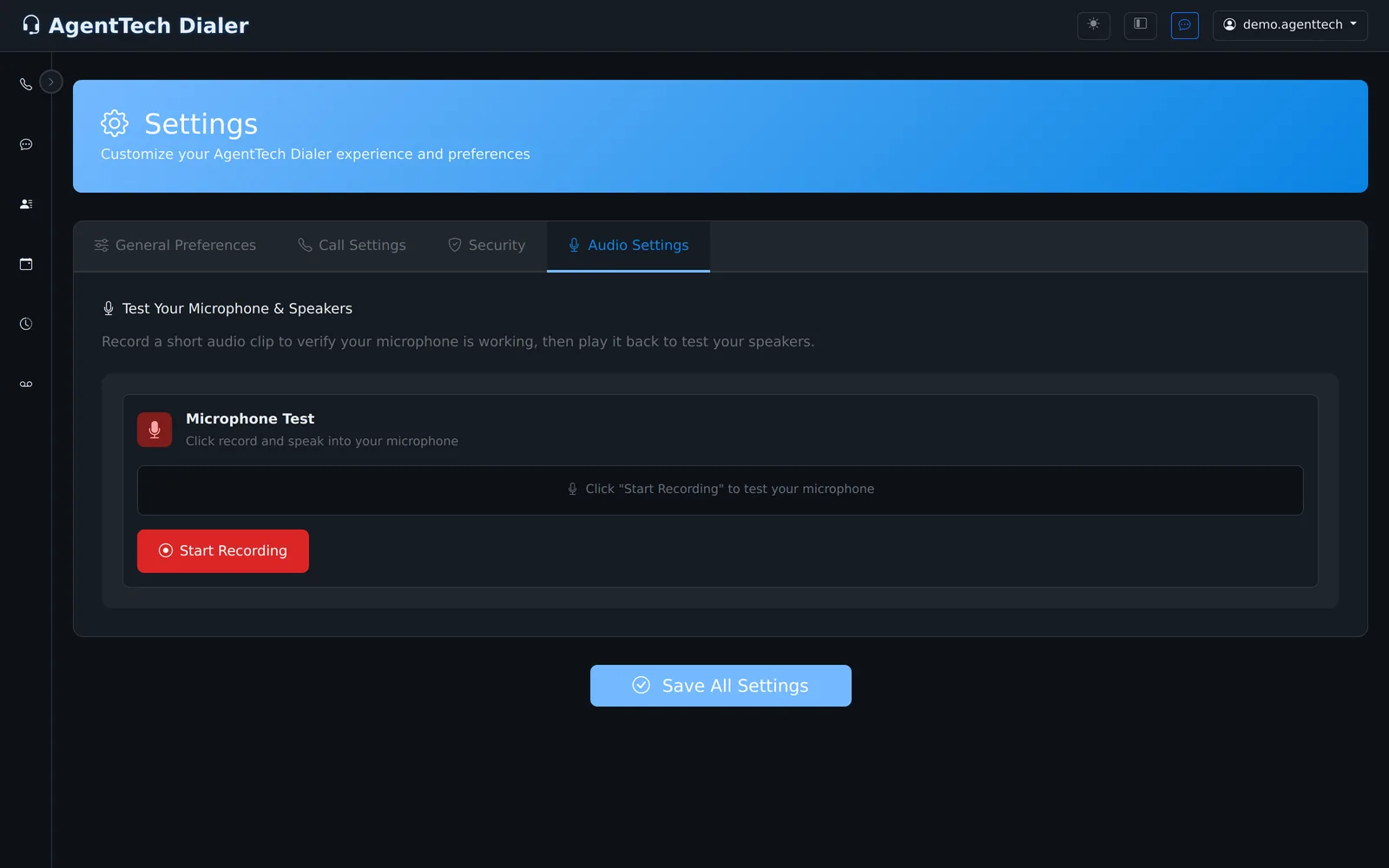
In Settings, on Audio Settings, select Start Recording, say a few words, then Stop Recording.
Then select Play Recording. If you hear yourself, your microphone and speakers work.
Call Settings shows how calls are answered. Settings your agency controls are locked.
On General Preferences, pick your Language and Timezone, and select Save General Settings.
On the dialer, select Enable for desktop notifications, so calls alert you when the tab is in the background.
Open the status menu, and choose Available. Until you do, only calls to your own direct number reach you.
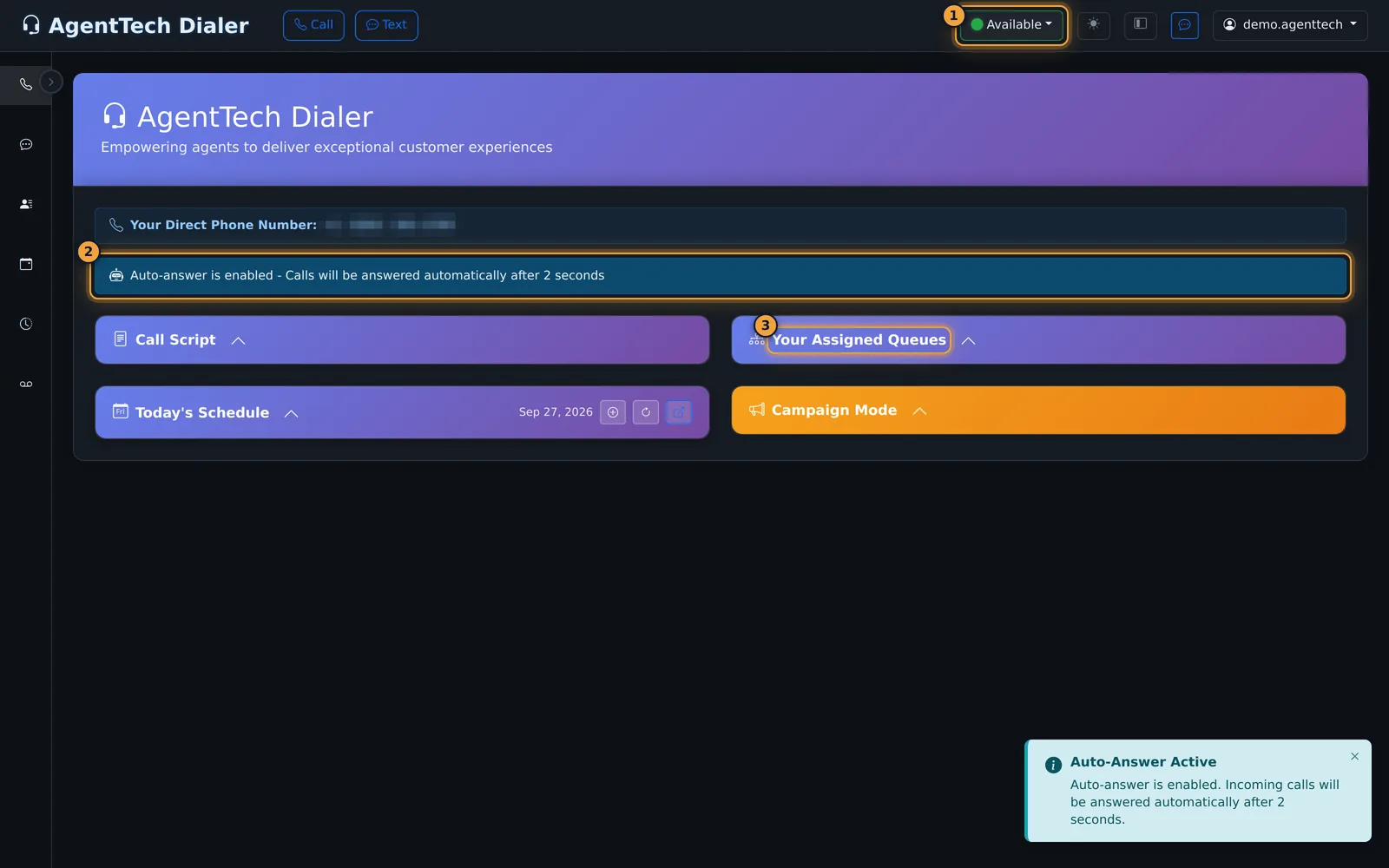
The dialer home shows your direct number, the auto-answer banner, and Your Assigned Queues.
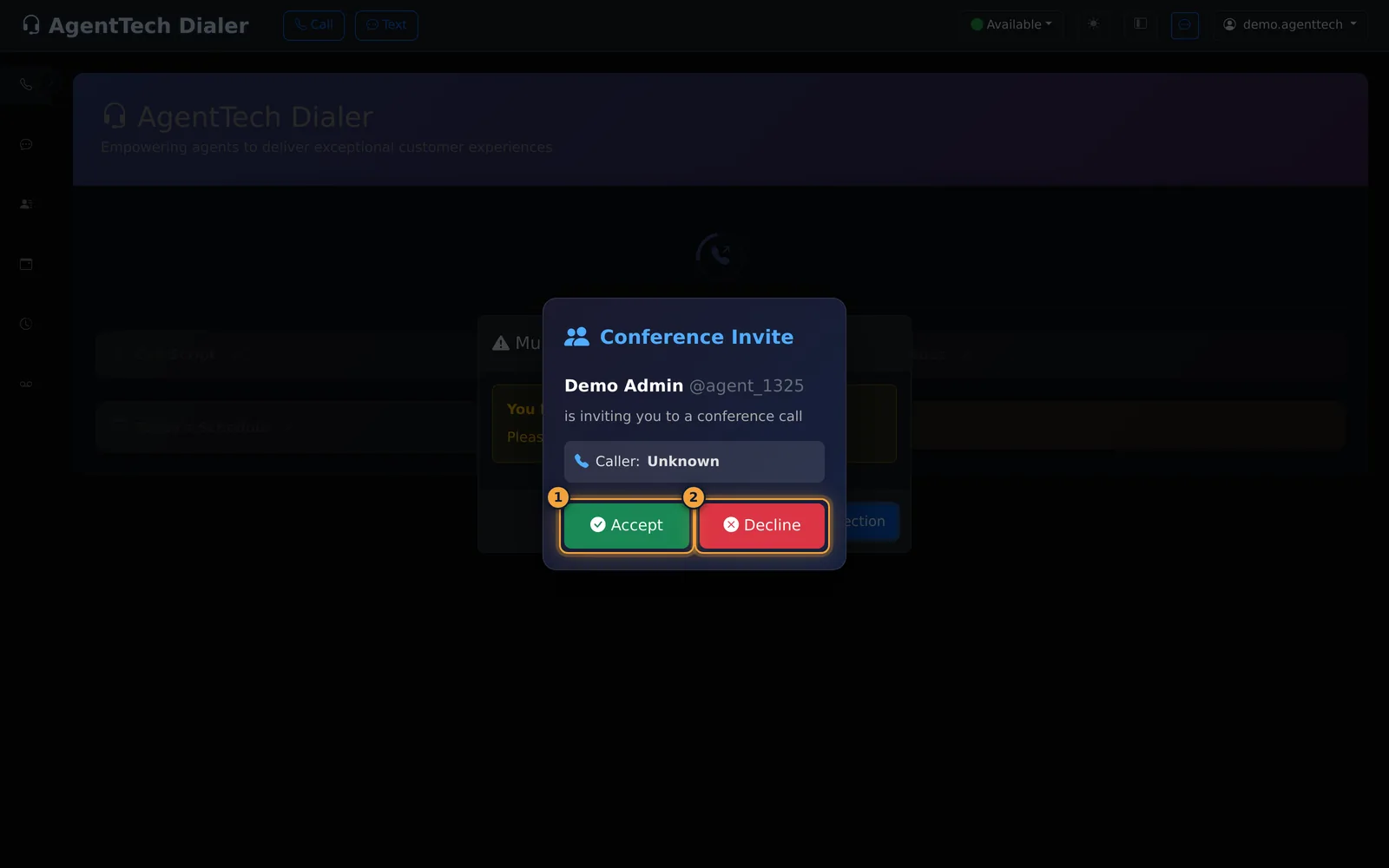
With auto-answer on, a queue call connects on its own. A call from a colleague arrives as a Conference Invite: select Accept.
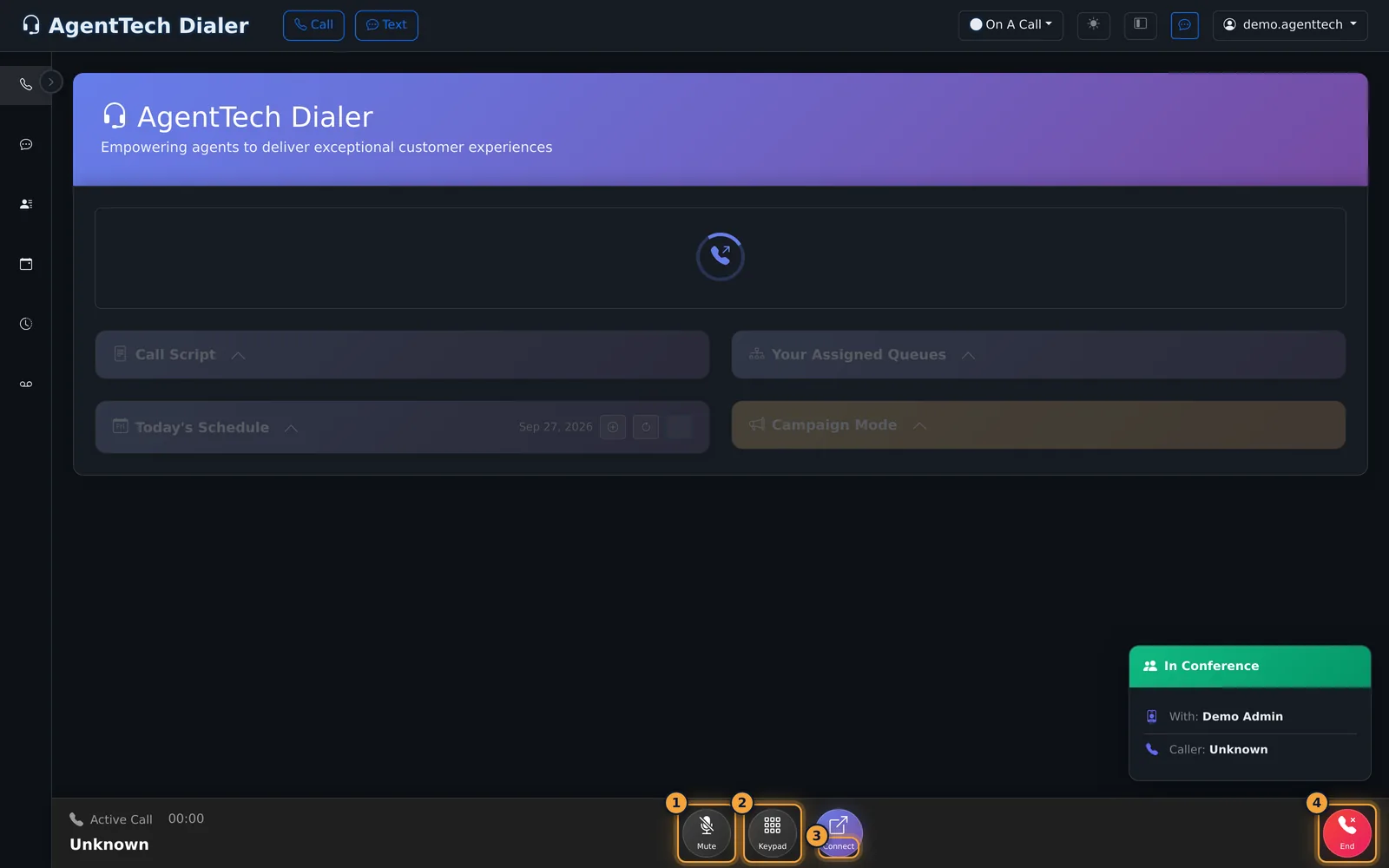
The call bar has Mute, Keypad, Connect to transfer or add someone, and End. Your agency's script appears in the Call Script panel.
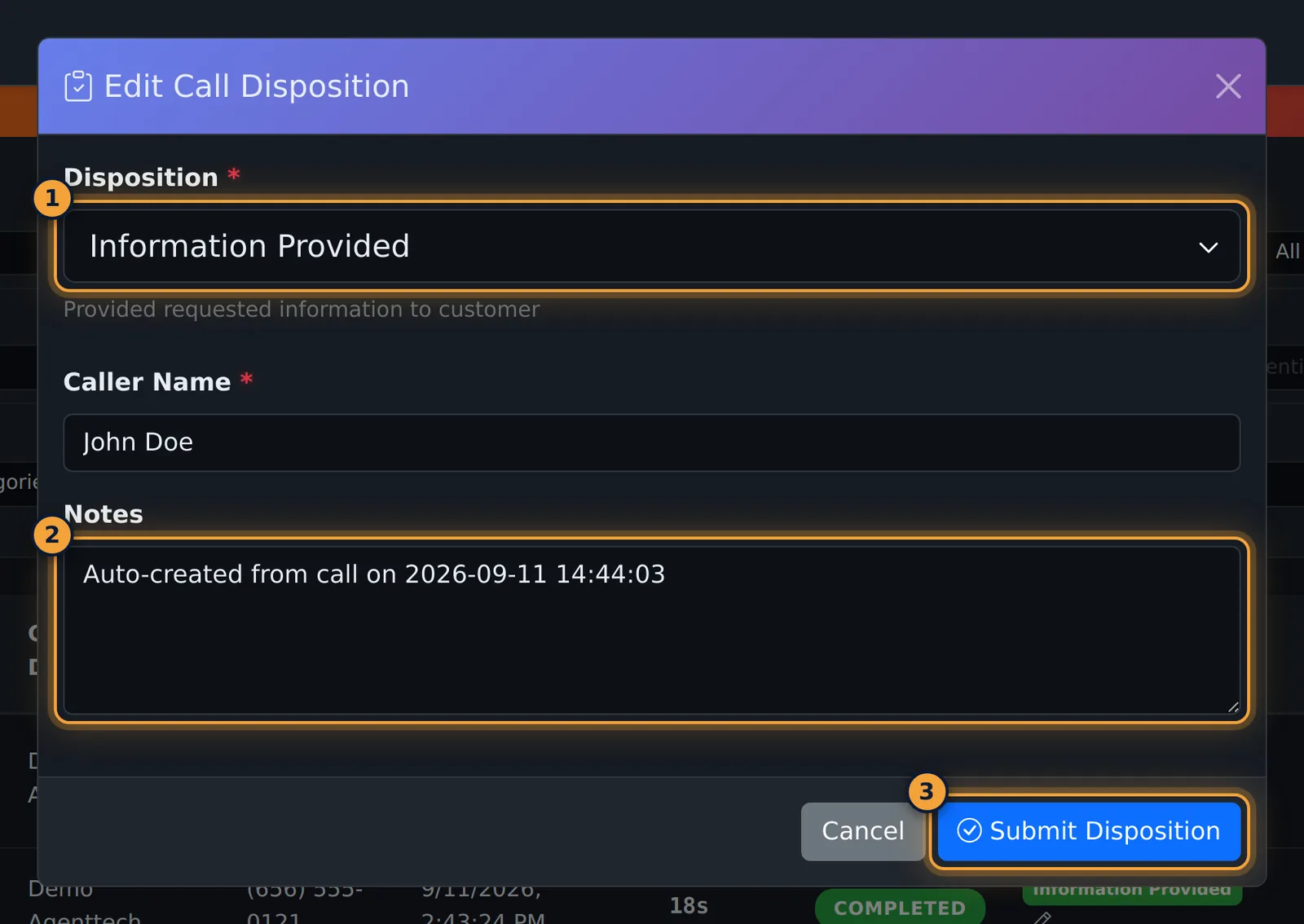
After you hang up, choose a Disposition, fill in any required fields and a note, and submit.
Your status goes back to what it was before the call.
Conversations, Contacts, the Calendar, the Call Log, and Voicemail are in the sidebar, and Team Chat is in the top bar. Open pages in a new tab, so the dialer tab stays open.
That's your first call. Making and Receiving Calls covers the rest.
This guide takes you from your first sign-in to your first dispositioned call. It is for agents; your agency admin has already created your login and added you to queues.
1. Sign in
Open the dialer in Google Chrome or Microsoft Edge and sign in with the Username and Password your admin gave you. See Creating Your Account & First Login if you cannot sign in.
2. Check your settings
Open Settings from the user menu (your name, top right).
- On Audio Settings, select Start Recording, say a few words, select Stop Recording, then Play Recording to check your microphone and speakers. Allow microphone access when the browser asks.
- On Call Settings, see how calls are answered. Auto Answer, its delay and Call Recording are often locked by your agency and show "Required by your agency policy".
- On General Preferences, pick your Language and Timezone and select Save General Settings.
- When the dialer offers desktop notifications, select Enable so incoming calls alert you even when the tab is in the background. See Notifications & Alerts.
3. Go Available
Open the status menu in the top bar and choose Available. Until you do, only calls to your own direct number reach you.
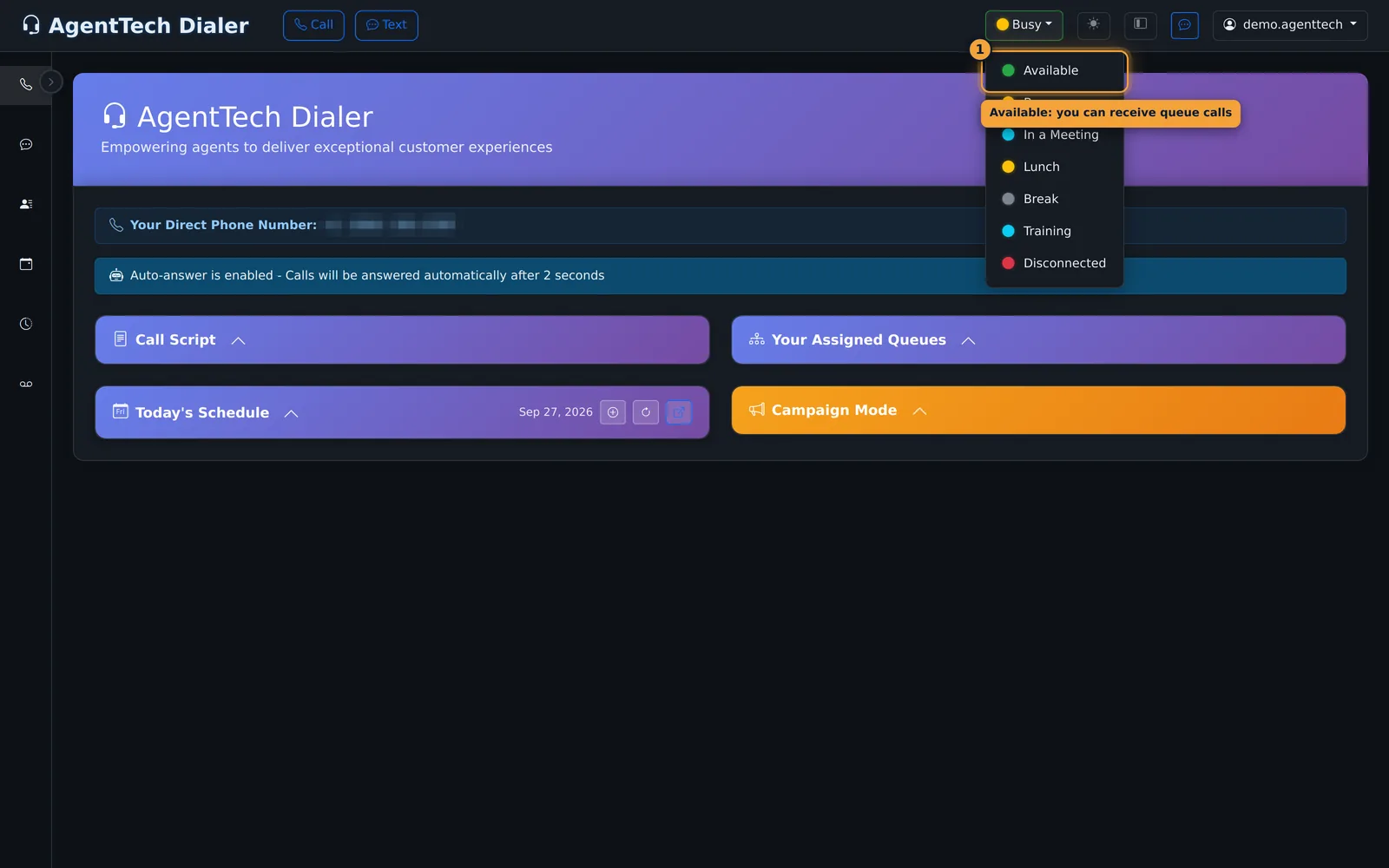
The dialer home now shows your direct number, the auto-answer banner and Your Assigned Queues.
4. Take a call
With auto-answer on, a queue call connects on its own after the delay. When a colleague transfers a call or asks you into a conference, a Conference Invite appears: select Accept.
5. Work the call
The call bar at the bottom has Mute, Keypad, Connect (transfer or add someone) and End. Your agency's call script appears in the Call Script panel.
6. Record the outcome
After you hang up, choose a Disposition, fill any required fields and notes, and submit. Your status returns to what it was before the call. Fix a mistake later from the Call Log.
Your other tools
| Page | Use it to |
|---|---|
| Conversations | Read and send SMS. |
| Contacts | Keep caller details, notes and tags. |
| Calendar | Book appointments and follow-ups. |
| Call Log | Review calls, recordings and dispositions. |
| Voicemail | Listen to messages and record your greeting. |
| Team Chat | Message colleagues from the chat button in the top bar. |
Common problems
- Multiple Dialer Tabs Detected: close other dialer tabs and select Retry Connection.
- Available is greyed out: the live connection is still starting; wait a moment.
- The dial pad will not open: change your status from Disconnected, or finish your disposition.
- Status went back to Disconnected or no calls arrive: see Why Am I Not Getting Calls?.
- Microphone or sound problems: see Softphone & Microphone Problems.
Related articles
Was this article helpful?
Can't find what you are looking for? Our support team can help.
Submit a support ticket