Transcript
An automation does something for you when an event happens, like texting a caller when their appointment is set. Here is how to build one.
Open Agency Management, then Automations, and select Create Automation. Give it a name and a short description.
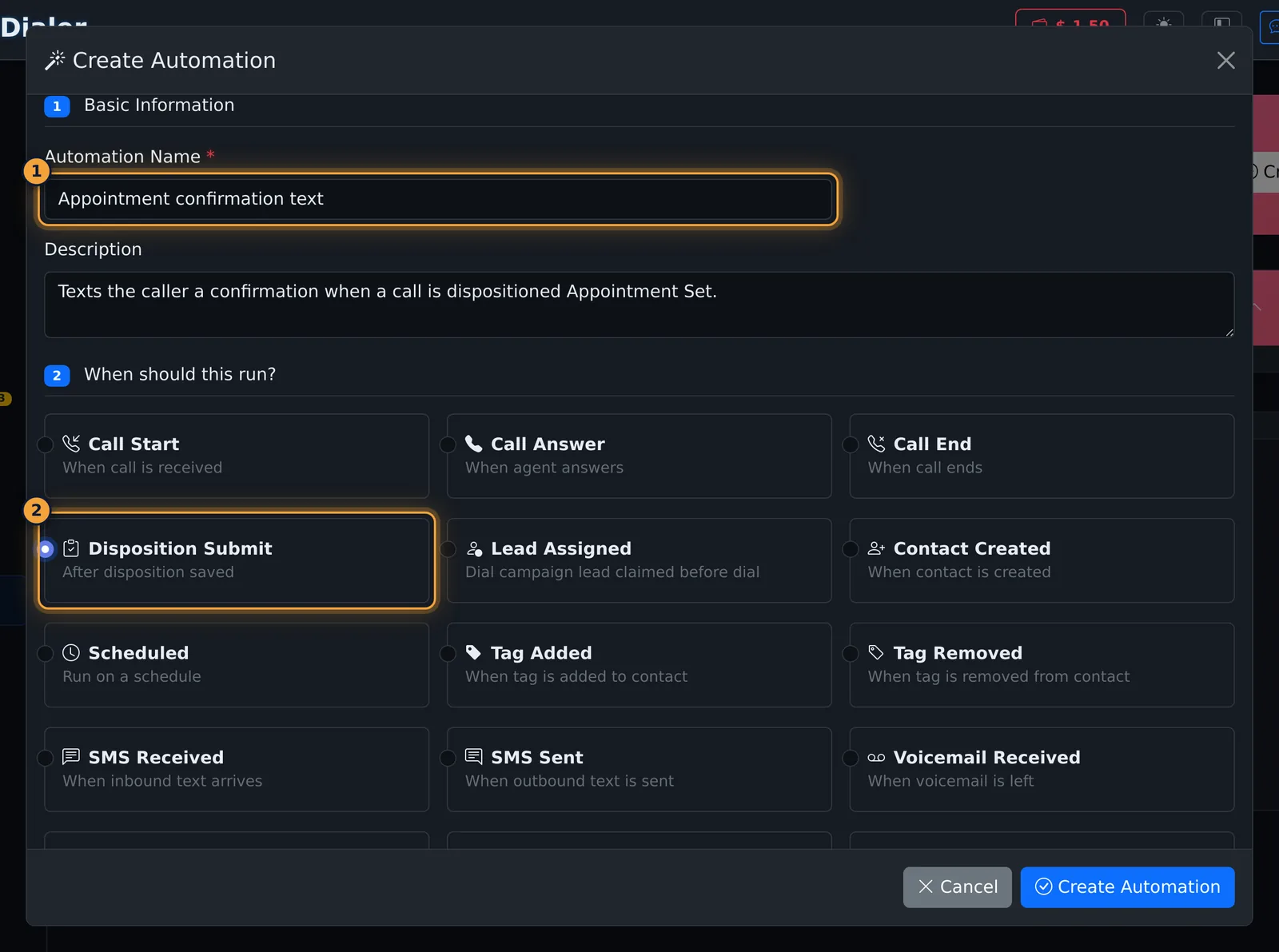
Under When should this run, pick one trigger. Disposition Submit runs after an agent saves a disposition. Scheduled runs on a timer instead.
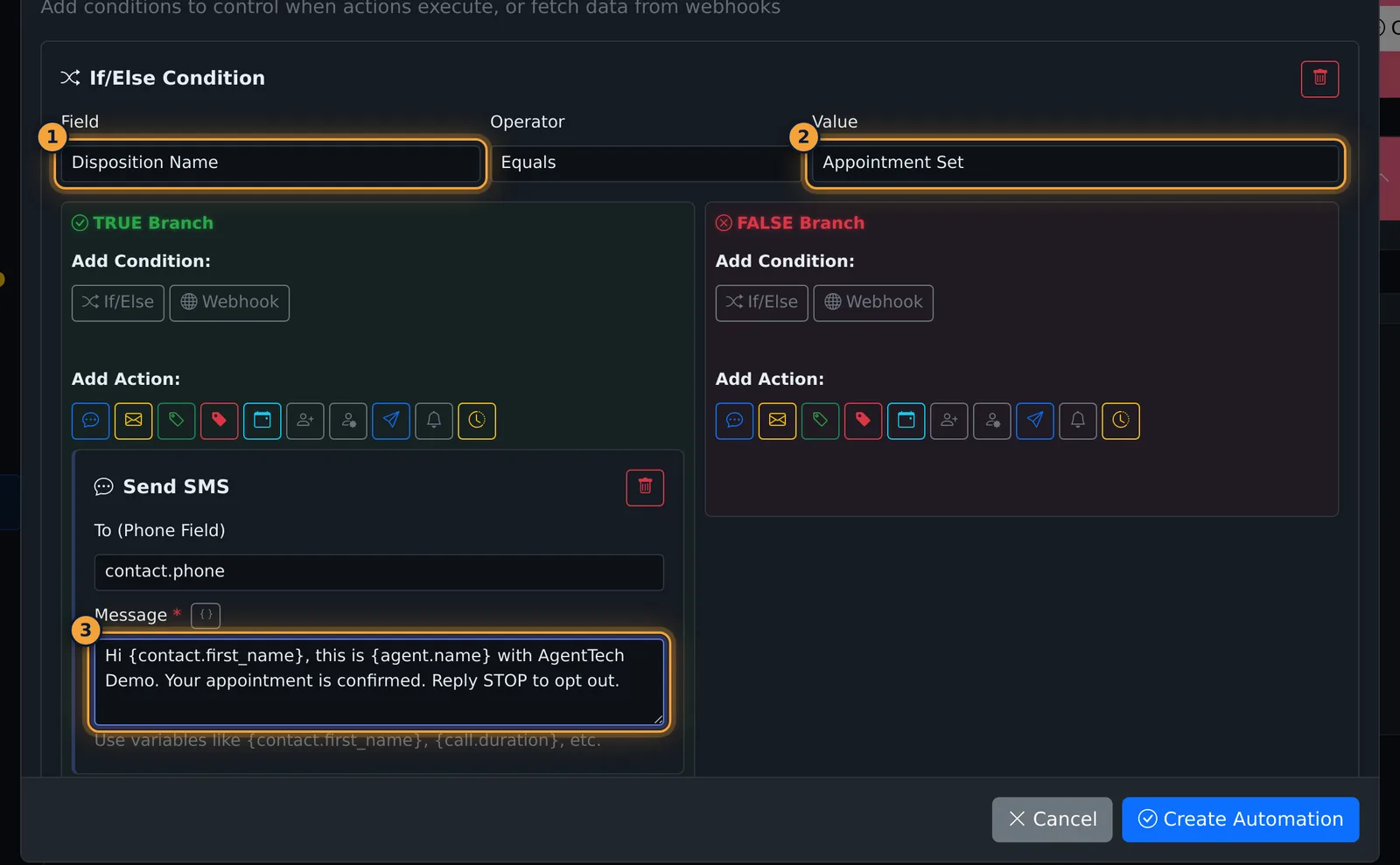
Conditions decide which events lead to which actions. Select Add If/Else Condition, and check whether the Disposition Name equals Appointment Set.
Under the TRUE Branch, add a Send SMS action, and write the message. The braces button inserts variables, such as the contact's first name.
Actions in section four run every time the trigger fires, whatever the conditions say. Keeping the text in the TRUE branch means only Appointment Set sends it.
The Workflow Preview draws the trigger, the condition and each branch, so you can check the logic. Then select Create Automation to save.
Each card shows the trigger, the number of conditions and actions, and how many times it has run. Its switch turns the automation on or off.
Next, see how dispositions give your automations the outcomes to act on.
An automation does something for you when an event happens: send a text, tag a contact, book a follow-up, notify the agent, or call another system. For example: when an agent saves the disposition Appointment Set, text the caller a confirmation.
This article is for agency admins. Open Agency Management > Automations.
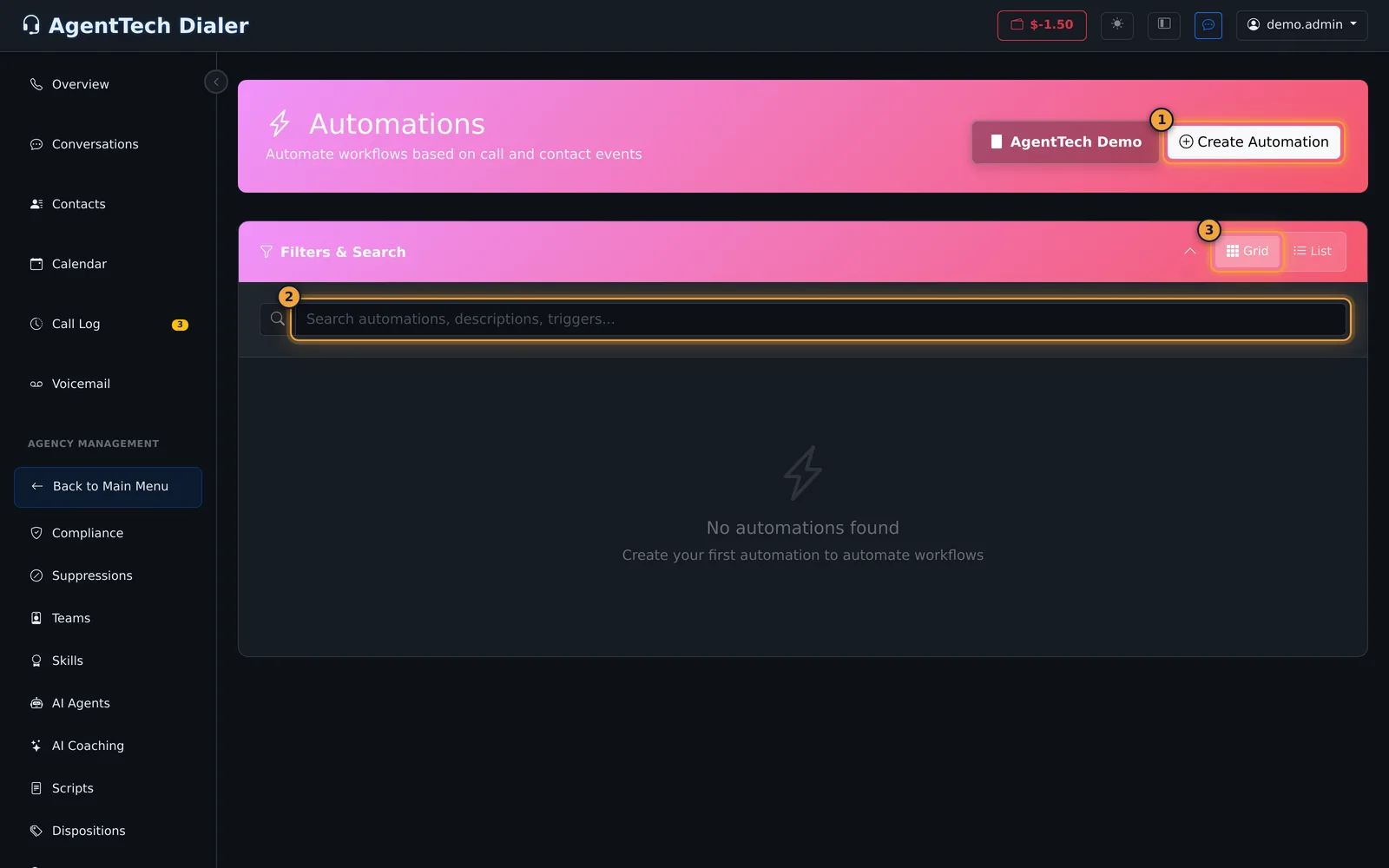
Build an automation
Select Create Automation. The builder is one scrolling form with five numbered sections.
1. Basic Information
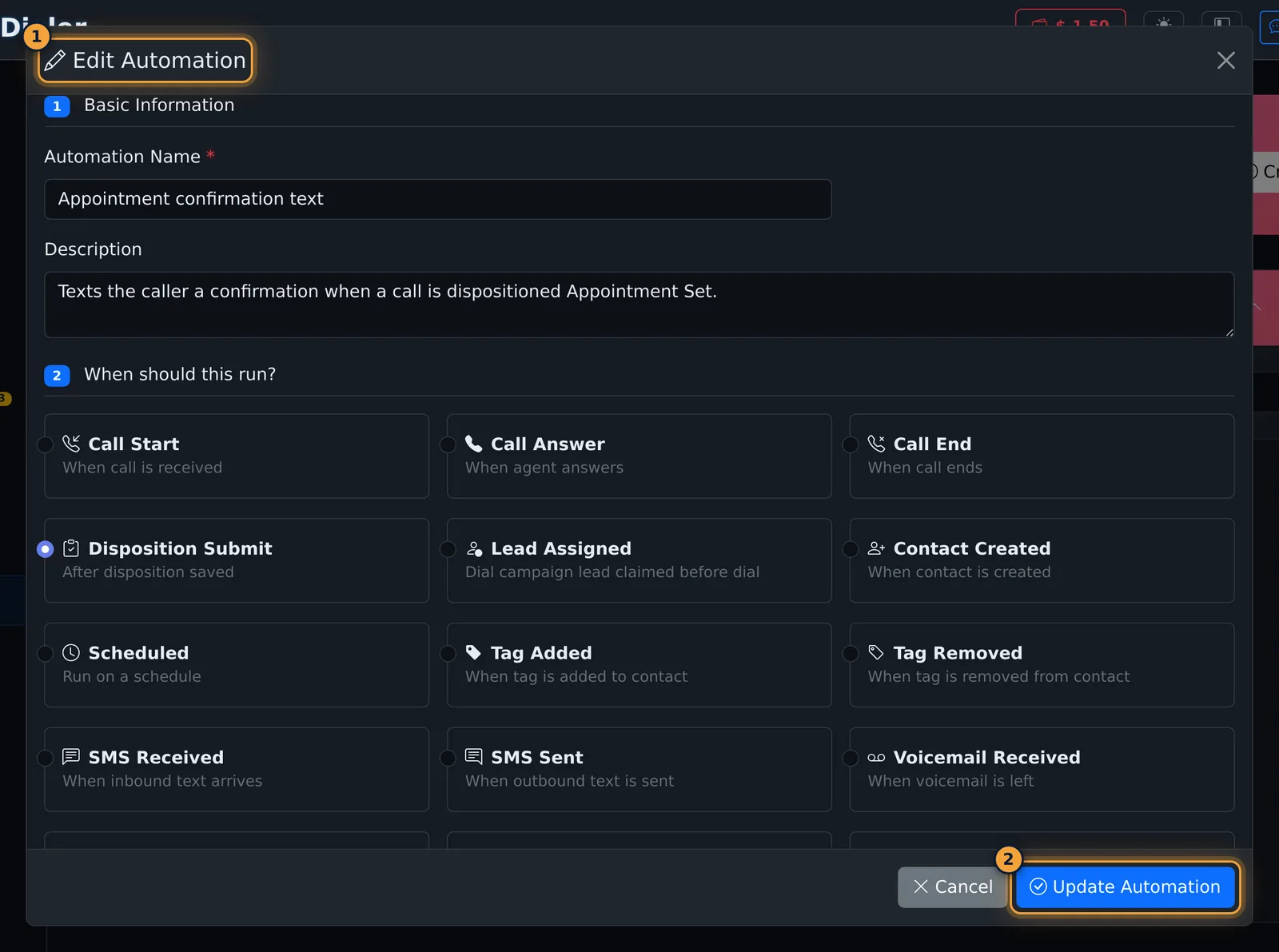
Enter an Automation Name (required) and an optional Description.
2. When should this run?
Pick one trigger.
| Trigger | Runs when |
|---|---|
| Call Start / Call Answer / Call End | A call is received, answered by an agent, or ends |
| Call Missed / Call Transferred | A call is unanswered, or transferred |
| Disposition Submit | An agent saves a disposition |
| Lead Assigned | A dial-campaign lead is claimed before it is dialed |
| Contact Created / Contact Updated | A contact is added, or its details change |
| Tag Added / Tag Removed | A tag is added to or removed from a contact. Optionally pick one tag; leave it empty for any tag. |
| SMS Received / SMS Sent | A text arrives, or is sent |
| Voicemail Received | A caller leaves a voicemail |
| Scheduled | On a timer (below) |
| AI Agent Triggers | AI Call Start, AI Call End, AI Transfer, AI Hangup, AI Data Collected, AI Intent Detected, AI Silence Timeout, AI All Data Collected, AI Workflow Completed |
Scheduled asks for a Frequency (Every Minute, Hourly, Daily, Weekly or Monthly), a Time, and the day of the week or day of the month where needed.

3. Conditions (optional)
Conditions decide which events lead to which actions.
- Select Add If/Else Condition.
- Choose the Field to test (call, disposition, contact, SMS or agent details), an Operator (Equals, Not Equals, Contains, Does Not Contain, Starts With, Ends With, Is Empty, Is Not Empty, Greater Than, Less Than, Greater or Equal, Less or Equal) and a Value. For Disposition Name the value is picked from your dispositions.
- Add what should happen under the TRUE Branch and, if needed, the FALSE Branch, with Add Action. A branch can hold further conditions.
Add Webhook fetches data from another system (URL, method, authentication, headers and body) so later steps can use it.
4. Actions
Actions added here run every time the trigger fires, whatever the conditions say. At least one action is required.

| Action | What you fill in |
|---|---|
| Send SMS | To (defaults to the contact's phone) and the Message |
| Send Email | To (defaults to the contact's email), Subject and Body |
| Add Tag / Remove Tag | An existing tag, or a new tag name |
| Book Appointment | Title, how many days ahead (default 1) and the time (default 10:00) |
| Add Contact / Modify Contact | Name, phone, email, company or notes; blank fields are skipped |
| HTTP Request | URL, method and body |
| Notify Agent | The message and its type (Info, Warning or Success); it goes to the agent handling the event |
| Wait/Delay | 1-999 seconds, minutes, hours or days; delays over 60 seconds run in the background |
Messages can include variables, picked with the { } button: for example {contact.first_name}, {call.duration}, {disposition.name}, {agent.name}, {system.date} or {agency.name}.
5. Workflow Preview
The preview draws the trigger, each condition and what runs on each branch as you build, so you can check the logic before saving.
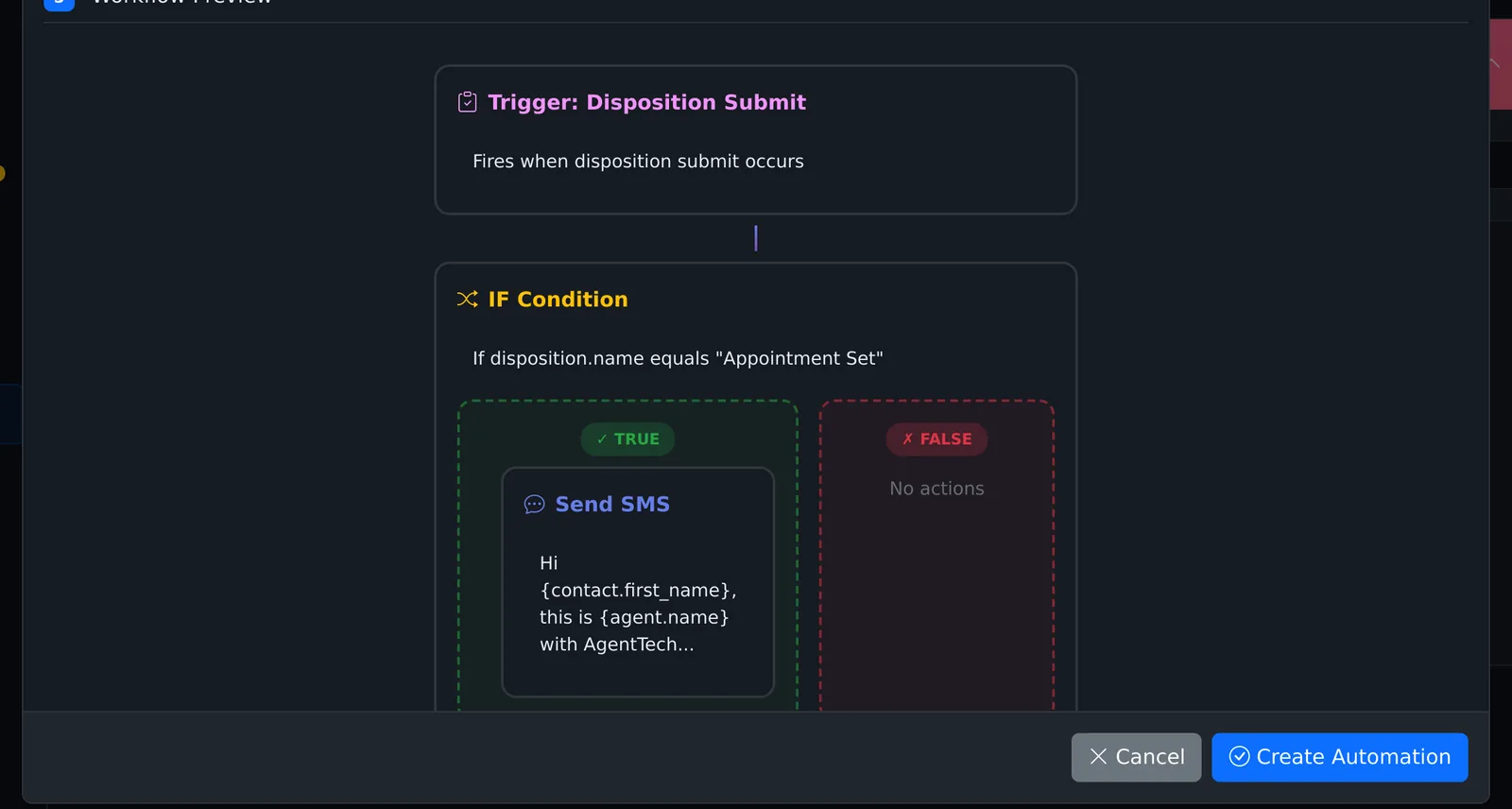
Select Create Automation to save. The form asks for a name, a trigger and at least one action before it saves.
After saving
Each card shows the trigger, how many conditions ("operators") and actions it has, whether it is active, and how many times it has run.
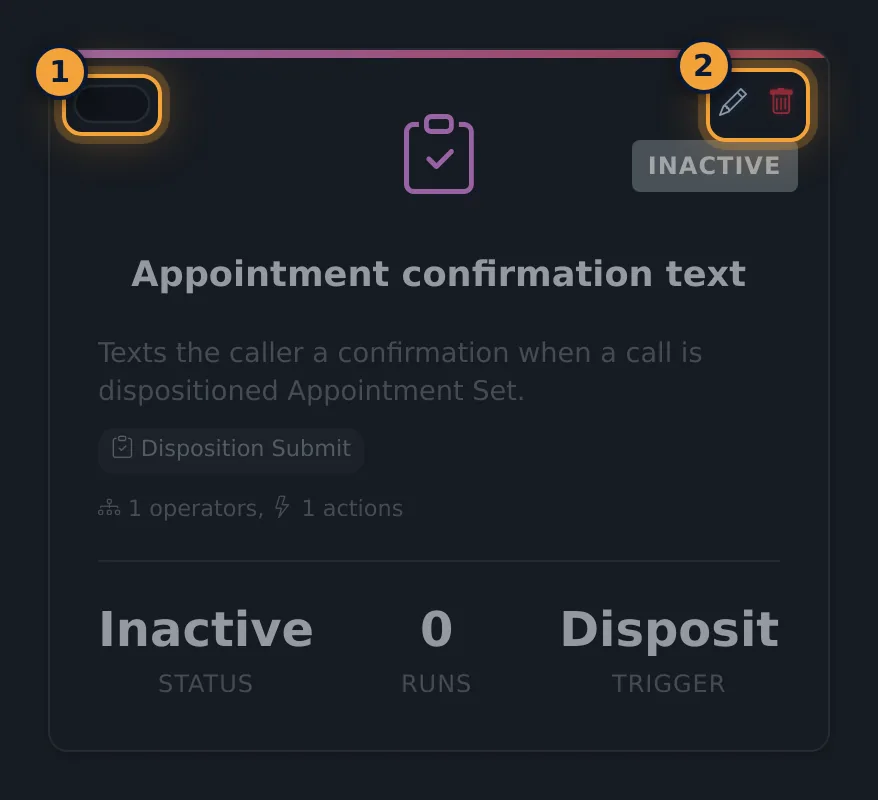
- Switch: turns the automation on or off at once.
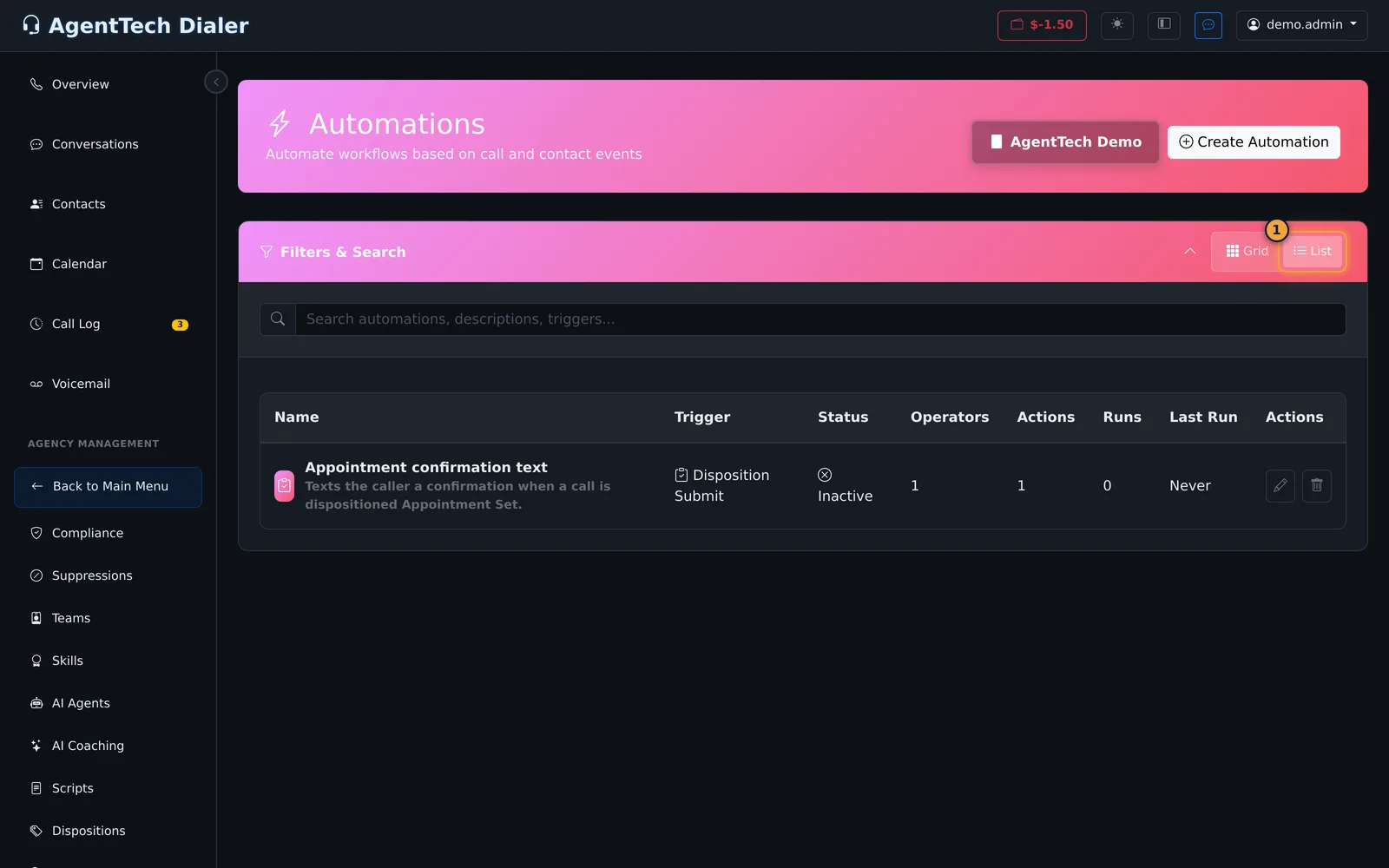
- List: shows the same automations as a table with runs and last run.
- Edit: the pencil reopens the builder as Edit Automation; save with Update Automation.
- Delete: the bin asks for confirmation and also deletes the automation's logs.
Common problems
- "Please add at least one action" or "Please select a trigger": add the missing part, then save again.
- An action runs on every trigger instead of only when the condition matches: it is under section 4 instead of inside a TRUE or FALSE branch. Move it into the branch; the Workflow Preview shows where each action sits.
- You want to pause an automation: switch it off on its card; switch it on again when you're ready.
Related articles
Was this article helpful?
Can't find what you are looking for? Our support team can help.
Submit a support ticket