Your Profile holds your name and contact details; Settings holds your preferences, call settings, password and audio test. Both open from the user menu (your username, top right). This article is for everyone.
Your profile
Profile shows your Personal Information: full name, username, email address, phone number, role, agency and current status.
To change your details, use Edit Profile on the right:
- Change your First Name, Last Name, Email Address or Phone Number.
- Select Update Profile.
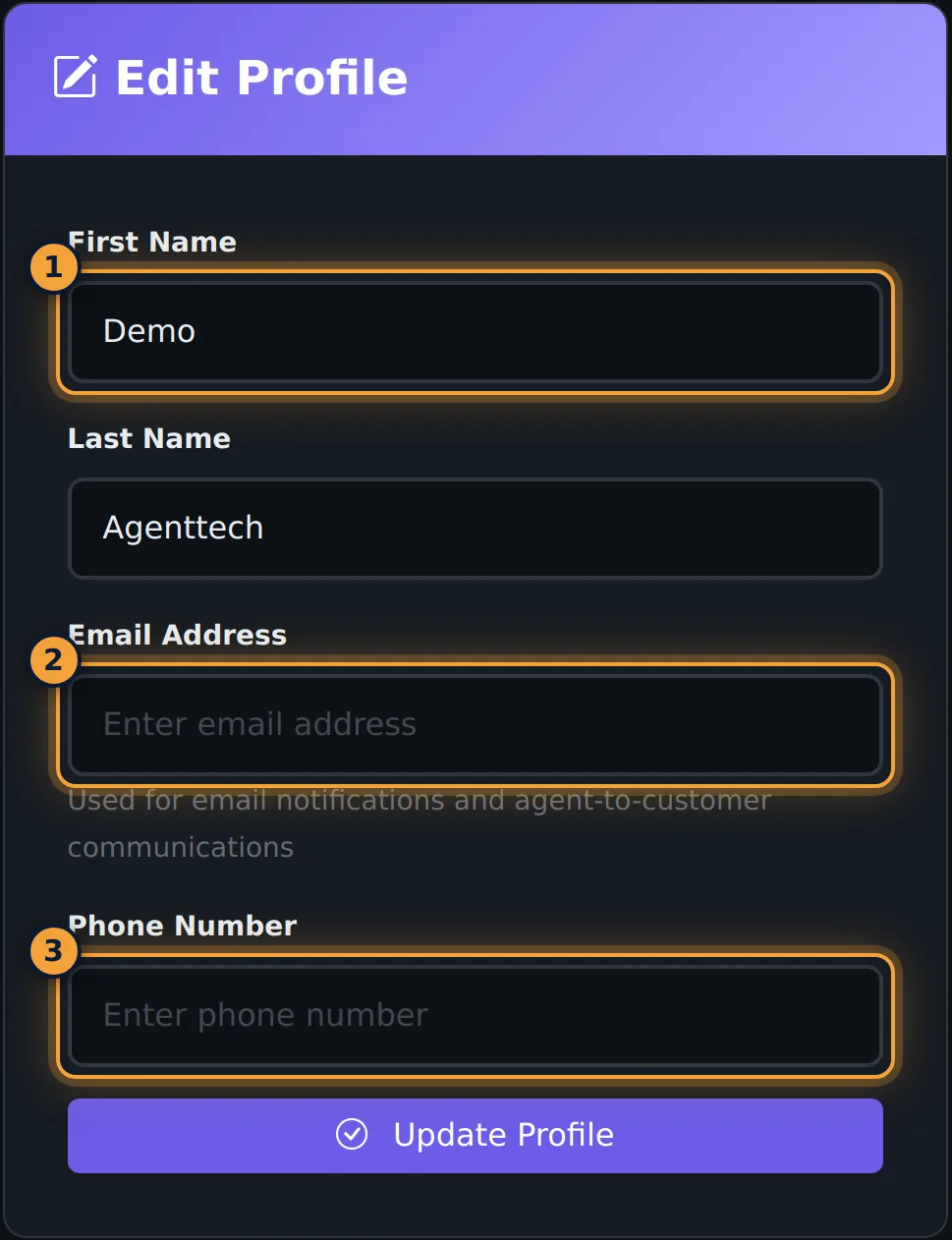
Your email address matters: it is used for notifications (for example voicemail emails) and as the sender for emails to customers. Your role and agency are set by your admin; see Understanding Roles and Permissions.
Settings
Settings has four tabs. Each tab has its own save button, and Save All Settings at the bottom saves every tab at once.
General Preferences
| Setting | What it does |
|---|---|
| Dark Mode | Switches to the dark theme. The sun/moon button in the top bar toggles it too. |
| Compact View | Groups sidebar items into collapsible categories. |
| Show Sidebar by Default | Keeps the navigation sidebar open when pages load. |
| Language | English, Español, Français or Deutsch. |
| Timezone | Eastern, Central, Mountain, Pacific or UTC; used for the times you see. |
Select Save General Settings.
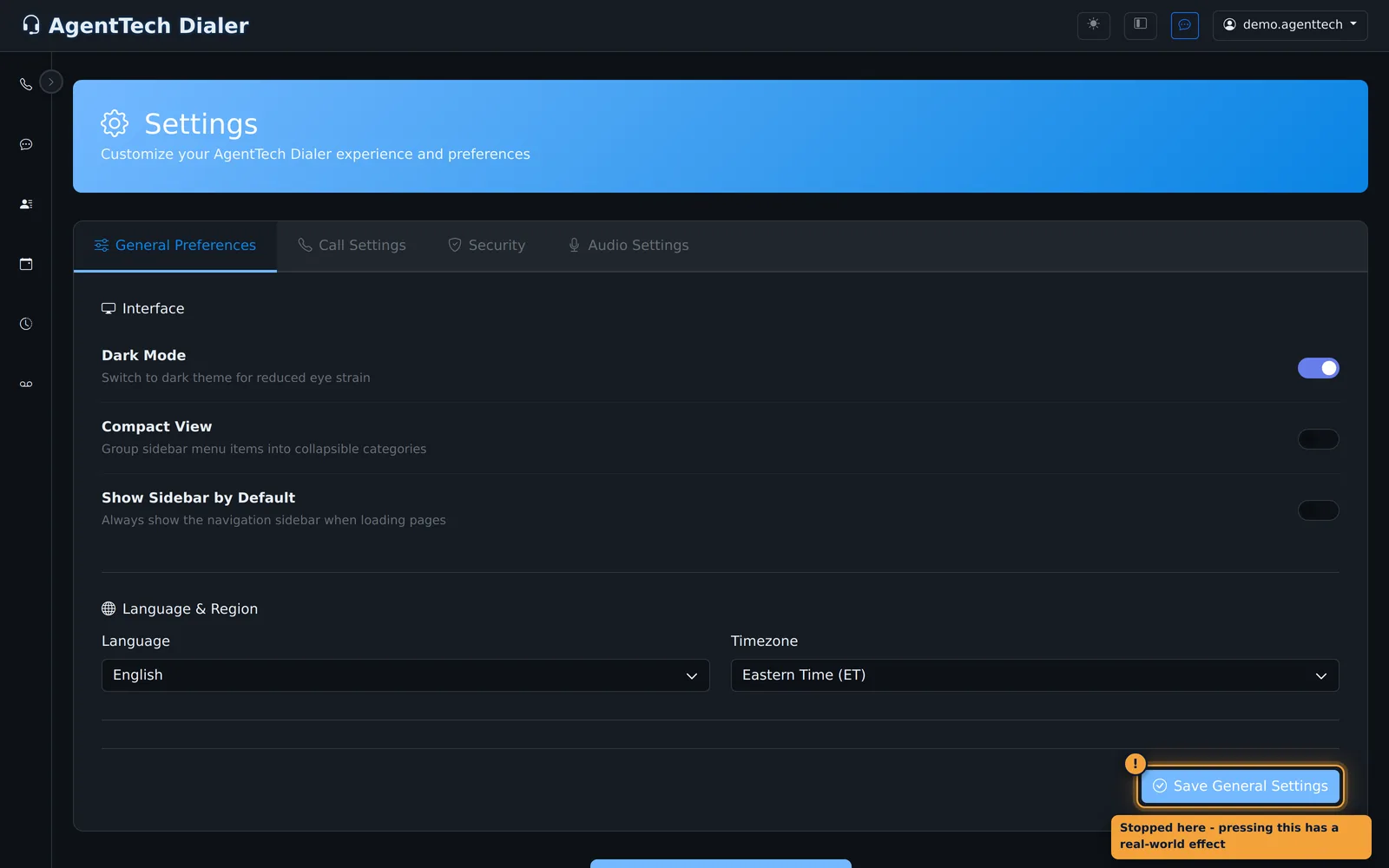
Supervisors and admins also have Agent View Mode here; see Taking Calls as a Supervisor.
Call Settings
| Setting | What it does |
|---|---|
| Auto Answer | Connects queue calls for you, without a click. |
| Auto Answer Delay | Seconds before an auto-answered call connects. The ring alert still plays when the call is offered. |
| Call Recording | Whether your calls are recorded. |
Your agency decides whether you can change each one. A setting your agency controls is locked and shows "Required by your agency policy" or "Controlled by agency".
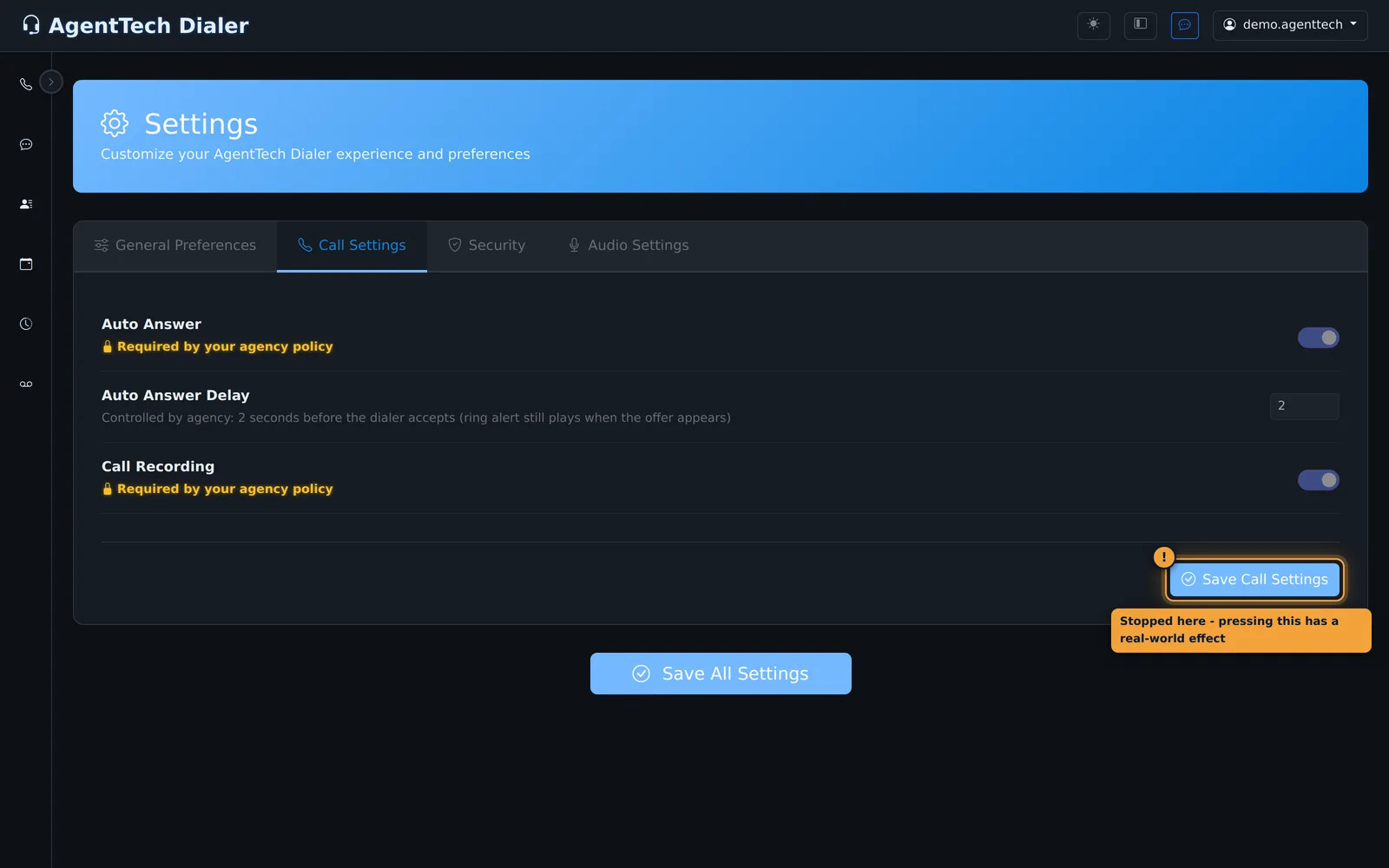
See Making & Receiving Calls and Call Recording.
Security
- Session Timeout sets how long you stay signed in without activity: 30 minutes, 1 hour (default), 4 hours or 8 hours. Select Save Security Settings.
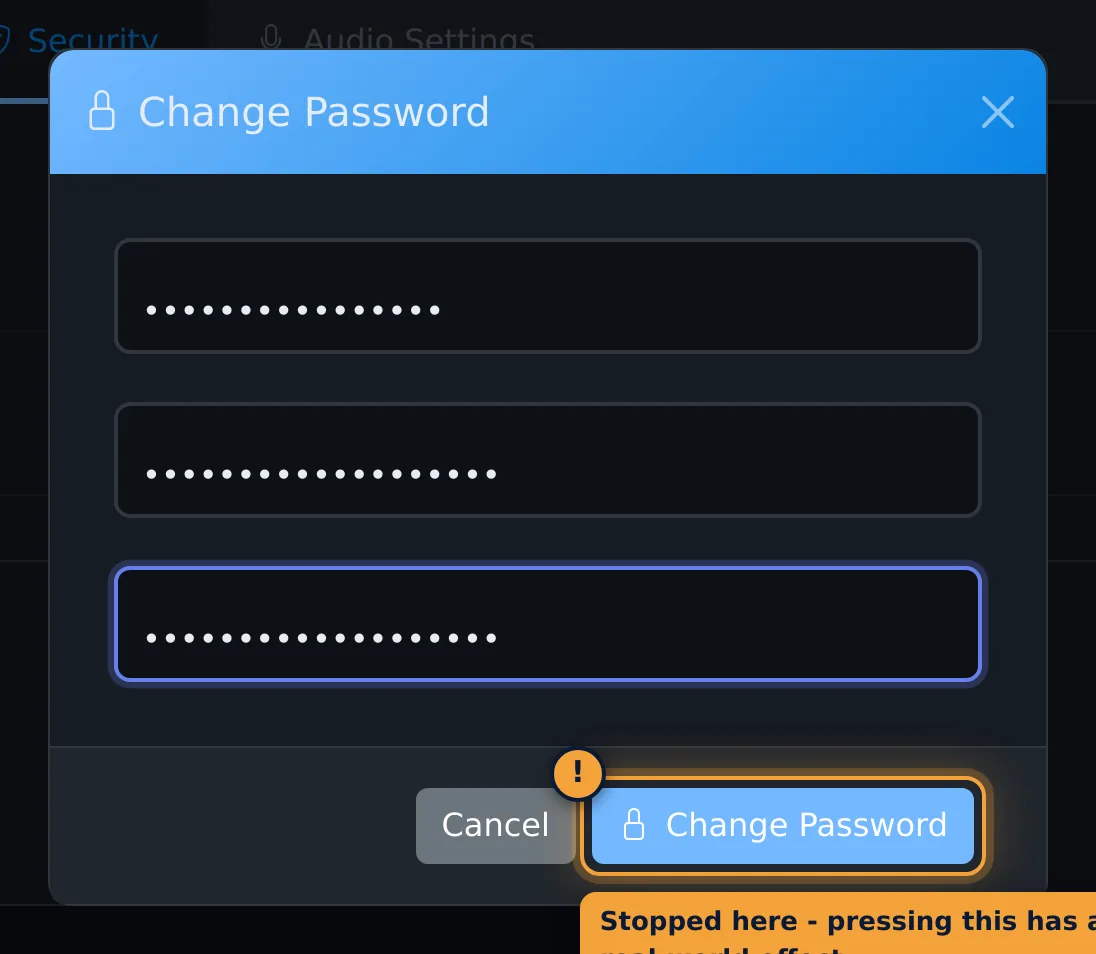
- Change Password asks for your Current Password, a New Password and Confirm New Password.
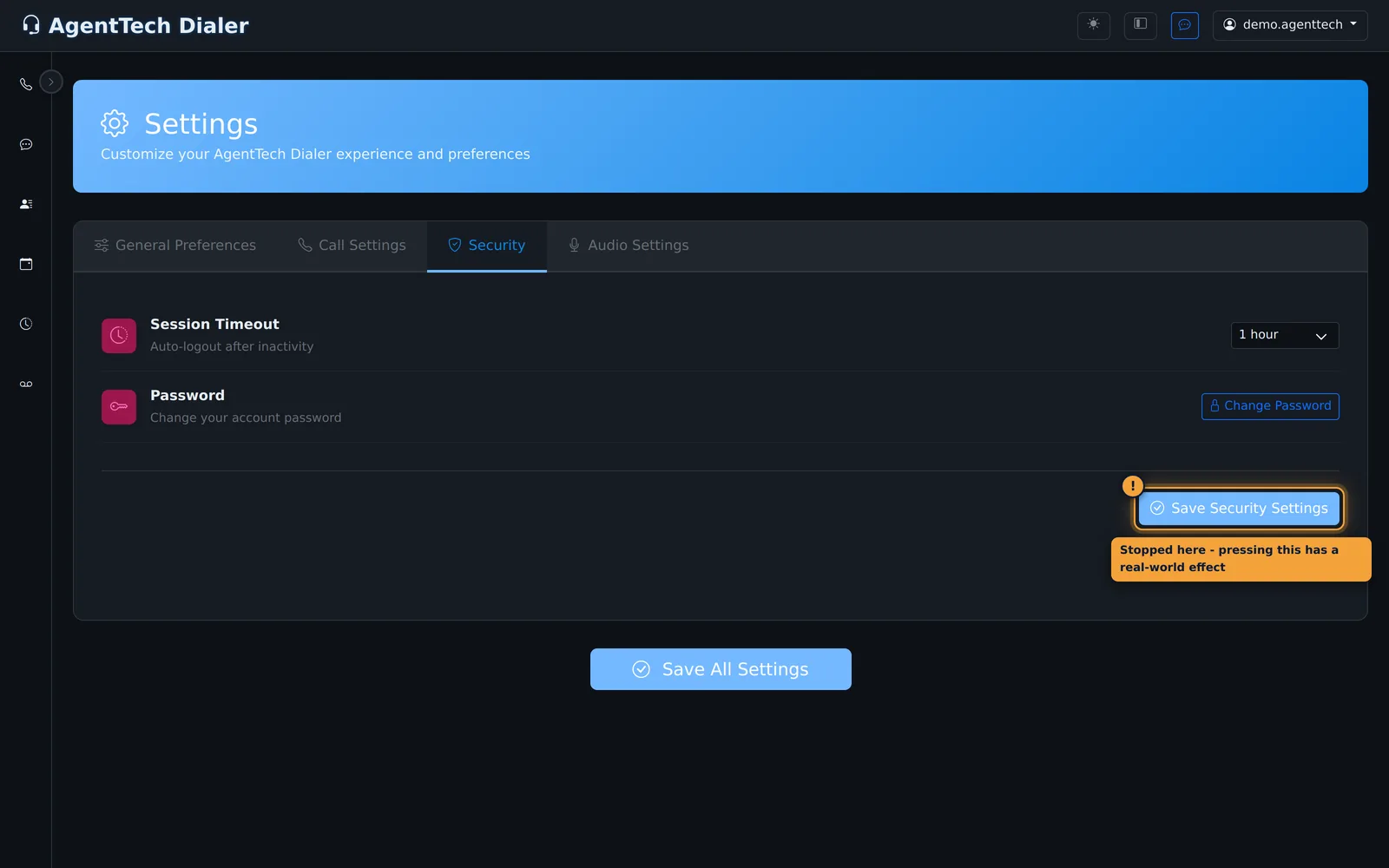
Forgot your password? Your admin can reset it; see Creating Your Account & First Login.
Audio Settings
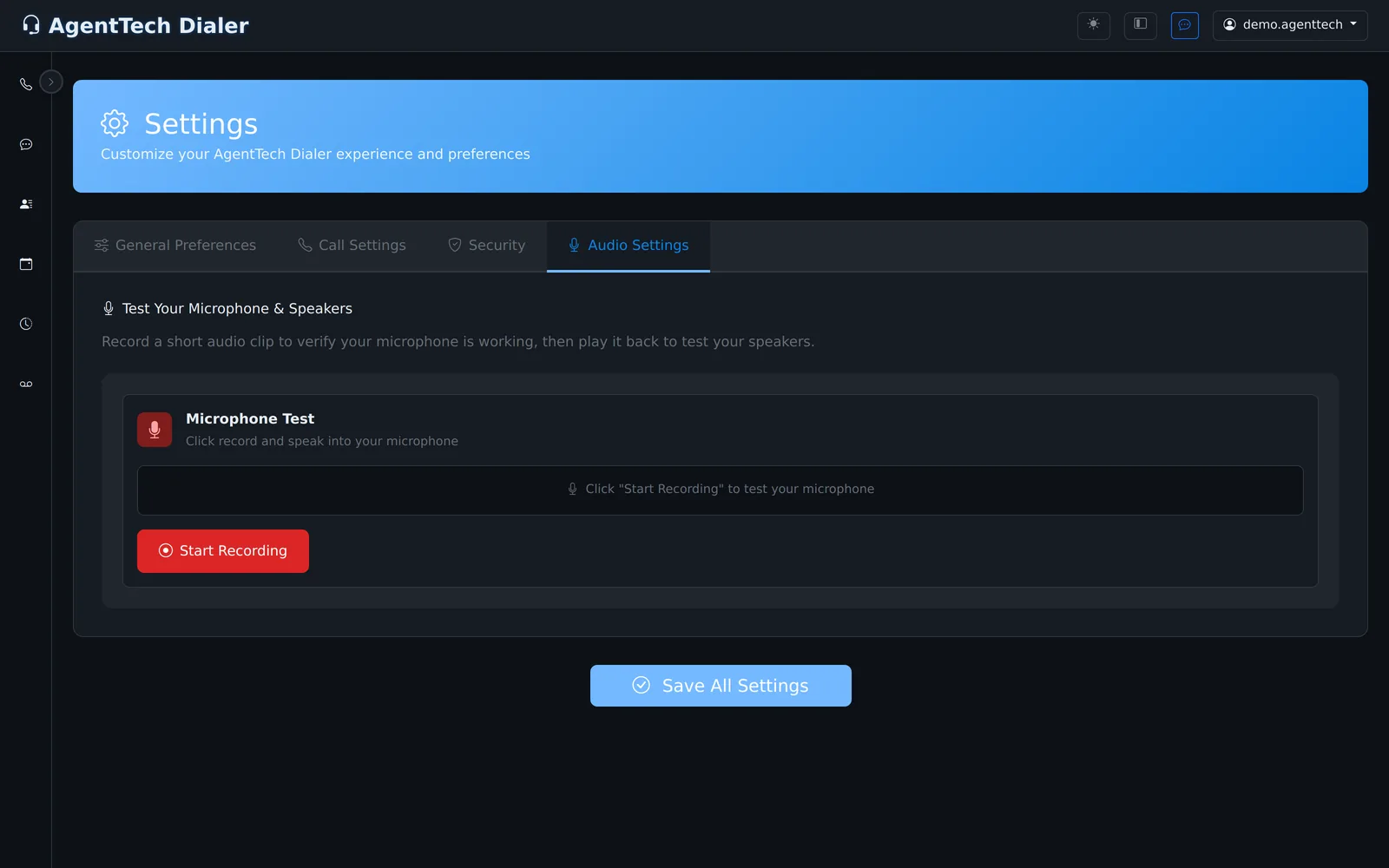
Test your microphone and speakers: select Start Recording, say a few words, select Stop Recording, then Play Recording. Discard removes the clip.
If the test cannot reach your microphone, see Softphone & Microphone Problems.
Related articles
Was this article helpful?
Can't find what you are looking for? Our support team can help.
Submit a support ticket