A suppression blocks a phone number: your agency's calls to it and from it are stopped. Use it for people who ask not to be called again, wrong numbers and known problem callers. The acceptance list does the opposite: a number on it is let through even if it is also suppressed.
This article is for agency admins. Open Agency Management > Suppressions.
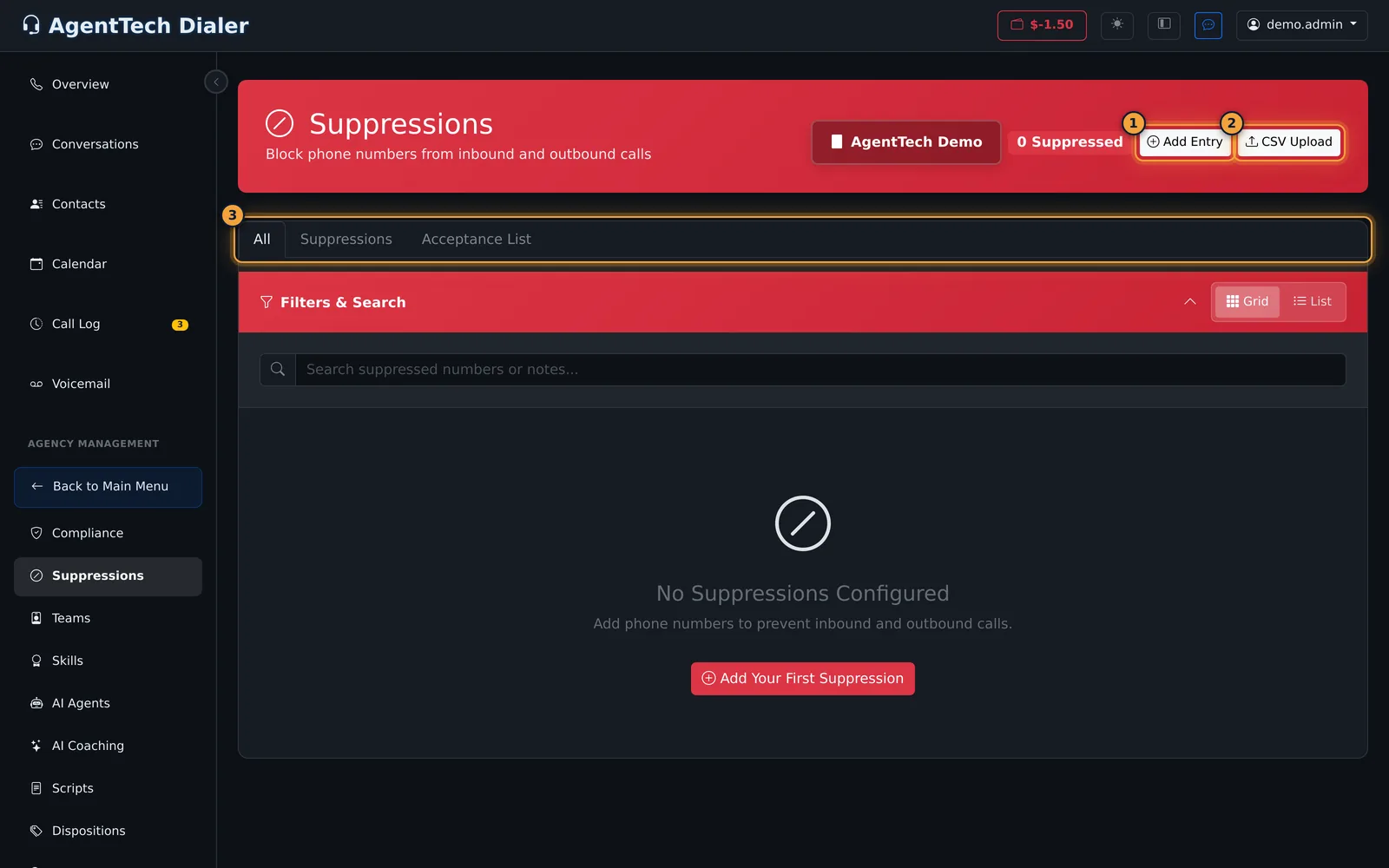
Block a number
- Select Add Entry.
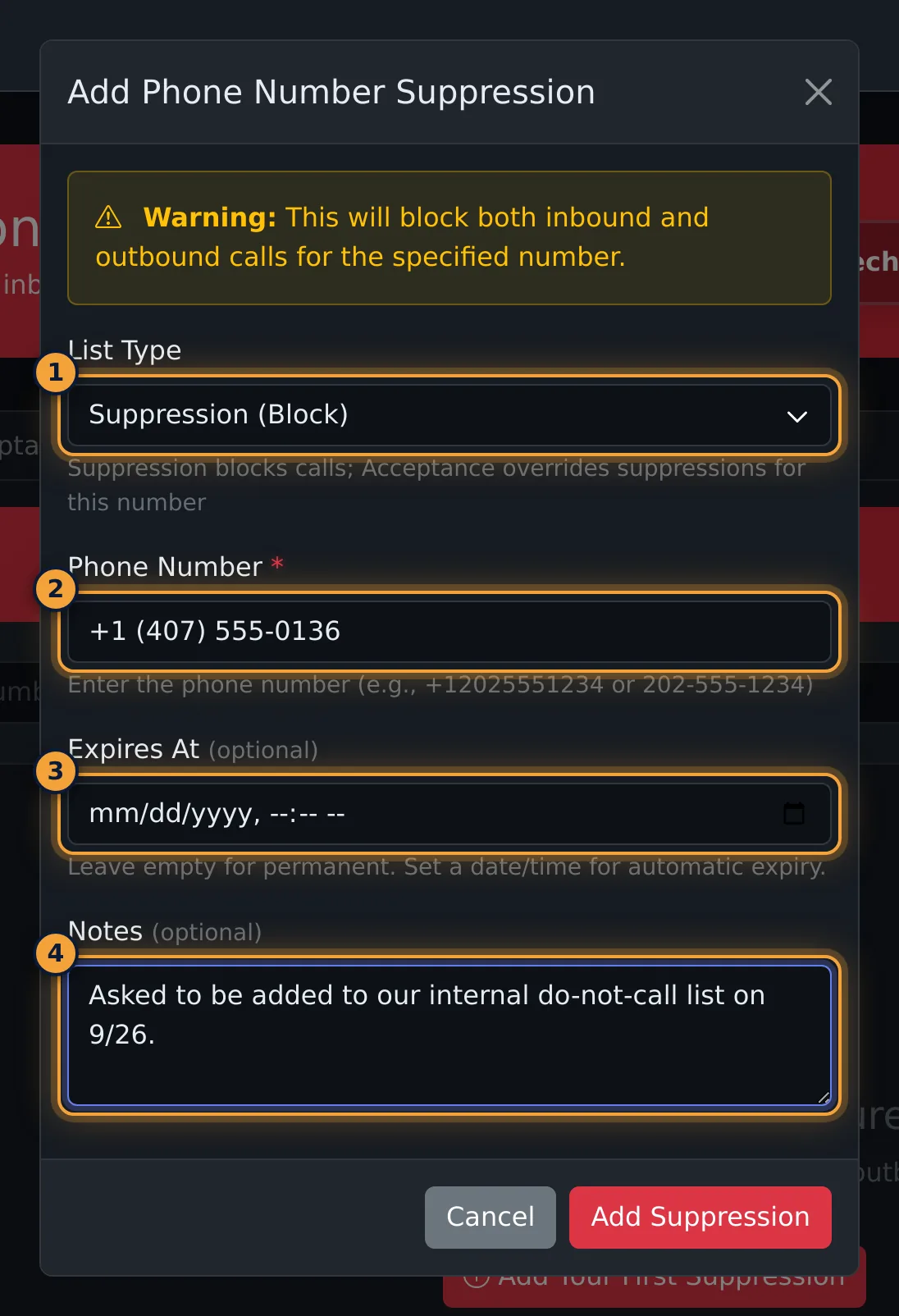
- Leave List Type on Suppression (Block).
- Enter the Phone Number. It is formatted as you type, for example +1 (407) 555-0148.
- Optionally set Expires At. Leave it empty to block the number permanently; with a date and time, the entry lapses automatically then.
- Add Notes that say why, for example "Asked to be added to our internal do-not-call list on 9/26."
- Select Add Suppression.
| Field | What it does |
|---|---|
| List Type | Suppression (Block) stops calls; Acceptance (Whitelist) overrides a suppression for that number. |
| Phone Number | Required. US numbers, entered with or without +1 and dashes. |
| Expires At | Optional date and time when the entry stops applying. Empty means permanent. |
| Notes | Optional reason, shown on the entry and searchable. |
Allow a number through
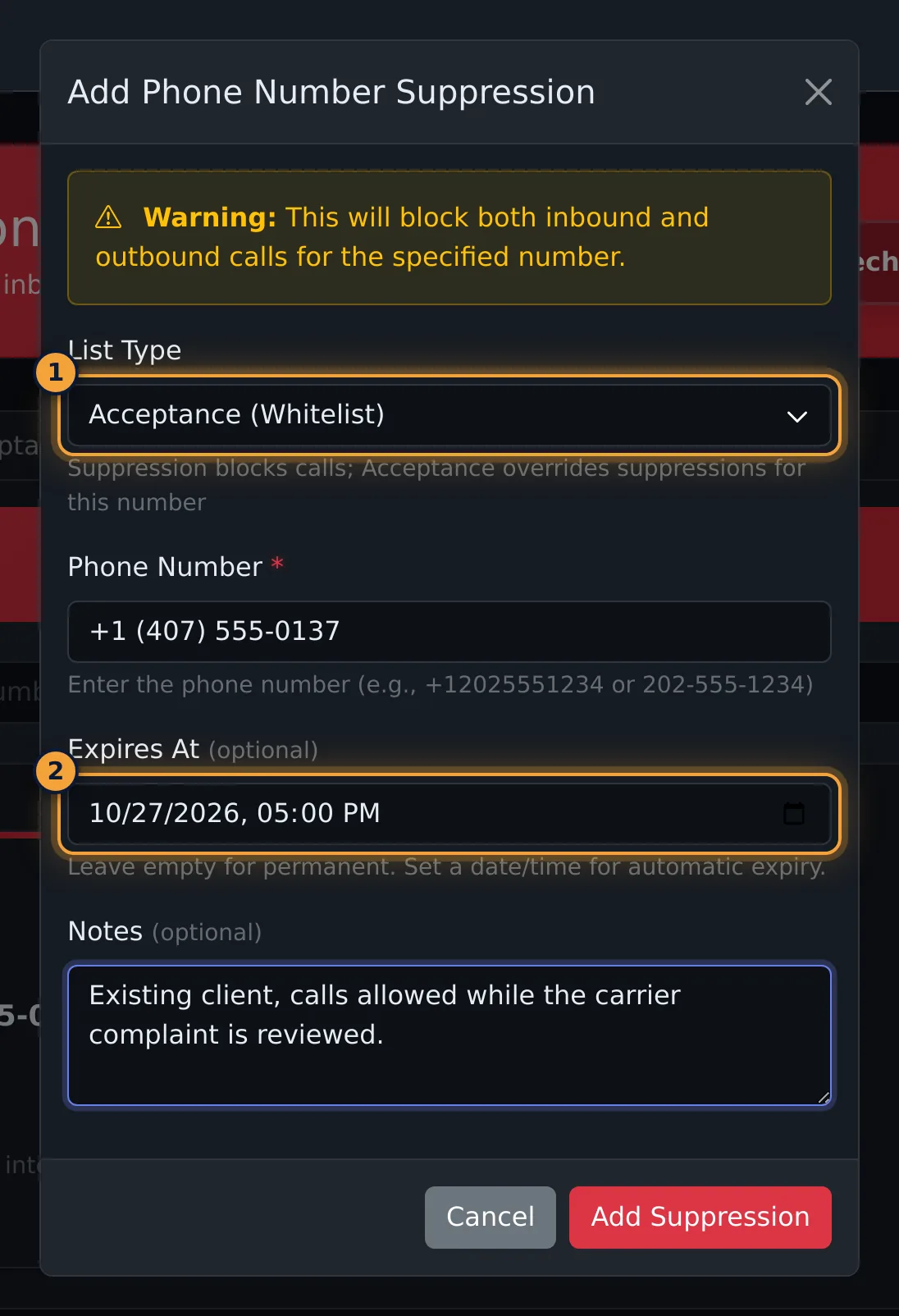
Choose Acceptance (Whitelist) as the List Type and add the number the same way. Use an expiry when the exception is temporary, for example while a complaint is reviewed.
After saving
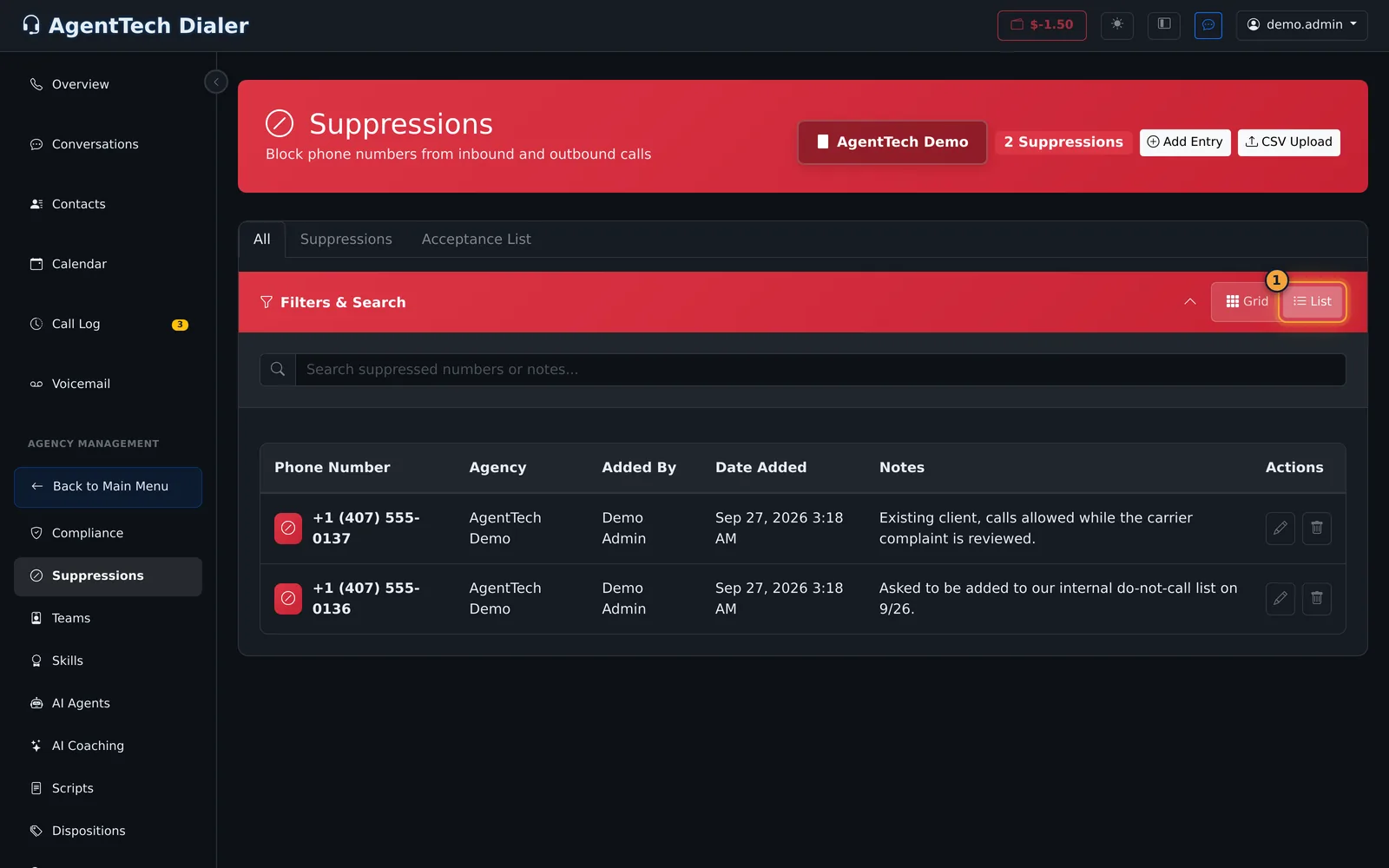
Each entry shows the number, when it was added, who added it and the notes. The header counts the entries.
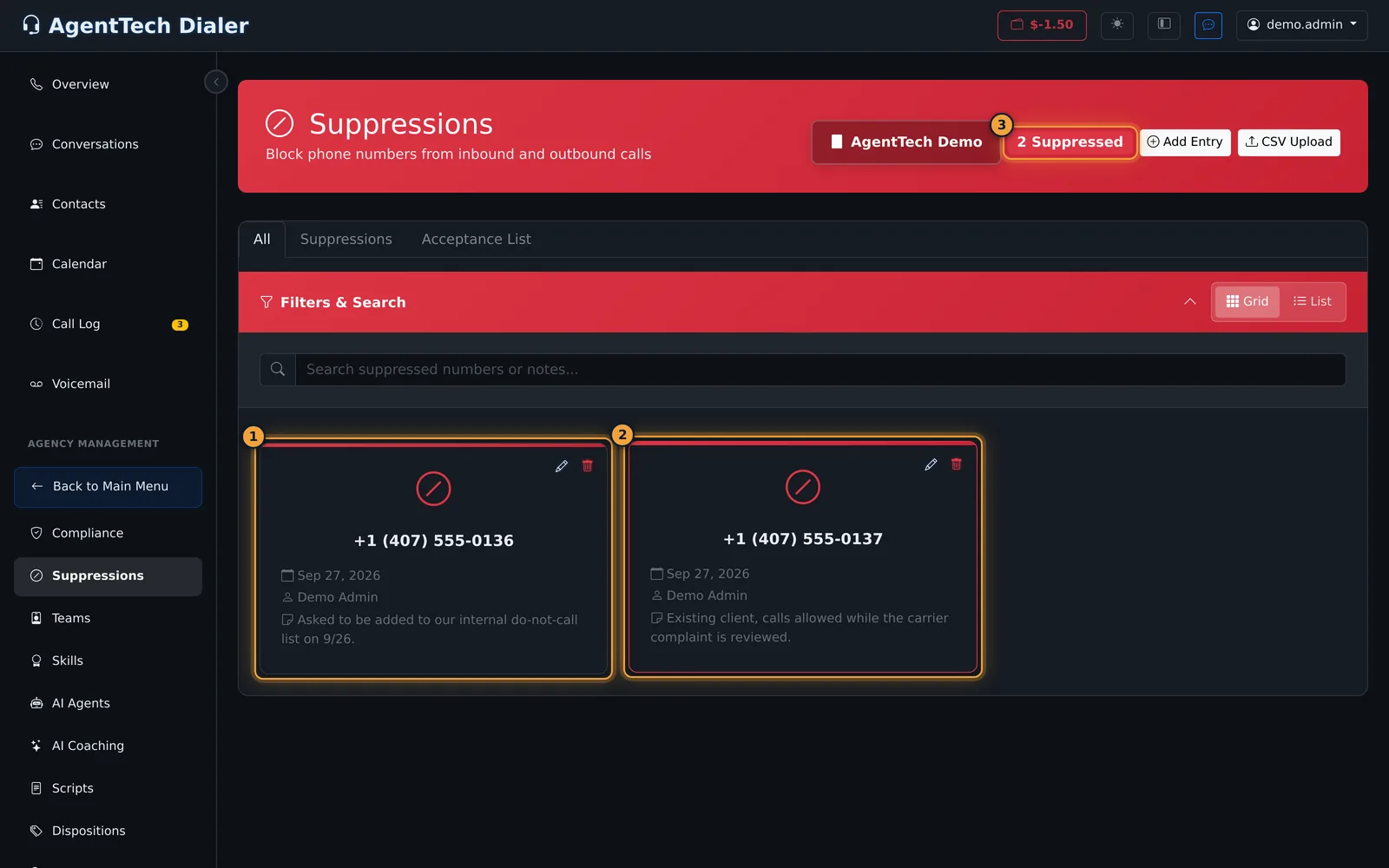
Cards don't show the list type or the expiry. Use the tabs to tell entries apart: Suppressions shows blocked numbers only, Acceptance List shows allowed numbers only.
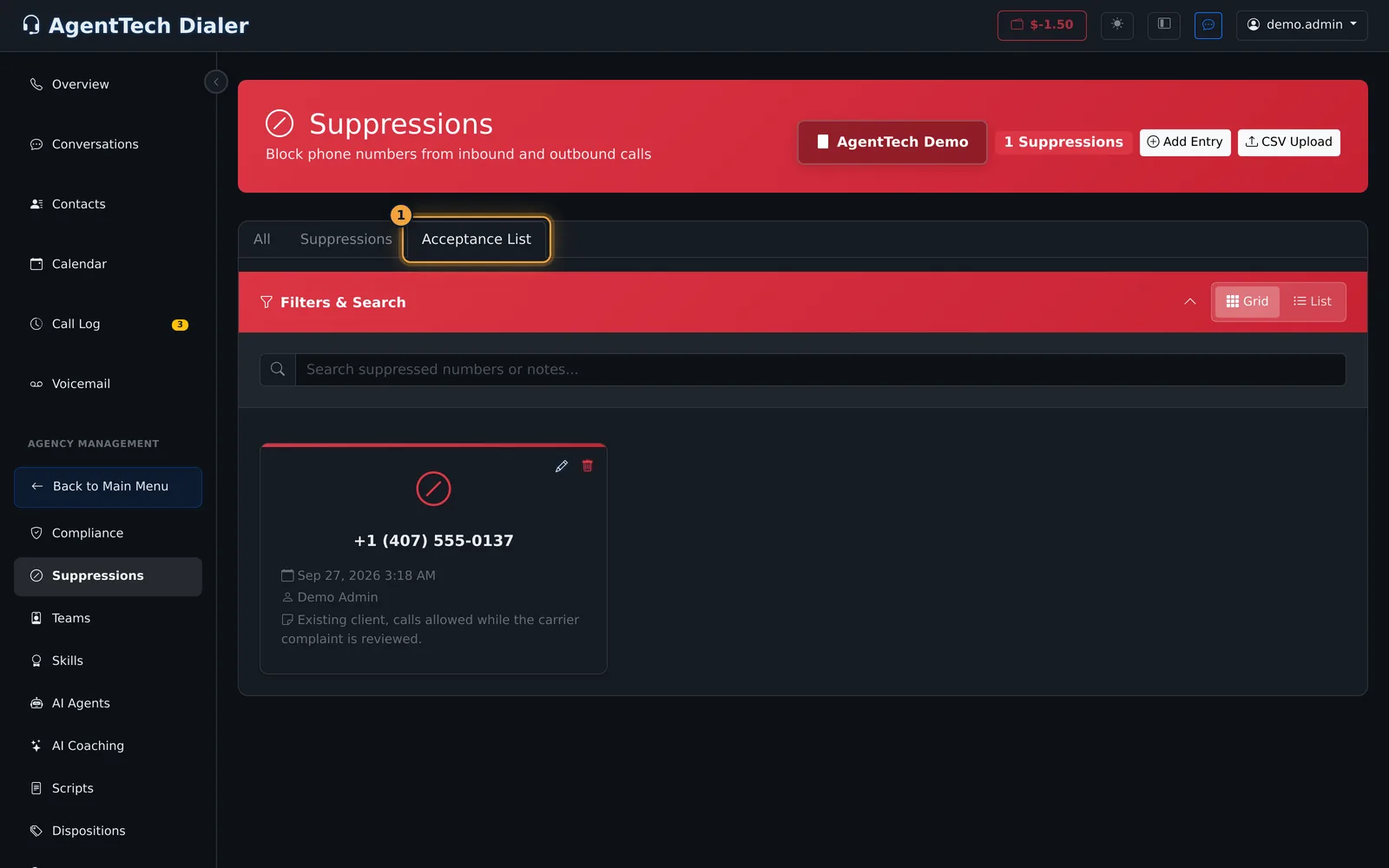
Search matches digits of the number or words in the notes. List shows the same entries as a table.
Edit or remove an entry
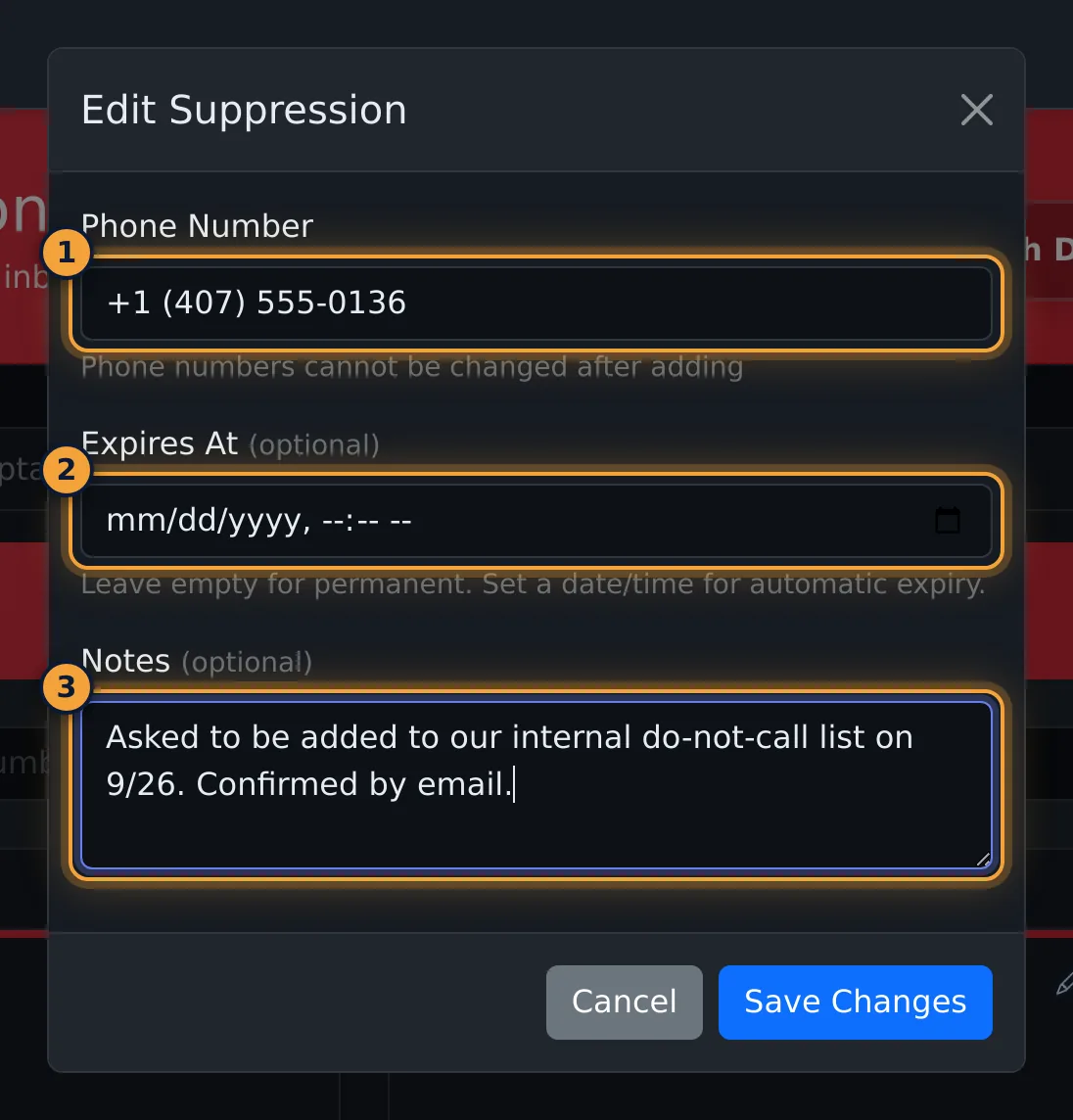
- Edit (pencil) changes the notes and the expiry. The phone number can't be changed; remove the entry and add the new number instead. The Expires At box opens empty, and saving with it empty keeps the current expiry.
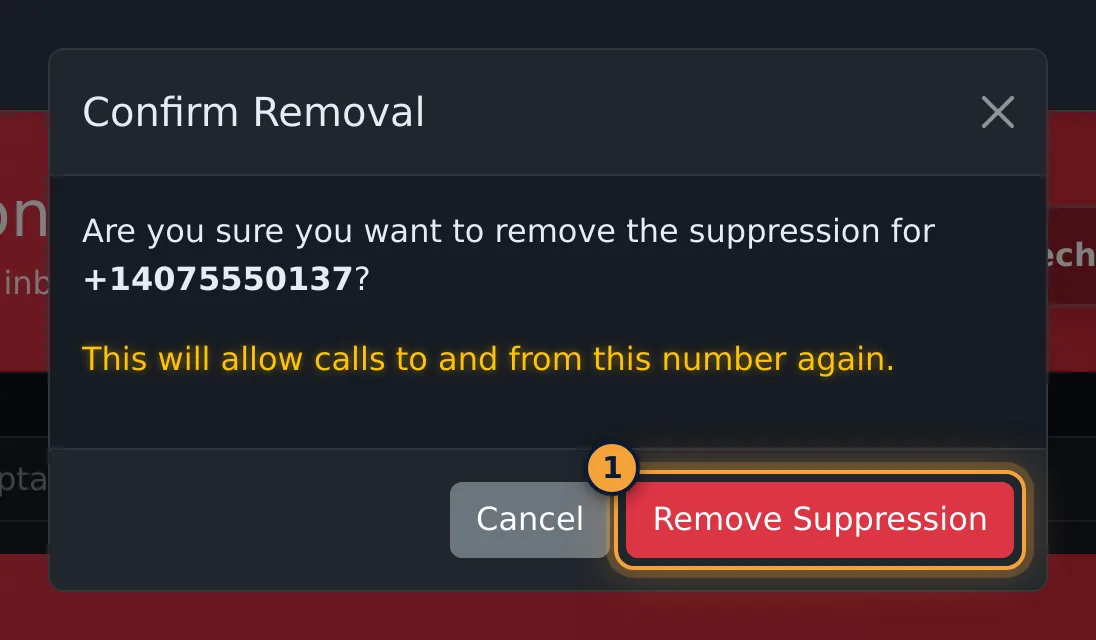
- Remove (bin) asks for confirmation. Once removed, calls to and from the number are allowed again.
Upload many numbers
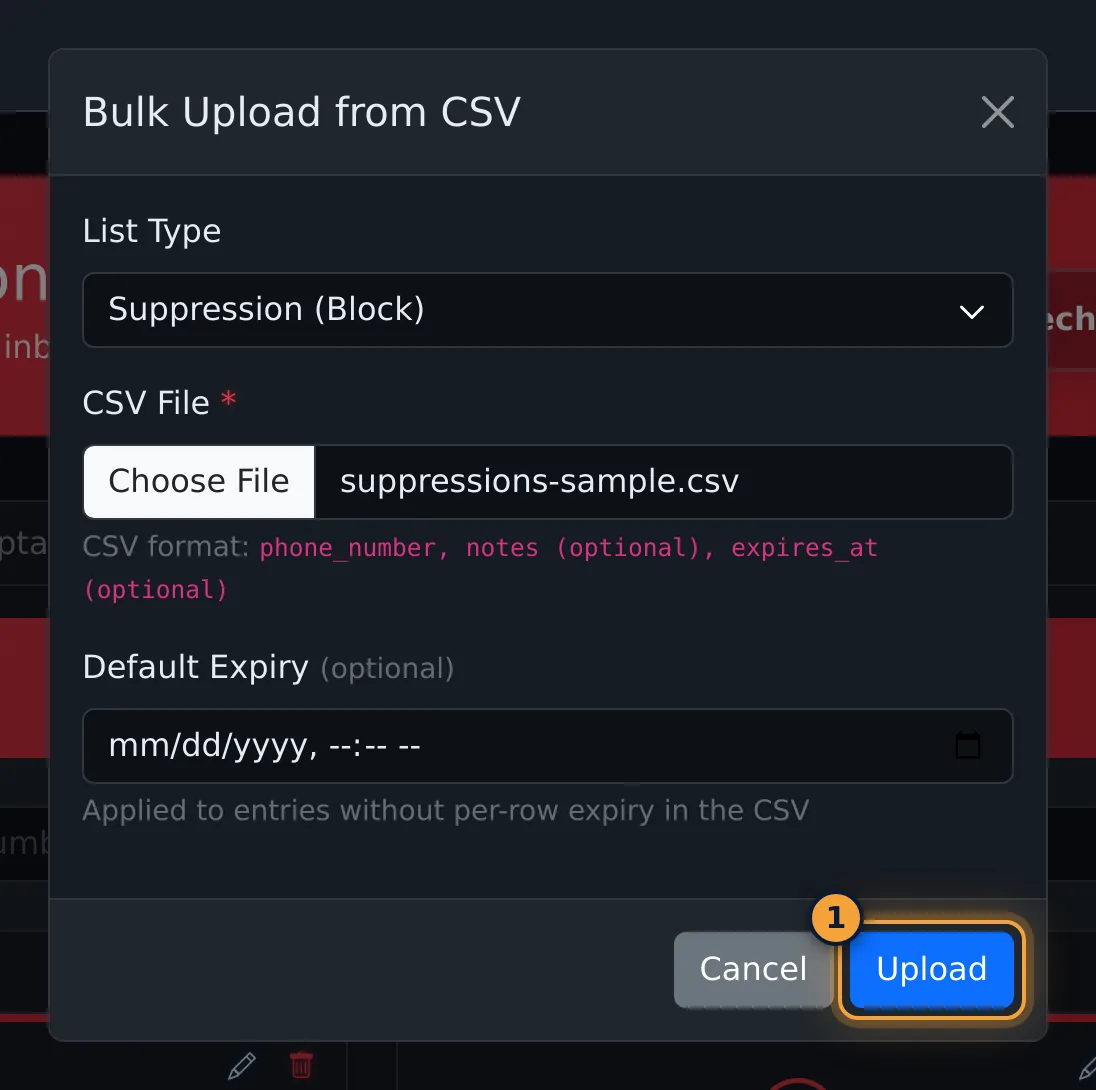
- Prepare a CSV file with the columns
phone_number,notes(optional) andexpires_at(optional), for example:
phone_number,notes,expires_at
4075550191,Requested no further calls,
4075550193,Wrong number - not the lead,2026-12-31 17:00:00- Select CSV Upload, choose the List Type, and pick the file under CSV File.
- Optionally set a Default Expiry for rows without their own expiry.
- Select Upload. The page reports how many entries were imported and how many were skipped.
Common problems
- "Failed to create suppression" when adding a number you removed earlier: at the moment a removed number can't be added again with the same list type. Contact AgentTech support to restore it.
- I can't tell which entries are blocked: open the Suppressions tab; the All tab mixes both lists.
- The phone number won't change in Edit: numbers are fixed after adding. Remove the entry and add the new number.
Related articles
Was this article helpful?
Can't find what you are looking for? Our support team can help.
Submit a support ticket