Transcript
Here is how to bring a colleague, a queue, or an outside number into a live call, while you stay on it.
During a call, select Connect in the call bar.
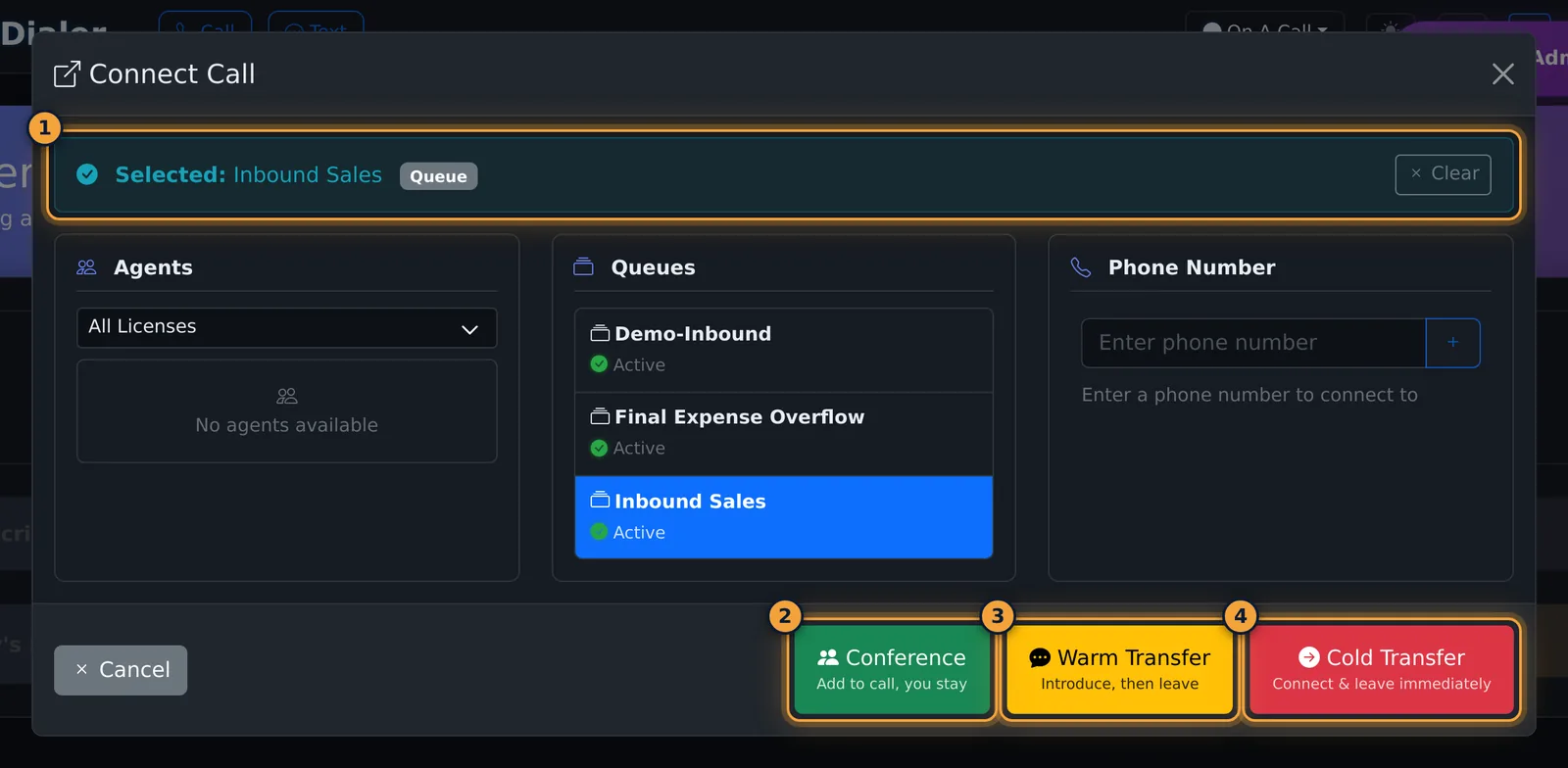
Pick who to add: an Available colleague under Agents, a queue, which offers the call to its next available agent, or an outside number.
Here, select the Inbound Sales queue, and check the Selected line at the top.
Then select Conference. It adds them to the call, and you stay on it.
For an outside number, type it under Phone Number, and select the plus button. Adding a number places a real call to it, so check it first.
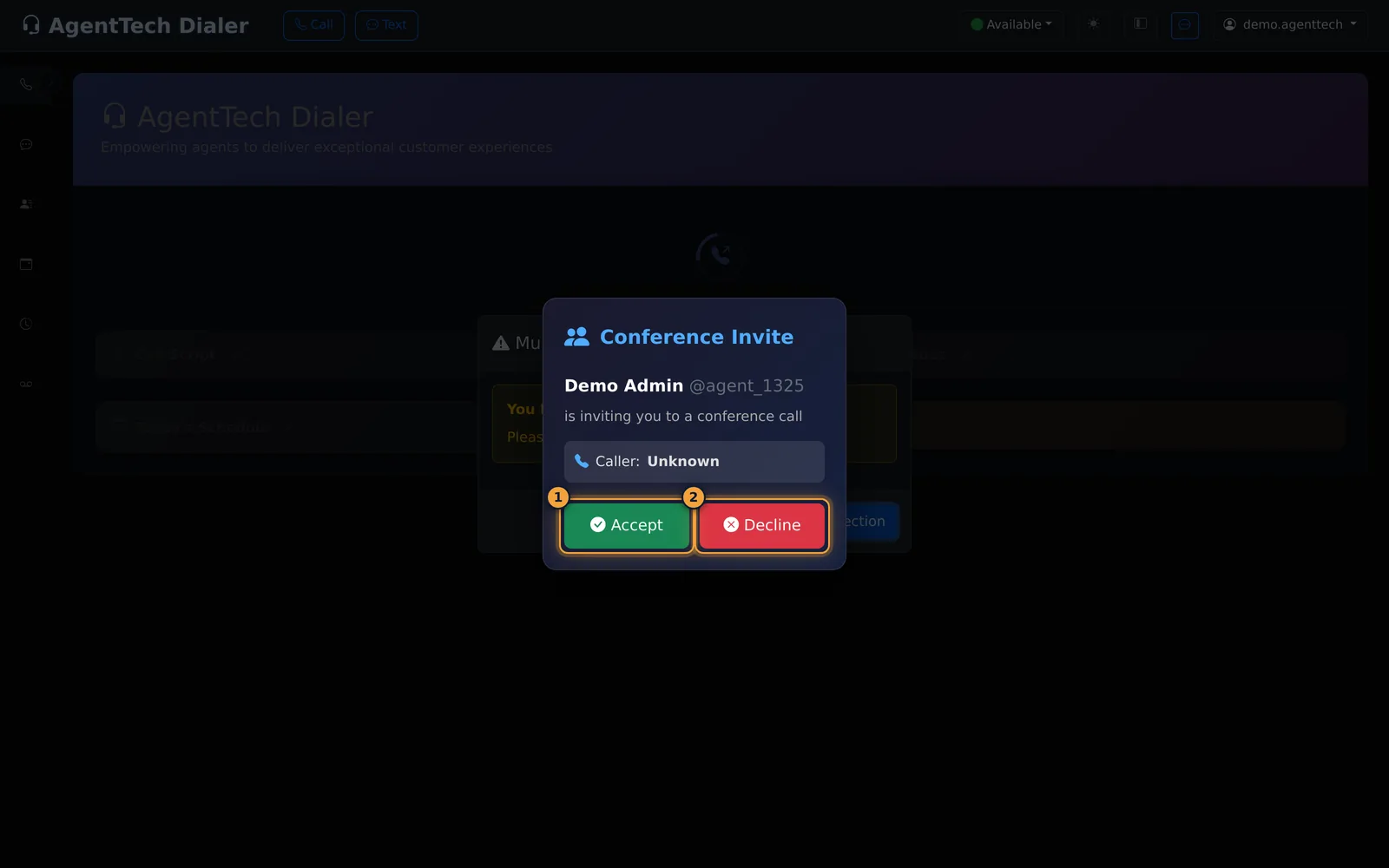
A colleague you add gets a Conference Invite, with your name and the caller ID, and joins with Accept. The invite is declined after thirty seconds.
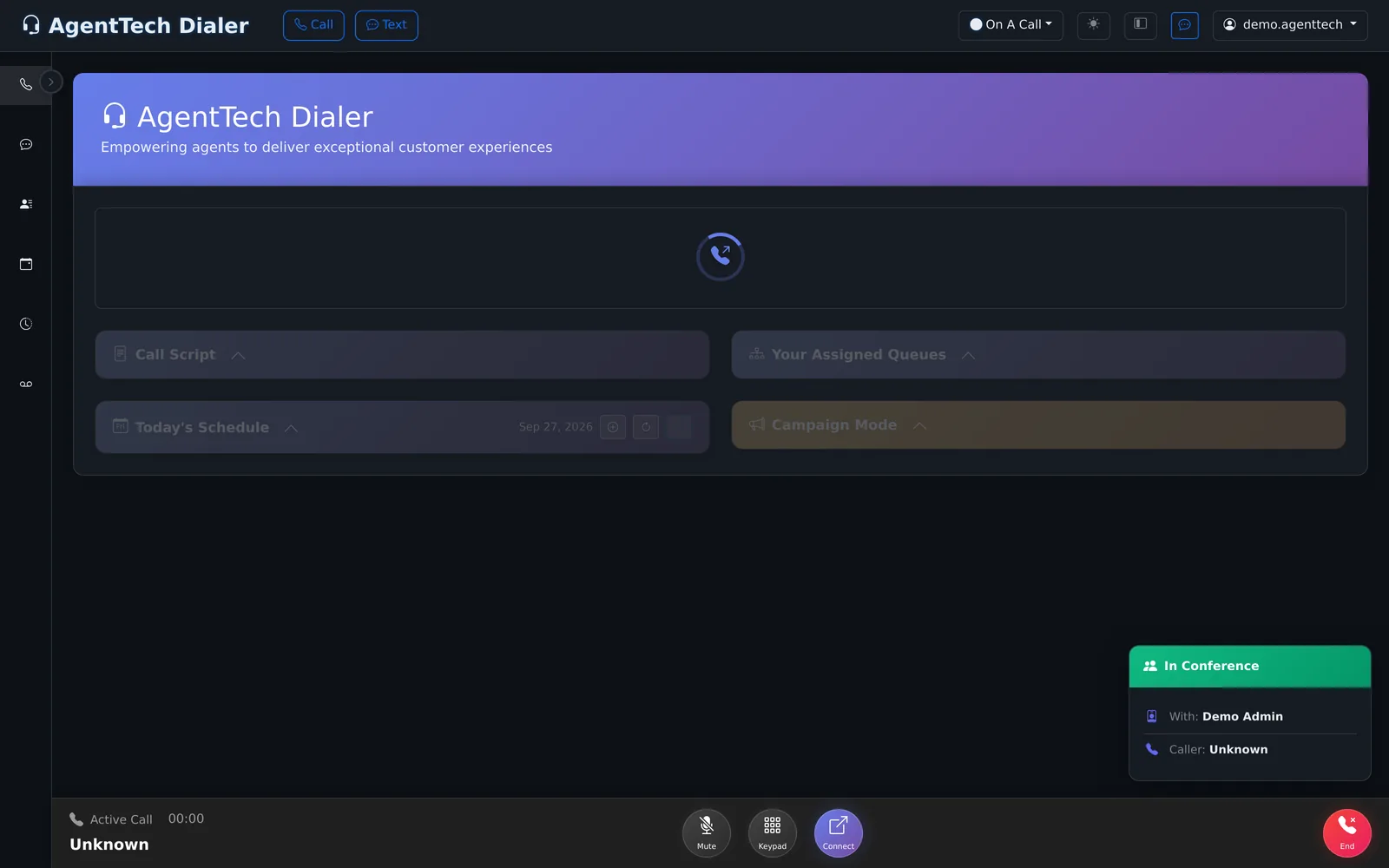
Once someone joins, an In Conference card shows who is on the call. The call bar keeps Mute, Keypad, Connect to add more people, and End.
End takes only you off the call. Everyone else stays connected, and when one agent is left with the caller, they become the owner of the call.
To hand the call off instead, see Call Transfers.
A conference keeps you on the call and adds someone else: a licensed colleague to answer a coverage question, a supervisor, or a carrier's service line. It starts from Connect in the call bar. This article is for agents on a live call.
Add someone to your call
- During a call, select Connect in the call bar.
- Pick the person to add:
- Agents - an Available colleague (filter by license with All Licenses).
- Queues - the next available agent in that queue.
- Phone Number - type an outside number and select +.
- Check the Selected line at the top, then select Conference (Add to call, you stay).
What the added agent sees
Colleagues you add receive a Conference Invite with your name and the caller ID. They join with Accept; the invite is declined after 30 seconds if they do nothing.
On the conference
Once someone joins, an In Conference card shows who is on the call (With:) and the caller, and your status is On A Call. The call bar keeps Mute, Keypad, Connect (to add more people) and End.
Manage the participants (host)
As the agent who started the conference, you also get a Conference Participants panel. It lists everyone on the call: agents, the caller and any outside numbers (shown as Ringing... until they answer, then Active).
| Control | What it does |
|---|---|
| Hold (pause button) | Puts that participant on hold; the card shows ON HOLD. Select again (Resume) to bring them back. |
| Remove from conference (X) | Disconnects that participant; everyone else stays on the call. |
| Minimize (dash) | Hides the panel; the call carries on. |
| End Conference | Disconnects everyone, after you confirm "End the conference and disconnect all participants?" |
You cannot hold or remove yourself; use End in the call bar for that.
Leaving a conference
- End in the call bar takes only you off the call. The others stay connected.
- When the host leaves and one agent remains with the caller, that agent becomes the owner of the call and sees "You are now the call owner. The previous agent has left." The call then carries on as a normal one-to-one call.
- Everyone still on the call is told when someone drops, for example "{name} has left the conference" or "Caller has disconnected".
Conference or transfer?
| You want to | Use |
|---|---|
| Stay on while someone helps | Conference |
| Introduce the caller, then leave | Warm Transfer |
| Hand off right away | Cold Transfer |
See Call Transfers for the two transfer types.
Common problems
- "No agents available": no colleague is Available; add a queue instead.
- The colleague never joined: they declined or the 30-second invite expired. Add them again or pick someone else.
- You closed the participants panel: it was minimized, not ended; the conference continues until you or the others hang up.
- Where to find it later: each outside number you add appears as its own Conference row in the Call Log, with its own recording.
Related articles
Was this article helpful?
Can't find what you are looking for? Our support team can help.
Submit a support ticket