Transcript
A call cap limits how many calls a queue, agent, phone number or publisher takes. Here is how to create, change and remove one.
Open Call Caps, and select Create Call Cap. Give the cap a name you'll recognize, like Medicare TV daily limit.
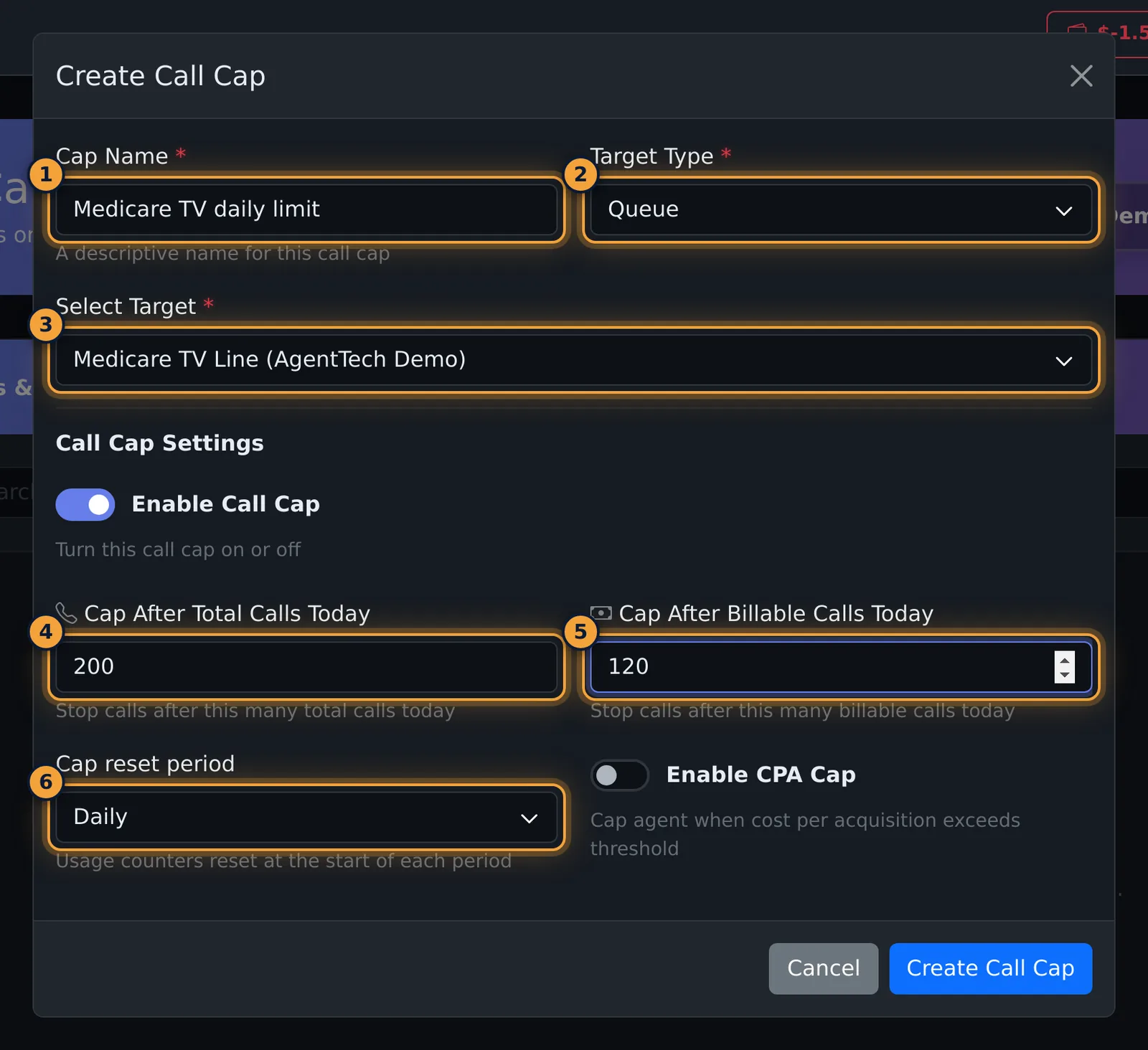
Choose the Target Type: Queue, Agent, Number, or Publisher. Then pick the target itself.
Set Cap After Total Calls, Cap After Billable Calls, or both, and choose how often the counters reset.
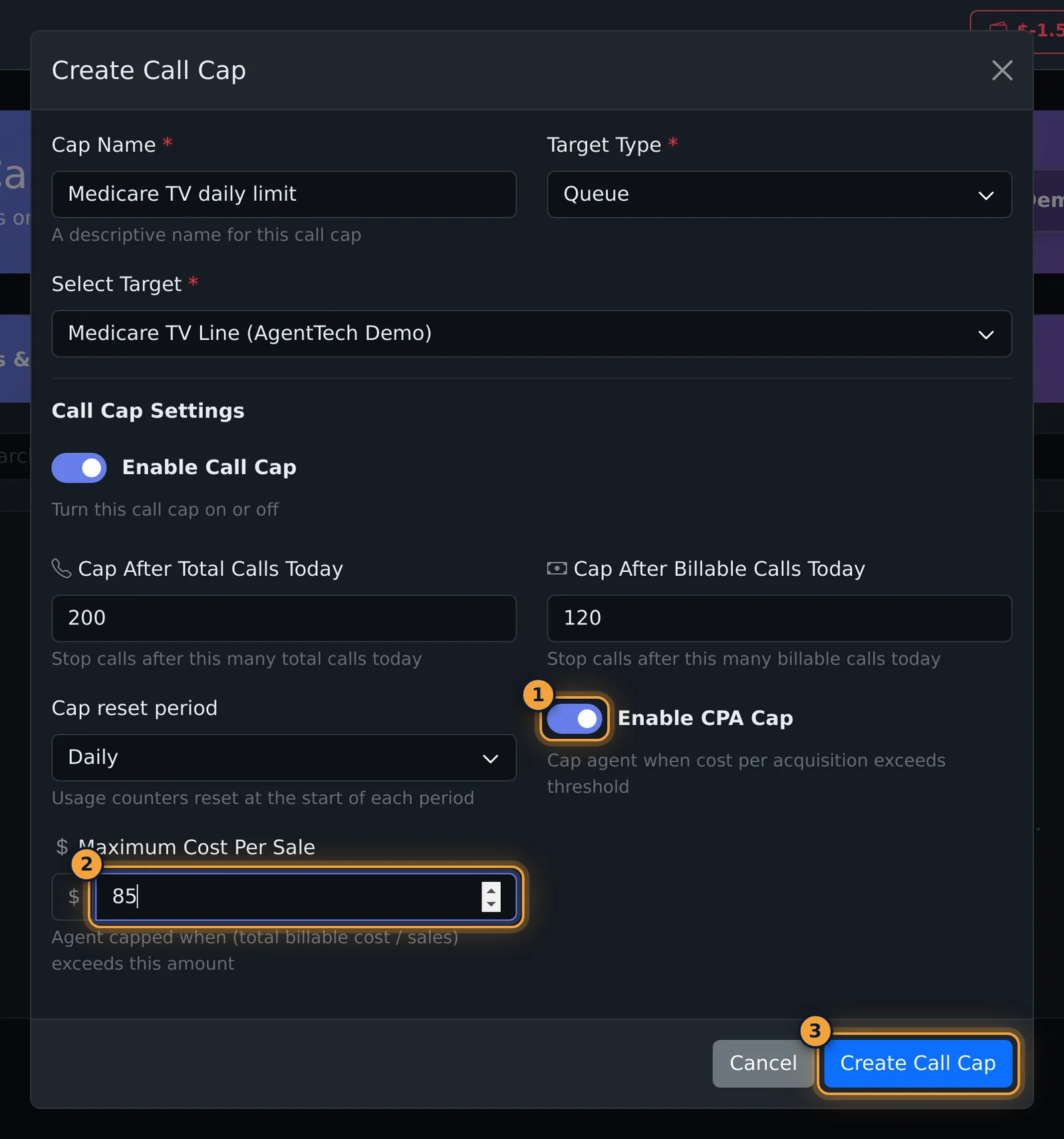
To stop calls when sales cost too much, switch on Enable CPA Cap, and enter a Maximum Cost Per Sale. Then select Create Call Cap.
The card shows the target, each limit, the reset period, and the CPA cap. At the bottom is usage so far against each limit.
Select the pencil to change the limits, the period, or the CPA cap. The target stays the same.
Switching off Enable Call Cap pauses the cap. Select Save Changes to apply your changes.
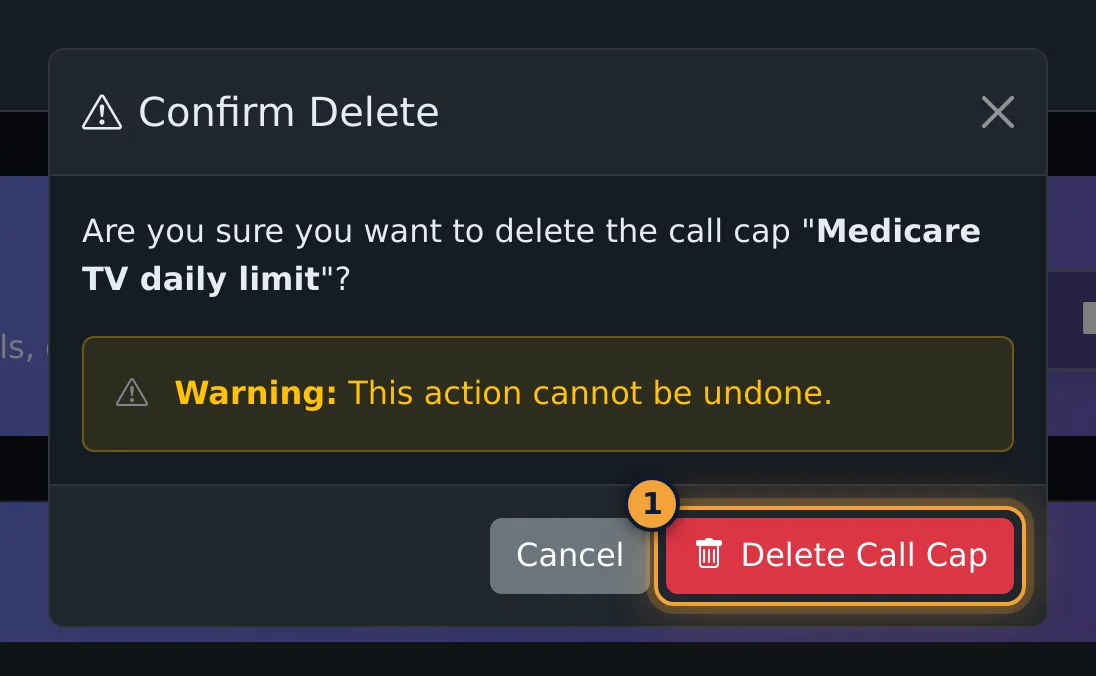
To remove a cap, select the bin, and confirm with Delete Call Cap.
Next, see how queues route their calls in Queue Management.
A call cap limits call volume for one target: a queue, an agent, a phone number or a publisher. You can cap total calls, billable calls, or both, reset the counters every hour, day, week or month, and stop calls once the cost per sale goes too high. Use caps to stay within a budget, share calls fairly, or keep a new agent's load light.
This article is for agency admins. Open Call Caps in the sidebar.
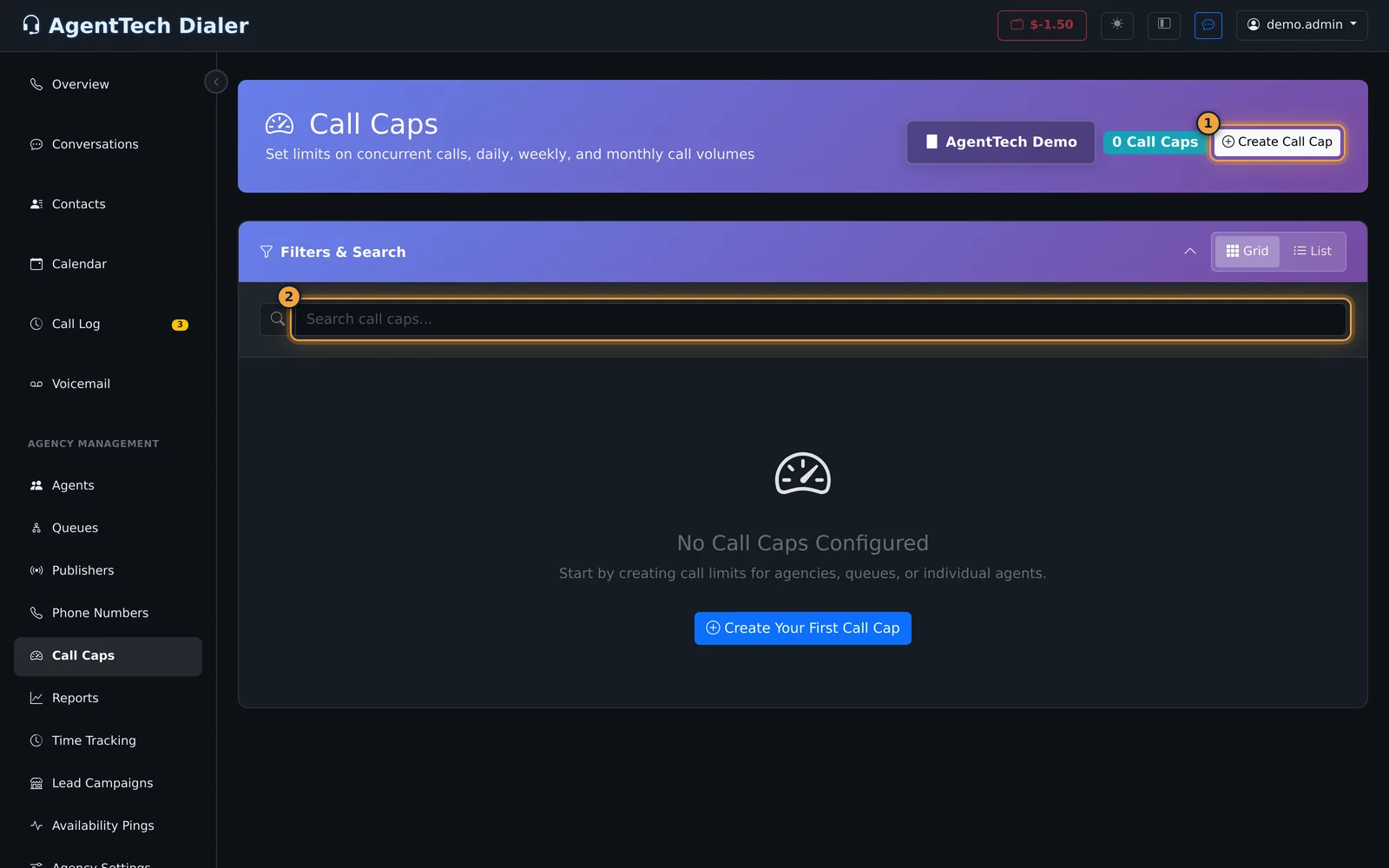
Create a call cap
- Select Create Call Cap.
- Enter a Cap Name, for example Medicare TV daily limit.
- Choose the Target Type and then the target:
- Queue: one of your queues.
- Agent: one of your users.
- Number: one of your phone numbers (the list shows what each number routes to).
- Publisher: a publisher that sends calls to your agency.
- Leave Enable Call Cap on.
- Set Cap After Total Calls Today and/or Cap After Billable Calls Today. Leave a box empty for no limit.
- Choose the Cap reset period: Daily (default), Hourly, Weekly (ISO week) or Monthly.
- Optionally switch on Enable CPA Cap and enter a Maximum Cost Per Sale.
- Select Create Call Cap.
| Field | What it does |
|---|---|
| Cap Name | Required. A name you will recognise on the card. |
| Target Type, Select Target | Required. What the cap applies to. The target can't be changed later. |
| Enable Call Cap | Turns the cap on or off. |
| Cap After Total Calls | Stop calls after this many in the period. |
| Cap After Billable Calls | Stop calls after this many billable calls in the period. |
| Cap reset period | When the counters go back to zero. The labels say "Today" whatever the period. |
| Enable CPA Cap, Maximum Cost Per Sale | Cap the target when total billable cost divided by sales is over this amount. |
Read a cap card
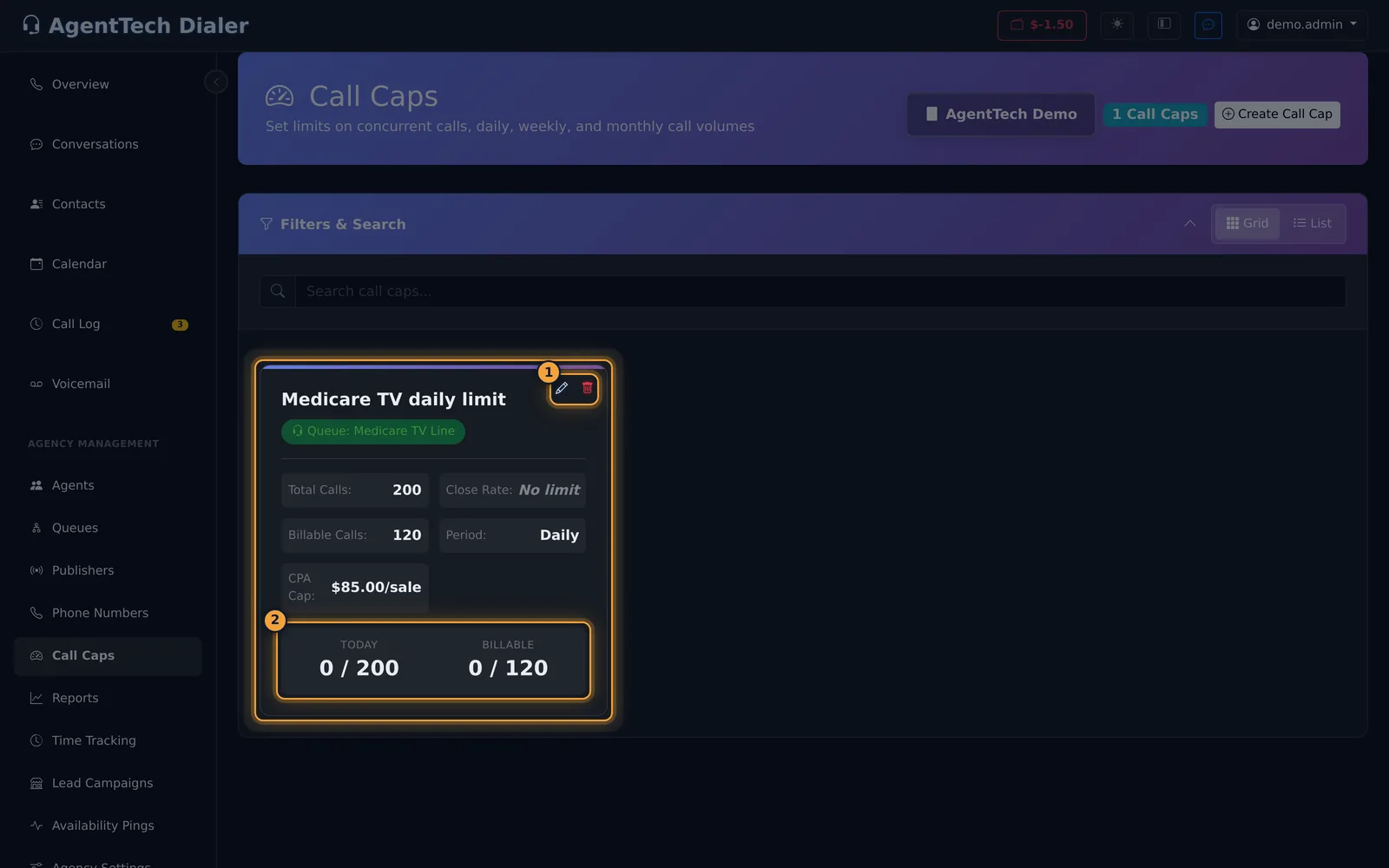
The card shows the target, each limit ("No limit" when empty), the period and the CPA cap. At the bottom, Today and Billable show usage so far against the limits, for example 0 / 200. Usage updates as calls end.
Change a cap
- Select the pencil on the card.
- Change the name, limits, period or CPA cap. The Target is shown but can't be changed.
- Select Save Changes.
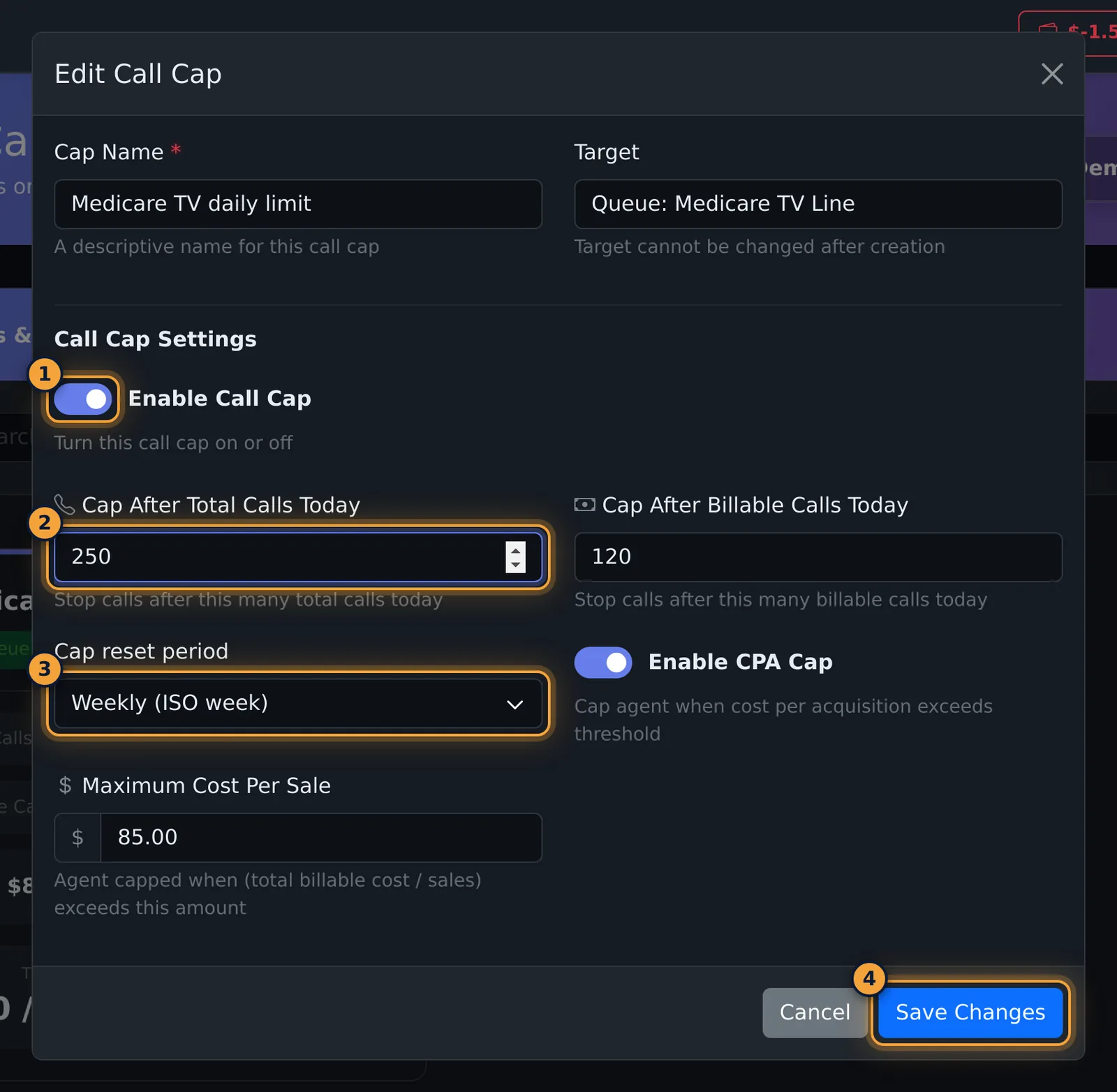
To pause a cap, switch off Enable Call Cap and select Save Changes. The cap keeps its limits, period and CPA setting; switch it back on to apply them again.
Delete a cap
Select the bin, check the name, and select Delete Call Cap. This can't be undone.
Common problems
- The Publisher list is empty. Only publishers that send calls to your agency are listed.
- I want a cap for a team or the whole agency. Caps apply to one queue, agent, number or publisher. Create one cap per target.
Related articles
Was this article helpful?
Can't find what you are looking for? Our support team can help.
Submit a support ticket