The dialer tells you about calls and messages in several ways: desktop notifications from your browser, sounds, messages in the corner of the page, counters in the sidebar and emails. This article explains each one and how to turn them on. It is for everyone, and matters most for agents who work with the dialer tab in the background.
Turn on desktop notifications
Desktop notifications show an incoming call even when the dialer tab is hidden behind other windows.
- Open the dialer. If your browser has not been asked yet, a blue bar at the top says "Enable desktop notifications to receive incoming call alerts when you're away".
- Select Enable, then Allow in the browser prompt.
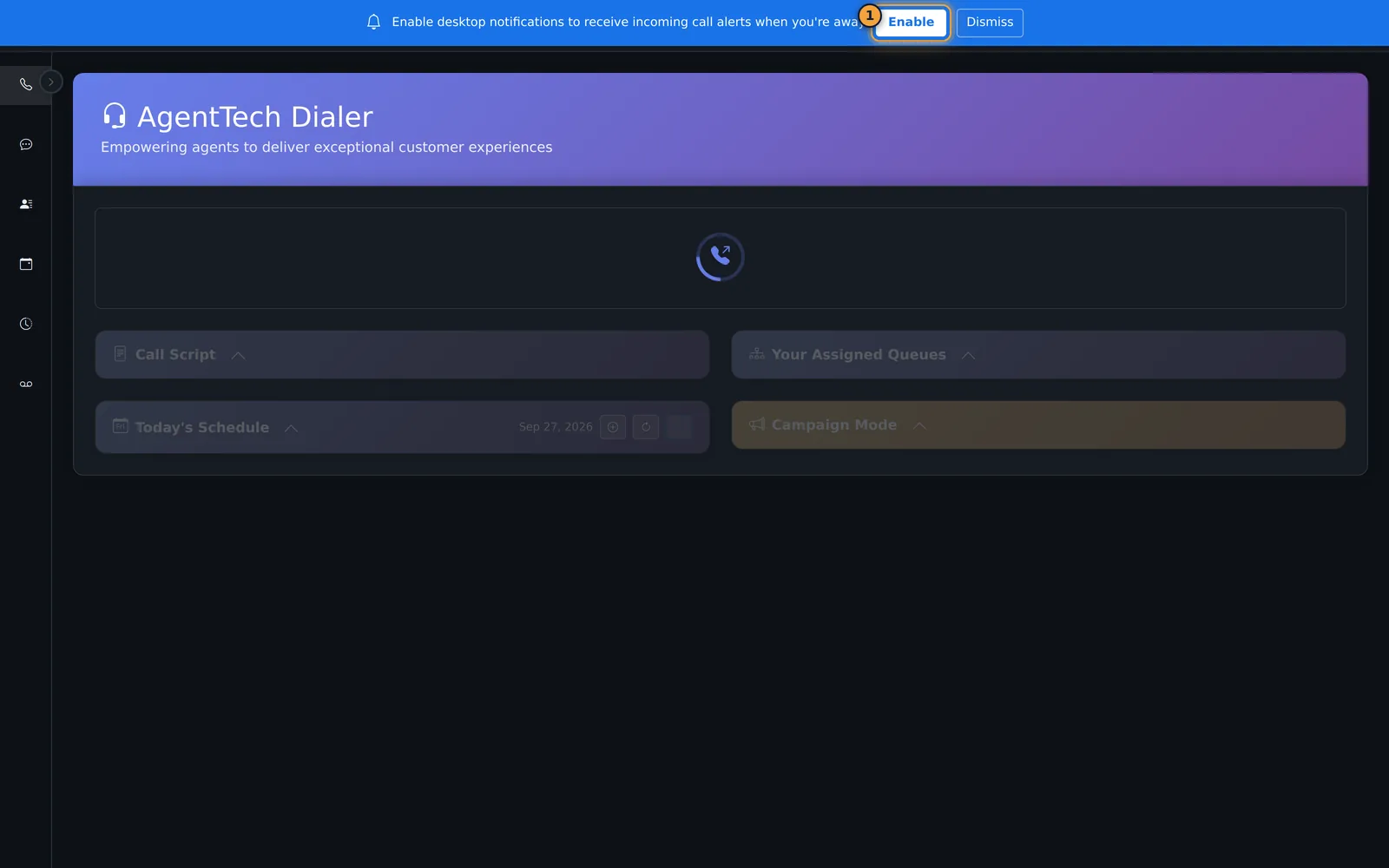
Dismiss hides the bar and the dialer remembers your choice. To turn notifications on later, or if you blocked them, select the site icon at the left of the address bar and set Notifications to Allow, then reload the dialer.
Call alerts
| Alert | When it appears | What to do |
|---|---|---|
| 📞 Incoming Call desktop notification ("Call from: {number}") | A queue or direct call is offered to you. It stays on screen until you act. | Select it to bring the dialer tab to the front, then answer. |
| Ring sound and incoming-call card | Every incoming call, whether or not the tab is visible. | Select Answer or Decline. With auto-answer on, the call connects after your agency's delay. |
| Call Connected desktop notification ("You are now on a live call with {number}") | Auto-answer connected a call while the dialer tab was hidden. | Switch to the dialer tab; you are already on the call. |
| Auto-Answer Active message | You go Available and your calls are answered automatically. | Nothing; it confirms the setting. |
| Conference Invite with a ring | A colleague adds you to their call. It declines itself after 30 seconds. | Select Accept or Decline. See Call Transfers. |
The dialer tab must stay open for any of these to work. Leaving the dialer page in the same tab sets you to Disconnected; open other pages in a new tab. See Making & Receiving Calls.
Messages in the corner of the page
Short messages appear at the top right and close by themselves. Green confirms something worked (for example a saved disposition), blue is information, yellow asks for attention and red means something needs fixing. Common ones:
- Status changed to Disconnected - {reason}: the dialer took you off Available. See Why Am I Not Getting Calls?.
- Call Cap Reached: you reached your call limit for the period; queue calls resume when it resets.
- Supervisor connected or "{name} is coaching you": a supervisor is monitoring. See Listen, Whisper & Barge In.
Sidebar and top-bar counters
| Counter | Counts |
|---|---|
| Conversations badge | Unread text conversations. See SMS Messaging. |
| Voicemail badge | Unread voicemail messages. |
| Call Log badge | Your calls today. |
| Chat button (top bar) | Unread team chat messages. See Team Chat. |
A counter pulses when its number goes up.
Email notifications
- Voicemail: on the Voicemail page, open Settings and turn on Email me when I receive a voicemail. See Voicemail.
- Emails go to the address on your profile. Check it under Profile > Edit Profile; see Profile & Settings.
Common problems
- No desktop notification for calls: notifications are blocked for the site or by the operating system, or the dialer tab was closed. Allow them as above and keep the dialer open.
- The blue bar never appears: you already allowed, blocked or dismissed notifications. Change it from the site icon in the address bar.
- No sound: check the computer's volume and output device, and that the dialer tab is not muted in the browser.
- No voicemail emails: check the email address on your profile and the voicemail email setting.
Related articles
Was this article helpful?
Can't find what you are looking for? Our support team can help.
Submit a support ticket