Transcript
Here is how to email one contact, or several at once, from Contacts, using a saved template.
Emails go out from your agency's own email domain. An agency admin connects it under Agency Settings, Email Domain.
Then, open Contacts and switch to List. Open the contact's actions menu, and select Send Email.
To shows the contact. Until the domain is connected, this window reads Email Not Configured. Once it is, From shows your name and profile email.
Pick a Template, and its subject and message fill in with the contact's details. Adjust them as you like.
With the domain connected, select Send Email.
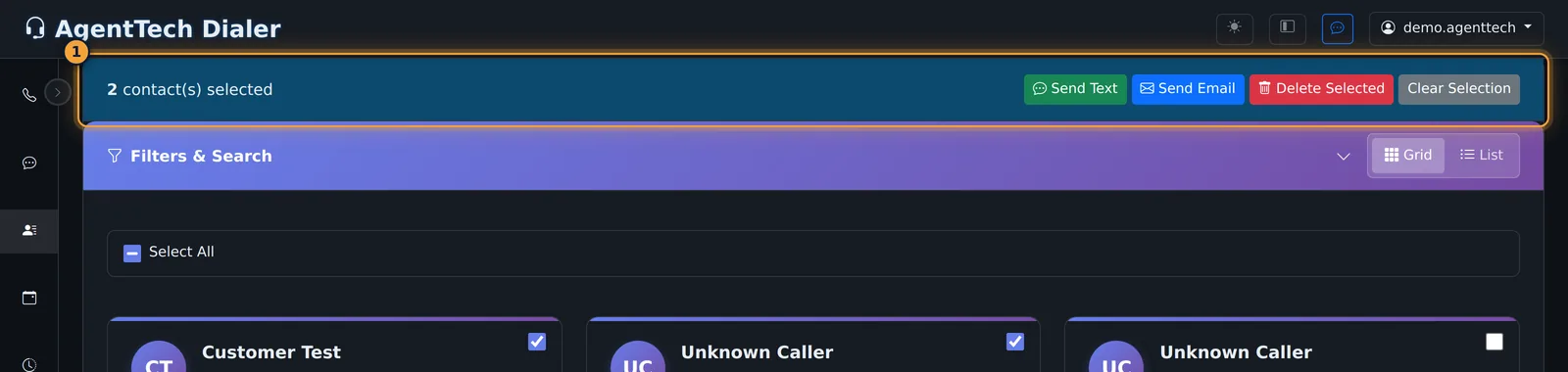
To email several contacts, tick them. The bar shows how many are selected, with Send Email.
Select Send Email. Every contact goes in BCC, so no one sees the others' addresses. Contacts without an email are left out.
Everyone gets the same text, so use a greeting like Hello, rather than a first name. Then select Send Email.
Next, see SMS and Email Templates to save the emails you send often.
You email contacts from Contacts, one at a time or several at once. Emails are sent from your agency's own email domain, so an agency admin sets that up first. This article is for agents and supervisors; the domain setup is for agency admins.
Before you start
- The agency email domain. An agency admin connects it under Agency Management > Agency Settings > Email Domain and verifies it; see Agency Settings. Until the domain is connected, the email window shows Email Not Configured; while its DNS records are being checked it shows Domain Pending Verification. In both cases Send Email stays unavailable.
- Your email address. From shows your name and the email address on your profile. Set it under Profile > Edit Profile > Email Address.
Email one contact
- Open Contacts and switch to List.
- Open the contact's actions menu and select Send Email. Send Email to Contact opens with the contact in To.
- Optionally pick a Template. Its subject and message are filled in with the contact's details.
- Enter or adjust the Subject and Message. Line breaks are kept, and basic HTML formatting works.
- Select Send Email.
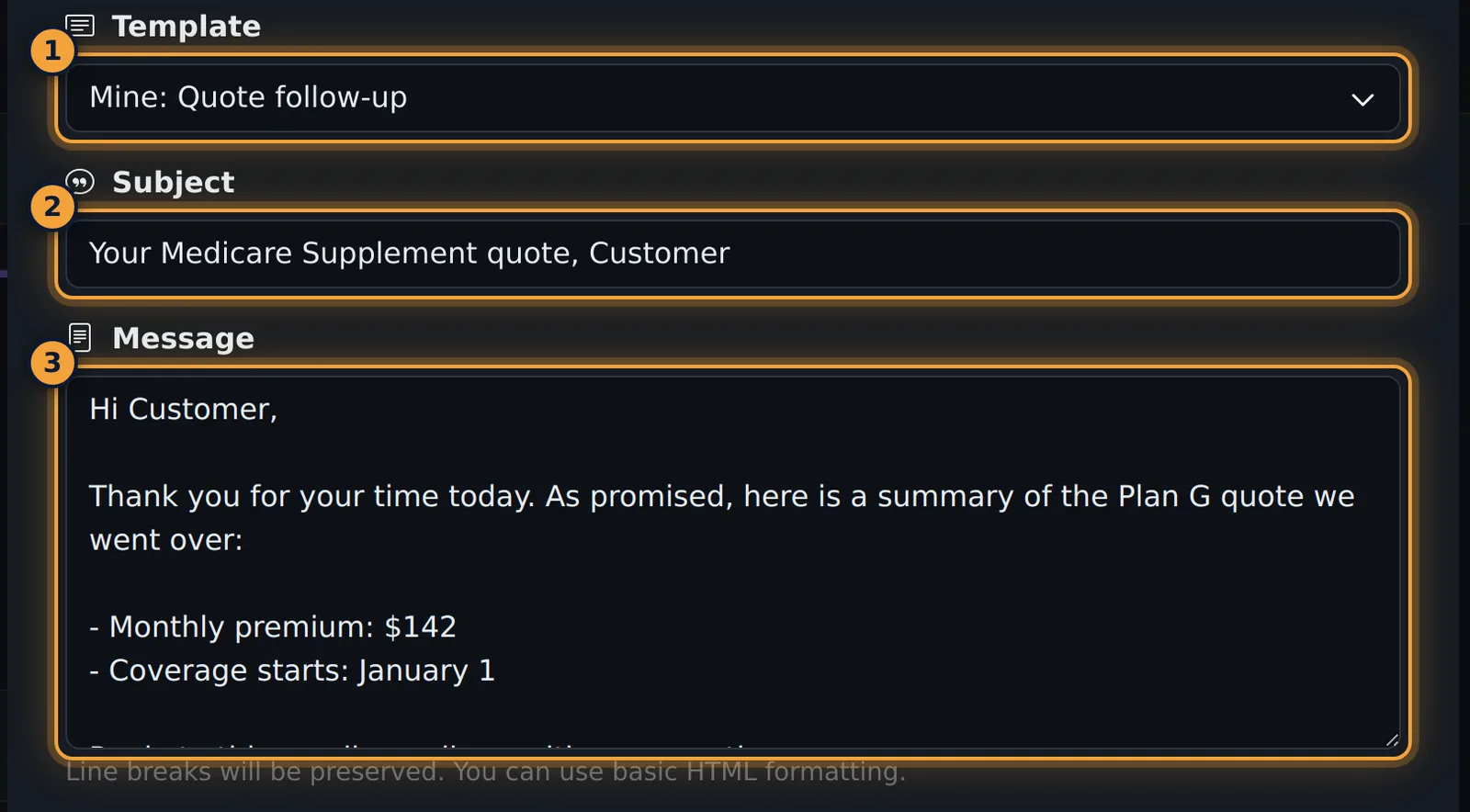
| Field | What it does |
|---|---|
| To | The contact's name and email address, filled in for you. |
| From | Your name and the email address on your profile. |
| Template | A saved email from Contacts > Message Templates. |
| Subject | The subject line. Required. |
| Message | The email itself. Required. |
Email several contacts
- On Contacts, tick the contacts (or Select All). A bar shows how many are selected, with Send Text, Send Email, Delete Selected and Clear Selection.
- Select Send Email. Send Bulk Email opens with the number of recipients in its title.
- Check the BCC (Blind Carbon Copy) list. Contacts without an email address are left out.
- Enter the Subject and Message, or pick a template without contact variables.
- Select Send Email.
A bulk email is one message: To is your own address and every contact is in BCC, so recipients don't see each other's addresses. Because everyone gets the same text, use a greeting like "Hello," rather than {contact.first_name}.
Templates
Save emails you send often under Contacts > Message Templates > Email, with variables such as {contact.first_name} in the subject or message. Agency admins can share templates with the whole agency or selected agents. See SMS & Email Templates.
Common problems
- Email Not Configured or Domain Pending Verification: the agency email domain isn't connected or verified yet. Ask your agency admin.
- No Send Email in a contact's actions menu: the contact has no email address. Add one in Contact Management.
- From shows the wrong address: update the email address on your profile.
- A contact is missing from the BCC list: they have no email address saved.
Related articles
Was this article helpful?
Can't find what you are looking for? Our support team can help.
Submit a support ticket