Transcript
Team Chat is for quick messages between people in your agency, and it opens from any page.
Select the chat button in the top bar. Team Chat opens on the right, on any page.
It has Search conversations, New Message, and your conversations, each with its last message and unread count.
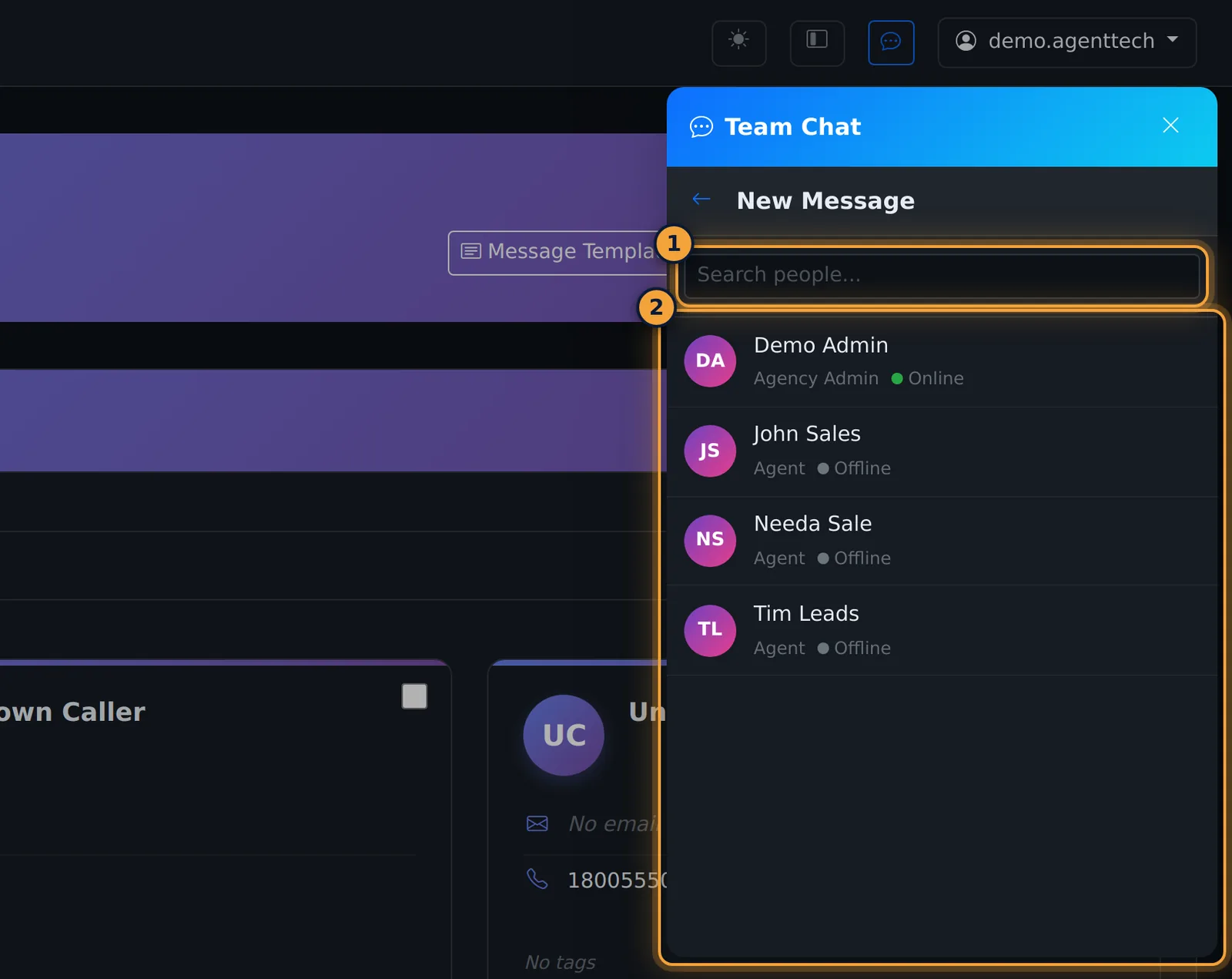
Select New Message. Everyone in your agency is listed, with their role and status.
Type in Search people to find someone, and select them to open a direct message.
Your conversations stay in the list. Open one, and its history fills the panel.
Type your message in the box at the bottom, then press Enter, or select the send button. Shift and Enter starts a new line.
The chat button shows how many messages you haven't read, and each conversation shows its own count. Opening a conversation marks it read.
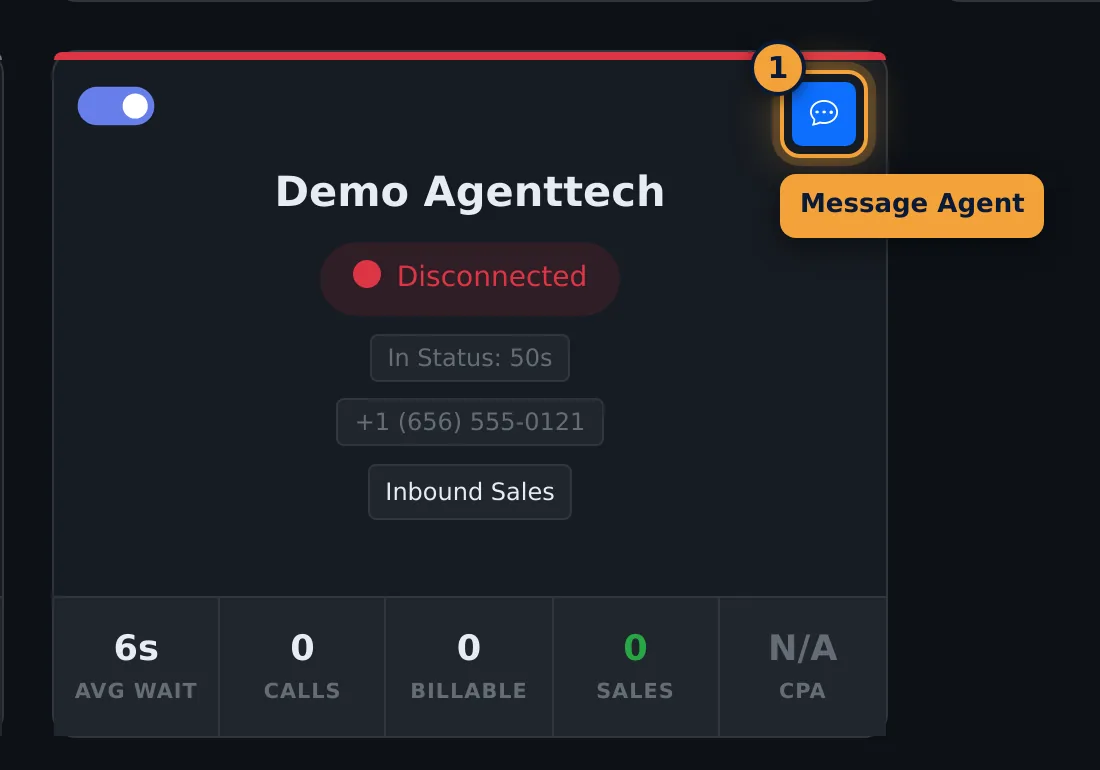
Supervisors can also message an agent straight from the agent's card on the dashboard.
Team Chat is for quick messages between people in your agency: asking a licensed colleague to take a transfer, flagging a callback, or checking in with your supervisor. It opens from the chat button in the top bar on every page, so you can use it while you're on the dialer. This article is for agents and supervisors.
Open Team Chat
Select the chat button in the top bar. The Team Chat panel opens on the right with:
- Search conversations... to find a conversation by name,
- New Message to start a conversation with someone new,
- your conversations, each with the last message (or "No messages") and a count of unread messages.
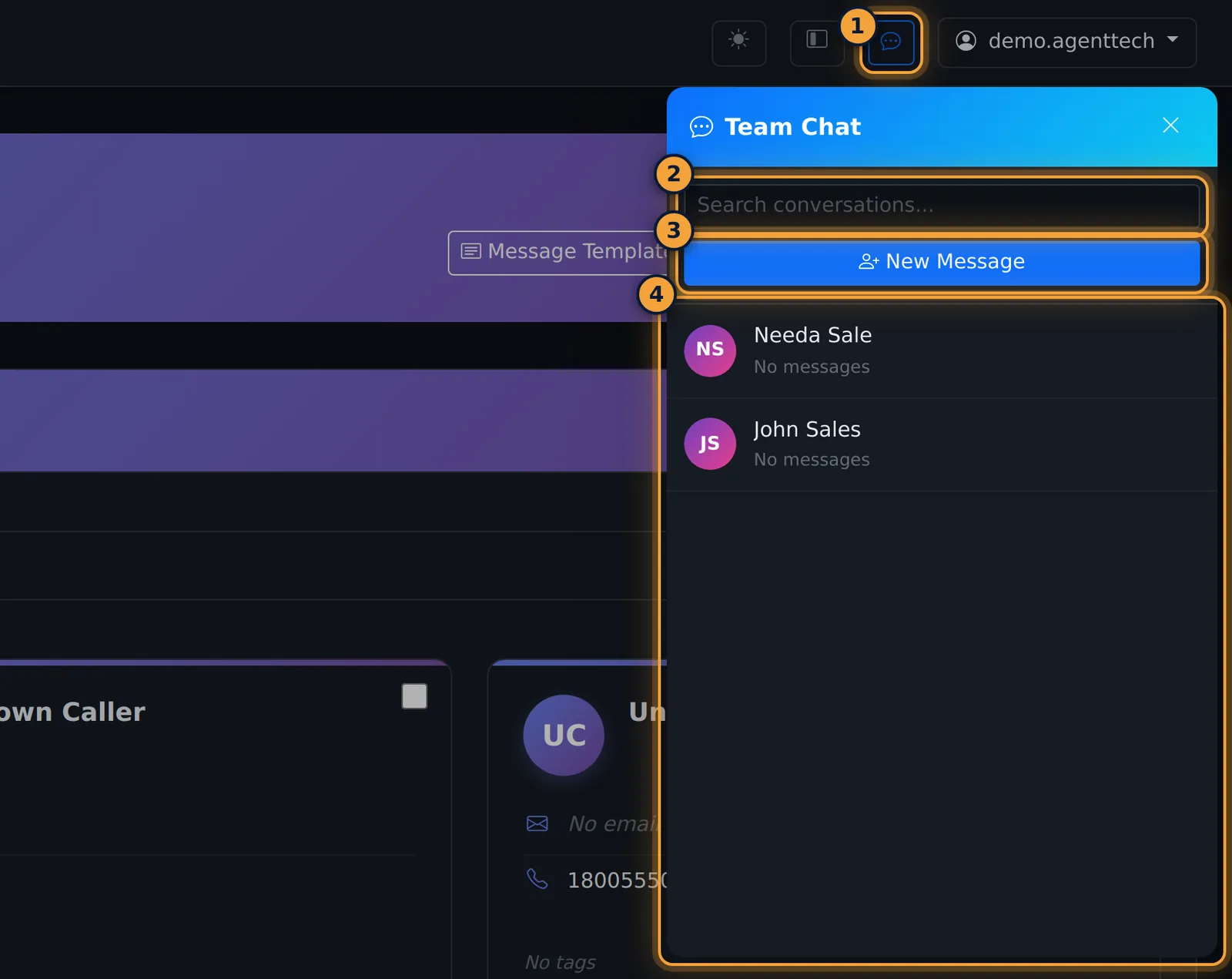
The X at the top closes the panel; your conversations stay as they are.
Start a conversation
- Select New Message.
- Find the person in the list or type in Search people.... Everyone in your agency is listed with their role and status: agents show their dialer status (for example Available or Offline), supervisors and admins show Online or Offline.
- Select the person. A direct message opens.
Send and read messages
- Open a conversation from the list.
- Type your message in the box at the bottom.
- Press Enter or select the send button. Shift+Enter starts a new line.
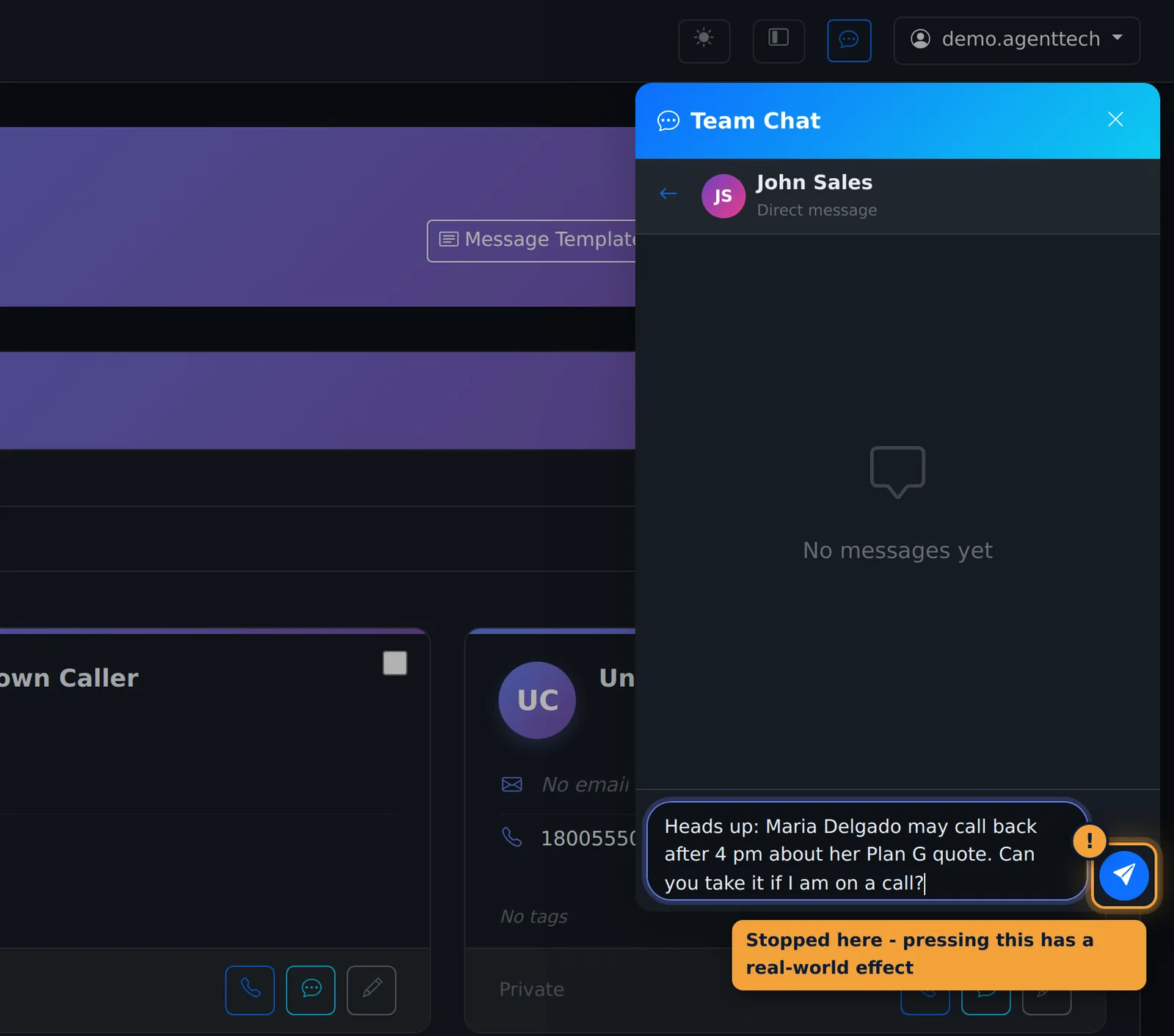
Messages are delivered live. While the other person types you see, for example, "John Sales is typing". Scroll up to load older messages. The back arrow at the top returns to your conversation list.
Unread messages
- The chat button in the top bar shows the total number of unread messages (up to 99+).
- Each conversation in the list shows its own unread count.
- Opening a conversation marks its messages as read.
Message an agent from the dashboard (supervisors)
On the Overview dashboard, every agent card has a Message Agent button (in List view, the chat column, "Send message to agent"). It opens Team Chat with a direct message to that agent. When the agent has sent you messages you haven't read, the button shows the count.
See Supervisor Dashboard for the rest of the dashboard.
Common problems
- A colleague isn't in New Message: only users in your agency are listed. Ask your agency admin to check their account in Managing Agents.
- You can't find an old conversation: use Search conversations... at the top of the panel.
- New messages stop appearing: your live connection dropped, for example after your computer slept or your network changed. Check your internet connection. If messages still don't arrive and you're not on a call, reload the page, then set your status back to Available (reloading the dialer page signs you out of calls, see Why Am I Not Getting Calls?).
Related articles
Was this article helpful?
Can't find what you are looking for? Our support team can help.
Submit a support ticket