Transcript
Here is how to hand a live call to a colleague, a queue, or an outside number, with a warm or a cold transfer.
During a call, select Connect in the call bar at the bottom of the page.
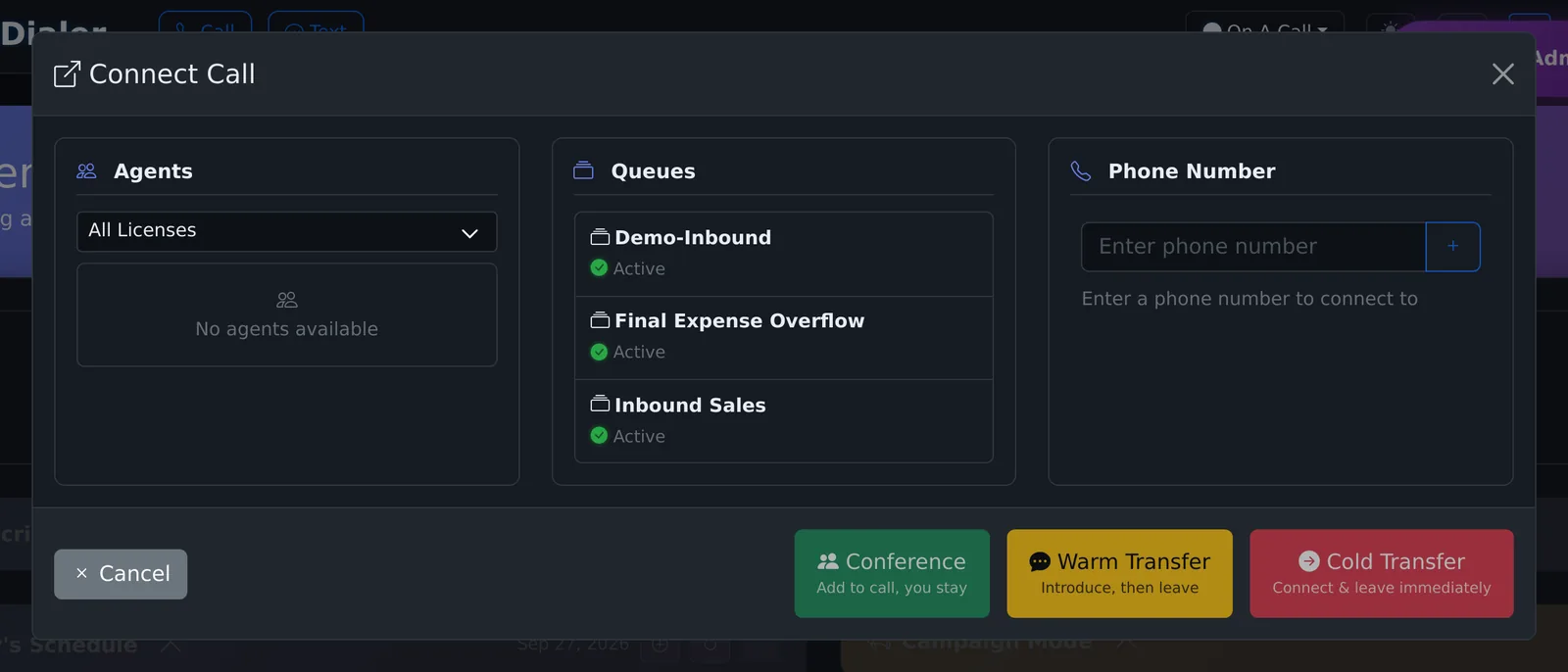
The Connect Call window opens, with three columns: Agents, Queues, and Phone Number.
Agents lists colleagues who are Available right now, and All Licenses narrows them to one state. A queue offers the call to its next available agent.
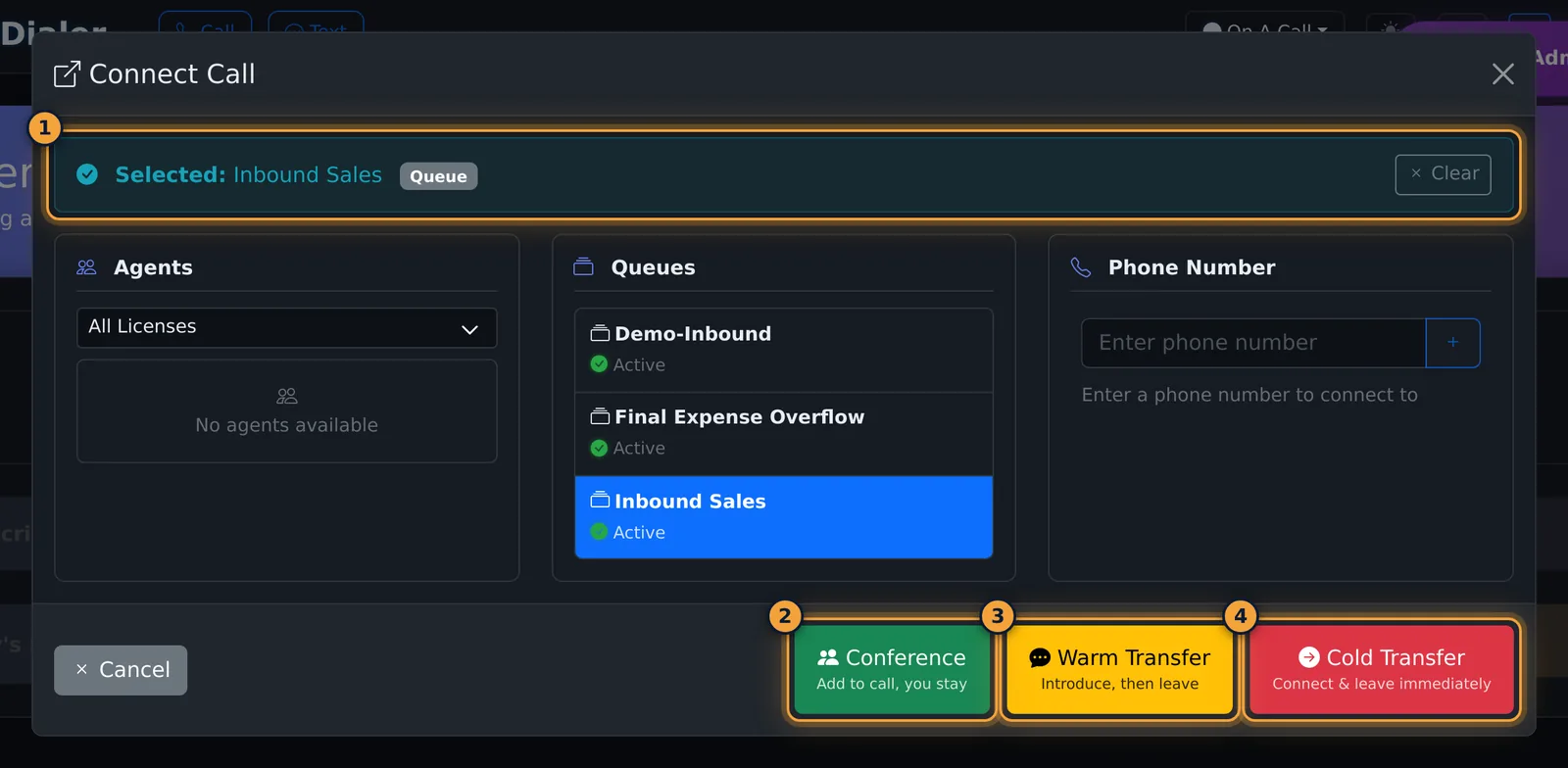
Select where the call should go. Here, select the Inbound Sales queue.
Your choice shows at the top as Selected, with its type. Clear undoes it.
Warm Transfer brings them in while you stay to introduce the caller. When you are ready, select Complete Transfer, and you drop off.
Cold Transfer connects them and drops you off right away.
Conference adds them to the call, and you stay on it.
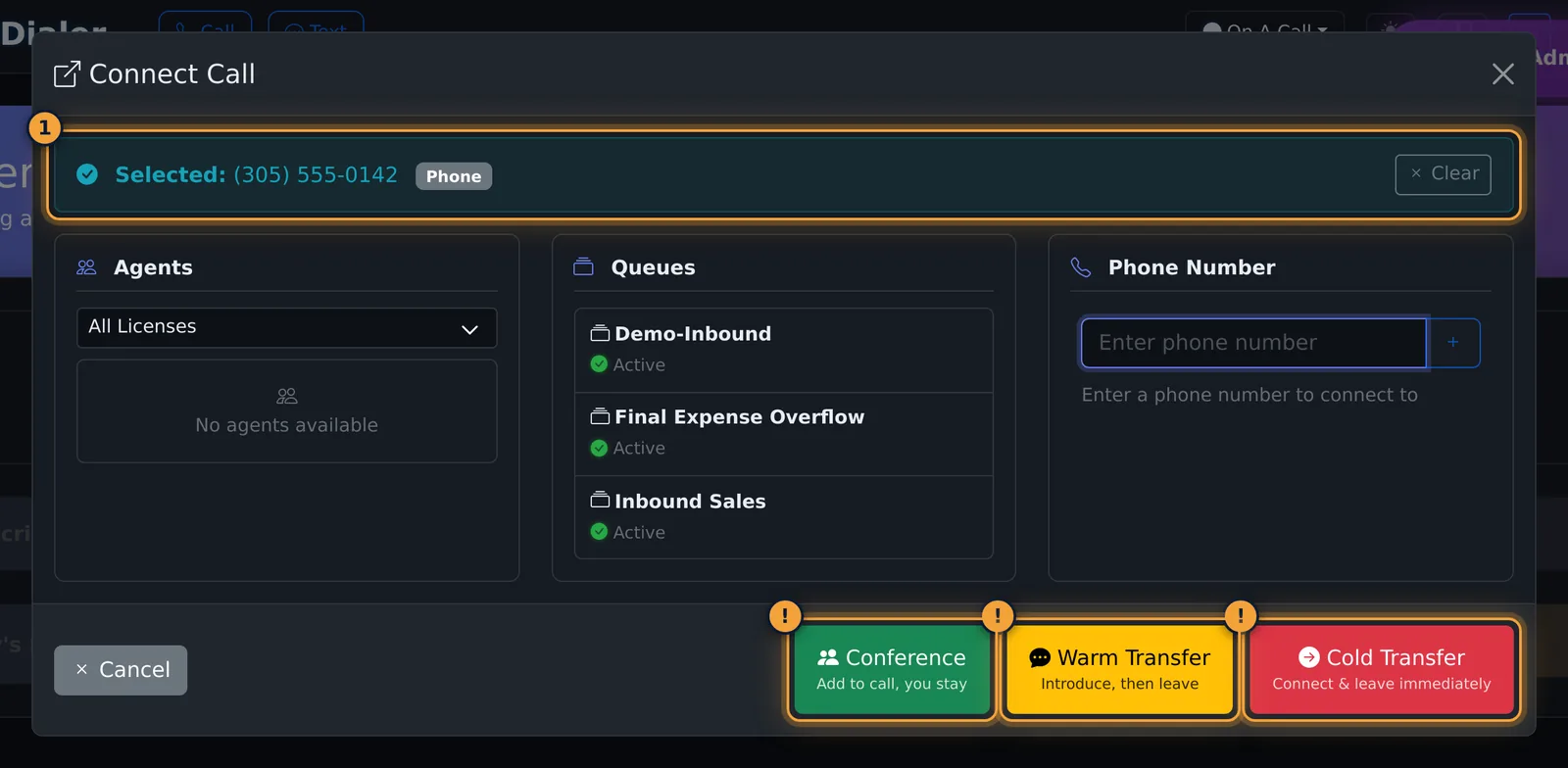
To send the call outside the agency, type the number under Phone Number, and select the plus button.
A transfer to a phone number places a real call as soon as you select a button, so check the number first.
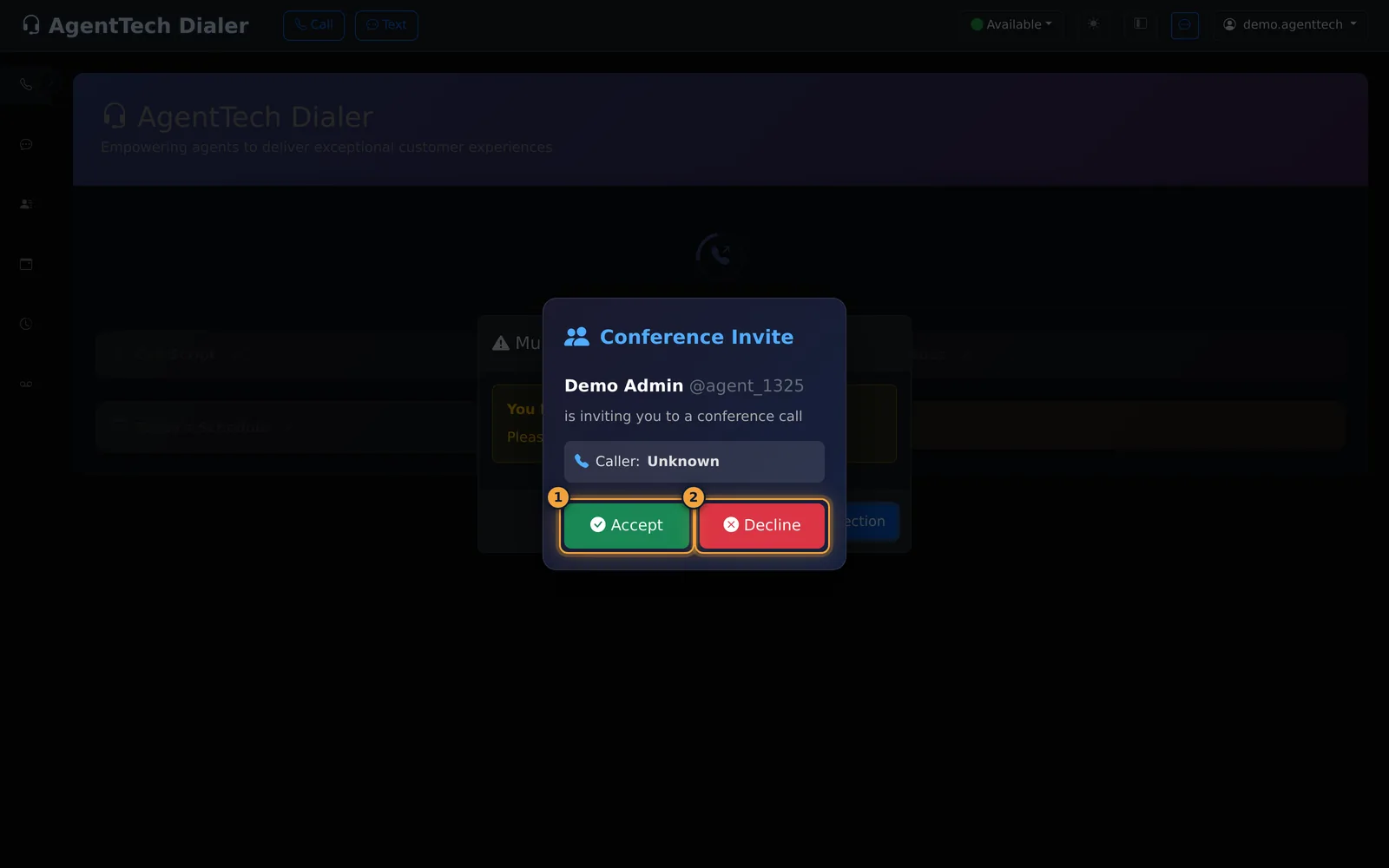
An agent you transfer to gets a Conference Invite with your name and the caller ID, and joins with Accept. Cancel closes this window and keeps the call as it is.
When you leave the call, the Call Disposition form opens, as it does after any call.
Next, learn how to stay on the call and add someone with a conference.
Use a transfer when someone else should finish the call: a licensed agent for another state, a retention queue, or a carrier's line. Transfers start from Connect in the call bar. This article is for agents on a live call.
Open Connect Call
- During a call, select Connect in the call bar at the bottom of the page.
- The Connect Call window opens with three columns.
| Column | Pick this when |
|---|---|
| Agents | You want a specific colleague. Only agents who are Available are listed; the All Licenses filter narrows the list to agents licensed for a state. |
| Queues | You want a team, not a person. The queue offers the call to its next available agent. |
| Phone Number | The call must go outside the agency. Type the number and select the + button. |
Choose where the call goes
Select an agent or queue, or add a phone number. Your choice shows at the top as Selected with its type (Agent, Queue or Phone); Clear undoes it.
Choose the kind of transfer
| Button | What happens |
|---|---|
| Warm Transfer | Introduce, then leave. The target joins while you stay on the line so you can introduce the caller; the dialer then tells you to select Complete Transfer when ready, which drops you off. |
| Cold Transfer | Connect & leave immediately. The target is added and you drop off at once. |
| Conference | Add to call, you stay. Everyone stays on the call. See Conference Calling. |
When you leave a transferred call, the disposition form opens as it does after any call.
What the other agent sees
An agent you transfer to (directly or through a queue) gets a Conference Invite naming you and the caller ID, with Accept and Decline. The invite is declined automatically after 30 seconds.
Common problems
- "No agents available" in the Agents column: nobody else is Available right now. Try a queue instead.
- The target declined or did not answer in 30 seconds: try another agent or a queue.
- The buttons are greyed out: select a target first.
Related articles
Was this article helpful?
Can't find what you are looking for? Our support team can help.
Submit a support ticket