Transcript
Call scripts are what agents read from during a call. Here is how to write one, fill it with the caller's details, and choose which calls it appears on.
Open Agency Management, then Scripts, and select Add Script. Give the script a name, and leave the Status on Active, so agents see it.
Add a description for other admins. Under Scope Settings, pick the queue it is for. Leave the scope empty to use it on every call.
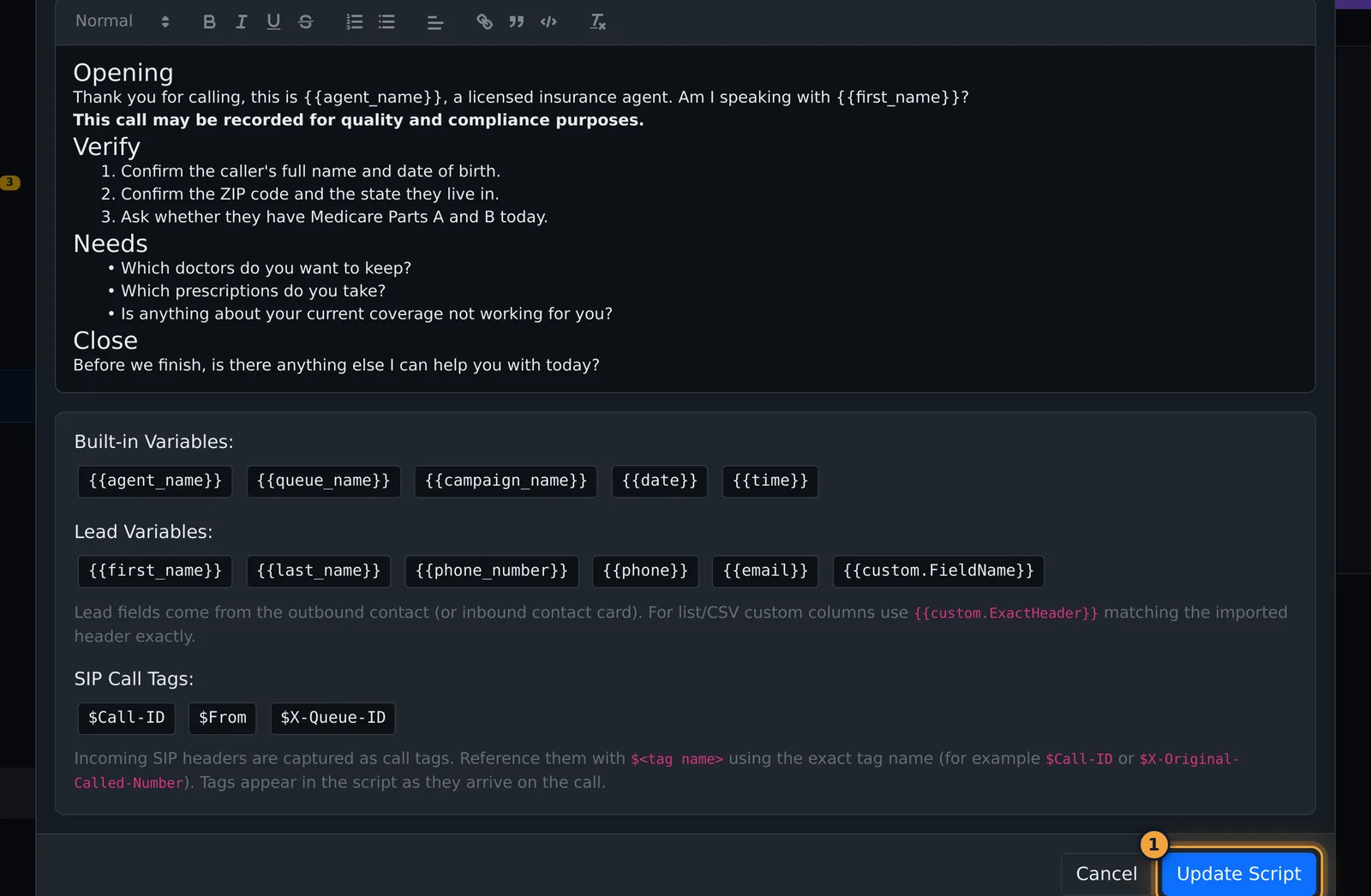
Write the script in Script Content. The toolbar adds headings, bold text and lists.
Type placeholders in double braces, such as first name and agent name. They are filled in with the caller's and agent's details when the script is shown.
The full list of placeholders is under the editor. Then select Add Script.
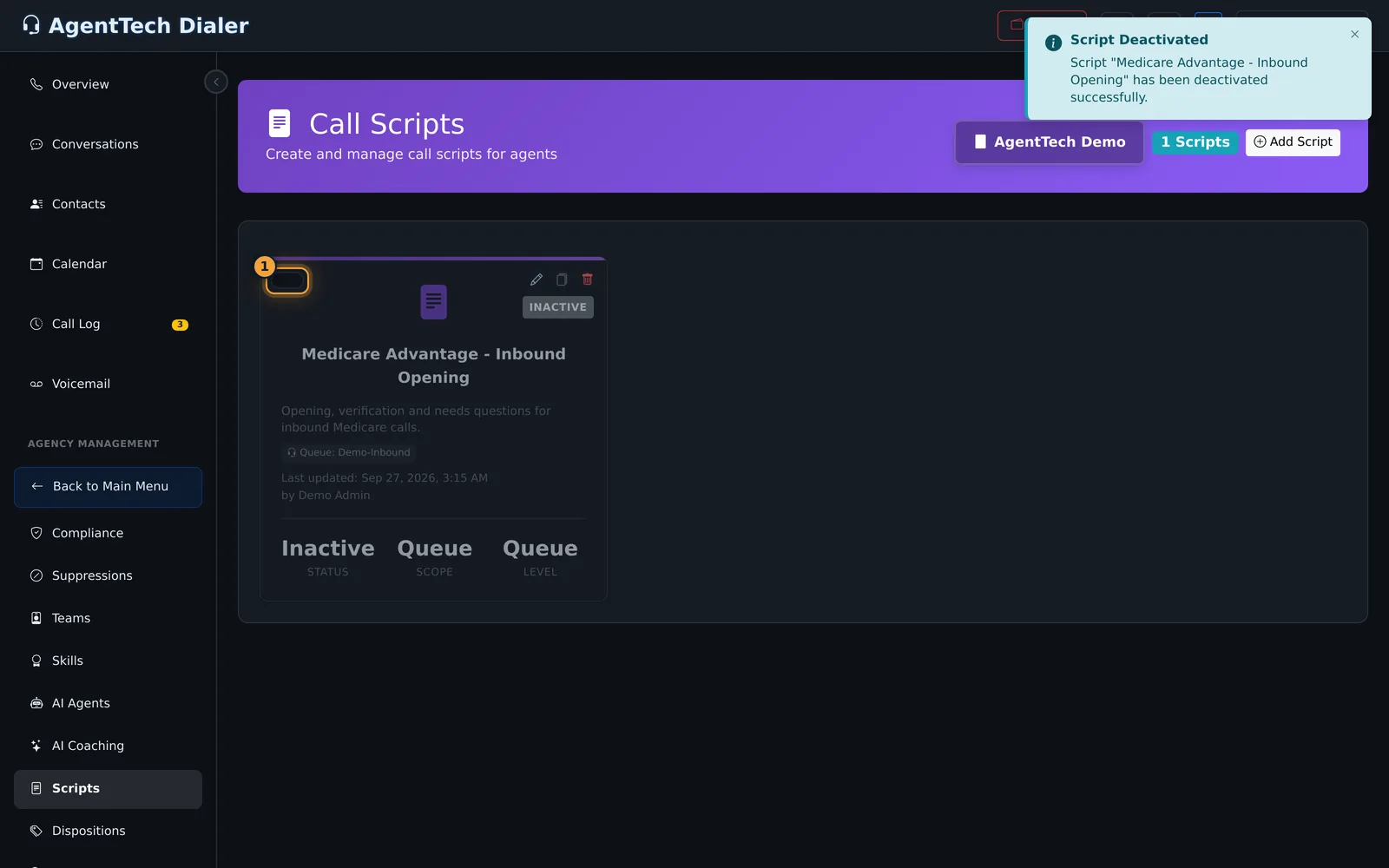
The card shows the queue, who updated it and when, and its status. The switch turns it off at once, so agents stop seeing it.
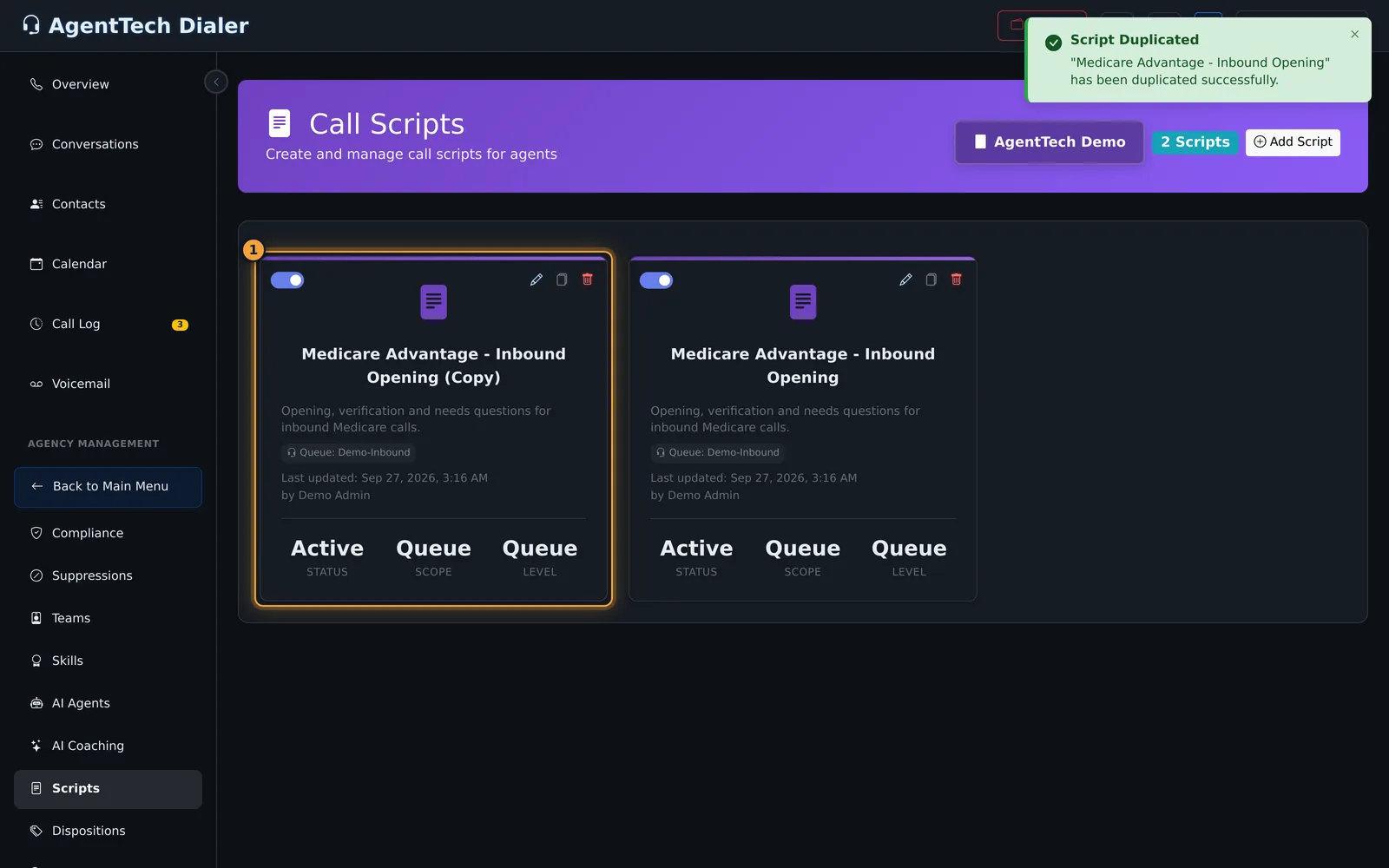
Duplicate makes a copy with the same content and scope, ready to adapt for another queue. The pencil edits a script, and the bin deletes it.
On each call, the dialer shows agents the script that matches the call's queue or campaign, with the placeholders filled in.
Next, set up the dispositions agents choose when the call ends.
A call script is the text agents read from during a call: the opening, the questions to ask, the disclosures to give. Scripts appear in the dialer's script panel on calls that match their scope, with placeholders such as the caller's first name filled in.
This article is for agency admins, who create and manage scripts. Agents only read them.
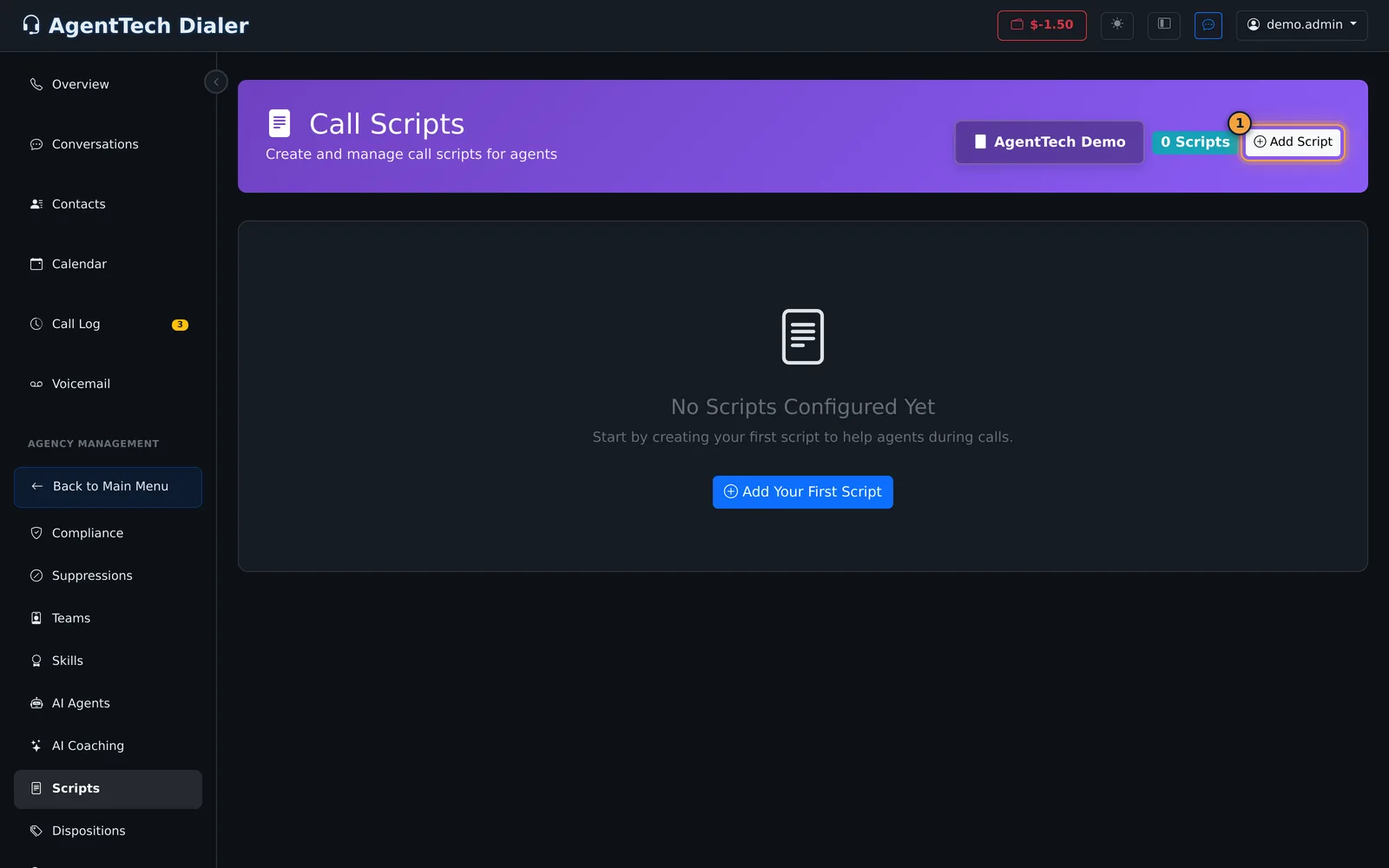
Open Agency Management > Scripts. Until you add one, the page shows "No Scripts Configured Yet" and Add Your First Script.
Add a script
- Select Add Script (or Add Your First Script).
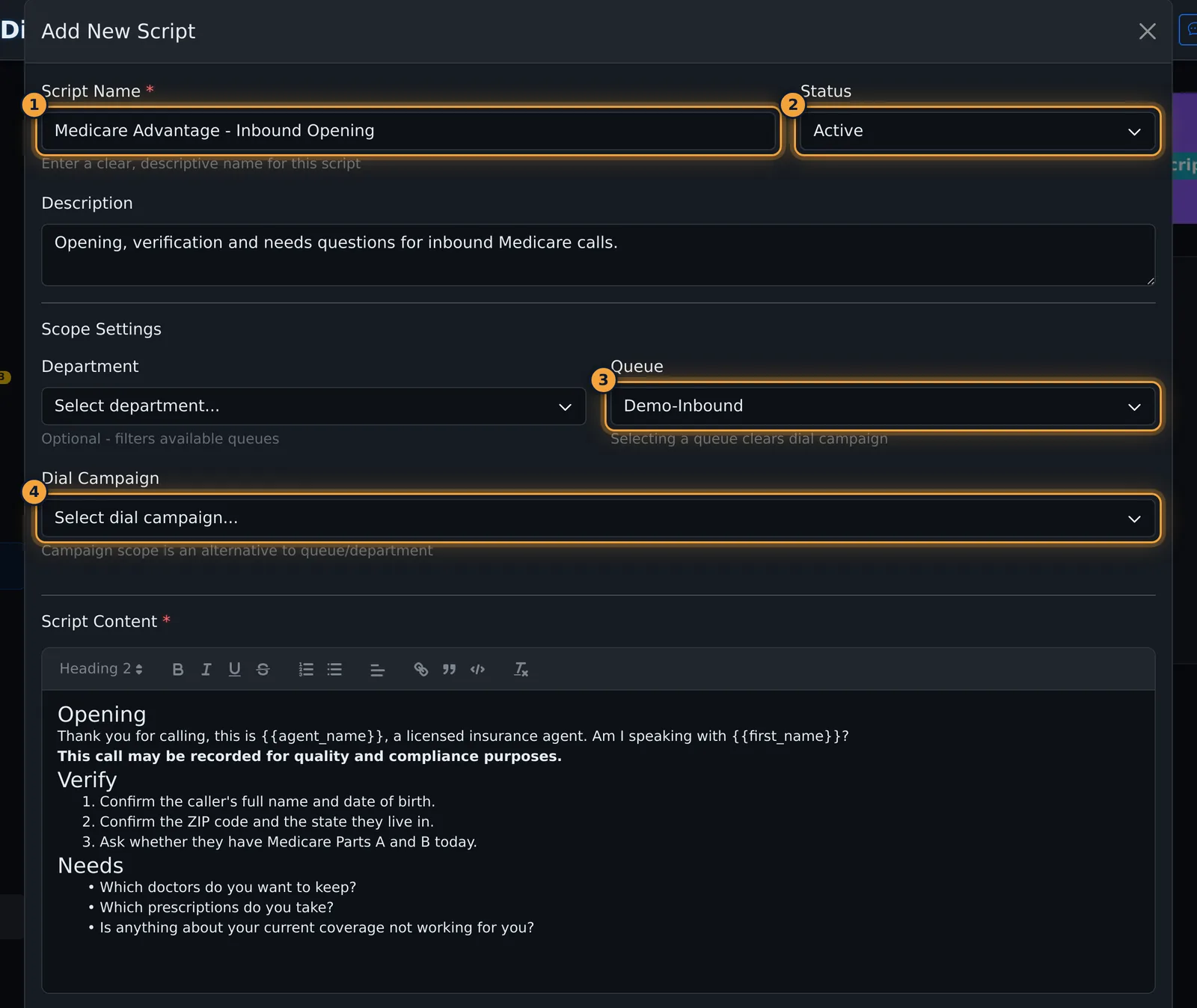
- Enter a Script Name and choose the Status: Active scripts are shown to agents, Inactive ones are kept as drafts.
- Optionally add a Description for other admins.
- Choose the scope under Scope Settings:
- Queue: the script shows on calls in that queue. Picking a queue clears any dial campaign.
- Dial Campaign: the script shows on calls from that campaign. Picking a campaign clears the department and queue.
- Department: narrows the queue list to one department.
- Leave all three empty to make the script agency-wide.
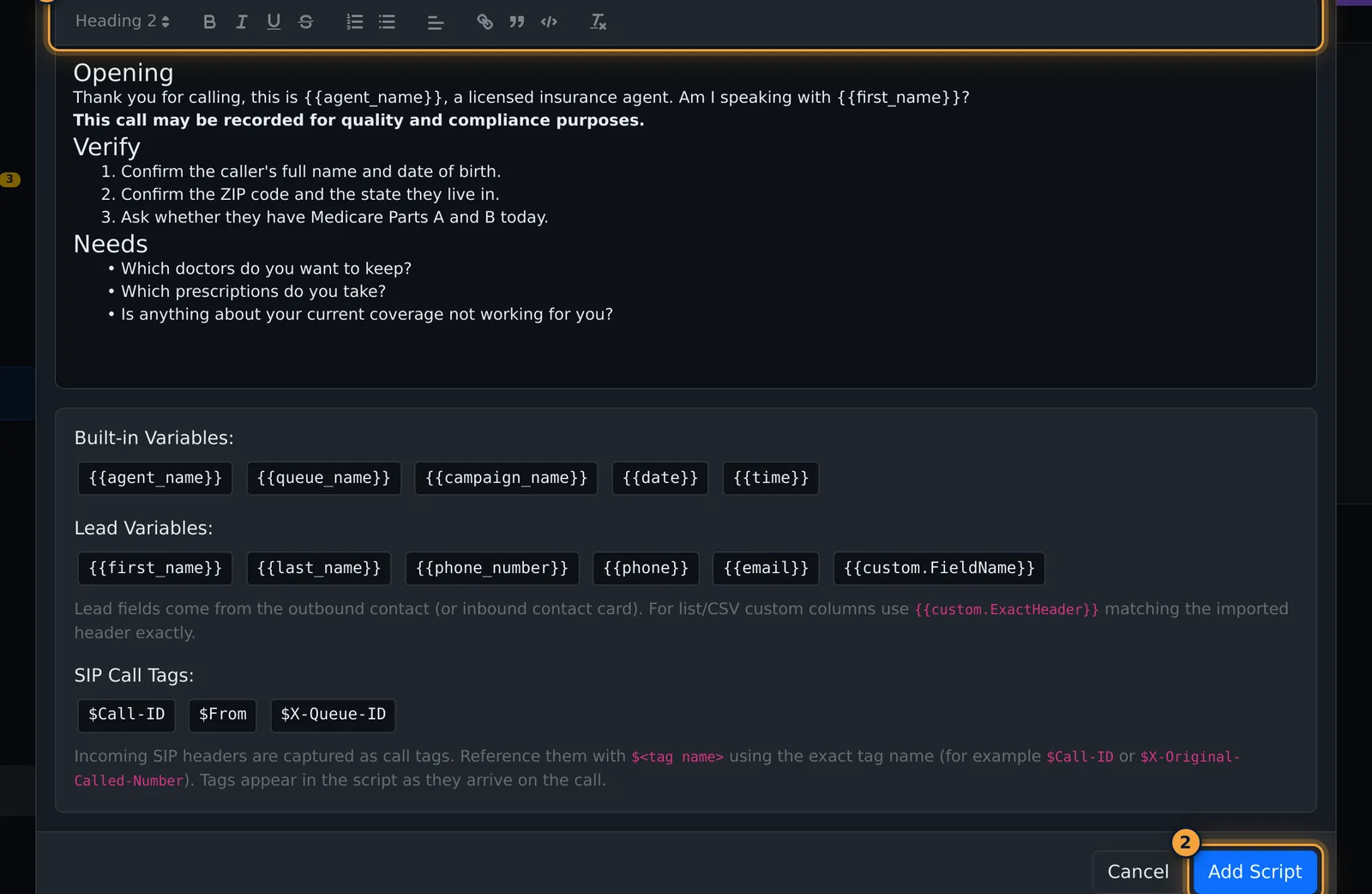
- Write the script in Script Content. The toolbar has headings, bold, italic, underline, strikethrough, numbered and bullet lists, alignment, links, quotes, code blocks and clear formatting.
- Type placeholders where the caller's or agent's details should go, for example
Hi {{first_name}}, this is {{agent_name}}. The list of placeholders is under the editor (see below). - Select Add Script. The card appears on the page.
| Field | What it does |
|---|---|
| Script Name | Required. Two scripts in the same scope cannot share a name. |
| Status | Active (default) or Inactive. |
| Description | Optional note shown on the card. |
| Department / Queue / Dial Campaign | Optional scope. Empty means the whole agency. |
| Script Content | Required. Rich text with placeholders. |
Placeholders
Placeholders are replaced when the script is shown on a call. Custom columns and call tags the call doesn't have stay as typed.
| Placeholder | Filled with |
|---|---|
{{agent_name}} | The agent's name |
{{queue_name}}, {{campaign_name}} | The call's queue or dial campaign |
{{date}}, {{time}} | Today's date and the current time |
{{first_name}}, {{last_name}}, {{email}}, {{phone_number}}, {{phone}} | The contact or lead on the call |
{{custom.FieldName}} | A custom column from the lead list. Use the column header exactly as imported. |
$Call-ID, $From, $X-Queue-ID | Call tags sent with an incoming call. Use $ and the exact tag name. |
After saving
The card shows the scope (for example "Queue: Demo-Inbound"), who last updated it and when, and its status.
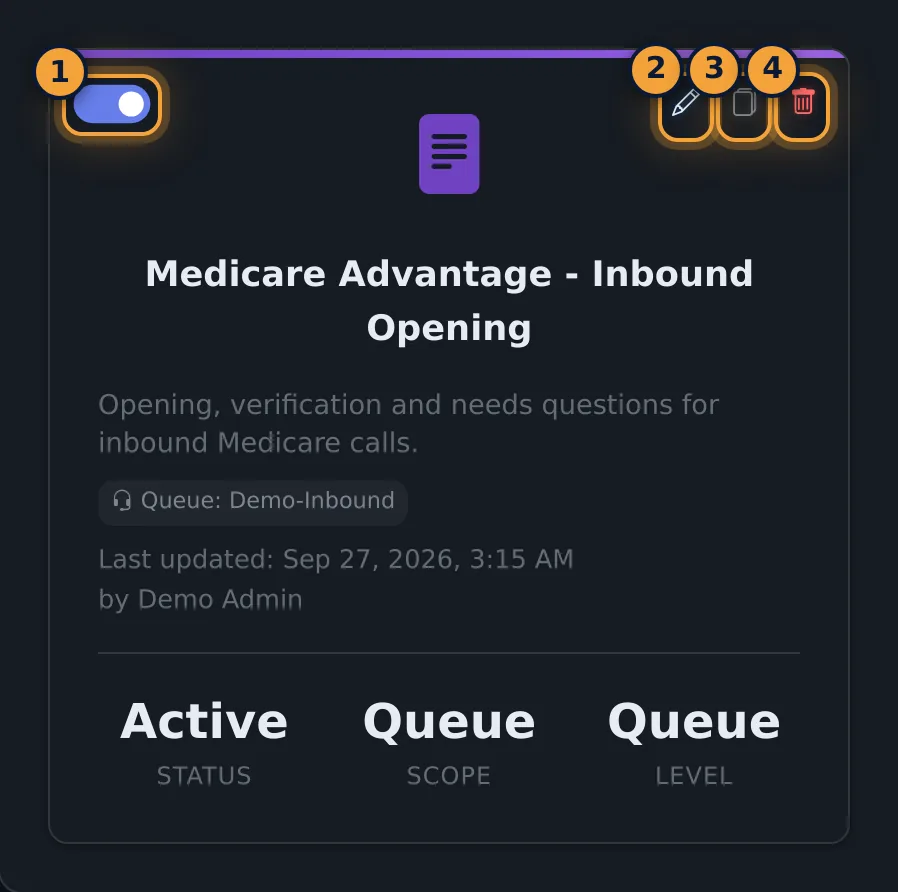
- Switch off: the switch saves at once. The card dims and agents stop seeing the script.
- Duplicate: creates "<name> (Copy)" straight away with the same content, scope and status, ready to adapt for another queue.
- Edit: the pencil reopens the script. Change it and select Update Script.
- Delete: the bin asks you to confirm, then removes the script.
What agents see
On each call the dialer asks for the script that matches the call's queue or dial campaign and shows it in the script panel. With no match the panel says "No script available for this call".
Common problems
- "Please enter script content": the editor is empty. Add text before saving.
- "A script with this name already exists in the same scope": rename the script, or give it a different queue or campaign.
- Agents see no script: check that the script is active and that its queue or campaign matches the call. Calls with neither a queue nor a campaign show "No script available for this call".
- A placeholder shows as typed: check the spelling; for list columns use
{{custom.plus the exact header.
Related articles
Was this article helpful?
Can't find what you are looking for? Our support team can help.
Submit a support ticket