A dial campaign is an outbound list the dialer works through. You choose the dial mode, the hours it may dial, which lead list to use, and which agents work it. Nothing is dialed until you select Start.
This article is for agency admins. Open Dial Campaigns in the sidebar (under Agency Management, next to Lists). The page is called Dial Campaigns.
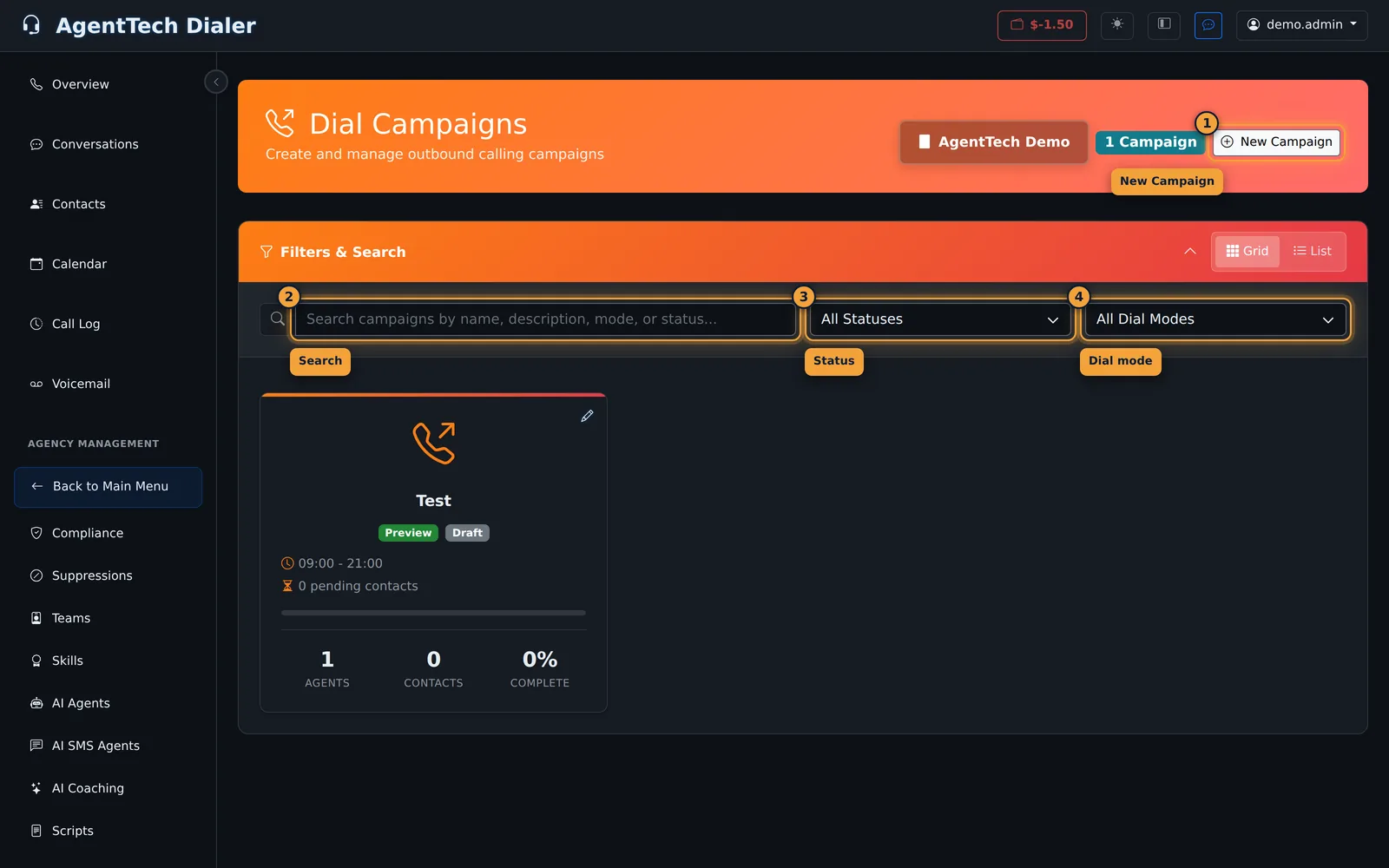
Each campaign is a card (or a row in List view) with its dial mode, status, dial window, pending contacts, agents, contacts and percent complete. Grid and List switch the layout.
| Filter | Options |
|---|---|
| Search | Name, description, mode or status. |
| Status | All Statuses, Draft, Active, Paused, Completed, Archived. |
| Dial mode | All Dial Modes, Preview, Progressive, Predictive, AI Voice. |
Create a campaign
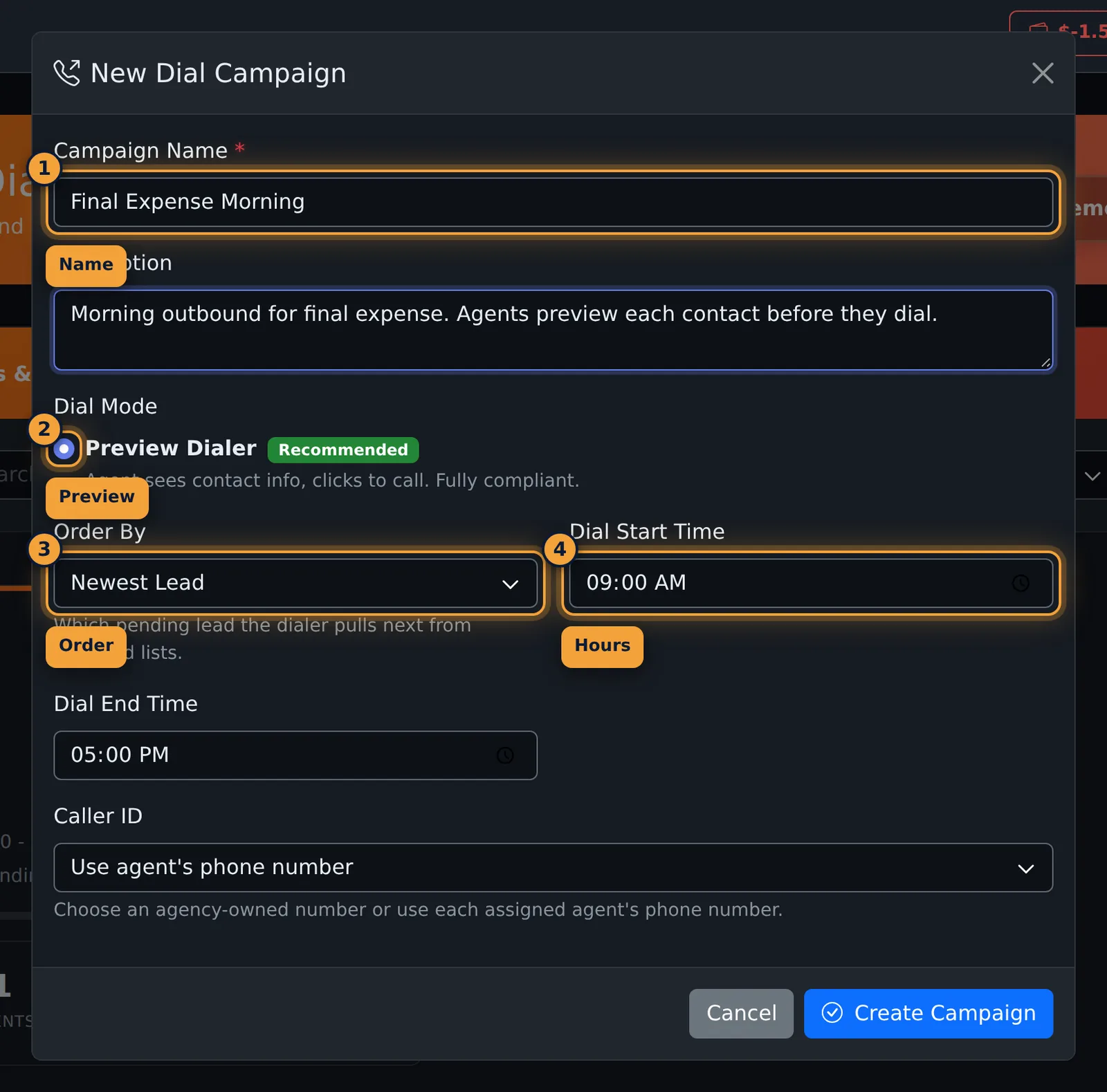
- Select New Campaign.
- Enter a Campaign Name and, if you want, a Description.
- Choose a Dial Mode. The form shows the modes turned on for your agency. Preview Dialer is marked Recommended: the agent sees the contact and clicks to call.
- Set Order By to Newest Lead or Oldest Lead. That is which pending lead is pulled next from the assigned lists.
- Set Dial Start Time and Dial End Time.
- Choose a Caller ID: Use agent's phone number, or an agency number that can place outbound calls.
- Select Create Campaign. The campaign is a Draft. It does not dial yet.
| Dial mode | What the form says | When you see it |
|---|---|---|
| Preview Dialer | Agent sees contact info, clicks to call. Fully compliant. | Always. |
| Progressive Dialer | Auto-dials when an agent becomes available. Check regulations first. | Only if Progressive is enabled for the agency. |
| Predictive Dialer | Loads the next contact into the Call modal and waits for the agent to click Call. | Only if Predictive is enabled for the agency. |
| AI Voice Campaign | An AI agent places the outbound calls and can transfer to a person. | Only if AI Voice is enabled for the agency. |
AI Voice also asks for an AI Agent ID, Max concurrent AI calls, and an optional Transfer Queue ID.
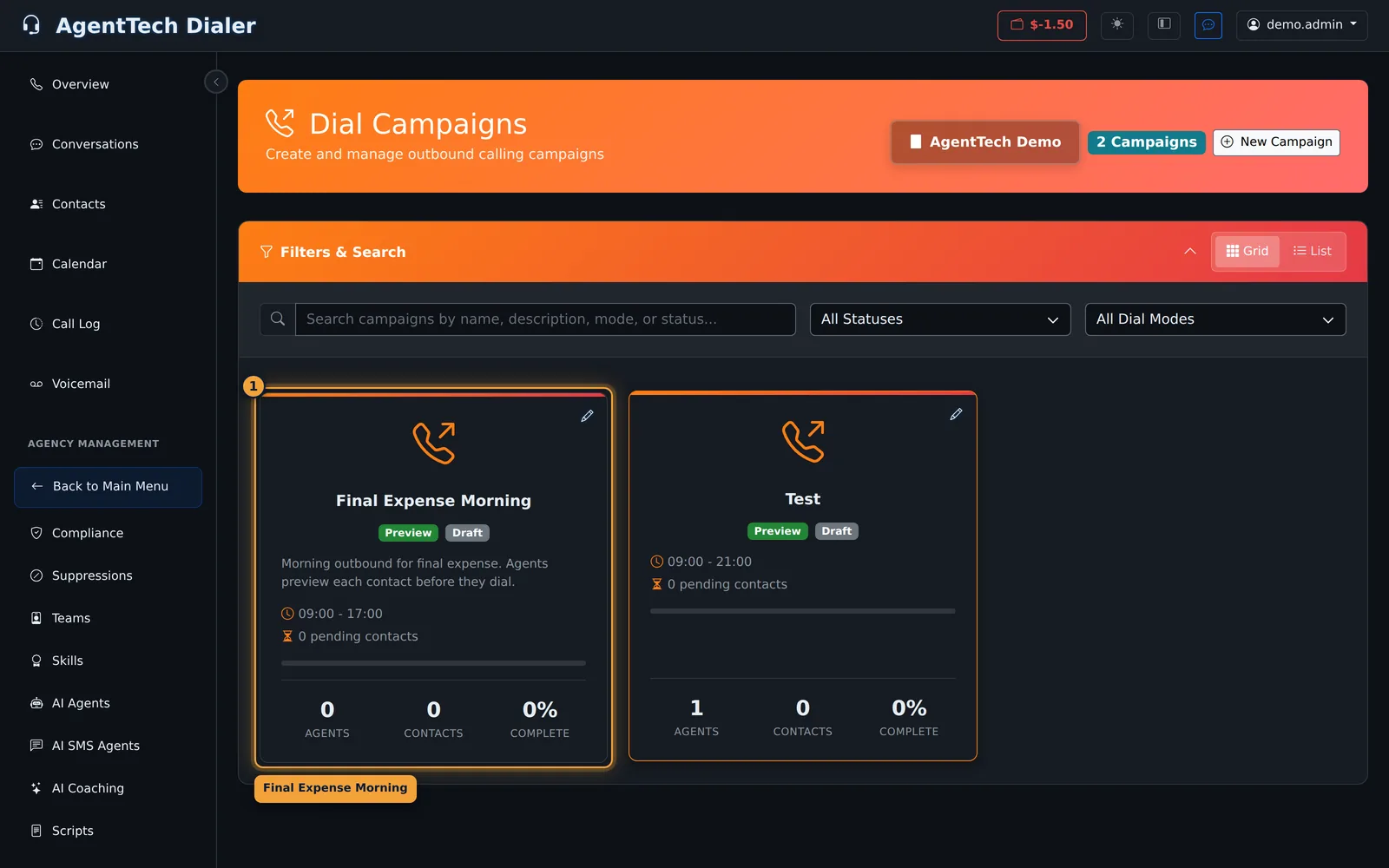
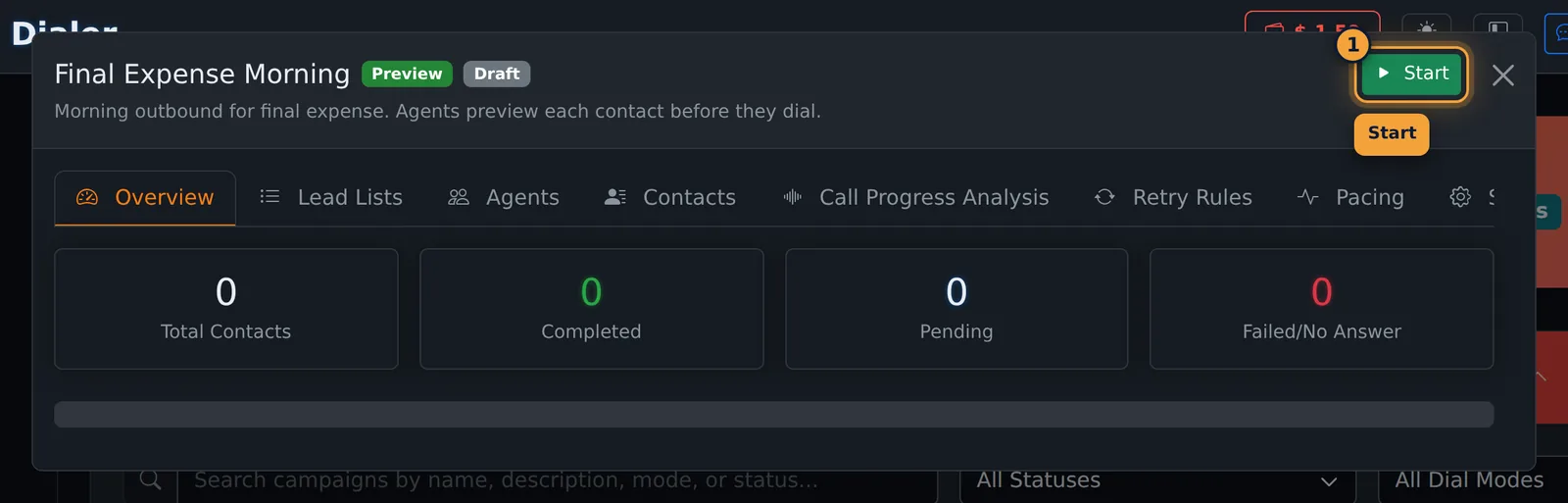
Select the card to open it. The header shows the name, the mode, the status and the description. Start is shown while the campaign is Draft or Paused. Pause is shown while it is Active.
Assign a lead list
The people to dial come from a list on the Lists page. On the campaign, open Lead Lists. With nothing assigned, the tab says to assign a lead list to start dialing.
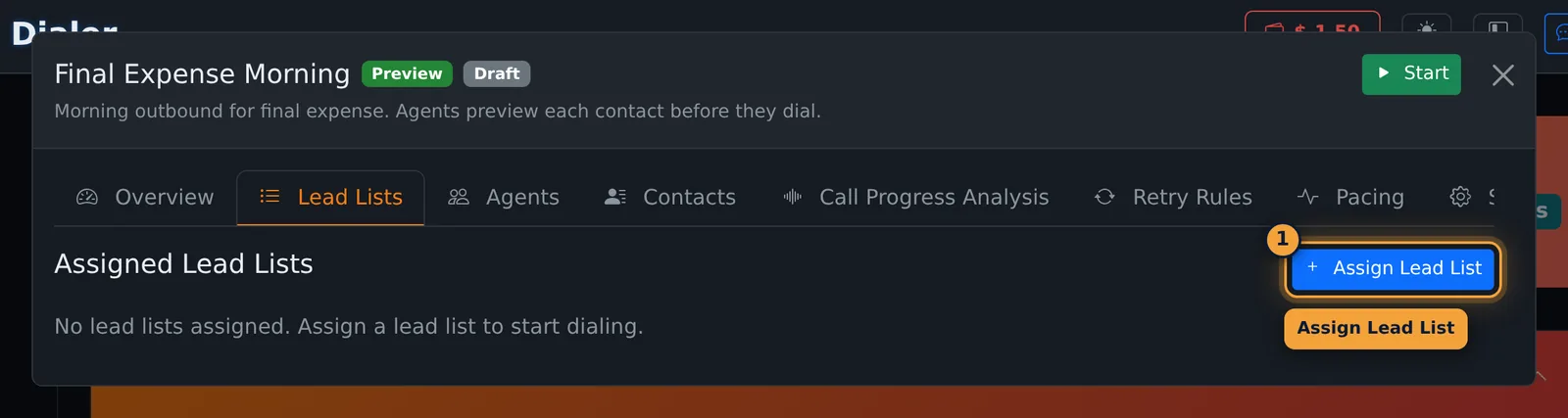
- Select Assign Lead List.
- If agents should pay for these leads, turn on Bill agents for leads from this list, set Cost per lead, and choose Charge when.
- Select the list. That assigns it. The dialog does not have a separate confirm button.
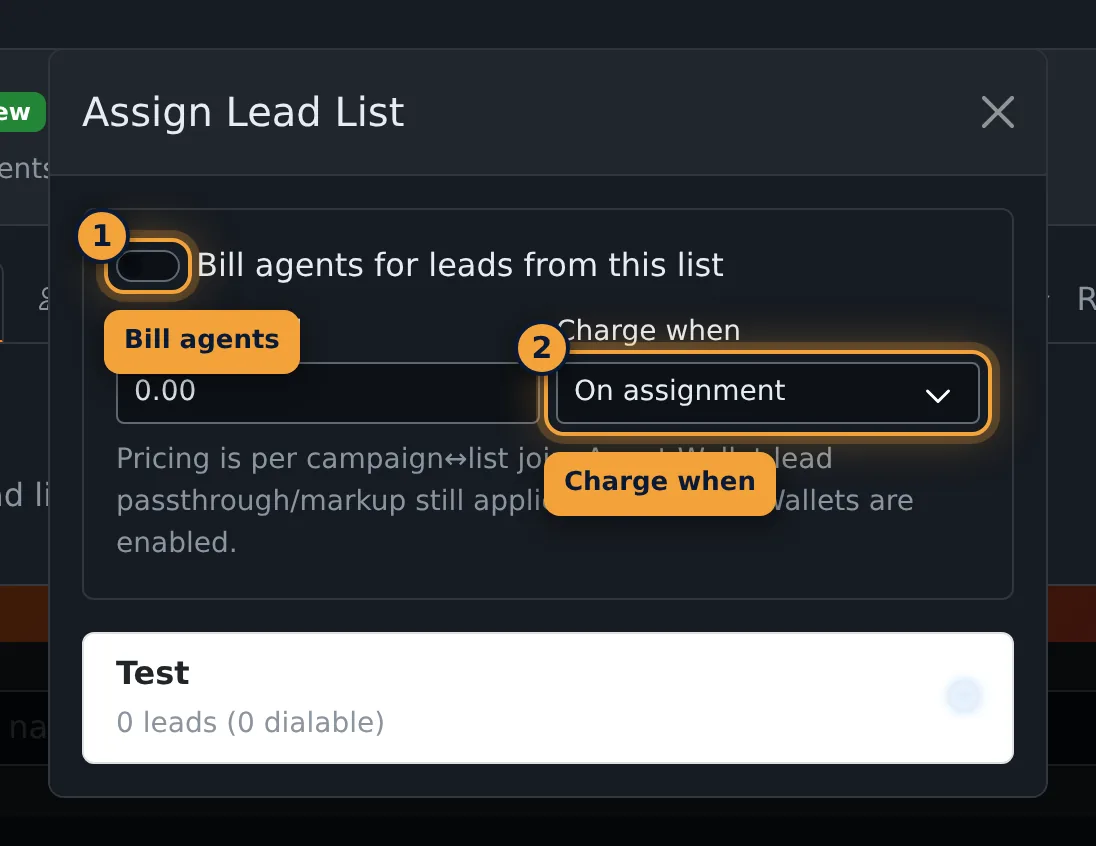
| Charge when | What it means |
|---|---|
| On assignment | Charge when the lead is assigned. |
| On assignment (refund if released) | Charge on assignment, and refund the agent if the lead is released. |
| When dialing starts | Charge when the dialer starts the call. |
| Only if call answered | Charge only if the call is answered. |
The price is for this campaign and this list. Agent-wallet passthrough and markup still apply when wallets are enabled. See Billing & Your Wallet.
An assigned list shows its name, how many leads were imported, how many duplicates were skipped, the billing, and the status. The trash button removes that list from the campaign. It does not delete the list.
Assign agents
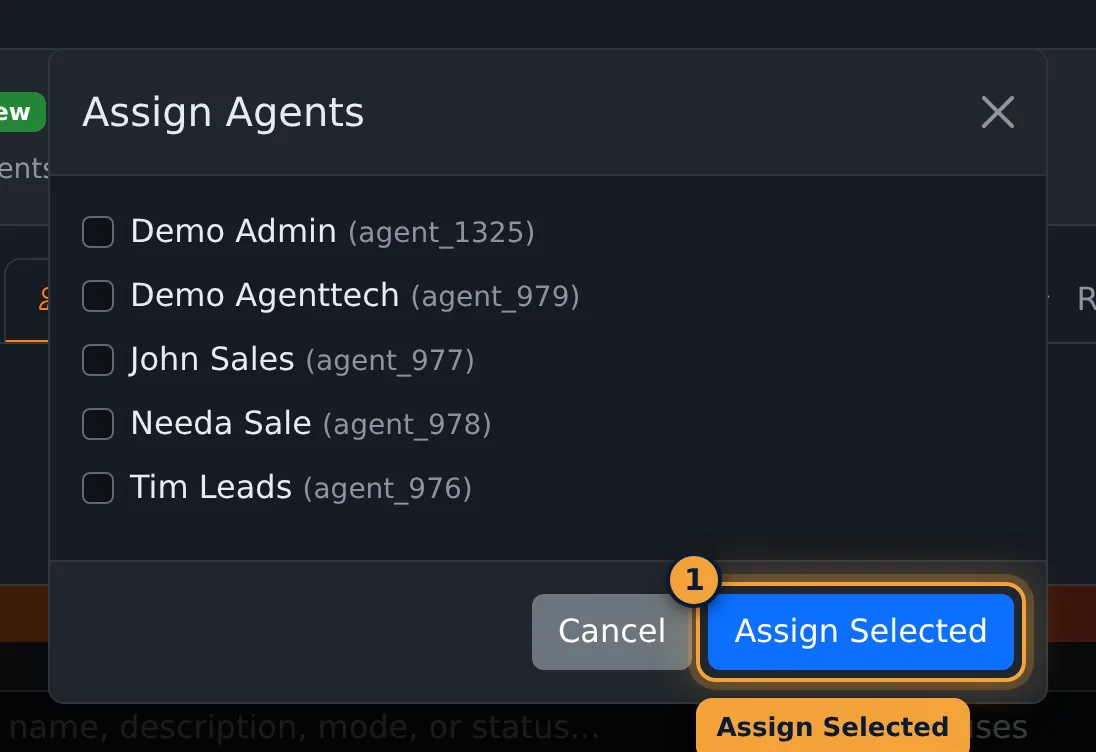
Open Agents and select Assign Agents. Tick the agents who will work the campaign, then select Assign Selected.
Contacts
Contacts is the people from the assigned lists. With no list, the tab says no contacts are loaded and to assign a lead list first. Once a list is assigned, the table is Name, Phone, Status and Attempts. Status is the dial result, such as pending, queued, dialing, connected, completed, no answer, failed or skipped.
Call progress analysis
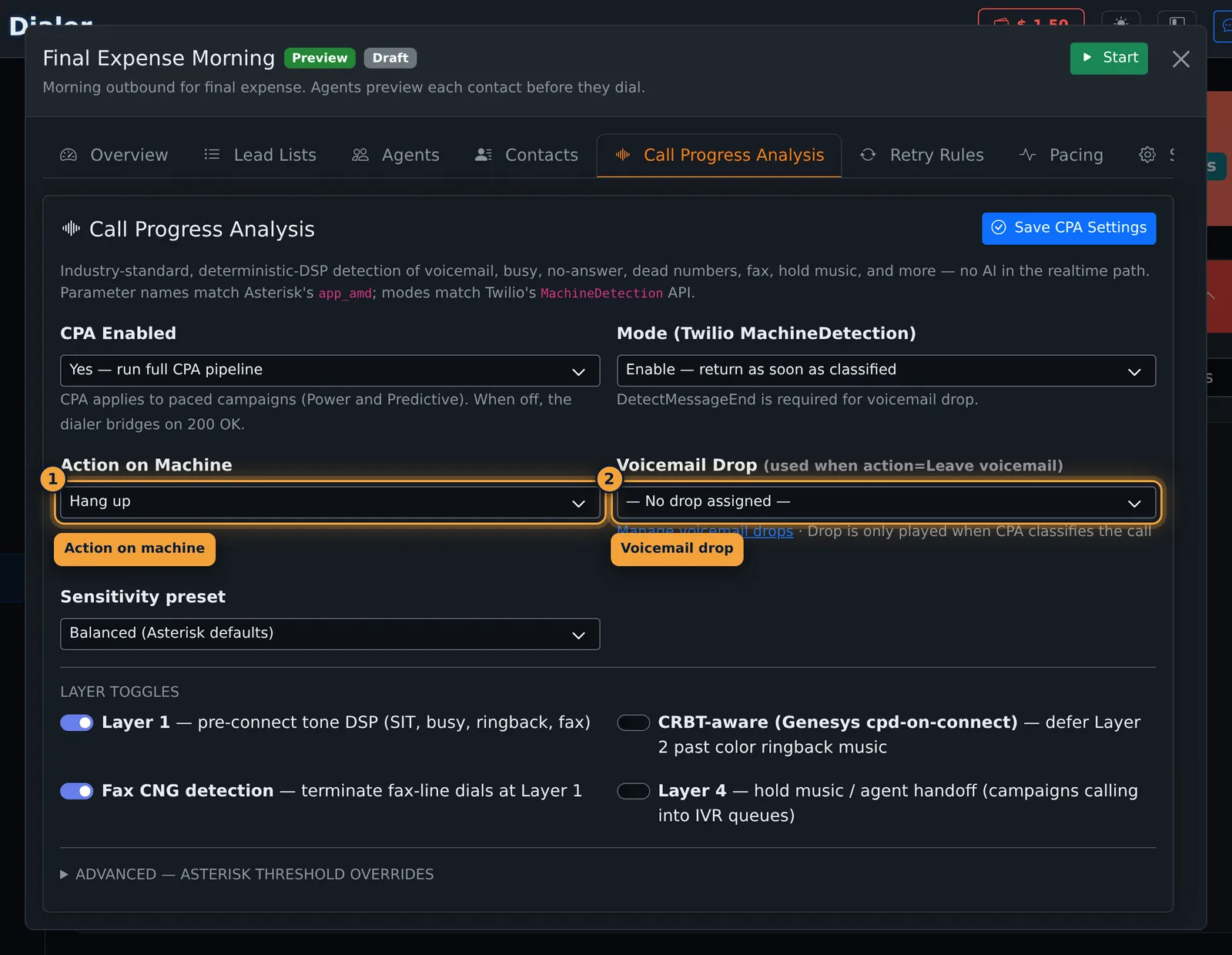
Call Progress Analysis classifies voicemail, busy, no-answer, dead numbers, fax and hold music while the call is ringing. The tab says there is no AI in that detection. It applies to paced campaigns. When it is off, the dialer bridges the agent as soon as the far end answers.
| Setting | What it does |
|---|---|
| CPA Enabled | Yes runs the full detection. No bridges the first agent on answer. |
| Mode | Enable returns as soon as the call is classified. DetectMessageEnd waits for the beep on a machine. A voicemail drop needs DetectMessageEnd. |
| Action on Machine | Hang up, Leave voicemail, or Mark for callback. |
| Voicemail Drop | The recording played when the action is Leave voicemail and the call is classified as a machine. Manage voicemail drops opens the drop library. |
| Sensitivity preset | Conservative (lean toward a person), Balanced, or Aggressive (lean toward a machine). |
Layer toggles turn individual detectors on or off: pre-connect tones (SIT, busy, ringback, fax), color-ringback handling, fax CNG, and hold music. Advanced holds the Asterisk threshold overrides. Select Save CPA Settings when you change this tab.
Retry rules
Retry Rules overrides the campaign default for each result. The default on a new campaign is up to 3 attempts, 60 minutes apart. A row you leave blank keeps that default. Set Max Attempts to 0 to never retry that result.
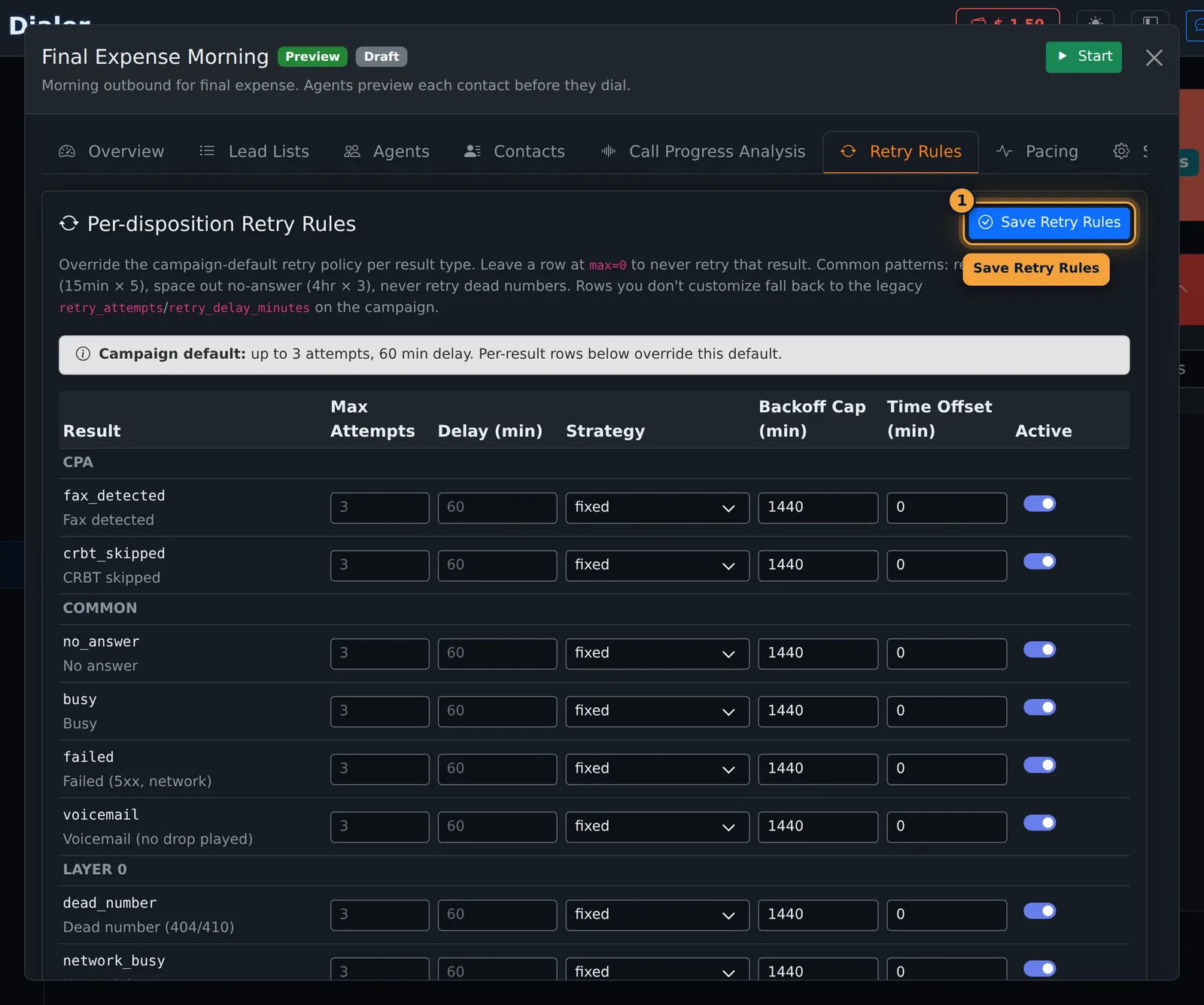
| Column | What it does |
|---|---|
| Result | The outcome, grouped under CPA, Common and Layer 0. Common results include no answer, busy, failed and voicemail (no drop played). |
| Max Attempts | How many times that result is tried again. 0 means never. |
| Delay (minutes) | How long to wait before the next try. |
| Strategy | fixed, exponential backoff, or next business day. |
| Backoff Cap (minutes) | The longest delay exponential backoff may reach. |
| Time Offset (minutes) | Shifts the next attempt earlier or later in the day. |
| Active | Turn the row off without deleting it. |
Select Save Retry Rules. The same default attempts and delay are also on Settings as Retry Attempts and Retry Delay (minutes).
Pacing and abandonment
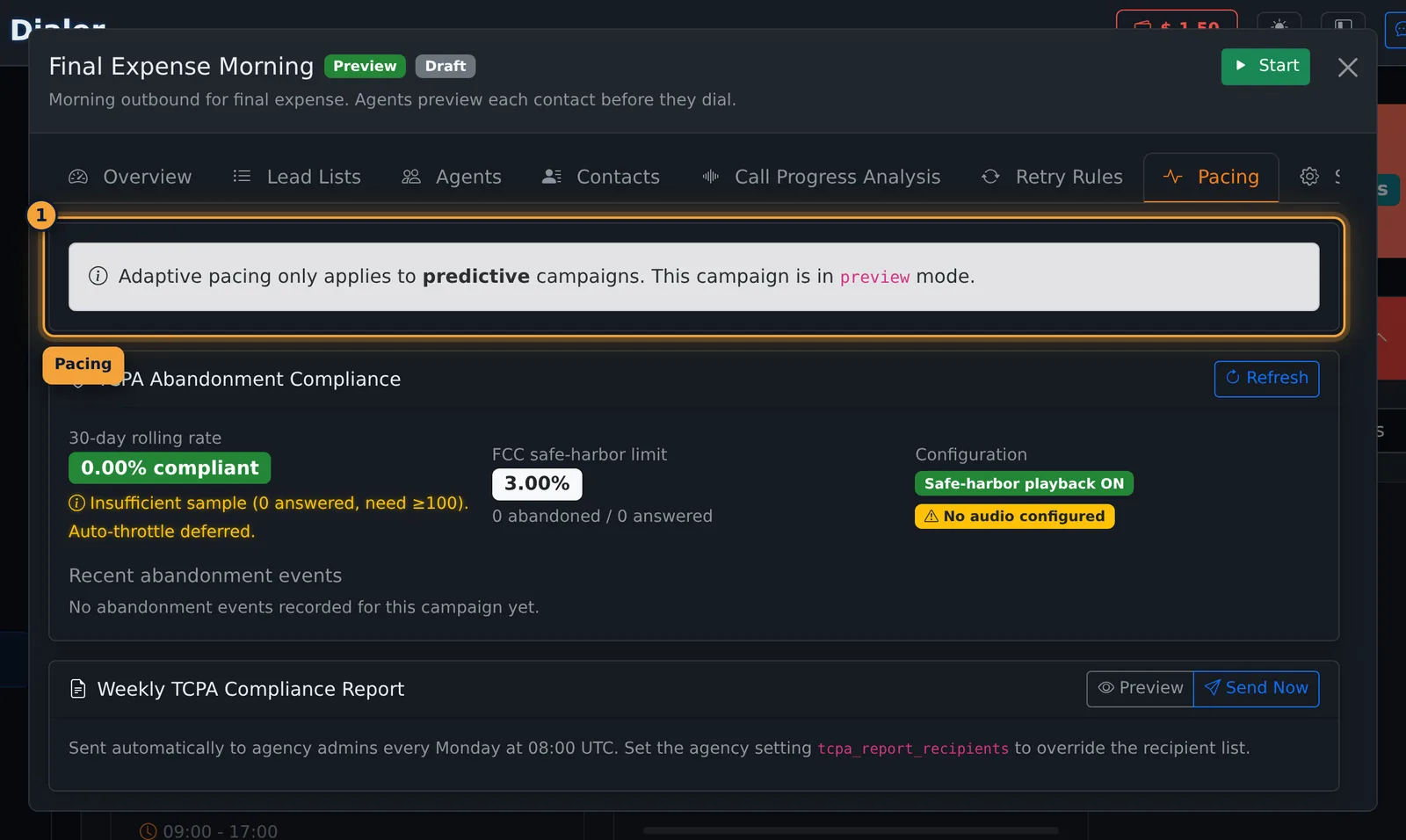
Pacing is only for predictive campaigns. On any other mode the tab says adaptive pacing does not apply.
The same tab always shows TCPA Abandonment Compliance:
| Item | What it shows |
|---|---|
| 30-day rolling rate | Abandoned calls divided by answered calls over 30 days, and whether that rate is inside the safe harbor. A sample under 100 answered calls is marked insufficient, and auto-throttle waits. |
| FCC safe-harbor limit | 3.00%. |
| Configuration | Whether safe-harbor playback is on, and whether abandonment audio is configured. |
| Recent abandonment events | Abandoned calls for this campaign. |
| Weekly TCPA Compliance Report | Preview builds the report. Send Now emails it. The report also goes to agency admins every Monday at 08:00 UTC. The agency setting tcpa_report_recipients replaces that recipient list. |
On a predictive campaign the note is replaced by the pacing controls: Adaptive pacing (the dial ratio is adjusted about once a minute), Target abandonment (the safe harbor is 3%), Min ratio, Max ratio, Save Pacing Config, and Run Pacing Now. Run Pacing Now runs a pacing pass immediately. Current ratio and the last hour of decisions sit under those fields.
Settings
Settings is where you change the campaign after it exists. While it is Draft or Paused you can change dial mode, the dial window, retries, caller ID and max concurrent calls. While it is Active, those fields are locked and the tab tells you to pause the campaign first. Order By, honoring the callee's local time, and skipped wrap-up can still be saved.
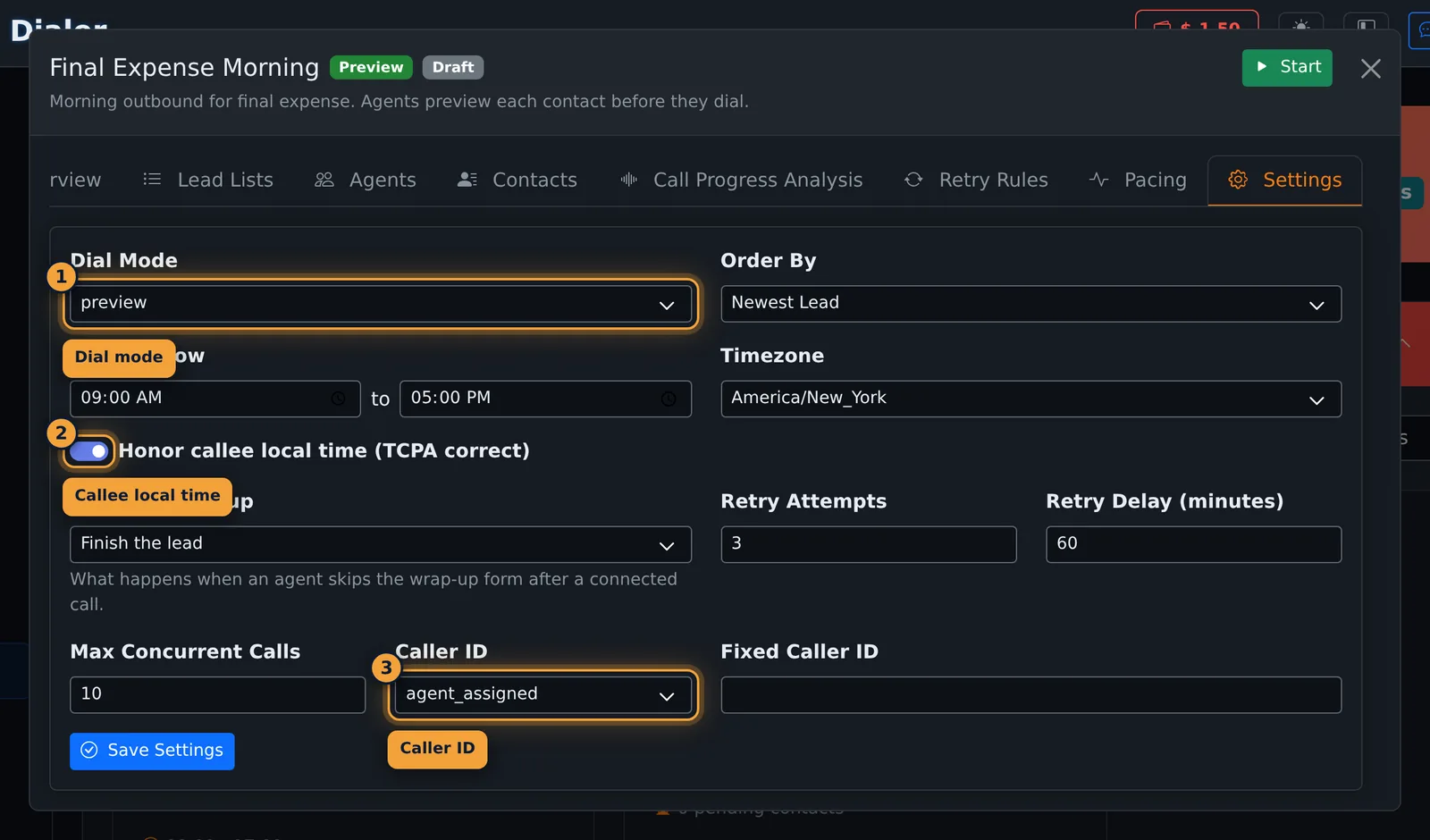
| Setting | What it does |
|---|---|
| Dial Mode | preview, progressive, predictive or ai_voice. Same modes as the create form. |
| Order By | Newest Lead or Oldest Lead. |
| Dial window | Start and end time. |
| Timezone | The zone the dial window is read in. A new campaign uses America/New_York until you change it. The list is the US zones from Eastern through Hawaii, including Arizona. |
| Honor callee local time (TCPA correct) | On by default. The dial window is applied in the callee's local time. |
| Skipped wrap-up | Finish the lead or Dial the lead again, when an agent skips the wrap-up form after a connected call. |
| Retry Attempts / Retry Delay (minutes) | The campaign default the retry table falls back to. A new campaign uses 3 attempts and 60 minutes. |
| Max Concurrent Calls | How many calls the campaign may have up at once. |
| Caller ID | agent_assigned (the agent's number), fixed (the number in Fixed Caller ID), rotating, local_presence or agent_state_pool. |
| Fixed Caller ID | Used when Caller ID is fixed. |
Select Save Settings.
What happens after you start
Start moves a Draft or Paused campaign to Active and the dialer works the assigned lists during the dial window, in the order you chose, with the agents you assigned. Pause stops new dials. The overview counts total, completed, pending and failed or no-answer contacts, and the card shows percent complete.
A call script scoped to this campaign is the script agents see on these calls. See Call Scripts.
Common problems
- Start does not dial anyone: open Lead Lists. If it says no list is assigned, assign one. Then assign agents.
- Progressive, Predictive or AI Voice is missing on New Campaign: that mode is not enabled for the agency. Preview is always available.
- Pacing has no ratio controls: the campaign is not predictive. The tab says so.
- Dial mode, hours or caller ID are disabled: the campaign is Active. Pause it, change the settings, then start it again.
- The weekly TCPA report has no recipients: set the agency setting
tcpa_report_recipients, or make sure the agency has an agency admin.
Related articles
Was this article helpful?
Can't find what you are looking for? Our support team can help.
Submit a support ticket