Transcript
Transcription turns each call's audio into text, split by speaker, so you can read a call instead of listening to it. Here is how to turn it on and find a transcript.
In Agency Settings, under Call Settings, turn on Call Transcription, and keep Enable Call Recording on as well.
The setting saves on its own. While AI Sales Coach is on, Call Transcription stays locked on, because the coach needs it.
Open the Call Log, and tick All Time. To find calls by what was said, type a word in Transcript keyword, and select Filter.
Calls with a transcript show its first words under the recording. Select View Transcription in the row's actions.
The Call Transcript page shows the caller, the agent, the date, duration and status. Below is the conversation, with each speaker labelled.
Compliance analysis and the AI Sales Coach both work from transcripts. Agents see their own calls; supervisors and admins see every call in the agency.
Next, see how AI Compliance Analysis answers your questions from each transcript.
Transcription turns a call's audio into text, split by speaker, so you can read a call instead of listening to it, search calls by what was said, and run compliance analysis. Transcripts are made from call recordings; the AI Sales Coach also uses a live transcript during the call.
This article is for agency admins (who turn it on) and supervisors and agents (who read transcripts).
Turn it on
- Open Agency Management > Agency Settings > Call Settings.
- Turn on Call Transcription ("Enable automatic call transcription"). Keep Enable Call Recording on too.
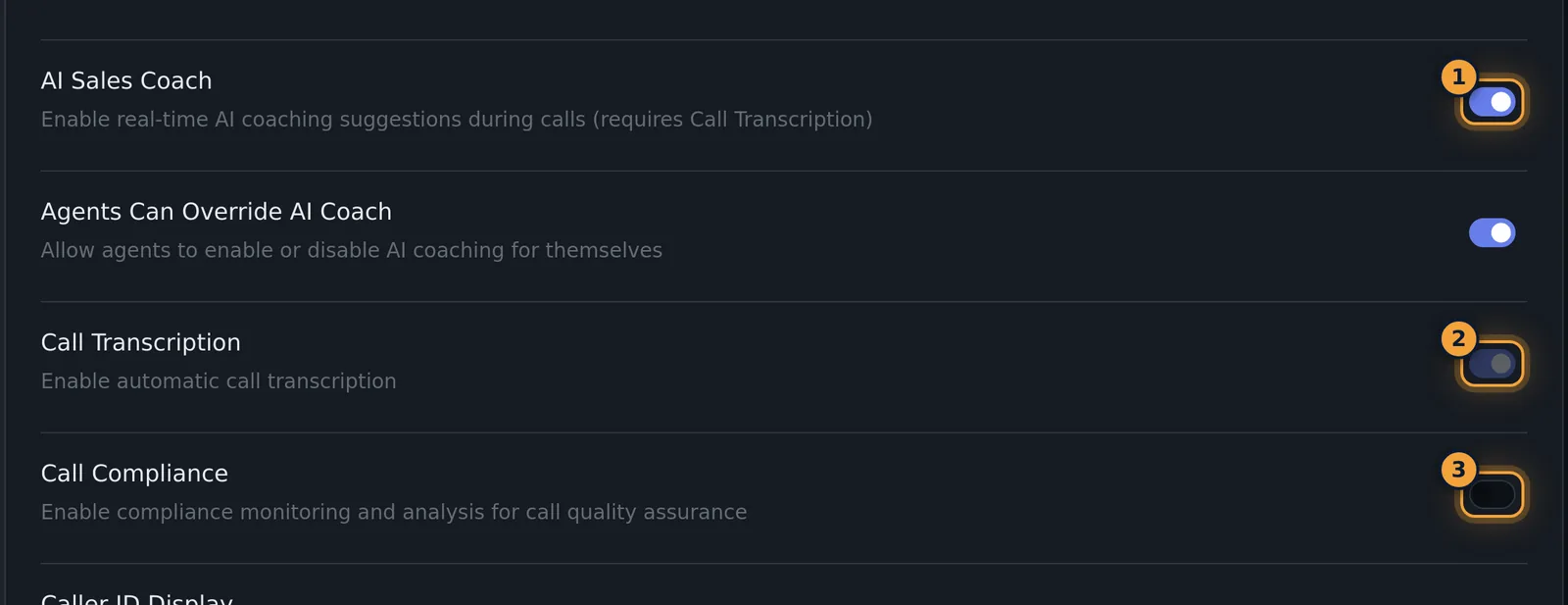
The setting saves on its own. While AI Sales Coach is on, Call Transcription is locked on, because the coach needs it.
Find a transcript
- Open Call Log. Widen the date range or tick All Time so the call is listed.
- Calls with a transcript show the start of it under the recording, for example "Speaker A: Mute this, sorr...".
- Select View Transcription (the document button) in the row's actions.
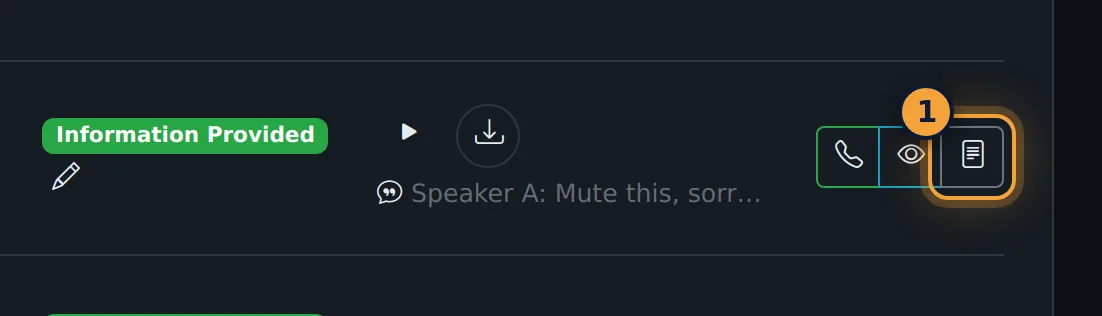
The button appears when Call Transcription is on and the call has a recording or a transcript, and the call lasted at least 30 seconds or already has a transcript.
To find calls by what was said, use the transcript keyword filter in the Call Log filters. See Call Logs.
Read the Call Transcript page
The page shows the Call ID, a Back to Call Log button, and a bar with the Caller, Agent, Date & Time, Duration and Status. Below it is the conversation, with each speaker labelled Agent or Caller. Transcripts made during the call can also show the time of each line.
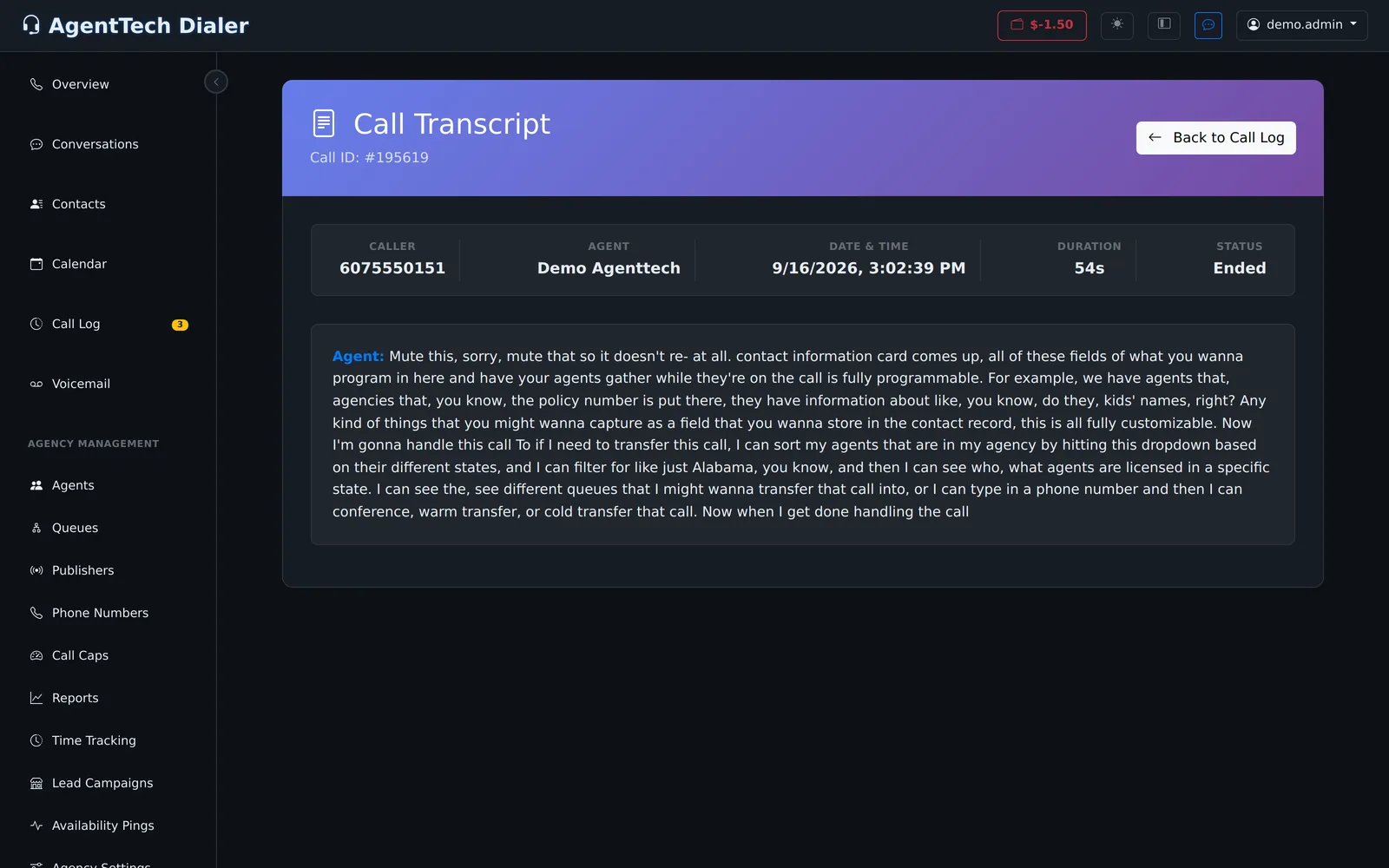
If there is no transcript, the page says "No Transcript Available".
What uses transcripts
- Compliance analysis answers your compliance questions from the transcript. See AI Compliance Analysis.
- AI Sales Coach reads the live transcript to show coaching cards during the call. See AI Sales Coach.
- Call Log search can filter calls by words in the transcript.
Who can read transcripts
Agents see their own calls in the Call Log, and their transcripts; supervisors and admins see every call in the agency.
Common problems
- No View Transcription button: Call Transcription is off, the call has no recording, or it was shorter than 30 seconds.
- "No Transcript Available": the call has not been transcribed.
- Speakers are mixed up: the labels come from the recording's speaker separation; check the recording if a line matters.
- I can't turn off Call Transcription: turn off AI Sales Coach first.
Related articles
Was this article helpful?
Can't find what you are looking for? Our support team can help.
Submit a support ticket