Transcript
Every call into AgentTech Dialer arrives on one of your phone numbers. Here is how to buy a number, and choose where its calls go.
Open Phone Numbers. Each card shows a number, and where its calls go: a user, a queue, or a publisher.
Three switches save as soon as you use them: Active, Agency primary outbound for caller ID, and SMS for texting.
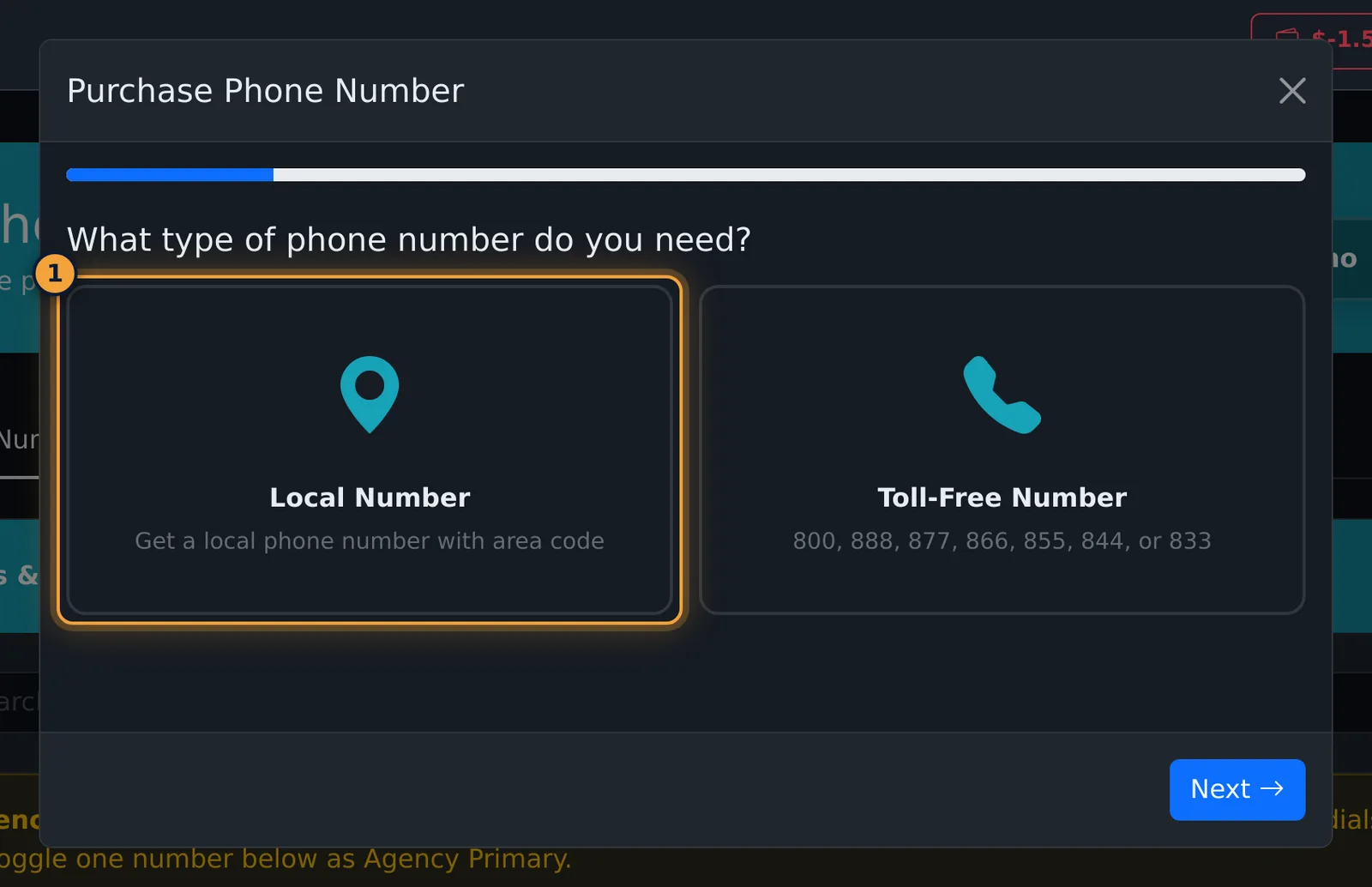
To buy one, select Add Phone Number. Choose Local Number or Toll-Free Number, and select Next.
Search by area code or by state, and pick a number. Each shows its monthly and per-minute price. Then choose where it routes, and select Complete Purchase.
To change where an existing number's calls go, select the pencil on its card.
Under Inbound Routing, choose Platform routing and a user, queue or publisher. Or choose Call forwarding, and enter an outside number.
Tick Agency primary outbound to make this the agency's caller ID. Then select Save Changes. The change is live straight away.
The bin releases a number permanently, after you confirm.
The Number Pools tab holds tracking-number pools, for call tracking on your website.
Next, set up call tracking on your website with number pools.
Every call into AgentTech Dialer arrives on one of your agency's phone numbers, and each number decides where its calls go: a user, a queue, a publisher, or an outside number. Numbers can also be used for outbound caller ID and for text messages.
This article is for agency admins. Open Phone Numbers in the sidebar.
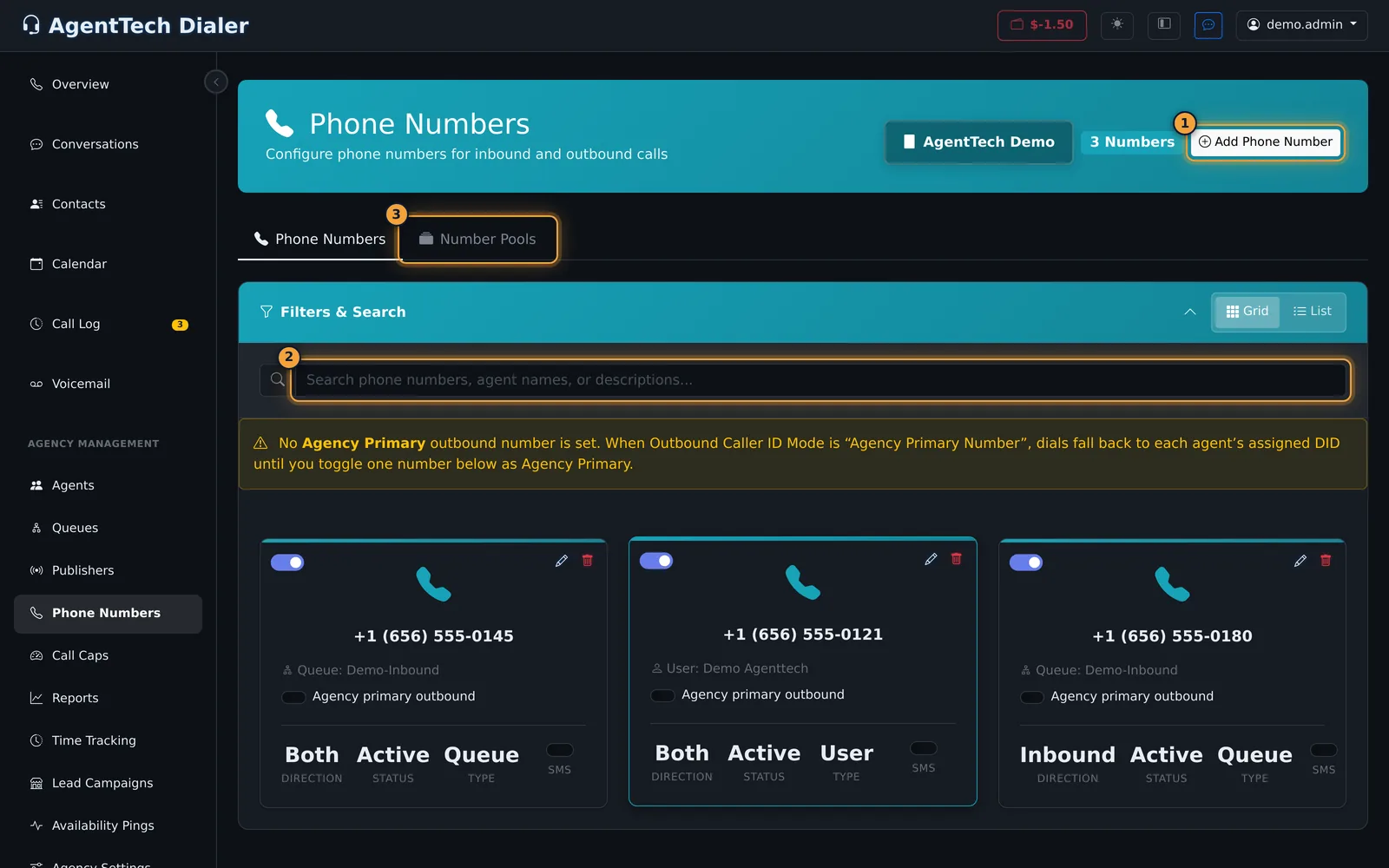
If no number is set as the agency's primary outbound number, a banner says so. When outbound caller ID uses the agency primary number, calls fall back to each agent's own number until you set one.
Read a number card
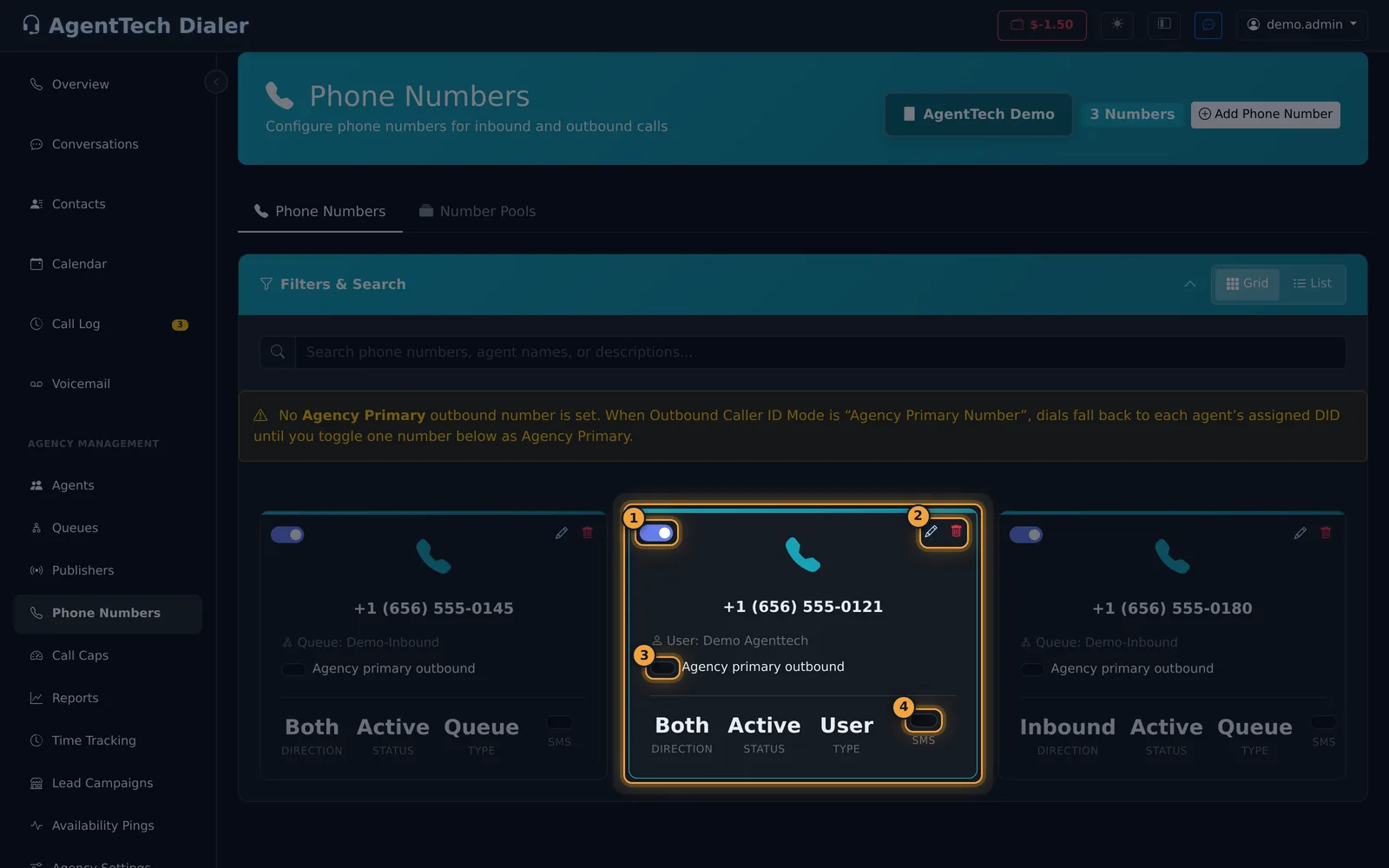
Each card shows the number and where its calls go, for example Queue: Demo-Inbound or User: Demo Agenttech. Below that are its direction (Inbound, Outbound or Both), status and type. Three switches save as soon as you use them:
- Active: switches the number off without releasing it.
- Agency primary outbound: makes this the number used when outbound caller ID is set to the agency primary number. Only one number can be primary, and only active numbers.
- SMS: turns text messaging on for the number. Toll-free numbers show N/A.
A Forwarded → badge means the number forwards to an outside phone. A warning icon means the user, queue or publisher it pointed to was deleted; edit the number and choose a new one.
Buy a number
- Select Add Phone Number.
- Choose Local Number or Toll-Free Number (800, 888, 877, 866, 855, 844 or 833) and select Next.
- Search:
- Local: search by Area Code or by State.
- Toll-free: choose a Prefix or All Prefixes, and optionally digits the number should contain.
- Select Search Available Numbers. Each result shows the monthly price and per-minute rate, plus any setup fee. Click the number you want, then Next.
- Choose the Type (Inbound Only, Outbound Only, or Both Inbound & Outbound) and the Status.
- Under Assign To, choose User, Queue or Publisher, then pick which one. Add an optional description.
- Select Next, check the number, assignment and fees, and select Complete Purchase.
The number is bought for your agency, the fees are charged, and it starts routing to what you chose.
Change where a number's calls go
- Select the pencil on the number's card.
- Change the Type if needed.
- Under Inbound Routing, choose:
- Platform routing (queue, agent, or publisher), then Assign To and the user, queue or publisher; or
- Call forwarding (external phone number), then enter Forward Calls To. Forwarded calls skip dialer routing entirely until you switch back.
- Add a description, set the Status, and tick Agency primary outbound if this should be the agency's caller ID.
- Select Save Changes. The change is live straight away.
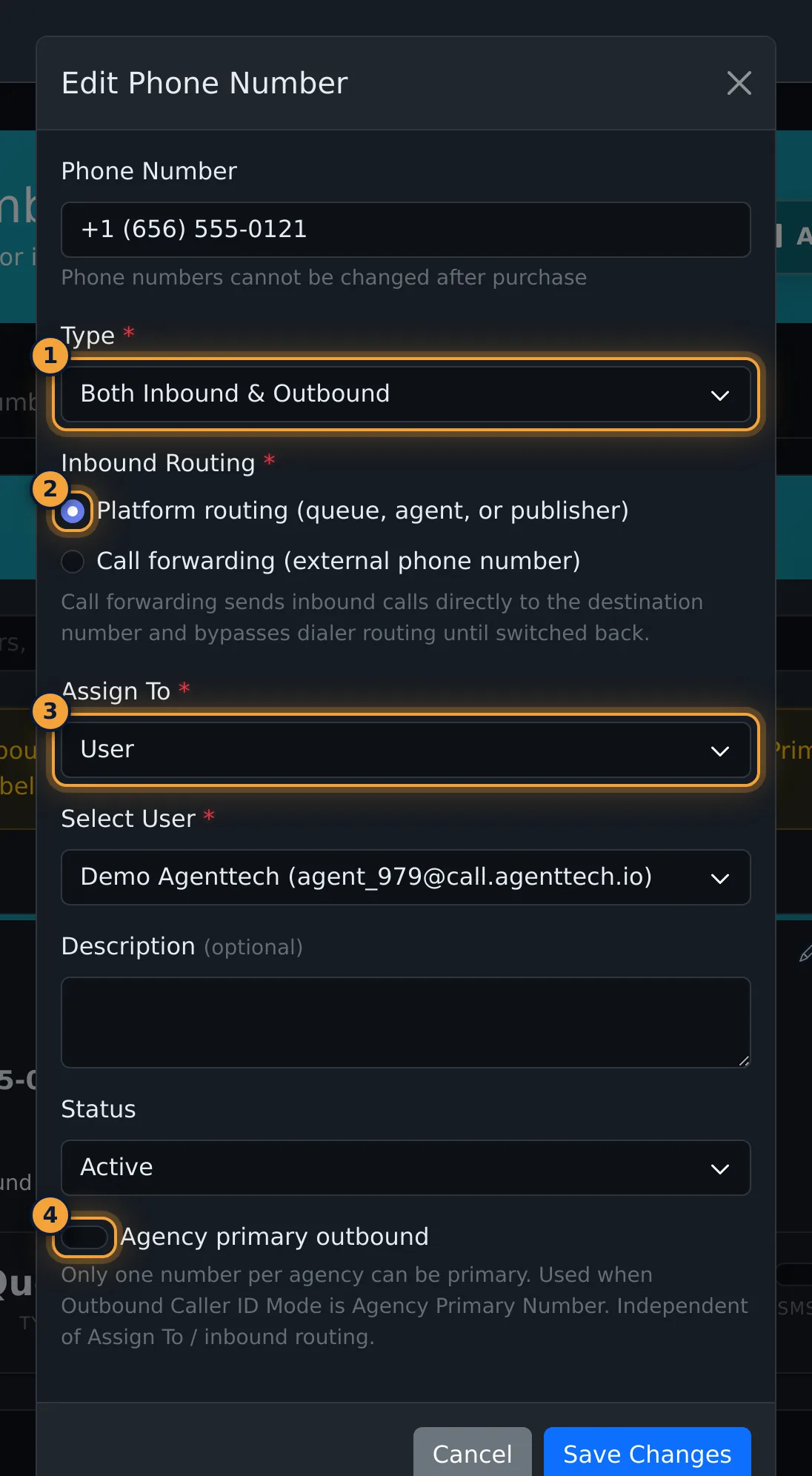
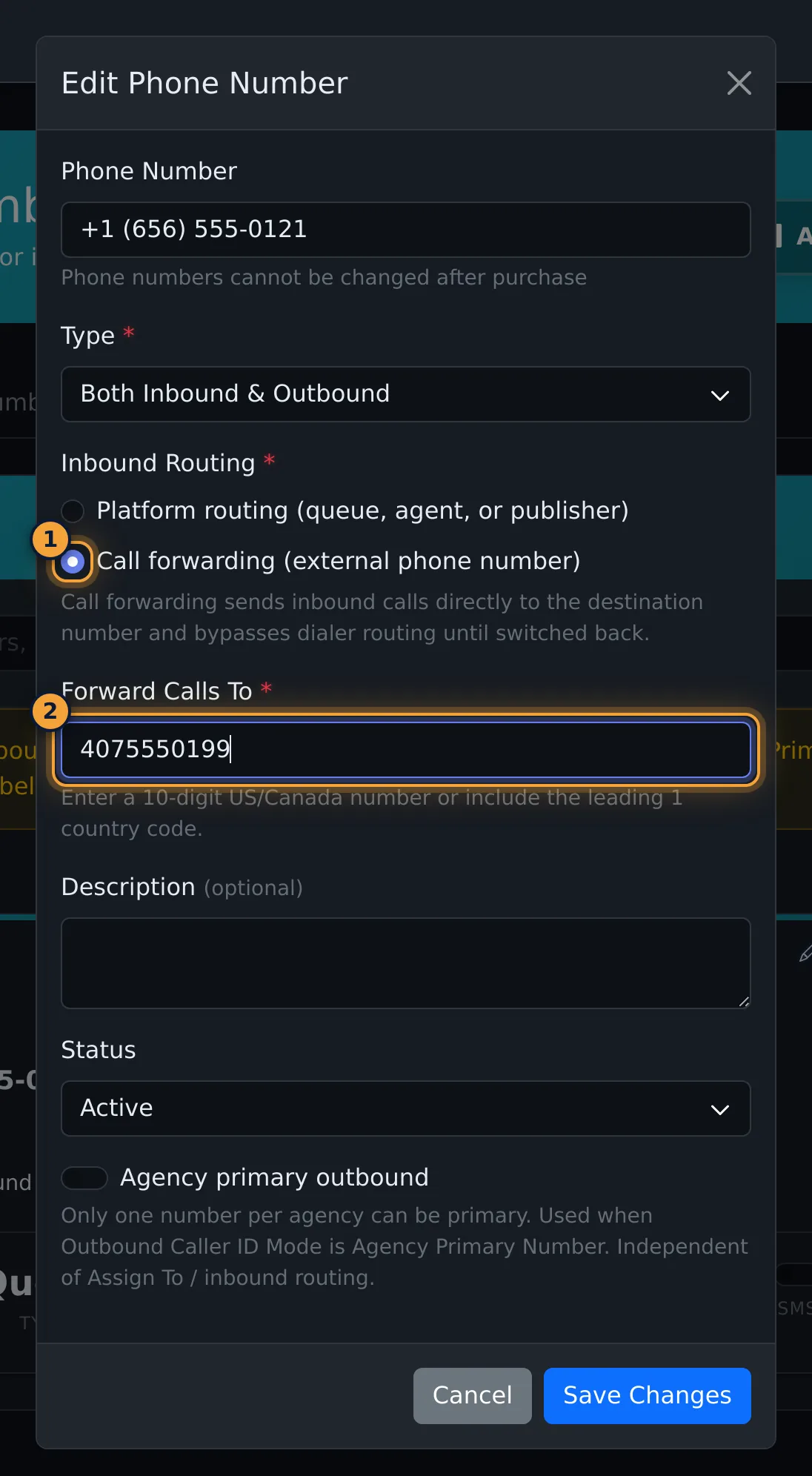
| Field | What it does |
|---|---|
| Phone Number | Read-only; numbers can't be changed after purchase. |
| Type | Inbound Only, Outbound Only, or Both Inbound & Outbound. |
| Inbound Routing | Platform routing to a user, queue or publisher, or call forwarding to an outside number. |
| Assign To, Select... | Which user, queue or publisher gets the calls. |
| Forward Calls To | The outside number, when forwarding. |
| Status | Active or Inactive. |
| Agency primary outbound | One per agency. Used when outbound caller ID mode is Agency Primary Number, independent of inbound routing. |
Release a number
Select the bin on the card. The browser asks you to confirm that the number will be permanently released. Released numbers can't be recovered. Move anything that depends on the number first.
Number pools
A number pool is a set of tracking numbers. Each website visitor sees their own number in place of your usual one, so every call can be traced to the page and source that brought it. Open the Number Pools tab.
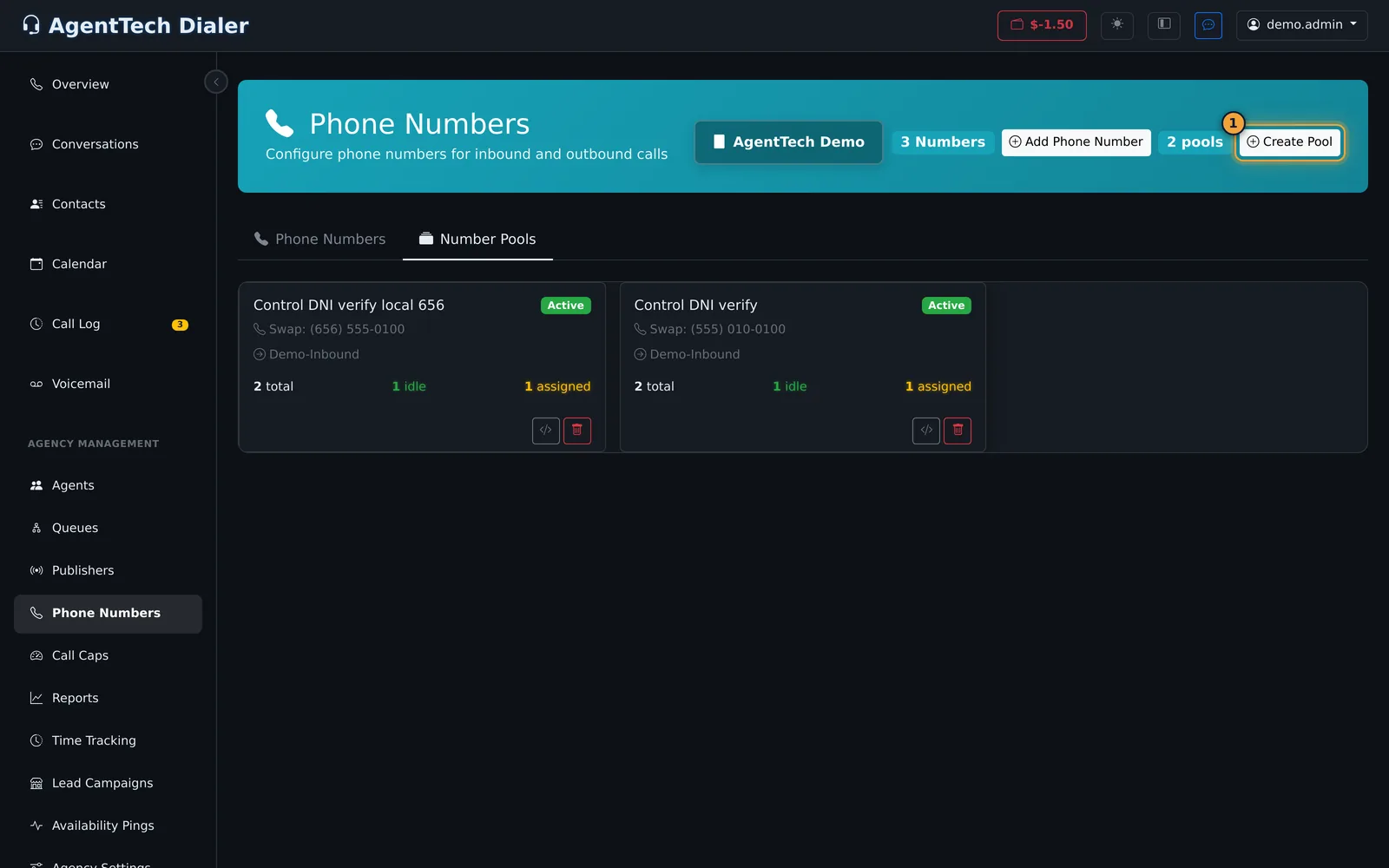
Creating a pool buys numbers straight away. For setup, the embed code, analytics and the reserve threshold, see Call Tracking with Number Pools.
Common problems
- The search finds no numbers. Availability varies by area. Try a nearby area code, search by state, or choose a toll-free number.
- Agents call out from their own numbers. Set one number as Agency primary outbound, and check the outbound caller ID mode in Agency Settings.
- I can't make a number primary. Only active numbers can be primary.
Related articles
Was this article helpful?
Can't find what you are looking for? Our support team can help.
Submit a support ticket