Transcript
The Agency Dashboard is your live view of the floor. Here is how to read it, find an agent, and change their status.
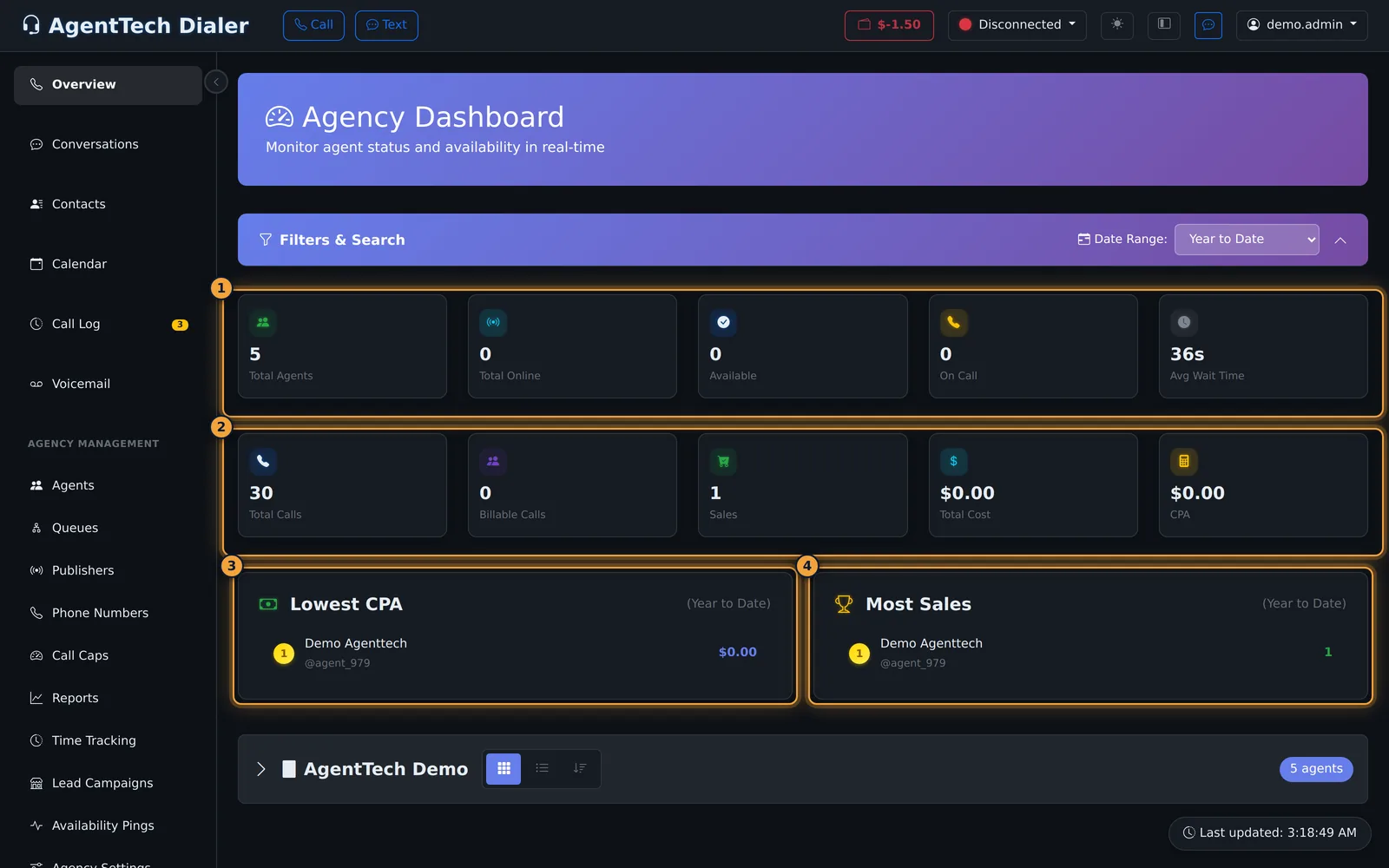
Select Overview to open the dashboard. The first row counts your agents right now: total, online, available, and on a call, plus their average wait.
The second row covers the date range: total and billable calls, sales, total cost, and CPA.
Pick a range in Date Range, from Today to Year to Date. The call tiles and both leaderboards reload for it.
Lowest CPA and Most Sales rank your agents for the range. Only agents with sales in the range appear.
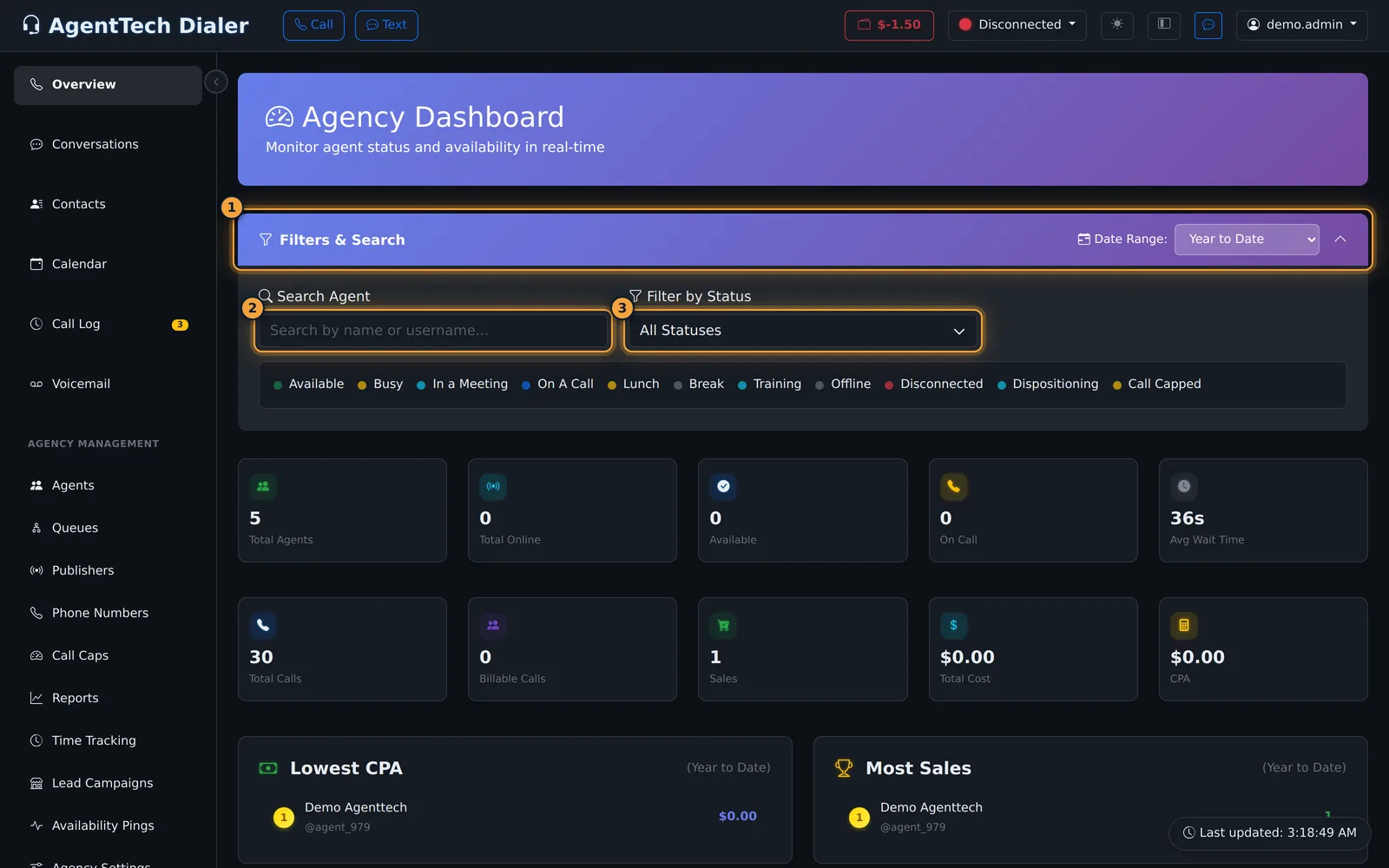
Open Filters and Search to find an agent by name, or to show only the agents in one status.
Your agents are grouped under your agency. Click its name to open the group.
Full View shows a card for each agent, and List View a row. Sort by Status puts the agents on calls first.
Back in Full View, each card shows the agent's status and how long they have been in it, their number and queues, their numbers, and Message Agent.
To change a status, click the switch on the agent's card, and pick the new status.
Then select Change Status. The agent switches right away, which changes whether they get calls.
Status changes arrive live, and Last updated, at the bottom right, shows the latest refresh.
Next, see what each number means in the KPIs and Leaderboard guide.
The Agency Dashboard is the supervisor's home page. It shows who is online and on calls right now, your agency's call numbers for a date range, the Lowest CPA and Most Sales leaderboards, and a card for every agent.
Who can do this: supervisors and agency admins. Select Overview at the top of the sidebar.
Read the tiles
The first row counts your agents as they are right now (Total Agents, Total Online, Available and On Call) and shows their Avg Wait Time for the date range. The second row covers the date range: Total Calls, Billable Calls, Sales, Total Cost and CPA. Each tile is defined in KPIs & Leaderboard.
The agent counts follow the search and status filters below, so they always match the agents you are looking at.
Choose the date range
- Find Date Range on the right of the Filters & Search bar.
- Pick Today, Yesterday, Last 7 Days, Last 30 Days, Week to Date, Month to Date or Year to Date.
- The call tiles and both leaderboards reload for that range, and the leaderboards show it in brackets, for example (Year to Date). The dashboard remembers your choice in this browser.
Lowest CPA and Most Sales
Two lists rank your agents for the date range: Lowest CPA (lowest first) and Most Sales (most first). Each row shows the rank, the agent's name and username, and the value. Agents without sales in the range don't appear, and an empty list reads "No data available". For the full scorecard see KPIs & Leaderboard.
Find an agent
- Click Filters & Search to open it. It starts closed.
- Type in Search Agent to match a name or username; matches are highlighted on the cards.
- Use Filter by Status to show only agents in one status, for example Available or Call Capped.
Watch your agents
Your agents are grouped under your agency's name. The group starts collapsed; click the name to open or close it. The badge on the right counts the agents in it.
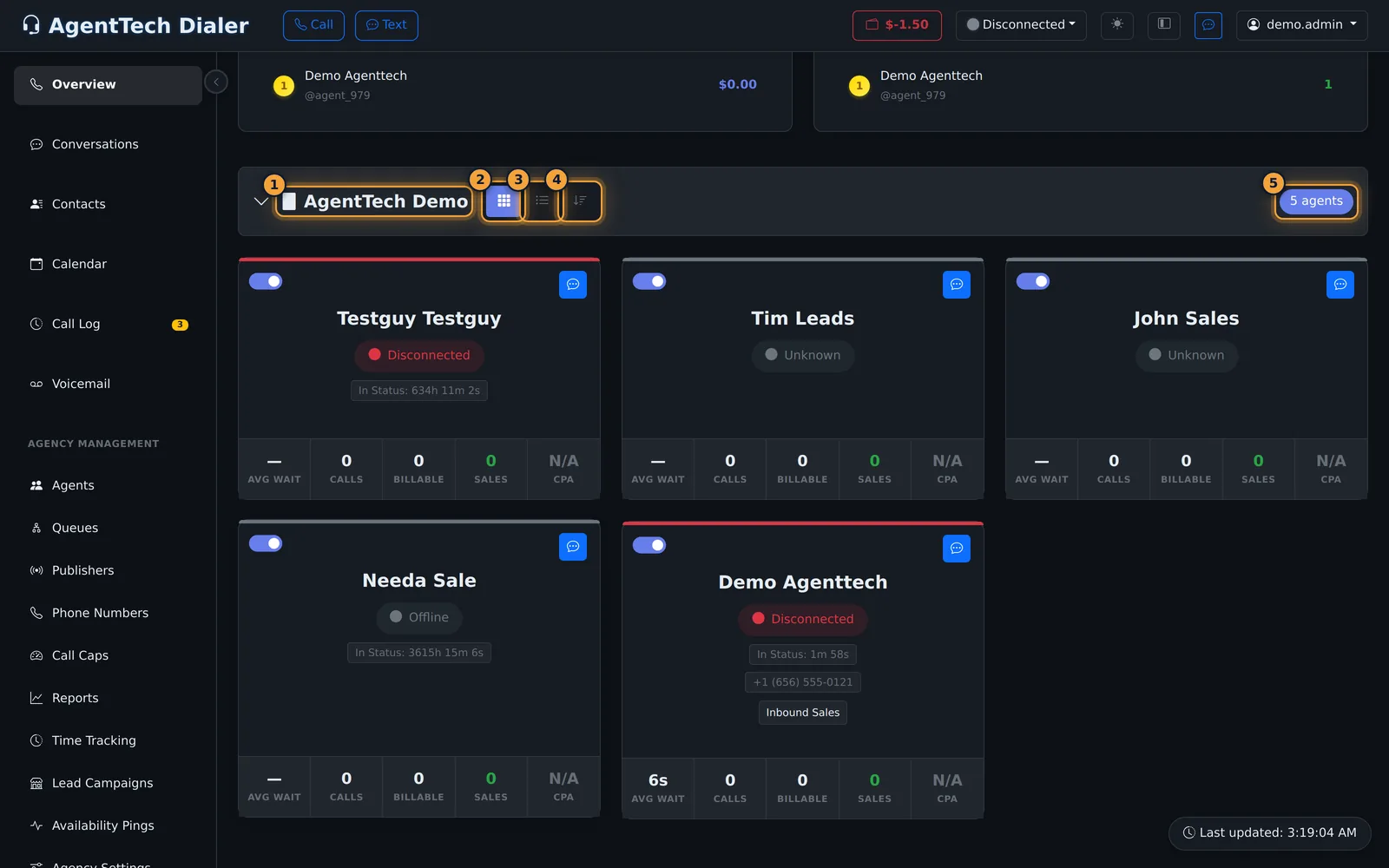
- Full View shows a card per agent.
- List View shows one row per agent.
- Sort by Status Priority & Duration orders agents On A Call first, then Ringing, Dispositioning, Call Capped, Available, Busy, In a Meeting, Training, Lunch, Break and custom statuses, with Offline and Disconnected last. Within a status, whoever has been in it longest comes first (for Offline and Disconnected, the most recent).
Your view and sort choices are remembered in this browser.
The agent card
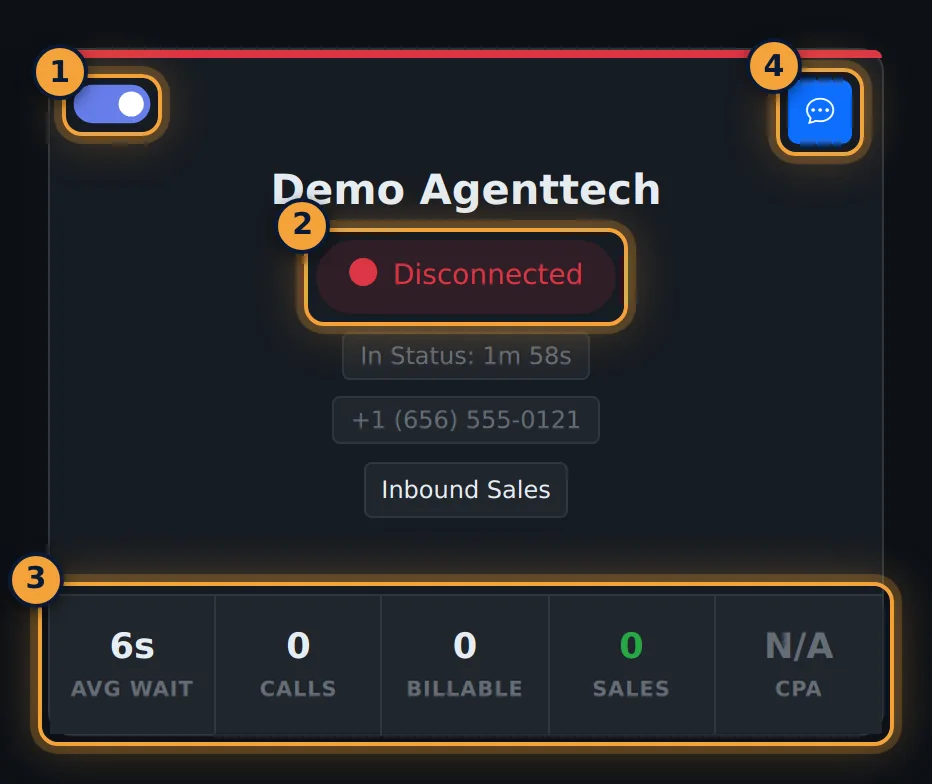
- Status switch - opens Change Agent Status.
- Status - the agent's current status and In Status time, then their direct number, their queues and a call cap badge if they are capped.
- Numbers - the agent's Avg Wait, Calls (answered), Billable, Sales and CPA.
- Message Agent - opens a chat; a red badge counts unread messages.
While the agent is signed in (any status except Offline or Disconnected), the card also shows Listen In, Whisper In and Barge In. See Listen, Whisper & Barge In.
List view
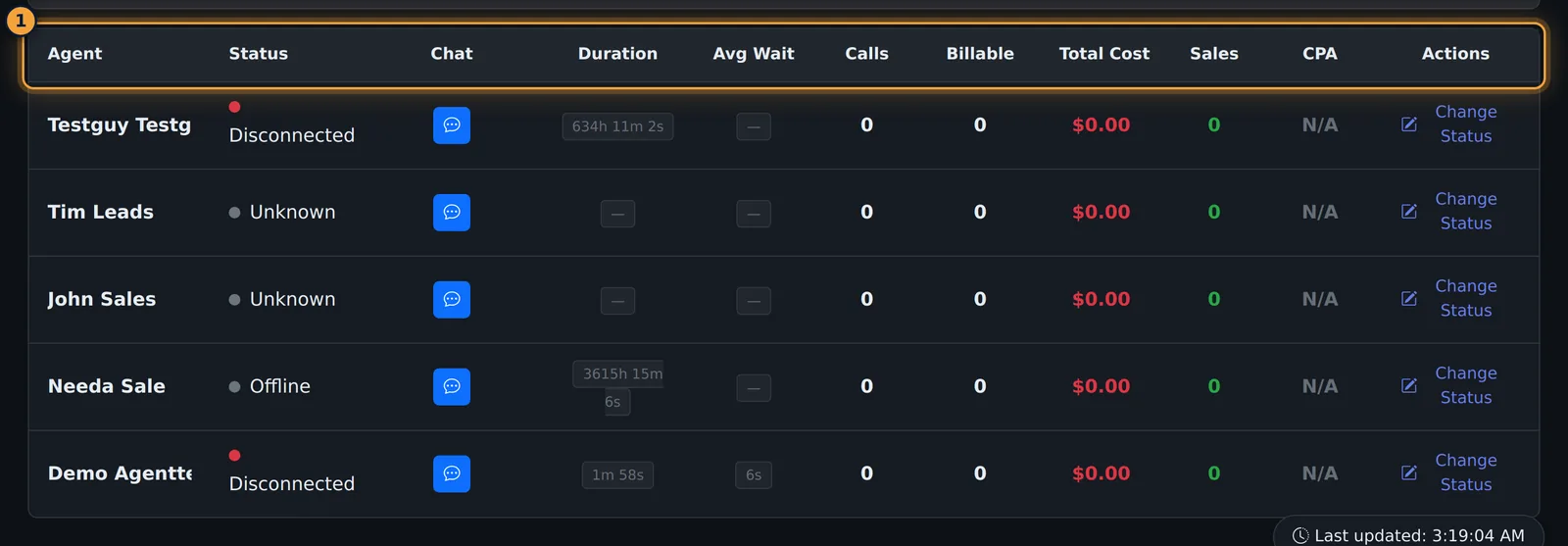
List View shows the same information in columns: Agent, Status, Chat, Duration (time in current status), Avg Wait, Calls, Billable, Total Cost, Sales, CPA and Actions. Hover a column heading for its definition.
Change an agent's status
- In List View, select Change Status in the agent's row (shown for agents who are Offline, Disconnected or have no status). In Full View, click the status switch at the top left of the card.
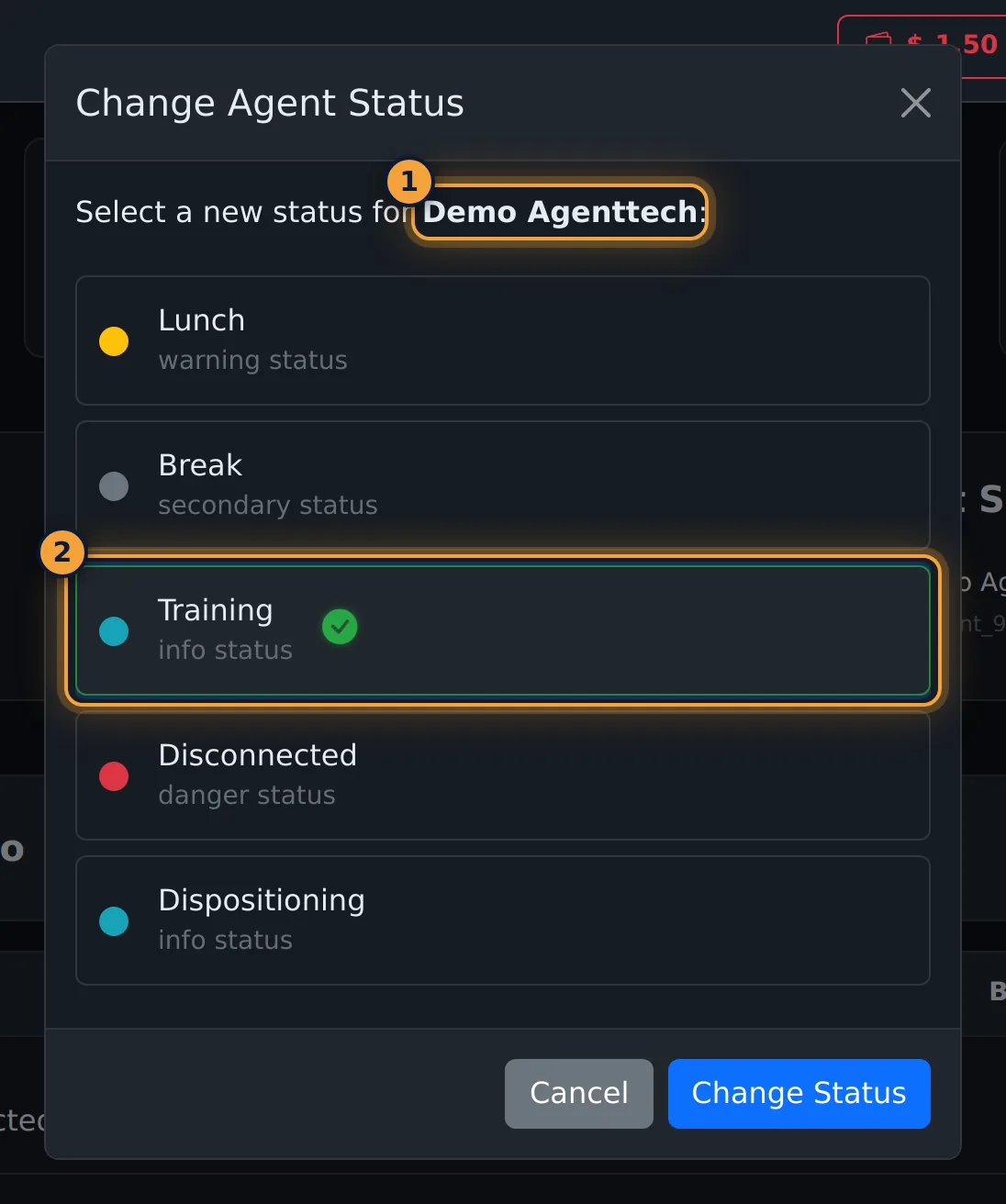
- In Change Agent Status, the agent's current status is highlighted. Select the new one.
- Select Change Status. The agent switches immediately and the dashboard reloads.
How current is it
Status changes arrive live and the agent list also refreshes on a timer. The time of the last refresh is shown at the bottom right as Last updated.
Common problems
- The agency group is empty or closed. Click the agency name to expand it, and clear Search Agent and Filter by Status.
- The call tiles show 0. No calls in the chosen range; pick a longer range.
- No Change Status link in List View. The agent is signed in; use the status switch on their card in Full View.
Related articles
Was this article helpful?
Can't find what you are looking for? Our support team can help.
Submit a support ticket