Transcript
Here is how to take and place calls in AgentTech Dialer: going Available, answering, the call bar, and the disposition after each call.
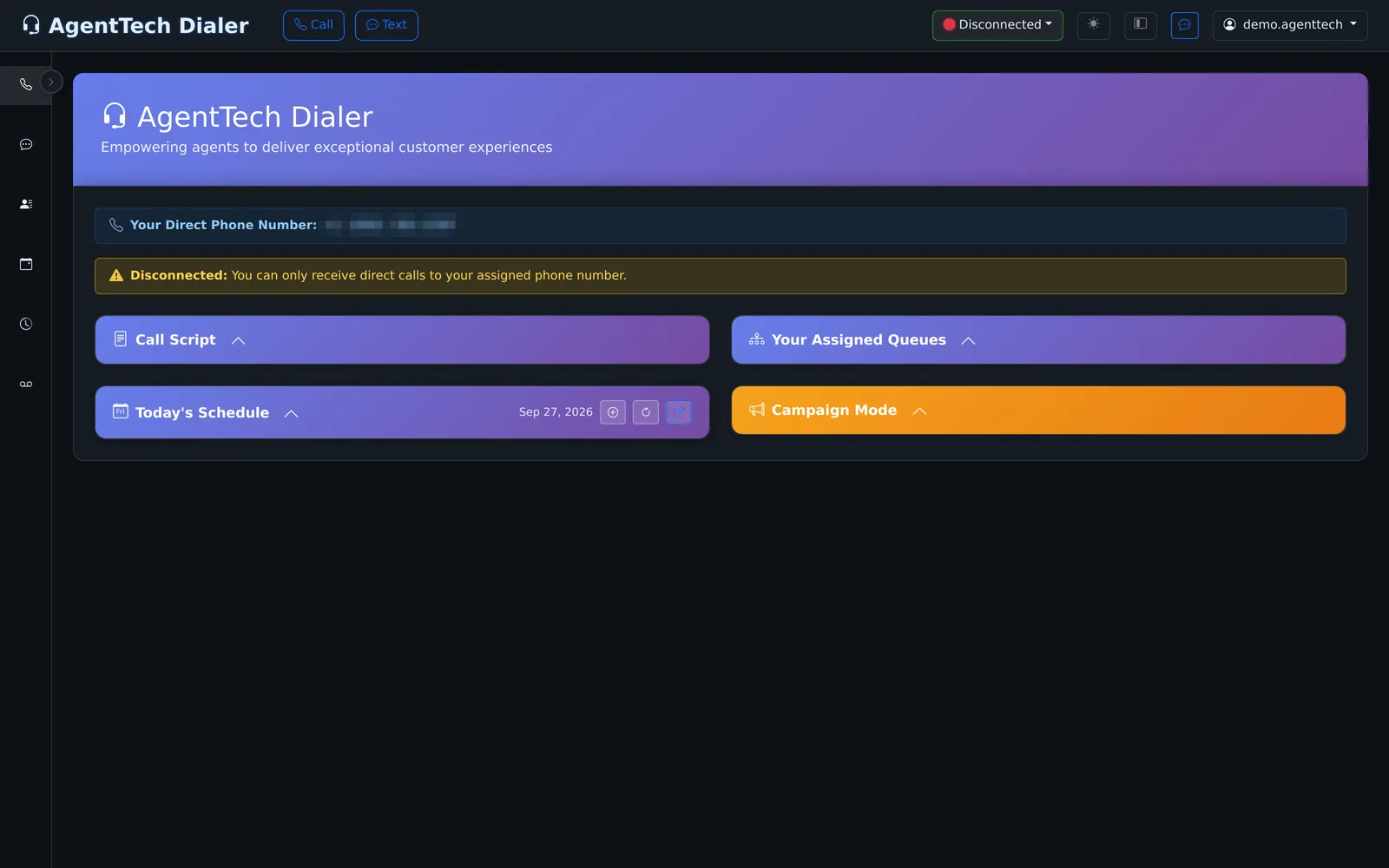
This is your dialer home. Your direct number and status are at the top, with your call script, queues, schedule, and campaigns below.
Keep this tab open while you work. Open other pages in a new tab, because leaving the dialer in this tab sets you to Disconnected.
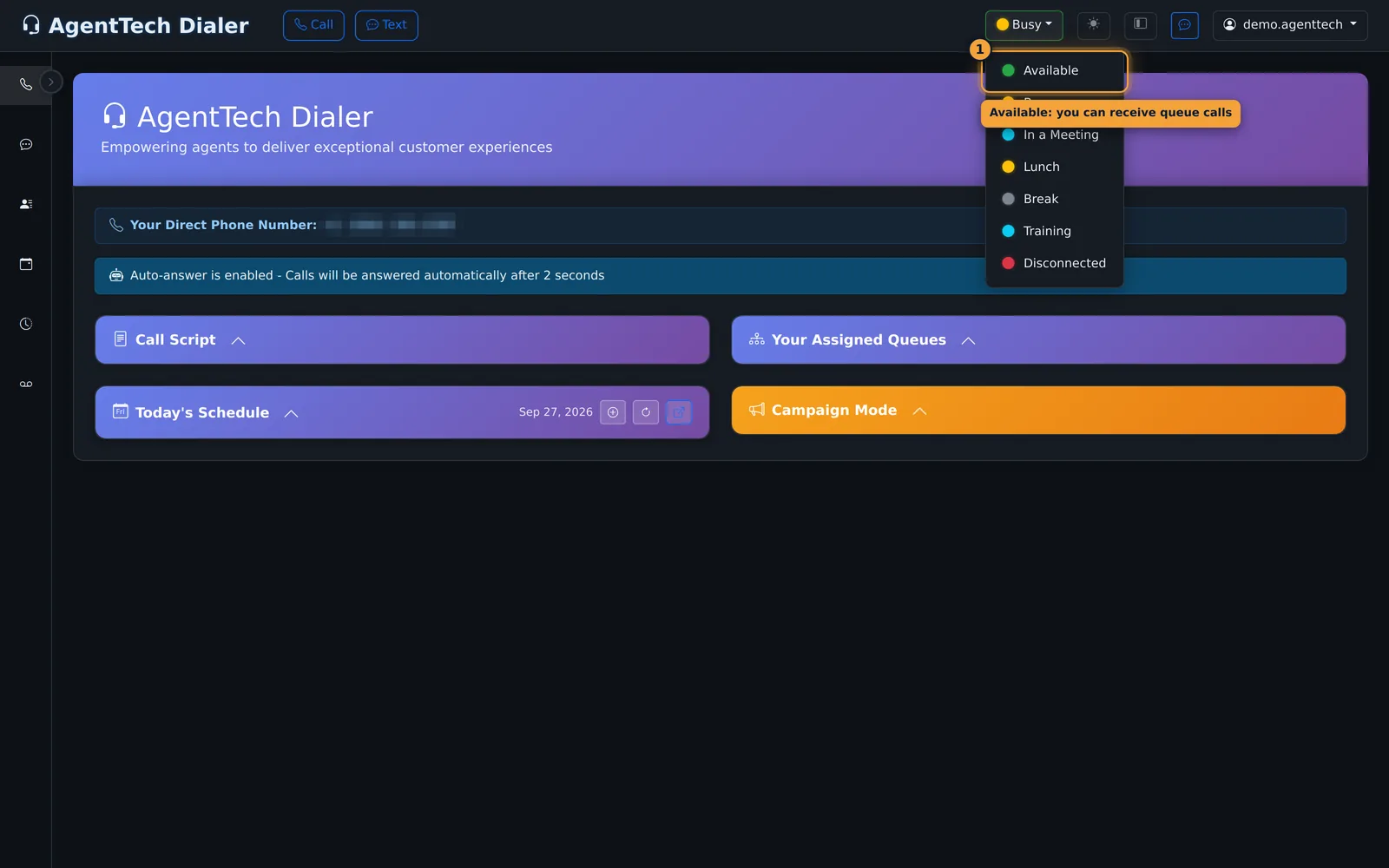
To take queue calls, open the status menu and select Available.
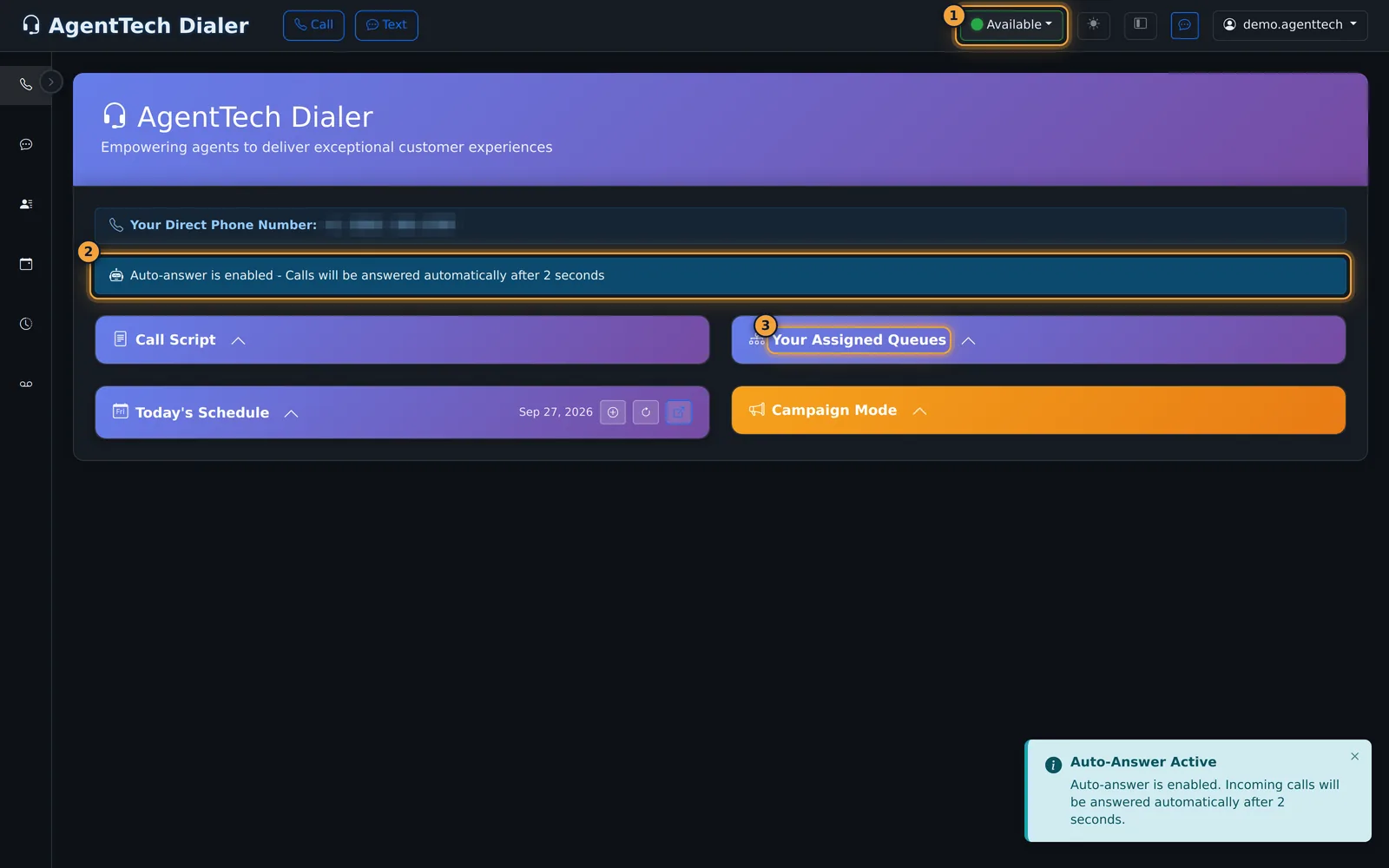
Your status turns green, and the banner shows how calls are answered. Here, they connect automatically after two seconds.
When a queue call arrives, it rings, and with auto-answer it connects on its own. Without auto-answer, you select Answer.
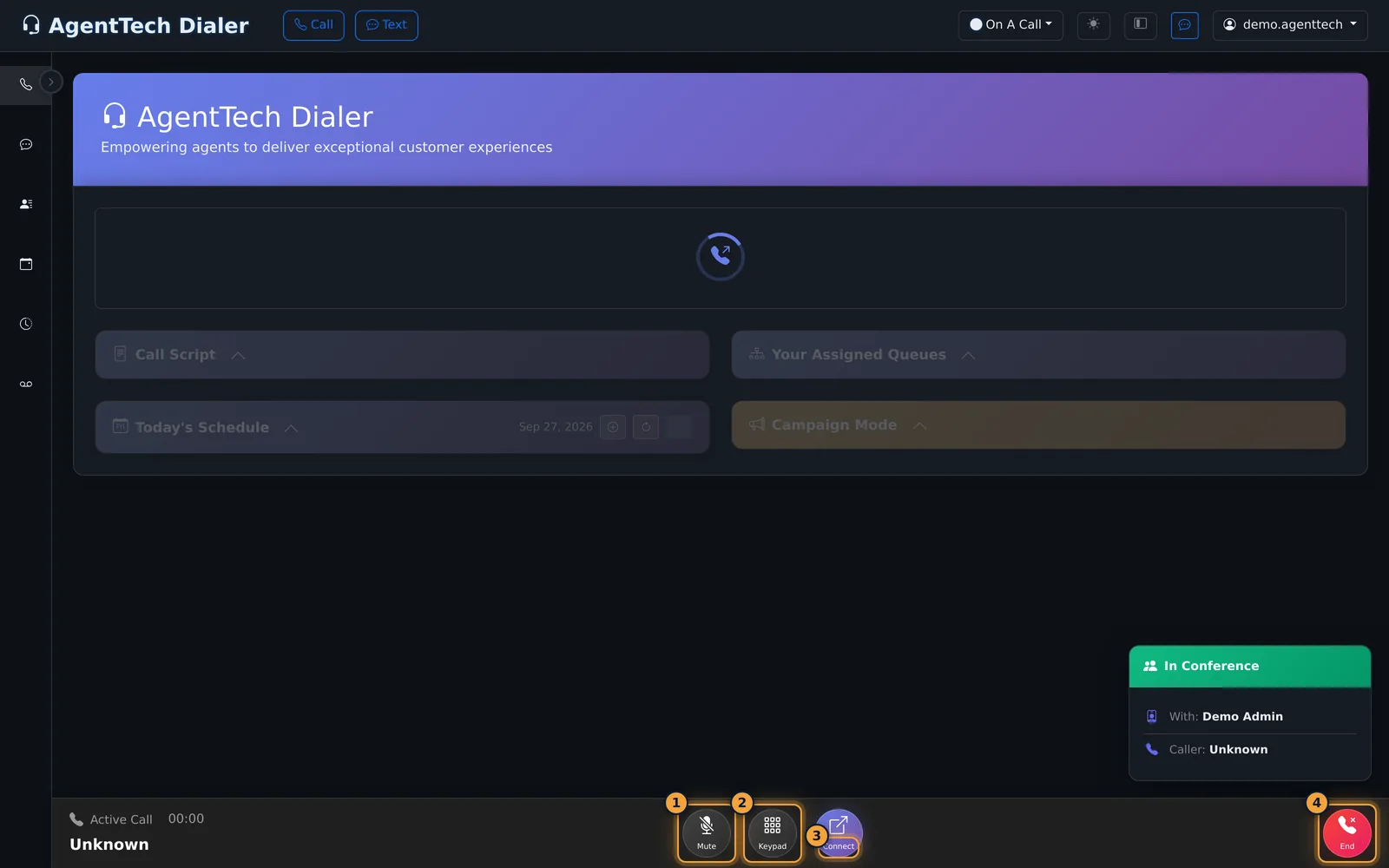
The call bar shows the caller and a timer. Mute stops your microphone, Keypad sends tones, Connect transfers the call or adds someone, and End hangs up.
When you are finished, select End.
The Call Disposition form opens. Pick the outcome, fill in any fields your agency added, and write a short note.
Submit it, and you are ready for the next call.
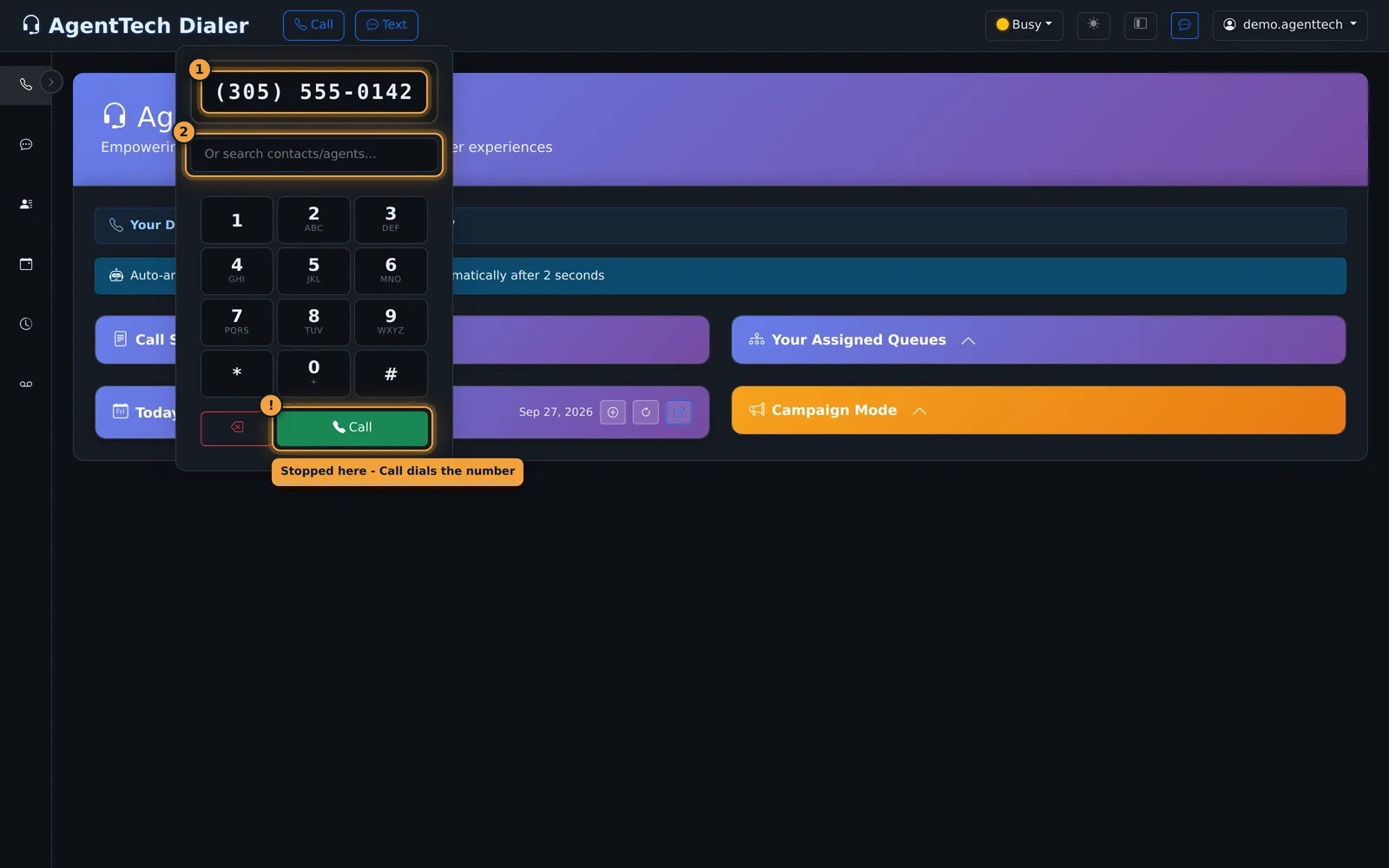
To place a call, select Call in the top bar, type the number, then select Call, or press Enter.
Next, learn how to transfer a call, or bring someone into a conference call.
The softphone runs in your browser on the dialer home page (the first item in the sidebar, or the AgentTech Dialer logo). Your status decides whether queue calls reach you; the Call button in the top bar places outbound calls. This article is for agents. Supervisors who want to take calls, see Taking Calls as a Supervisor.
The dialer home page
The home page shows your direct phone number, your status, and four panels you can open or close.
| Panel | What it shows |
|---|---|
| Call Script | The script for the current call. Empty until a call is active. |
| Your Assigned Queues | Every queue you take calls from, with its status. |
| Today's Schedule | Today's calendar events; Add Event opens the calendar form. |
| Campaign Mode | Dial campaigns you are assigned to, if any. |
Go Available to receive queue calls
- Open the status menu in the top bar (it shows your current status, for example Disconnected).
- Select Available.
- The status button turns green and a banner confirms how incoming calls are answered.
The other statuses (Busy, In a Meeting, Lunch, Break, Training, Disconnected) stop queue calls. The system sets On A Call during a call and Dispositioning while it waits for your call outcome.
Answer an incoming call
If your agency turned on auto-answer, queue calls connect by themselves after the delay your agency set (for example 2 seconds); a ring alert still plays. Without auto-answer, select Answer (or Decline) on the incoming call card. You can see the policy under Settings > Call Settings, where it shows as "Required by your agency policy" when you cannot change it.
When another agent adds you to their call (a transfer or conference), you get a Conference Invite with the inviting agent and the caller ID. Select Accept to join or Decline; it declines by itself after 30 seconds. Auto-answer does not apply to invites. See Call Transfers.
Keep the dialer open while you work
- Choosing Available while you are on another page also sets you back to Disconnected, unless your dialer tab is still open.
- Only one dialer tab at a time: a second one shows Multiple Dialer Tabs Detected.
- If your status keeps going back to Disconnected, see Why Am I Not Getting Calls?.
Place an outbound call
- Set a status other than Disconnected (for example Busy or Available). While Disconnected the dial pad does not open and you see "Not Connected - Please change your status to place outbound calls".
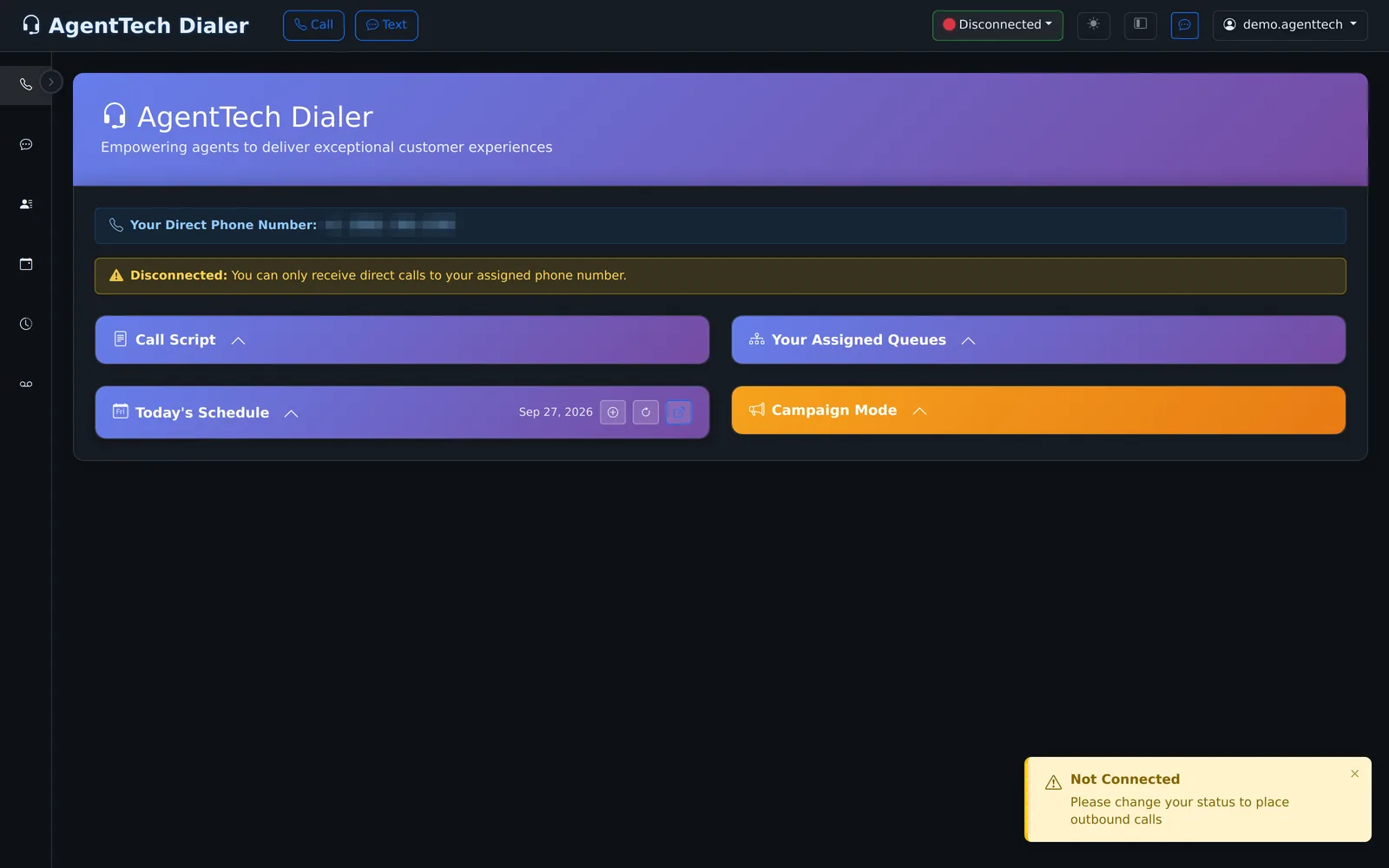
- Select Call in the top bar.
- Type or paste the number, or search your contacts and agents by name or number in Or search contacts/agents....
- Select Call or press Enter.
You can also call from a contact card (the phone button) or with Call Back in the Call Log and Voicemail.
During the call
The call bar at the bottom of the page shows the caller and a timer, and your status changes to On A Call.
| Button | What it does |
|---|---|
| Mute | Stops sending your microphone; select again to unmute. |
| Keypad | Opens a dial pad to send tones (for example to an automated menu). |
| Connect | Opens Connect Call to transfer the call or add someone. See Call Transfers and Conference Calling. |
| End | Hangs up. |
After the call: disposition
When a call ends, the Call Disposition form asks you to "select a disposition for this call before continuing". Pick the Disposition, fill any fields your agency added to it, write the Notes, and submit. You cannot place another call while you are in Dispositioning. You can correct a disposition later from the Call Log, which uses the same fields.
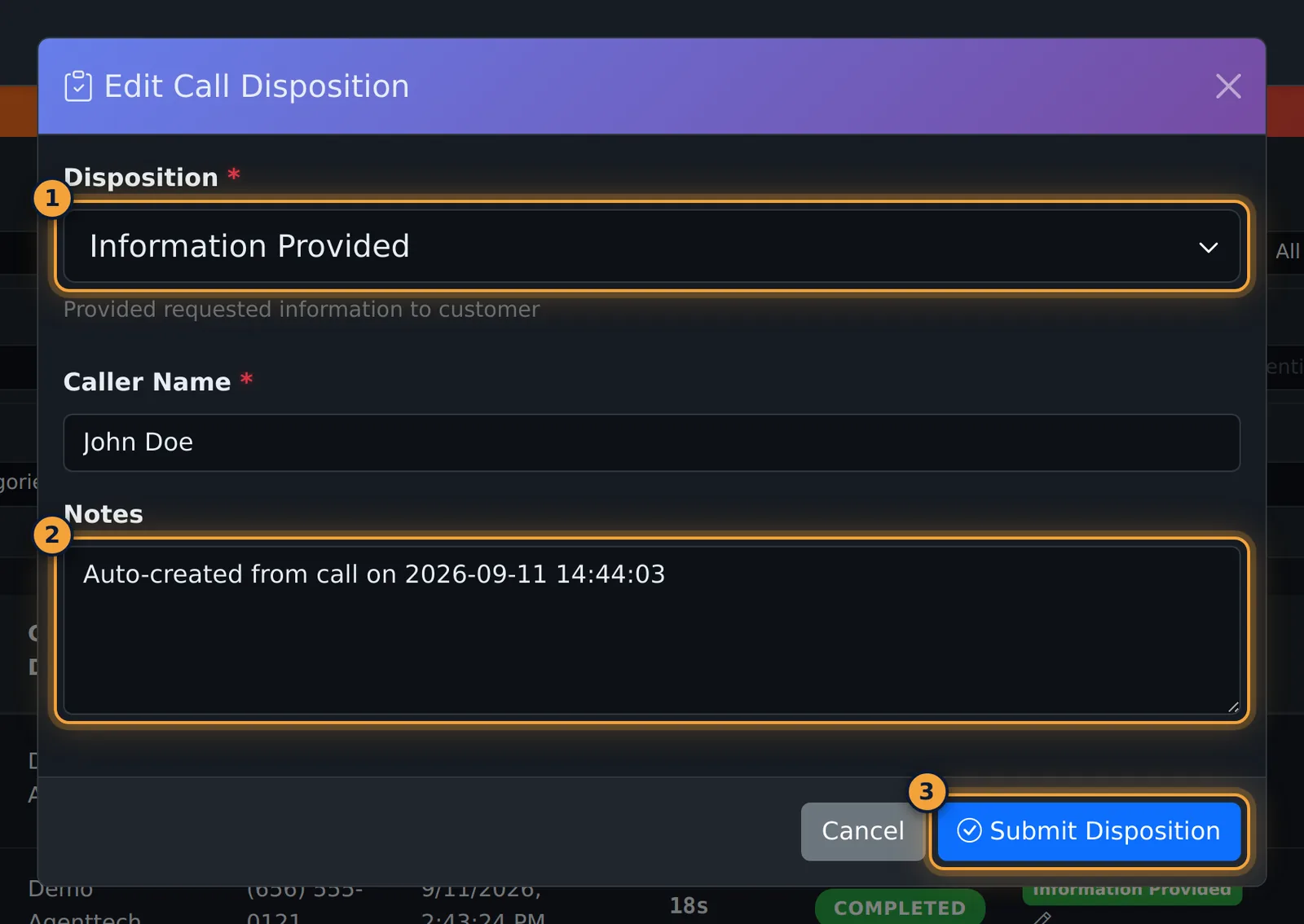
Agencies set up the list in Dispositions & Custom Fields.
Skip Disposition
If your agency does not require a disposition, the form also has a Skip Disposition button. It closes the form without an outcome, logs that the disposition was skipped, and puts you back in the status you had before the call. When the agency setting Require Call Disposition is on, the button is hidden and the form cannot be closed until you submit. Admins change it under Agency Settings > Call Settings; see Agency Settings.
Common problems
- Status jumps back to Disconnected: you left the dialer page in the same tab, or the connection or microphone dropped. See Why Am I Not Getting Calls? and Softphone & Microphone Problems.
- Available is greyed out: the live connection is still starting. Wait a few seconds after the page loads, and allow microphone access if the browser asks.
- No calls arrive while Available: check Your Assigned Queues. If you are not in any queue you only receive calls to your direct number. A call cap can also pause queue calls; a "Call Cap Reached" banner shows when that happens.
- Dialer shows the agency is overdrawn: calls stop when the agency wallet falls below its limit. Ask an admin to add funds.
- Microphone problems: test your microphone and speakers under Settings > Audio Settings, then see Softphone & Microphone Problems.
Related articles
Was this article helpful?
Can't find what you are looking for? Our support team can help.
Submit a support ticket