A scheduled callback is a promise to call a customer back at a set time: they were busy, asked for a licensed agent in their state, or wanted to talk after checking their plan. AgentTech routes each callback request to an agent, puts it in that agent's schedule, and keeps track of each attempt. This article is for agents, with a section for agency admins.
Where your callbacks appear
Callbacks assigned to you appear in Today's Schedule on the dialer home page, at their scheduled time, alongside your calendar events. Each callback shows its status:
| Status | Meaning |
|---|---|
| Pending | Created and waiting to be routed. |
| Assigned | Routed to you and ready to dial. |
| Dialing | You are calling the customer now. |
| Completed | The customer was reached. |
| No Answer | An attempt went unanswered. |
| Cancelled / Expired | The callback is closed and no longer needs a call. |
Call a customer back
- Set your status to something other than Disconnected (for example Available or Busy).
- In Today's Schedule, find the callback. While it is Assigned or Dialing it has two buttons.
- Select Call Back. The dialer calls the customer's number and the callback changes to Dialing.
- Talk to the customer and finish the call as usual, with a disposition. When the customer was reached, the callback is recorded as answered and you see "Scheduled callback completed".
If nobody picks up, hang up and select No Answer on the callback. The attempt is recorded ("Callback marked no answer"). Each callback allows a limited number of attempts before it is closed.
Where callback requests come from
Routed callback requests are created on the customer's behalf by AgentTech's AI tools and call flows when a customer asks to be called back. Each request is routed to a queue, team, department, outbound campaign or specific agent, then assigned to an agent who appears in their Today's Schedule.
Remind yourself to call someone back
To note a callback you promised during your own call, create a calendar event:
- Open Calendar (or Add Event in Today's Schedule).
- Enter an Event Title, set Event Type to Schedule Callback, and pick the Date and Start Time.
- Under Participants, select Select from Contacts (or Add Participant Manually) and add the customer with their phone number.
- Select Save Event.
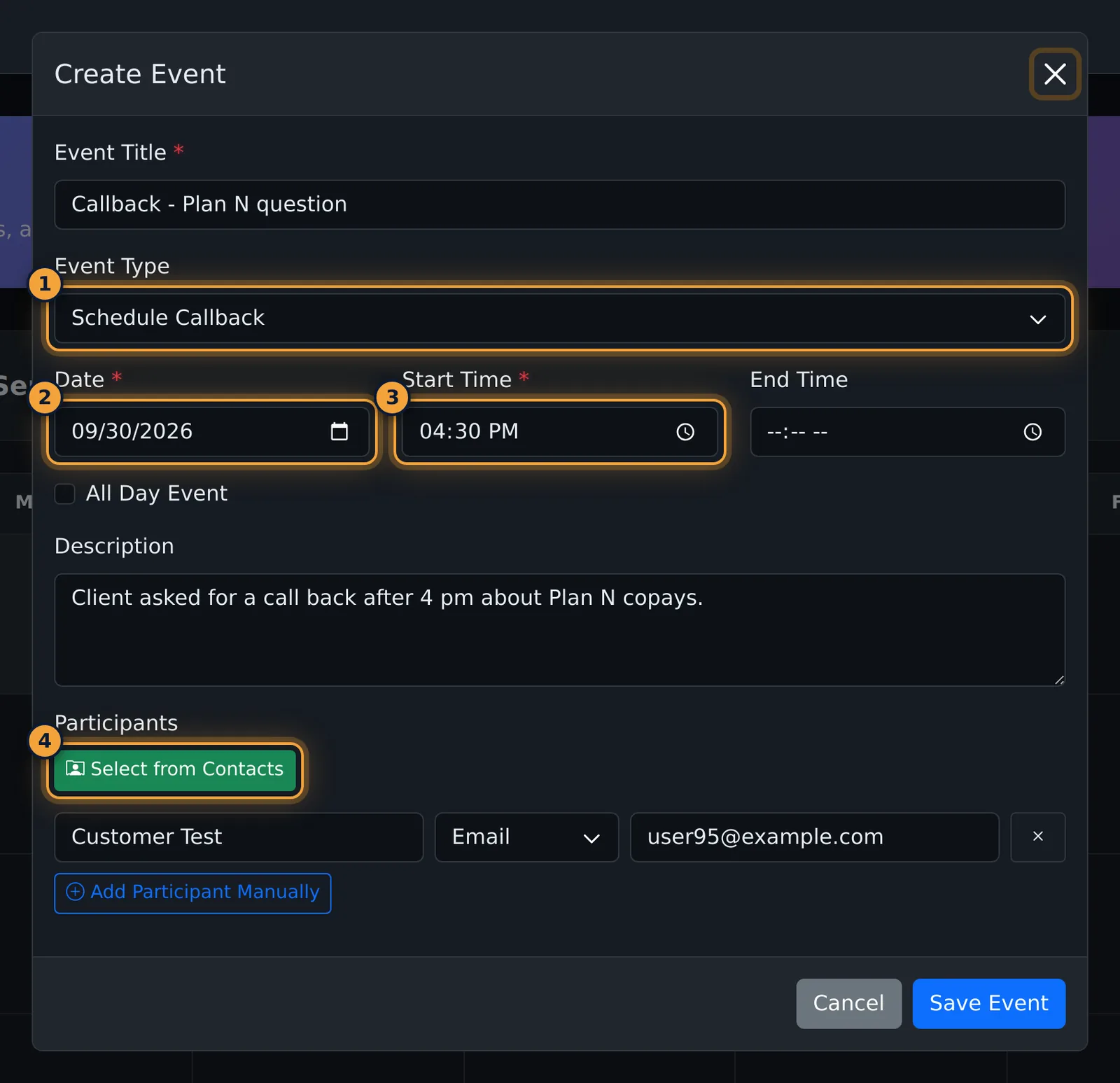
The event appears on your calendar and in Today's Schedule at that time. It is a personal reminder: it stays with you and is not routed to anyone else. Call the customer from the contact card or the dial pad.
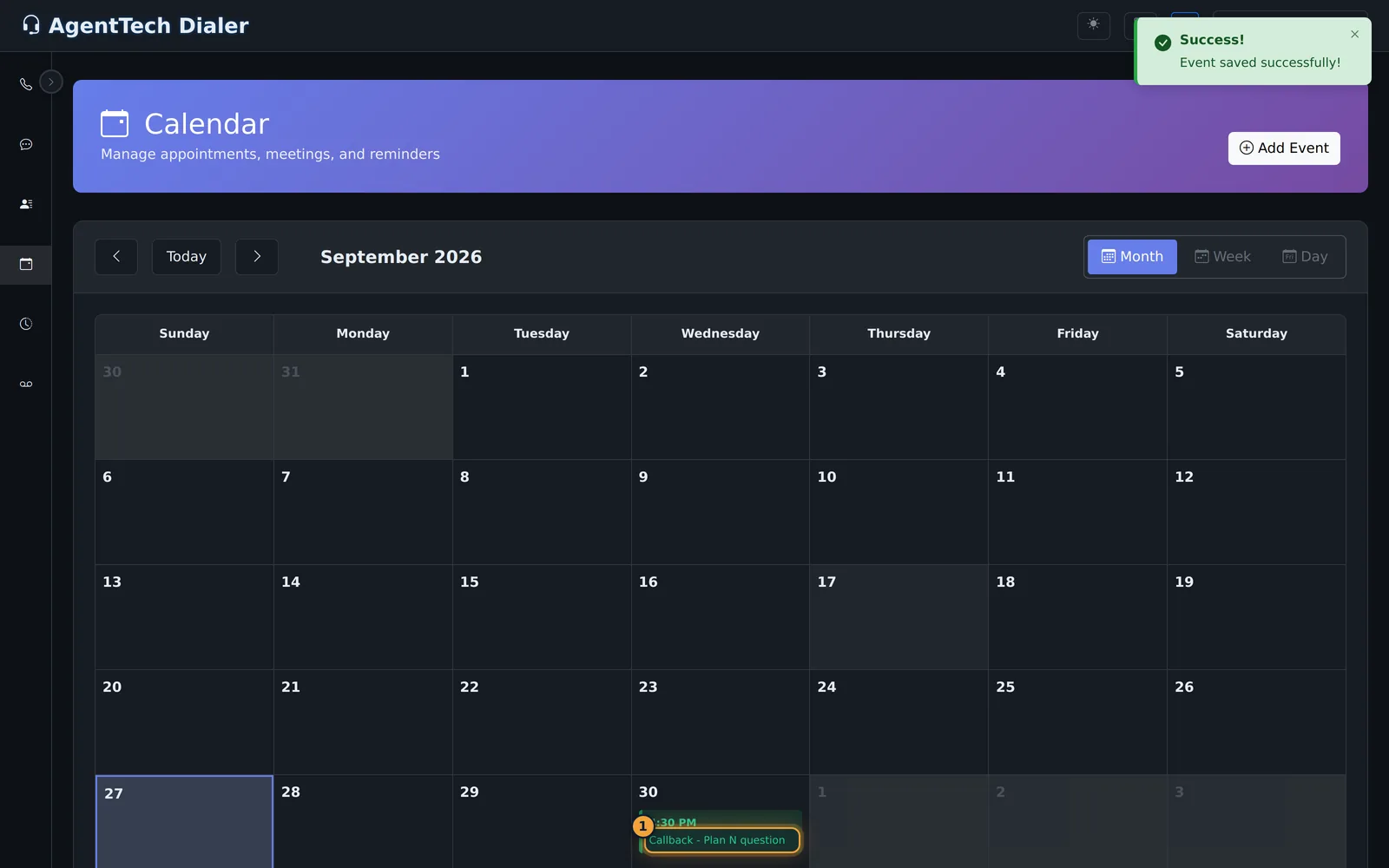
See Calendar & Scheduling for editing and deleting events.
For agency admins: settings
Routed callbacks are set up under Agency Settings > Call Settings. Changes save automatically.
| Setting | What it does |
|---|---|
| Enable Scheduled Callbacks | Allows agents and AI tools to create routed callback requests. |
| Default Callback Target Type | Where AI-created callbacks go when no queue is known: Queue, Team, Department, Outbound Campaign or Specific Agent. |
| Default Callback Target ID | The ID of that queue, team, department, campaign or agent. |
| Default Callback Routing Strategy | How an agent is chosen: Round Robin, Longest Idle, Performance or Specific Agent. |
The agents who receive callbacks must be in the target queue or team, and need a status other than Disconnected to dial. See Agency Settings, Queue Management and Teams.
Common problems
- A callback has no buttons: it is no longer Assigned or Dialing (for example Completed, Cancelled or Expired), or it is a calendar reminder rather than a routed callback.
- Call Back doesn't start a call: like any outbound call, it needs a status other than Disconnected. Change your status first.
- I don't see today's callbacks: open the Today's Schedule panel on the dialer home page and check the date shown in its header.
Related articles
Was this article helpful?
Can't find what you are looking for? Our support team can help.
Submit a support ticket