Transcript
Here is how to find a call in the Call Log, read its details, and correct its disposition.
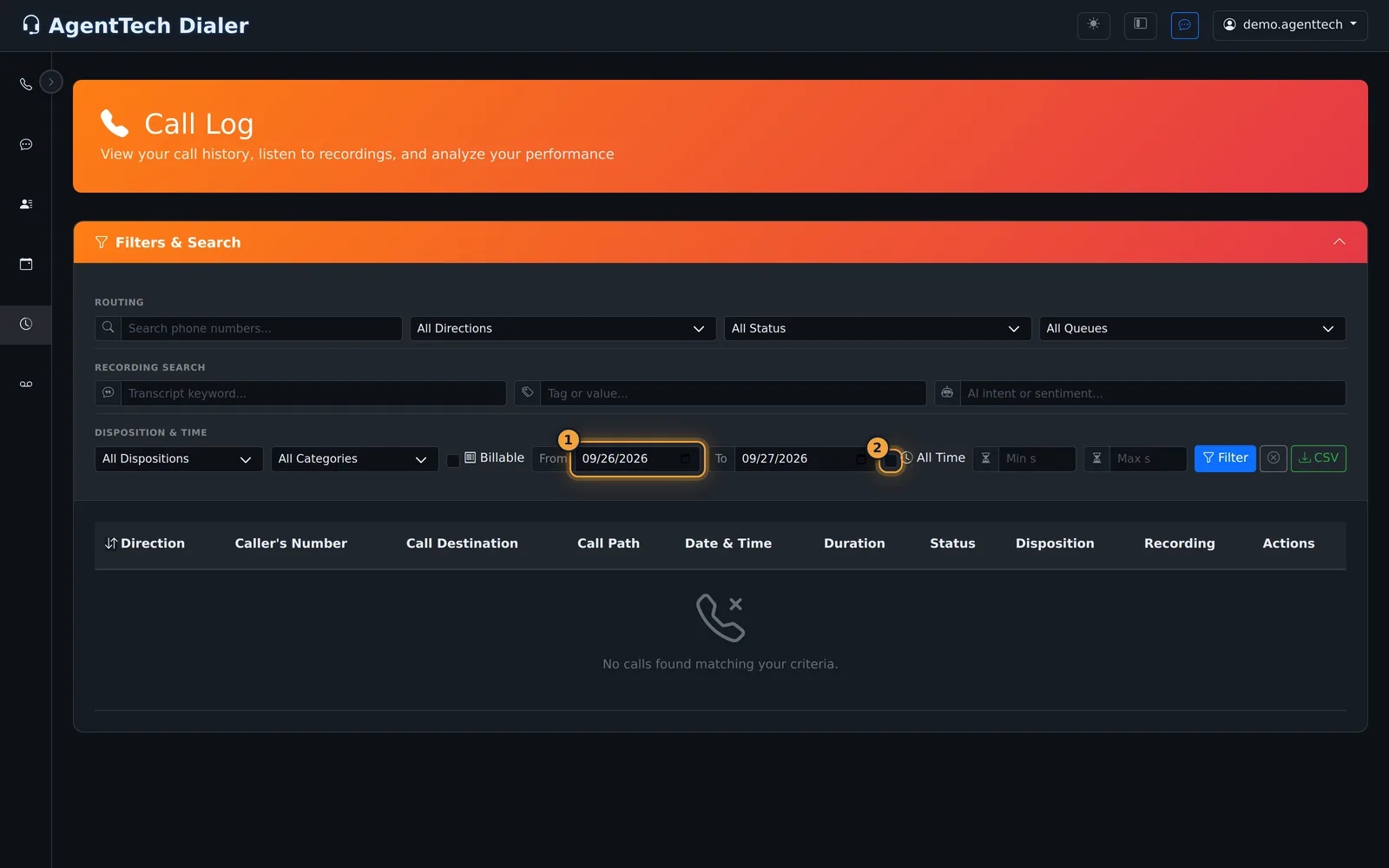
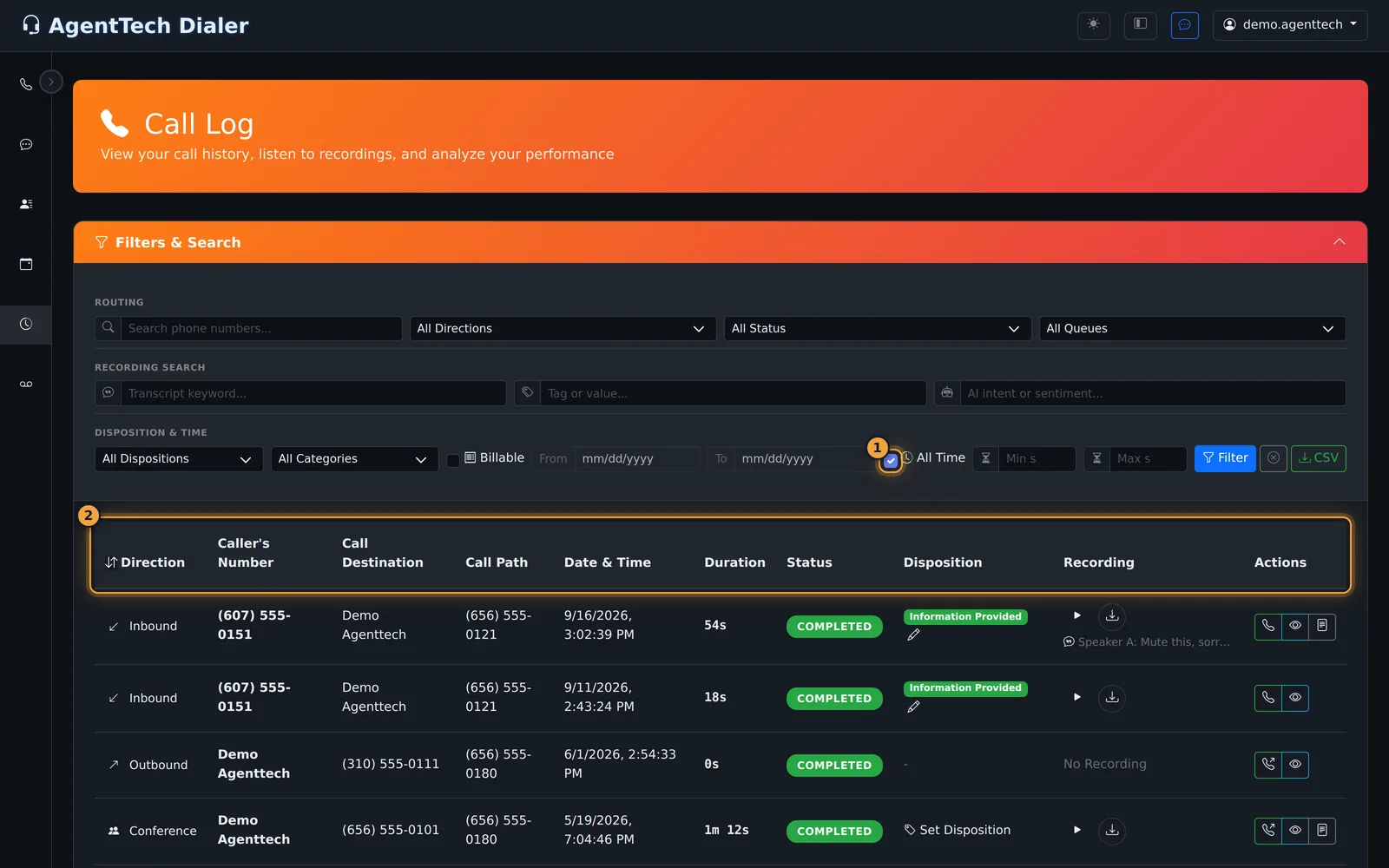
Call Log lists every call you handled. It opens on yesterday and today, so for older calls, change From and To, or tick All Time.
Then select Filter.
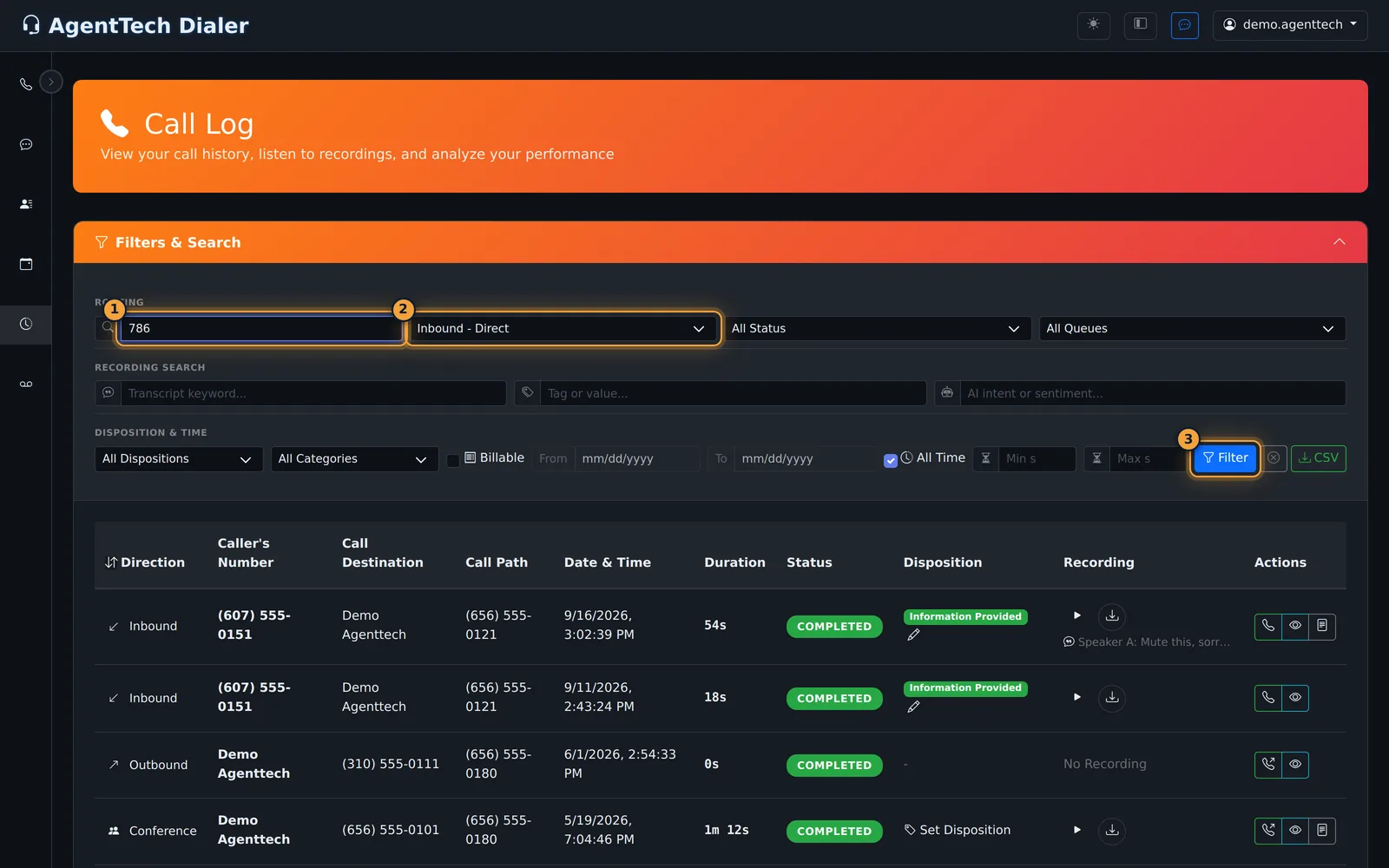
Under Filters and Search, combine what you need: a phone number, the direction, the queue, a transcript keyword, or a disposition.
Select Filter to apply them. The round button next to it clears them, and CSV exports what is listed.
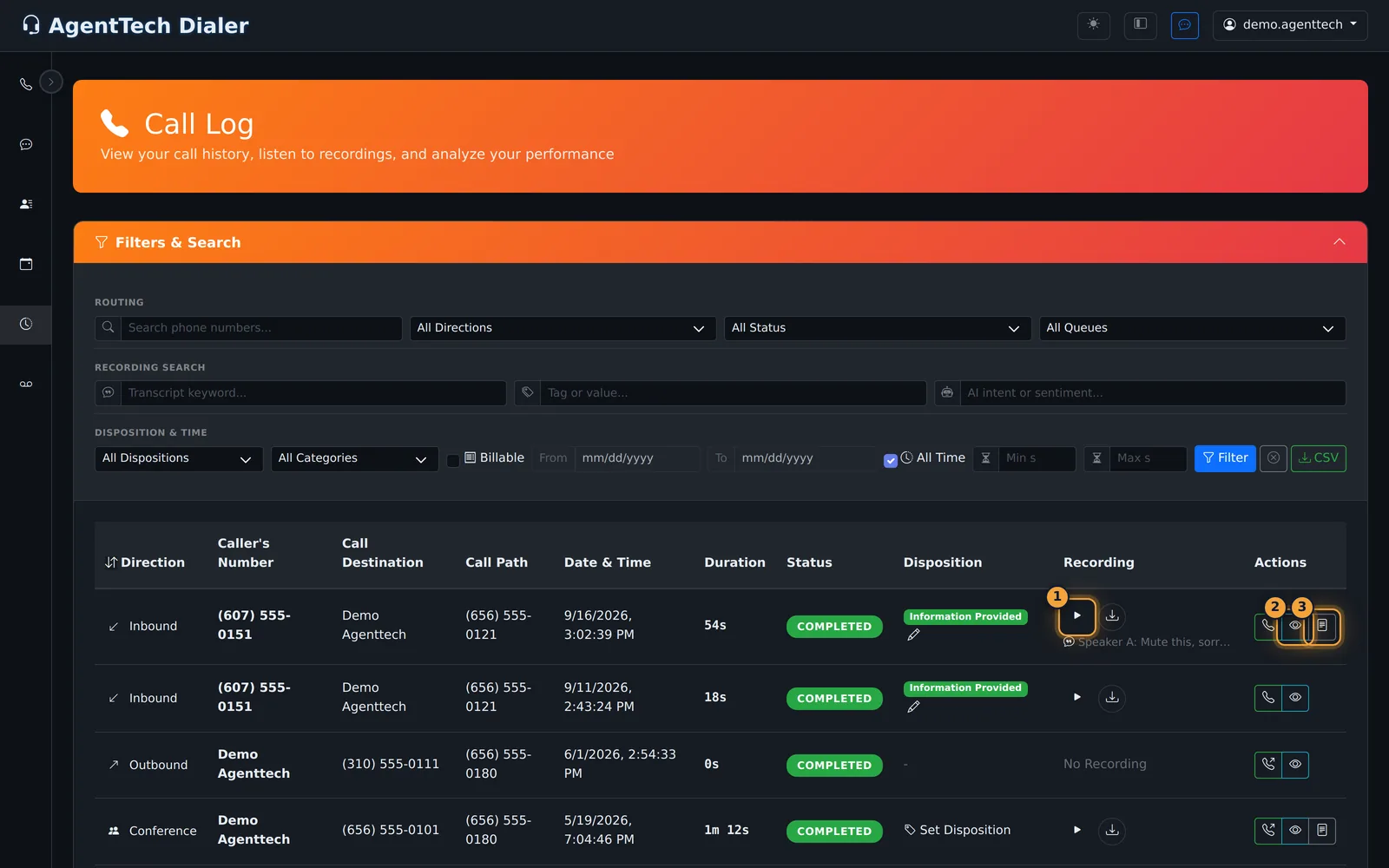
Each row shows the direction, the caller's number and the destination, the agency number the call used, the time, the duration, and the status.
Then the disposition, with a pencil to change it, the recording, and the actions: Call Back and View Details.
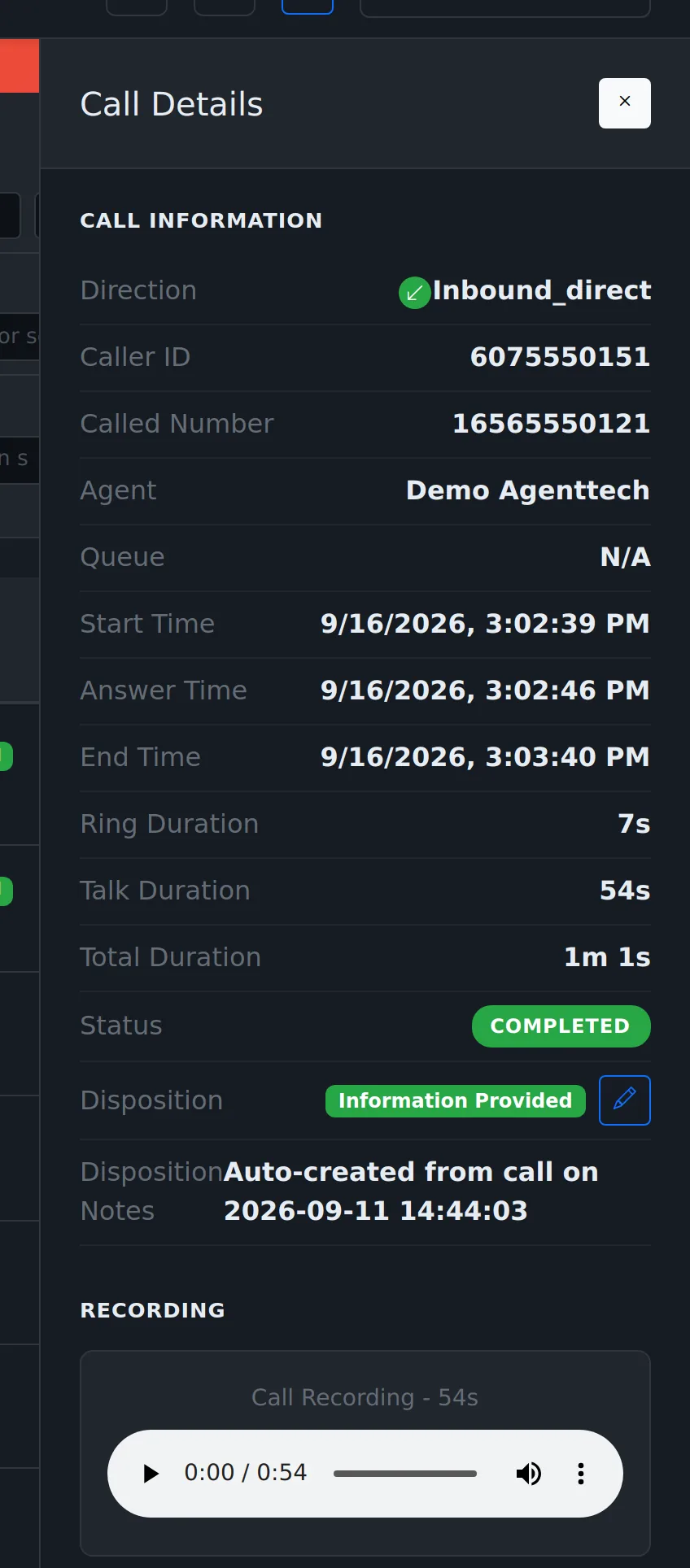
Select View Details. The panel shows the numbers, the agent, the queue, the times, the disposition and notes, and the recording.
Further down, the Call Timeline lists each event with its time, like when the agent joined and who hung up.
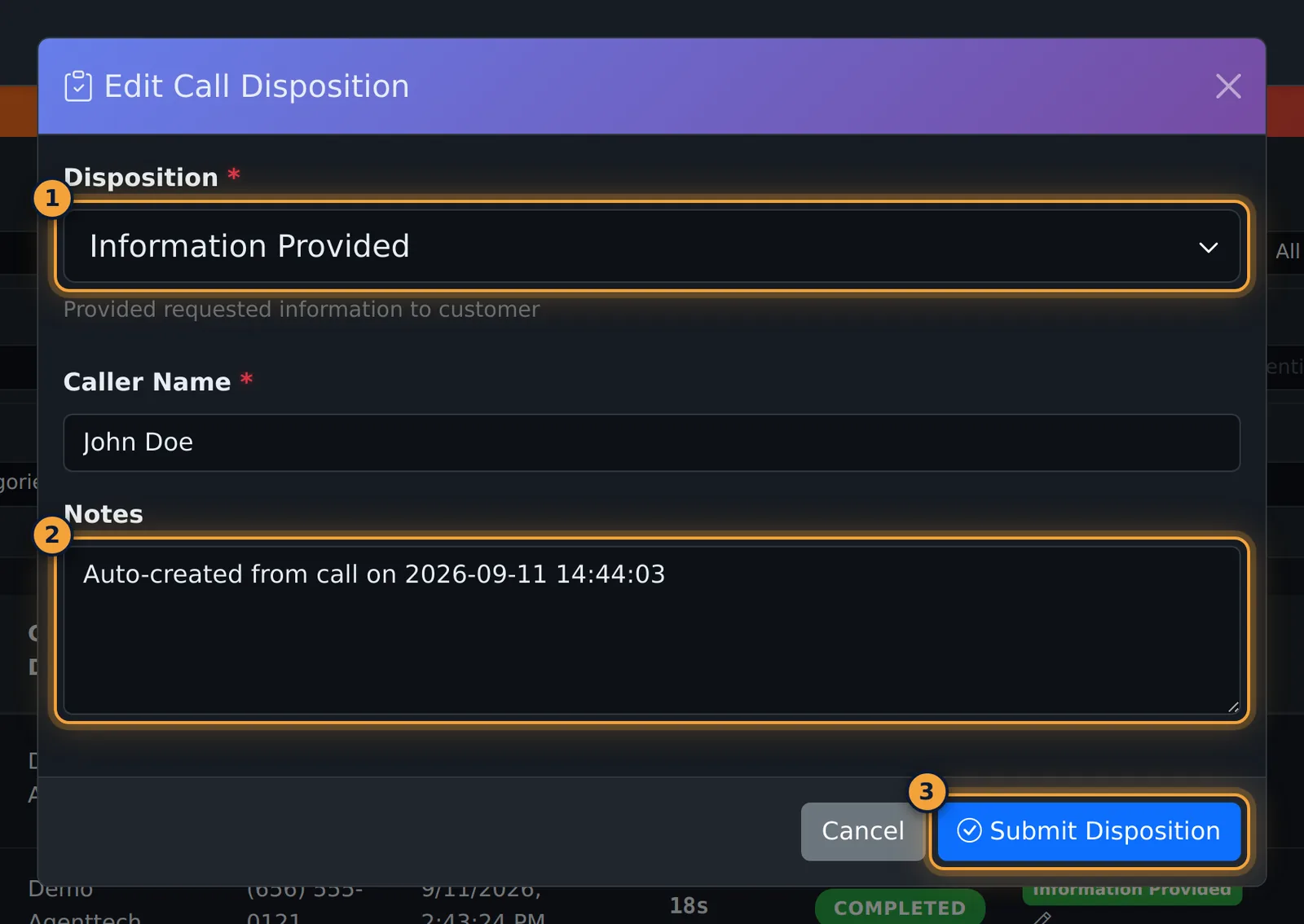
To correct an outcome, select the pencil next to the disposition, or Set Disposition when there is none.
Choose the Disposition, fill in its fields, like Caller Name, and the Notes. Then select Submit Disposition.
Supervisors see every agent's calls on the same page. The full guide covers their totals and billing adjustments.
Call Log (sidebar) lists every call with its numbers, path, time, duration, status, disposition and recording. Agents see their own calls; supervisors and admins see every call in the agency.
Set the date range first
The page opens on yesterday and today. For older calls change From and To, or tick All Time, then select Filter.
Filter the list
Open Filters & Search and combine any of these, then select Filter. The round button next to Filter clears everything; CSV exports what is listed.
| Group | Filters |
|---|---|
| Routing | Phone number search; Direction (Inbound - Queue, Inbound - Direct, Inbound (Legacy), Outbound - Dialer, Outbound - Transfer, Outbound (Legacy), Internal); Status (Completed, In Progress, Missed); Queue |
| Recording Search | Transcript keyword; Tag or value; AI intent or sentiment |
| Disposition & Time | Disposition; disposition category; Billable; From / To; All Time; minimum and maximum duration in seconds |
Read a row
| Column | Shows |
|---|---|
| Direction | Inbound, Outbound or Conference |
| Caller's Number / Call Destination | Who called whom (agent names appear for your side) |
| Call Path | The agency number the call used |
| Status | For example Completed |
| Disposition | The outcome with a pencil to edit, or Set Disposition |
| Recording | Play and Download, plus a transcript snippet when there is one |
| Actions | Call back, View Details, View Transcription, Compliance Check (when enabled) |
Call details
Select View Details (eye button). The panel shows direction, caller and called number, agent, queue, start/answer/end times, ring and talk time, status, disposition and notes, the recording player, Call Back and Download Recording, and a Call Timeline of what happened (room created, agent joined, call answered, who hung up).
Supervisors and admins: the agency view
Supervisors and admins see every agent's calls. The header adds totals for the listed period: Total Calls, Avg Duration, Answer Rate and Missed, with the date range beside them. The Routing filters add All Agents and All Publishers, so you can narrow the list to one agent or one publisher's traffic.
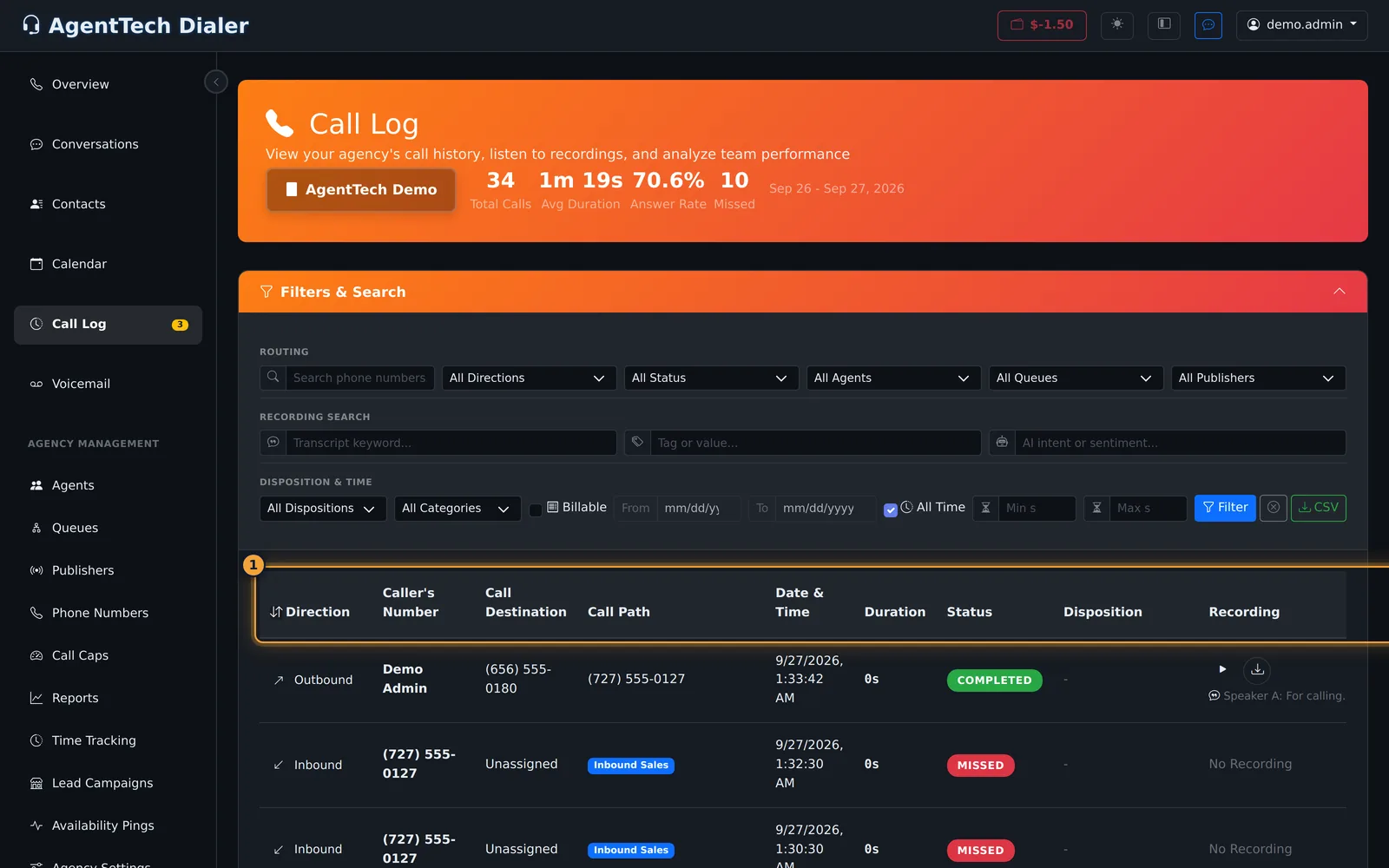
Queue calls that no agent answered show Unassigned as the destination, with the queue name under Call Path.
Edit Billing Information
Calls that count toward billing have a Billing Information section in their details, with the Publisher Cost, Global Queue Cost and Regular Queue Cost. Supervisors and admins can correct them:
- Open the call with View Details.
- In Billing Information, select Edit.
- For each of Publisher Queue, Global Queue and Regular Queue, tick or clear Billable and set the Cost ($).
- Add a reason under Notes (optional), then select Save Changes.
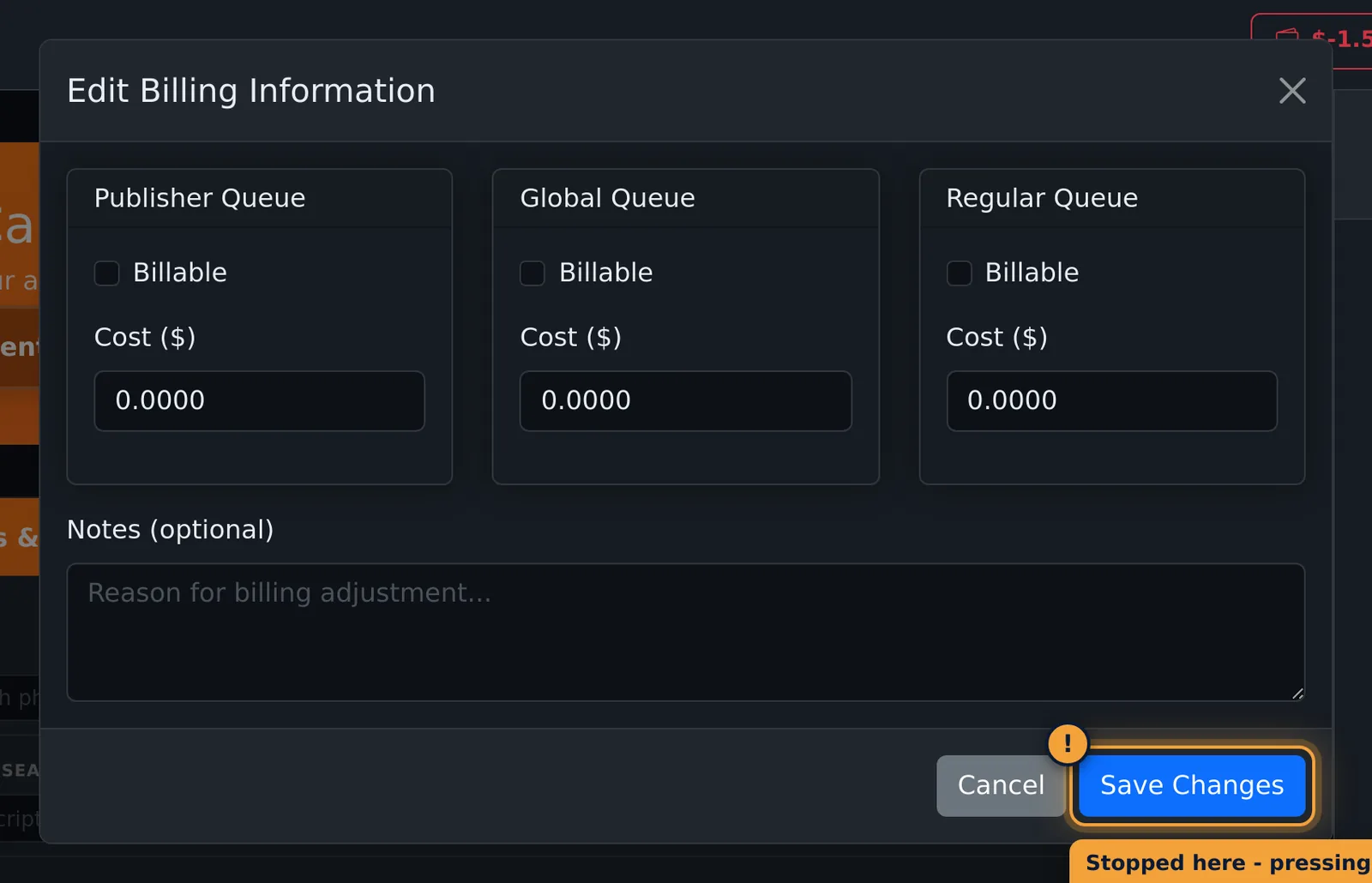
Adjusted calls show "This call has manual billing adjustments applied." To undo an adjustment, open Edit again and select Delete Override; after you confirm, the original computed values come back. For how billing works, see Billing & Your Wallet and the Billing FAQ.
Set or fix a disposition
- Select the pencil next to a disposition, or Set Disposition when there is none.
- Choose the Disposition, fill its extra fields (for example Caller Name) and Notes.
- Select Submit Disposition.
Common problems
- "No calls found matching your criteria": widen the dates or tick All Time, then check the other filters.
- No Play button: the call has no recording (for example a 0-second call).
Related articles
Was this article helpful?
Can't find what you are looking for? Our support team can help.
Submit a support ticket