Transcript
Dispositions are the outcomes agents record after each call. Fields are the extra questions they answer with them. Here is how to set up both.
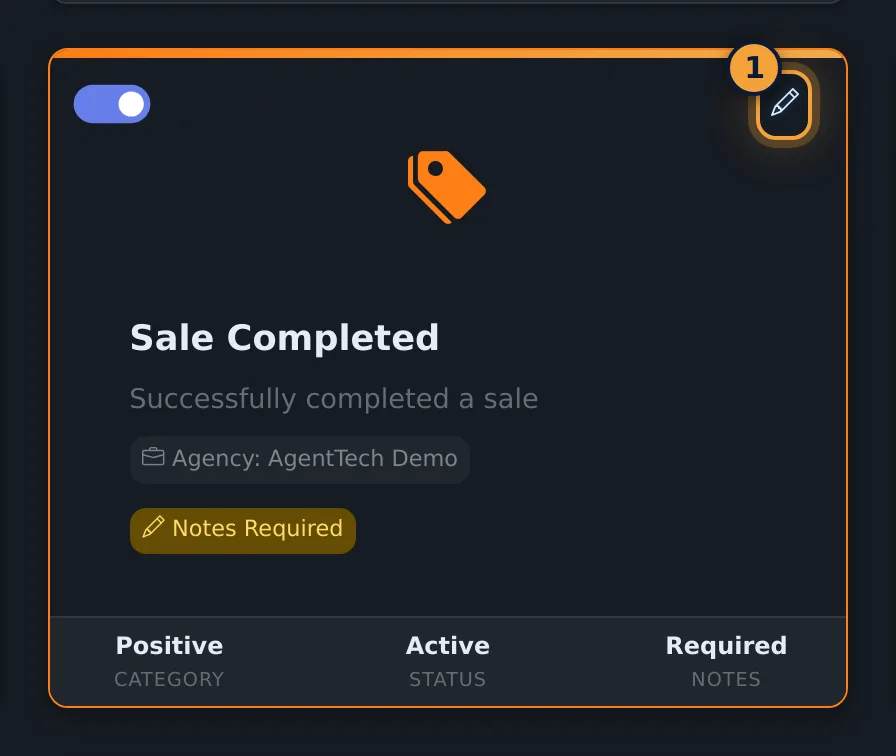
Open Agency Management, then Dispositions. Each card is one call outcome, with an on-off switch, and buttons to edit or delete it.
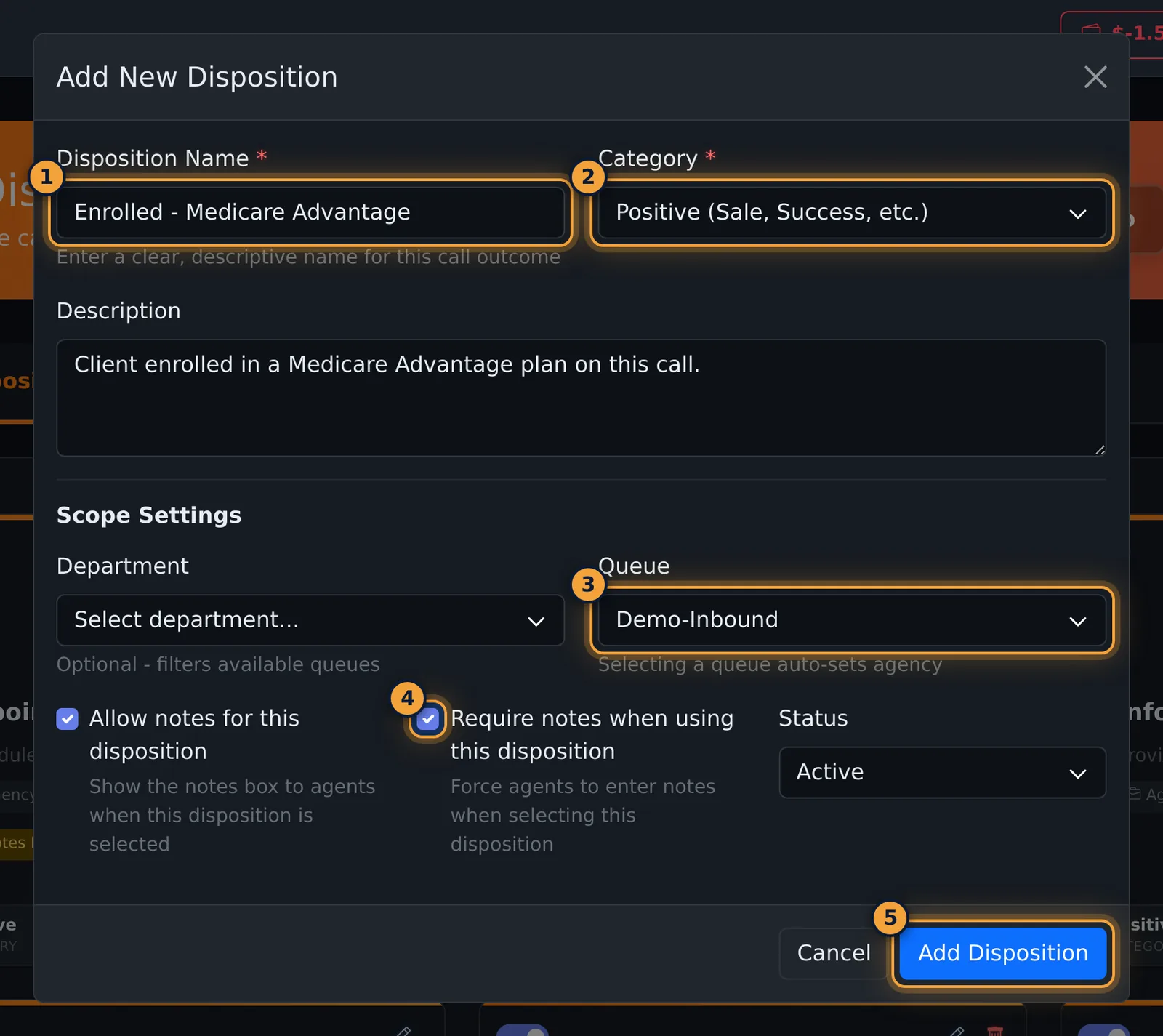
Select Add Disposition. Enter the name agents will see, and pick its category.
Add a description for agents. To offer it on one queue only, pick the queue, or leave it empty for every call.
Tick Require notes, so agents must explain the outcome. Then select Add Disposition.
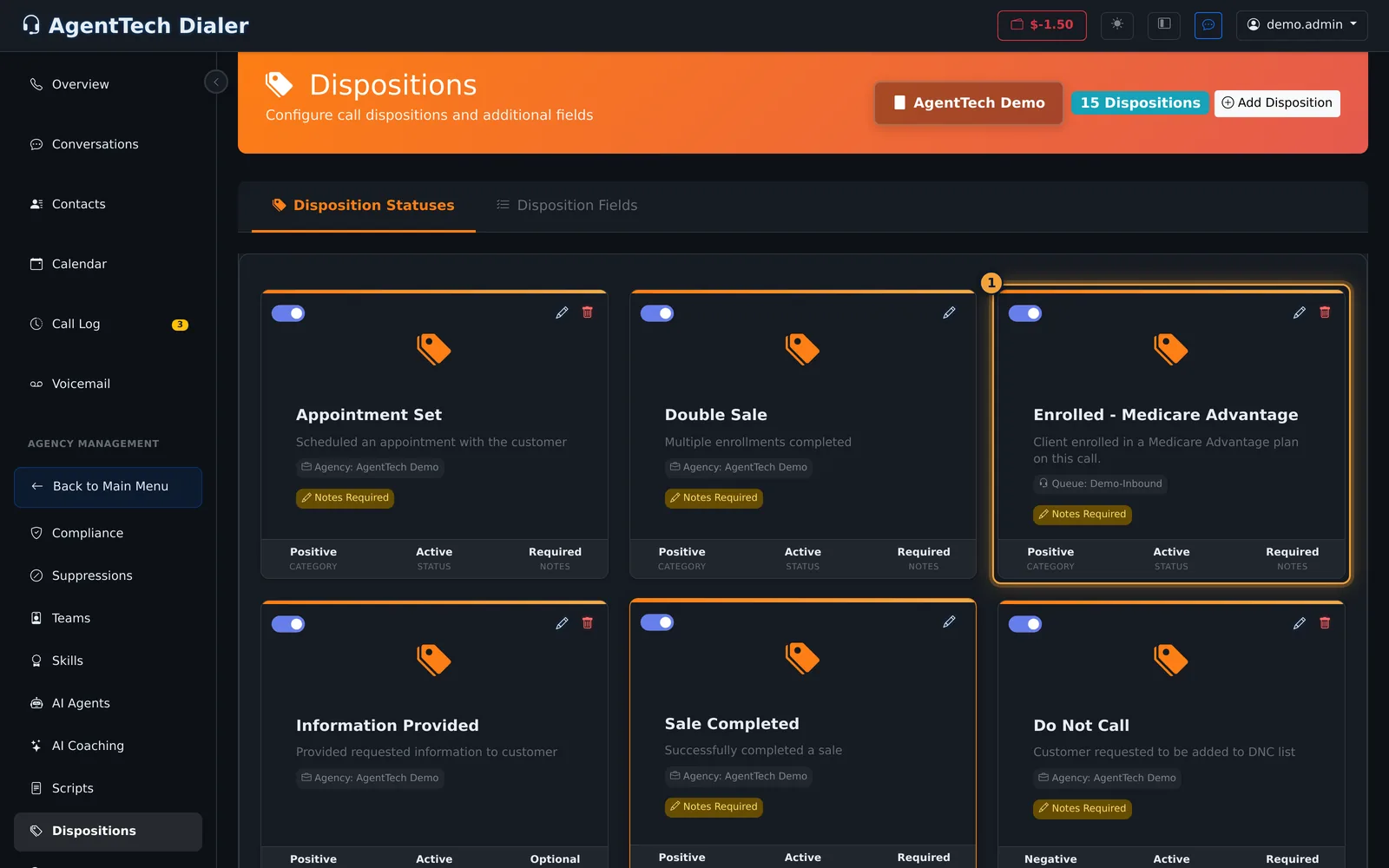
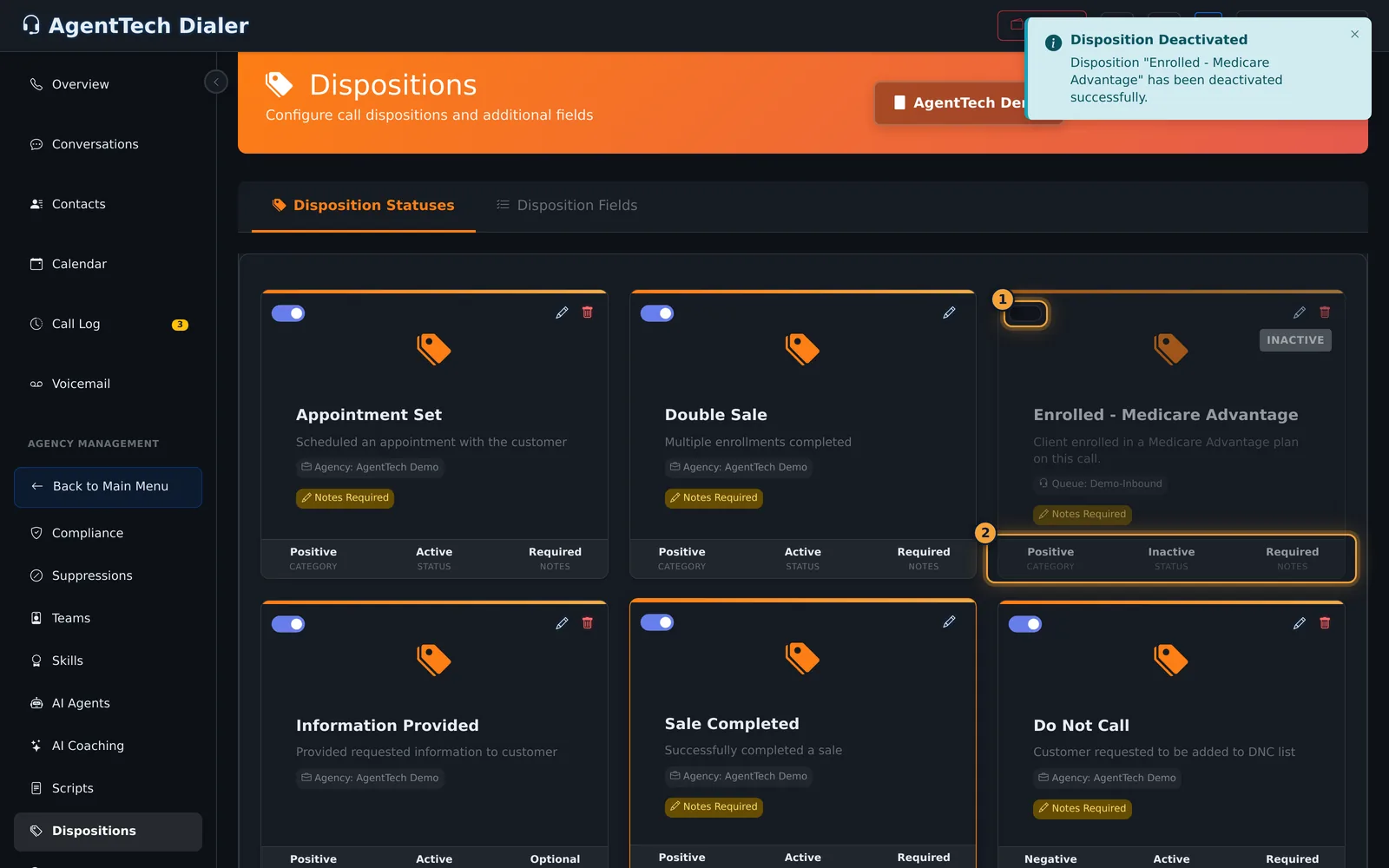
The new card shows its queue and the Notes Required badge. Switch it off, and agents stop seeing it. Switch it on again whenever you need it.
Fields live on the Disposition Fields tab. Select Add Field, then enter an internal Field Name, the Display Label agents see, and a Field Type.
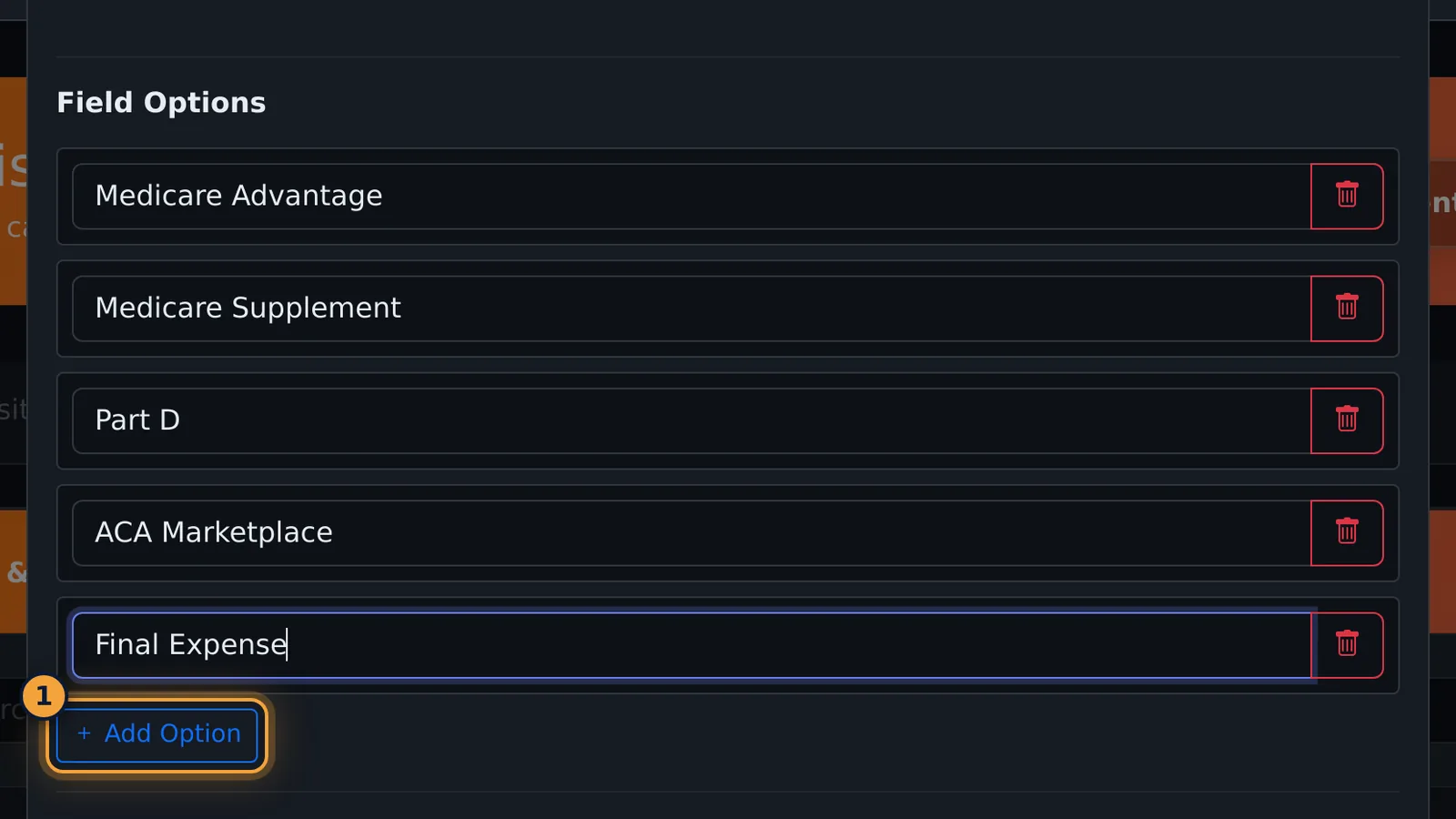
For a dropdown, type the choices under Field Options. Add Option adds a row.
Availability decides which dispositions show the field. Choose Available for Selected Dispositions, tick them, and select Save Field.
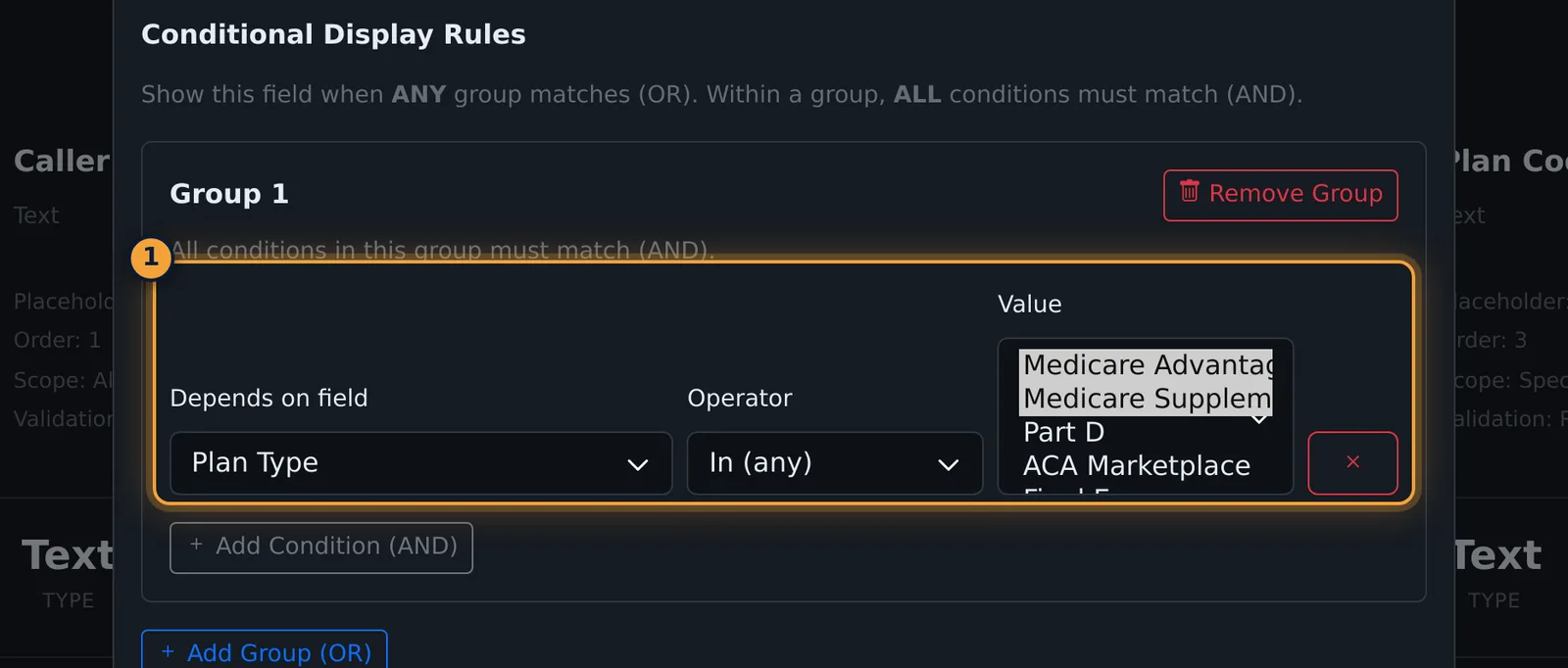
For a follow-up question, add a field such as Current Carrier, and under Conditional Display Rules, select Add Group.
Pick the field it depends on, an operator, and the values. Current Carrier now appears only when the plan type is Medicare Advantage or Medicare Supplement.
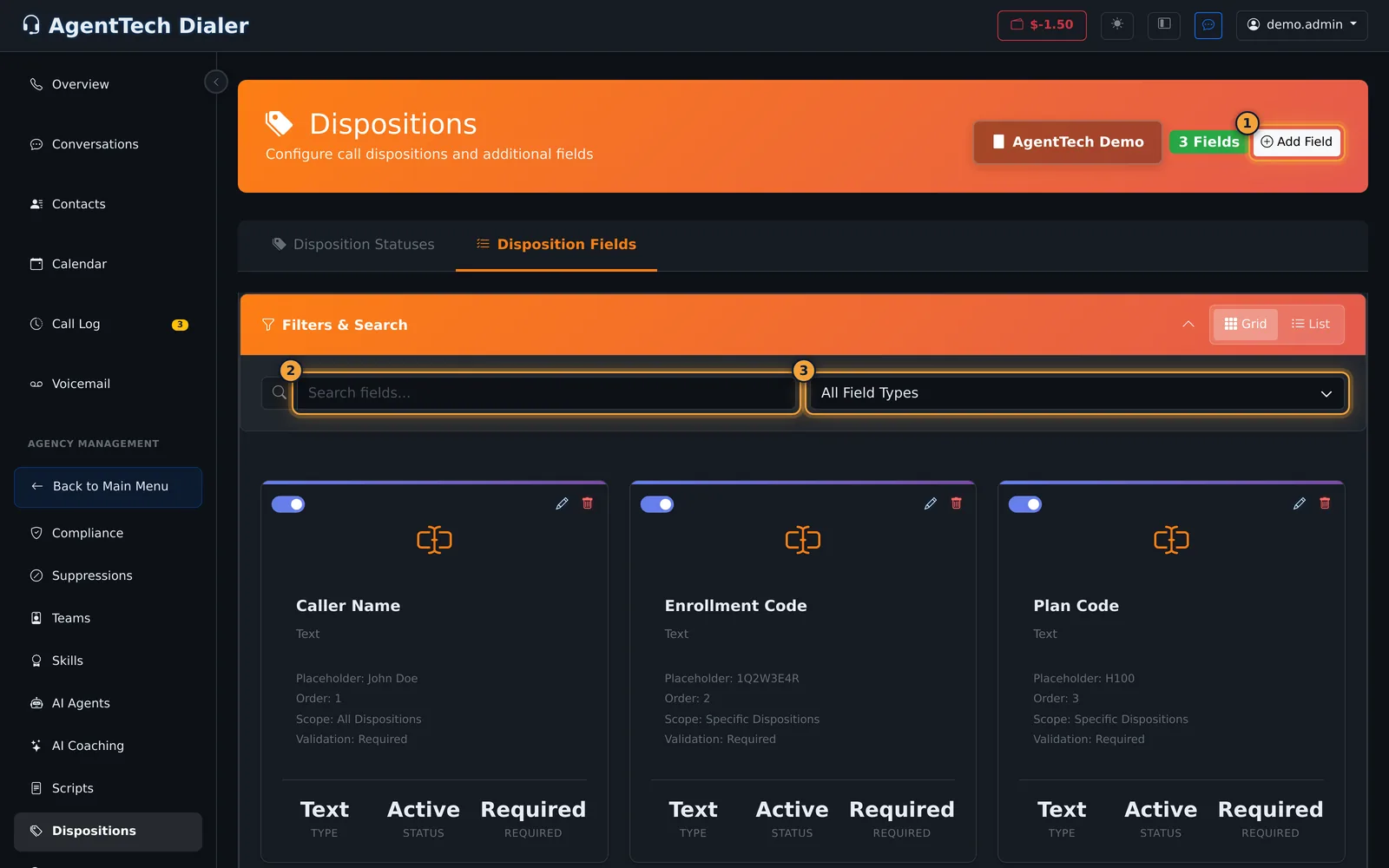
Select Save Field. Each field card shows its type, scope and validation, with the same switch, pencil and bin.
Next, see how automations can act on these outcomes. The full guide covers every field option.
A disposition is the outcome an agent records when a call ends, such as Appointment Set, Not Interested or Wrong Number. Disposition fields are extra questions the agent answers with it, such as the plan type sold. Reports, automations and compliance all use these outcomes, so a short, clear list matters.
This article is for agency admins. Agents choose dispositions after their calls; see Making and Receiving Calls.
Open Agency Management > Dispositions. The page has two tabs: Disposition Statuses and Disposition Fields.
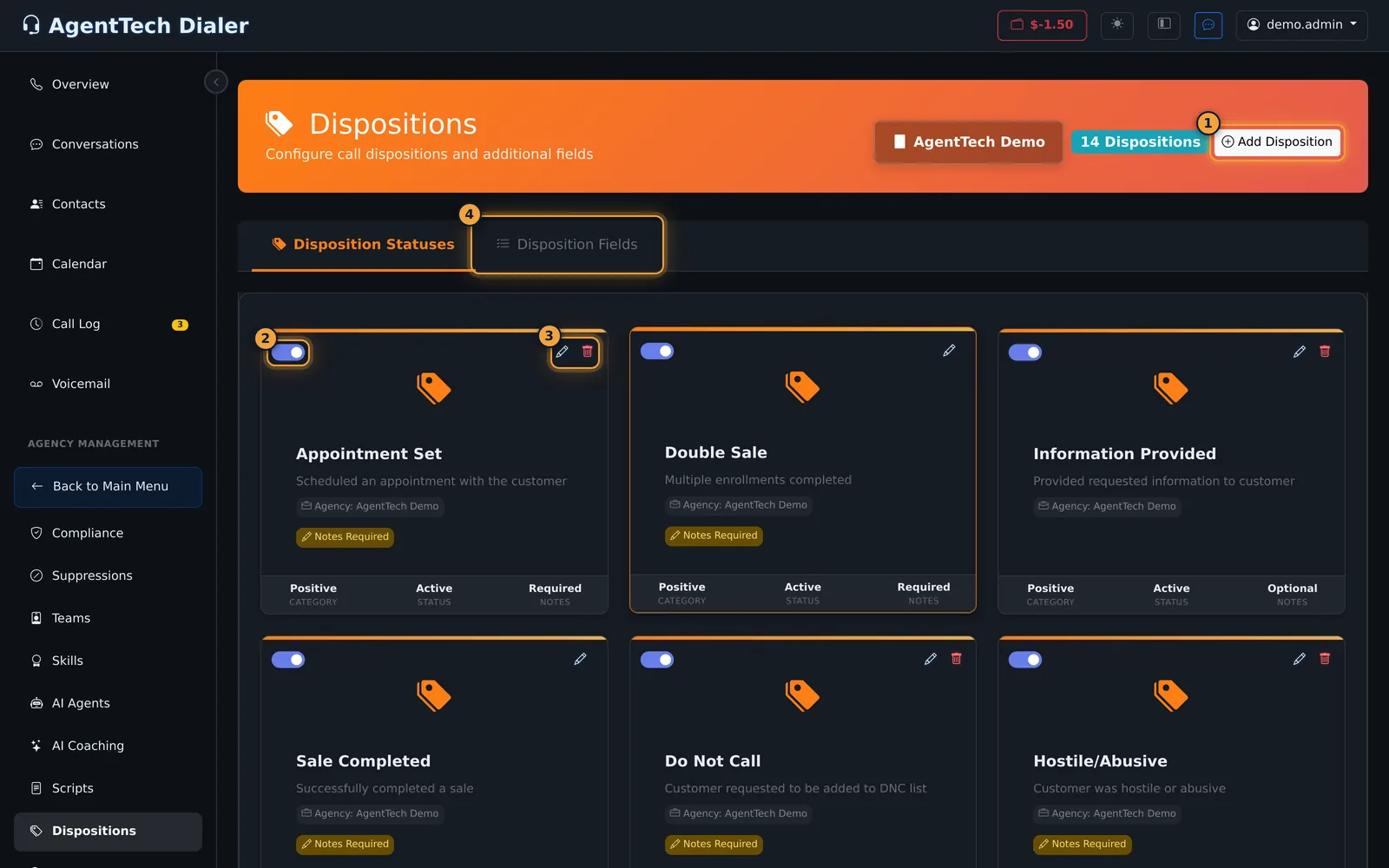
Dispositions
Each card shows the name, description, scope (the whole agency, one queue or one department), whether notes are required, and the category, status and notes setting.
Add a disposition
- On Disposition Statuses, select Add Disposition.
- Enter the Disposition Name agents will see, and pick a Category.
- Optionally add a Description that tells agents when to use it.
- To offer it only on one queue, pick the Queue under Scope Settings. Leave Queue and Department empty to offer it on every call in the agency.
- Decide on notes: Allow notes for this disposition shows the notes box; Require notes when using this disposition makes agents fill it in.
- Select Add Disposition. The card appears in the list and the count at the top goes up.
| Field | What it does |
|---|---|
| Disposition Name | Required. The name agents pick from. |
| Category | Required. Positive (sale, success), Negative (rejection, refusal), Follow Up (callback, schedule) or Neutral (wrong number, busy). |
| Description | Optional explanation of when to use it. |
| Department / Queue | Optional. Limits the disposition to calls in that department or queue. Picking a queue fills in its department. |
| Allow notes for this disposition | On by default. Shows the notes box when this disposition is chosen. |
| Require notes when using this disposition | Agents must type notes. Only available while notes are allowed. |
| Status | Active (default) or Inactive. |
Turn a disposition off, edit or delete it
- Switch off: the switch in the card's corner saves at once. The card dims and agents no longer see the disposition. Switch it on again at any time.
- Edit: the pencil opens the same fields. Change them and select Save Changes.
- Delete: the bin asks you to confirm ("This action cannot be undone"). Past calls keep the outcome they were given.
Sale Completed and Double Sale are protected: they have no delete button. You can still edit them or switch them off.
Disposition fields
Fields are the questions shown with the disposition form, for example Plan Type or Enrollment Code. The Disposition Fields tab lists them with a search box, a field-type filter and a grid/list switch.
Add a field
- On Disposition Fields, select Add Field.
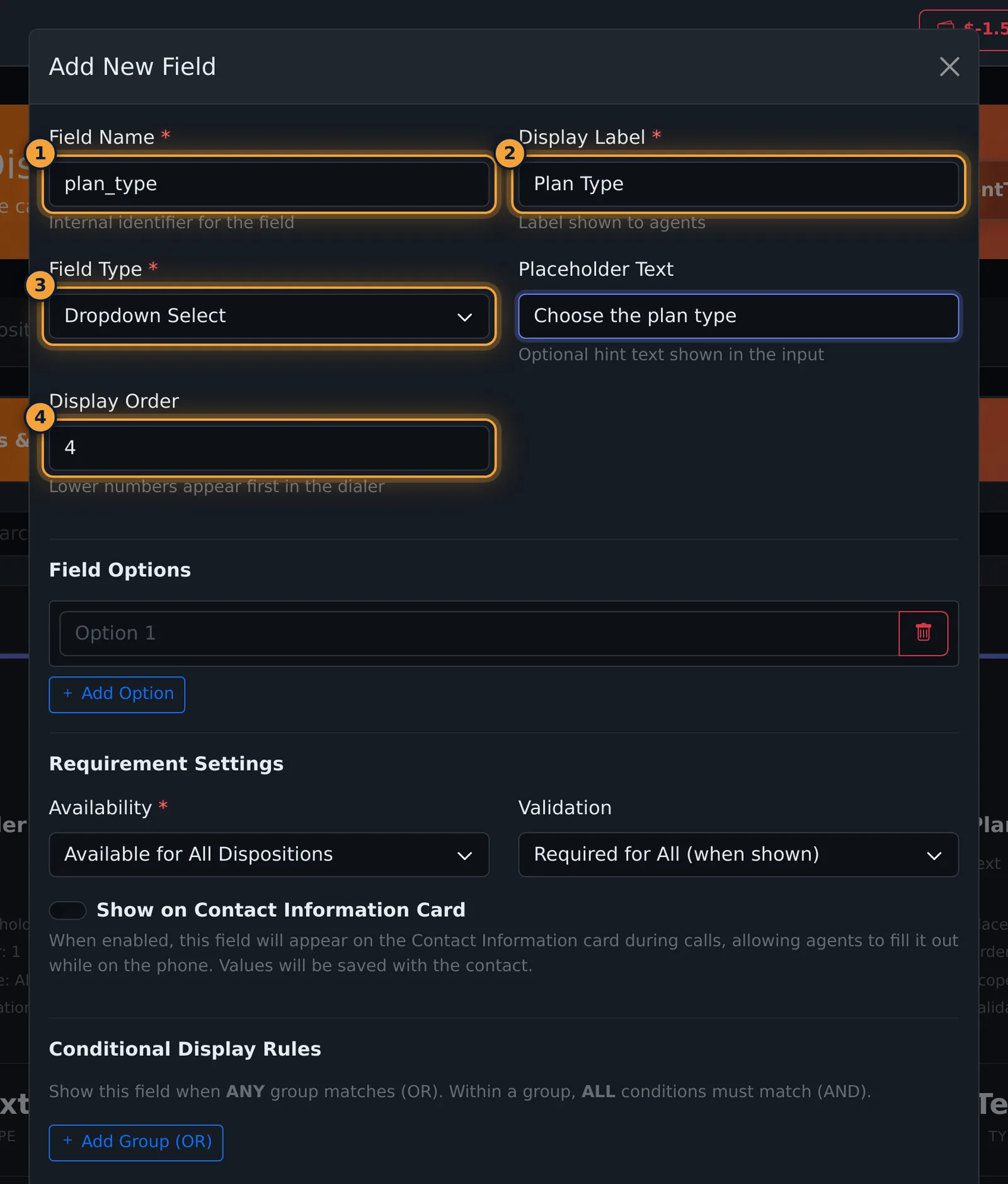
- Enter the Field Name (an internal name, such as
plan_type), the Display Label agents see, and the Field Type. - Optionally add Placeholder Text and a Display Order (lower numbers appear first).
- For Radio Buttons, Checkboxes (Multiple) and Dropdown Select, type the choices under Field Options. Add Option adds a row; the bin removes one. Empty rows are ignored.
- Under Requirement Settings, set Availability and Validation, and tick the dispositions each one applies to.
- Availability: Available for All Dispositions, Available for Selected Dispositions (tick them under Show for Dispositions), or Available for All Except Selected (tick them under Hide for Dispositions).
- Validation: Required for All (when shown), Optional, or Required for Selected Dispositions (tick them under Required For Dispositions; the field still shows wherever it is available).
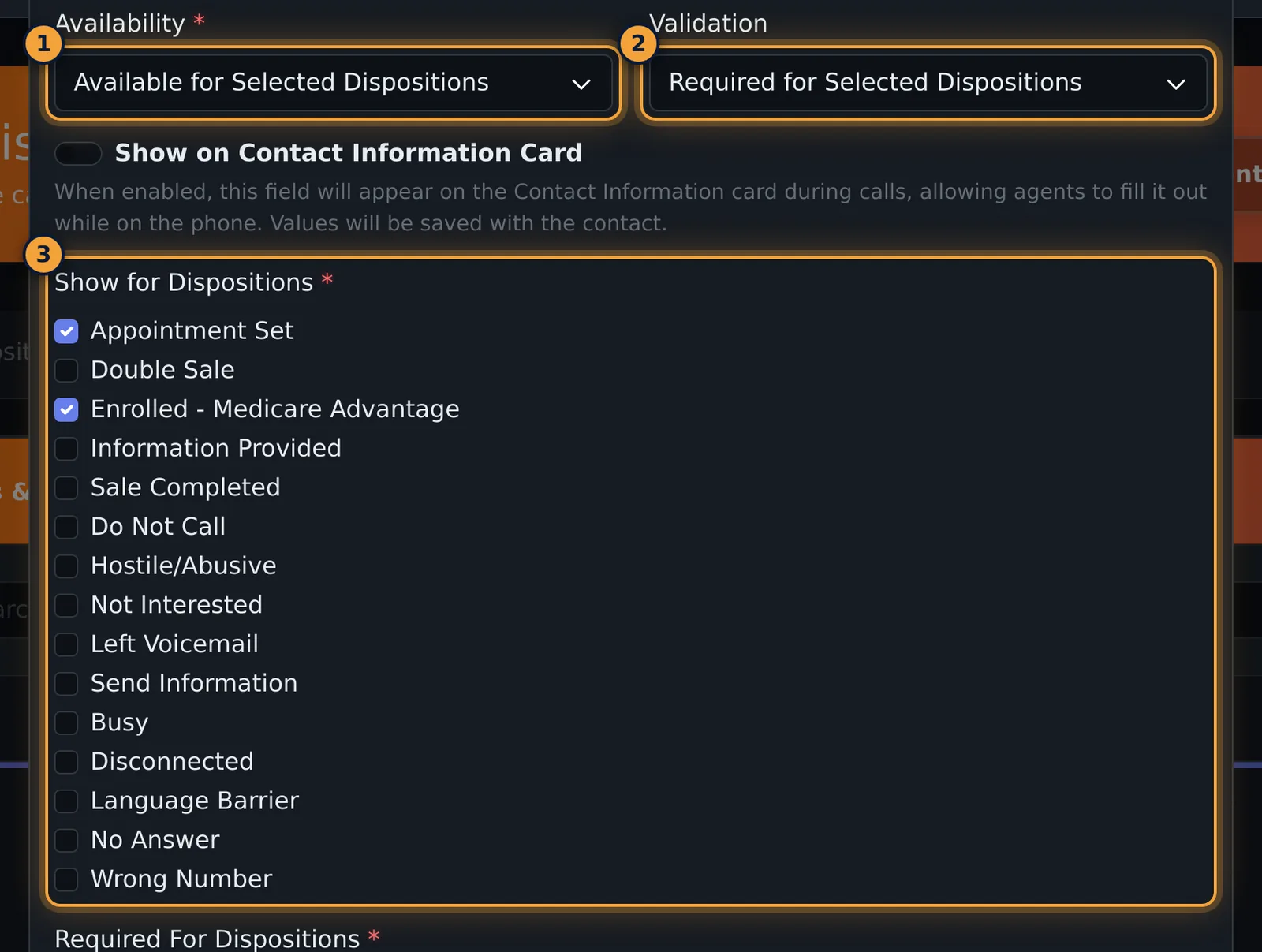
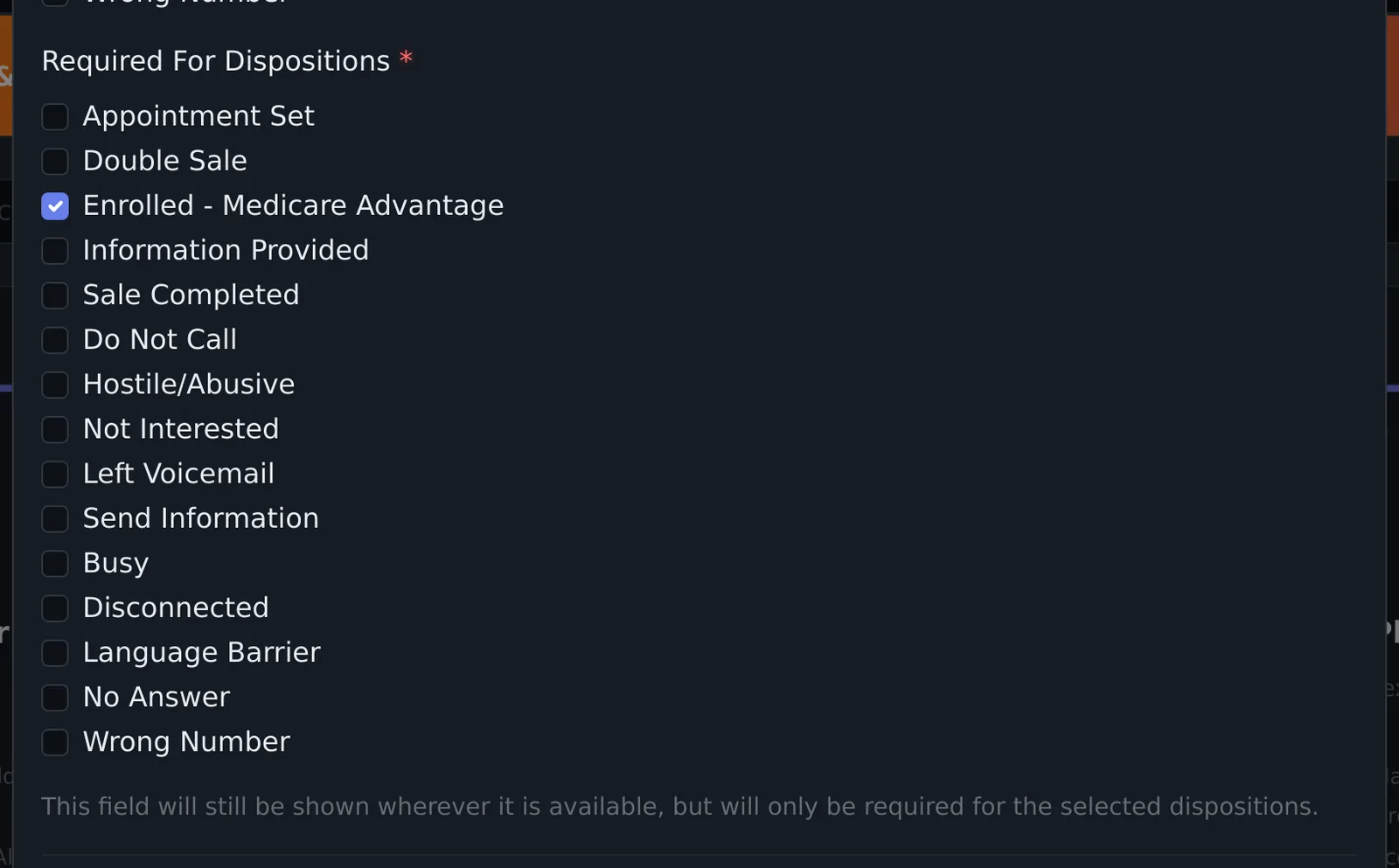
- Optionally turn on Show on Contact Information Card so agents can fill the field in during the call; the value is saved with the contact.
- Select Save Field. If a list of dispositions is needed and none is ticked, the form says "Please select at least one disposition" and nothing is saved.
Field reference
| Field | What it does |
|---|---|
| Field Name | Required. Internal identifier. |
| Display Label | Required. The label agents see. |
| Field Type | Text Input, Textarea, Radio Buttons, Checkboxes (Multiple), Dropdown Select, Number Input, Date Picker, Date of Birth, Email Address, Address, Caller Name (First + Last Name), Book Appointment (Date + Time). |
| Placeholder Text | Hint shown inside the empty input. |
| Display Order | Position in the form; lower numbers first. New fields default to the next number. |
| Field Options | The choices for radio, checkbox and dropdown fields. |
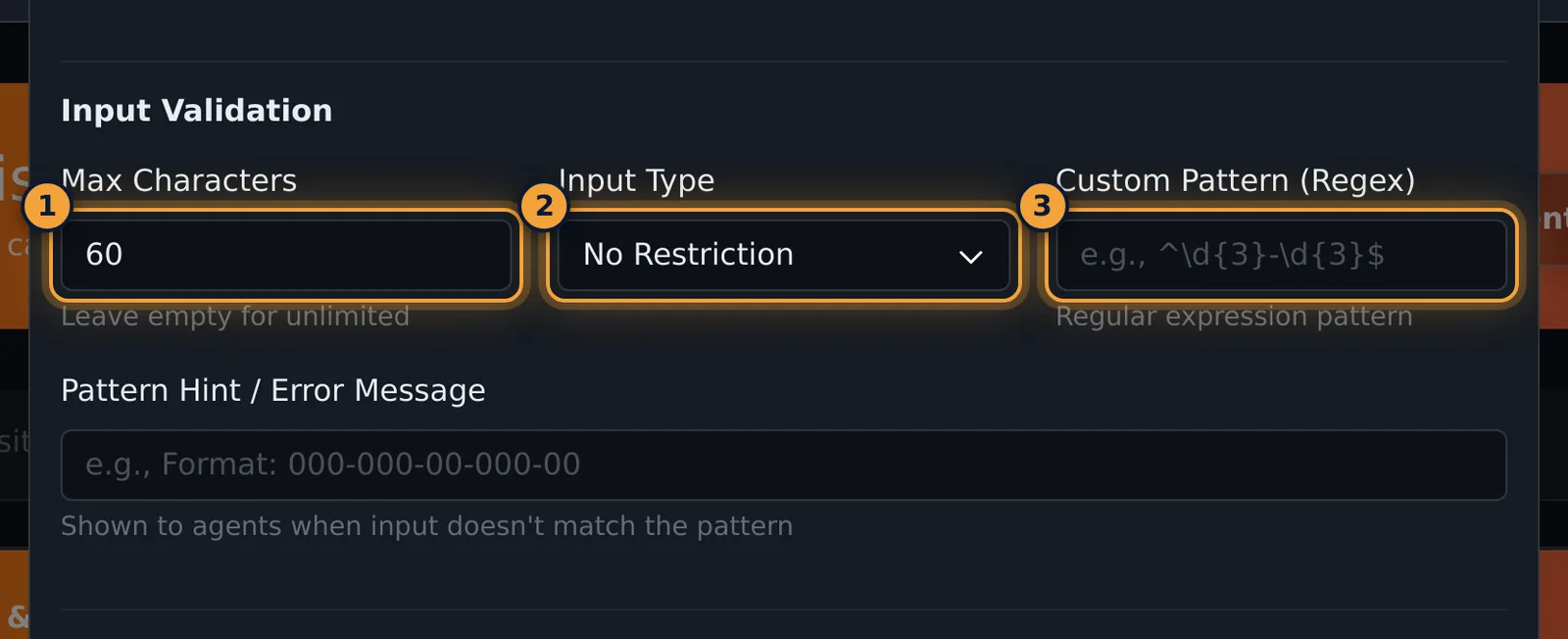
| Max Characters | Text, Textarea and Number only. Empty means no limit. |
| Input Type | No Restriction, Numbers Only, Letters Only or Alphanumeric Only. Enforced as the agent types. |
| Custom Pattern (Regex) and Pattern Hint | A pattern the answer must match, and the message agents see when it does not. |
| Availability / Validation | Which dispositions show the field, and where it is required. |
| Show on Contact Information Card | Shows the field on the contact card during calls. Always on for Caller Name. |
| Conditional Display Rules | Show the field only when other answers match (below). |
Show a field only when another answer matches
Use Conditional Display Rules when a question only makes sense after another answer. For example, show Current Carrier only when Plan Type is Medicare Advantage or Medicare Supplement.
- Select Add Group (OR). A group has one condition row.
- Pick the field it depends on, an operator (Equals, Not equals, In (any), Not in, Contains, Not contains, Is set, Is not set), and the value. For fields with options, the values are picked from that field's list.
- Select Add Condition (AND) to add conditions that must all match. Add another group for an alternative: the field shows when any group matches.
A field hidden by its rule is not required while it is hidden.
After saving
The field card shows its type, placeholder, order, scope (all or specific dispositions) and its validation. Use the switch to turn a field off without deleting it, the pencil to edit it (options, ticked dispositions and rules come back filled in), and the bin to delete it after a confirmation.
Common problems
- Which dispositions make a field required? Open the field; the Required For Dispositions list shows them.
- I can't delete Sale Completed: it is protected. Switch it off instead.
- A disposition doesn't appear for agents: check its switch is on and its Queue scope matches the queue the call came through.
Related articles
Was this article helpful?
Can't find what you are looking for? Our support team can help.
Submit a support ticket