Transcript
Calendar holds your appointments, callbacks, meetings, and reminders. Here is how to book one, move it, and remove it.
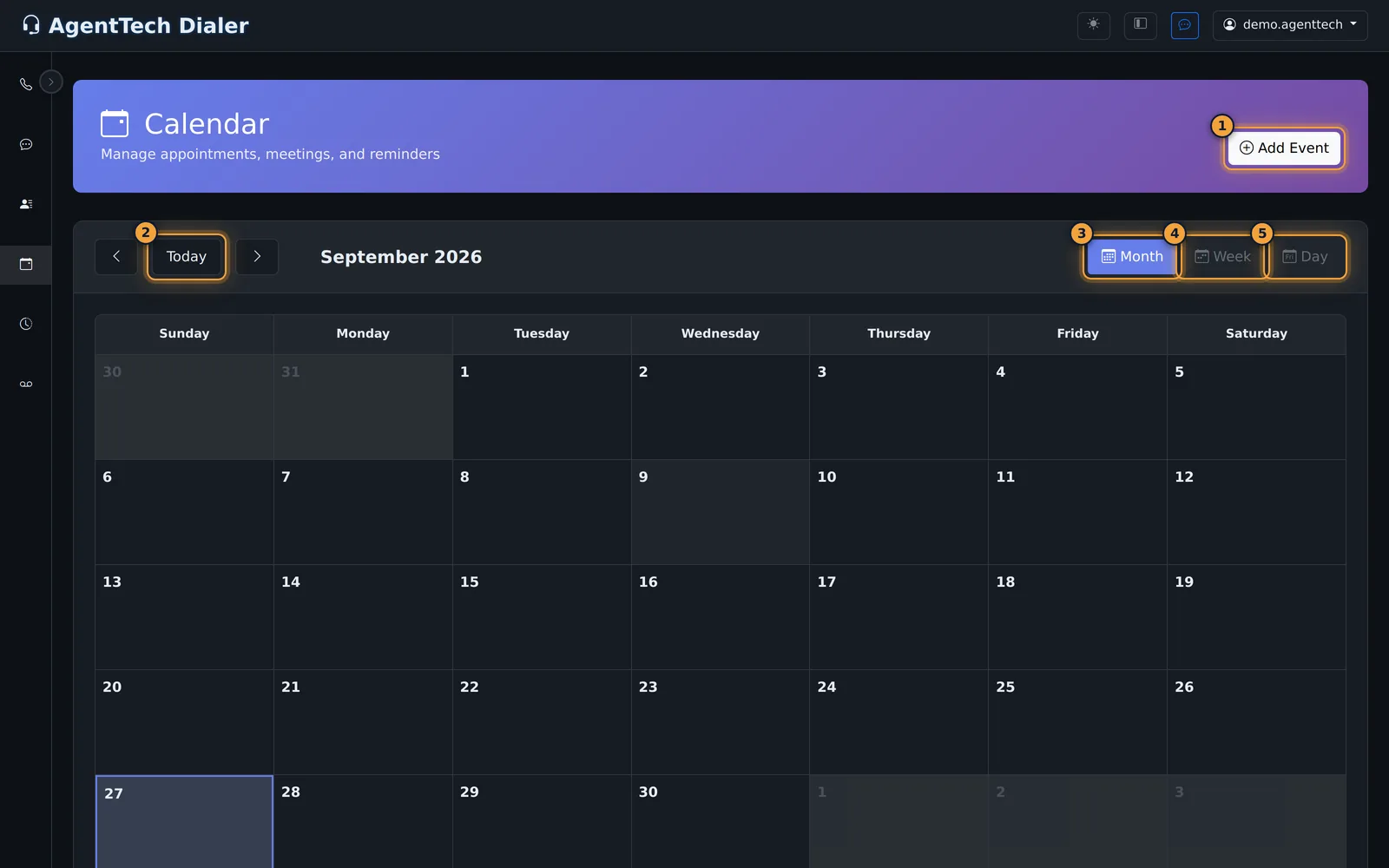
Calendar opens on the current month, with today highlighted. Use the arrows and Today to move around.
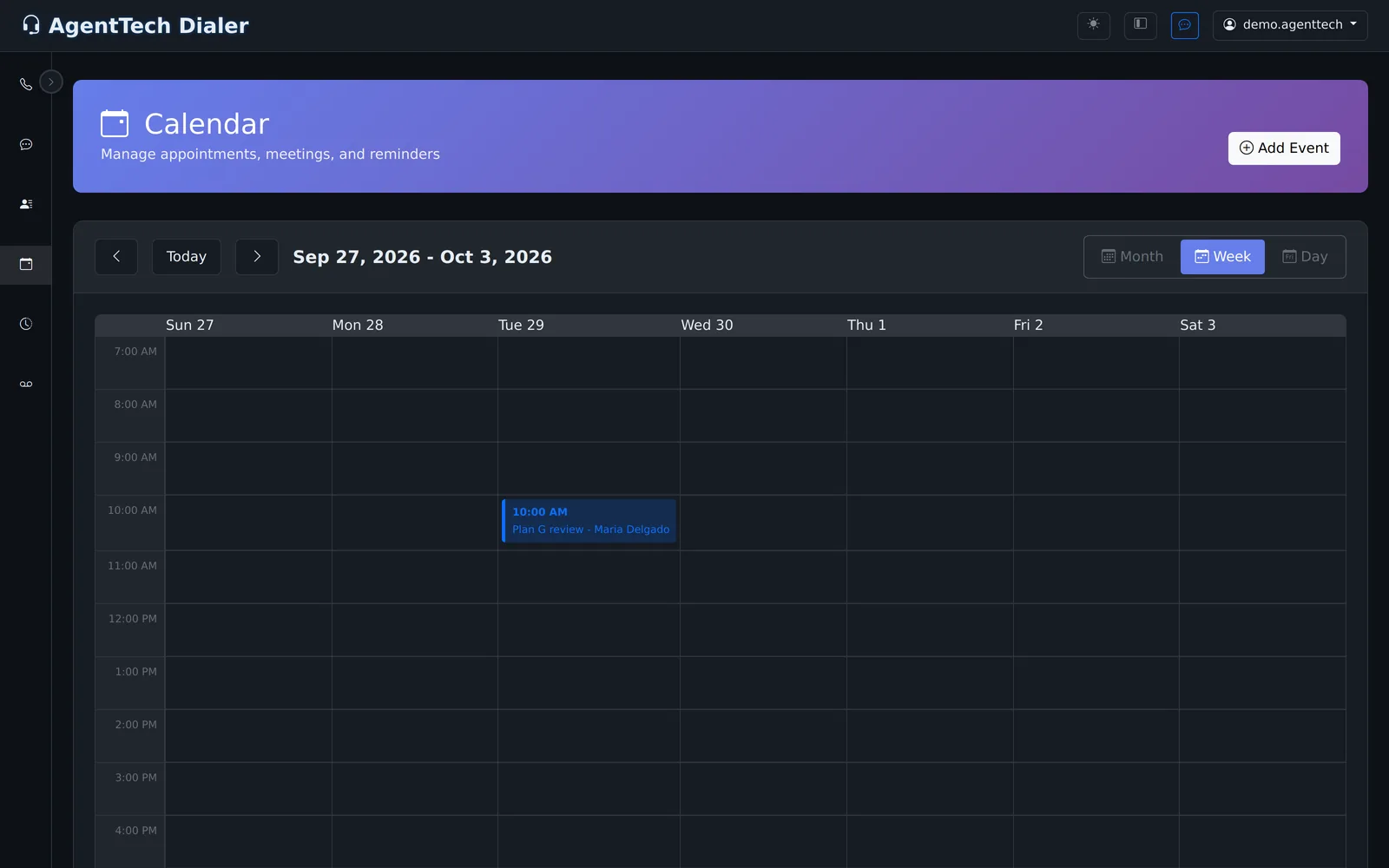
Month, Week, and Day change the view. Week and Day place each event in its time slot.
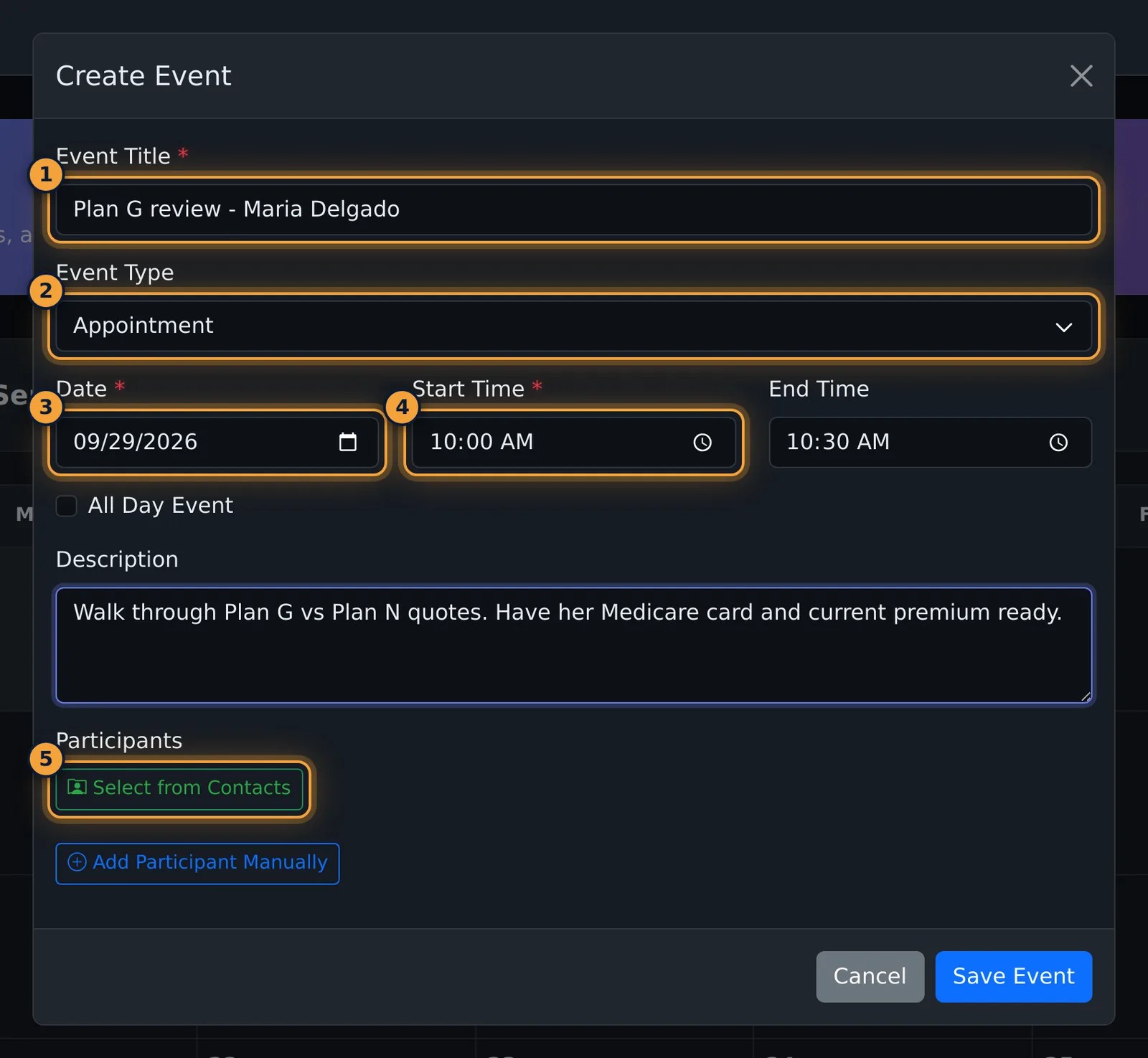
Select Add Event, or click a day, and give the event a title, like the client's name and what it's for.
Choose the Event Type. Each type has its own color, and Schedule Callback marks a call back you promised a client.
Set the date and start time, and an end time if you like. Add a description, and participants from your contacts.
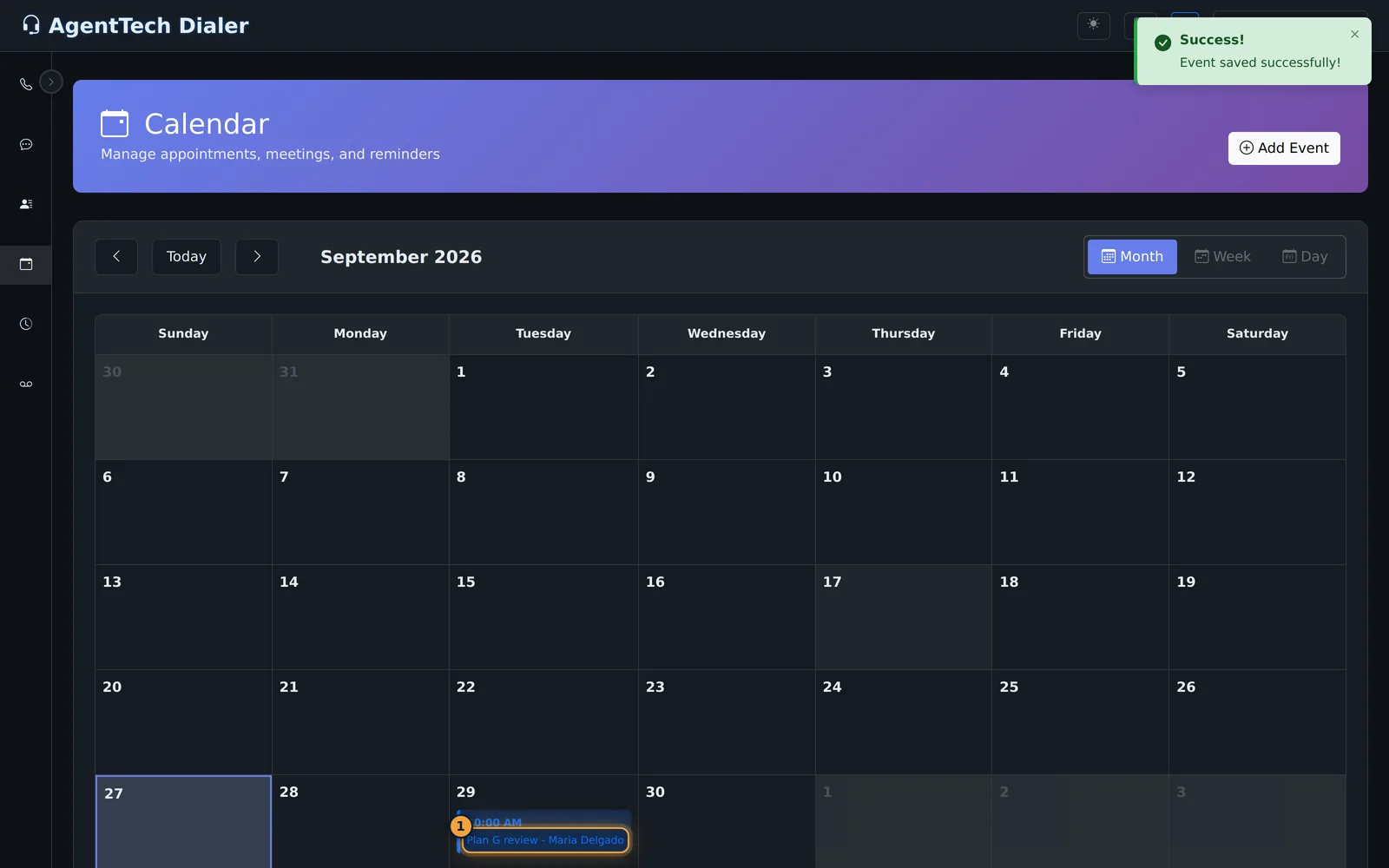
Select Save Event. The event appears on its day, in its type's color.
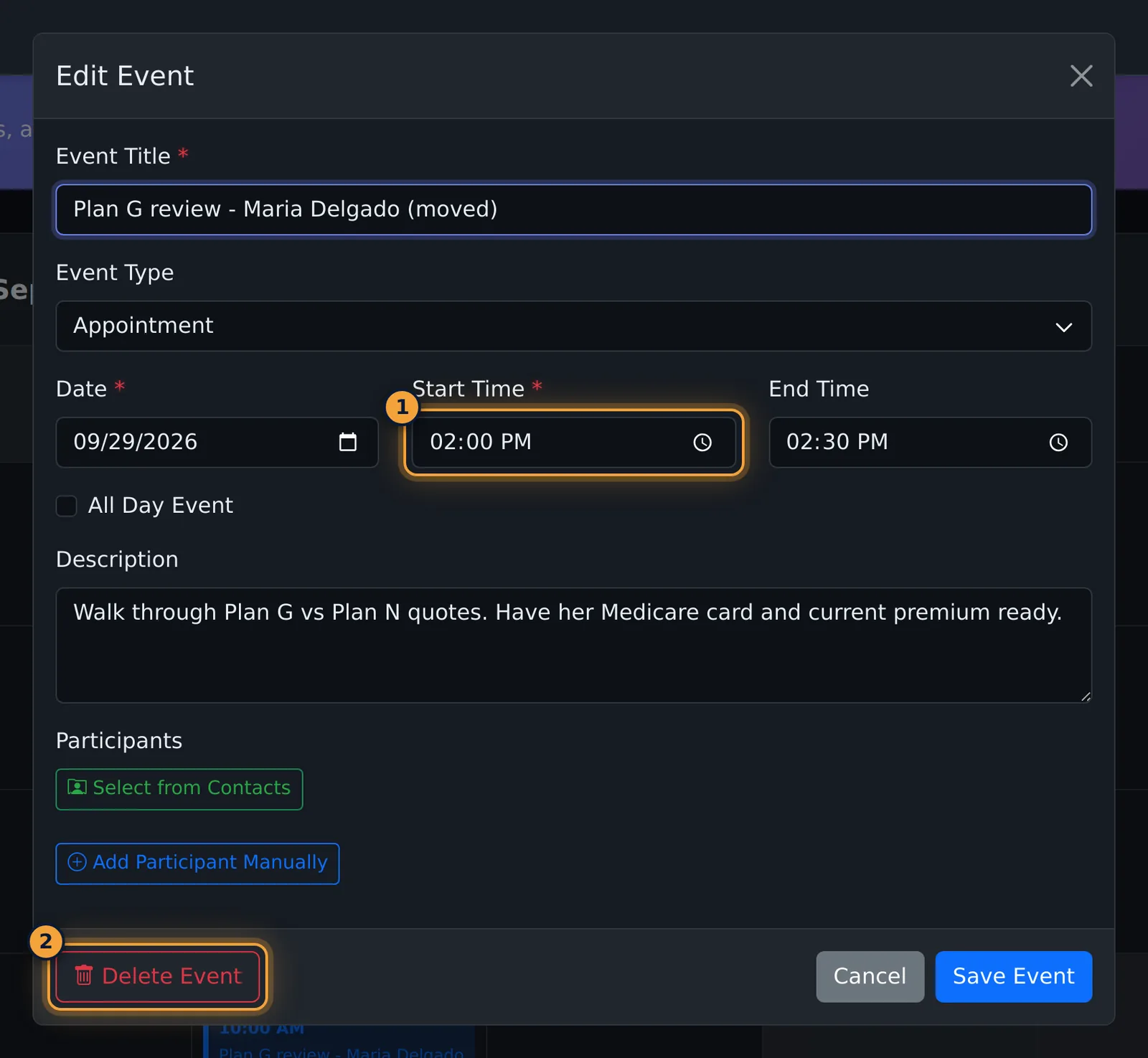
Select the event to open it again. Change what you need, like the time, and select Save Event.
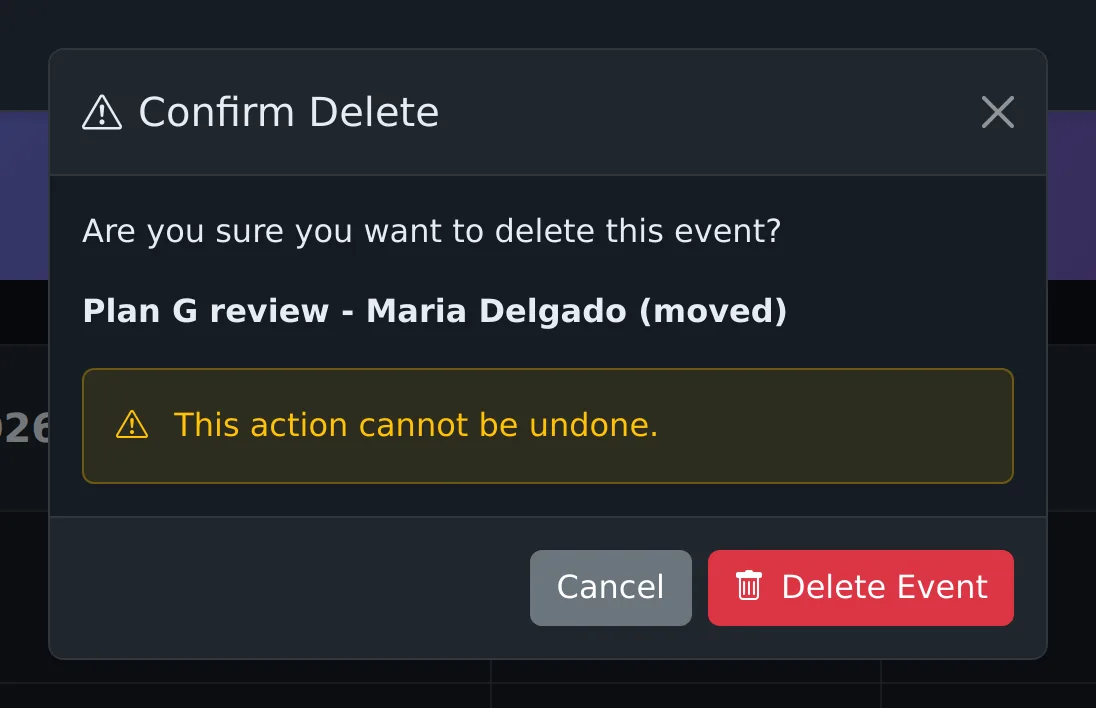
To remove it, open the event, select Delete Event, and confirm.
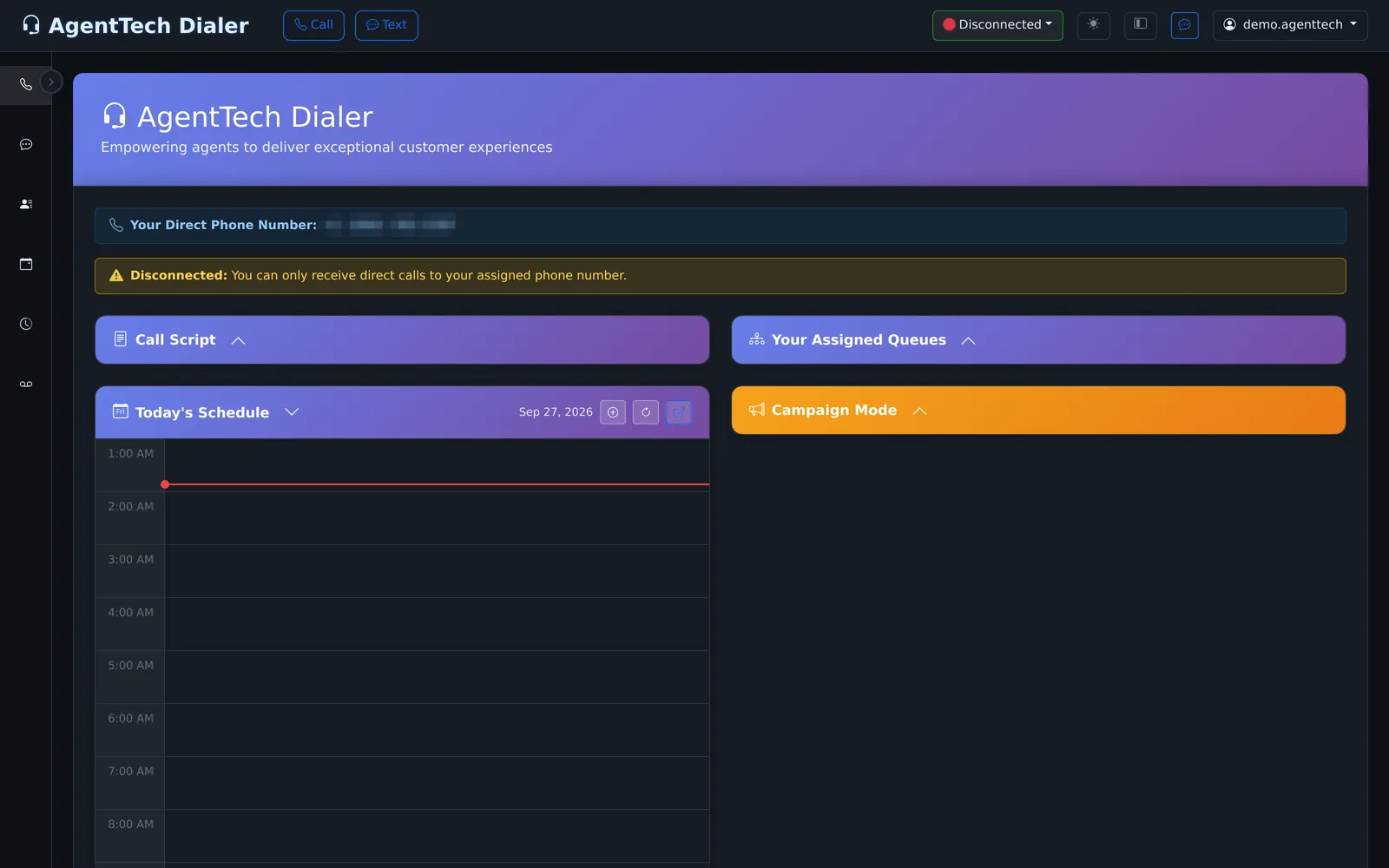
Today's events also appear in the Today's Schedule panel on the dialer home.
Calendar (sidebar) holds your appointments, callbacks, meetings and reminders. Today's events also show in the Today's Schedule panel on the dialer home. This article is for agents and supervisors.
Find your way around
The calendar opens on the current month. Use the arrows and Today to move, and Month, Week or Day to change the view.
Create an event
- Select Add Event (or click a day or time slot).
- Fill in the form and select Save Event.
| Field | What it does |
|---|---|
| Event Title | Required. What shows on the calendar, for example the client's name and purpose. |
| Event Type | General, Call, Meeting, Appointment, Schedule Callback, Follow-up or Reminder. Each type has its own color. |
| Date, Start Time | Required. |
| End Time | Optional. |
| All Day Event | Marks the event as lasting the whole day. |
| Description | Notes for yourself, for example what to prepare. |
| Participants | Select from Contacts or Add Participant Manually. |
- The event appears on its day.
Edit or delete an event
- Select the event. The same form opens with your details.
- Change what you need and select Save Event, or select Delete Event and confirm.
Today's Schedule on the dialer
The dialer home has a Today's Schedule panel: an hour-by-hour view of today with an Add Event button and refresh, so you can see your next appointment between calls.
Related articles
Was this article helpful?
Can't find what you are looking for? Our support team can help.
Submit a support ticket