Transcript
Here is a supervisor's first tour of AgentTech Dialer: the dashboard, your agents, and where to find results and time.
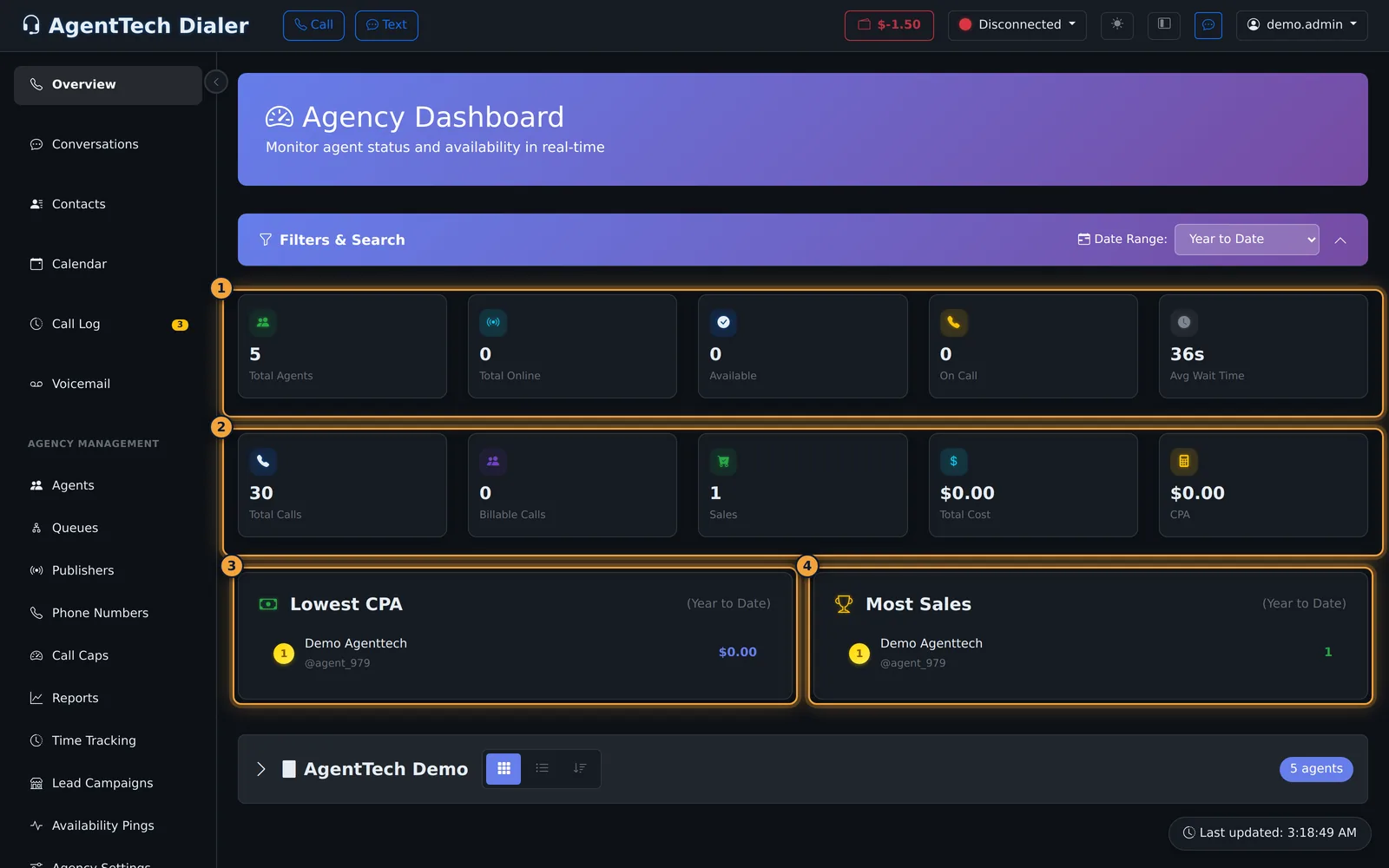
Select Overview. The Agency Dashboard shows who is online, available, and on a call right now, and your calls, sales, cost, and CPA.
Pick a range in Date Range: Today at the start of a shift, or a longer range for a review.
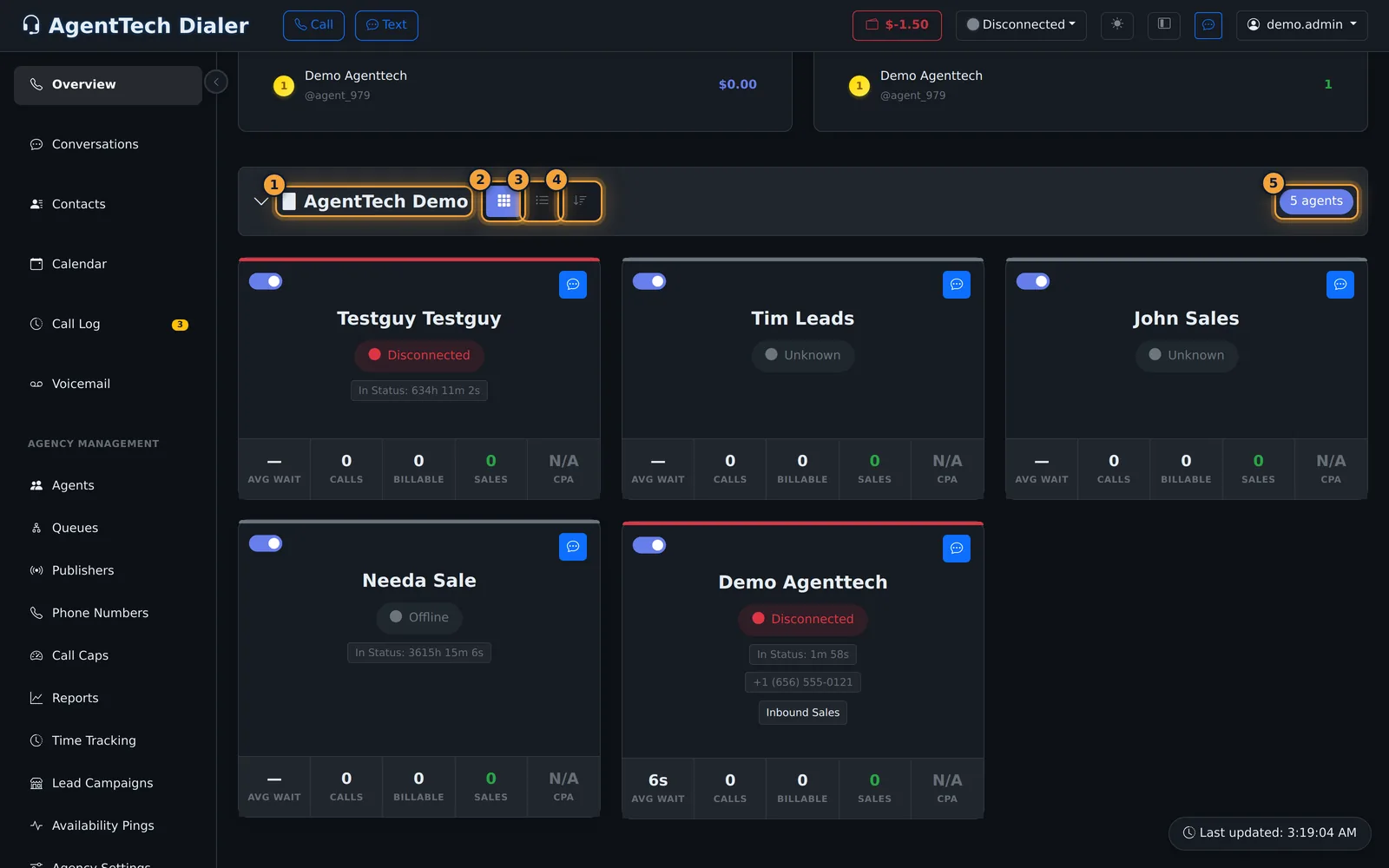
Click your agency's name under the tiles to open your agents. Choose Full View for cards, or List View for rows.
Each card shows the agent's status and how long they have been in it, their queues, and a chat button.
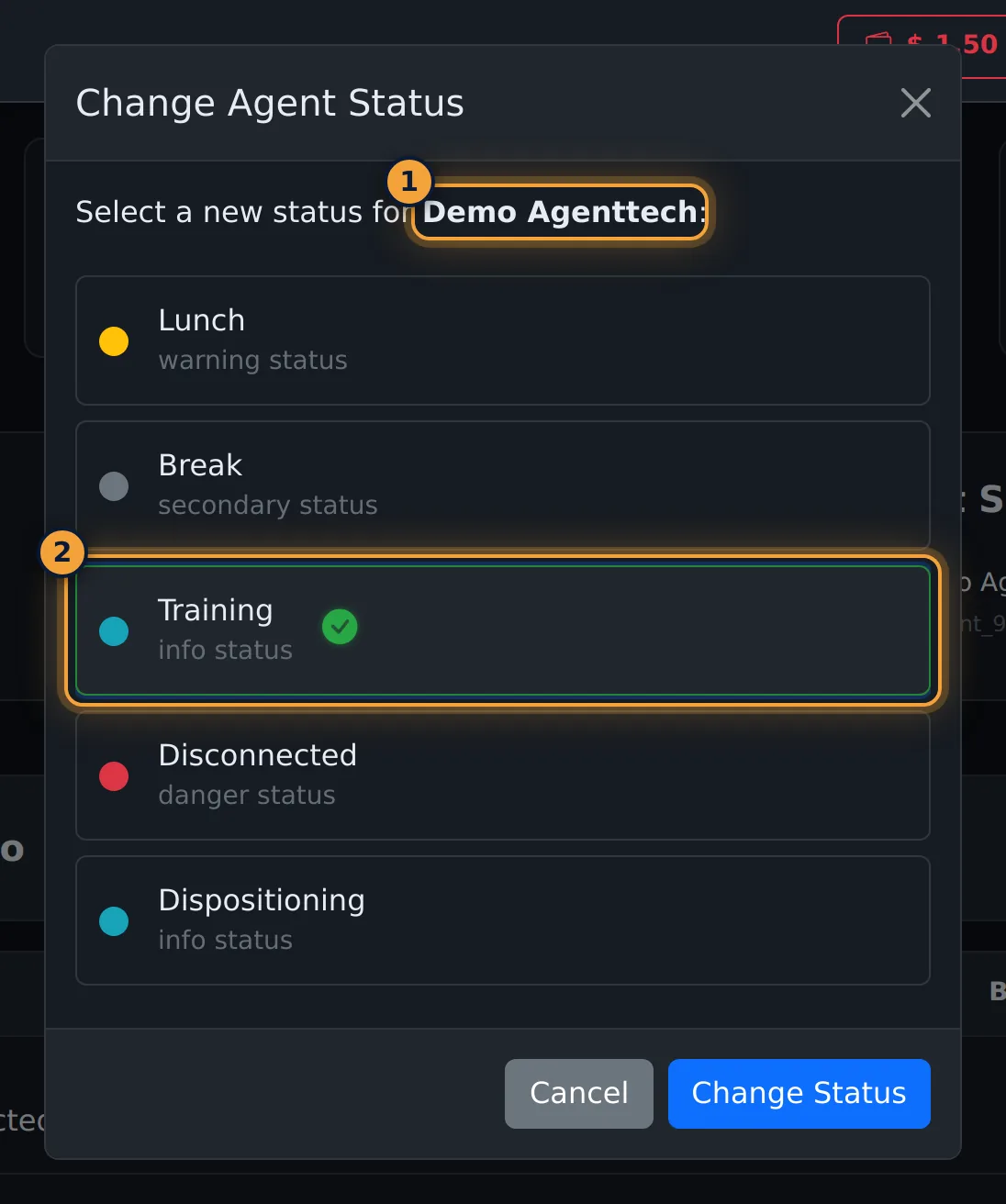
To change an agent's status, click the switch on their card, and pick the new status.
Select Change Status. The change is immediate, and it controls whether the agent gets calls.
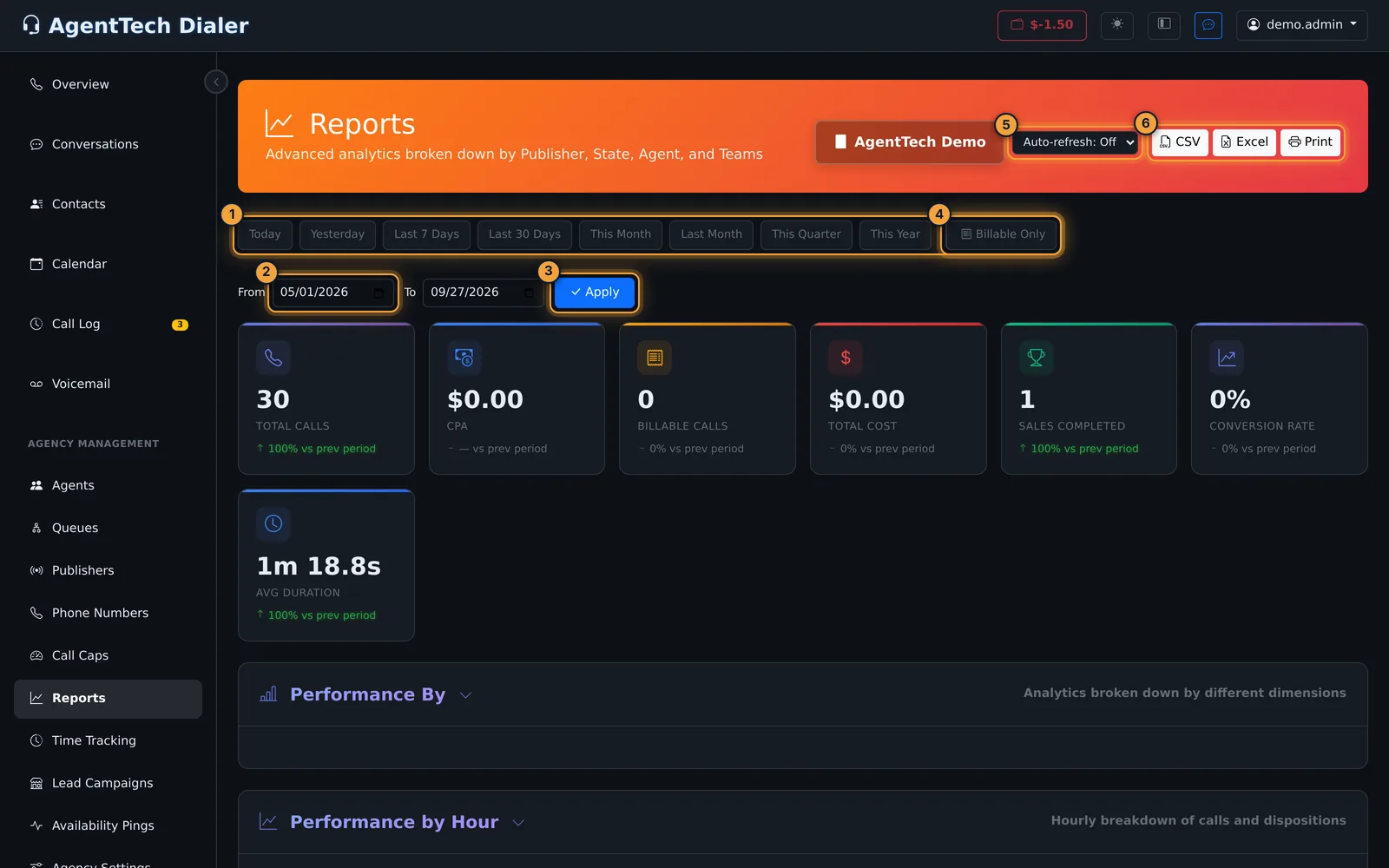
Open Reports for results over any range. Set From and To, and select Apply.
You get KPI cards against the previous period, then results by agent, team, publisher, state, and queue. Click an agent's name for their own analytics.
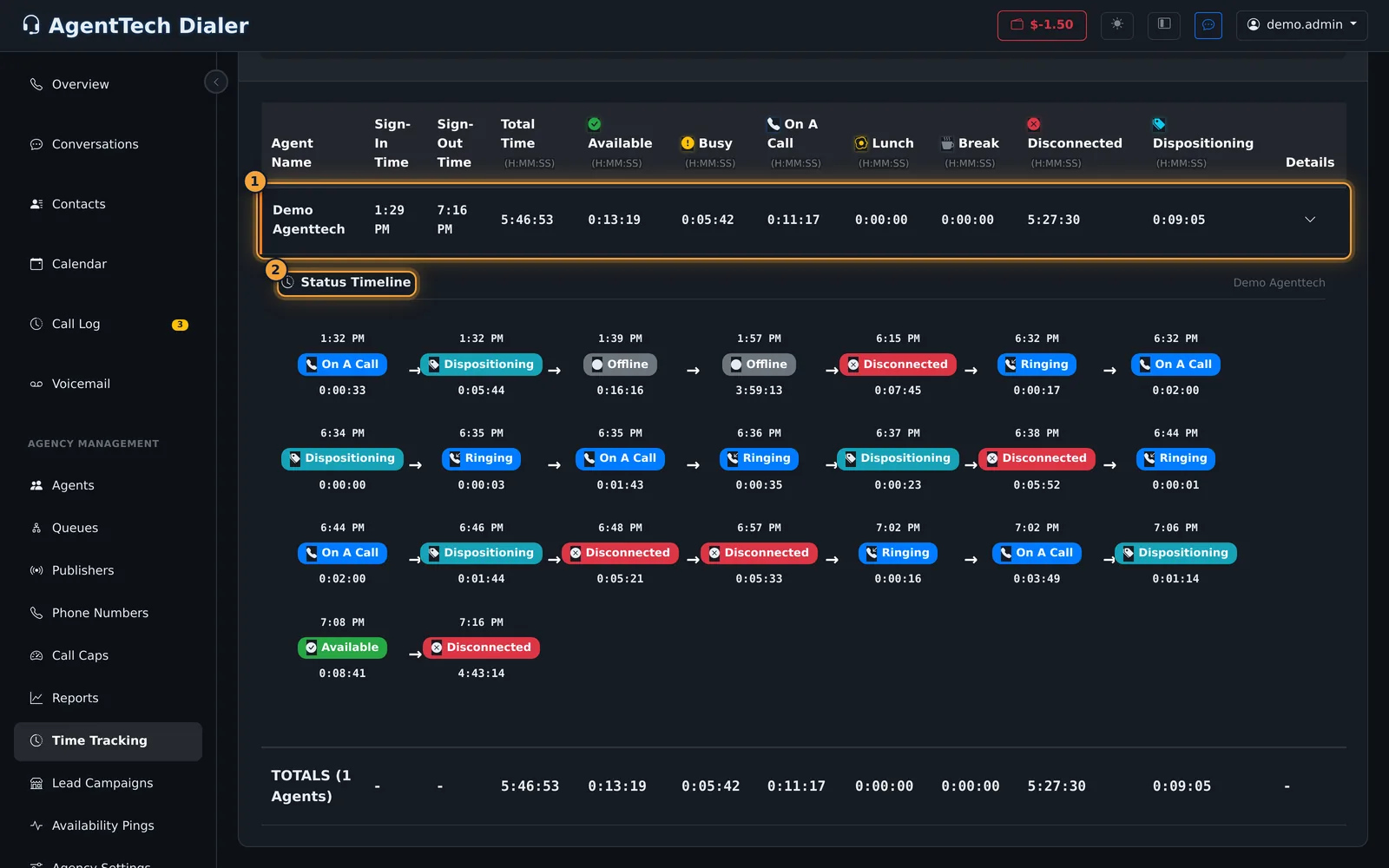
Under Agency Management, Time Tracking shows each agent's sign-in, sign-out, and time per status. Availability Pings logs publishers checking whether your queues can take a call.
Next, learn to listen, whisper and barge in on calls, and read that guide before you use them.
This guide walks a new supervisor through the pages you will use every day. Each step links to the full article.
Who this is for: supervisors and agency admins. Everything below is in the left sidebar.
1. Open the dashboard
Select Overview. The Agency Dashboard shows how many agents are online, available and on calls right now, your calls, billable calls, sales, cost and CPA for the date range, and the Lowest CPA and Most Sales leaderboards.
- Pick a range in Date Range on the Filters & Search bar, for example Today at the start of a shift or Month to Date for a review.
- Read the tiles. What each one means is in KPIs & Leaderboard.
More: Supervisor Dashboard, KPIs & Leaderboard.
2. Watch your agents
- Click your agency's name under the tiles to open the agent group.
- Choose Full View for cards or List View for rows, and the sort button to put agents on calls first.
- Use Filters & Search to find one agent or show one status.
Each card shows the agent's status and how long they have been in it, their queues, and a chat button.
3. Listen, whisper or barge in
While an agent is signed in, their card shows Listen In, Whisper In and Barge In. Listen, Whisper & Barge In explains what each one does; read it before you use them.
4. Change an agent's status
- Click the status switch at the top left of the agent's card, or Change Status in List View.
- Pick the new status and select Change Status.
The change is immediate and controls whether the agent gets calls.
5. Check the numbers
Open Reports for any date range: KPI cards against the previous period, performance by agent, team, publisher, state and queue, the agent scorecard, compliance, dispositions, busy hours and exports. Click an agent's name for their own analytics page.
More: Reports, including queue results, and Agent Analytics.
6. Check time and availability
- Time Tracking shows each agent's sign-in and sign-out, time per status and a status timeline, and exports to CSV. See Time Tracking.
- Availability Pings logs checks from publishers and other systems asking whether your agents or queues can take a call. See Availability Pings.
A daily routine
- Start of shift: Overview on Today; check Total Online and Available against your schedule.
- During the shift: sort agents by status, watch for long Dispositioning or Break times, and message agents from their card.
- End of shift: Time Tracking for the day, then Reports for calls, sales and CPA.
- Weekly: Reports for the last 7 days, the Agent Scorecard, and a saved report scheduled to your inbox.
Related articles
Was this article helpful?
Can't find what you are looking for? Our support team can help.
Submit a support ticket