Transcript
This guide takes a new agency from empty to taking calls. Work through these steps in order.
First, add your users. On Agents, select Create Agent, and enter a username, a password, and a role for each person.
Next, create the skills you route by on the Skills page, and license each agent in the states they sell in.
Then create your queues. Each has a routing strategy, a direction, and an overflow action for calls no one takes.
Click a queue's card to open Manage Queue. Add its agents, states and skills, and set its hours, because a new queue starts closed.
Calls and numbers are paid from the agency wallet. In Agency Settings, on Billing and Wallet Settings, select Add Funds, and set up auto-recharge.
Buy phone numbers on the Phone Numbers page, and route each one to a queue, a user, or a publisher.
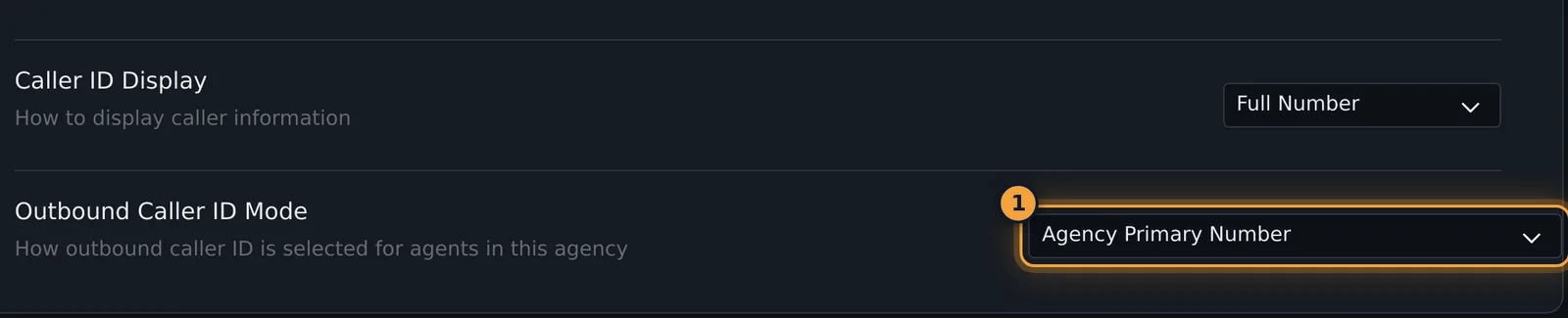
In Agency Settings, Outbound Caller ID Mode decides which number your outbound calls show.
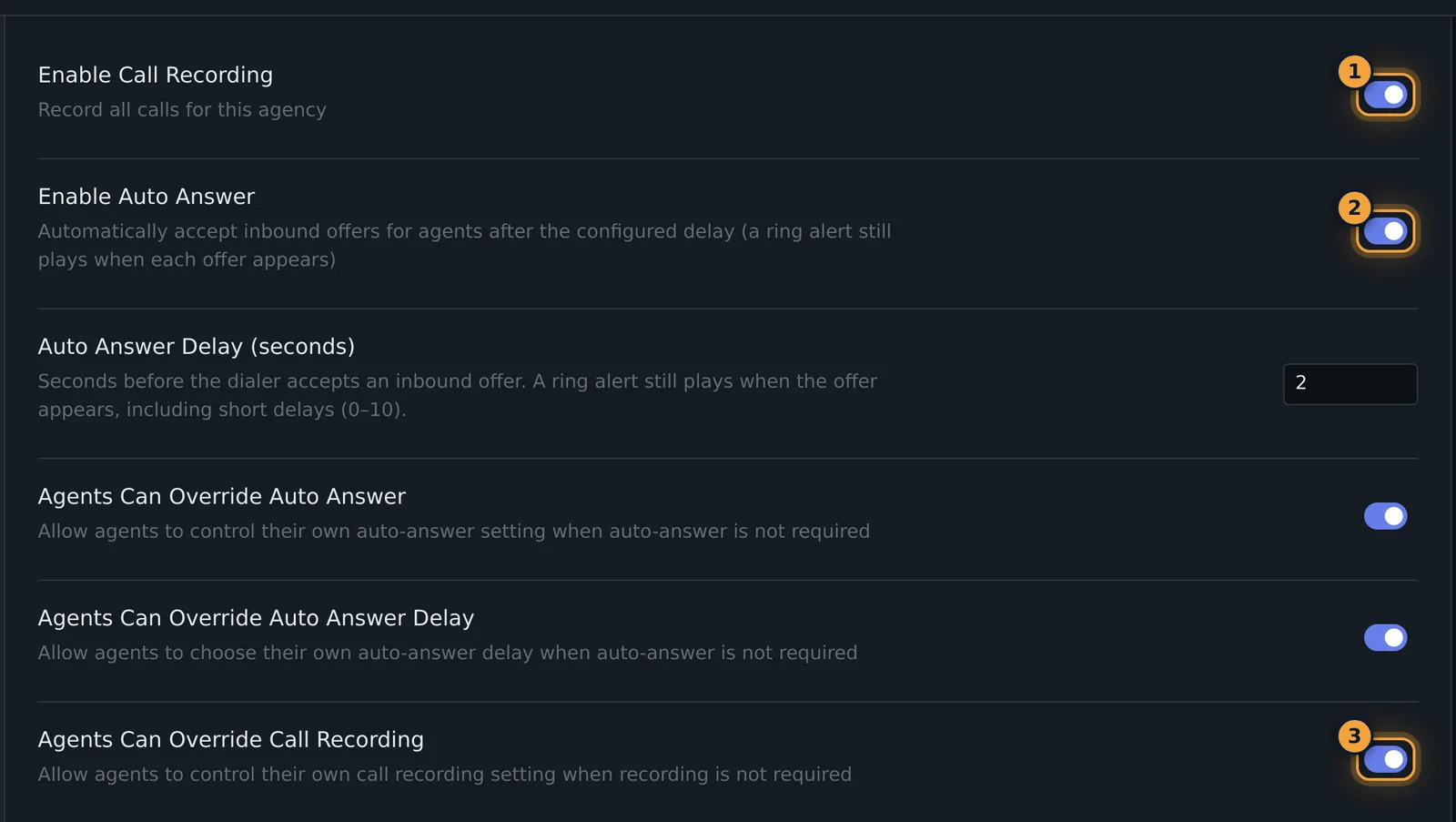
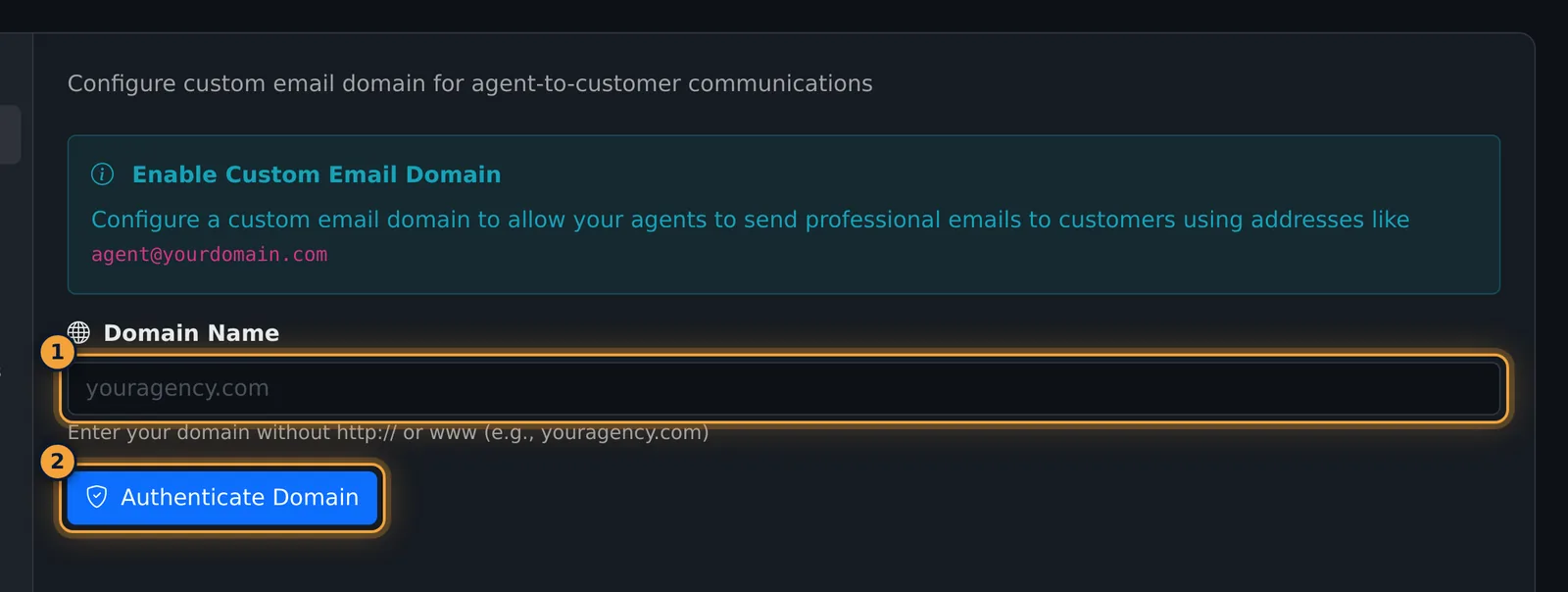
Call Settings also turns on call recording and auto-answer for the whole agency, and the Email Domain tab lets you send email from your own domain.
Then add dispositions, statuses, compliance questions, and call scripts, as you need them.
Finally, have an agent go Available, and call one of your numbers. Watch the call on the Supervisor Dashboard, and find it in the Call Log.
Each step has its own guide in the help center. Start with Managing Agents.
This guide takes a new agency from empty to taking calls. Work through the steps in order; each links to a full article. You need the Agency Admin role. The setup pages are under Agency Management in the sidebar, with Queues, Publishers, Phone Numbers and Call Caps in the main menu.
1. Add your users
Open Agency Management > Agents and select Create Agent for each person. Enter a web username and password, their name, and choose a role: Agent, Supervisor or Agency Admin. Add each insurance agent's NPN. Users can sign in as soon as they are created; give them their username and password yourself.
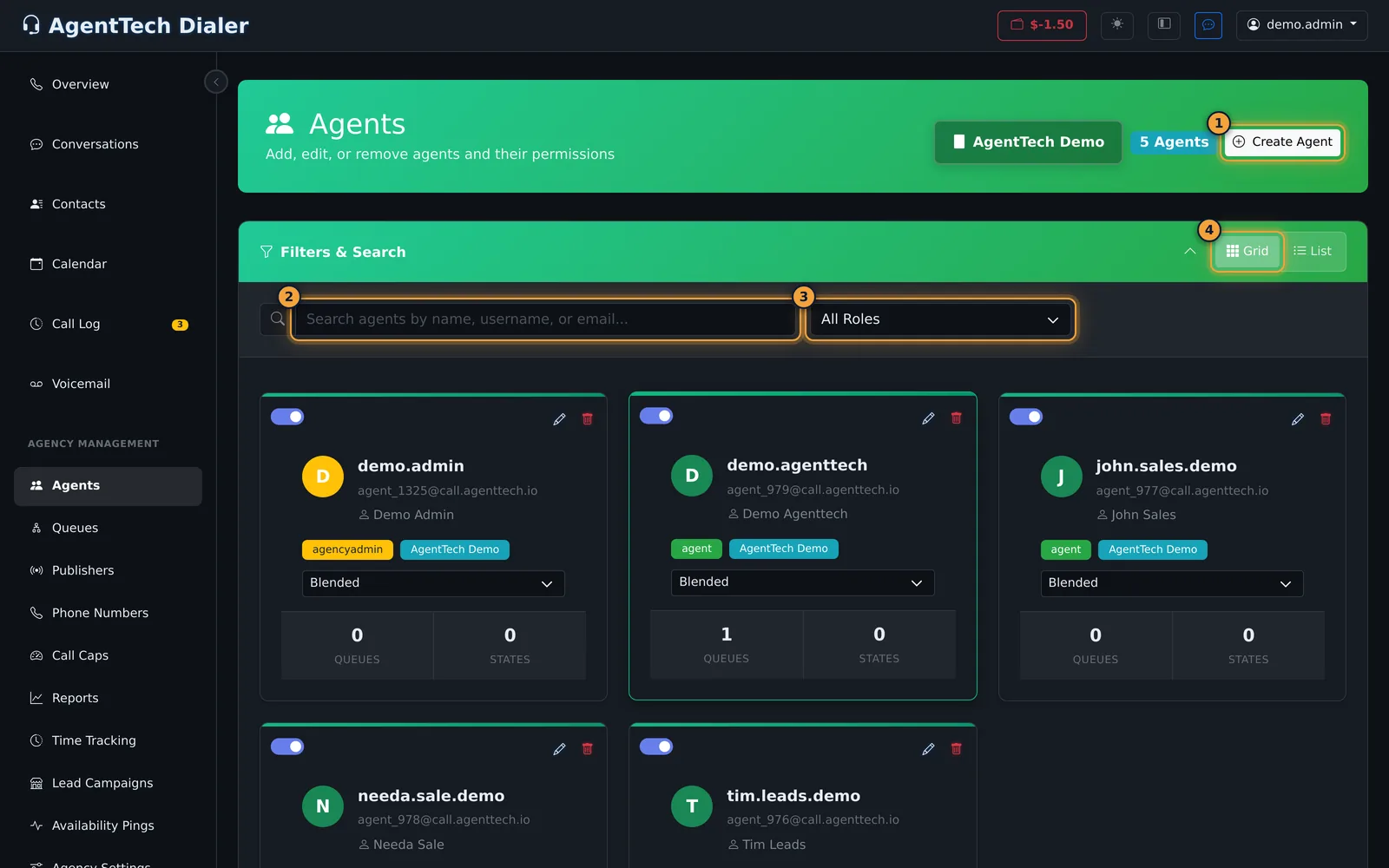
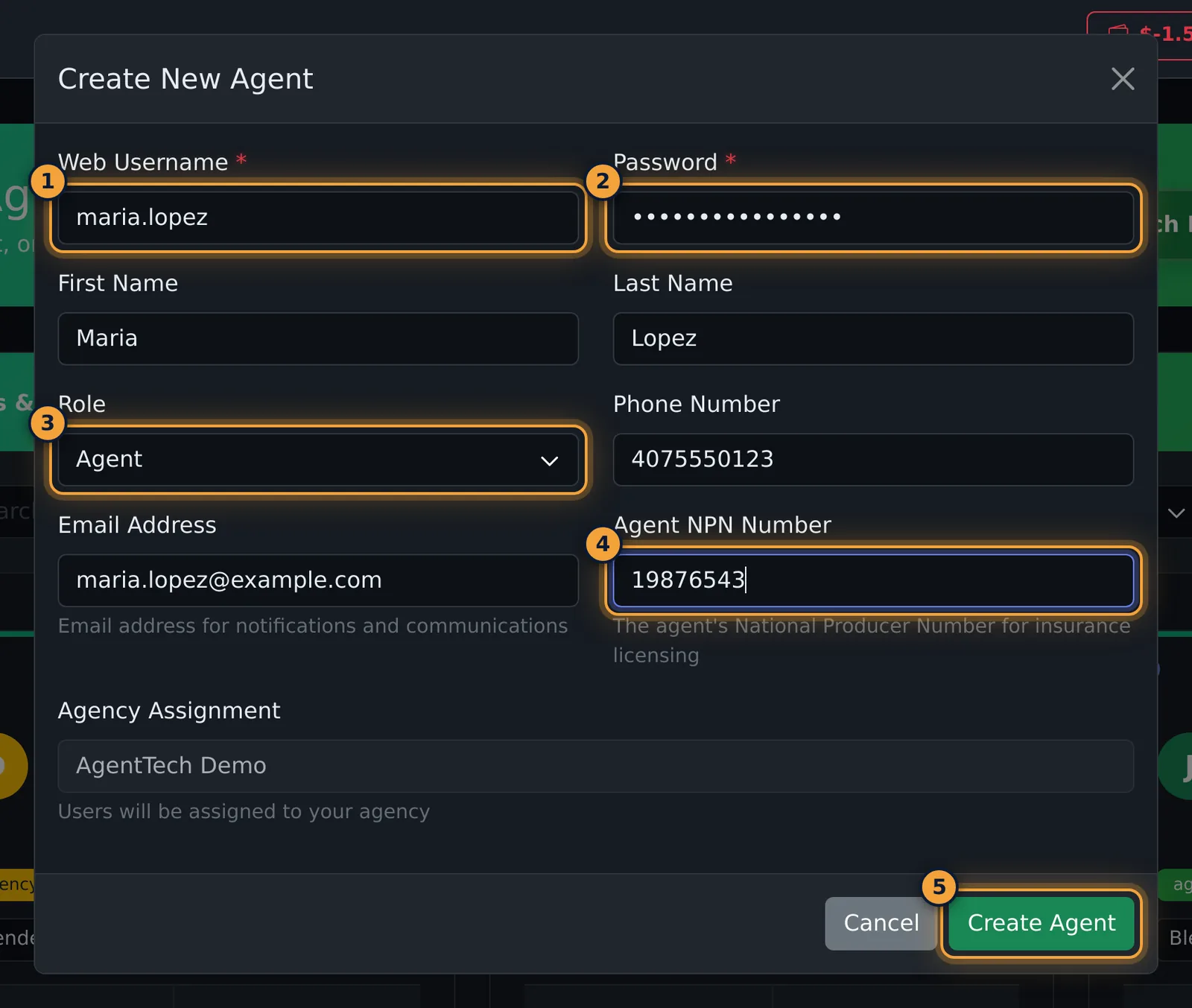
To group agents for reporting, add them to Teams.
Details: Managing Agents and Roles and Permissions.
2. Record skills and state licenses
- Create the skills you route by, such as languages and certifications, on Agency Management > Skills, and assign agents with a proficiency from 1 to 10.
- License each agent in the states they sell in: Agents > Edit > States.
Details: Skills and State Licensing.
3. Create your queues
Open Queues and select Create Queue. Name it, choose a routing strategy (Round Robin, Longest Idle, Performance or AI Agent), the direction (Inbound, Outbound or Blended), and what happens when no one answers (voicemail, disconnect, transfer, another queue, or a waiting room).
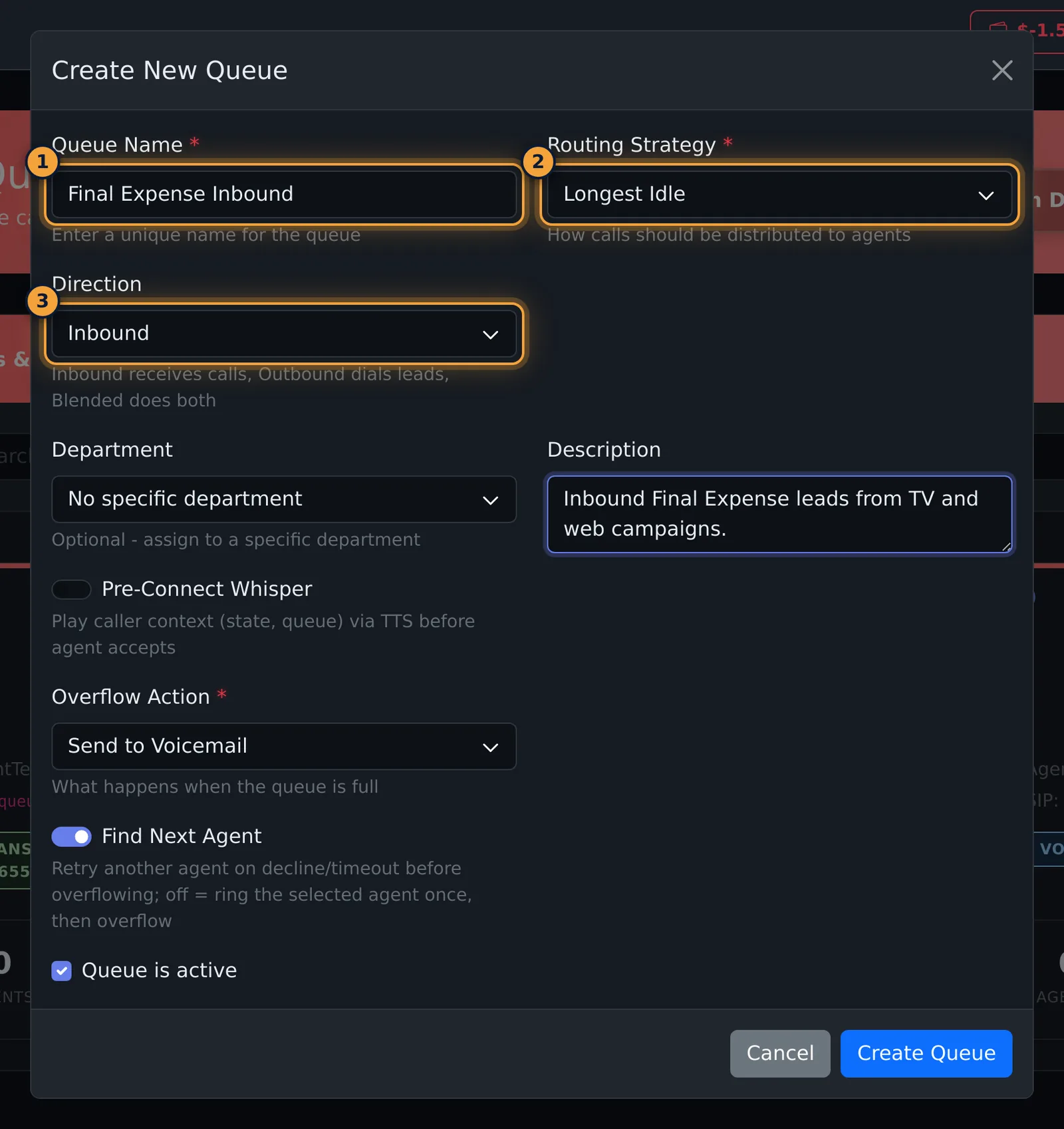
Then click the queue's card to open Manage Queue:
- Agents: add the agents who work the queue.
- States and Skills: the states it accepts and the skills it requires.
- Hours: a new queue starts closed every day. Set the time zone and hours, or use Apply Standard Business Hours.
- Billing: if calls in this queue are billable.
- Select Save Changes.
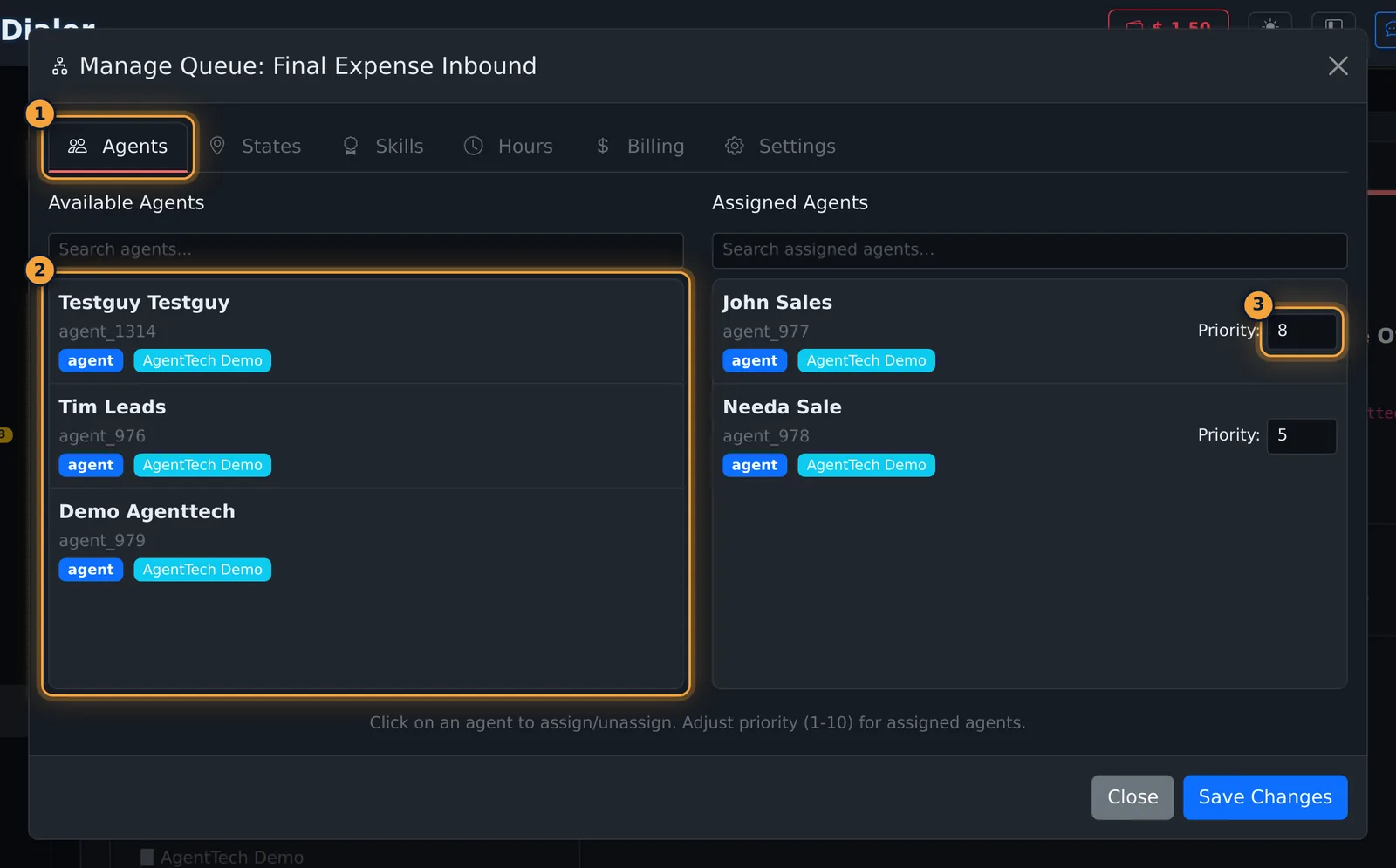
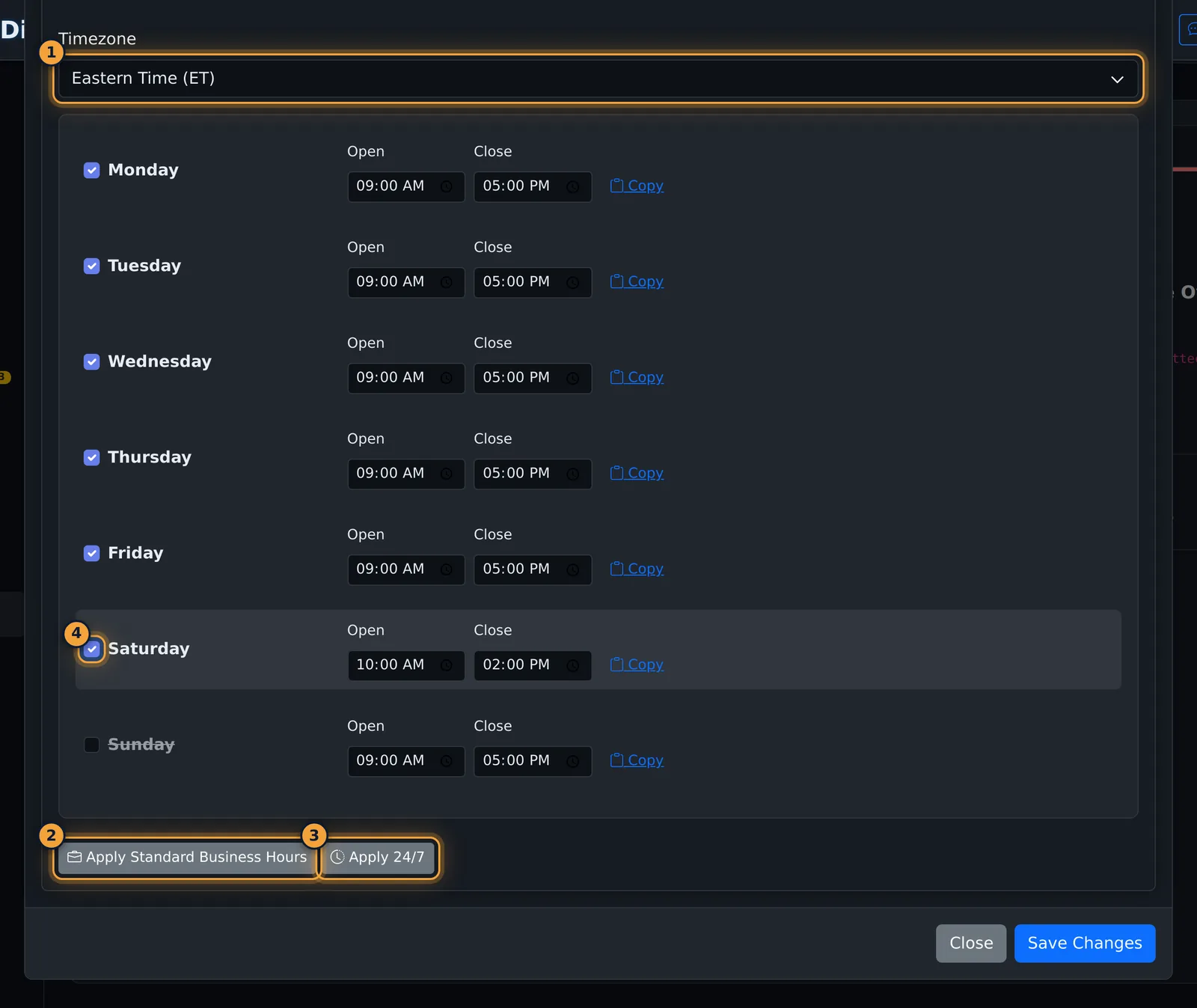
Details: Queue Management. If you buy calls from lead vendors, set up Publisher Queues.
4. Fund the wallet
Phone numbers, calls and other usage are paid from the agency wallet, so add money before you buy numbers.
- Open Agency Management > Agency Settings and select the Billing & Wallet Settings tab.
- Select Add Funds, enter an amount (at least $10.00) and your card, and confirm.
- To keep the wallet topped up, set Auto-Recharge Threshold (the balance that triggers a top-up) and Auto-Recharge Amount, and turn on Enable Auto-Recharge. Changes on this tab save on their own.
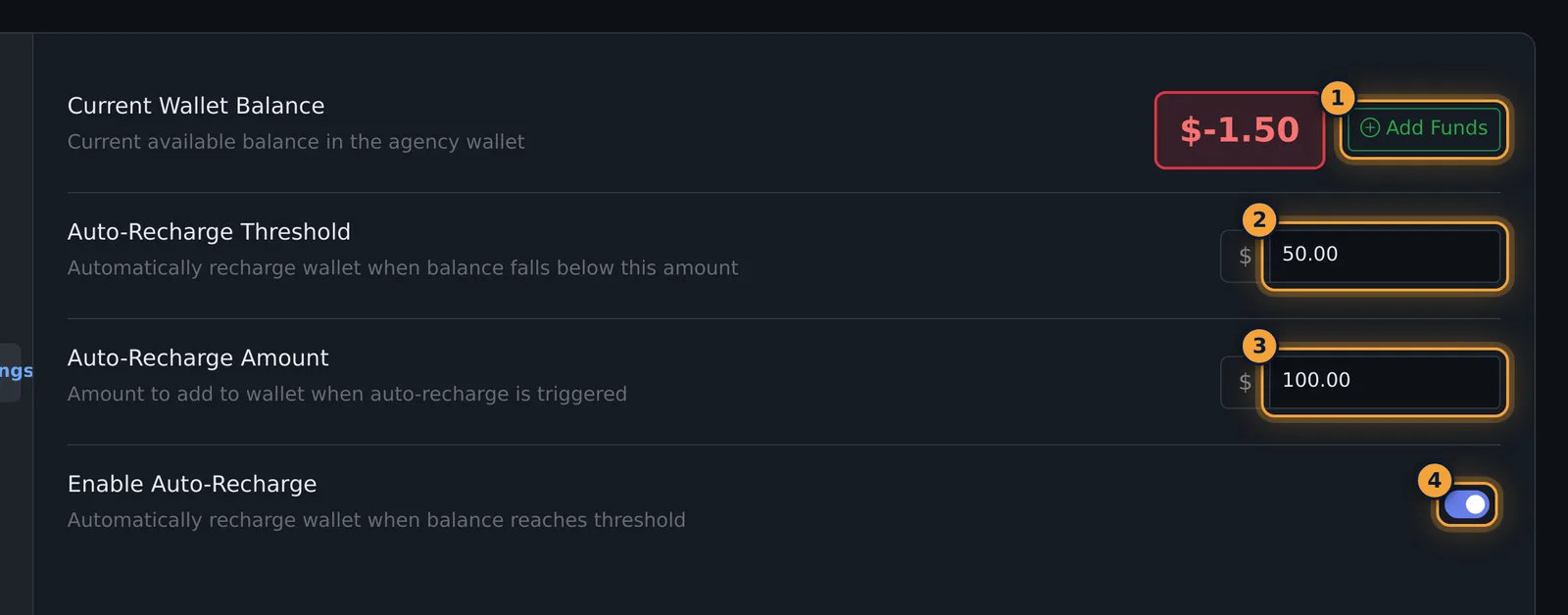
Details: Adding Funds and Auto-Recharge, Billing and Wallet and the Billing FAQ.
5. Get phone numbers and choose your caller ID
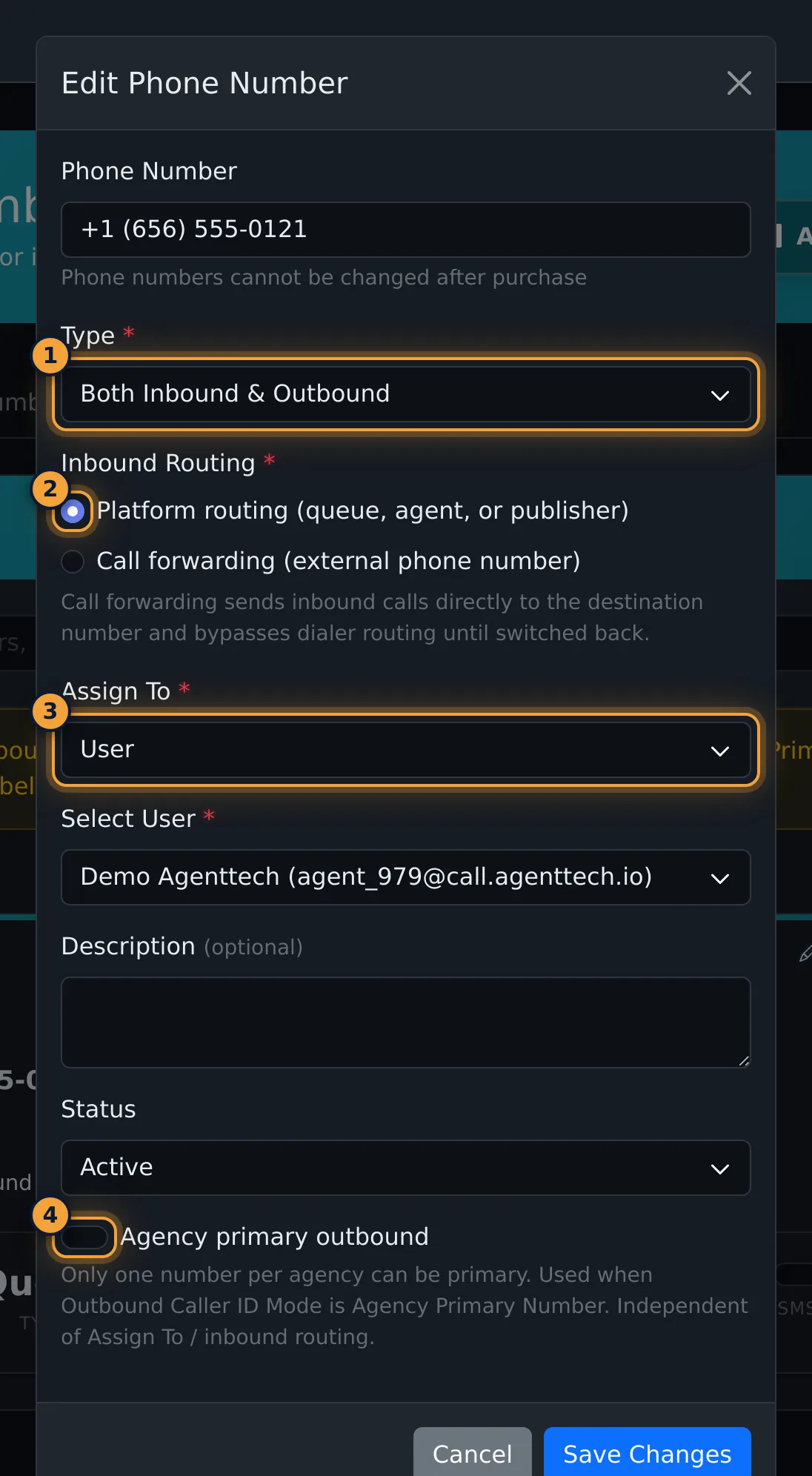
Open Phone Numbers, select Add Phone Number, and buy a local or toll-free number assigned to a queue (or a user or publisher). For an existing number, select its pencil and change Inbound Routing.
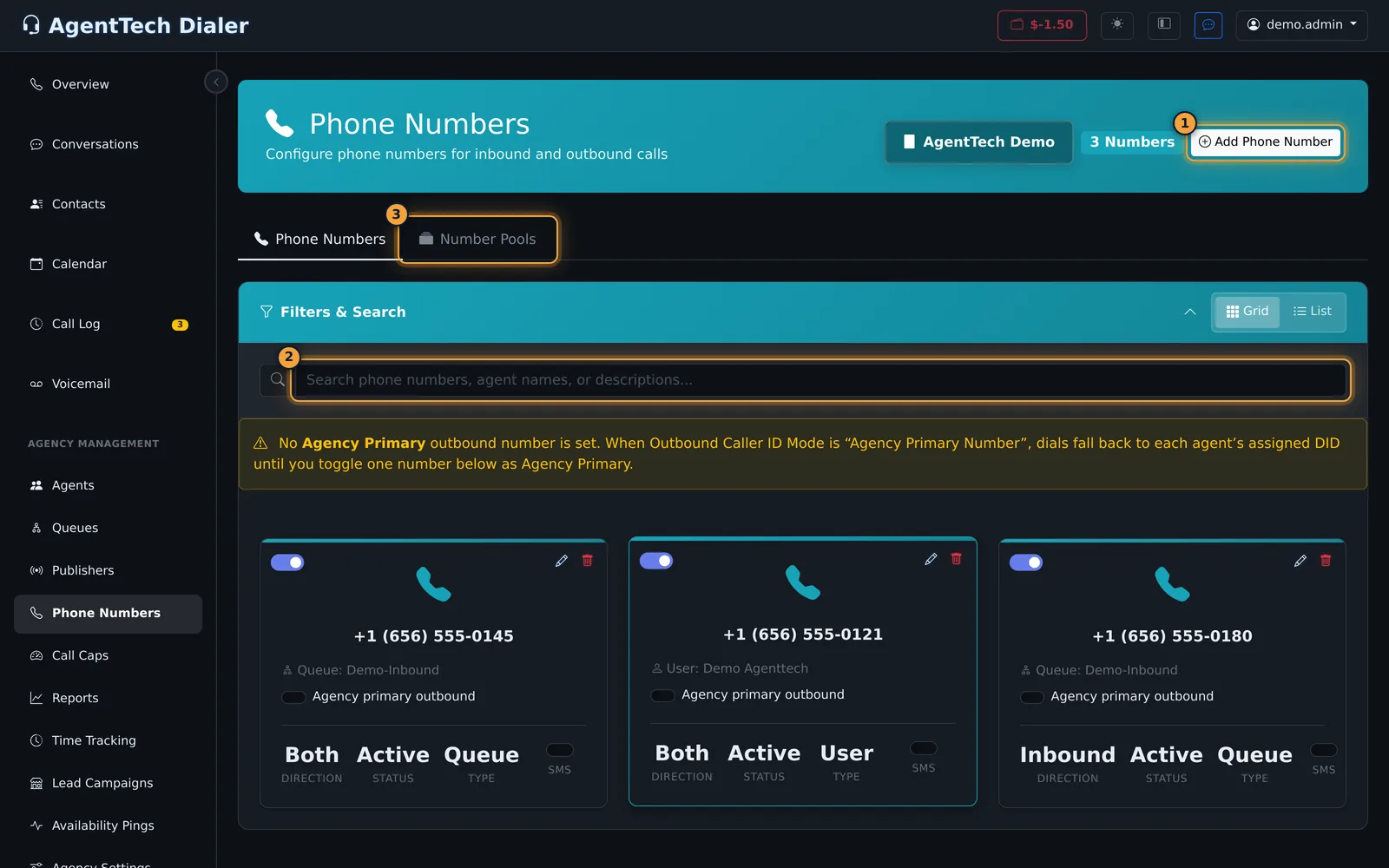
- Texting: each number's card has an SMS switch for the numbers you text from. Toll-free numbers show N/A. See SMS Messaging.
- Caller ID: in Agency Settings > Call Settings, Outbound Caller ID Mode decides which number outbound calls show: Agency Primary Number, Agent's Assigned Number, Random From Agency Pool or Match Destination Area Code (local presence).
- If you keep Agency Primary Number, switch on Agency primary outbound on one active number. Until you do, the Phone Numbers page shows a warning and calls fall back to each agent's assigned number.
To track which web pages and ads bring calls, set up Call Tracking with Number Pools. Details: Phone Numbers.
6. Set call recording, auto-answer and email
In Agency Management > Agency Settings > Call Settings:
- Enable Call Recording records every call in the agency. Agents Can Override Call Recording lets agents turn it off for themselves.
- Enable Auto Answer accepts inbound calls for agents after the Auto Answer Delay (0 to 10 seconds); a ring alert still plays. The two Agents Can Override switches let agents change auto-answer and the delay.
Settings on this tab save on their own about a second after you change them.
To send email from your own domain, open the Email Domain tab, enter the domain without http:// or www, and select Authenticate Domain.
Details: Agency Settings, Call Recording and Security and Call Data.
7. Finish the setup
- Dispositions: the outcomes agents choose after each call (Dispositions and Fields).
- Statuses: add any custom agent statuses you need (Managing Agent Statuses).
- Compliance and Suppressions: required questions and blocked numbers (Compliance Overview, Suppressions).
- Scripts: call scripts for agents (Call Scripts).
- Call caps: limits per queue, agent, number or publisher (Call Caps).
- Reports: check results once calls come in (Reports, Agent Analytics).
8. Test
Ask an agent to sign in and go Available, then call one of your numbers. Watch the call on the supervisor dashboard (Supervisor Dashboard) and check it in the call log (Call Logs).
Common problems
- A test call doesn't reach the agent. Check the queue's hours, that the agent is assigned to the queue and meets its skills and states, that the number routes to that queue, and that the agent is Available.
- Buying a number fails. Check the wallet balance (Adding Funds and Auto-Recharge).
- Outbound calls show the wrong number. Check Outbound Caller ID Mode, and that one active number is set as Agency primary outbound.
- Something else isn't working. See Getting Help.
- A user can't see the setup pages. Their role is Agent or Supervisor; see Roles and Permissions.
Related articles
Was this article helpful?
Can't find what you are looking for? Our support team can help.
Submit a support ticket