Transcript
A queue is where calls wait for an agent. Here is how to create one, staff it, and set its hours.
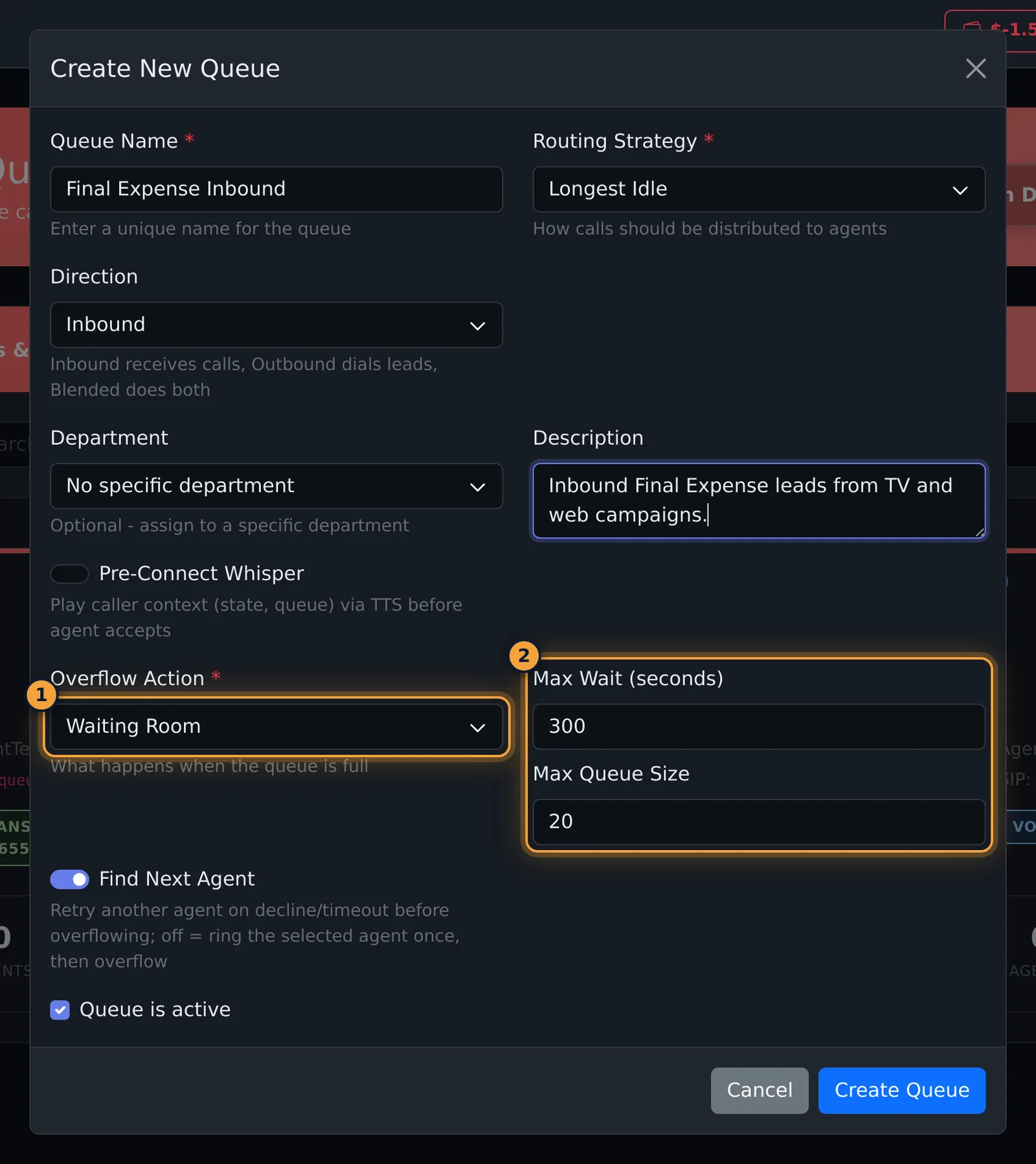
Open Queues, and select Create Queue. Enter a Queue Name, like Final Expense Inbound.
Choose a Routing Strategy, like Longest Idle, and a Direction: Inbound, Outbound, or Blended.
The Overflow Action decides what happens when no one answers: voicemail, a transfer, another queue, or a Waiting Room.
Here, calls go to voicemail. Leave Queue is active ticked, and select Create Queue.
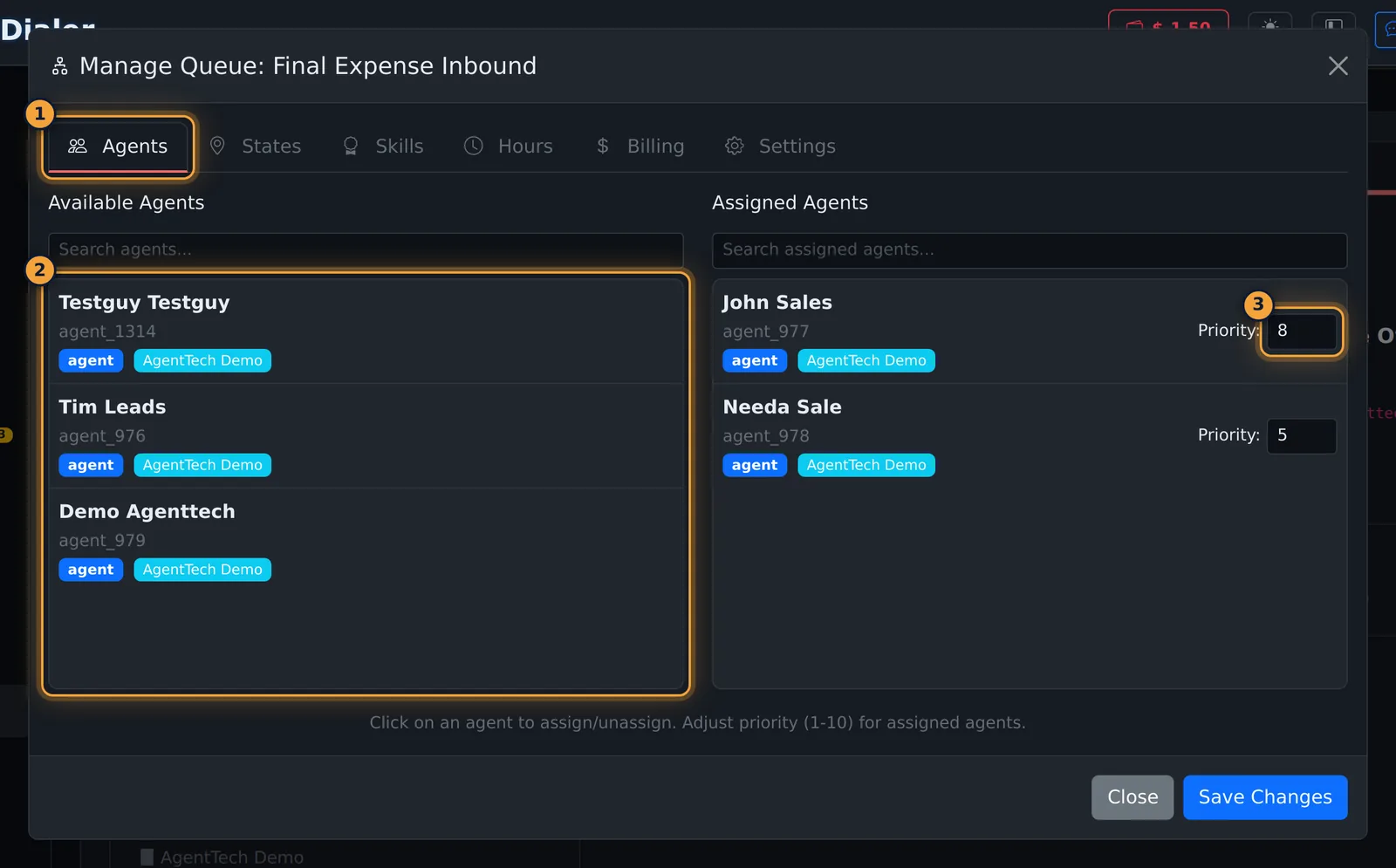
The queue appears as a card. Click it to open Manage Queue. On Agents, click each agent who works this queue, and set their priority.
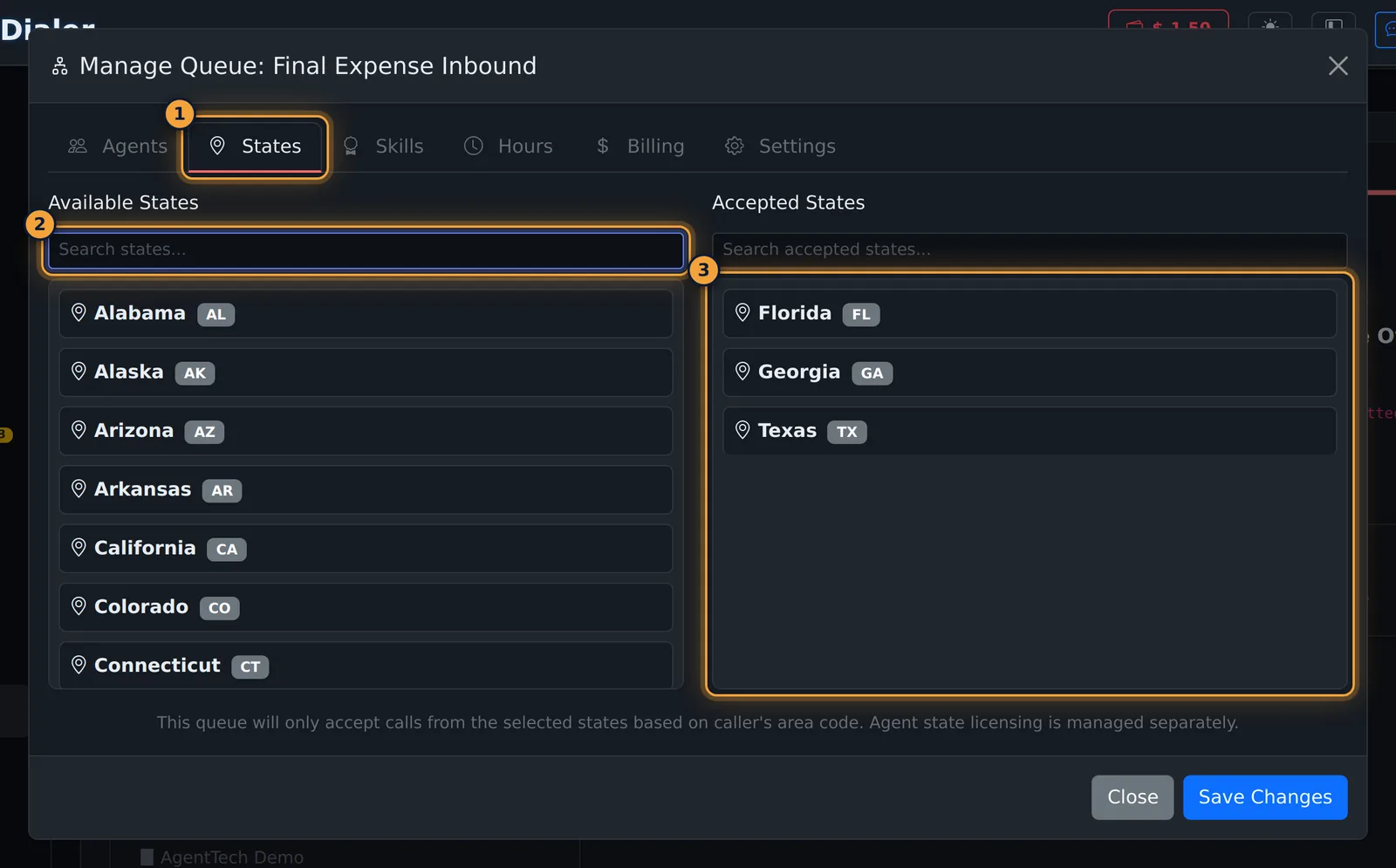
On States, click each state the queue accepts calls from.
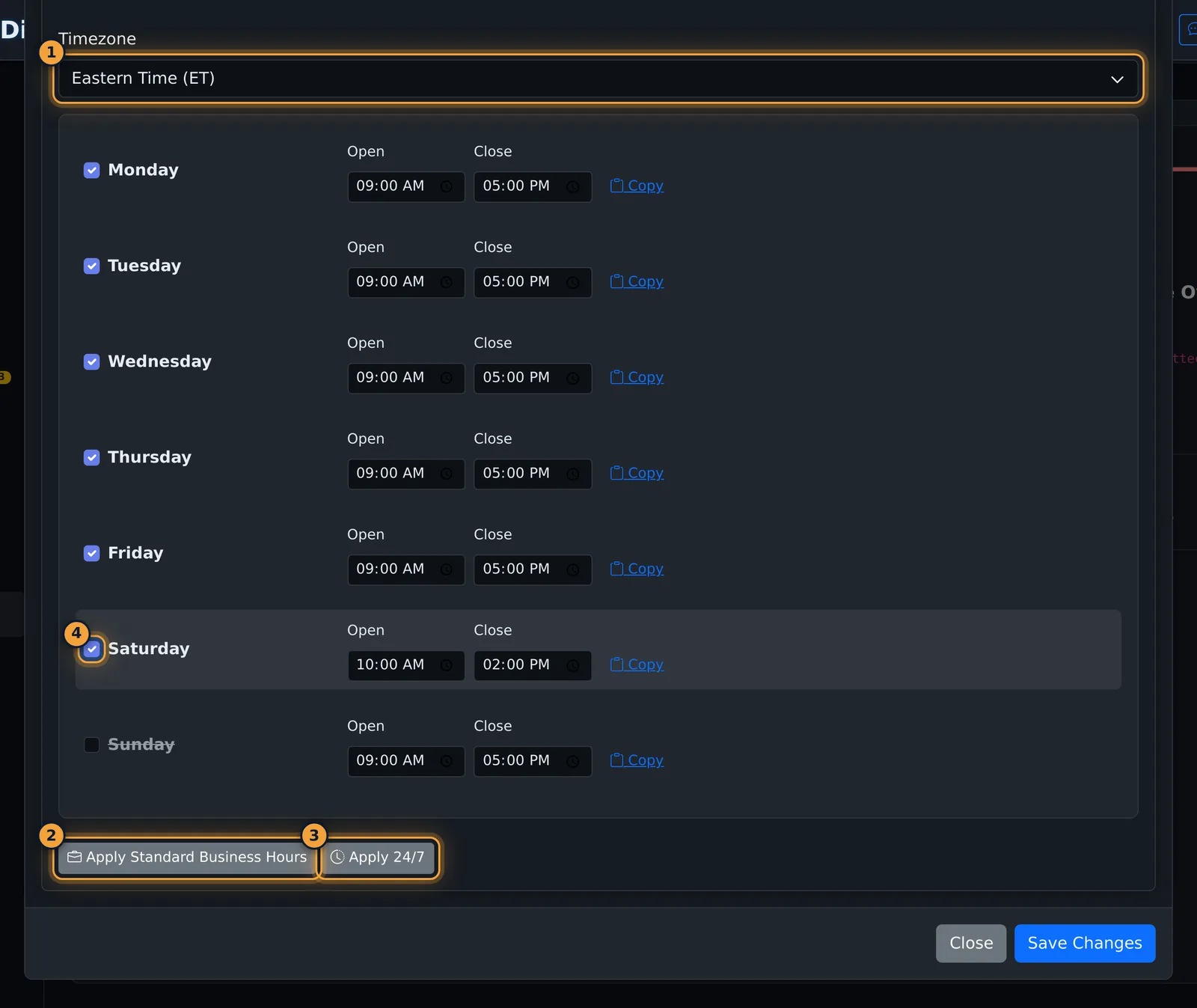
A new queue starts with every day closed. On Hours, set the time zone and each day, or select Apply Standard Business Hours.
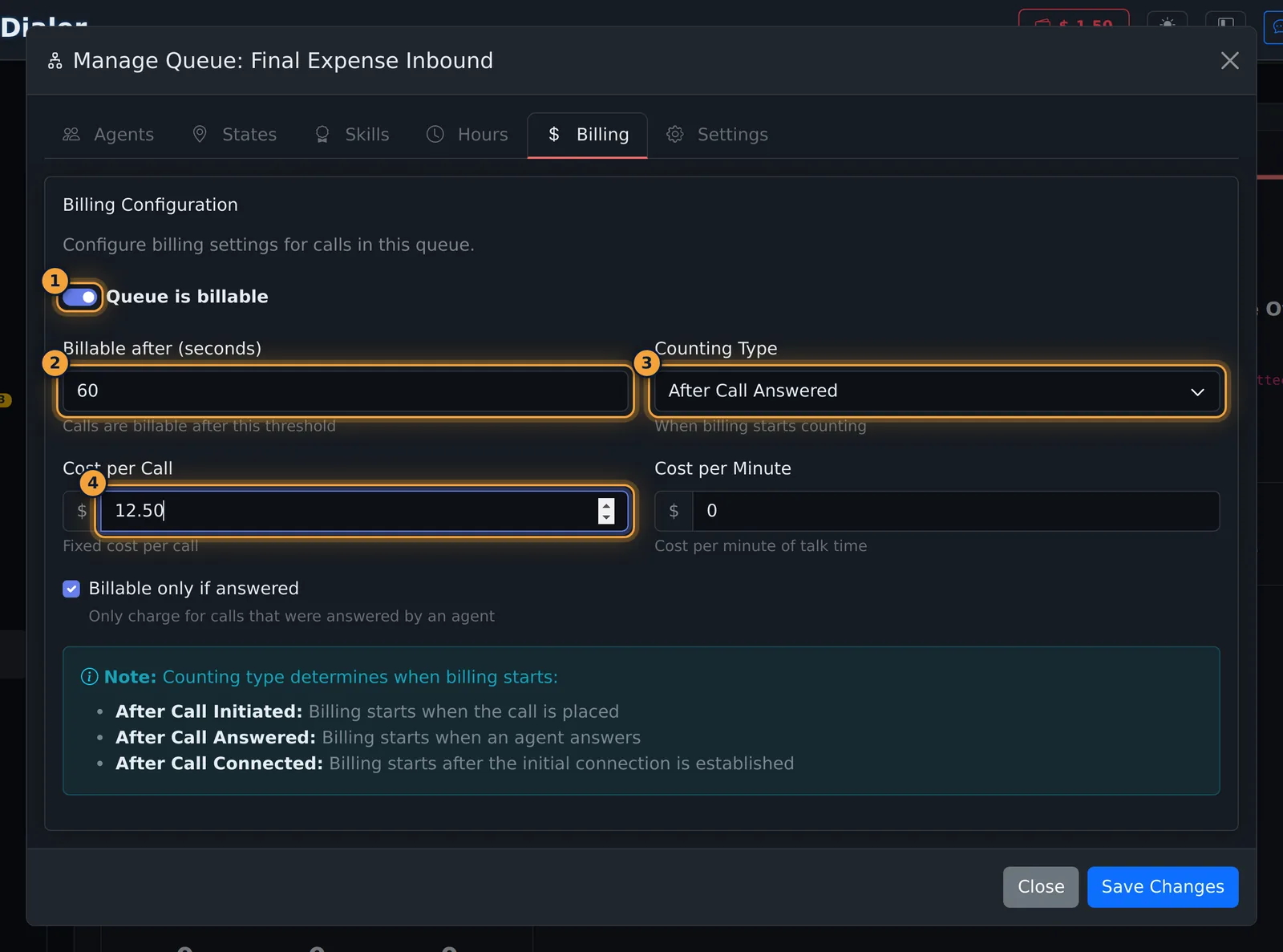
On Billing, tick Queue is billable, and set when billing starts and the cost per call.
Then select Save Changes once. It saves every tab together.
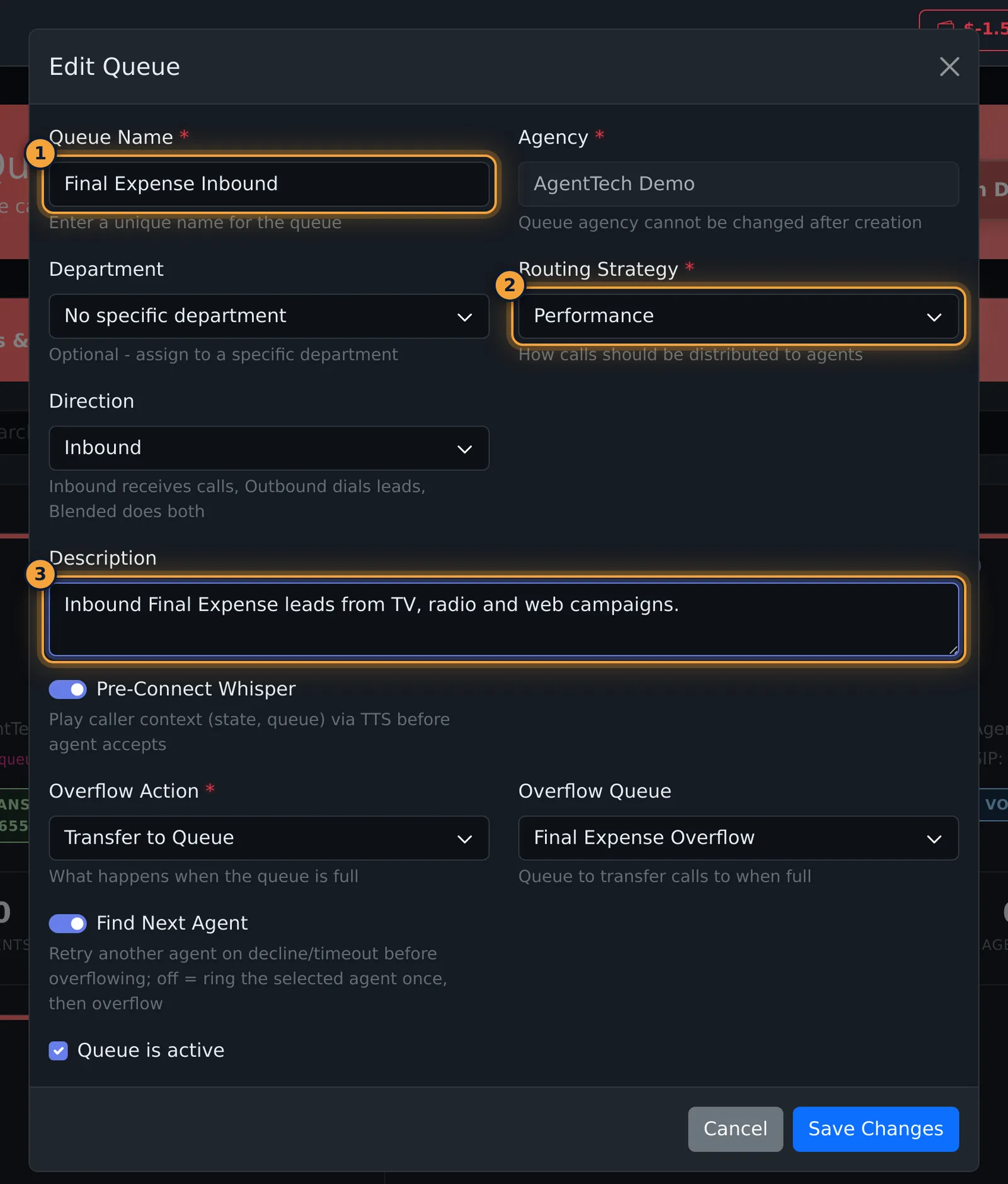
To change it later, select the pencil. Edit Queue has the same fields. Make your change, and select Save Changes.
The switch on the card turns the queue off, and on again. Its settings are kept.
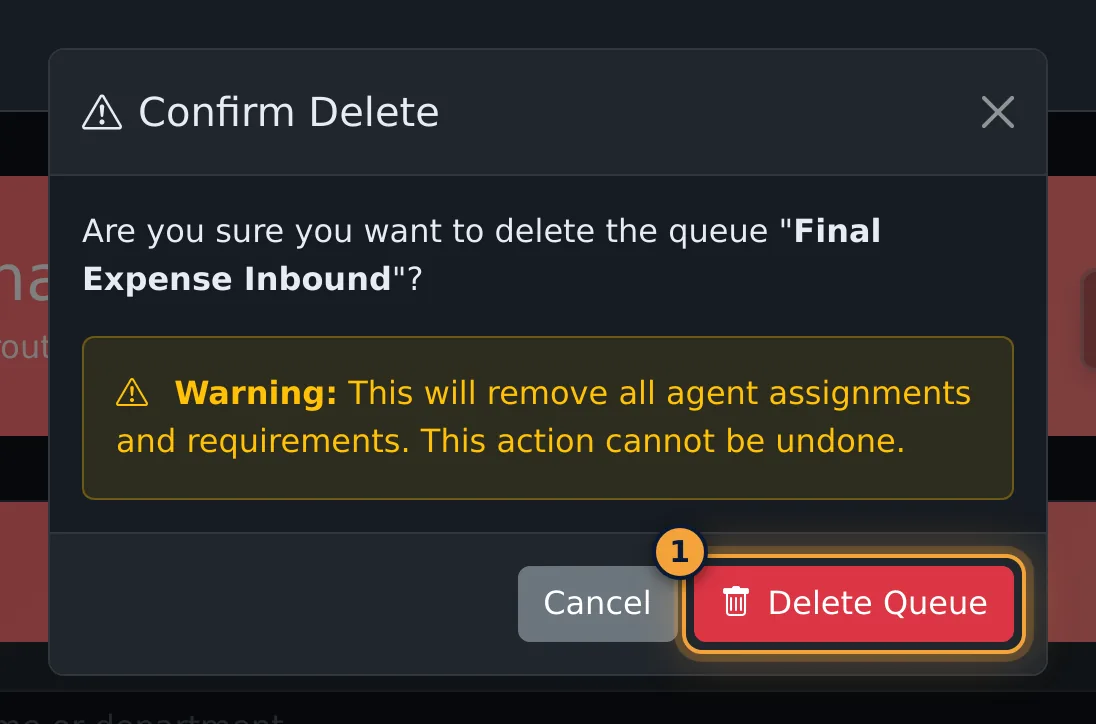
To delete a queue, select the bin, and confirm with Delete Queue.
Next, learn how skills and state licenses decide which agents a queue can use.
A queue is where calls wait for an agent. Each queue has its own SIP address, a routing strategy that picks the next agent, the agents who work it, the skills and states it accepts, opening hours, and an overflow action for calls no one takes. Phone numbers and publishers send calls into queues.
This article is for agency admins. Open Queues in the sidebar (the page is called Queue Management).
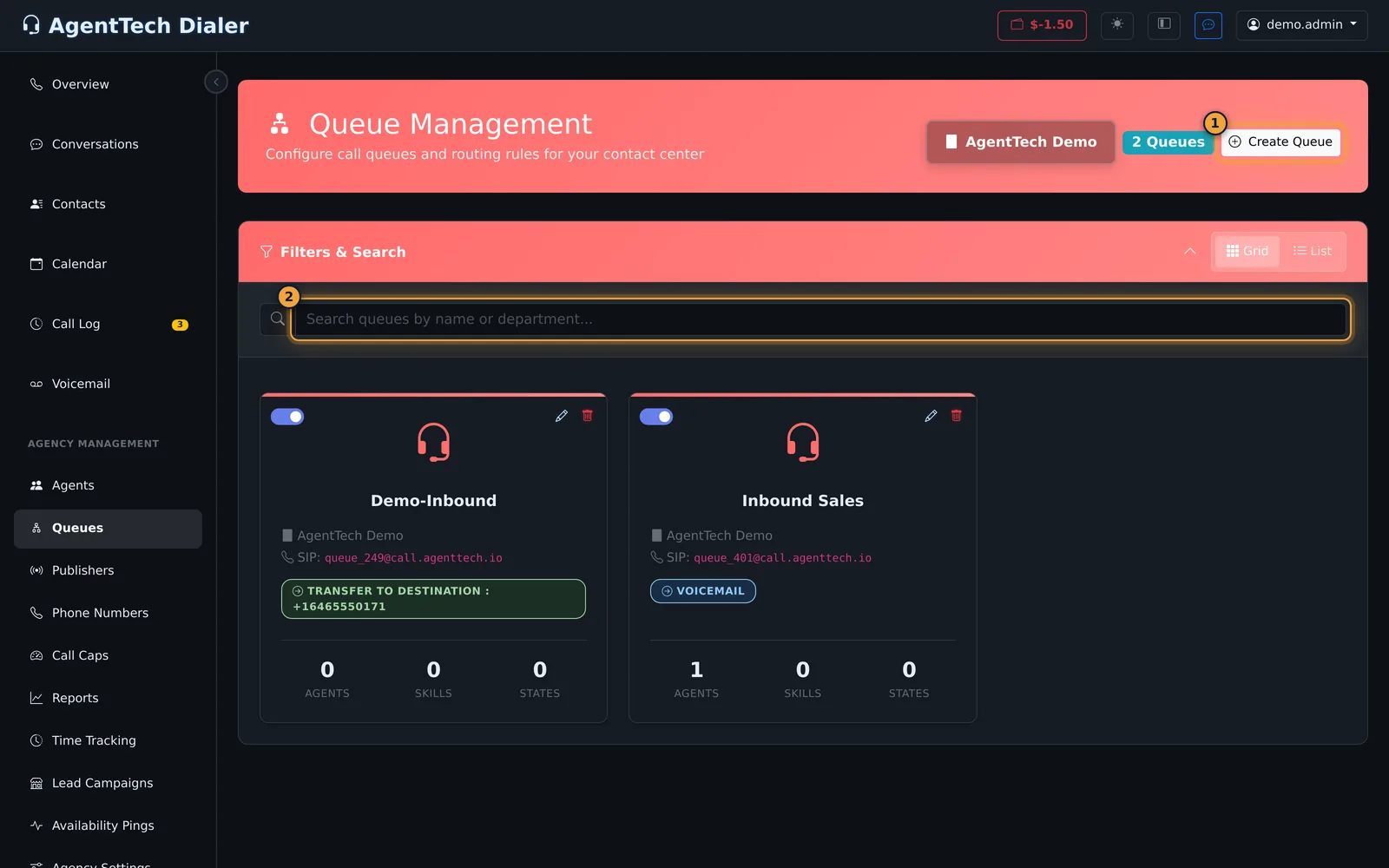
Create a queue
- Select Create Queue.
- Enter a Queue Name, for example Final Expense Inbound.
- Choose a Routing Strategy (see the table below).
- Choose a Direction: Inbound receives calls, Outbound dials leads, Blended does both.
- Optionally add a Description.
- Set the options and the Overflow Action (see What happens when no one answers).
- Leave Queue is active ticked and select Create Queue.
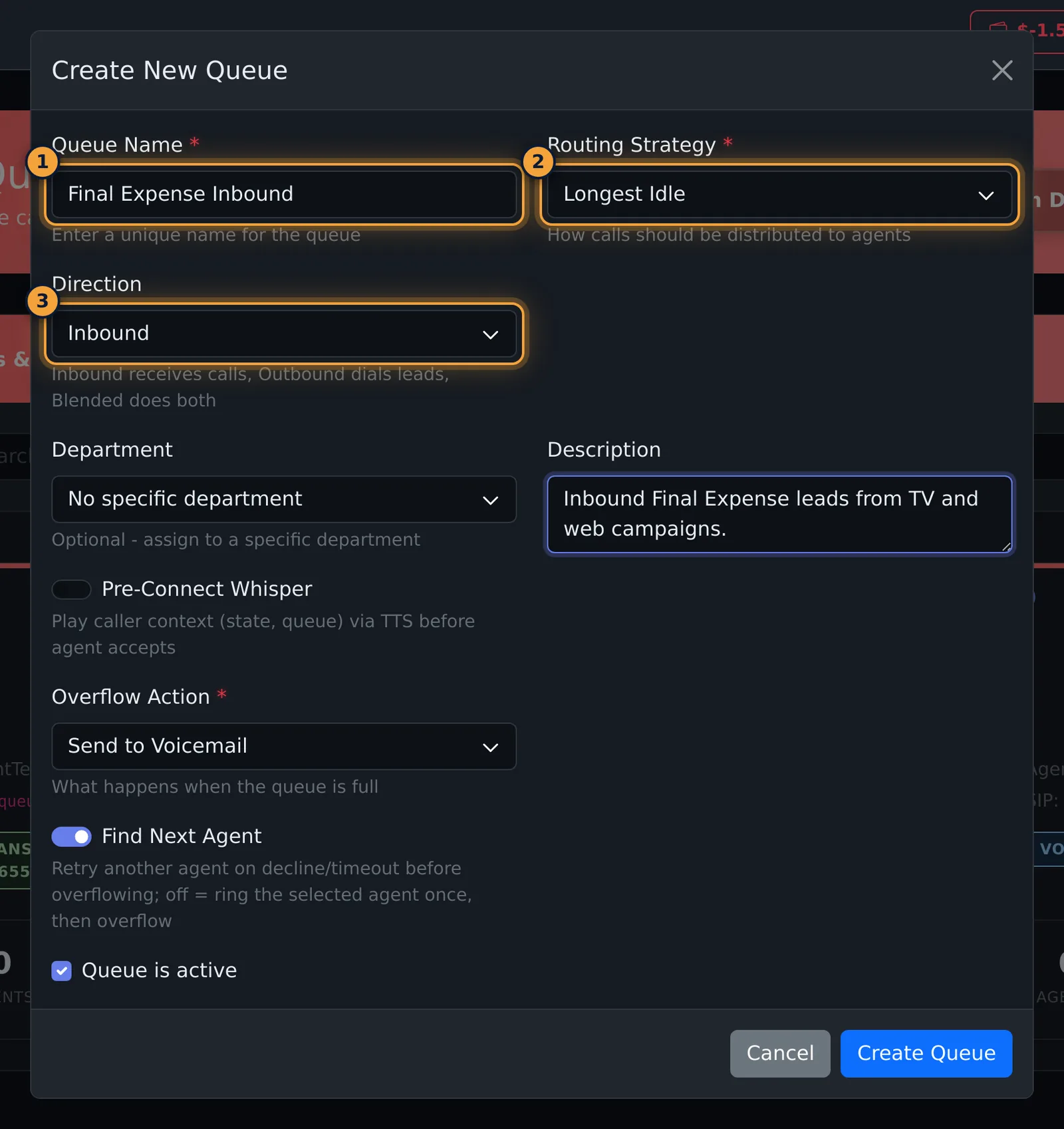
| Routing Strategy | How the next agent is chosen |
|---|---|
| Round Robin | Takes turns among the queue's agents. This is the default. |
| Longest Idle | The agent who has waited longest since their last call. |
| Performance | Chooses by agent performance. |
| AI Agent | An AI agent answers. Pick one in the AI Agent list that appears; the queue can't be created without one. |
The Department list shows No specific department; AgentTech Dialer does not use departments.
Outbound and Blended queues
For Outbound and Blended queues, Outbound Dial Settings appear:
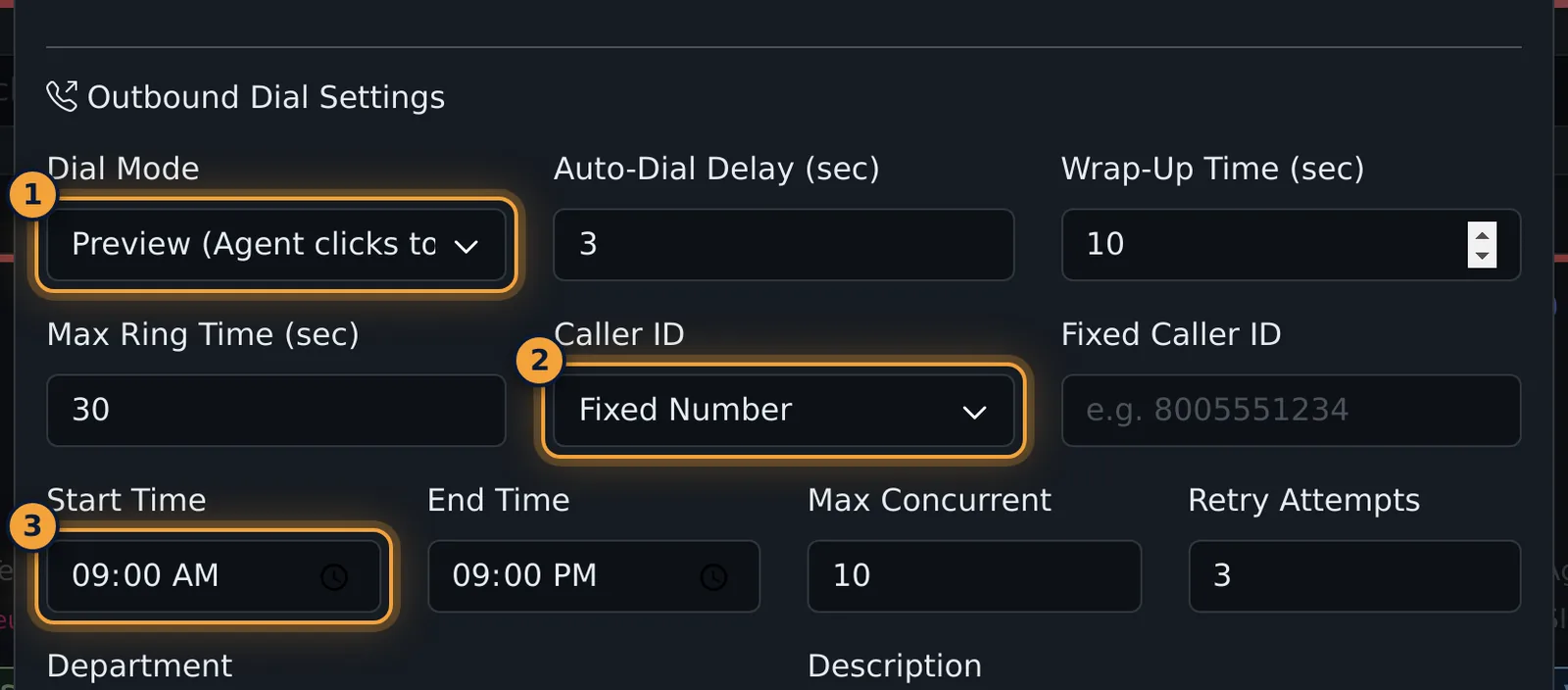
| Setting | What it does |
|---|---|
| Dial Mode | Preview (agent clicks to call), Progressive (dials the next lead after wrap-up) or Predictive (background engine). |
| Auto-Dial Delay (sec) | Pause before the next automatic dial. Default 3. |
| Wrap-Up Time (sec) | Time after a call before the next one. Default 10. |
| Max Ring Time (sec) | How long a dialled number rings. Default 30. |
| Caller ID | Fixed Number, Rotating or Local Presence, with Fixed Caller ID for a fixed number. |
| Start Time, End Time | The dialing window. Default 9:00 AM to 9:00 PM. |
| Max Concurrent | Most calls in progress at once. Default 10. |
| Retry Attempts | How many times a lead is retried. Default 3. |
Outbound and Blended queues also get a Lead Lists tab in Manage Queue.
What happens when no one answers
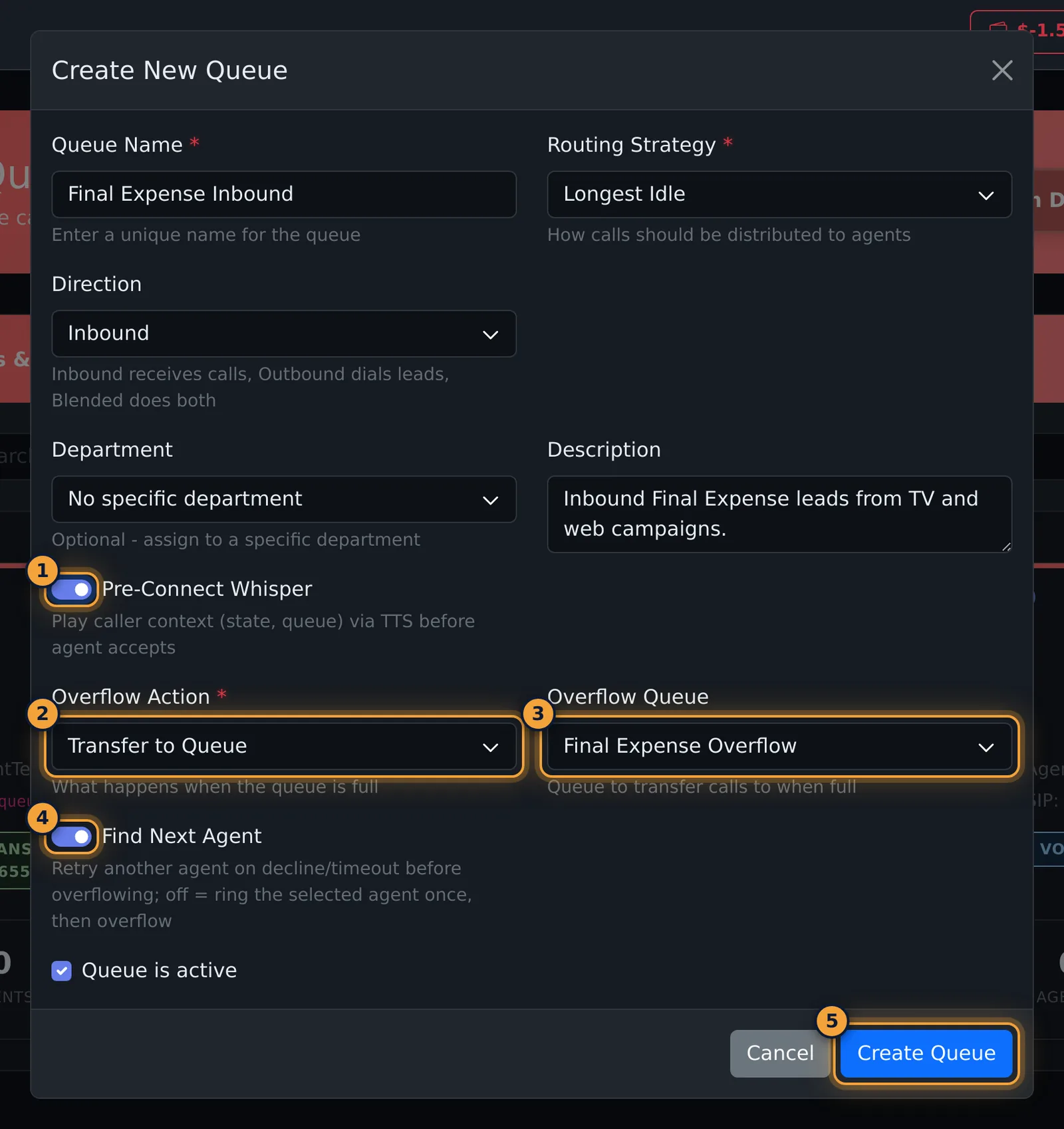
- Pre-Connect Whisper plays the caller's context (state, queue) to the agent by text-to-speech before they accept. Off by default.
- Find Next Agent (on by default) tries another agent when one declines or doesn't answer. Switched off, the queue rings the chosen agent once and then overflows.
- Overflow Action decides where the call goes next:
| Overflow Action | What happens |
|---|---|
| Send to Voicemail | The caller can leave a voicemail. This is the default. |
| Disconnect | The call ends. |
| Transfer to Destination | The call goes to the Overflow Target: a 10- or 11-digit number, a +E.164 number, or sip:user@host. |
| Transfer to Queue | The call moves to the Overflow Queue you pick. Only other active queues are listed. |
| Waiting Room | The caller waits for the next free agent, up to Max Wait (seconds) (default 300, 30 to 1,800) with at most Max Queue Size callers (default 20, up to 100). |
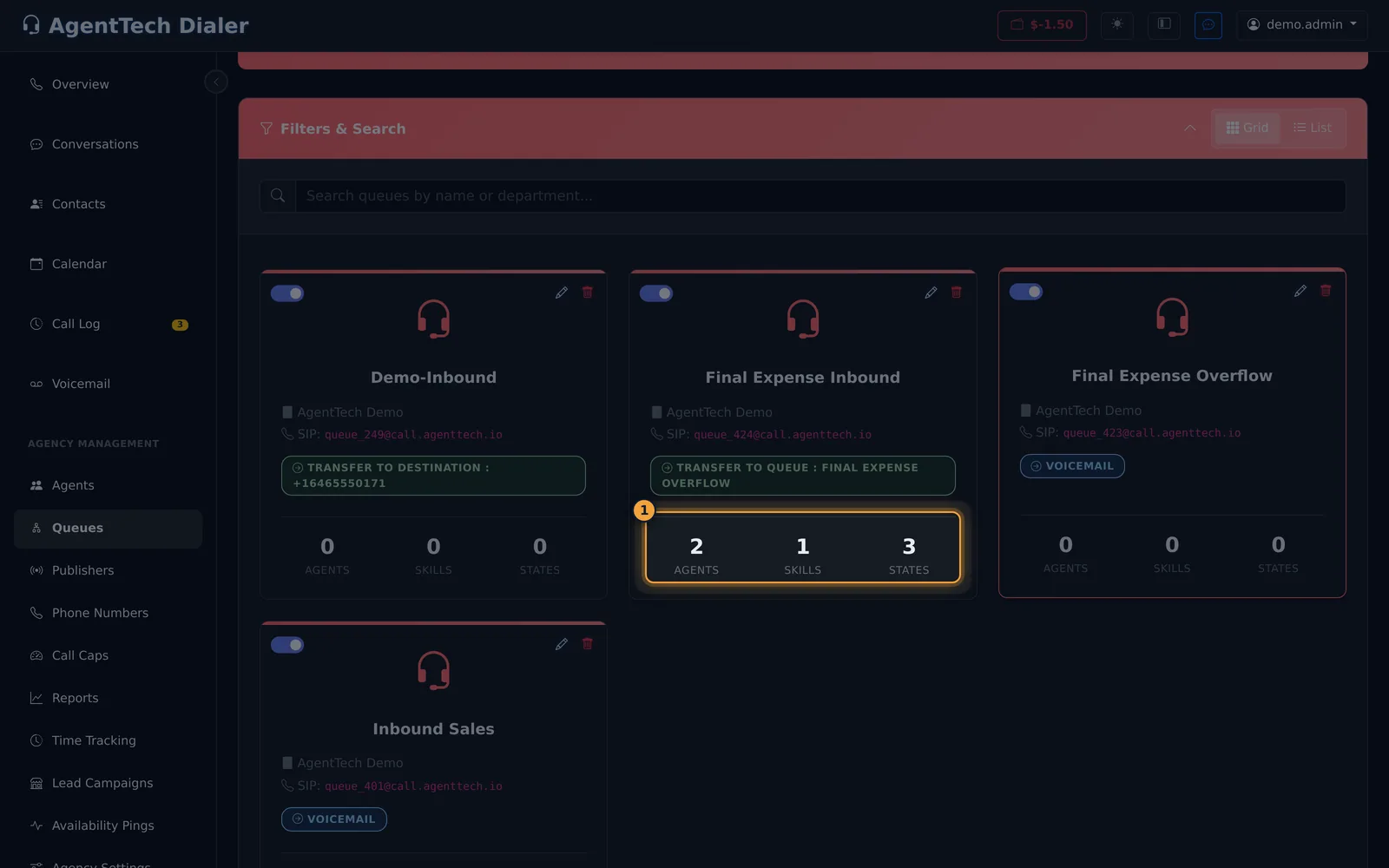
After you select Create Queue, the queue appears with its SIP address, for example queue_424@call.agenttech.io.
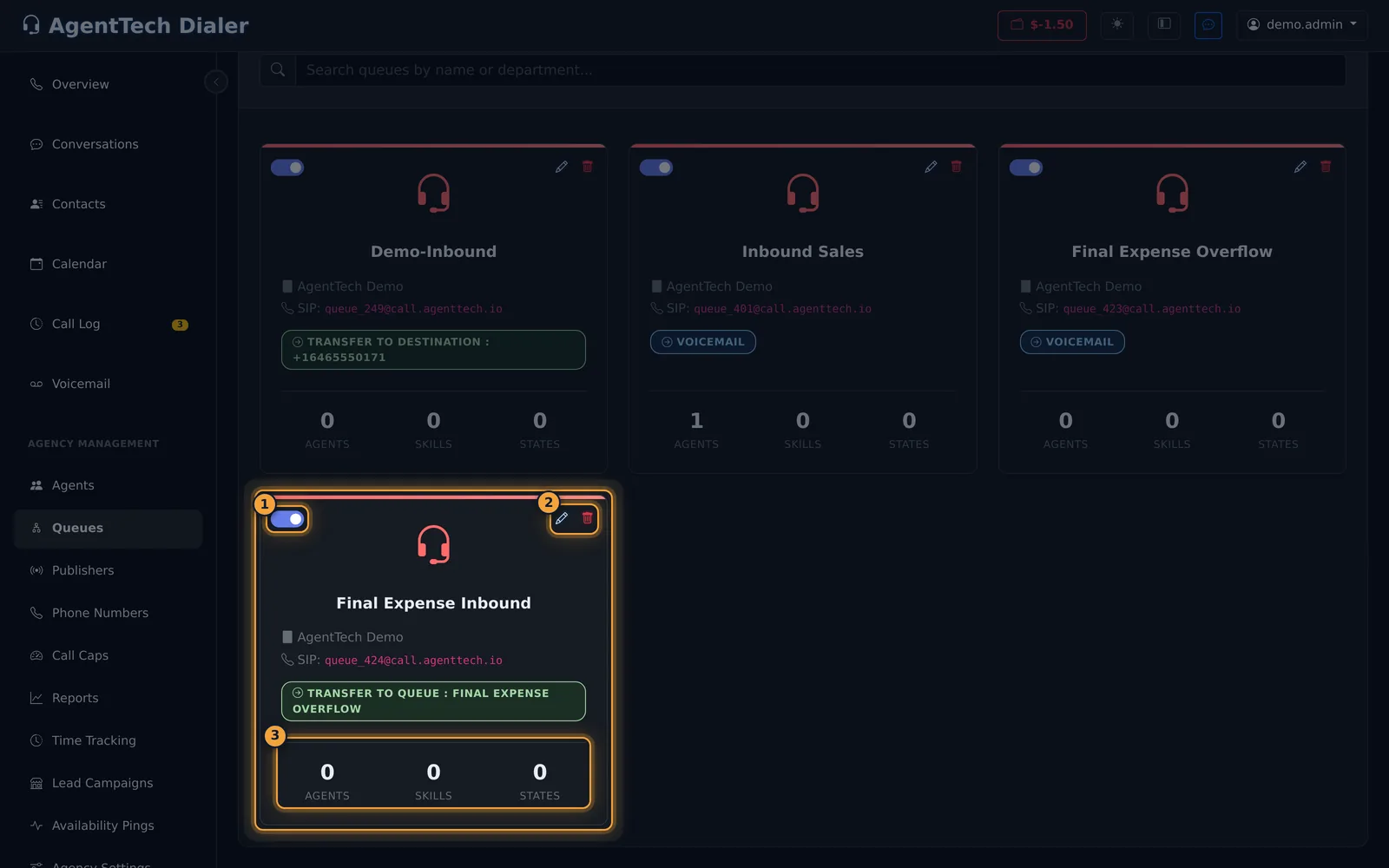
Set up the queue: Manage Queue
Click a queue's card to open Manage Queue. Work through the tabs, then select Save Changes once. It saves every tab together; Close discards your changes.
Agents
Click an agent under Available Agents to add them to the queue; click them again under Assigned Agents to remove them. Give each assigned agent a Priority from 1 to 10 (default 5).
States
Click each state the queue accepts calls from. Accepted states are listed on the right.
Skills
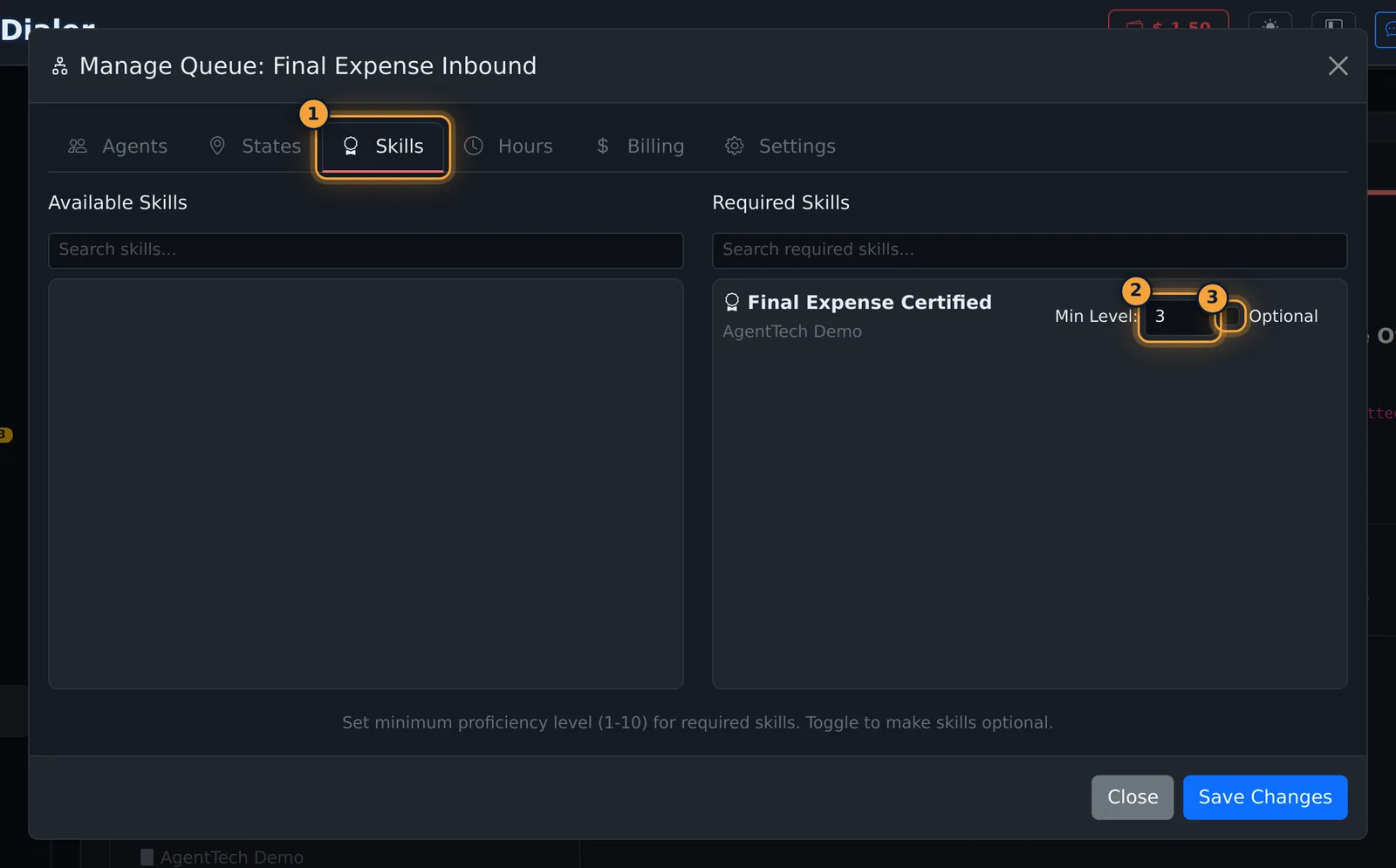
Click a skill to require it and set its Min Level (1 to 10). Tick Optional to prefer the skill without requiring it. Skills are created on the Skills page (Skills and State Licensing).
Hours
- Choose the Timezone: Eastern, Central, Mountain, Pacific, Arizona or UTC.
- Tick each open day and set its Open and Close times. Copy on one day and Paste on another copies the times.
- Or use Apply Standard Business Hours (Monday to Friday, 9:00 AM to 5:00 PM, weekend closed) or Apply 24/7 (every day, 12:00 AM to 11:59 PM).
Billing
Tick Queue is billable to count calls into this queue as billable.
| Field | What it does |
|---|---|
| Billable after (seconds) | A call becomes billable after this long. Default 15. |
| Counting Type | When the clock starts: After Call Initiated, After Call Answered (default) or After Call Connected. |
| Cost per Call | A fixed amount per billable call. |
| Cost per Minute | An amount per minute of talk time. |
| Billable only if answered | Only calls answered by an agent count. On by default. |
Settings
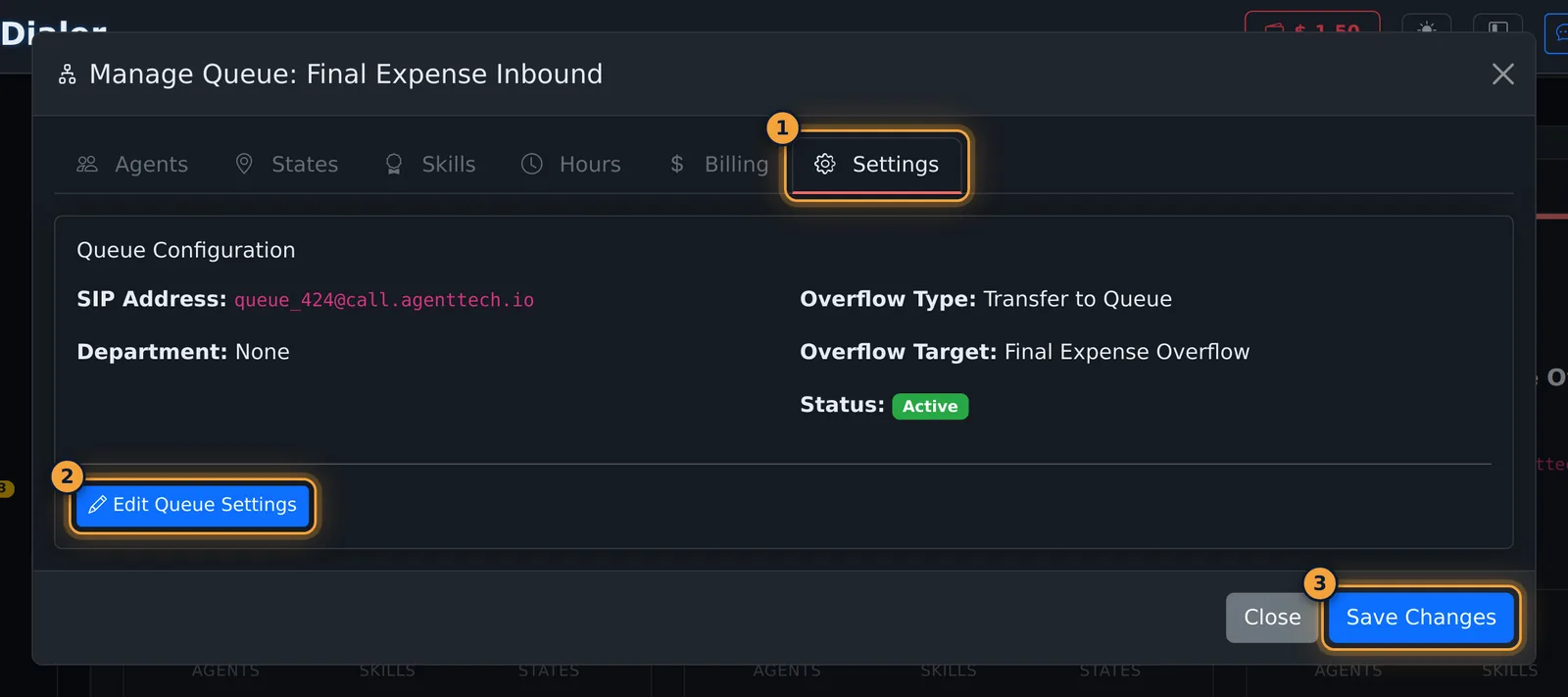
Settings shows the queue's SIP address, department, overflow and status. Edit Queue Settings opens the queue form.
After saving, the card counts the agents, skills and states, and each agent's card on the Agents page counts the queue.
Edit a queue
Select the pencil on the card, or Edit Queue Settings in Manage Queue. Edit Queue has the same fields as Create. The agency can't be changed. Select Save Changes.
Switch a queue off or on
Use the switch at the top left of the card. A switched-off queue's card turns grey.
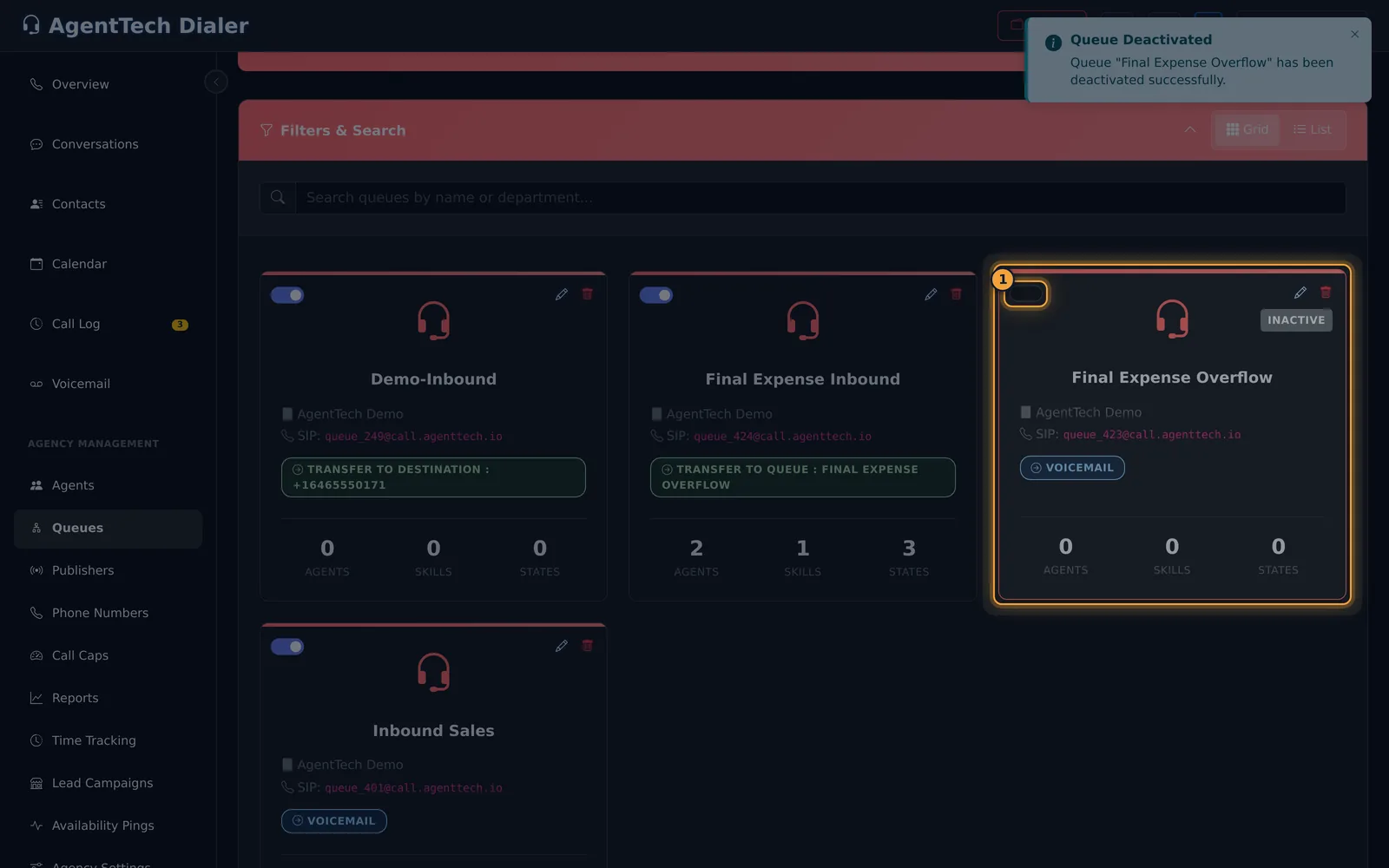
Switching a queue off stops it taking calls and keeps all its settings. You can also untick Queue is active in Edit Queue.
Delete a queue
Select the bin, check the name, and select Delete Queue. This removes all agent assignments and requirements and can't be undone. Move any phone numbers or publishers that route to the queue first.
Common problems
- Callers to a new queue don't reach agents. Check the Hours tab (new queues start with every day closed), that agents are assigned, and that they meet the required skills and states.
- "AI Agent Required" when creating a queue. You picked AI Agent routing without choosing an AI agent. Create one first (AI Agents) or choose another strategy.
Related articles
Was this article helpful?
Can't find what you are looking for? Our support team can help.
Submit a support ticket