Transcript
Here is how your agency applies to a lead campaign, chooses the queue that receives its calls, and tracks the application.
Open Lead Campaigns under Agency Management, and narrow the list, here to Insurance.
Check what your agency pays per billable item on the card. Everything the campaign delivers goes to one of your queues, so make sure it has agents with the right skills and states.
Select Apply to Campaign on its card.
Choose the delivery queue in Select Delivery Queue. Calls and lead box callbacks from this campaign are sent to it.
Add Application Notes for the reviewer, like the states your agents cover and your hours. Then select Submit Application.
Your application appears on the Applications tab as Pending, with the date you applied and the target queue.
When it is reviewed, the card shows the review date and any notes. Once approved, the campaign moves to Active Delivery, and its calls start arriving in that queue.
To withdraw a pending application, select Withdraw Application, and confirm. The campaign goes back to Available Campaigns.
Once approved, watch the campaign's calls arrive on your Supervisor Dashboard.
To receive calls or leads from a lead campaign, your agency applies to it and names the queue that should get them. The application asks for a delivery queue, any questions the campaign sets for agencies, and optional notes.
Who can do this: agency admins, from Agency Management > Lead Campaigns.
Before you apply
- Pick the queue. Everything the campaign delivers goes to one of your queues. Make sure it has agents assigned and set up with the right skills and states. See Queue Management and Skills and State Licensing.
- Check the cost. The campaign card shows what your agency pays per billable item.
Apply to a campaign
- Open Agency Management > Lead Campaigns. The Available Campaigns tab opens.
- Find the campaign. Use the filters to narrow the list; see Lead Campaigns for each filter.
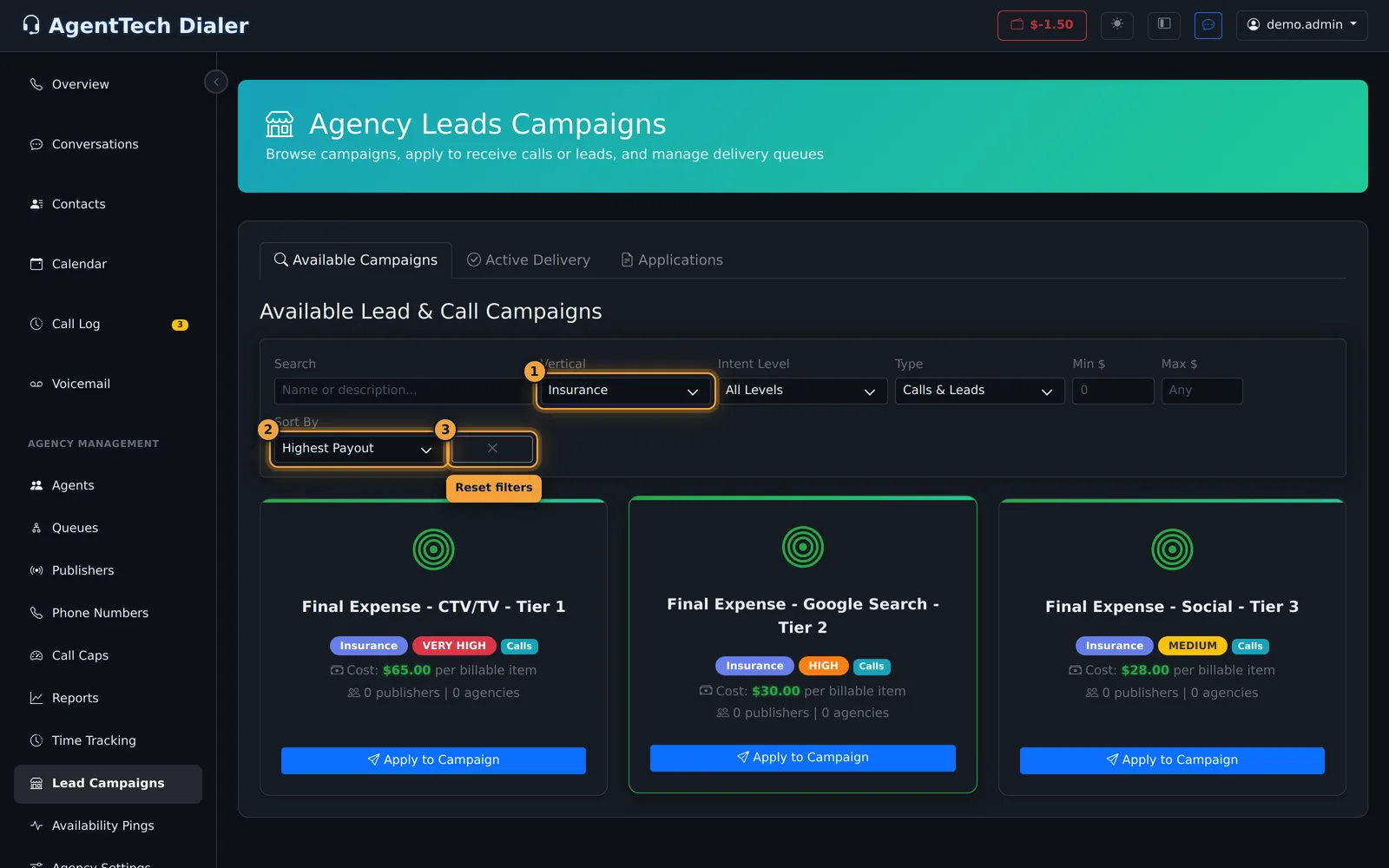
- Select Apply to Campaign on its card, or click the card itself.
- In Apply to Campaign, choose the Select Delivery Queue. Calls and lead box callbacks from this campaign will be sent to this queue.
- Answer the campaign's questions, if it has any.
- Add Application Notes if the reviewer should know something, for example which states your agents cover and your hours.
- Select Submit Application. The page confirms "Application submitted successfully!" and the campaign moves to the Applications tab.
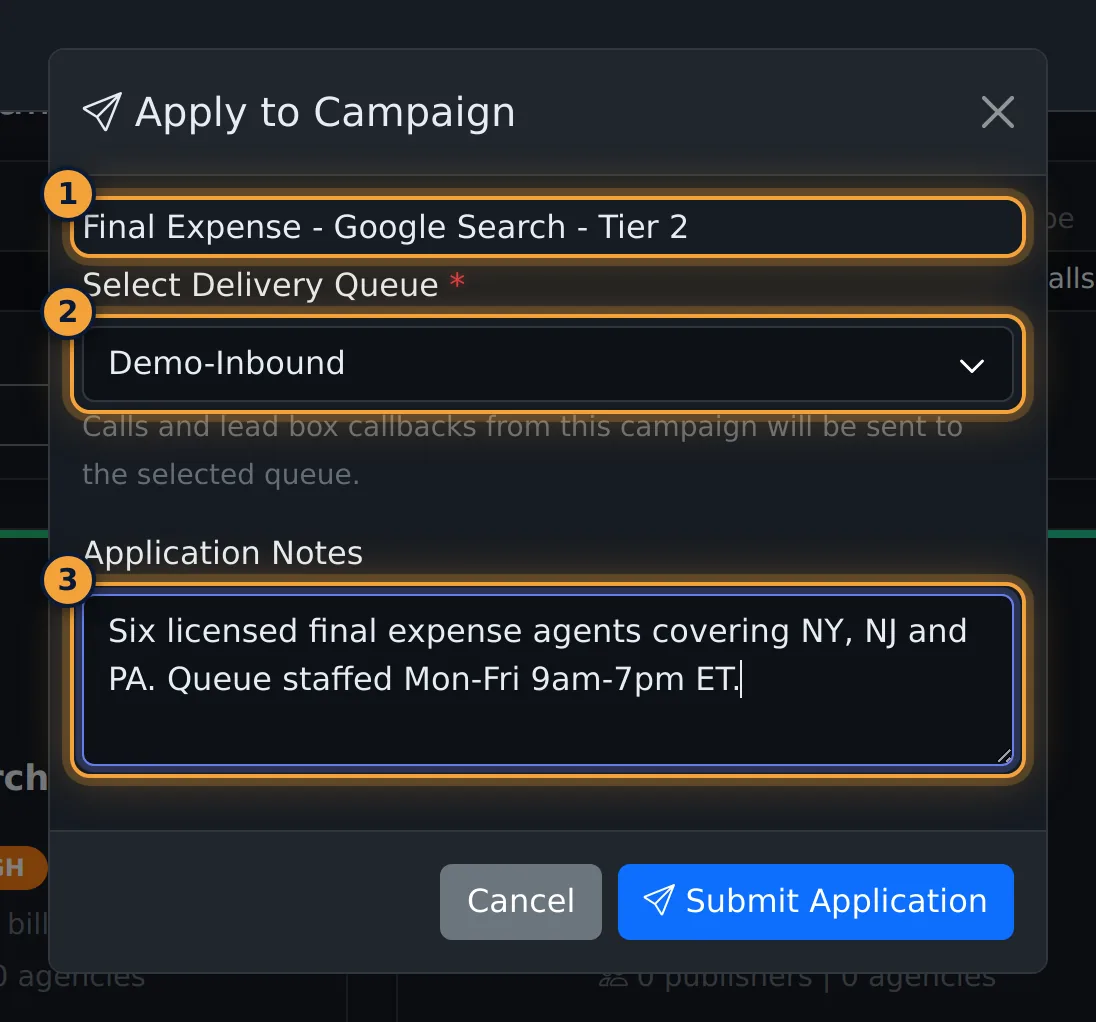
| Field | Required | What it does |
|---|---|---|
| Select Delivery Queue | Yes | Lists your agency's queues. Calls and lead box callbacks from the campaign go here. |
| Campaign questions | Set by the campaign | Questions the campaign asks agencies. A campaign without questions shows only the queue and notes. |
| Application Notes | No | Free text for the reviewer. |
After you apply
The application appears on the Applications tab with the status Pending, the date applied and the target queue. When it has been reviewed, the card shows the review date and any Review Notes.
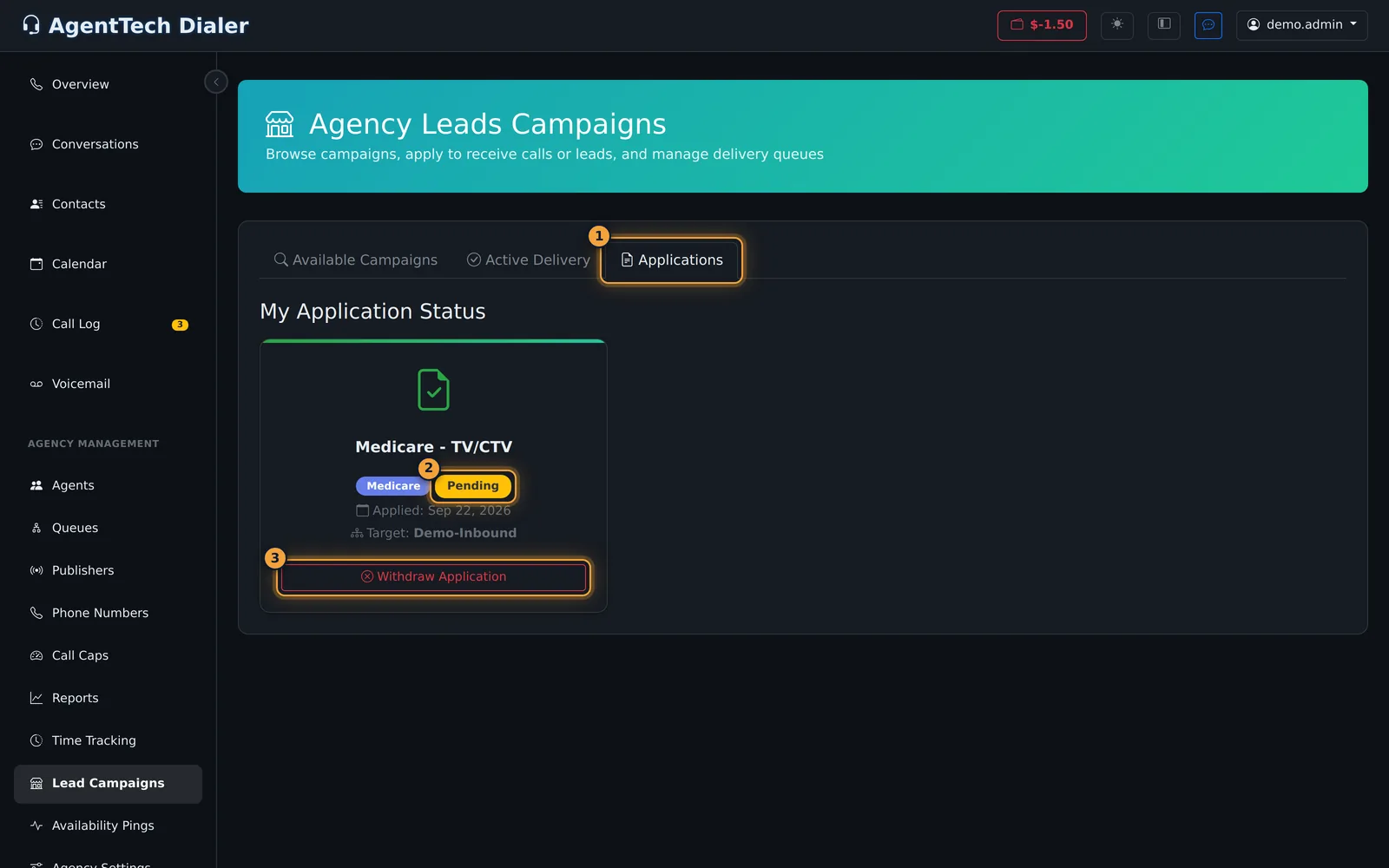
Once approved, the campaign appears on the Active Delivery tab with its delivery queue and join date, and calls and leads start arriving in that queue. Watch them on the Supervisor Dashboard.
Withdraw an application
- Open the Applications tab.
- Select Withdraw Application on the pending application.
- Confirm the browser prompt "Are you sure you want to withdraw this application?".
The campaign returns to Available Campaigns, and you can apply again. Only pending applications have this button.
Common problems
- The campaign isn't on Available Campaigns. You have already applied to it; look on the Applications tab.
- Select Delivery Queue has no options. Your agency has no queues. Create one, then apply.
Related articles
Was this article helpful?
Can't find what you are looking for? Our support team can help.
Submit a support ticket