Transcript
Here is where each KPI and ranking appears in AgentTech Dialer, and how the agent score is worked out.
On the dashboard, the call tiles and both leaderboards follow the Date Range. Here, Year to Date.
The four agent counts above them are always live, whatever the range.
CPA is total cost divided by sales. Lowest CPA ranks agents from the lowest cost per sale, and Most Sales by completed sales.
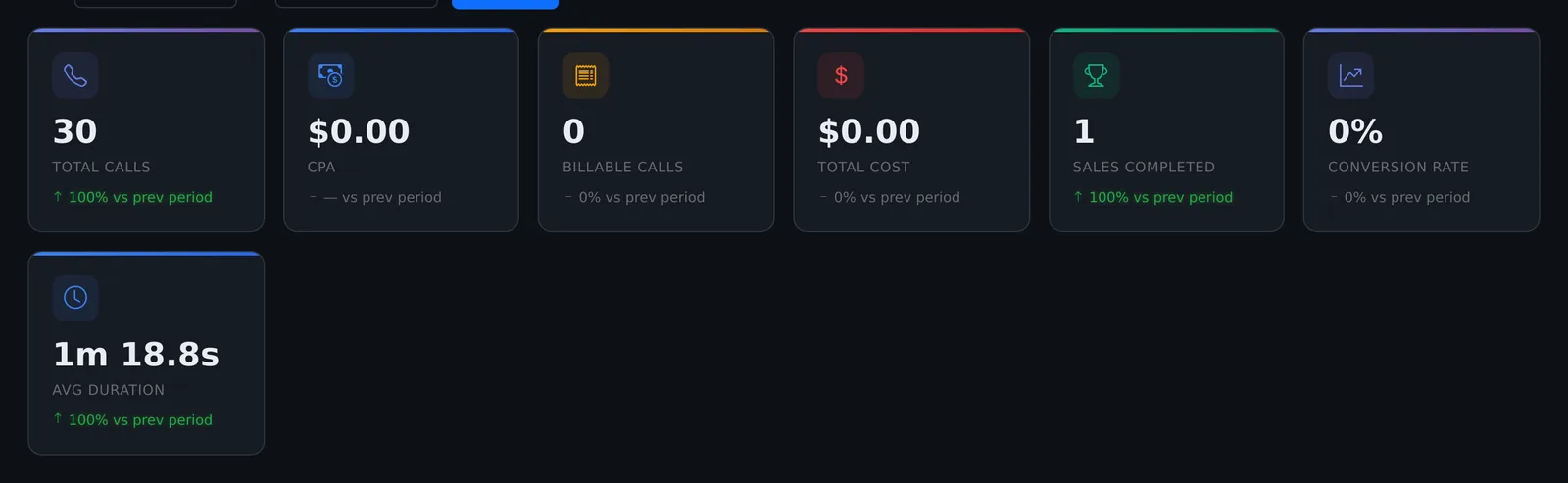
Reports shows seven KPI cards for the range you choose. Under each value is the change against the previous period of the same length.
Green means better: up for calls, sales, conversion, and duration, and down for CPA and cost.
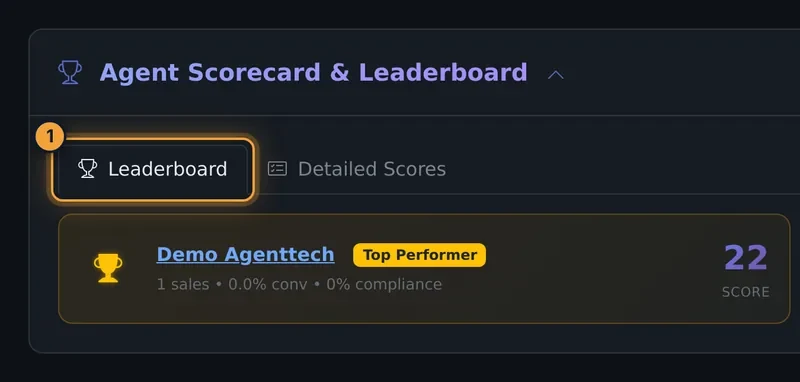
Expand Agent Scorecard and Leaderboard. The Leaderboard tab shows the top ten agents by score, with their sales, conversion, and compliance.
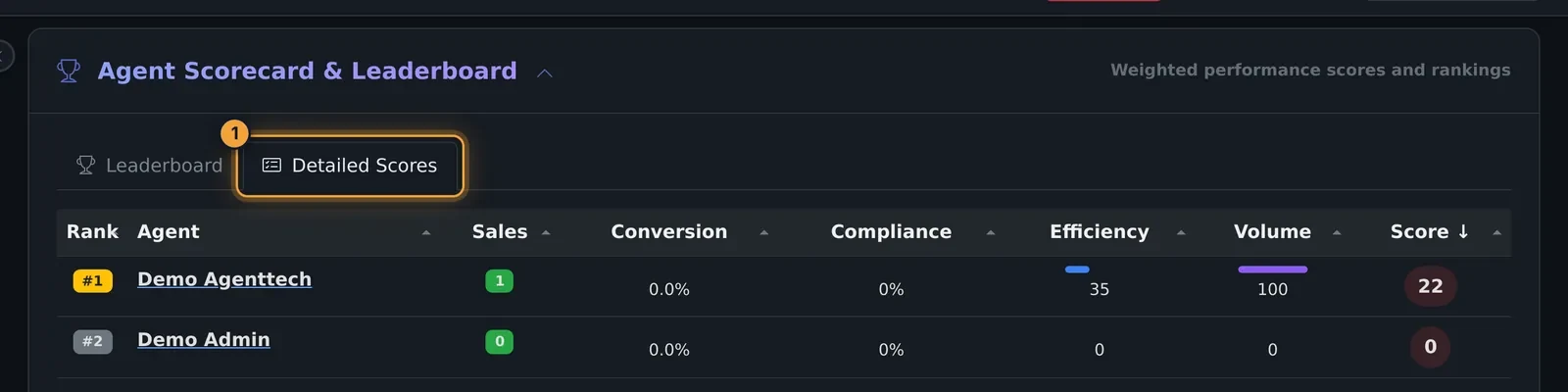
Detailed Scores lists every agent with their rank and the four parts of the score. Click a heading to sort.
The score weighs conversion at forty percent, compliance at twenty-five, efficiency at twenty, and volume at fifteen.
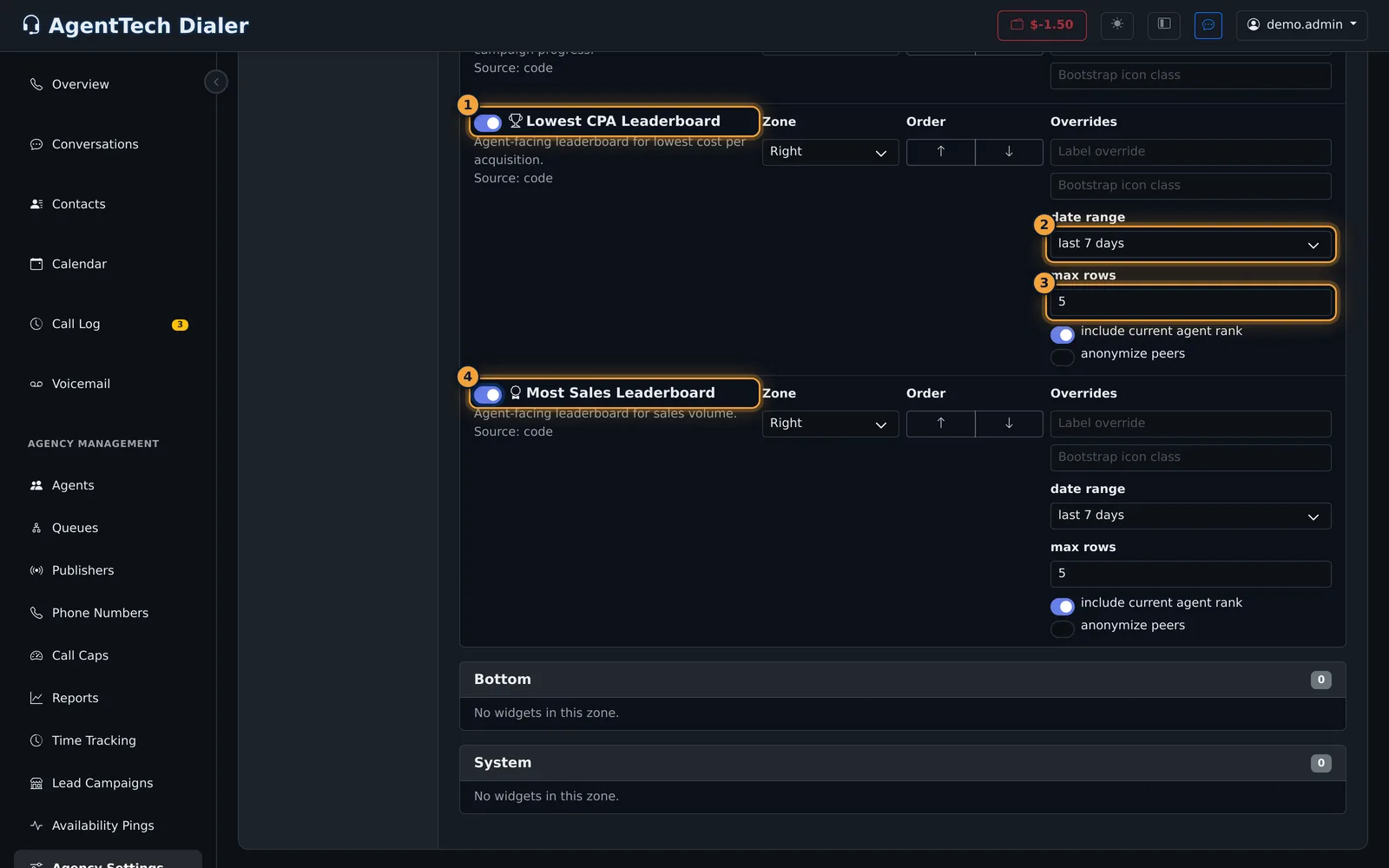
To show leaderboards to agents, an agency admin opens Agency Settings, then Dashboard Widgets, and switches on Lowest CPA Leaderboard and Most Sales Leaderboard.
Set each one's date range and number of rows, then select Save Layout. The layout applies to every agent in the agency.
Next, see Reports for every breakdown of these numbers.
This article is the reference for every metric and score in AgentTech. Your call KPIs appear on the tiles of the Supervisor Dashboard, the cards and tables of Reports and each agent's Agent Analytics page. Rankings appear in three: the dashboard's Lowest CPA and Most Sales lists, the Agent Scorecard & Leaderboard in Reports, and optional leaderboards on the agent dashboard.
Who can do this: supervisors and agency admins see the dashboard and Reports. Turning on the agent leaderboards is done in Agency Settings by an agency admin.
The KPIs and what they mean
| KPI | Definition |
|---|---|
| Total Calls | Calls in the date range. |
| Billable Calls | Calls that were billed. |
| Sales / Sales Completed | Completed sales. |
| Total Cost | Total billable cost. |
| CPA | Cost per acquisition: Total Cost divided by Sales. N/A when there are no sales. |
| Conversion Rate (Reports) | Sales divided by Billable Calls. With no billable calls it shows 0%, even if there were sales. |
| Avg Duration (Reports) | Average talk time of the calls. |
| Avg Wait Time (dashboard) | Average time agents wait while Available before receiving a call. |
| Raw (Reports) | All calls, billable or not. |
>5 Min to >60 Min (Reports) | Calls longer than 5, 10, 20, 30, 40, 50 and 60 minutes. |
The dashboard also counts your agents live, whatever the date range:
| Count | Definition |
|---|---|
| Total Agents | Agents in your agency. |
| Total Online | Agents in any status except Offline or Disconnected. |
| Available | Agents in Available. |
| On Call | Agents On A Call or Ringing. |
KPIs on the dashboard
Pick a range in Date Range on the Filters & Search bar: Today, Yesterday, Last 7 Days, Last 30 Days, Week to Date, Month to Date or Year to Date. Total Calls, Billable Calls, Sales, Total Cost, CPA and Avg Wait Time follow it, and so do the Lowest CPA and Most Sales lists beside them. The four agent counts (Total Agents, Total Online, Available, On Call) are always live.
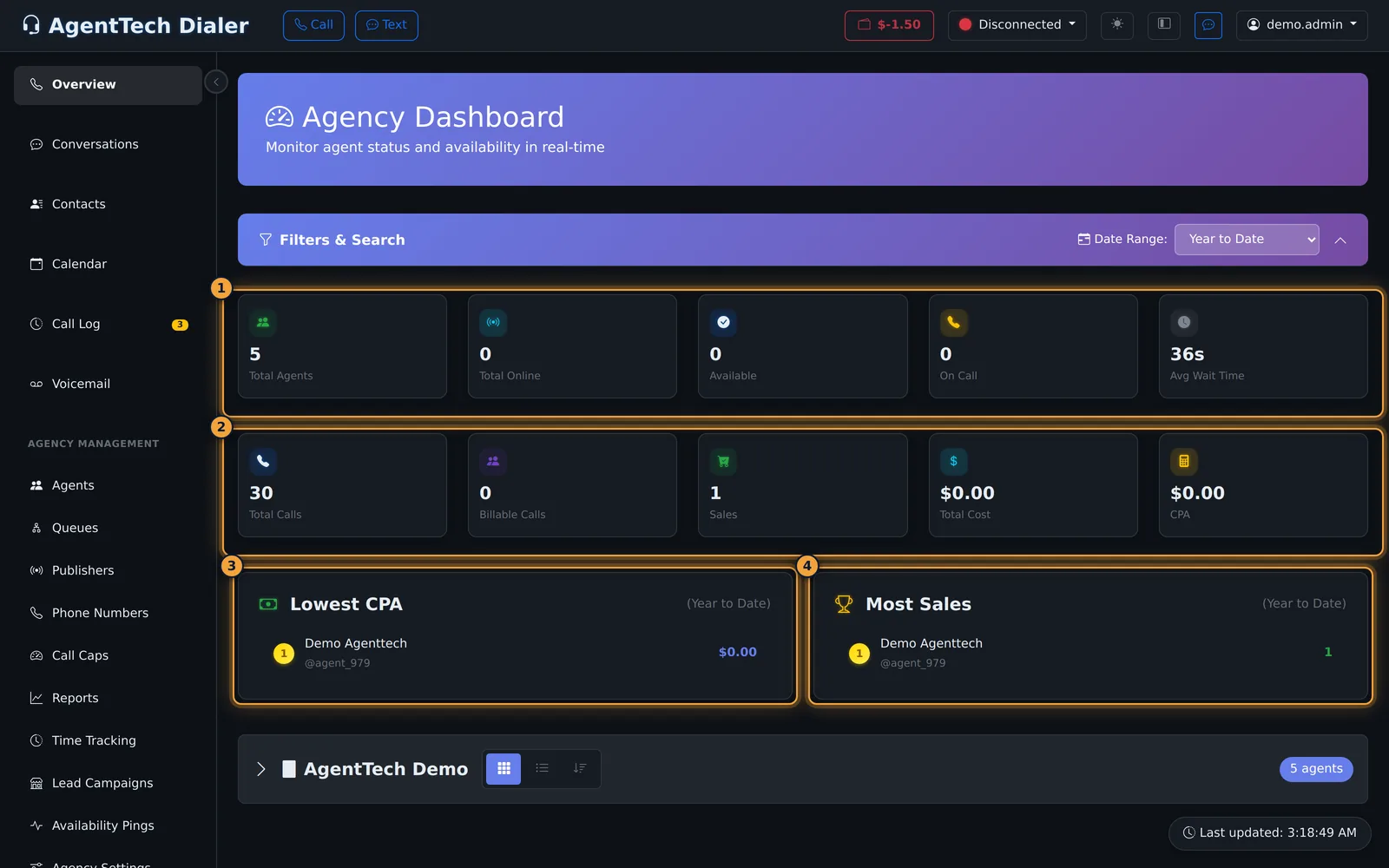
Lowest CPA ranks agents from the lowest cost per acquisition up; Most Sales ranks them by completed sales. Only agents with sales in the range are listed.
KPIs in Reports
Reports shows seven cards for the range you choose: Total Calls, CPA, Billable Calls, Total Cost, Sales Completed, Conversion Rate and Avg Duration. Under each value, the change against the previous period of the same length is shown with an arrow. Green means better: up for calls, billable calls, sales, conversion and duration; down for CPA and cost. When either period has no sales, CPA shows a dash rather than a change.
Agent Scorecard & Leaderboard
In Reports, expand Agent Scorecard & Leaderboard. It has two tabs and uses the report's date range.
Leaderboard shows the top ten agents by composite score, with sales, conversion rate and compliance rate under each name. Each agent carries a badge, for example Top Performer. Click a name to open that agent's analytics.
Detailed Scores lists every agent with their rank and the four parts of the score. Click a column heading to sort by it.
How the score is calculated
The page states the weighting under the table:
| Part | Weight | Based on |
|---|---|---|
| Conversion | 40% | Sales / Billable Calls |
| Compliance | 25% | Pass rate on compliance calls |
| Efficiency | 20% | Optimal handle time (3-10 min) |
| Volume | 15% | Sales relative to the top performer |
In Detailed Scores the score is coloured as high from 75, medium from 50 to 74, and low below 50.
Show leaderboards to agents
Agents don't see Reports. To give them a leaderboard on their own dashboard, an agency admin turns on the leaderboard widgets:
- Open Agency Settings and select Dashboard Widgets.
- Find Lowest CPA Leaderboard and Most Sales Leaderboard (both off by default) and switch on the ones you want.
- For each, set date range (today, yesterday, last 7 days or last 30 days) and max rows (1 to 25). include current agent rank shows the agent their own place even when they are outside the list; anonymize peers anonymizes the other agents on the list.
- Select Save Layout. The layout applies to every agent in the agency.
Common problems
- Conversion Rate is 0% but there were sales. Conversion divides by billable calls; with no billable calls in the range it stays 0%.
- CPA shows N/A. There were no sales in the range.
- The leaderboards are empty. No agent made a sale in the range. Try a longer range.
- Agents can't see a leaderboard. The widgets are off until an agency admin switches them on and saves the layout.
Related articles
Was this article helpful?
Can't find what you are looking for? Our support team can help.
Submit a support ticket