A lead campaign is an offer of calls, leads or both, at a set cost per billable item. On the Lead Campaigns page your agency browses the campaigns on offer, applies to the ones that fit, and chooses which of your queues receives what they deliver.
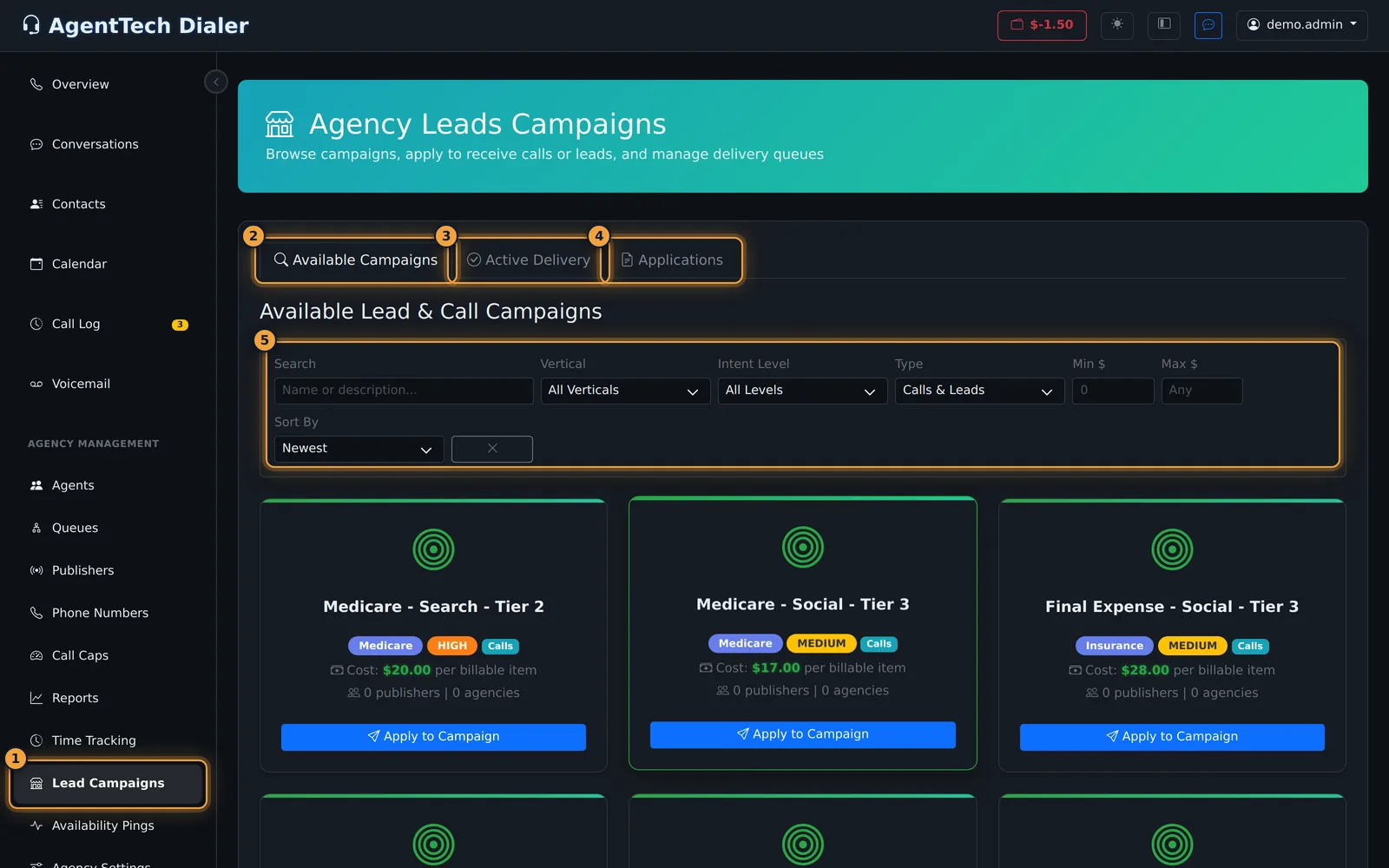
Who can do this: agency admins. The page is under Agency Management > Lead Campaigns in the sidebar, and its header reads Agency Leads Campaigns.
How it works
- Browse. The Available Campaigns tab lists the campaigns your agency has not applied to yet.
- Apply. Choose a campaign, pick the queue that should receive its calls and leads, and add optional notes. See Applying to Receive Calls.
- Wait for review. The application appears on the Applications tab with its status. If the reviewer leaves notes, they show on the application.
- Receive. Approved campaigns move to the Active Delivery tab. Calls and lead box callbacks from the campaign are sent to its delivery queue, so that queue's agents handle them like any other call.
| Tab | What it shows |
|---|---|
| Available Campaigns | Campaigns you can apply to, with search, filters and sort. |
| Active Delivery | Campaigns your agency is approved for, each with its delivery queue and join date. |
| Applications | Every application you have sent, its status, the date applied and the target queue. |
Find a campaign
- Open Agency Management > Lead Campaigns. The Available Campaigns tab opens.
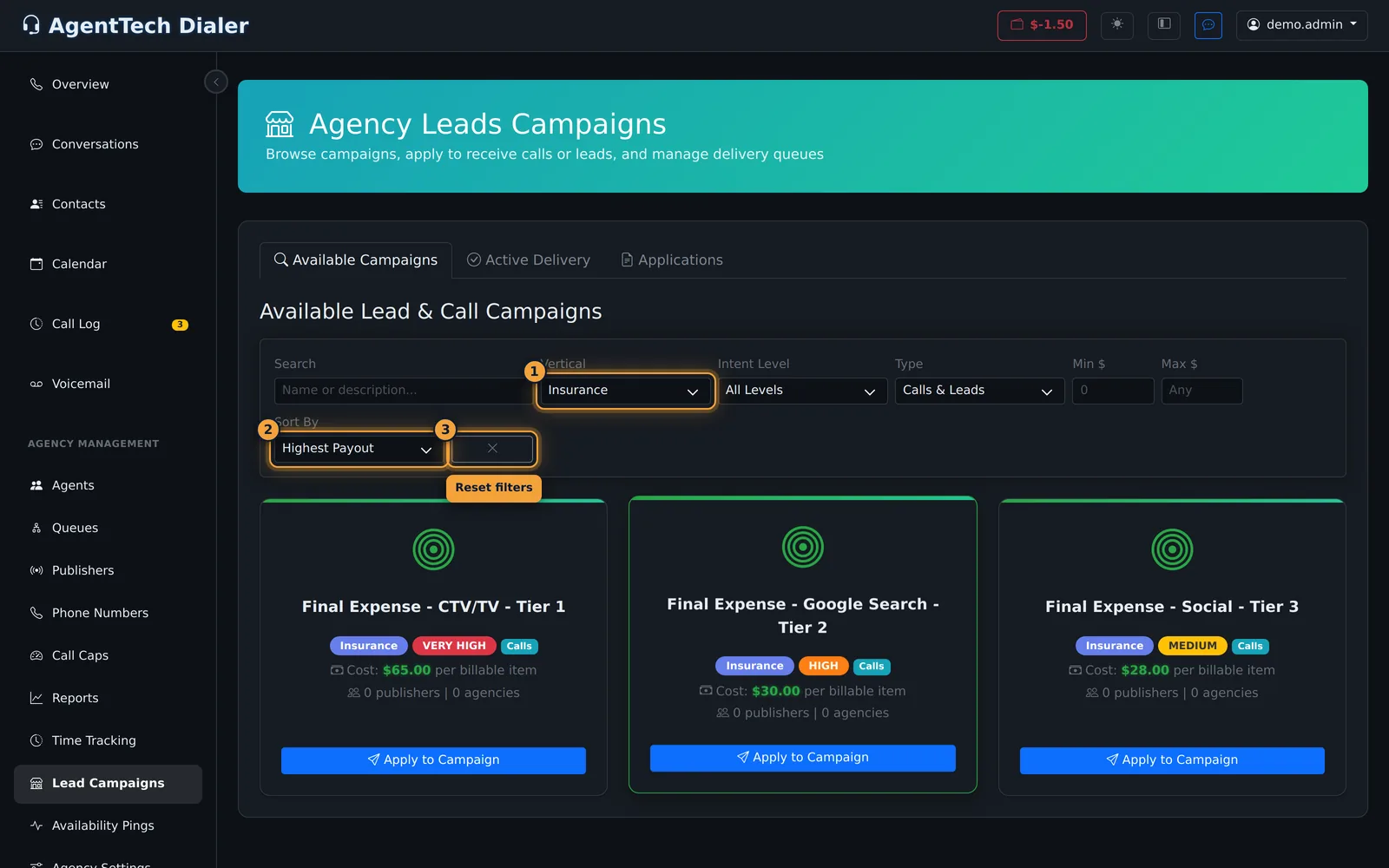
- Narrow the list with the filters. Each filter applies as soon as you change it; the search and price boxes wait until you stop typing.
- Select the X button next to Sort By to clear every filter.
| Filter | Options |
|---|---|
| Search | Matches the campaign name or description. |
| Vertical | All Verticals, Insurance, Solar, Home Services, Medicare, Auto, Real Estate, Finance, Education, Other. |
| Intent Level | All Levels, Low, Medium, High, Very High. |
| Type | Calls & Leads (everything), Calls only, Leads only, Calls + Leads. |
| Min $ / Max $ | Cost per billable item range. |
| Sort By | Newest, Highest Payout, Most Popular. |
Read a campaign card
| Part of the card | Meaning |
|---|---|
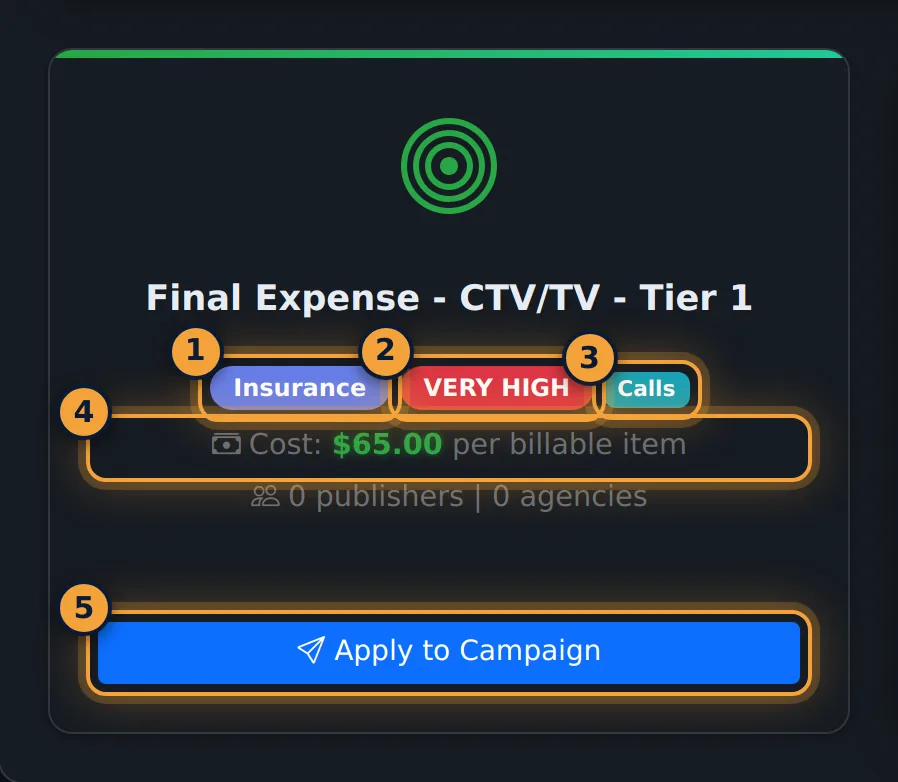
| Vertical badge | The campaign's industry, for example Insurance or Medicare. |
| Intent badge | LOW, MEDIUM, HIGH or VERY HIGH, as set on the campaign. |
| Type badge | What the campaign delivers: Calls, Leads or Calls + Leads. |
| Cost | What your agency pays per billable item. |
| Publishers and agencies | How many publishers and agencies are active on the campaign now. |
| Description | Shown under the badges when the campaign has one. |
| Apply to Campaign | Opens the application. Clicking anywhere on the card does the same. |
A campaign showing 0 publishers has no publisher active on it, so expect little or no delivery until one joins.
Follow your campaigns
Active Delivery lists the campaigns your agency is approved for. Each card repeats the campaign details and adds the Delivery queue that receives its calls and leads and the date your agency Joined. The tab has no buttons; it is a record of what is live.
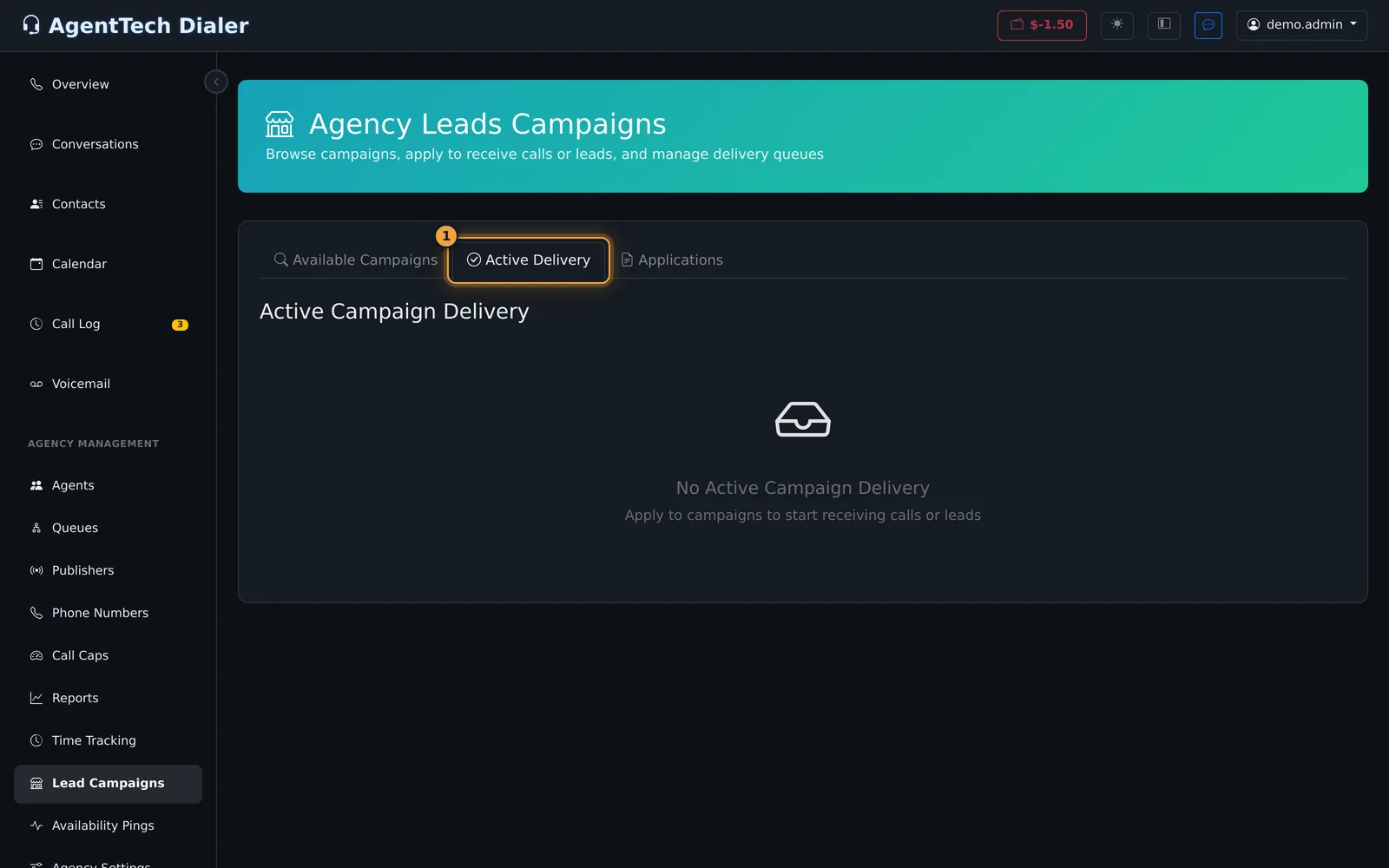
Applications lists every application your agency has sent, with its status badge, for example Pending, and its target queue.
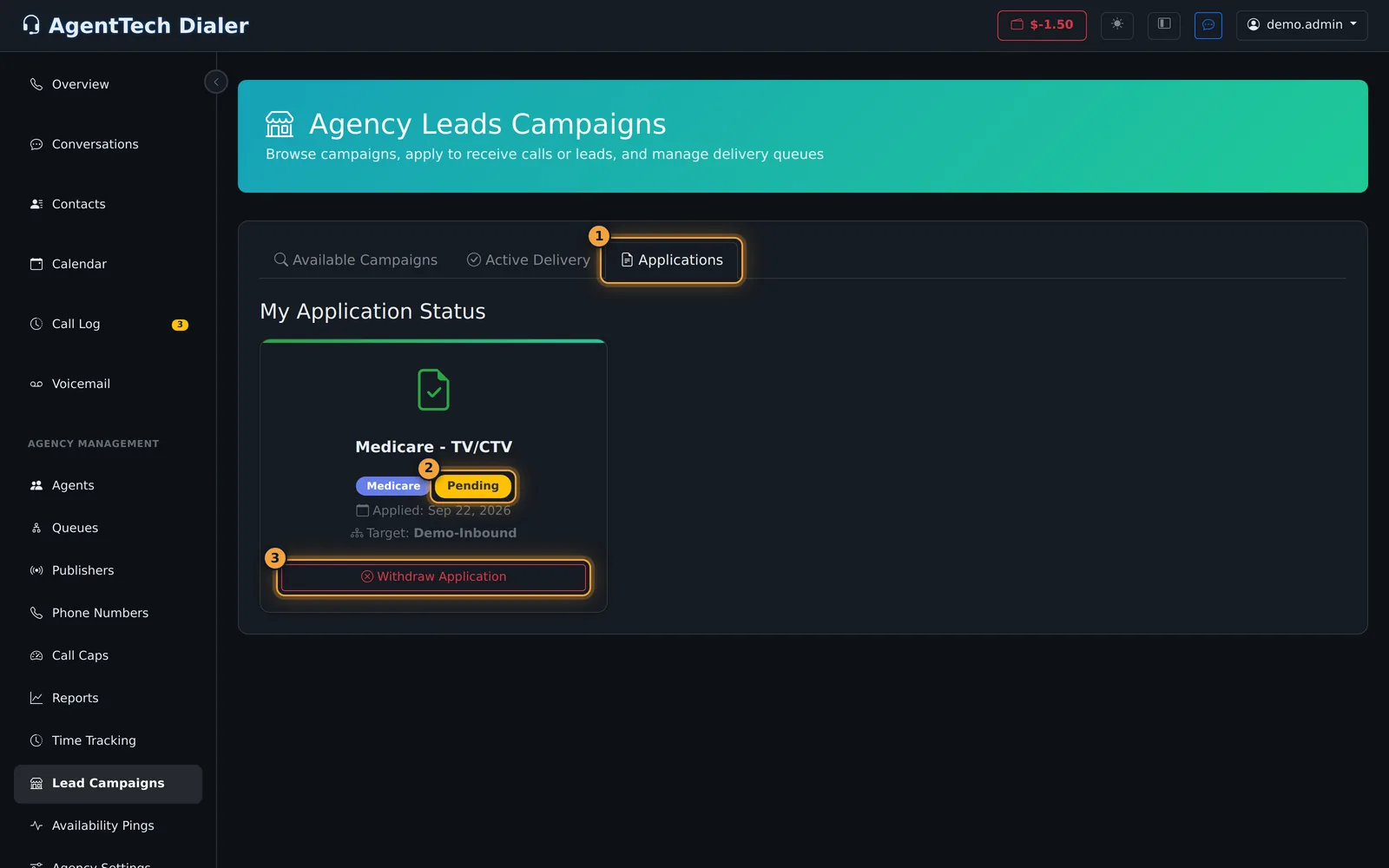
To prepare a queue, apply, read an application's review, or withdraw a pending application, follow Applying to Receive Calls. Approved campaigns have no withdraw button on this page.
Common problems
- The list says "No Available Campaigns", or a campaign I saw before is missing. Campaigns you have already applied to are not listed there; check the Applications tab. Filters can also hide campaigns; reset them with the X button next to Sort By.
- The delivery queue list is empty. Your agency has no queues yet. Create one first.
Related articles
Was this article helpful?
Can't find what you are looking for? Our support team can help.
Submit a support ticket