Transcript
Agency Settings holds the defaults for everyone in your agency: how calls are answered and recorded, which AI features are on, caller ID, and billing.
Open Agency Management, then Agency Settings. The tabs on the left group the settings.
Call Settings save on their own, about a second after a change. Save Settings, at the bottom, saves the whole form at once.
Recording and auto answer are the agency defaults. The override switches let agents change them for themselves.
After the call, set the dispositioning time, whether a disposition is required, voicemail, and the inactivity logout.
AI Sales Coach, Call Transcription and Call Compliance turn on the AI features. The coach needs transcription, so turning the coach on locks transcription on.
Caller ID sets how agents see callers' numbers, and which number your outbound calls show.
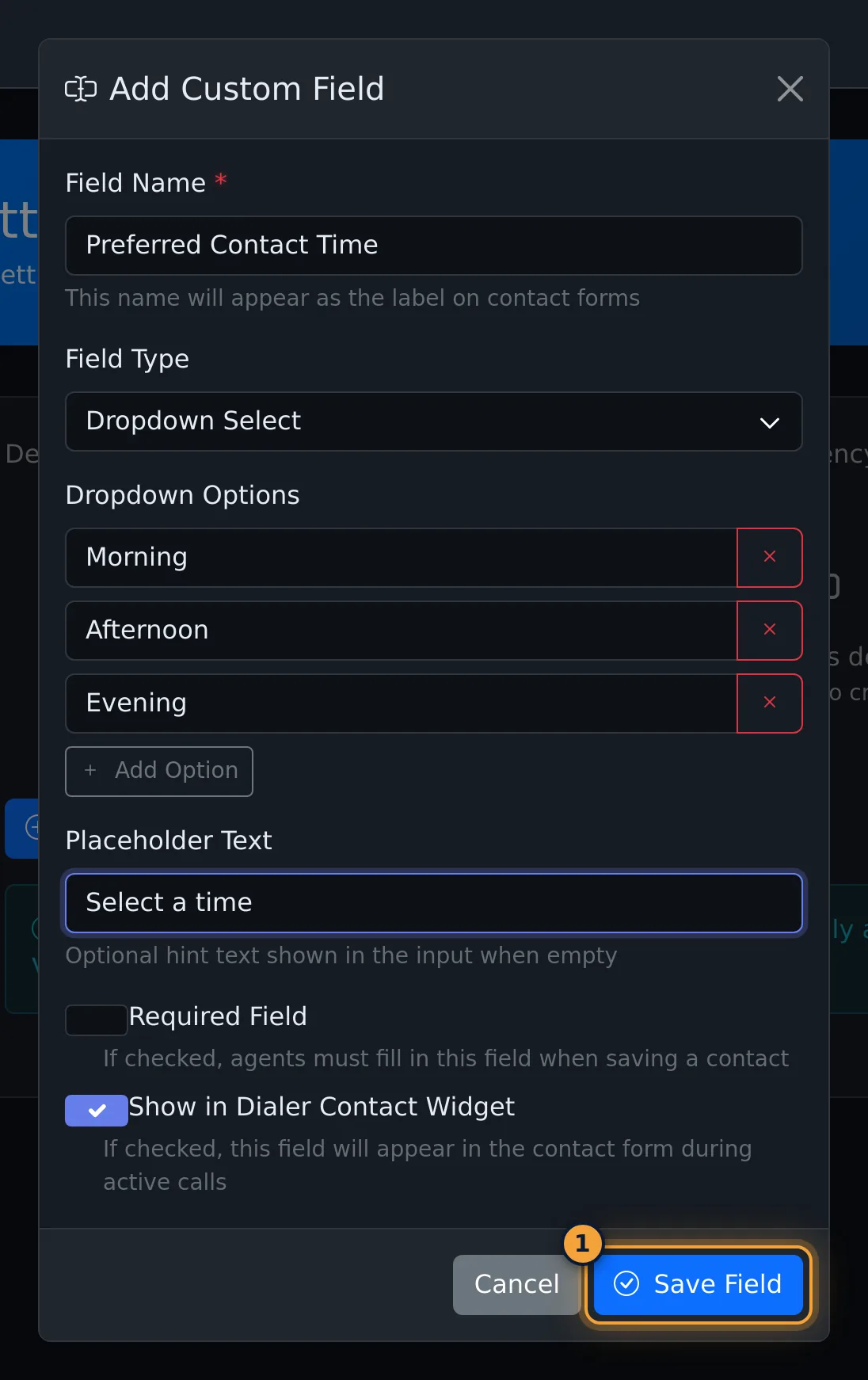
Contact Custom Fields adds fields to every contact. Select Add Custom Field, name it, pick its type, add any options, and select Save Field.
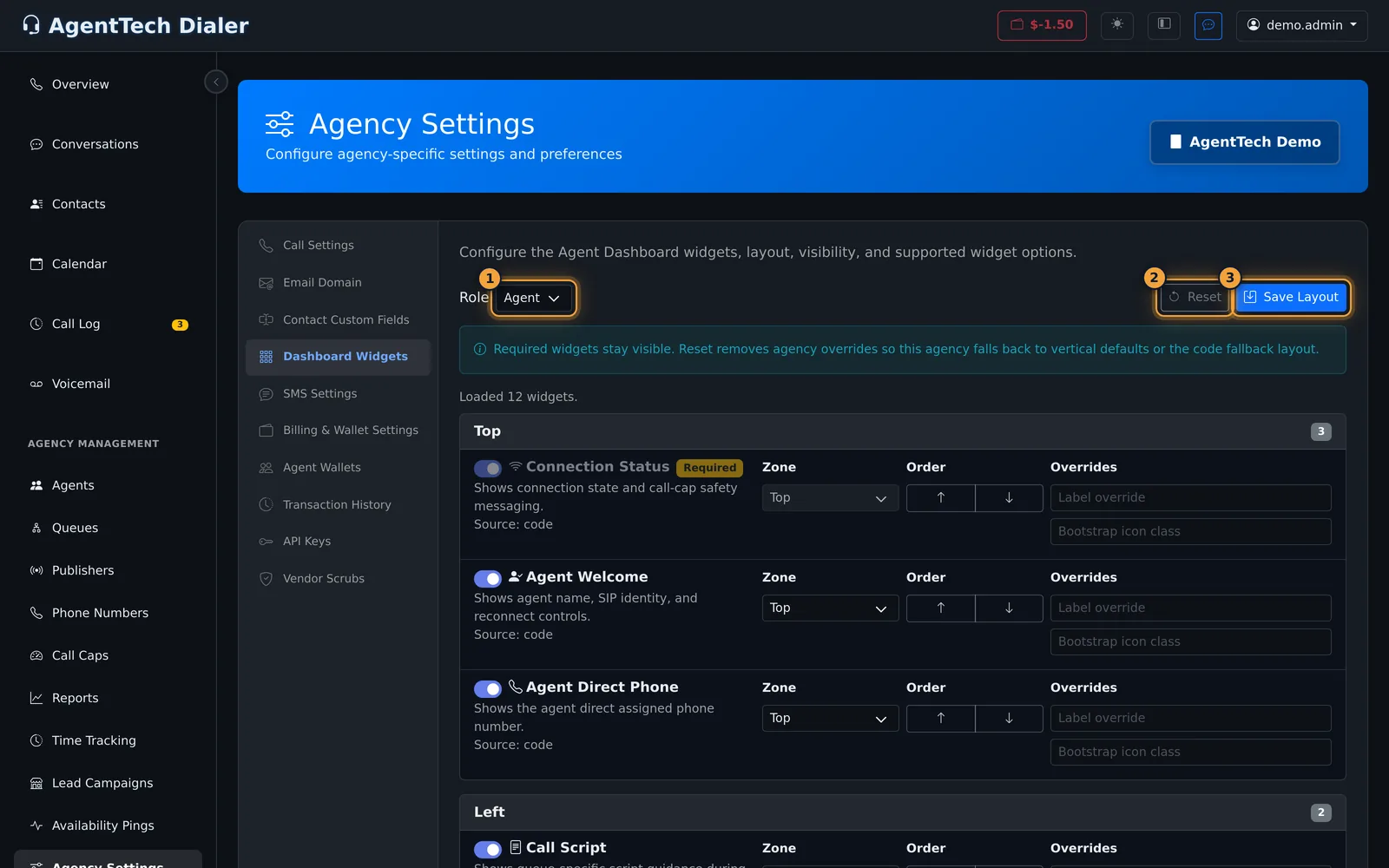
Dashboard Widgets sets which widgets agents see, in which zone and order. Select Save Layout to apply it.
Next, see how billing and your agency wallet work.
Agency Settings holds the defaults that apply to everyone in your agency: how calls are answered and recorded, what happens after a call, which AI features are on, how caller ID works, and billing.
This article is for agency admins. Open Agency Management > Agency Settings. The tabs on the left group the settings.
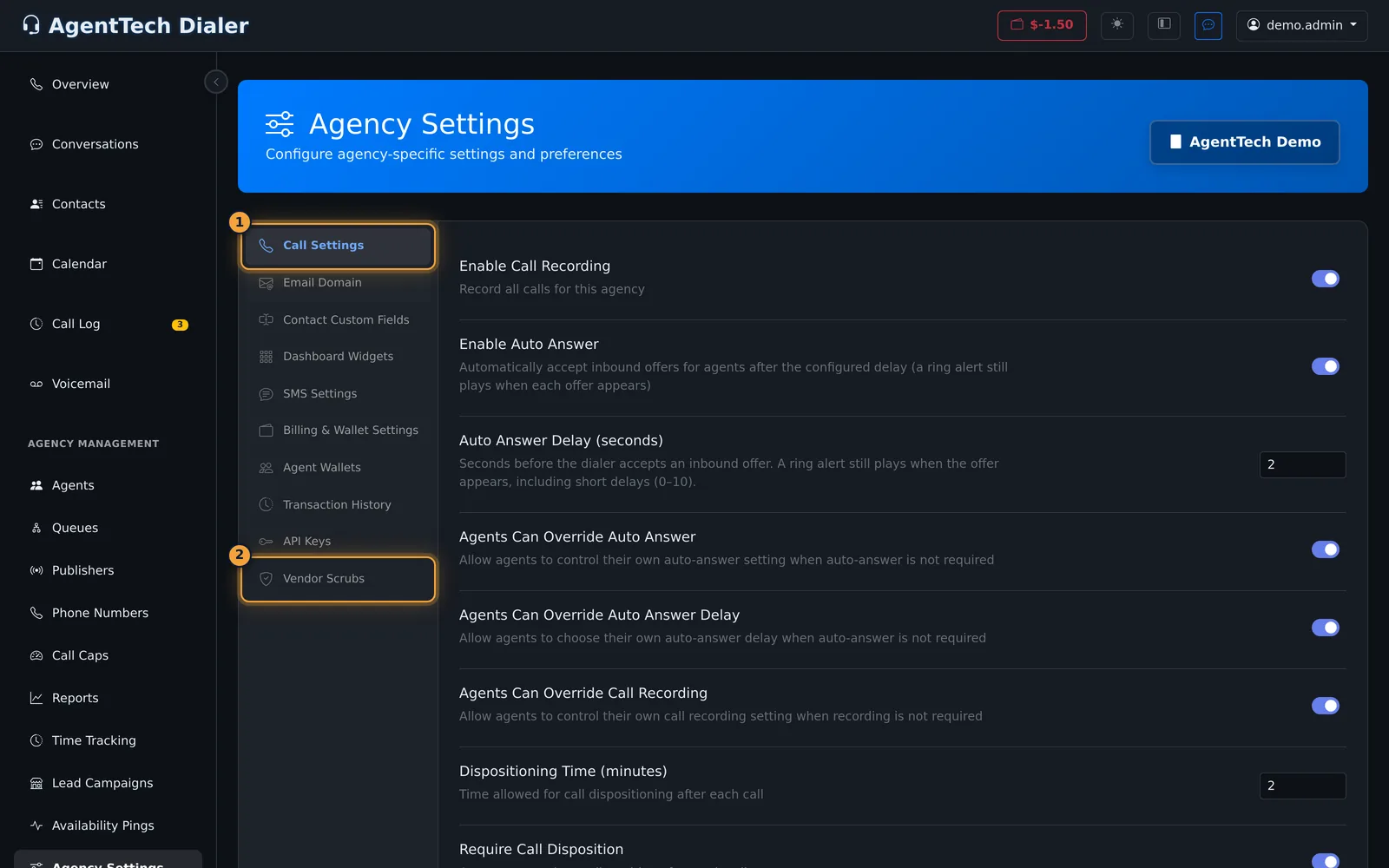
How saving works
Settings on Call Settings, SMS Settings, Billing & Wallet Settings and Vendor Scrubs save on their own about a second after you change them; "Settings saved" appears briefly. Save Settings at the bottom saves the whole form at once. Reset to Defaults asks for confirmation, then puts every setting back to its default and saves.
The other tabs (Email Domain, Contact Custom Fields, Dashboard Widgets, Agent Wallets, API Keys) have their own buttons.
Call Settings
Recording and auto answer
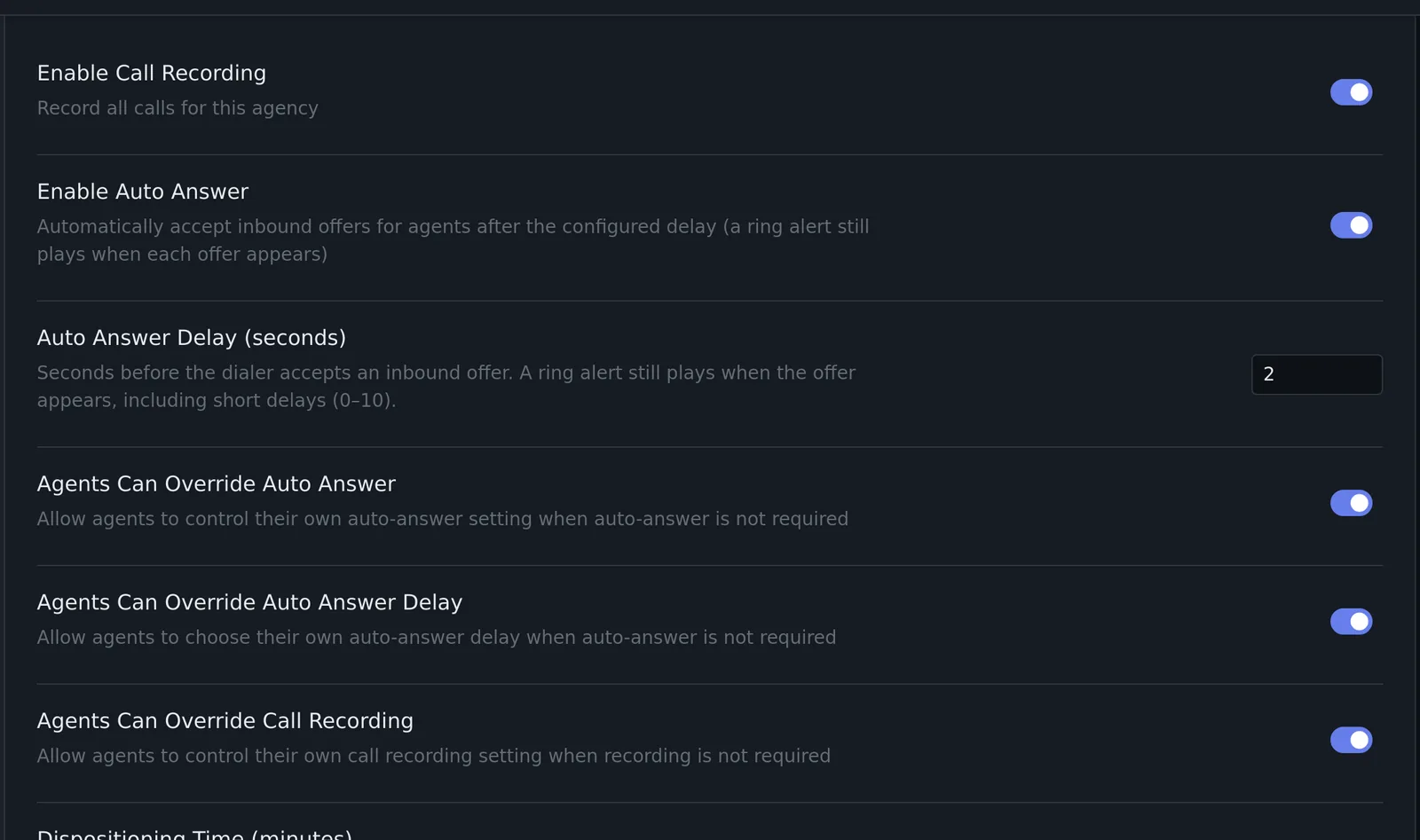
| Setting | What it does |
|---|---|
| Enable Call Recording | Record all calls for the agency. |
| Enable Auto Answer | Accept inbound offers for agents after the delay below. A ring alert still plays. |
| Auto Answer Delay (seconds) | 0-10 seconds before the dialer accepts the offer. |
| Agents Can Override Auto Answer / Auto Answer Delay / Call Recording | Let agents change these for themselves in their own settings. |
After the call
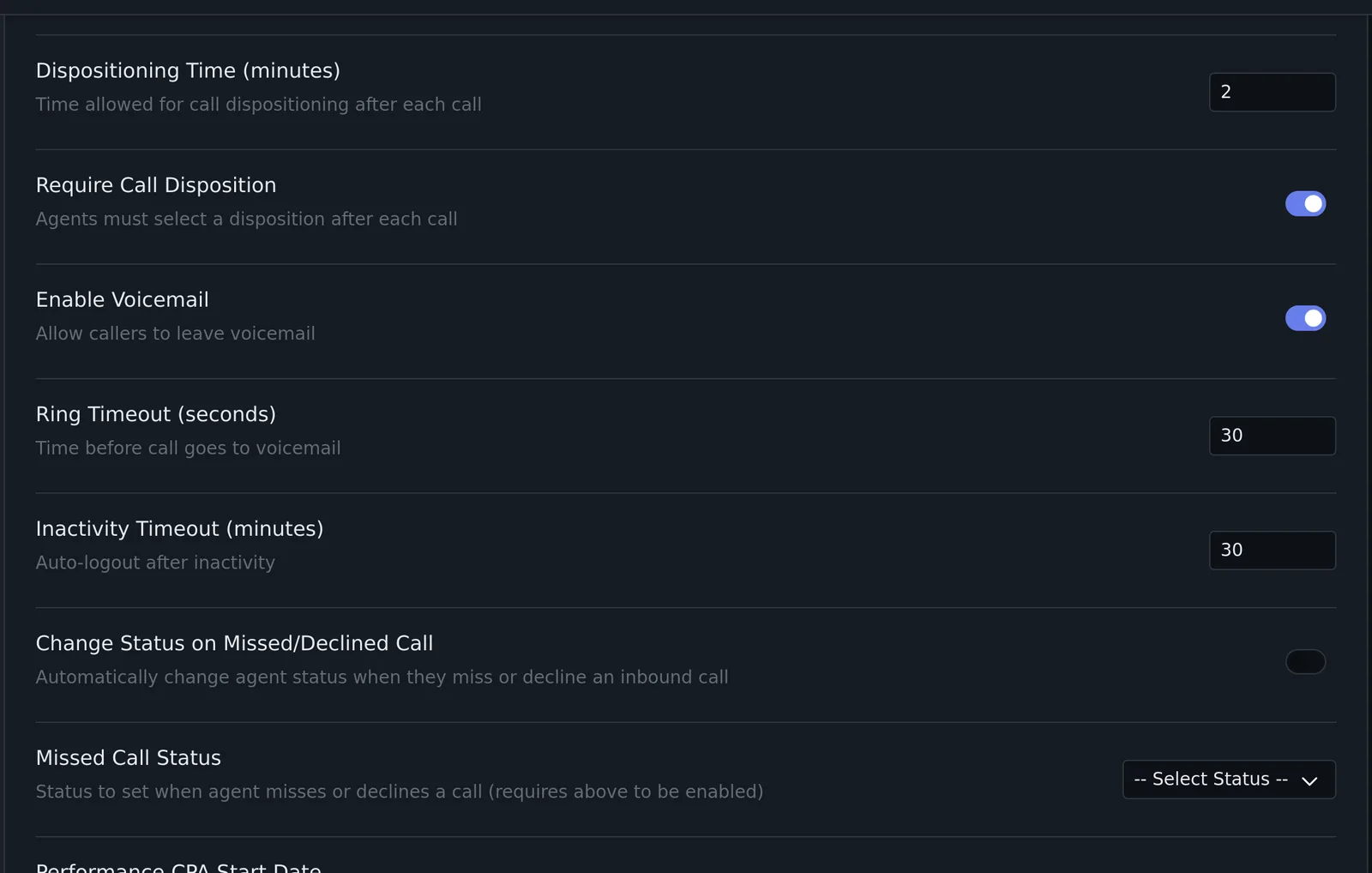
| Setting | What it does |
|---|---|
| Dispositioning Time (minutes) | Time allowed to disposition after each call. |
| Require Call Disposition | Agents must pick a disposition after each call. |
| Enable Voicemail | Callers can leave voicemail. |
| Ring Timeout (seconds) | Time before the call goes to voicemail. |
| Inactivity Timeout (minutes) | Agents are logged out after this long without activity. |
| Change Status on Missed/Declined Call | Moves an agent who misses or declines an inbound call to the Missed Call Status you pick (for example Break). |
Performance and callbacks
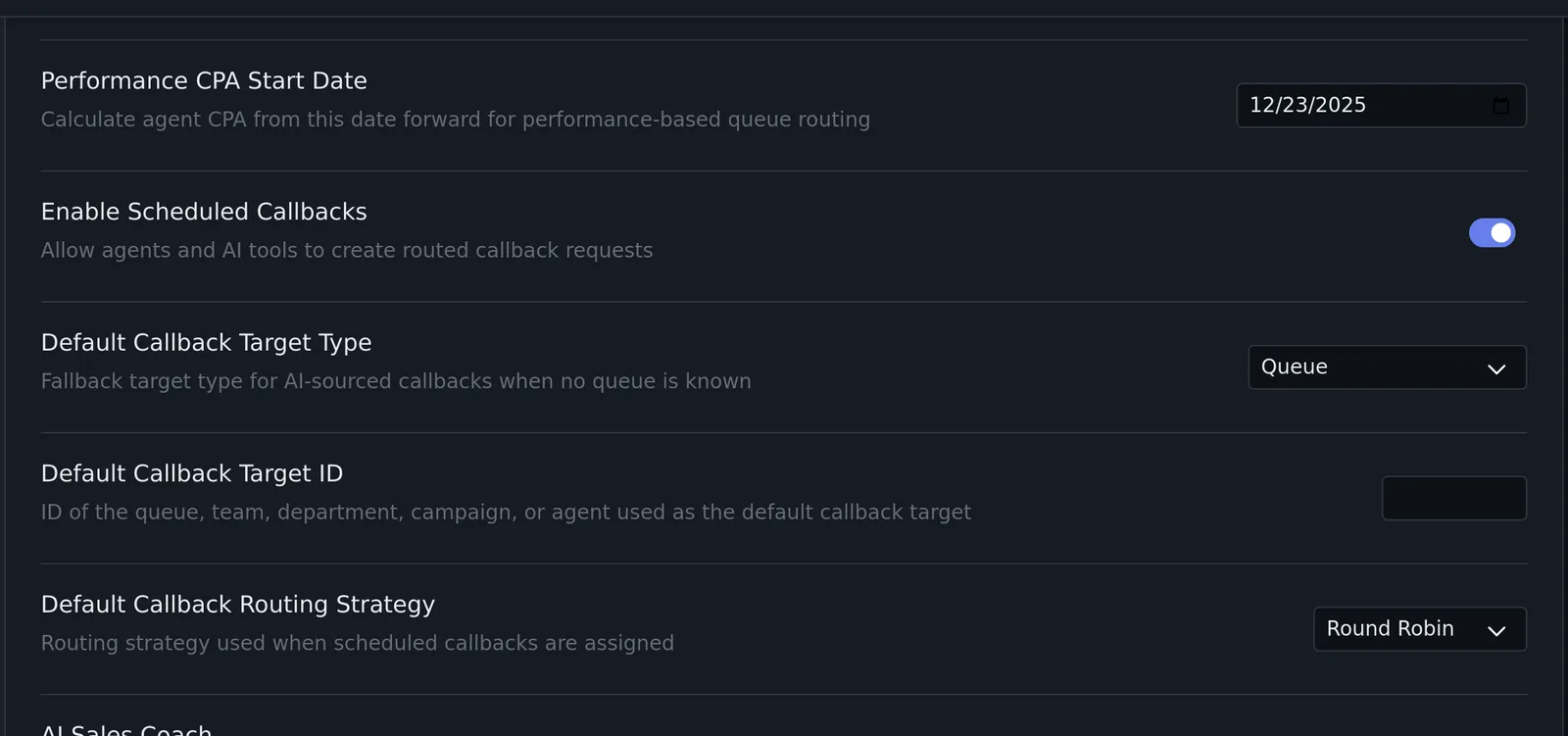
| Setting | What it does |
|---|---|
| Performance CPA Start Date | Agent cost per acquisition is calculated from this date for performance-based queue routing. |
| Enable Scheduled Callbacks | Agents and AI tools can create routed callback requests. |
| Default Callback Target Type / Target ID | Where AI-created callbacks go when no queue is known: a queue, team, department, outbound campaign or agent, by its ID. |
| Default Callback Routing Strategy | Round Robin, Longest Idle, Performance or Specific Agent. |
AI, transcription and compliance
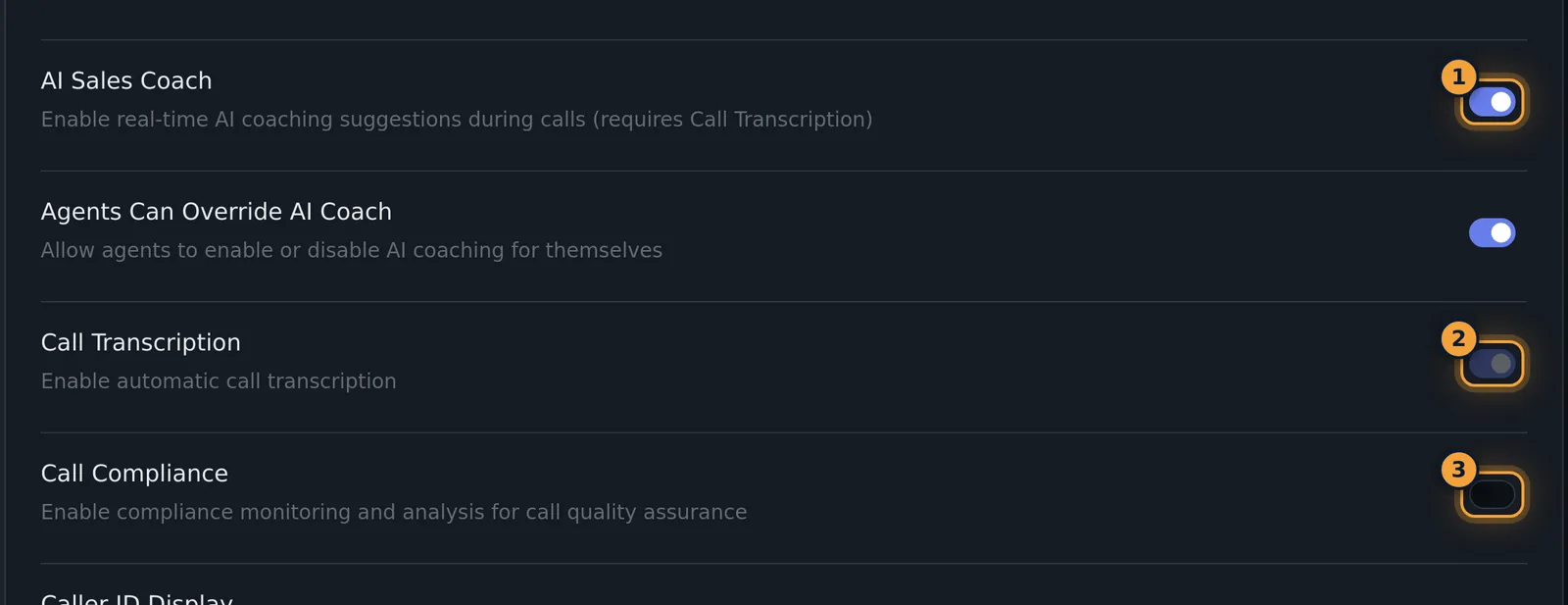
| Setting | What it does |
|---|---|
| AI Sales Coach | Real-time coaching suggestions during calls. Turning it on also turns on Call Transcription and locks it on. See AI Sales Coach. |
| Agents Can Override AI Coach | Agents can turn coaching on or off for themselves. |
| Call Transcription | Transcribe calls. See AI Call Transcription. |
| Call Compliance | Compliance analysis of calls. See Compliance Overview. |
Caller ID
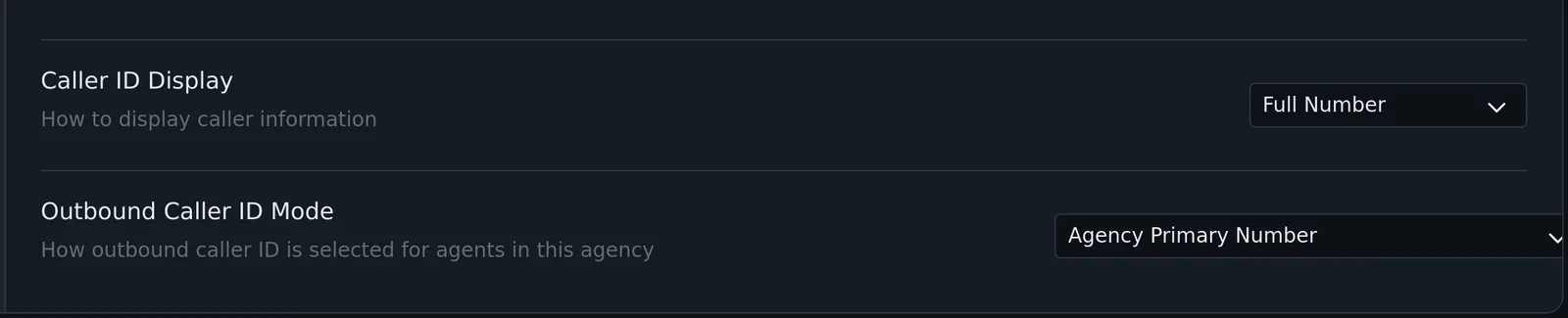
| Setting | What it does |
|---|---|
| Caller ID Display | How agents see the caller's number: Full Number, Partial (Last 4 digits) or Hidden. |
| Outbound Caller ID Mode | The number outbound calls show: Agency Primary Number, Agent's Assigned Number, Random From Agency Pool, or Match Destination Area Code (local presence). |
Email Domain
Lets agents email contacts from addresses on your own domain, such as agent@youragency.com.
- Enter the Domain Name without http:// or www, for example youragency.com.
- Select Authenticate Domain.
- Add the DNS records the tab then lists at your DNS provider, and select Verify Domain. DNS changes can take up to 48 hours to be detected.
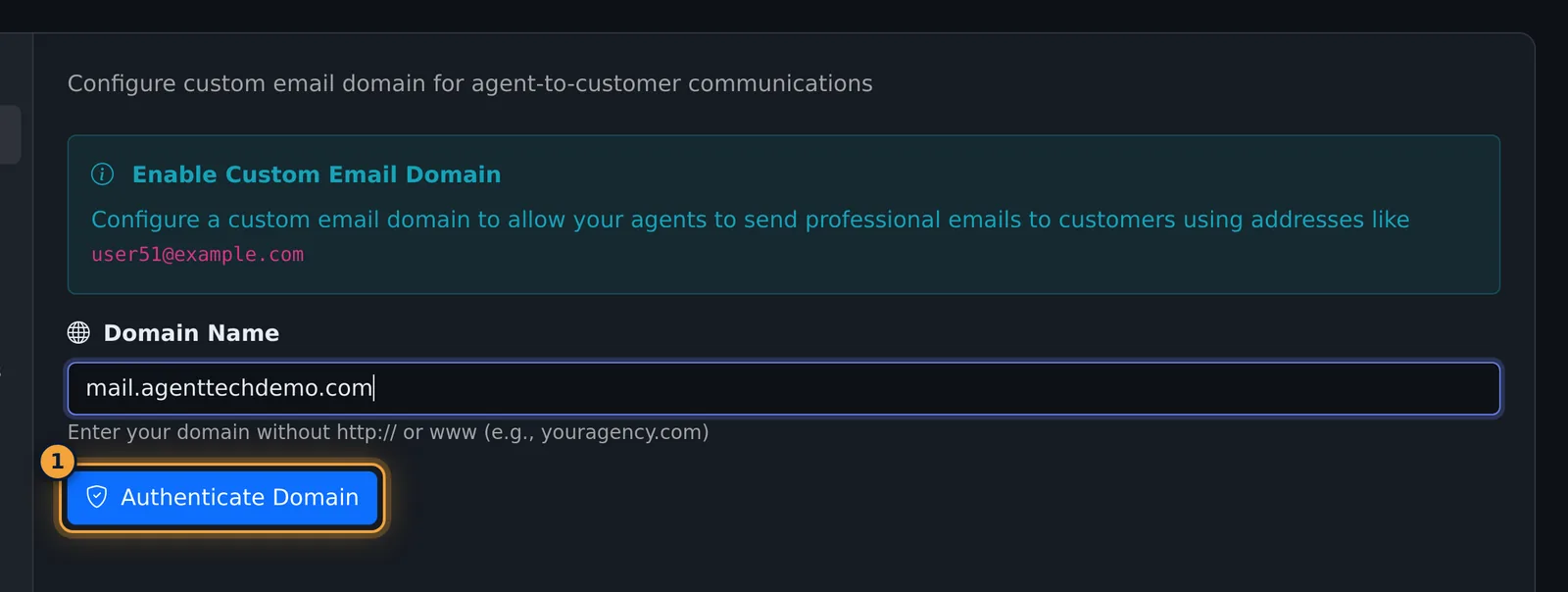
Once the domain is verified, set the Default From Name and Reply-To Email agents' emails use, and select Save Settings.
See Sending Emails.
Contact Custom Fields
Fields added here appear on every contact in the agency, for example a Preferred Contact Time dropdown.
- Select Add Custom Field.
- Enter the Field Name (the label on contact forms) and pick the Field Type: Text (Single Line), Text (Multi-Line), Number, Date, Email, Phone Number, URL or Dropdown Select. A dropdown needs its options; Add Option adds one.
- Optionally add Placeholder Text, and tick Required Field (agents must fill it in when saving a contact) or Show in Dialer Contact Widget (the field appears in the contact form during calls).
- Select Save Field.
Dashboard Widgets
Sets which widgets agents see on their dashboard, in which zone (Top, Left, Right, Bottom) and order. Each widget has an on/off switch, a zone, up and down buttons, and optional label and icon overrides. Required widgets, such as Connection Status, stay visible. Select Save Layout to apply your layout, or Reset to go back to the default layout.
SMS Settings
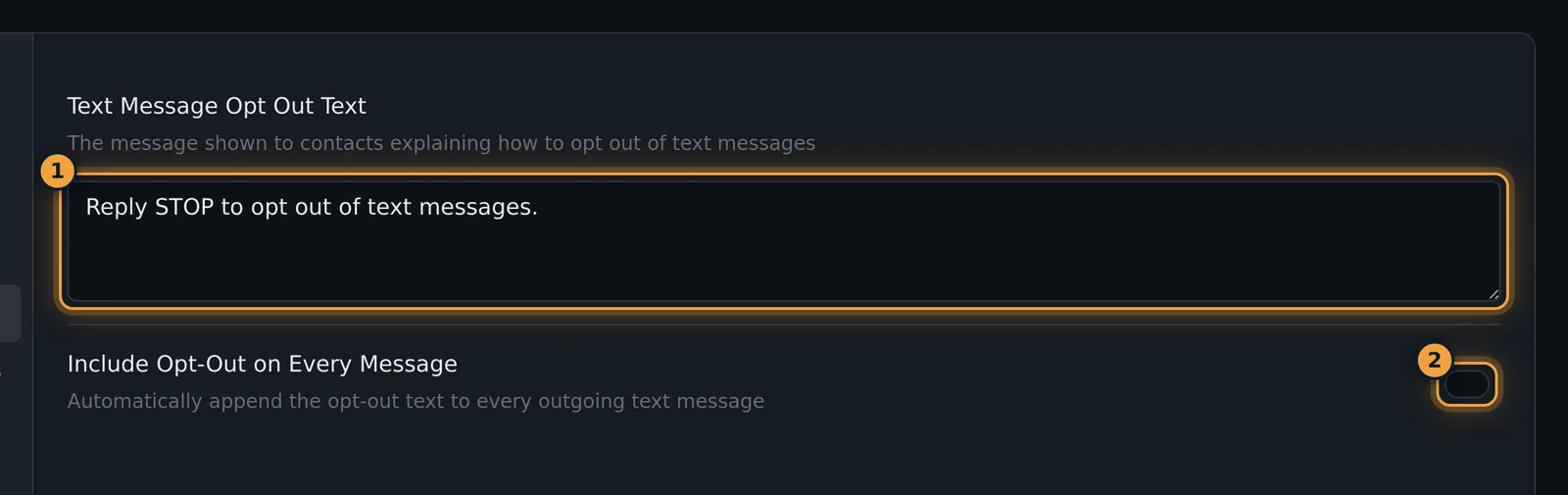
Text Message Opt Out Text is the message that tells contacts how to stop texts, for example "Reply STOP to opt out of text messages." Include Opt-Out on Every Message adds it to every outgoing text. See SMS Messaging.
Billing, Agent Wallets and Transaction History
The wallet balance, Add Funds, auto-recharge, per-agent wallets and the transaction list are covered in Billing & Your Wallet and Adding Funds & Auto-Recharge.
API Keys
Lists the agency's API keys for other systems. See API Keys.
Vendor Scrubs
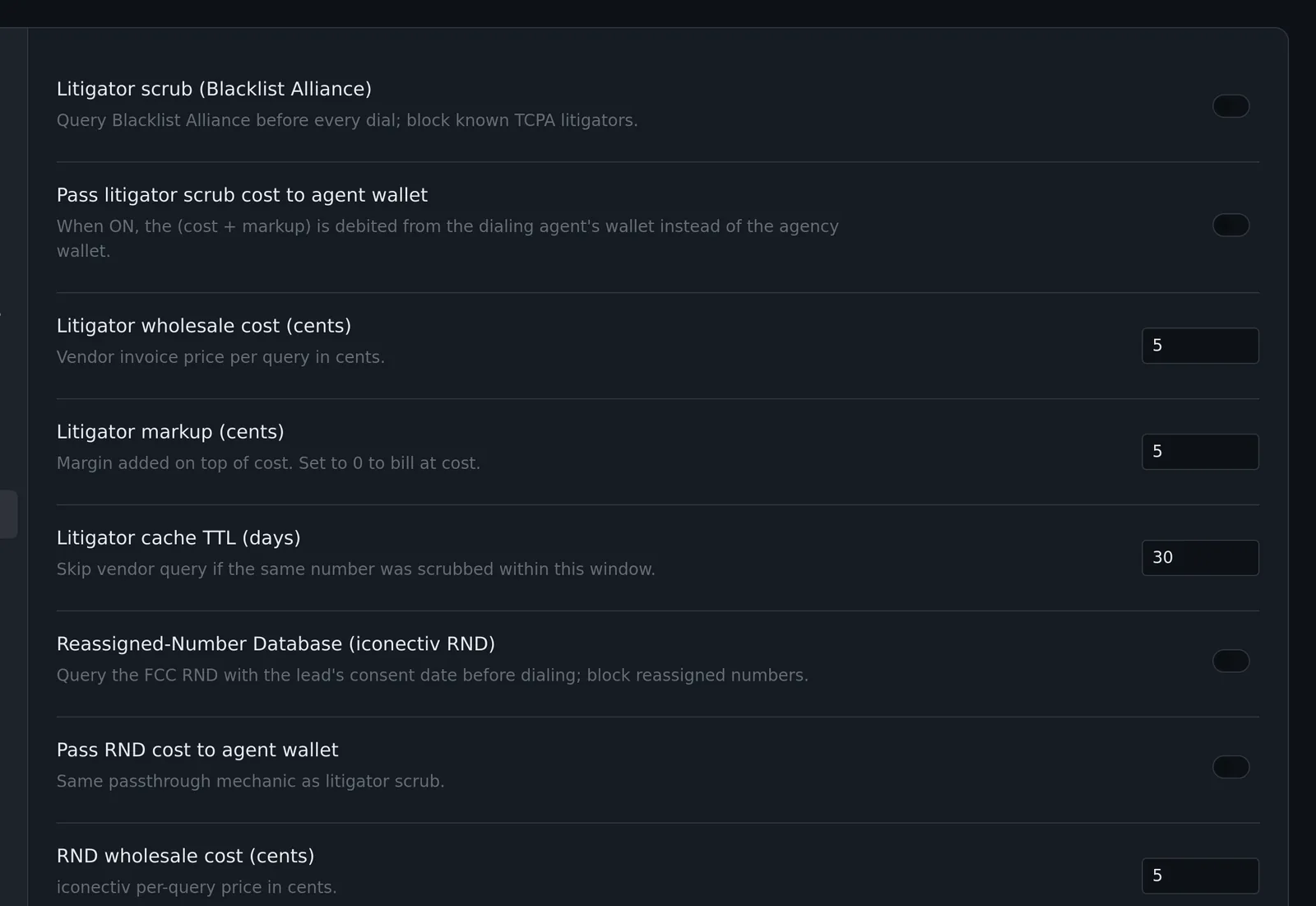
Checks numbers before they are dialed:
- Litigator scrub (Blacklist Alliance): blocks known TCPA litigators.
- Reassigned-Number Database (iconectiv RND): checks the FCC database with the lead's consent date and blocks reassigned numbers.
For each one you set the wholesale cost and markup per check in cents, whether the cost is charged to the dialing agent's wallet instead of the agency wallet, and a cache period in days during which a number checked recently isn't checked again.
Common problems
- A change didn't stick: wait for "Settings saved", or select Save Settings.
- I can't turn off Call Transcription: AI Sales Coach is on and needs it. Turn off AI Sales Coach first.
- Agents can't change auto-answer or recording: turn on the matching Agents Can Override setting.
Related articles
Was this article helpful?
Can't find what you are looking for? Our support team can help.
Submit a support ticket