Transcript
A status tells everyone what an agent is doing. Here is how to add your own statuses, and hide or remove them.
Open Statuses under Agency Management. The System Default statuses, like Available and Busy, come with every agency and can't be changed.
To add your own, select Create Status, and enter a Status Name, like Licensing Study.
Pick a Status Color and a Display Order. The preview shows it as agents will see it. Then select Create Status.
Your status appears as a card, with an on and off switch, and edit and delete buttons.
Switch it off to hide it. Agents can no longer pick it, and the card shows Inactive. Switch it on to bring it back.
Select the pencil to edit it. Edit Status adds Active, visible to agents. Change what you need, and select Save Changes.
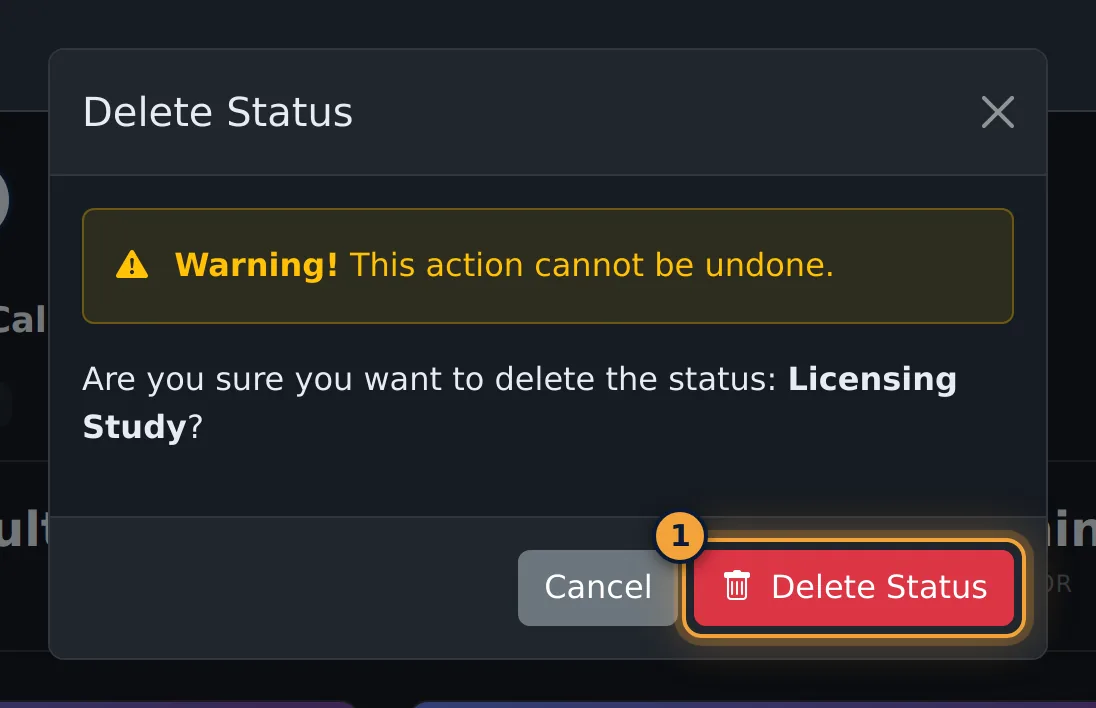
To remove it, select the bin, and confirm with Delete Status.
Next, see how agents' statuses show up on the Supervisor Dashboard.
A status tells everyone what an agent is doing: Available, On A Call, Lunch, and so on. Agents pick their status from the status menu at the top of their screen. Agency Management > Statuses lists the statuses your agency has and lets you add your own.
This article is for agency admins.
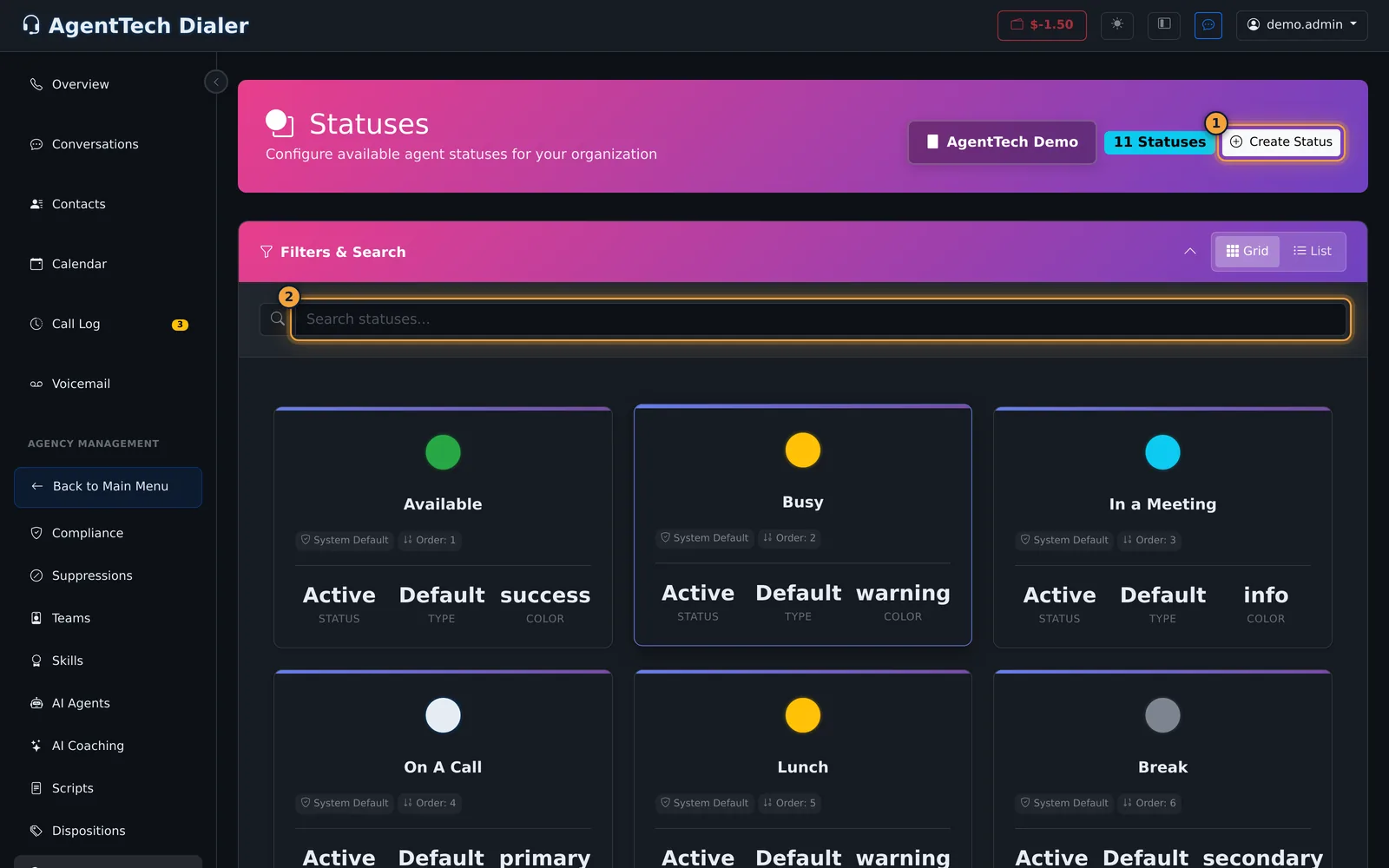
Built-in statuses
These System Default statuses come with every agency. They can't be edited, switched off or deleted.
| Status | Order | Colour |
|---|---|---|
| Available | 1 | Green |
| Busy | 2 | Yellow |
| In a Meeting | 3 | Blue |
| On A Call | 4 | Primary blue |
| Lunch | 5 | Yellow |
| Break | 6 | Gray |
| Training | 7 | Blue |
| Offline | 8 | Gray |
| Disconnected | 9 | Red |
| Dispositioning | 10 | Blue |
Each card shows the status name, its scope (System Default, your agency or Global), its display order, and whether it is Active, Default or Custom.
Create a custom status
- Select Create Status.
- Enter a Status Name, for example Licensing Study.
- Pick a Status Color: Green (Available), Yellow (Away), Red (Busy), Blue (Information), Primary Blue, Gray or Dark.
- Set the Display Order. It starts at 10; statuses are listed from the lowest number up.
- Check the Status Preview, then select Create Status.
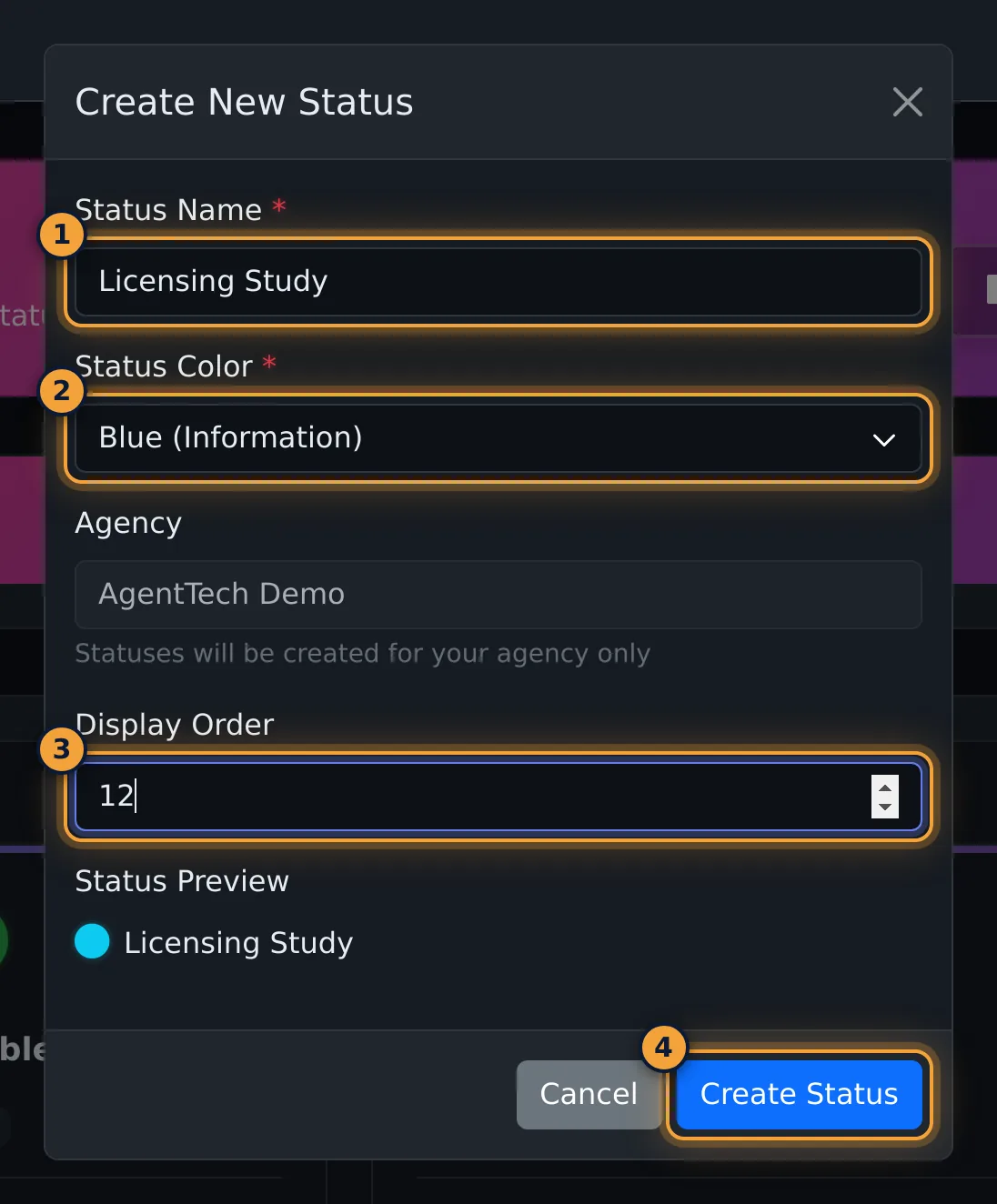
| Field | What it does |
|---|---|
| Status Name | Required. What agents see in their status menu. Use a name that isn't already a built-in status. |
| Status Color | Required. The dot colour next to the name. |
| Agency | Read-only. Statuses you create belong to your agency only. |
| Display Order | Position in the list, lowest first. |
The new status appears as a card with an on/off switch and edit and delete buttons.
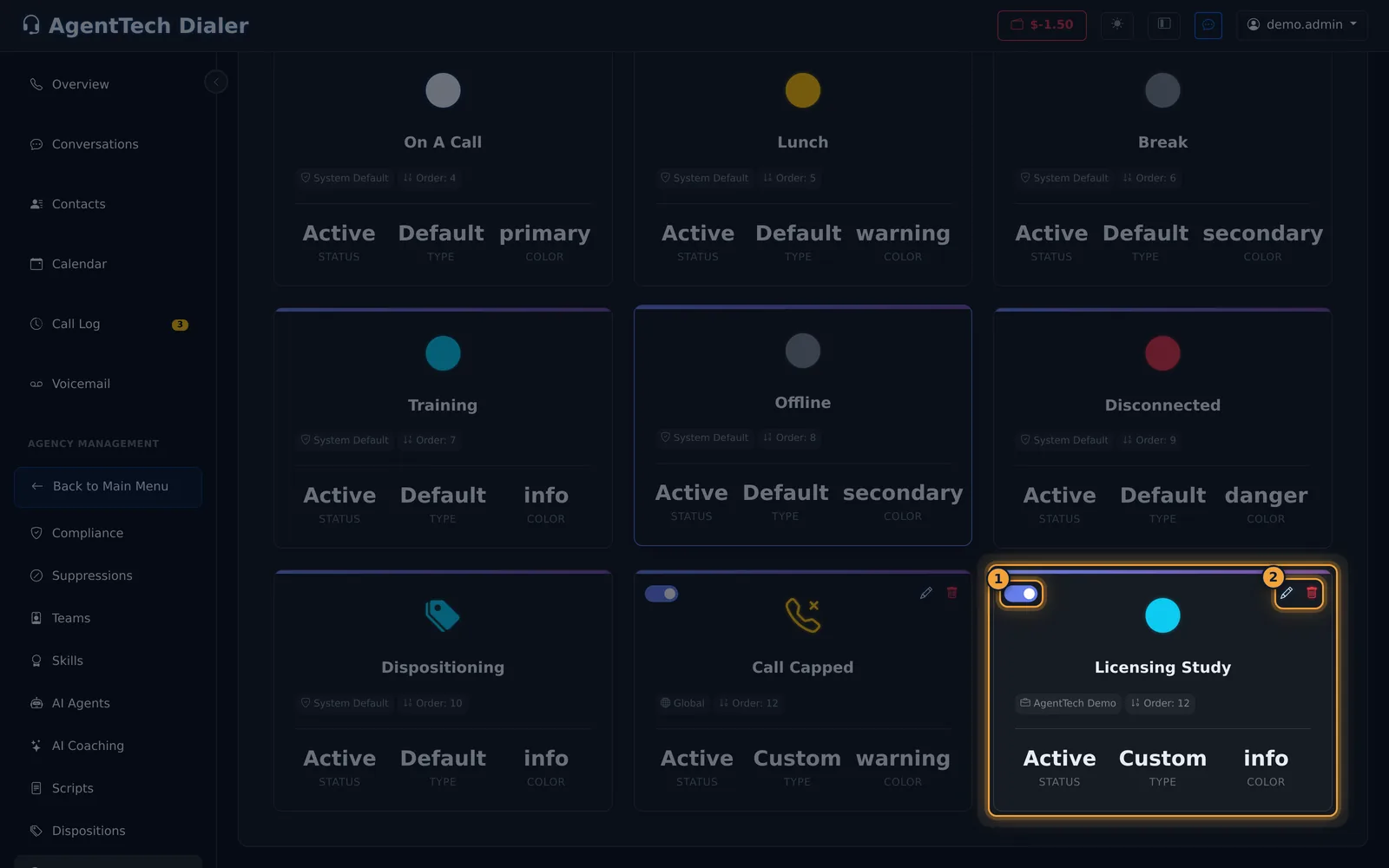
Hide a status without deleting it
Switch off the status's switch. The card turns grey, shows Inactive, and agents can no longer pick the status. Switch it on again to bring it back.
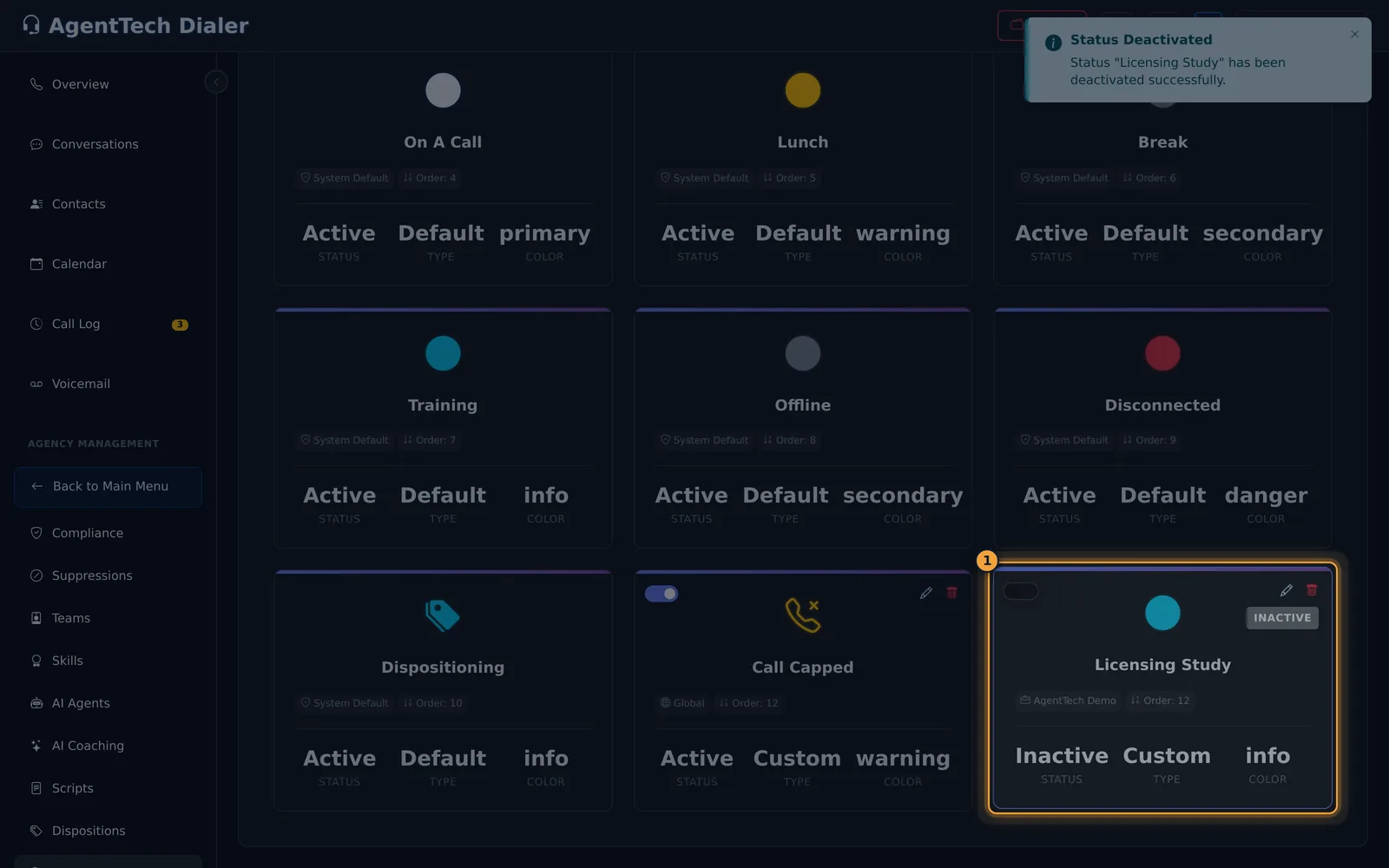
Edit a status
Select the pencil on a custom status. Edit Status has the same fields as Create, plus Active (visible to agents).
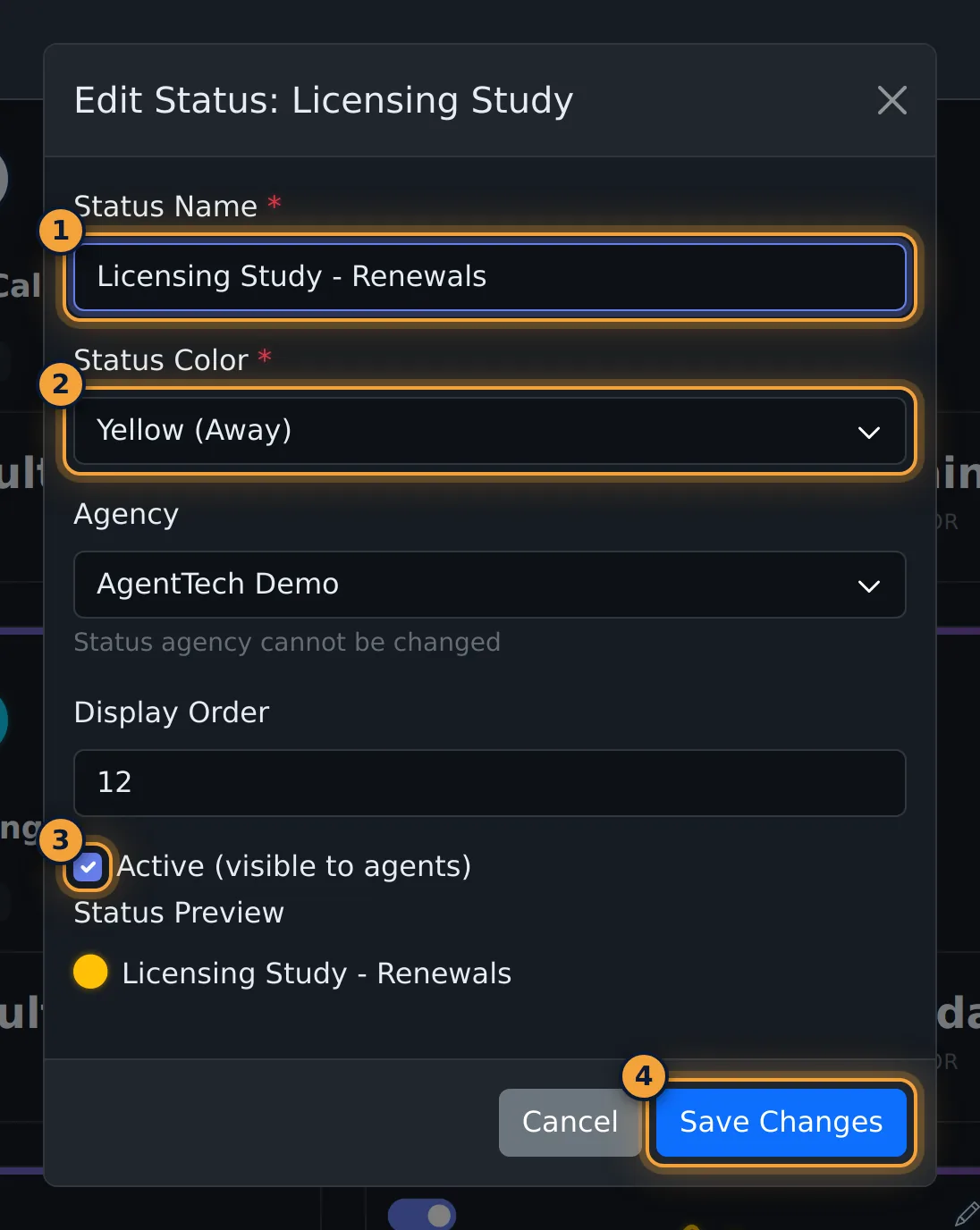
Change the name, colour or display order, or untick Active (visible to agents) to hide the status, then select Save Changes.
Delete a status
Select the bin on a custom status and confirm with Delete Status. If agents are still using the status, the window says so and offers Force Delete, which takes the status off those agents and then deletes it.
Common problems
- A status has no switch or buttons. It is a System Default status and can't be changed.
Related articles
Was this article helpful?
Can't find what you are looking for? Our support team can help.
Submit a support ticket