Transcript
Compliance analysis reads the transcript of each recorded call and answers a list of questions about it. Here is how it works, and where to set it up.
Each call is recorded and transcribed. AI then answers every active question from the transcript, and the yes-or-no answers are scored into a pass rate.
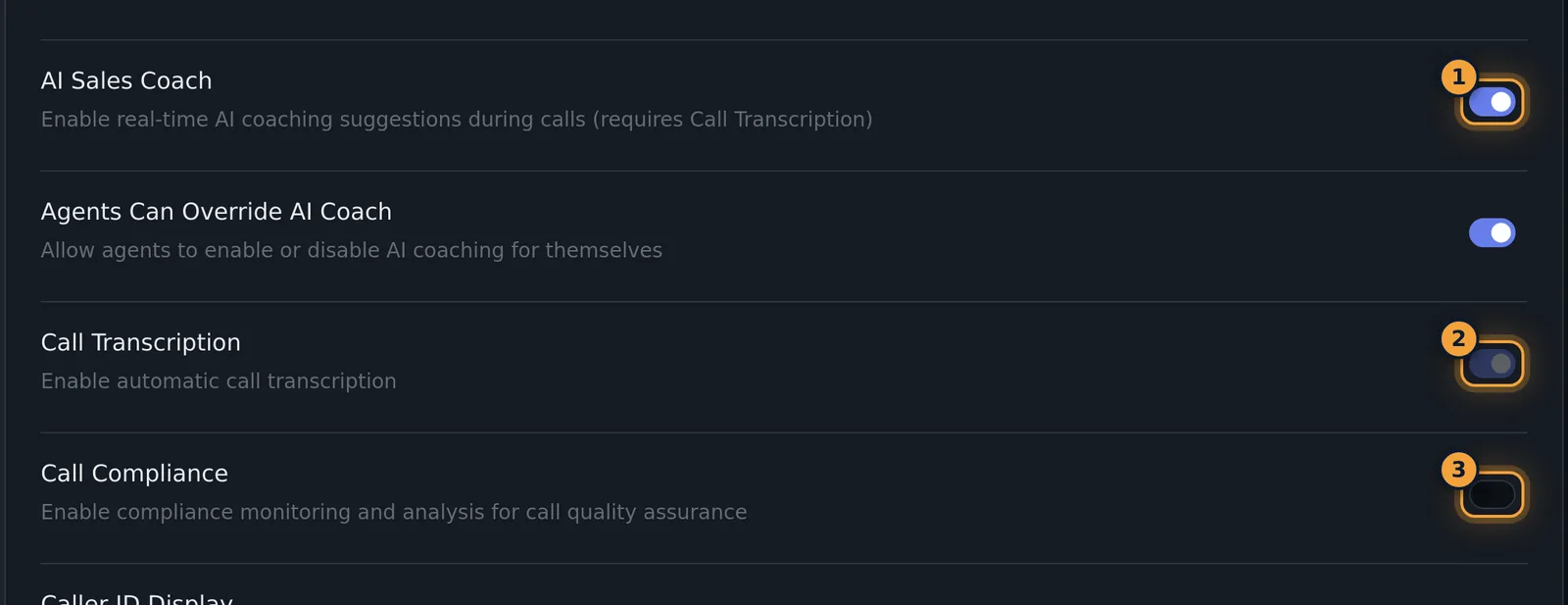
To turn it on, open Agency Settings, and under Call Settings, turn on Call Compliance. Keep call recording and Call Transcription on as well.
Platform questions are set by AgentTech and asked on every call. Agency questions are yours, under Agency Management, Compliance.
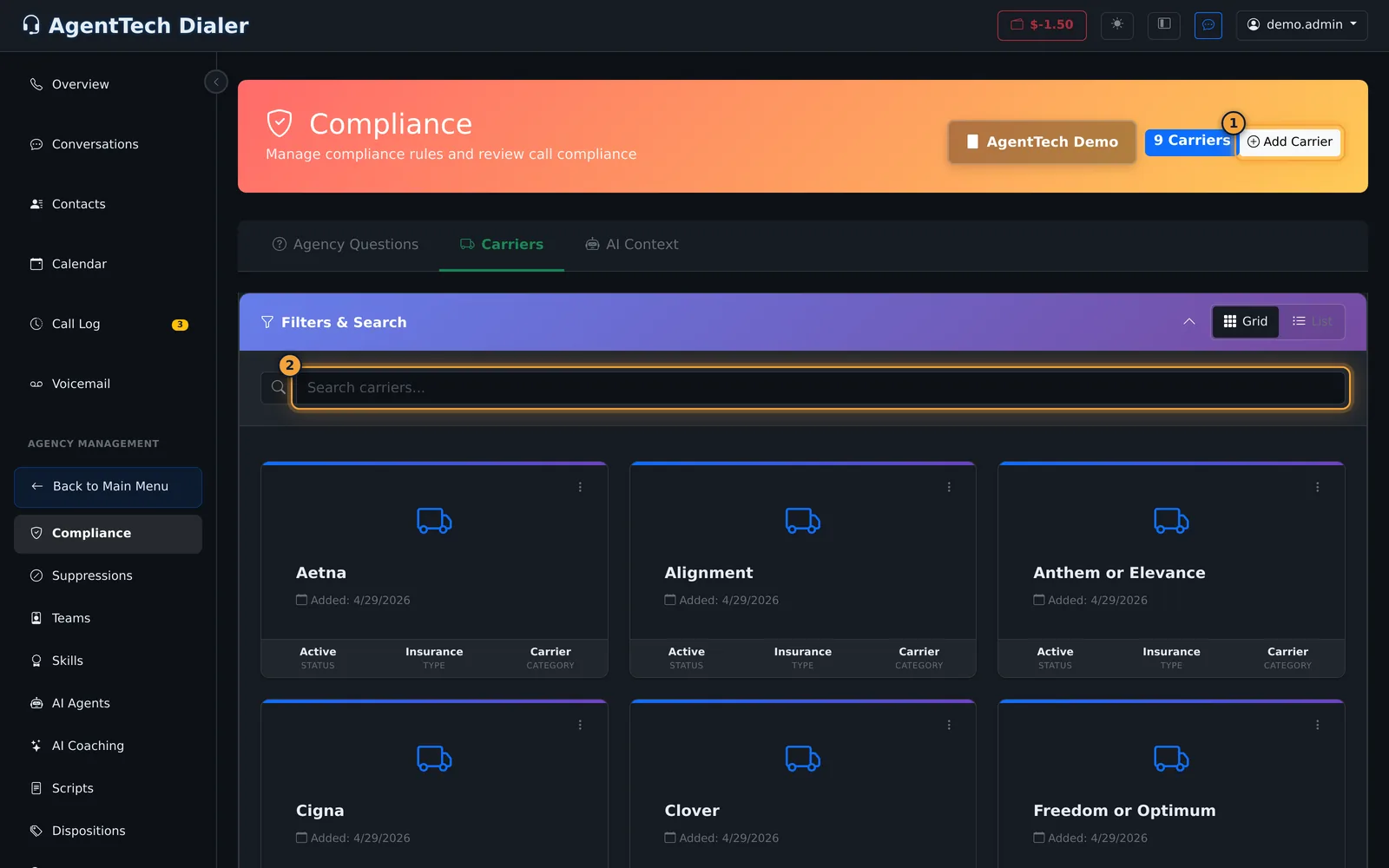
The Carriers tab lists the carriers AI can name when a policy is sold, and AI Context describes who is on your calls.
Calls with a recording or transcript that last at least thirty seconds are analysed. In the Call Log, Compliance Check opens a call's results.
The results page shows the pass rate, a written sales review, and every question with its answer.
Next, learn how to add and manage your agency's own compliance questions.
Compliance analysis reads the transcript of a recorded call and answers a list of questions about it, such as "Did the agent advise that the call is recorded?". Each analysed call gets a pass rate and a question-by-question list, so supervisors can see which calls were flagged and review them.
This article is for agency admins and supervisors.
How it works
- The call is recorded and transcribed. Calls need a recording (or a transcript) and enough length before they can be analysed.
- AI answers each active compliance question from the transcript.
- Each Yes/No or True/False question that counts toward the pass rate passes or fails. Other answers, such as the carrier sold, are recorded as given.
- The results appear on the call's Call Compliance Check page, and compliance rates appear in Reports.
Turn it on
In Agency Settings > Call Settings, turn on Call Compliance ("Enable compliance monitoring and analysis for call quality assurance"). Keep Enable Call Recording and Call Transcription on as well, because the analysis works from the transcript. See Agency Settings.
What the analysis asks
There are two sets of questions:
- Platform questions are set by AgentTech and asked on every analysed call, for example "Was a policy sold during the conversation between the selling agent and customer?", which carrier it was sold to, whether the caller gave verbal consent, and the caller's name. You don't edit these.
- Agency questions are yours. Add, edit, switch off and order them on Agency Management > Compliance. An agency question can depend on a platform answer, for example only asking which plan was sold when a policy was sold.
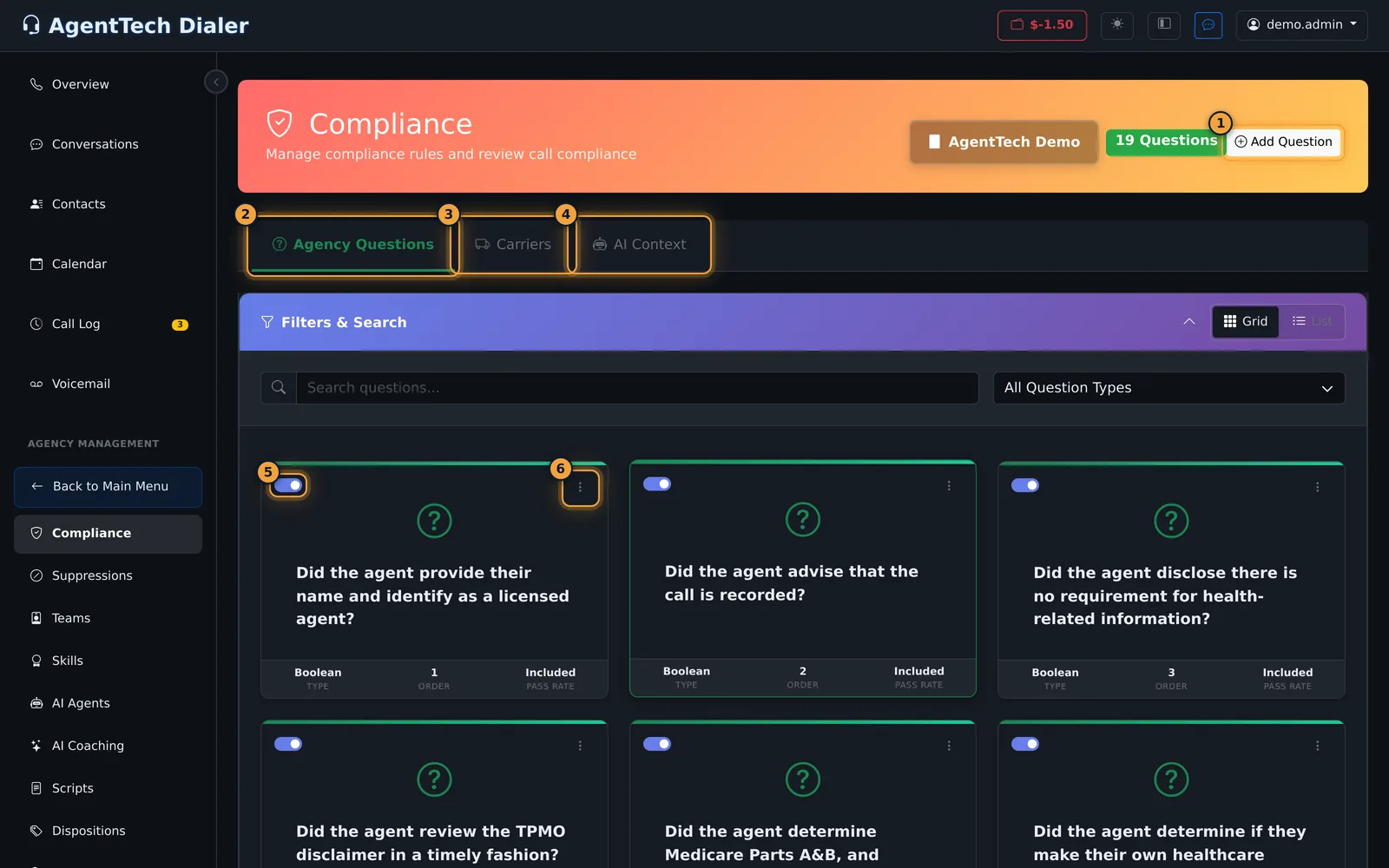
The same page holds two more tabs:
- Carriers: the insurance carriers your agency sells. They are the answers AI can give to the carrier question.
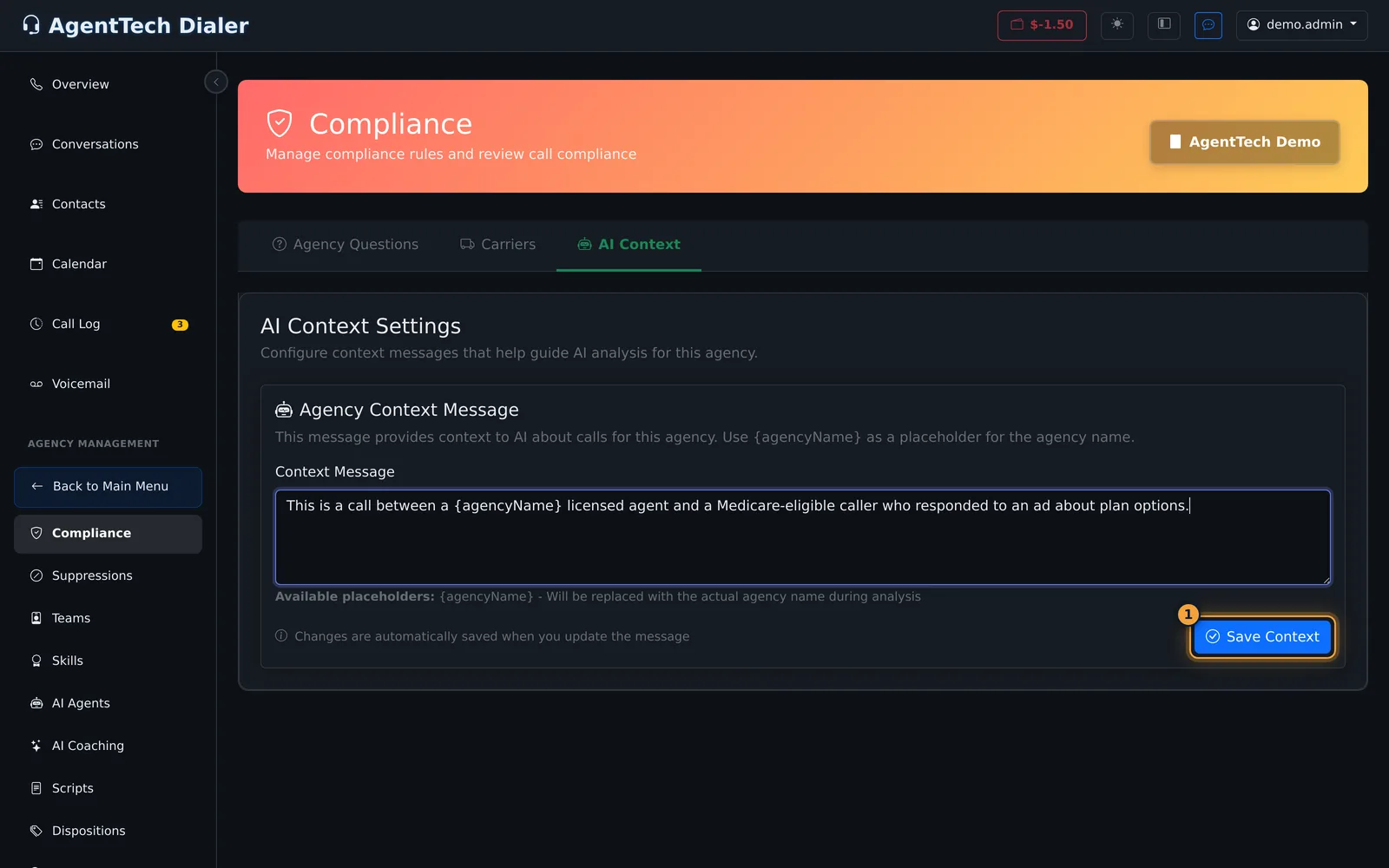
- AI Context: one sentence that tells AI who is on the call, such as "This is a call between a {agencyName} licensed agent and a Medicare-eligible caller".
For step-by-step instructions, see Managing Compliance Questions.
Which calls are analysed
Once Call Compliance is on, calls qualify for analysis when they have a recording or transcript and lasted at least 30 seconds (or already have a transcript). Each call's results open from the Compliance Check button in the Call Log: the pass rate, a written sales review and every question with its answer. How to read them is in AI Compliance Analysis.
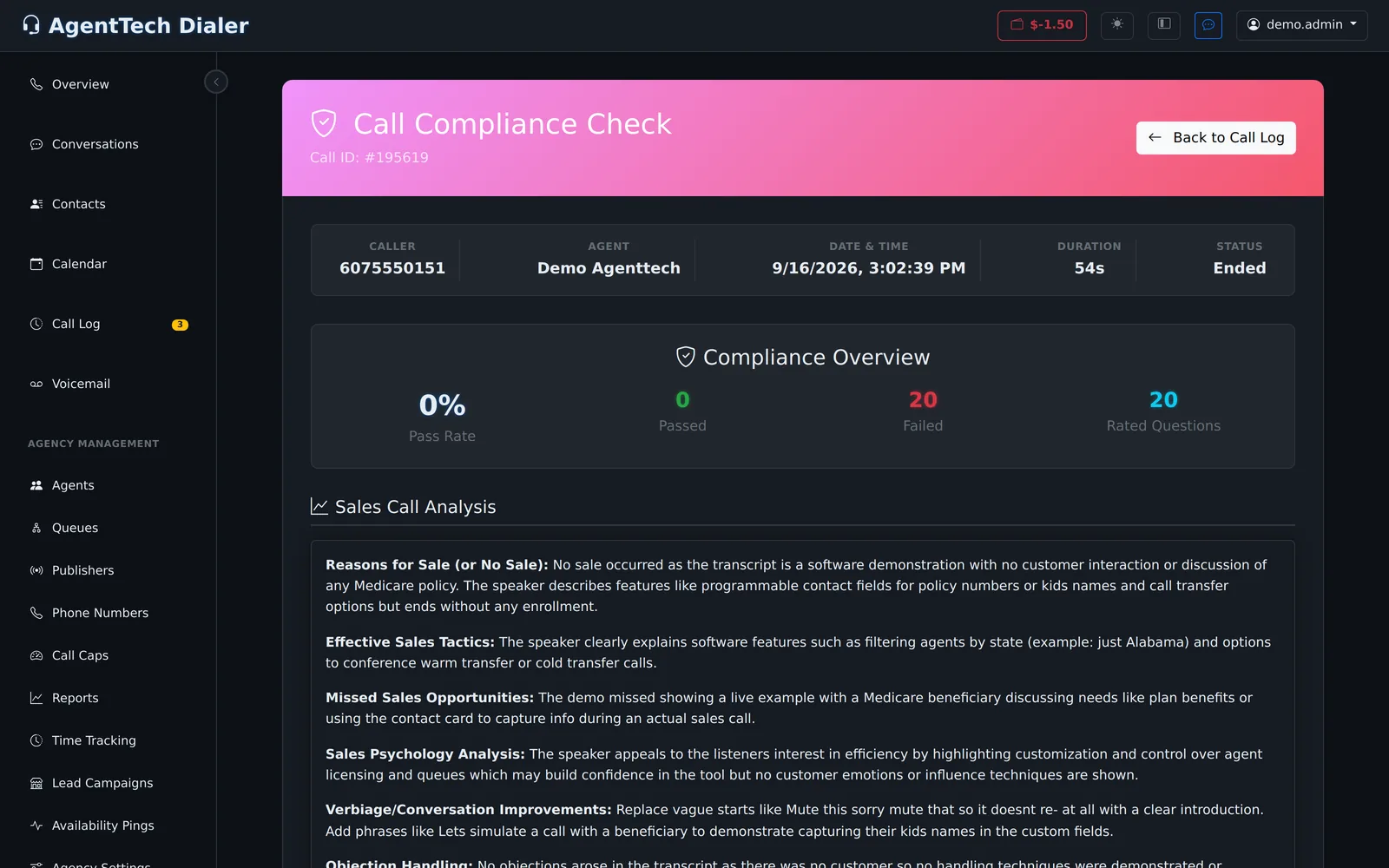
Compliance rates by agent, queue and other groupings also appear in Reports.
Setup checklist
- Turn on Enable Call Recording, Call Transcription and Call Compliance in Agency Settings.
- Review the agency questions: switch off any that don't apply, and add your own disclosures.
- Add every carrier you sell on the Carriers tab.
- Set the AI Context to describe who is on your calls, and select Save Context.
- After a few calls, open some results and reword questions that fail when the agent did say the right thing.
Common problems
- Results are missing for a call: see the common problems in AI Compliance Analysis.
- The AI Context didn't change: edit the message and select Save Context.
- A question is always failed: check its wording. AI answers the question as written, from the transcript only.
- The carrier answer is wrong or missing: add the carrier on the Carriers tab so AI can name it.
Related articles
Was this article helpful?
Can't find what you are looking for? Our support team can help.
Submit a support ticket