White labeling replaces the AgentTech Dialer name and icon with your agency's own, and serves the dialer from a hostname you already own, such as dialer.youragency.com. Users sign in there and see your branding.
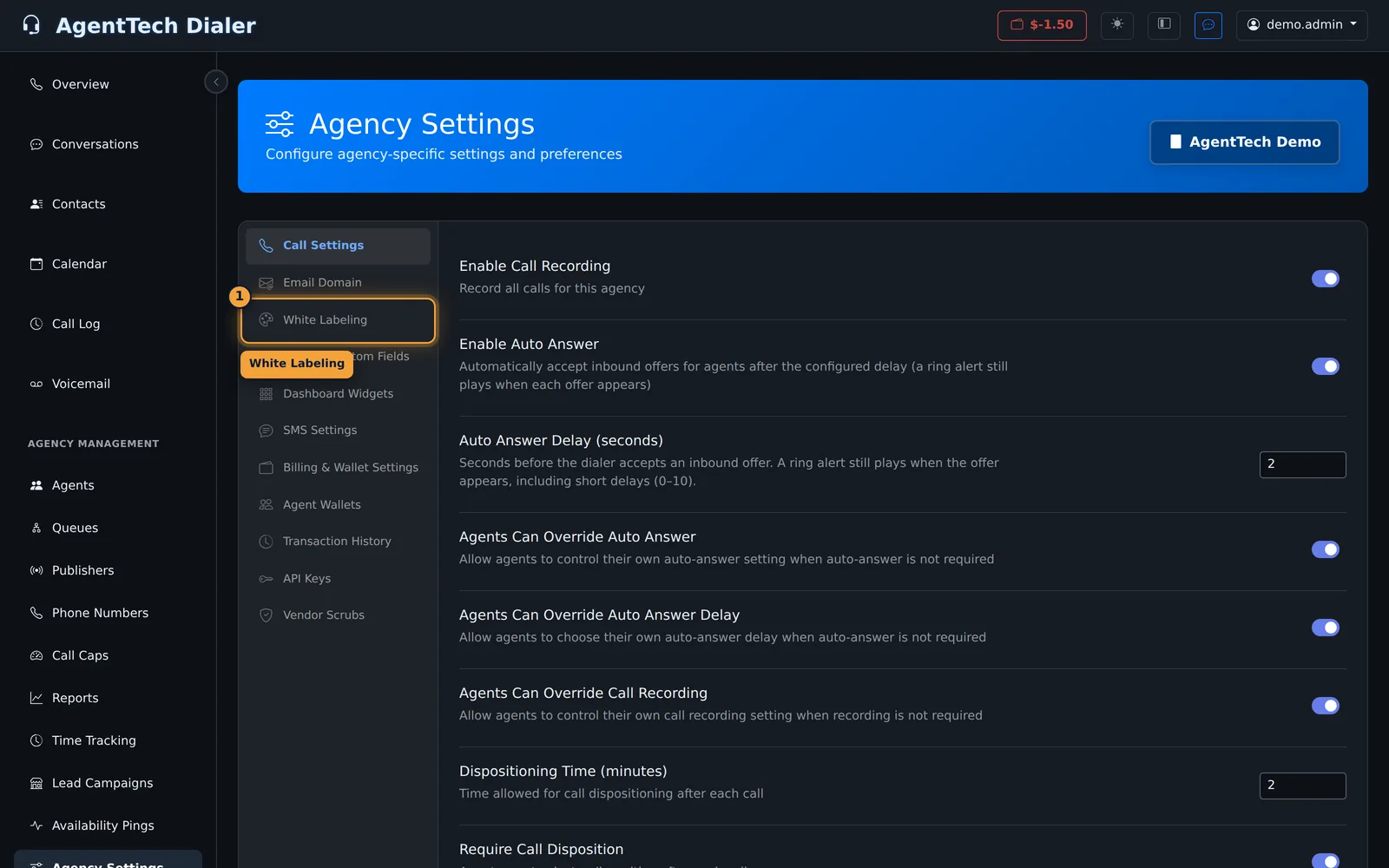
This article is for agency admins on an enterprise plan. Open Agency Management > Agency Settings and select White Labeling. It sits between Email Domain and Contact Custom Fields.
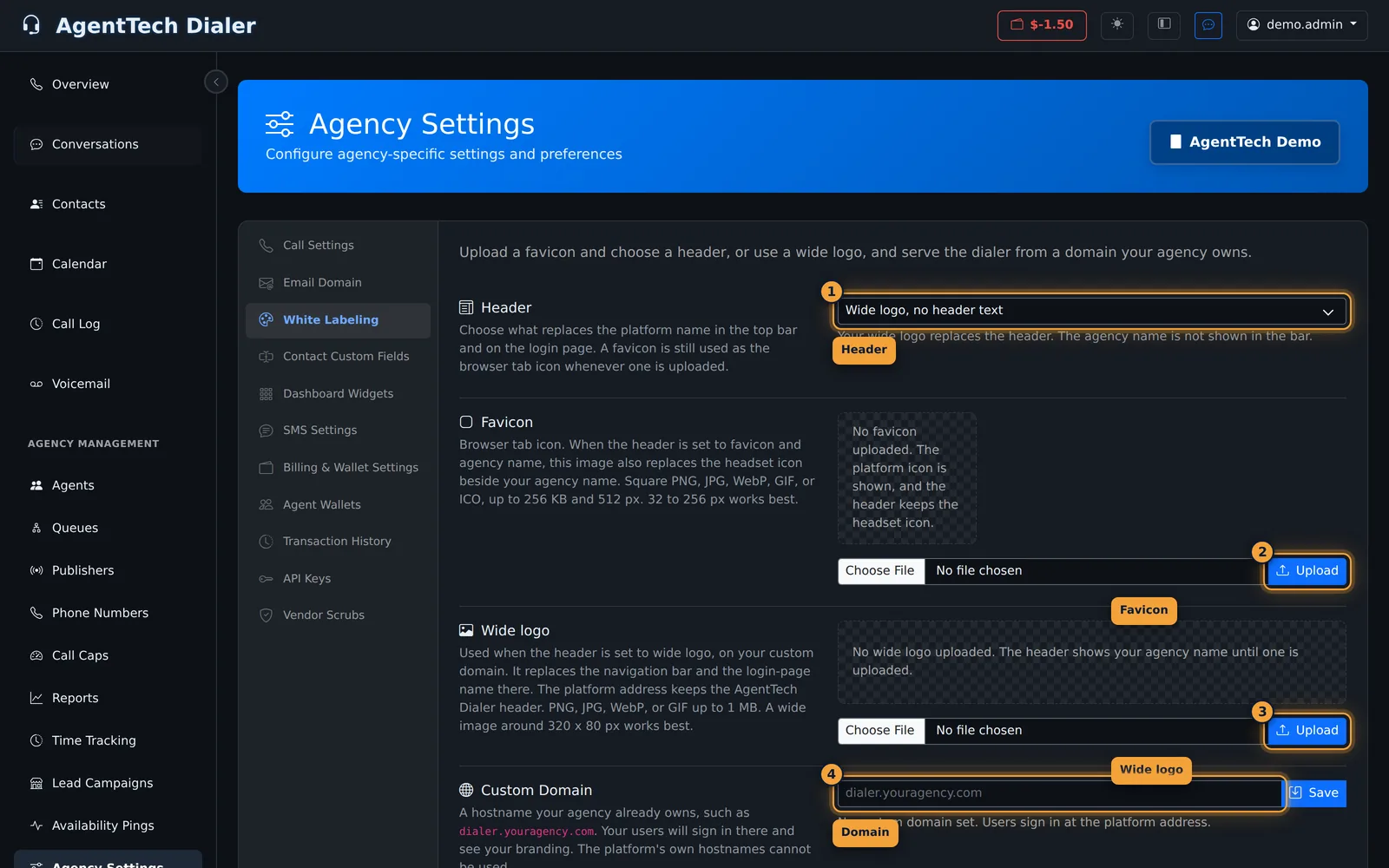
The tab introduces itself as uploading a favicon and choosing a header, or using a wide logo, and serving the dialer from a domain your agency owns.
Branding applies on your custom domain. The platform address keeps the AgentTech Dialer header and icon.
Header
Header is what replaces the platform name in the top bar and on the login page. Changing it saves immediately.
| Header | What users see |
|---|---|
| Favicon and agency name | The usual dialer header, with your favicon in place of the headset icon and your agency name beside it. |
| Wide logo, no header text | Your wide logo replaces the header. The agency name is not shown in the bar. |
A favicon is still the browser-tab icon whenever one is uploaded, whichever header you pick.
Favicon
The favicon is the browser-tab icon. With Favicon and agency name, it also replaces the headset icon next to the agency name.
Use a square PNG, JPG, WebP, GIF or ICO, up to 256 KB and 512 px. 32 to 256 px works best. Choose the file and select Upload. Until you do, the platform icon is shown and the header keeps the headset icon. Remove favicon appears after one is uploaded and puts the platform icon back.
Wide logo
The wide logo is used when the header is Wide logo, no header text, and only on your custom domain. It replaces the navigation bar and the name on the login page there.
Use a PNG, JPG, WebP or GIF up to 1 MB. A wide image around 320 by 80 px works best. Choose the file and select Upload. Until you do, the header shows your agency name. Remove wide logo appears after one is uploaded. If that header style is still selected, the bar falls back to your agency name.
Custom domain
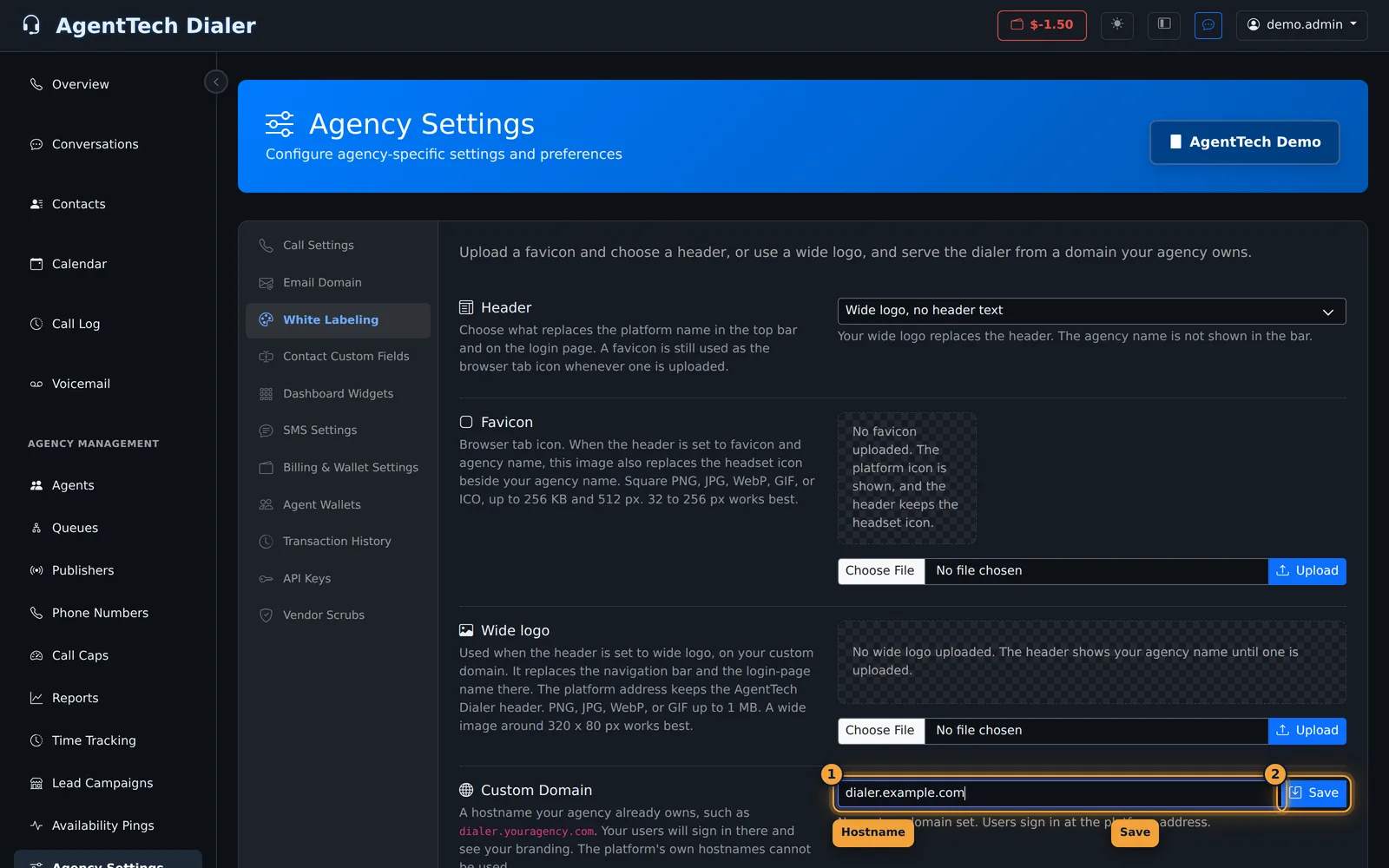
- Enter a hostname your agency already owns, such as dialer.youragency.com. Do not use a platform hostname.
- Select Save.
- The tab shows a Pending DNS badge and the record to create at your DNS provider.
| Type | Name / Host | Value / Target |
|---|---|---|
| CNAME | The hostname you saved | The platform address the tab shows |
DNS changes can take up to 24 hours. When the record resolves, select Verify DNS. After it verifies, the badge changes to Verified and users can sign in at https:// plus that hostname. A certificate is issued automatically the first time someone visits the domain after verification. Re-check DNS runs the check again. Remove (shown once a domain is saved) clears it, and users sign in at the platform address again.
With no domain saved, the tab says no custom domain is set and users sign in at the platform address.
What agents see
On your hostname, the header and the login page use the favicon or wide logo you chose. On the platform address, they still see AgentTech Dialer. The rest of the dialer works the same.
Common problems
- There is no White Labeling tab: the agency is not on an enterprise plan, or white labeling has not been turned on for it.
- The logo never appears on the platform address: that is expected. Branding is served on the custom domain. The platform address keeps AgentTech Dialer.
- Verify DNS fails: the CNAME is missing or has not propagated yet. Wait, then select Verify DNS again. The tab shows the error from the last check.
- The header still shows the agency name: the header is set to Wide logo, no header text and no wide logo is uploaded, or it is set to Favicon and agency name.
- Upload is rejected: the favicon must be a square image up to 256 KB and 512 px. The wide logo must be PNG, JPG, WebP or GIF up to 1 MB.
Related articles
Was this article helpful?
Can't find what you are looking for? Our support team can help.
Submit a support ticket