Transcript
Here is how to listen to your voicemail and your queues' messages, call people back, and set up your greeting.
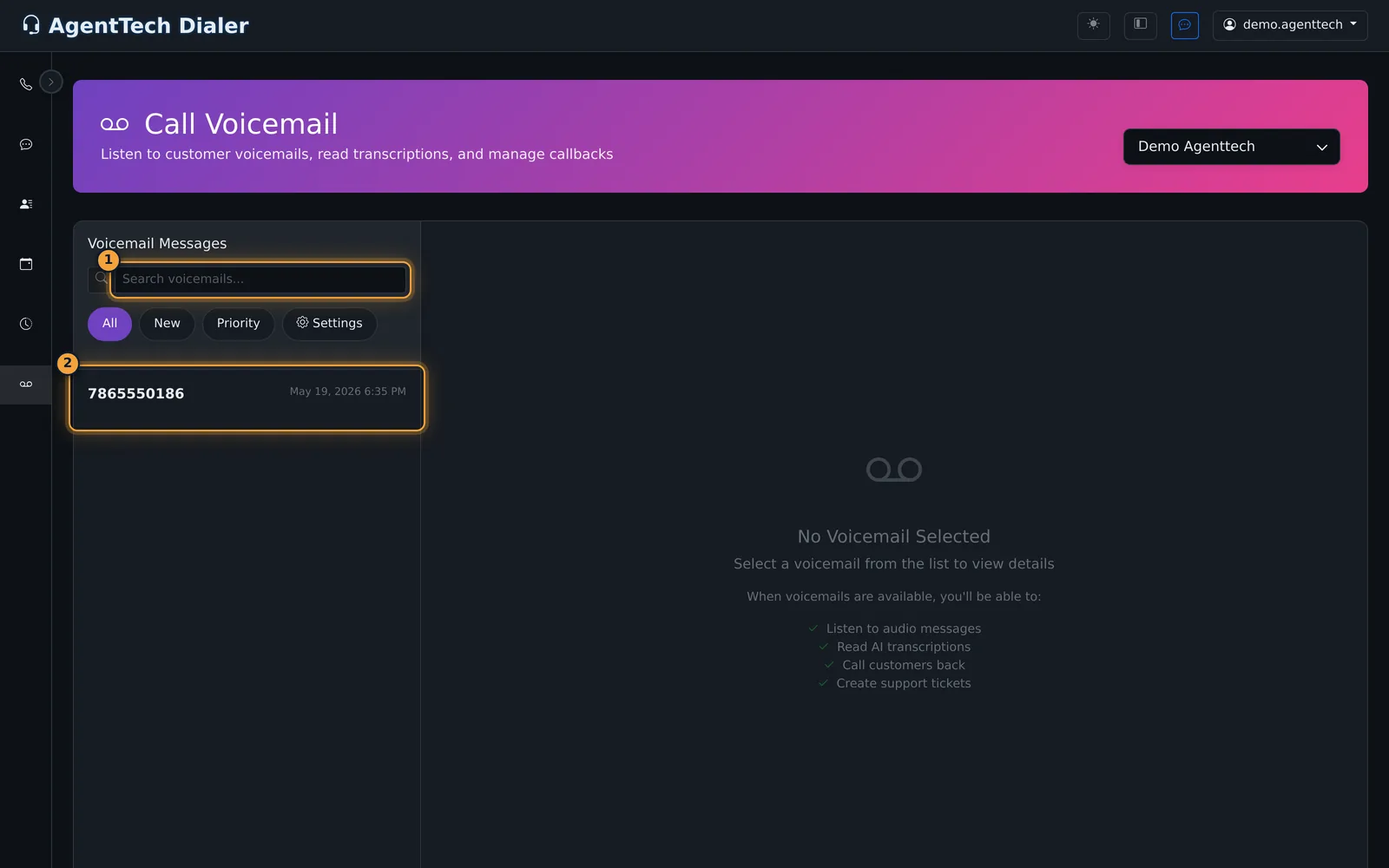
Open Voicemail, the last item in the sidebar. Your own mailbox opens first, with the newest message at the top.
Search by number, or filter the list with All, New, and Priority. Unread messages are highlighted.
Select a message. The right side shows the caller and the time, a player, and the transcription when there is one.
Call Back dials the caller from your softphone, and Delete removes the message.
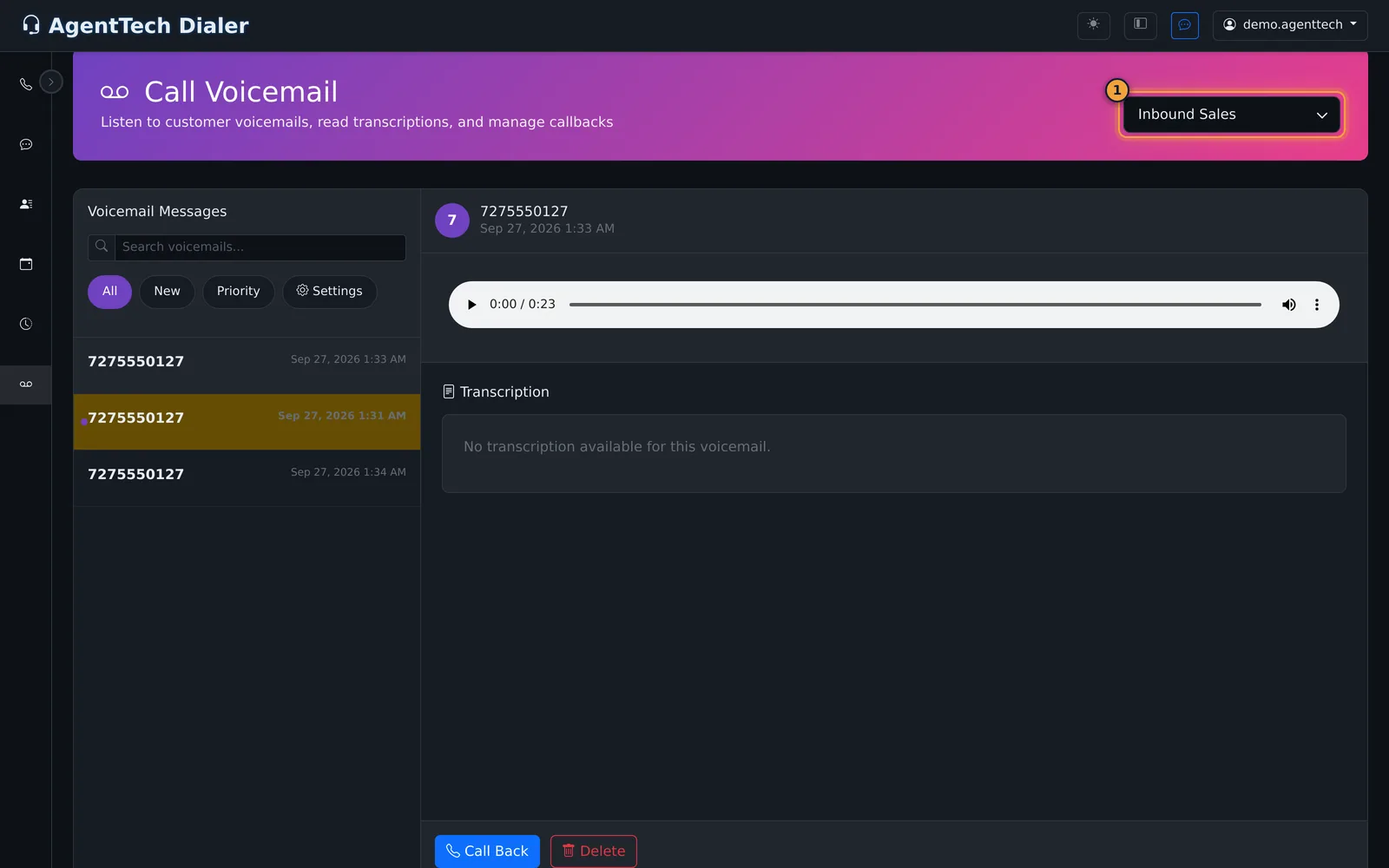
Queues can send unanswered callers to voicemail too. To hear them, switch the mailbox at the top right to the queue, under Queues.
The list now shows that queue's messages, for everyone in the queue.
For your greeting, go back to your mailbox, and select Settings, next to the filters.
Under Voicemail Greeting, select Record New Greeting, and allow the microphone if you're asked. Speak, then stop the recording.
Play Current plays it back, and Delete returns to the default system greeting. Keep it under thirty seconds.
Turn on Email me when I receive a voicemail to get an email for each new message. It goes to the email address on your profile.
Next, see how to find past calls and their recordings in the Call Log.
Callers leave voicemail when a call to you or to one of your queues is not answered. The Voicemail page (last item in the sidebar) collects those messages. This article is for agents and supervisors.
Listen to a message
- Open Voicemail. Your own mailbox opens first; unread messages are highlighted.
- Select a message. The right side shows the caller and time, an audio player, the transcription (when one exists) and two buttons.
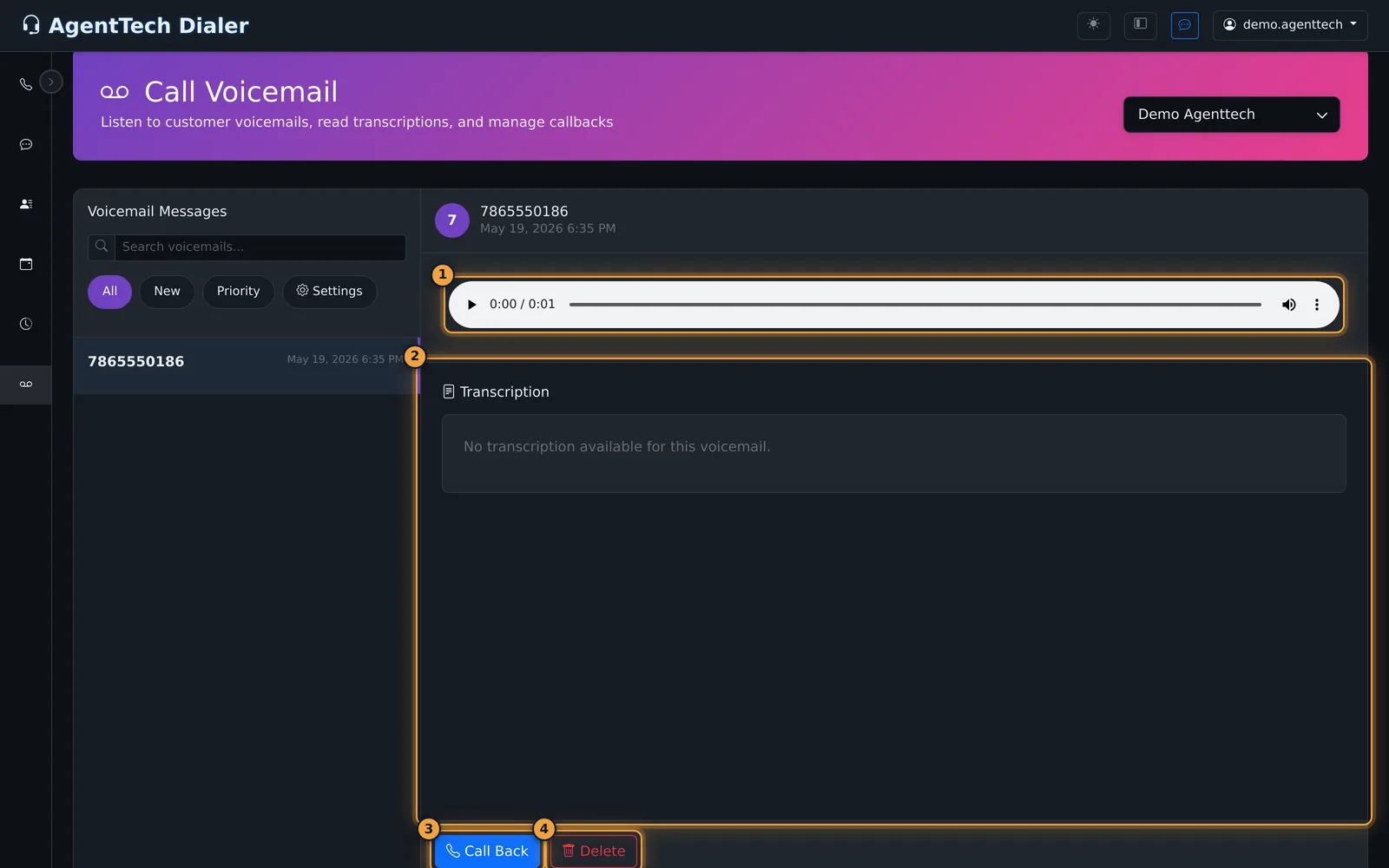
| Button | What it does |
|---|---|
| Call Back | Dials the caller from your softphone. |
| Delete | Removes the message. |
When a message has no transcription the panel says "No transcription available for this voicemail."
Queue mailboxes
Queues can send unanswered callers to voicemail (their overflow action). Use the mailbox selector at the top right to switch from your mailbox to a queue's: under Queues it lists each queue you can see.
Queue overflow is set by an admin in Queue Management.
Record your greeting
- On the Voicemail page select Settings (next to the All / New / Priority filters).
- Under Voicemail Greeting, select Record New Greeting and allow the microphone if asked. Speak, then stop the recording.
- Use Play Current to check it, or Delete to go back to the default system greeting.
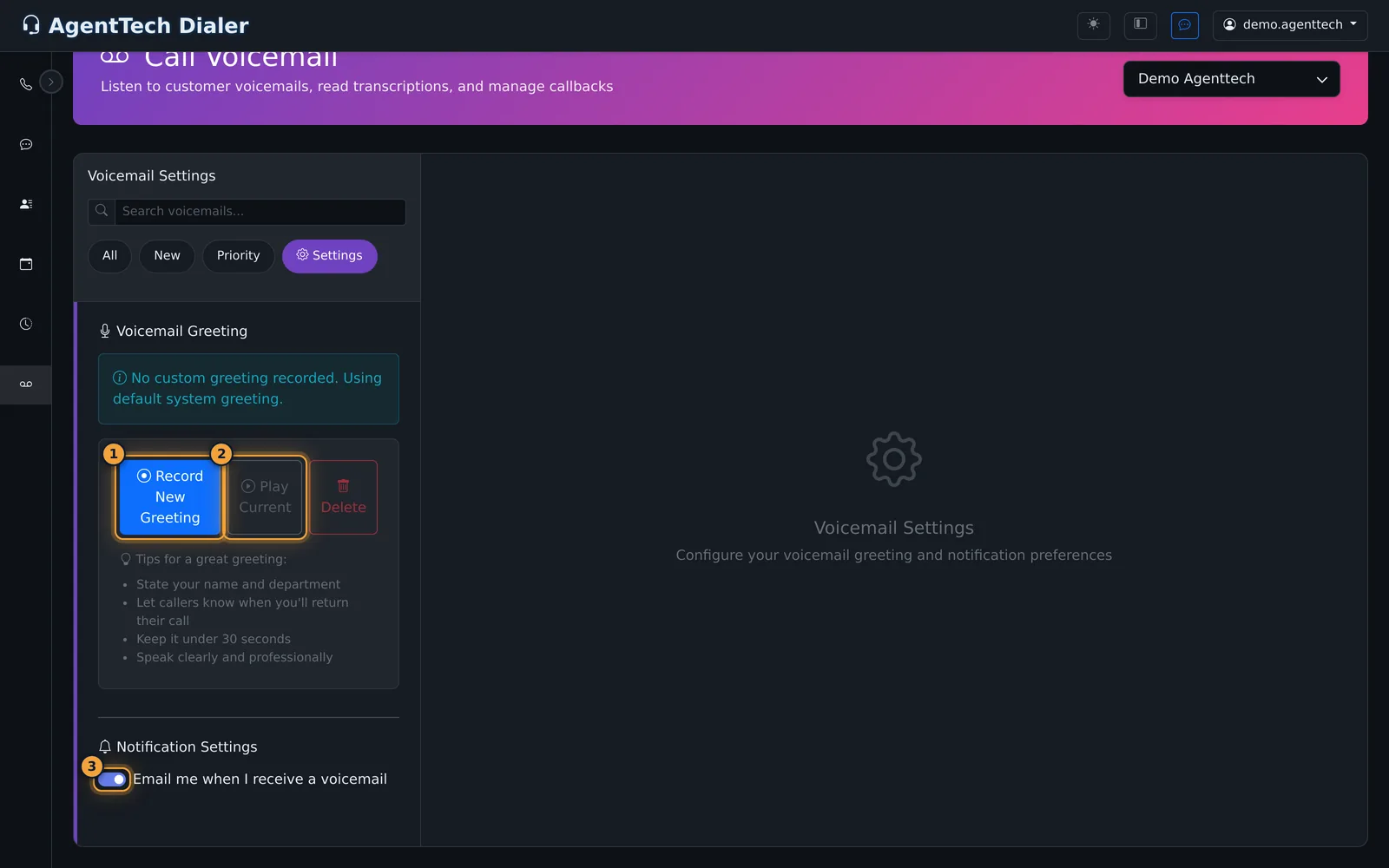
The page's own tips: say your name and department, say when you will call back, keep it under 30 seconds, and speak clearly.
Email alerts
Under Notification Settings, Email me when I receive a voicemail sends you an email for each new message. It needs an email address on your profile.
Common problems
- A message you expected is not in your mailbox: check the queue mailboxes in the selector.
- No email alerts: add an email address to your profile and make sure the toggle is on.
- Record New Greeting can't record: allow microphone access for the dialer in your browser. See Softphone & Microphone Problems.
Related articles
Was this article helpful?
Can't find what you are looking for? Our support team can help.
Submit a support ticket