Transcript
Here is how to check whether your calls are recorded, and how to play, download, and review a recording.
Open Settings from the user menu, and select Call Settings. Call Recording shows whether your calls are recorded.
When your agency requires recording, the switch is locked and says Required by your agency policy. Admins set it under Agency Settings.
Recordings are in the Call Log. Set the date range, or tick All Time, so the call is listed, then select Filter.
In the Recording column, select Play to listen right in the row, or the download button to save the file.
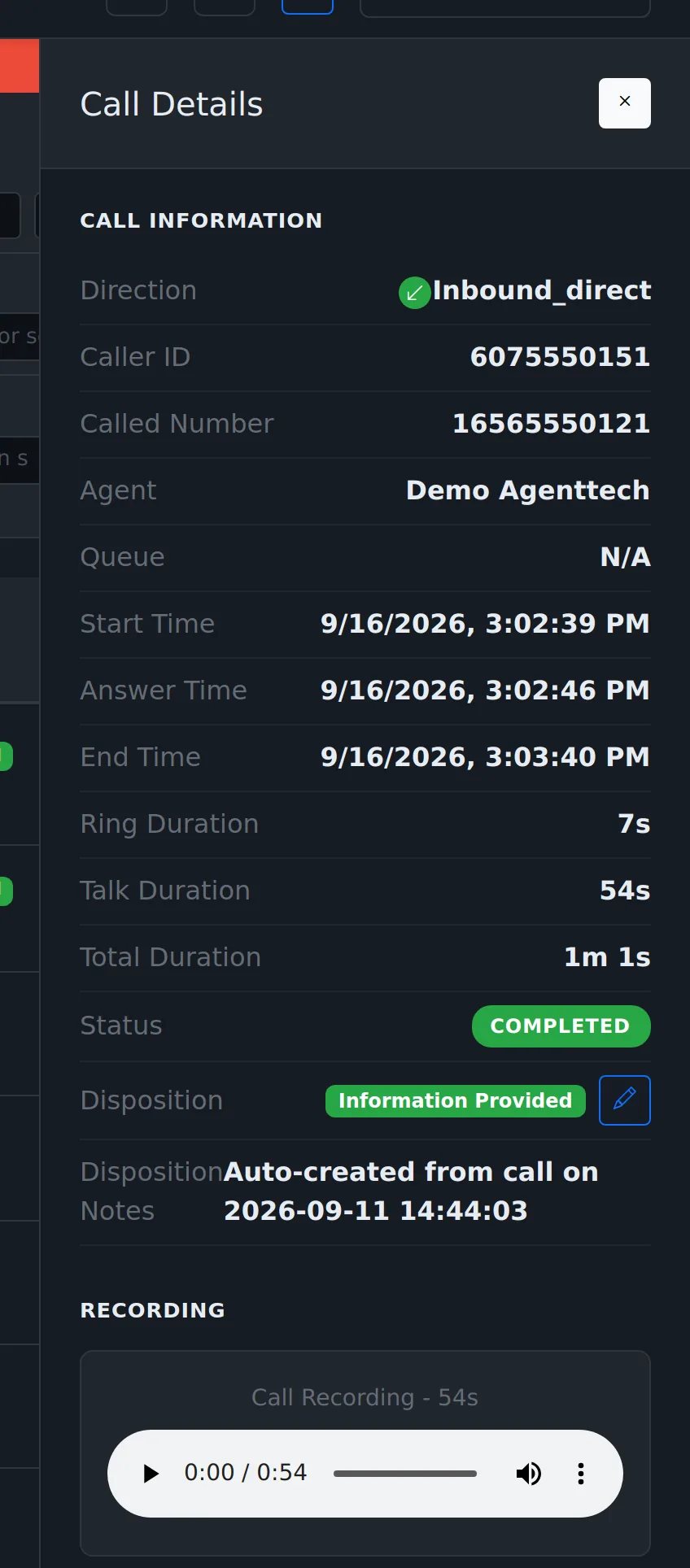
For the full player, select View Details. The Recording section shows the length and a player, and Download Recording is under Actions.
Calls with a transcript show a snippet under the recording, and a View Transcription button in Actions.
You see your own calls here. Supervisors and admins see every call in the agency.
The Call Logs guide covers every filter and column on that page.
Recordings let you and your supervisors review what was said: for quality checks, coaching, compliance and disputes. Recording happens in the background; there is nothing to press during a call. This article is for agents and supervisors.
Is recording on for you?
Open Settings > Call Settings. Call Recording shows whether your calls are recorded. When your agency requires it, the switch is locked and says "Required by your agency policy".
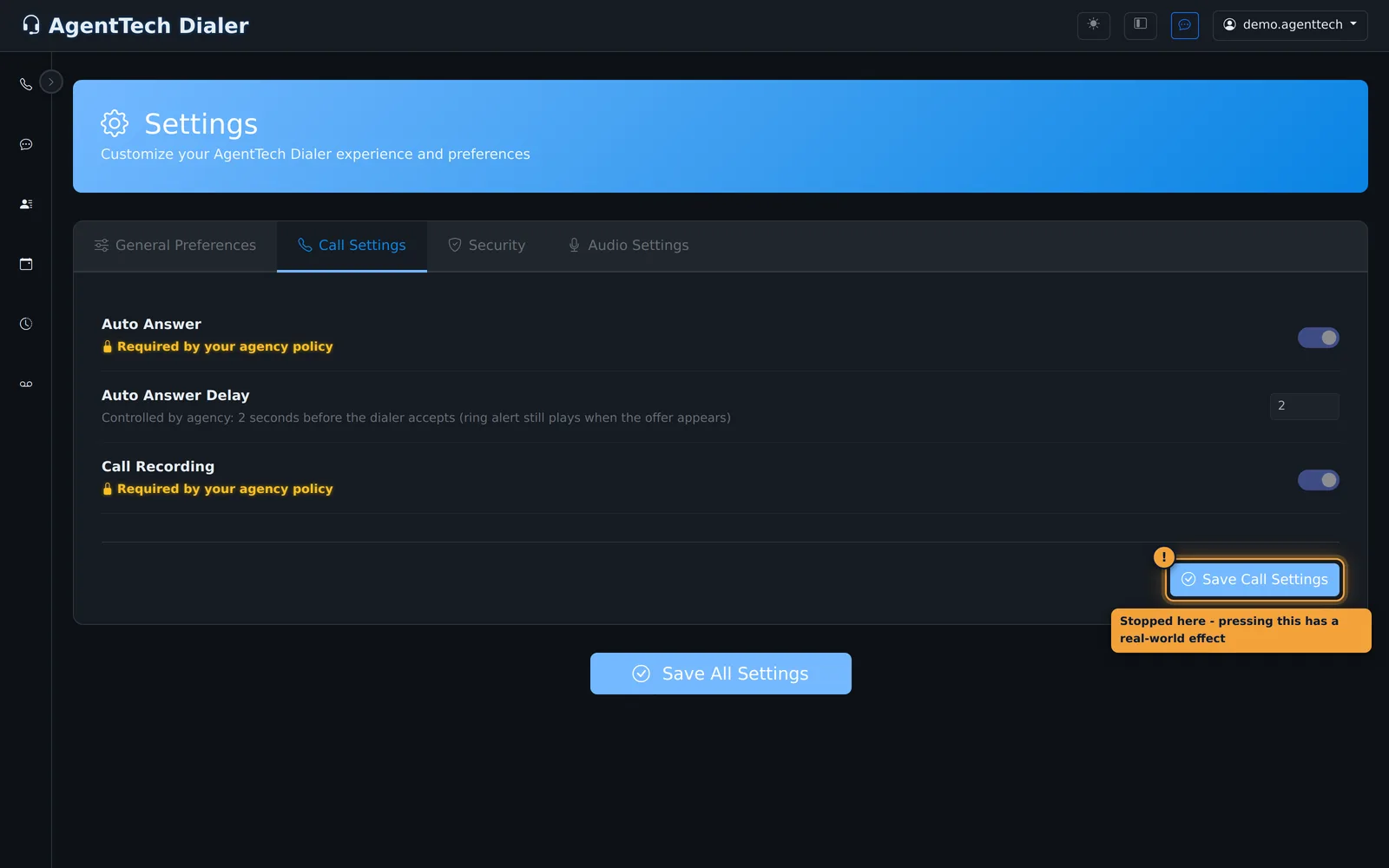
Admins control recording under Agency Settings > Call Settings:
| Setting | Effect |
|---|---|
| Enable Call Recording | Records calls for the whole agency. |
| Agents Can Override Call Recording | Lets each agent switch recording on or off for themselves under Settings > Call Settings. When it is off, the agent's switch is locked to the agency setting. |
The same page has the auto-answer settings and their override switches. Changes save automatically. See Agency Settings.
Play or download a recording
- Open Call Log. Set the date range (or tick All Time) so the call is listed.
- In the Recording column, select Play to listen in the row, or the download button to save the file. Rows without audio say "No Recording".
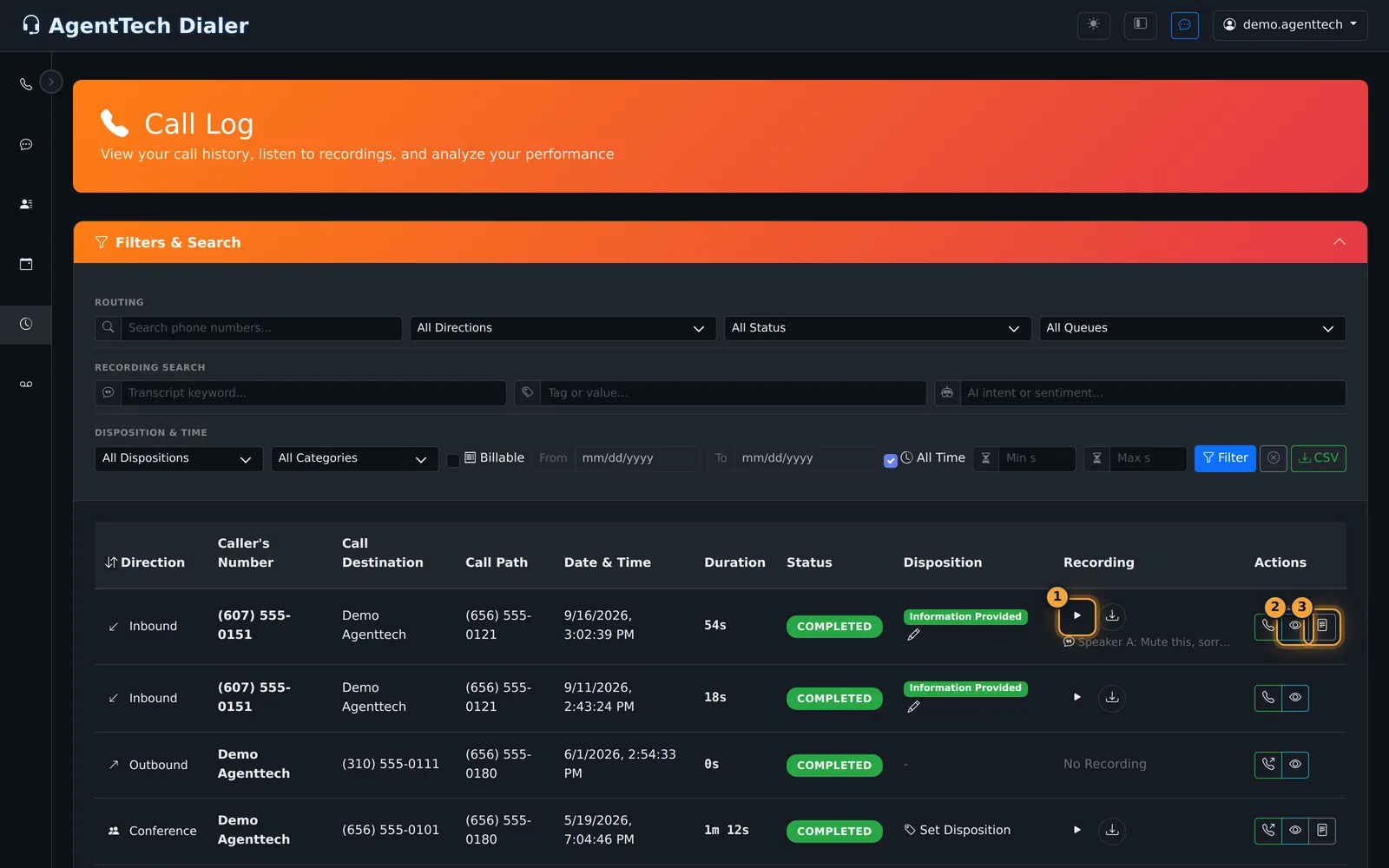
- For the full player, select View Details (eye button). The Recording section shows the length and a player; Download Recording is under Actions.
Transcripts and AI review
Calls with a transcript show a snippet ("Speaker A: ...") under the recording and a View Transcription button in Actions. When your agency uses compliance checks, a Compliance Check button appears too. See AI Call Transcription and AI Compliance Analysis.
Who can hear what
Agents see their own calls in the Call Log; supervisors and admins see every call in the agency. For who can access recordings and how call data is protected, see Security, Privacy & Call Data.
Common problems
- The call is missing: widen the date range or tick All Time; the page opens on yesterday and today only.
- "No Recording": the call did not connect (0 seconds), or recording was off for it.
Related articles
Was this article helpful?
Can't find what you are looking for? Our support team can help.
Submit a support ticket