Everyone who signs in to AgentTech Dialer is a user of your agency: agents who take and make calls, supervisors who watch them, and agency admins who set things up. You manage all of them on one page, Agency Management > Agents.
This article is for agency admins. Supervisors can open the page too, but can only reset a user's password and change their state licenses (see Roles and Permissions).
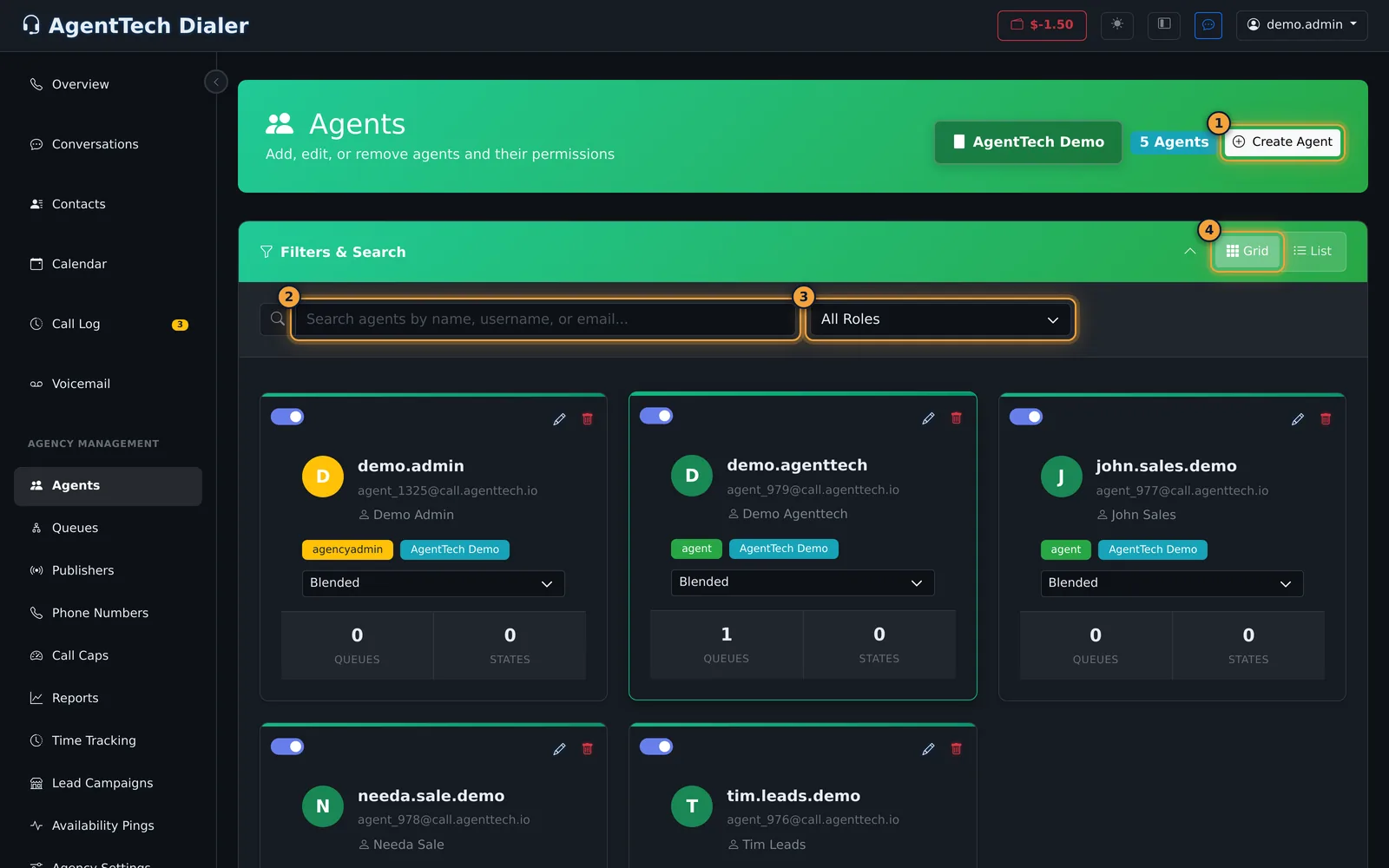
Find a user
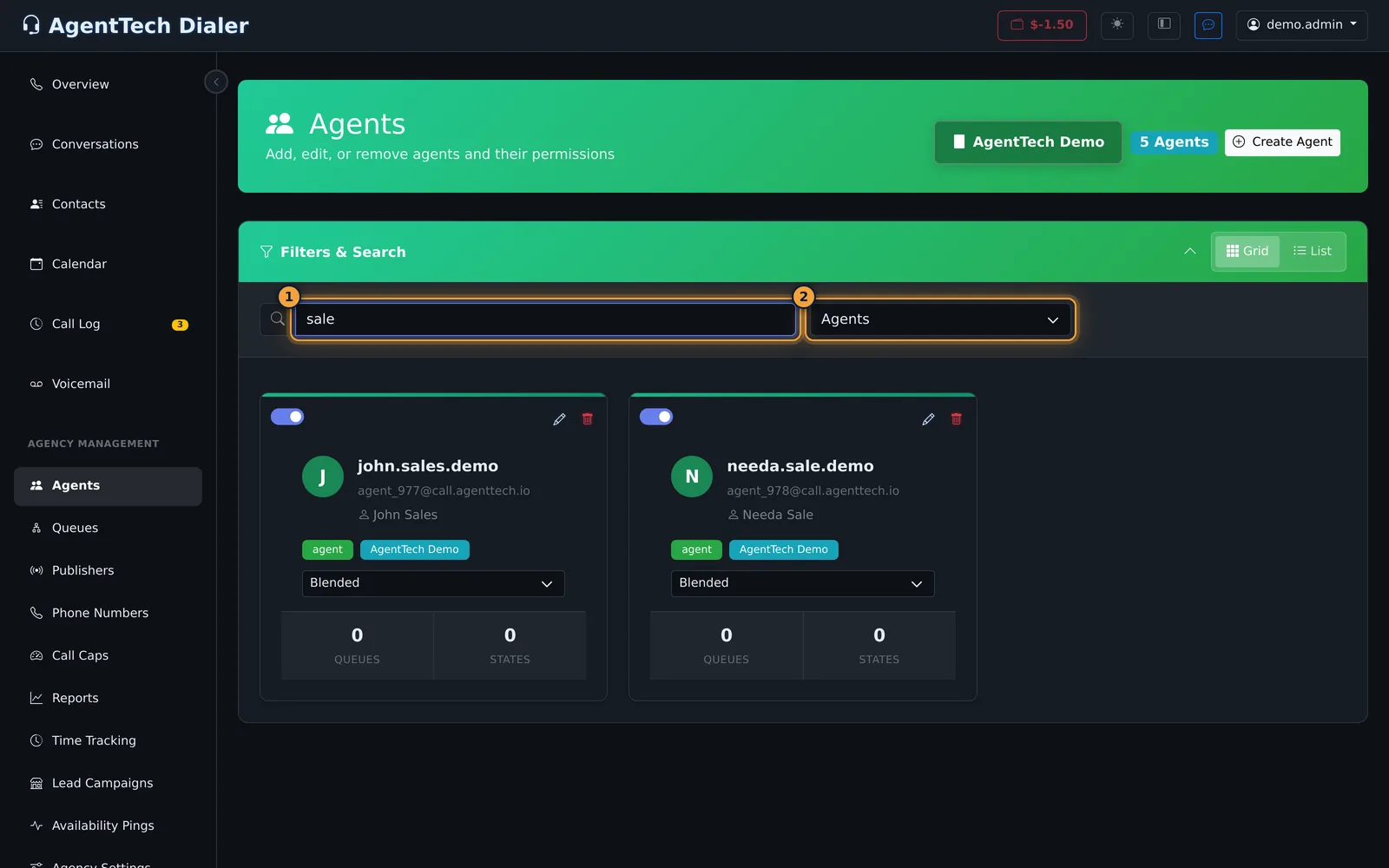
- Search matches the username and first and last name as you type.
- The role filter shows All Roles, Agents, Supervisors or Agency Admins.
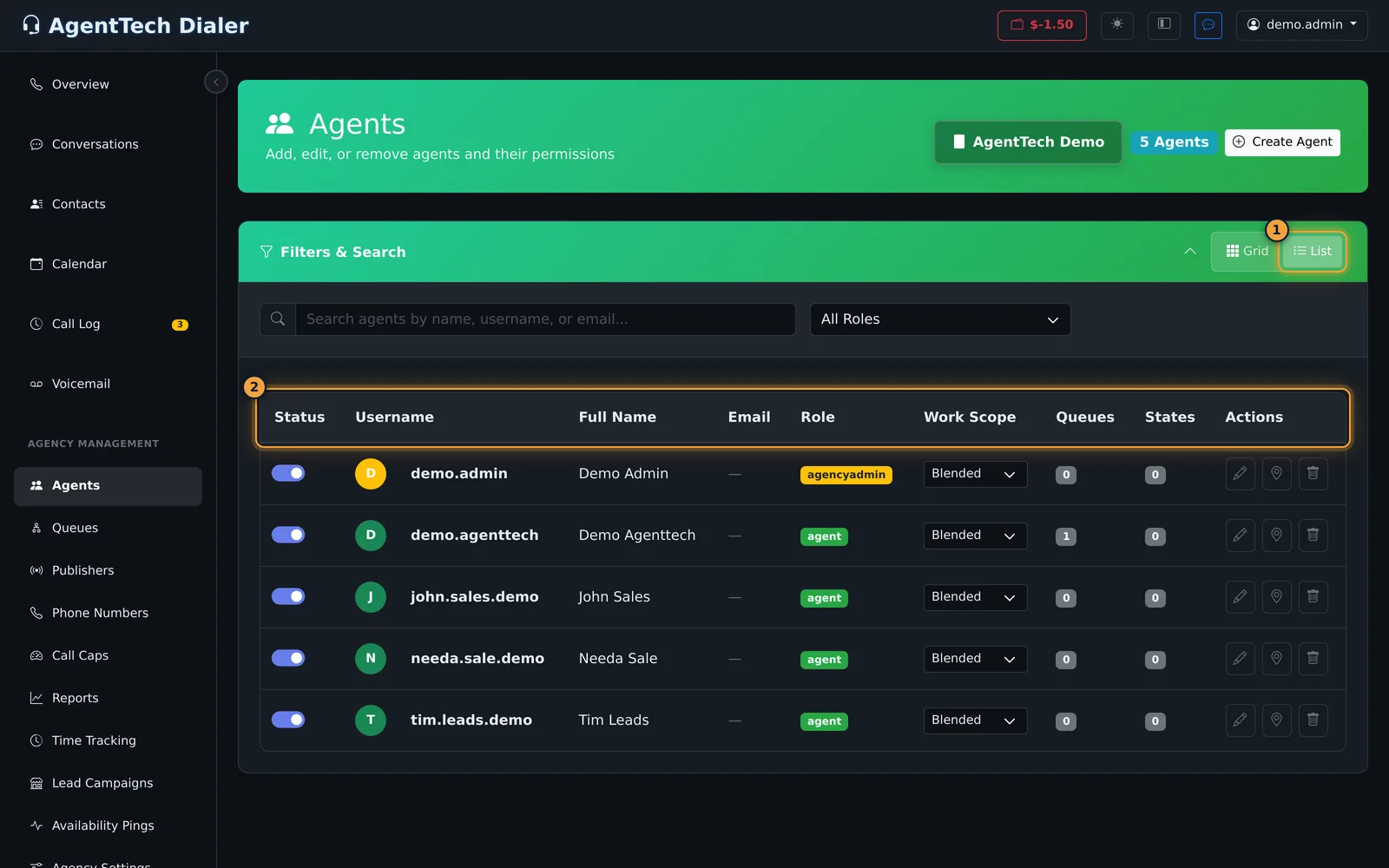
- Grid shows cards, List shows a table. The page remembers your choice in this browser.
Each card shows:
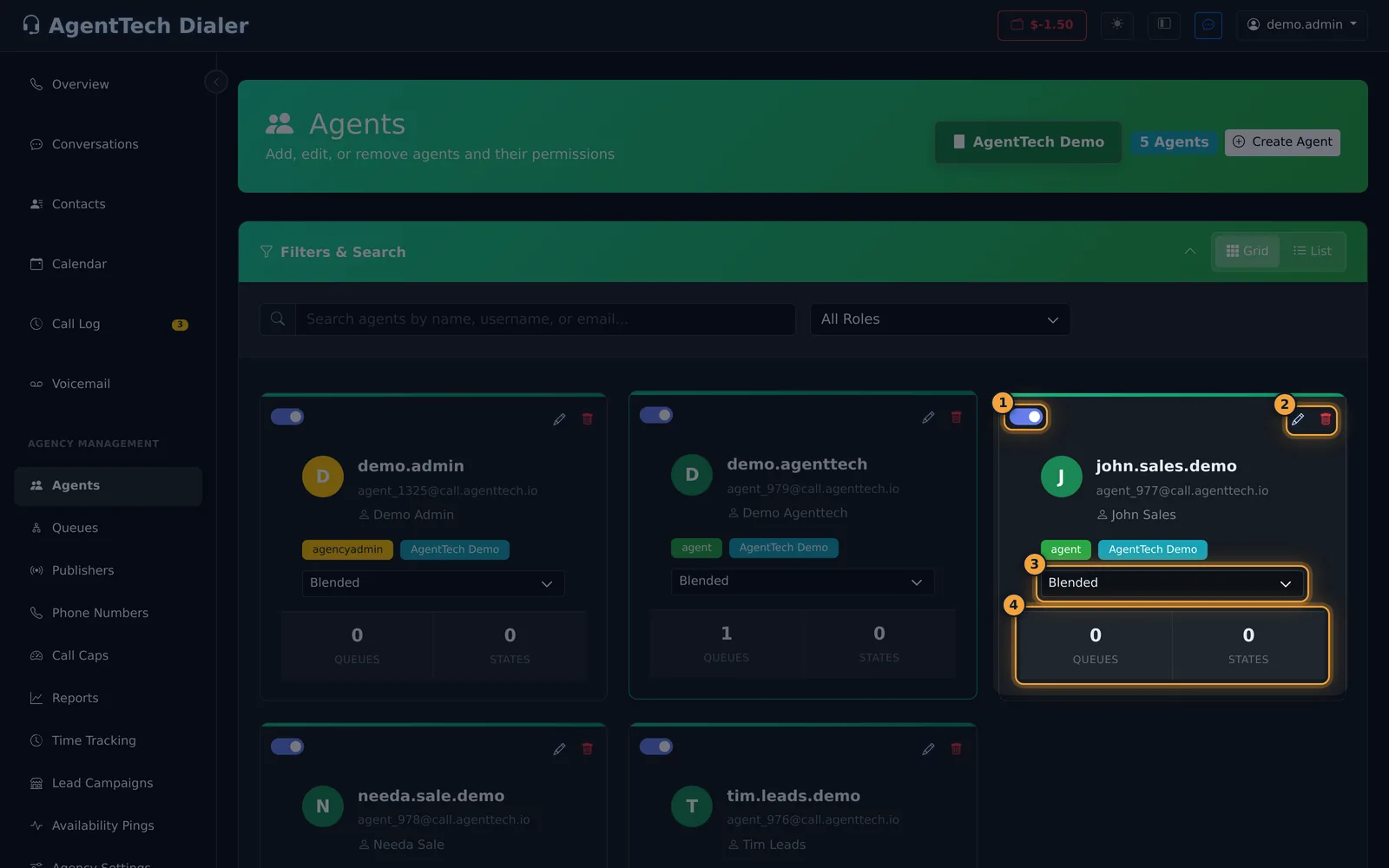
- The active switch. Switching it off archives the user (see Archive or delete a user).
- Edit (pencil) and Delete (bin). Clicking anywhere else on the card also opens Edit.
- The work scope: Inbound, Outbound or Blended (the default). It saves as soon as you pick a value.
- How many queues the user belongs to and how many states they are licensed in.
Under the name you also see the user's calling address, for example agent_977@call.agenttech.io, their role and the agency.
Create a user
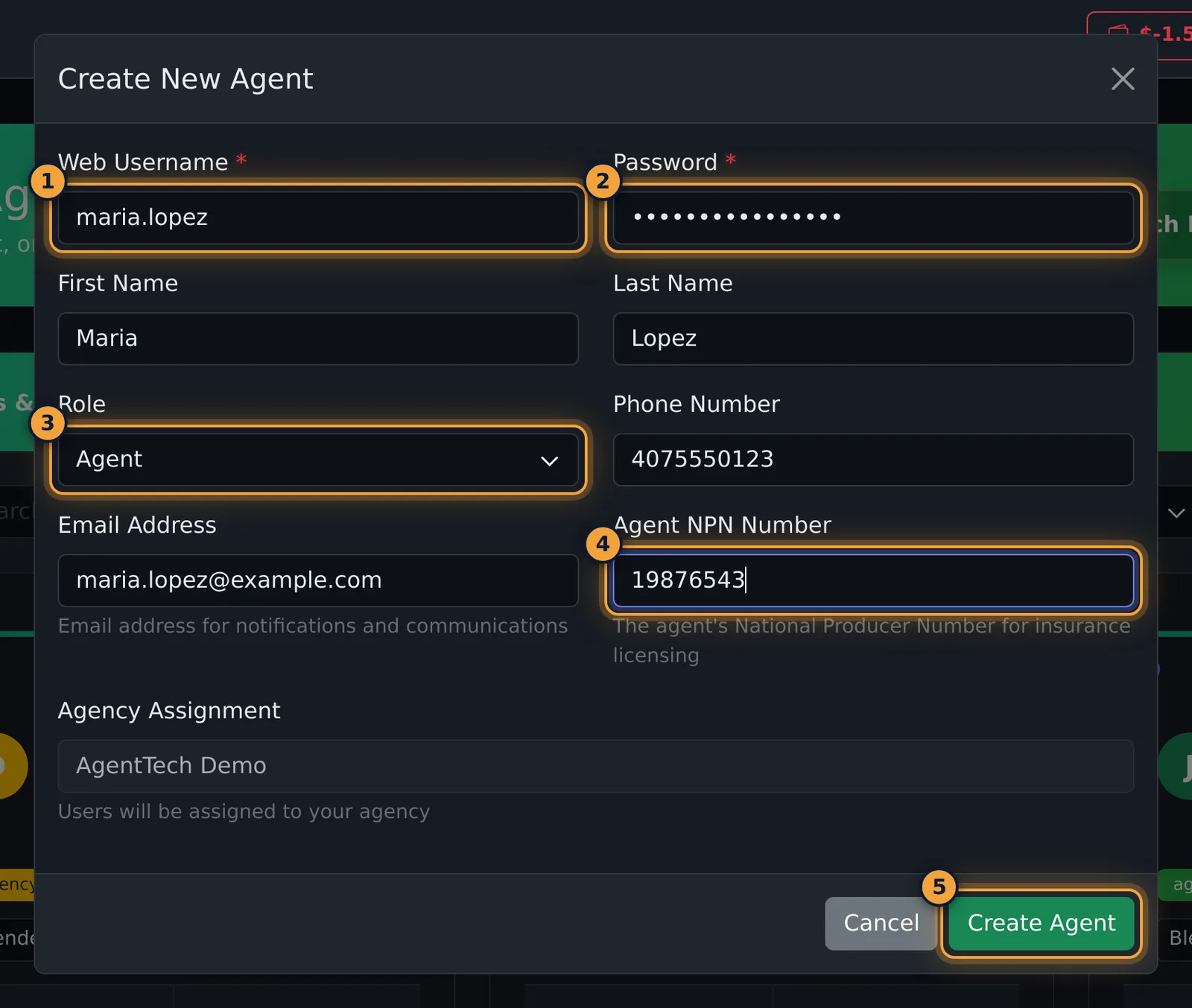
- Select Create Agent at the top right.
- Enter a Web Username and a Password. Both are required; the user signs in with them.
- Add the first and last name, phone number and email address.
- Choose the Role: Agent, Supervisor or Agency Admin. It starts on Agent.
- For insurance agents, enter the Agent NPN Number.
- Select Create Agent.
| Field | What it does |
|---|---|
| Web Username | Required. The sign-in name. You can change it later in Edit. |
| Password | Required. Give it to the user yourself; the form does not send an invitation email. |
| First Name, Last Name | Shown on cards, reports and call screens. |
| Role | Agent, Supervisor or Agency Admin. See Roles and Permissions. |
| Phone Number | The user's contact number. |
| Email Address | Used for notifications and communications. |
| Agent NPN Number | The agent's National Producer Number for insurance licensing. |
| Agency Assignment | Read-only. Users are always created in your agency. |
The new user appears as a card and can sign in straight away. Next, license them in the states they sell in and add them to queues (Queue Management).
Edit a user
Select the pencil on a card. Edit Agent has two tabs, General and States, and one Save Changes button that saves both.
General
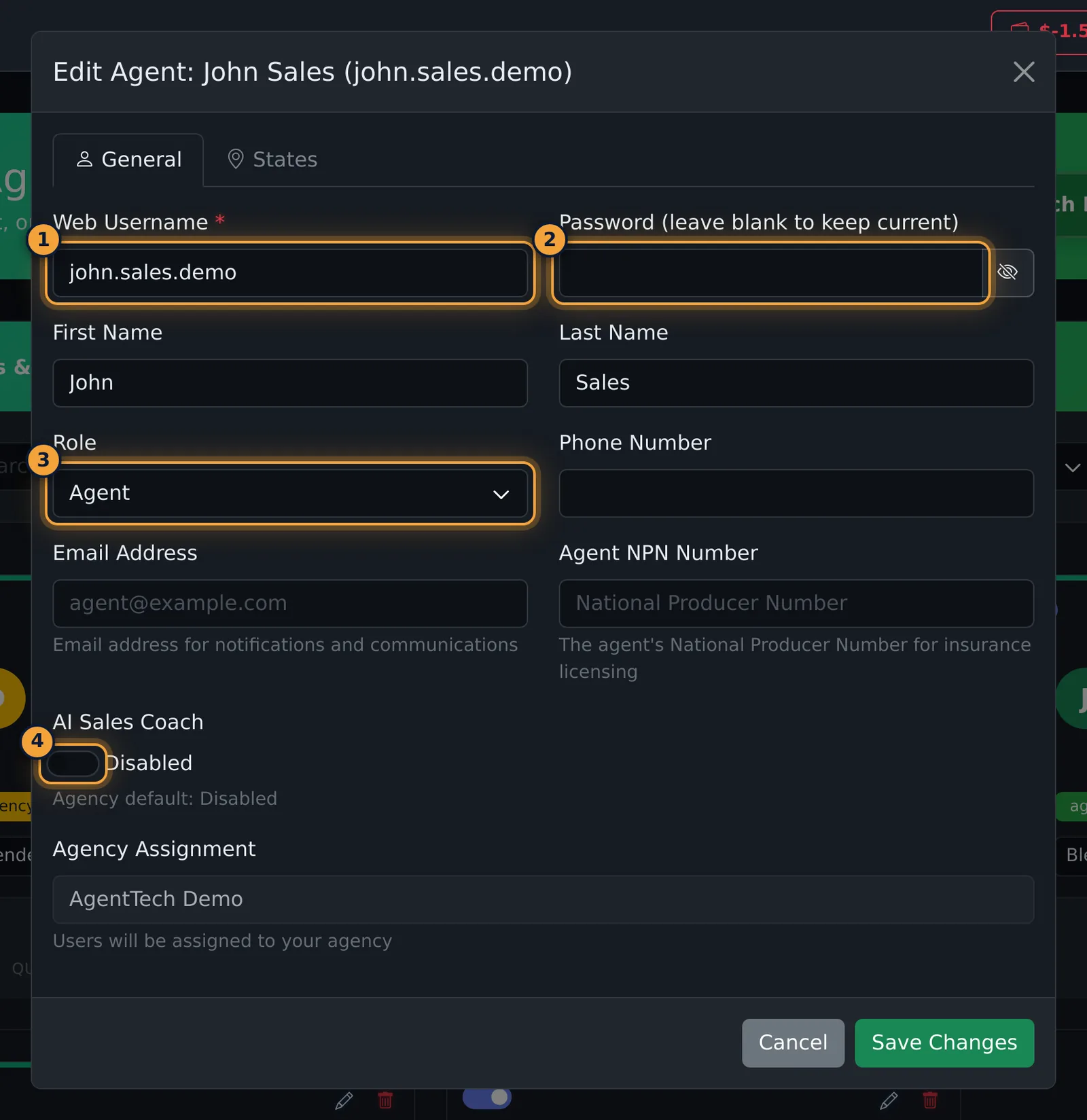
- Change the username, name, role, phone, email or NPN.
- To reset a password, type the new one in Password (leave blank to keep current). The eye button shows what you typed.
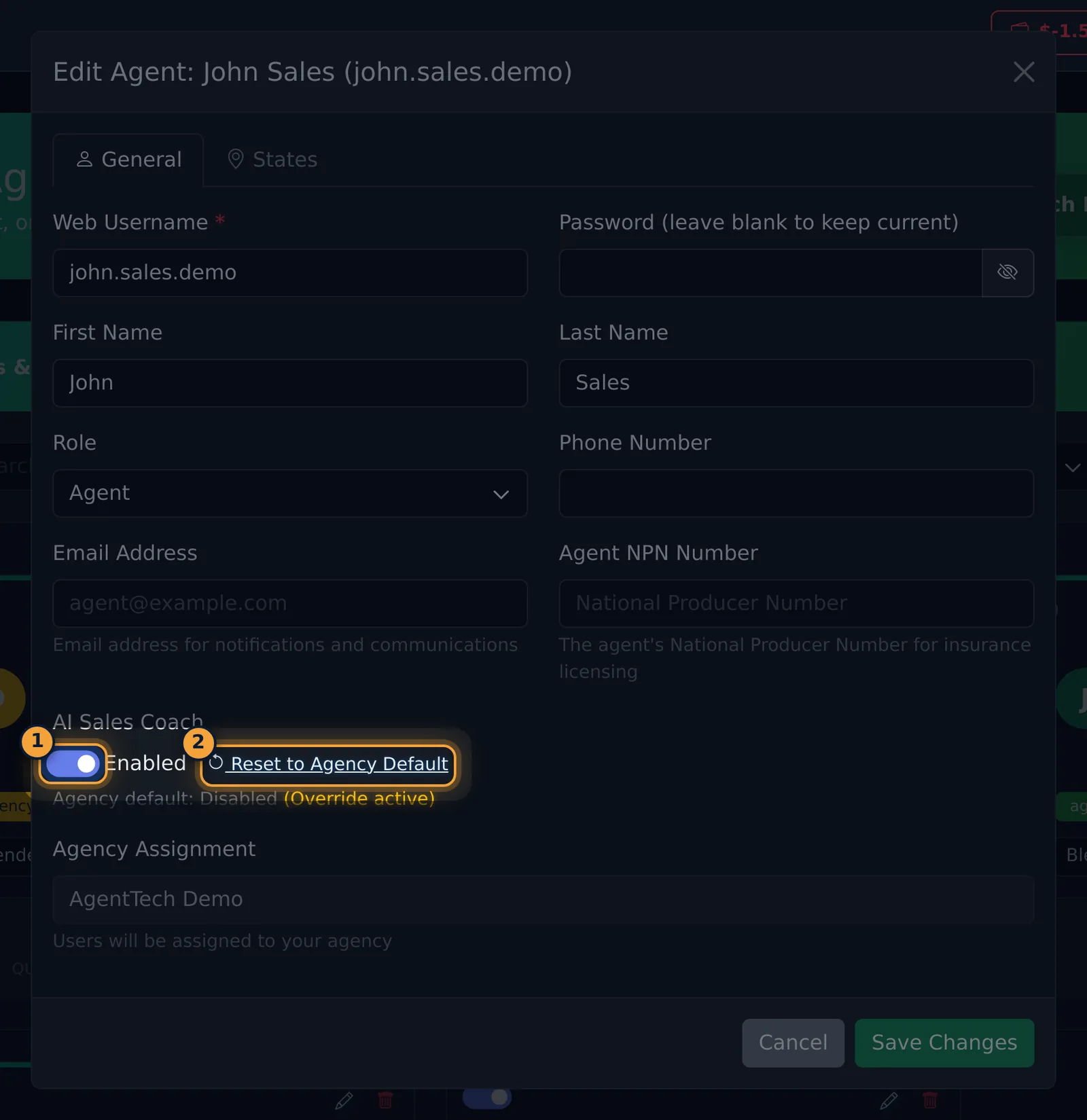
- AI Sales Coach turns the coach on or off for this user only. The line under it shows the agency default. Once you change it, the user has an override and a Reset to Agency Default link appears.
States
Select License next to each state the agent may sell in, then set a proficiency from 1 to 10. Step-by-step instructions are in Skills and State Licensing.
Select Save Changes. The card's state count updates.
Archive or delete a user
Archive keeps the user's history (calls, reports) but stops them signing in. Switch off the active switch on their card. For an agent, Archive Agent opens first and shows any charge:
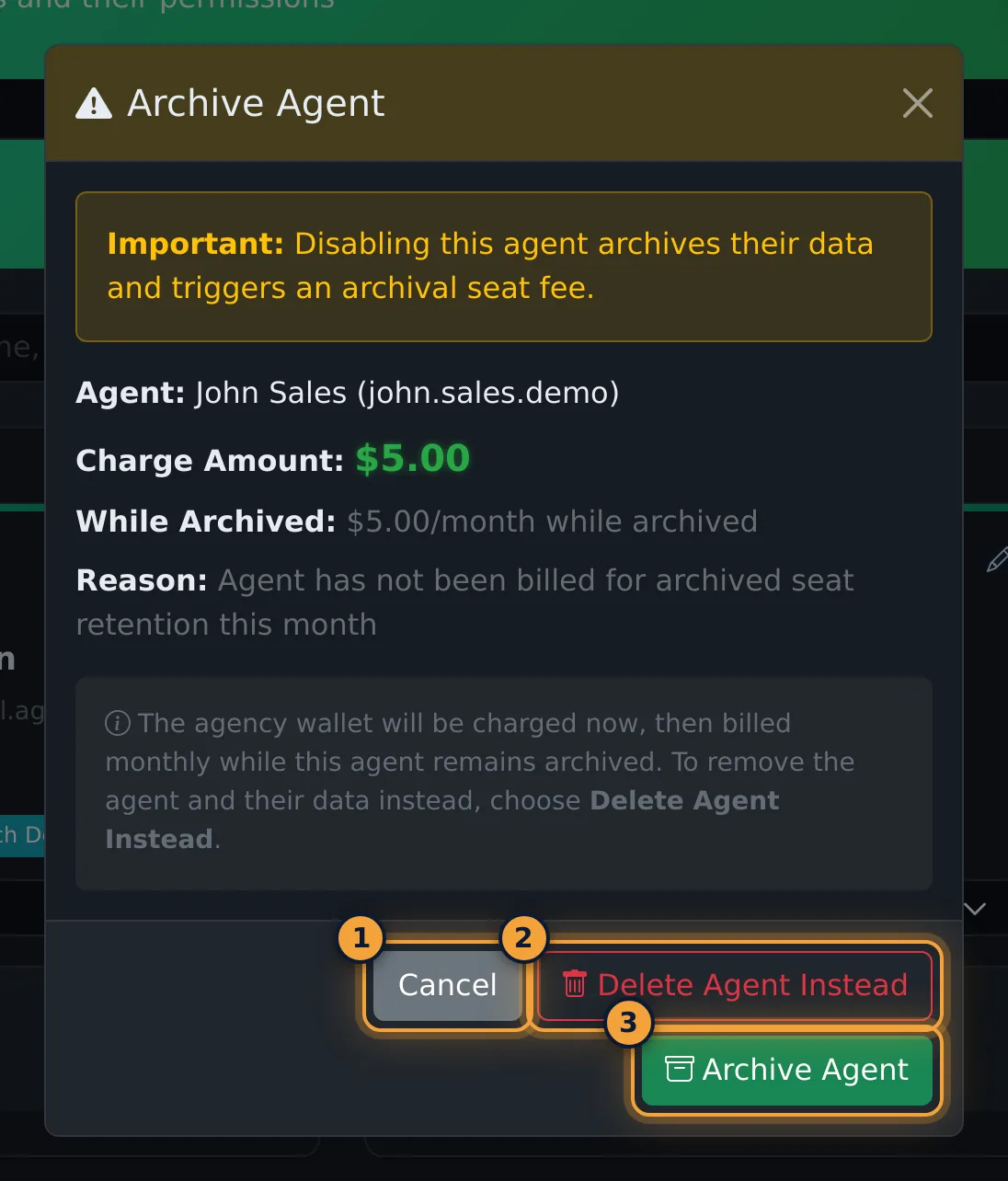
- Charge Amount is taken from the agency wallet now, and While Archived is billed monthly for as long as the agent stays archived. For example, $5.00 each.
- Cancel (1) leaves the agent active and nothing is charged.
- Delete Agent Instead (2) removes the agent and their data instead.
- Archive Agent (3) archives them. The card turns grey and shows how long the agent has been inactive.
Switching an archived agent back on may charge a monthly seat. If so, a Seat Billing Charge window asks you to confirm. Both charges are explained in the Billing FAQ.
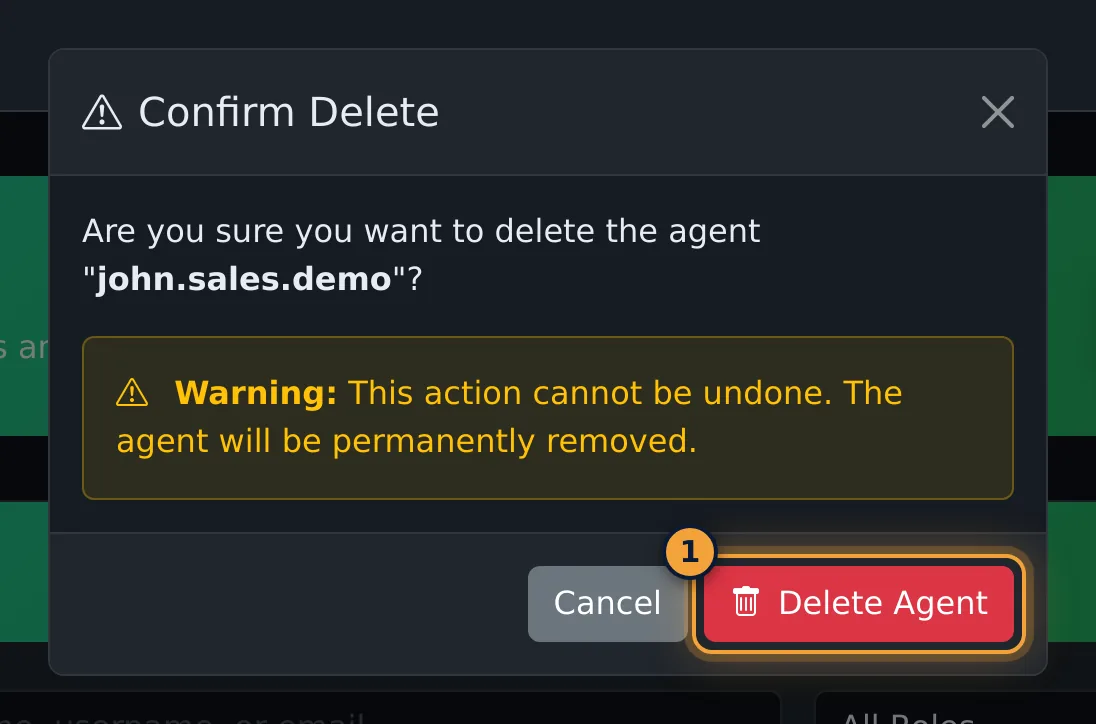
Delete removes the user permanently. Select the bin, check the name in Confirm Delete, then select Delete Agent.
List view
List view shows the same users in a table with their status switch, username, full name, email, role, work scope, queue and state counts, and edit, Manage States (map pin) and delete buttons. The map pin opens the agent's state licensing, the same as the States tab in Edit.
Common problems
- Archiving asks for money. Archived agents keep a paid seat so their data is retained. To stop paying, choose Delete Agent Instead.
- "Payment Required" when reactivating. The wallet does not cover the seat. Add funds (Adding Funds and Auto-Recharge) and try again.
- A user can't see Agency Management. Their role is Agent. Change the role in Edit.
- I can't find the Delete button. Supervisors can't delete users; ask an agency admin.
Related articles
Was this article helpful?
Can't find what you are looking for? Our support team can help.
Submit a support ticket