An API key lets another system call the AgentTech API on your agency's behalf, for example a website form that adds leads to a Dialer list, or a CRM that reads call logs. Each key belongs to the person who creates it and can do at most what that person can do.
This article is for agency admins. Open Agency Management > API Keys.
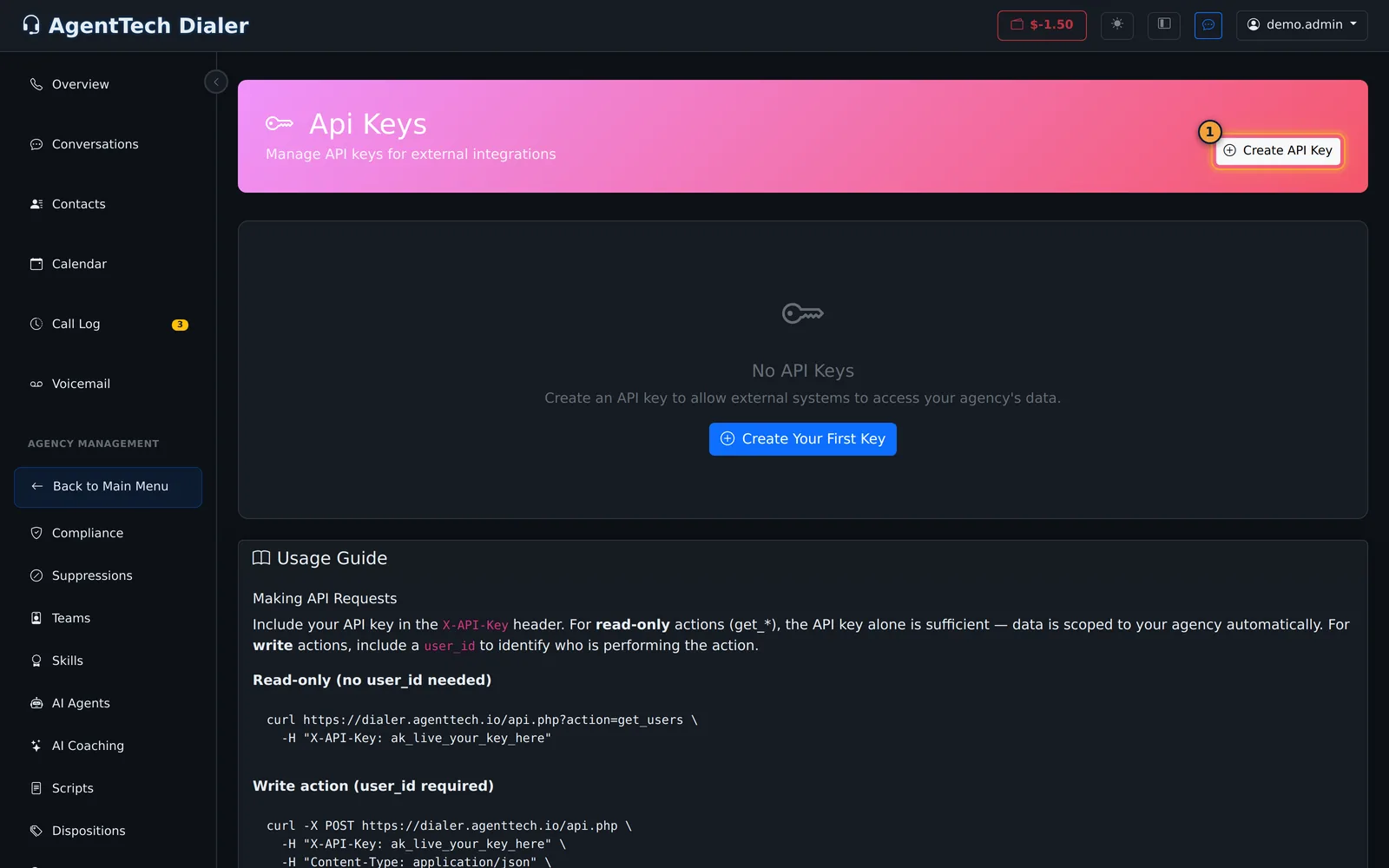
Create a key
- Select Create API Key.
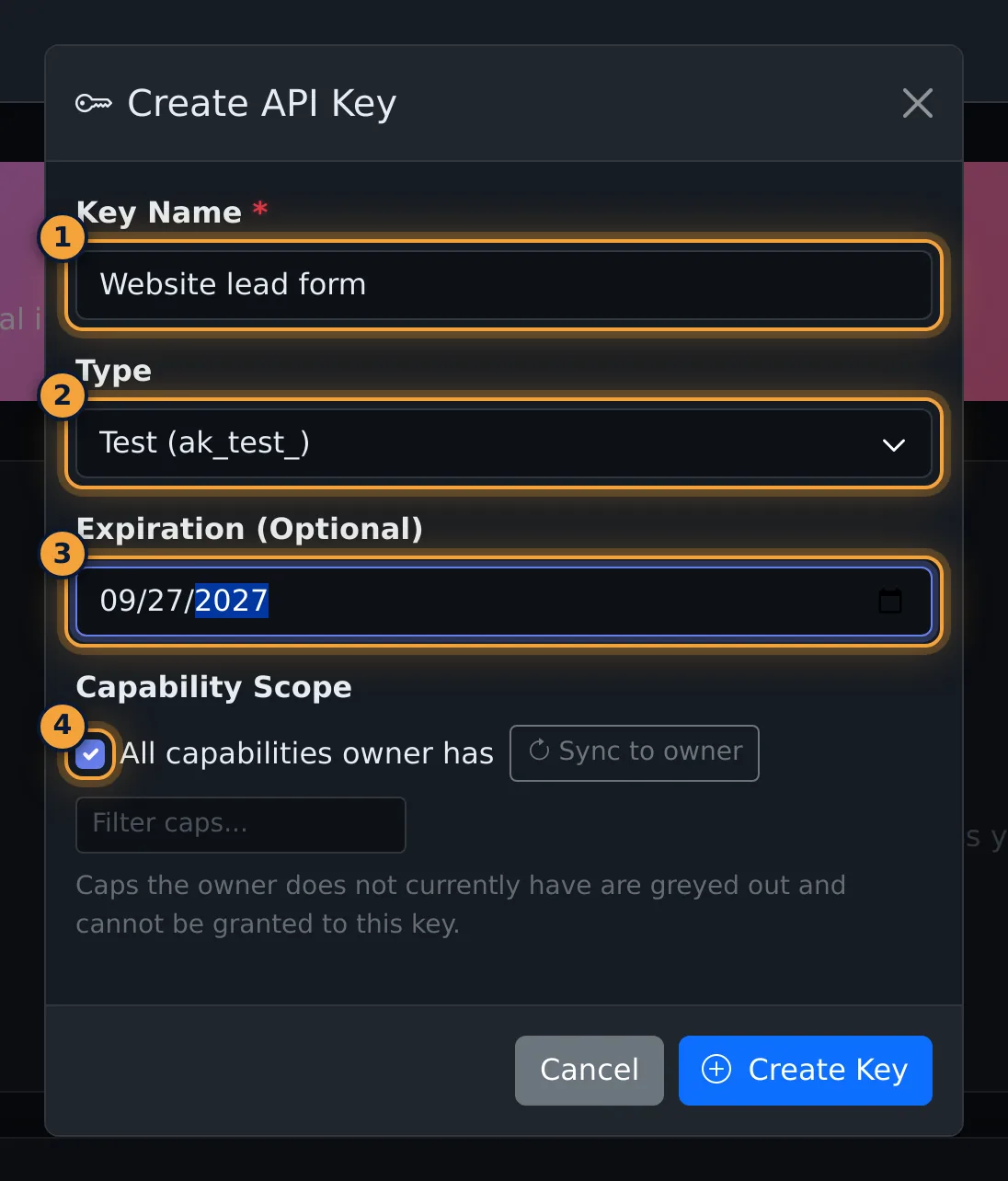
- Enter a Key Name that says what uses it, for example "Website lead form".
- Choose the Type: Live (ak_live_) for real use or Test (ak_test_) while you build the integration.
- Optionally set an Expiration date. Empty means the key never expires.
- Choose the Capability Scope (next section).
- Select Create Key.
| Field | What it does |
|---|---|
| Key Name | Required. Shown in the key list. |
| Type | Live or Test; the key starts with ak_live_ or ak_test_. |
| Expiration (Optional) | The date the key stops working. |
| All capabilities owner has | Ticked by default: the key can do everything you can. |
Limit what a key can do
Give each key only what its integration needs.
- Untick All capabilities owner has. The capability list opens, grouped by area (CRM, Dialer, Reports and so on), with everything you have ticked.
- Untick what the key doesn't need. Search filters the list, for example "contact". Sync to owner ticks everything you have again.
- Greyed-out items with a lock are ones you don't have yourself; they can't be given to a key. A red triangle marks destructive actions, such as deletes.
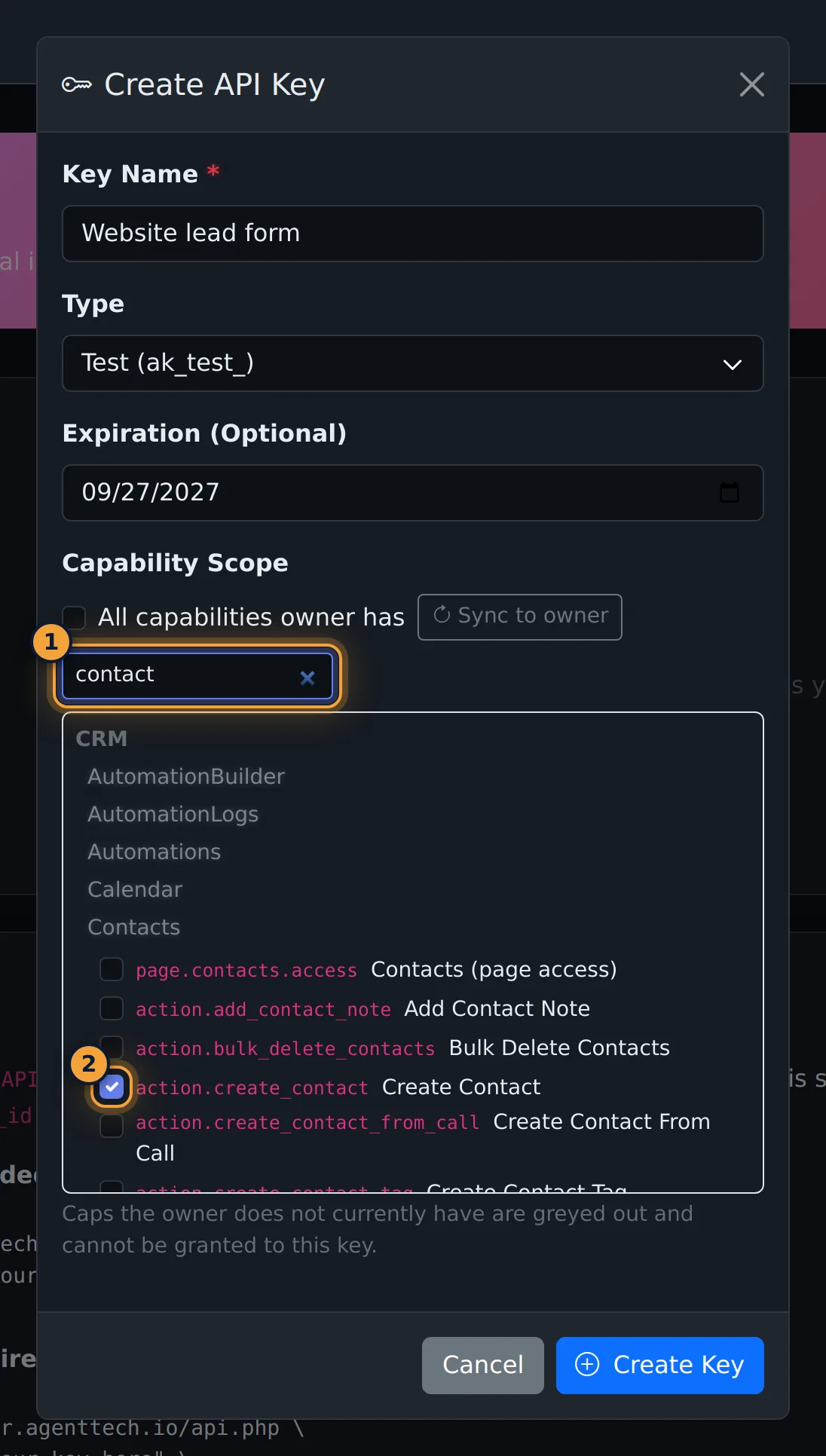
If nothing is ticked, the form says "Select at least one capability".
After creating
The key is shown once, in API Key Created, with a Copy button. Copy it into the other system straight away; it is not shown again. The list then shows the key's name, a short preview, its status, its scope ("All" or the number of capabilities), who created it, when it was last used and when it expires.
Each key in the list has three buttons:
- Edit: change the name, status (Active or Inactive), expiration and capabilities.
- Regenerate: after a confirmation, issues a new key and shows it once. The old key stops working immediately.
- Delete: after a confirmation, revokes the key immediately.
Use a key
Send the key in the X-API-Key header to https://dialer.agenttech.io/api.php.
- Read actions (
get_...) need only the key; data is limited to your agency. - Write actions also need a
user_idof a user in your agency, to record who made the change.create_leaddoesn't require one.
curl https://dialer.agenttech.io/api.php?action=get_users \
  -H "X-API-Key: ak_live_your_key_here"
curl -X POST https://dialer.agenttech.io/api.php \
-H "X-API-Key: ak_live_your_key_here" \
-H "Content-Type: application/json" \
-d '{"action": "create_lead", "list_id": 42, "phone_number": "+15551234567", "first_name": "Jane", "last_name": "Doe"}'For create_lead, take the list_id from the Dialer Lists page. Extra fields you send (for example "CustomField1": "Test") are saved as the lead's custom fields.
The Usage Guide on the page lists the actions available to keys:
| Area | Actions |
|---|---|
| Contacts | get_contacts, get_contact, create_contact, update_contact |
| Call logs | get_calls, get_call_details, get_call_log_filters |
| Users | get_users, get_user_status, update_agent_status |
| Queues, dispositions, SMS | get_queues, get_queue_agents, get_dispositions, get_disposition_fields, send_sms, get_sms_threads, get_thread_messages |
| Other | save_call_disposition, get_call_caps, get_call_cap_usage, get_phone_numbers, create_lead, load_settings |
Agency Settings also has an API Keys tab that lists the same keys with a shorter create form.
Common problems
- "Key name is required": enter a Key Name.
- A capability can't be ticked: you don't have it yourself. Ask an admin with that permission to create the key.
- Write requests fail: add a
user_idof a user in your agency, and check the key's capabilities include the action. - I lost the key: it can't be shown again. Regenerate it and update the other system.
Related articles
Was this article helpful?
Can't find what you are looking for? Our support team can help.
Submit a support ticket