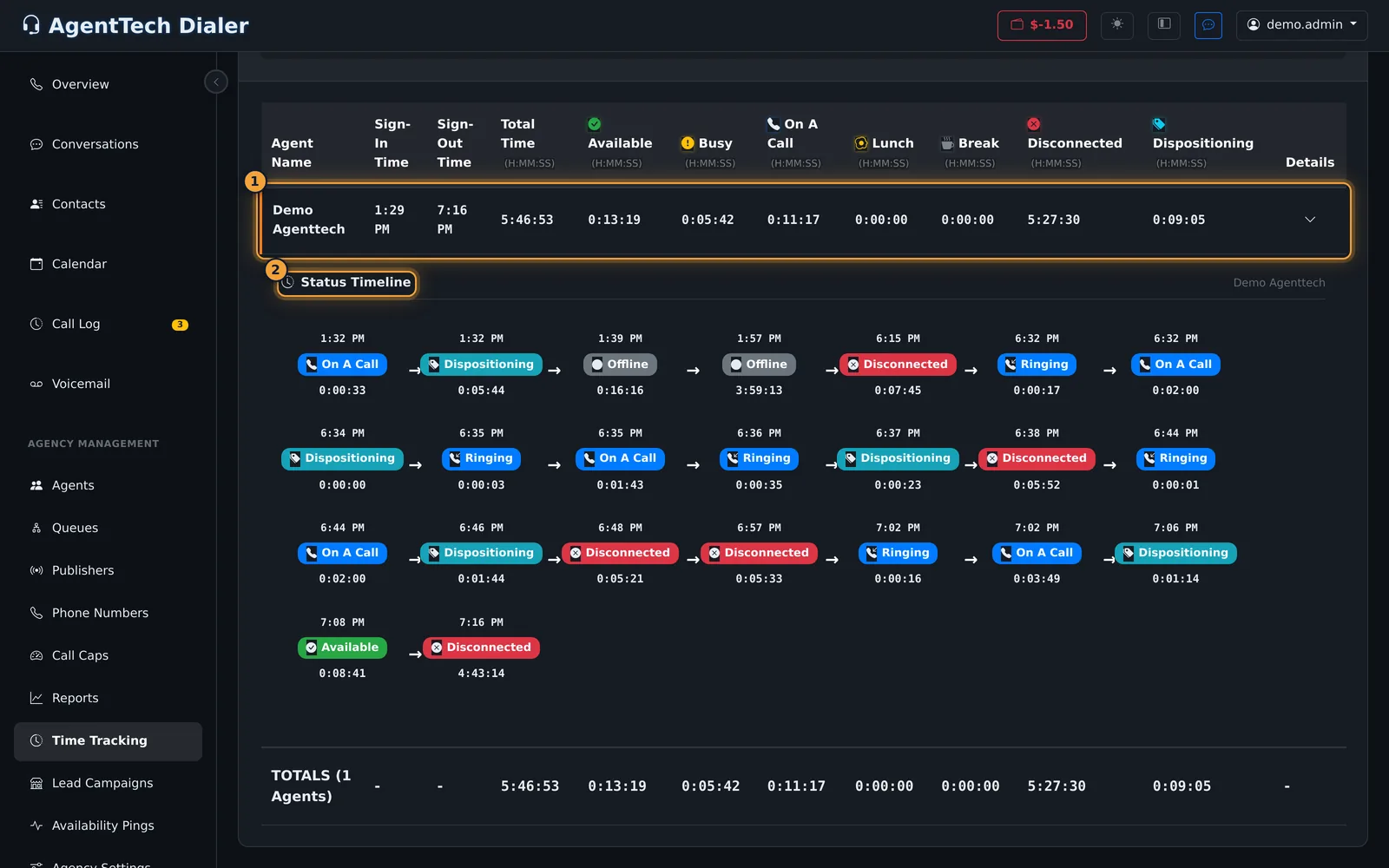
Time Tracking shows how your agents spent their time over a date range: when they signed in and out, the total time, and the time in each status. Expand an agent to see every status change in order. The dialer records this automatically as agents change status and take calls; nobody clocks in by hand.
Who can do this: agency admins. Open Agency Management > Time Tracking in the sidebar.
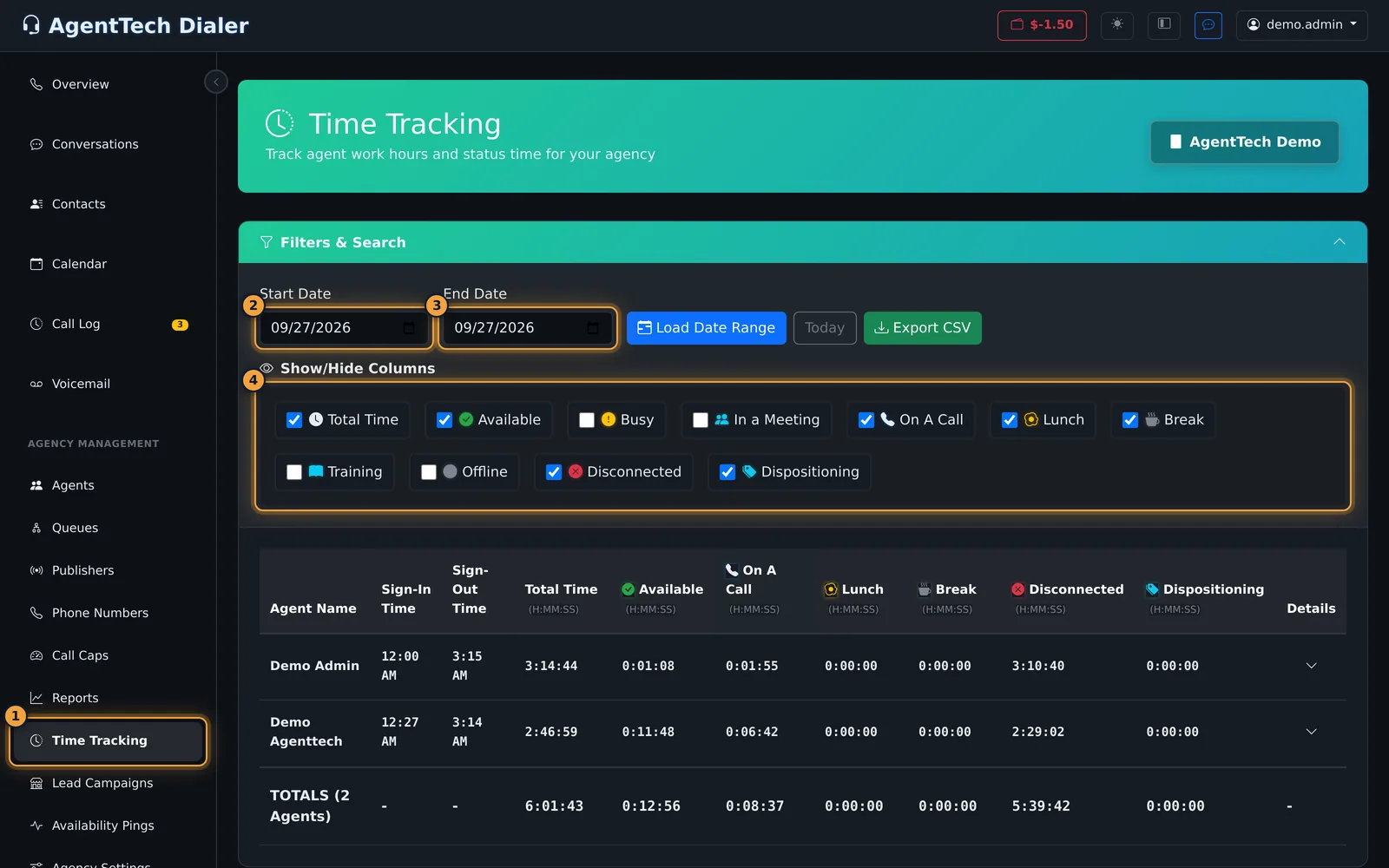
Choose a date range
- Open Agency Management > Time Tracking. It shows today.
- Set Start Date and End Date. Neither can be later than today.
- Select Load Date Range. Today jumps back to the current day.
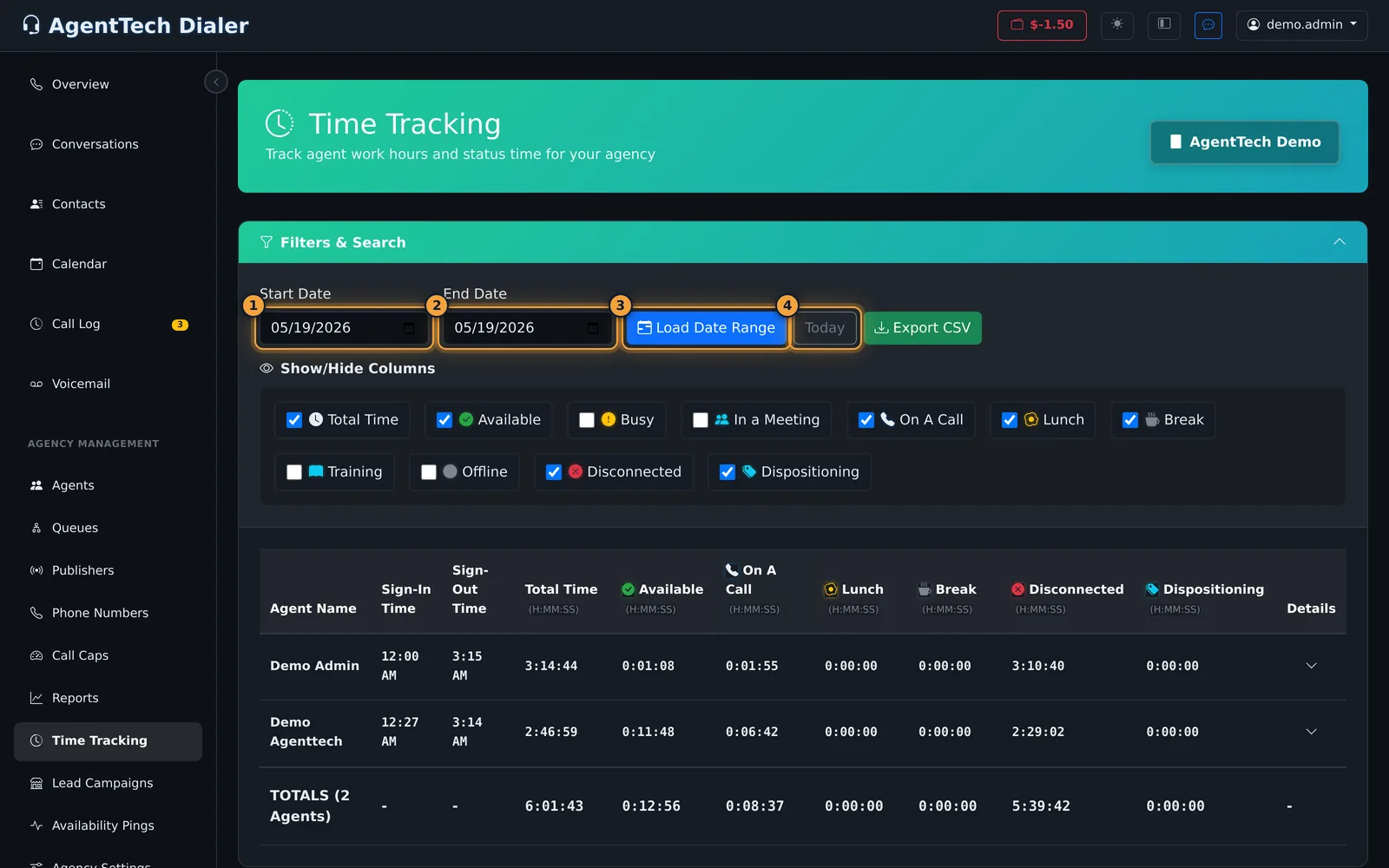
The table lists every agent who signed in during the range, and a TOTALS row adds them up.
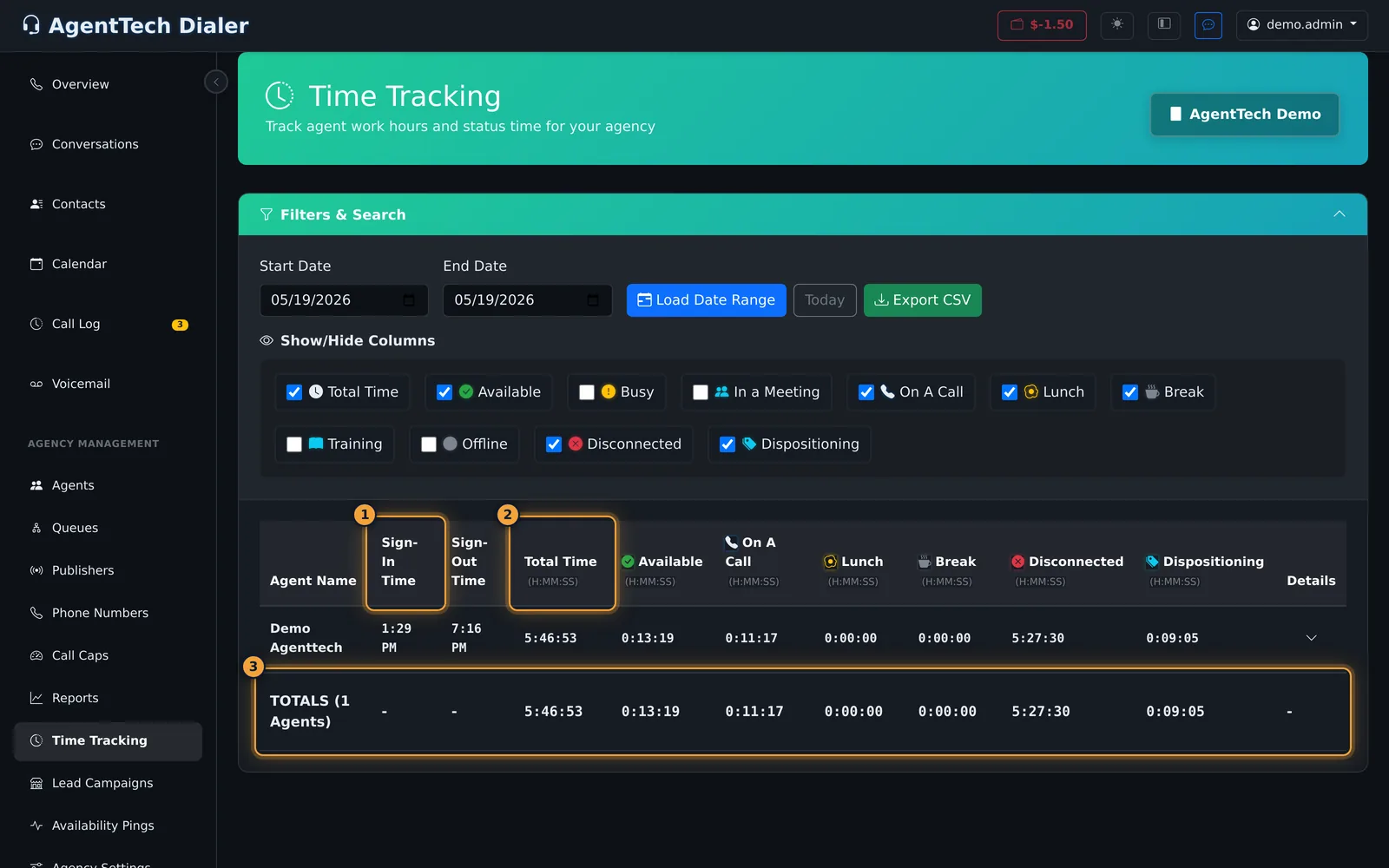
| Column | What it shows |
|---|---|
| Agent Name | The agent. |
| Sign-In Time / Sign-Out Time | When the agent signed in and out in the range. A session still open shows In Progress. |
| Total Time | Time across every status in the range, as H:MM:SS. |
| One column per status | Available, Busy, In a Meeting, On A Call, Lunch, Break, Training, Offline, Disconnected, Dispositioning, and any custom statuses your agency added. |
| Details | Opens the agent's status timeline. |
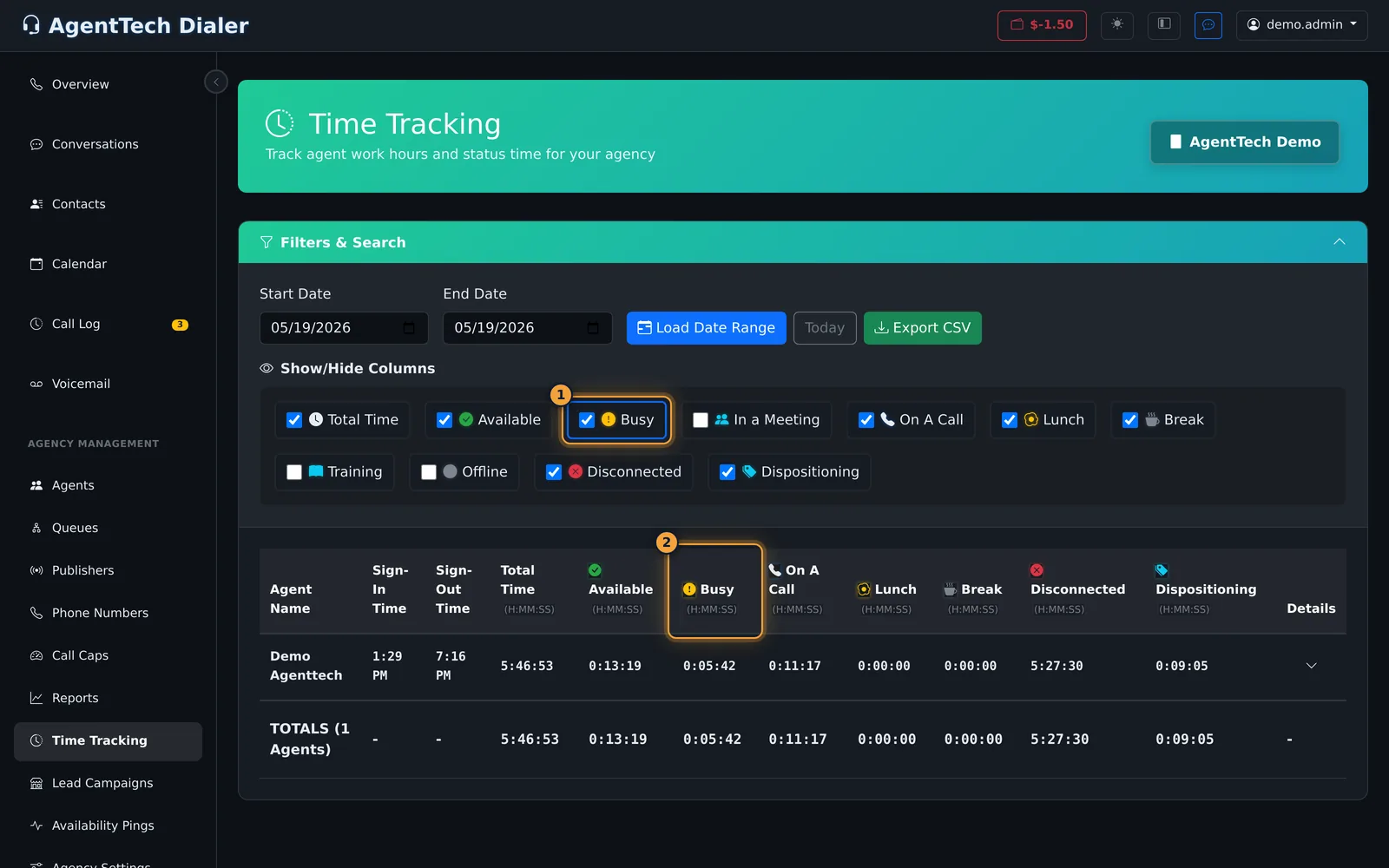
Show or hide status columns
Under Show/Hide Columns, tick a status to add its column and untick it to remove it. Busy, In a Meeting, Training and Offline start hidden. Your choice is remembered in this browser.
See an agent's status timeline
- Find the agent's row.
- Select the arrow in the Details column.
- The Status Timeline lists each status the agent entered, in order, with the time it started and how long it lasted. It also shows Ringing (a call offered to the agent), which has no column of its own. Select the arrow again to close it.
Export to CSV
Select Export CSV. The file contains the columns currently shown (not Details), one row per agent plus the totals row, with times as H:MM:SS. It is named after the range, for example time-tracking_2026-09-21_to_2026-09-27.csv, or time-tracking_2026-09-27.csv for a single day. Hide the columns you don't need before exporting.
Common problems
- An agent is missing. They did not sign in during the range. Widen the dates.
- A status column is missing. It is hidden; tick it under Show/Hide Columns.
- Disconnected is larger than expected. Agents who close the browser instead of signing out stay Disconnected until they return. See the note above.
Related articles
Was this article helpful?
Can't find what you are looking for? Our support team can help.
Submit a support ticket