Each agent has an Agent Analytics page with their calls, sales and cost for a date range, the sales they made, where their callers were, their recent calls, an AI review of their calls and how they used AI coaching. For where their time went, use Time Tracking.
Who can do this: supervisors and agency admins.
Open an agent's analytics
- Open Reports and set the date range.
- Expand Performance By and select the Agent tab.
- Select the agent's name. Names are also links in the Leaderboard, Detailed Scores and Compliance By > Agent tables.
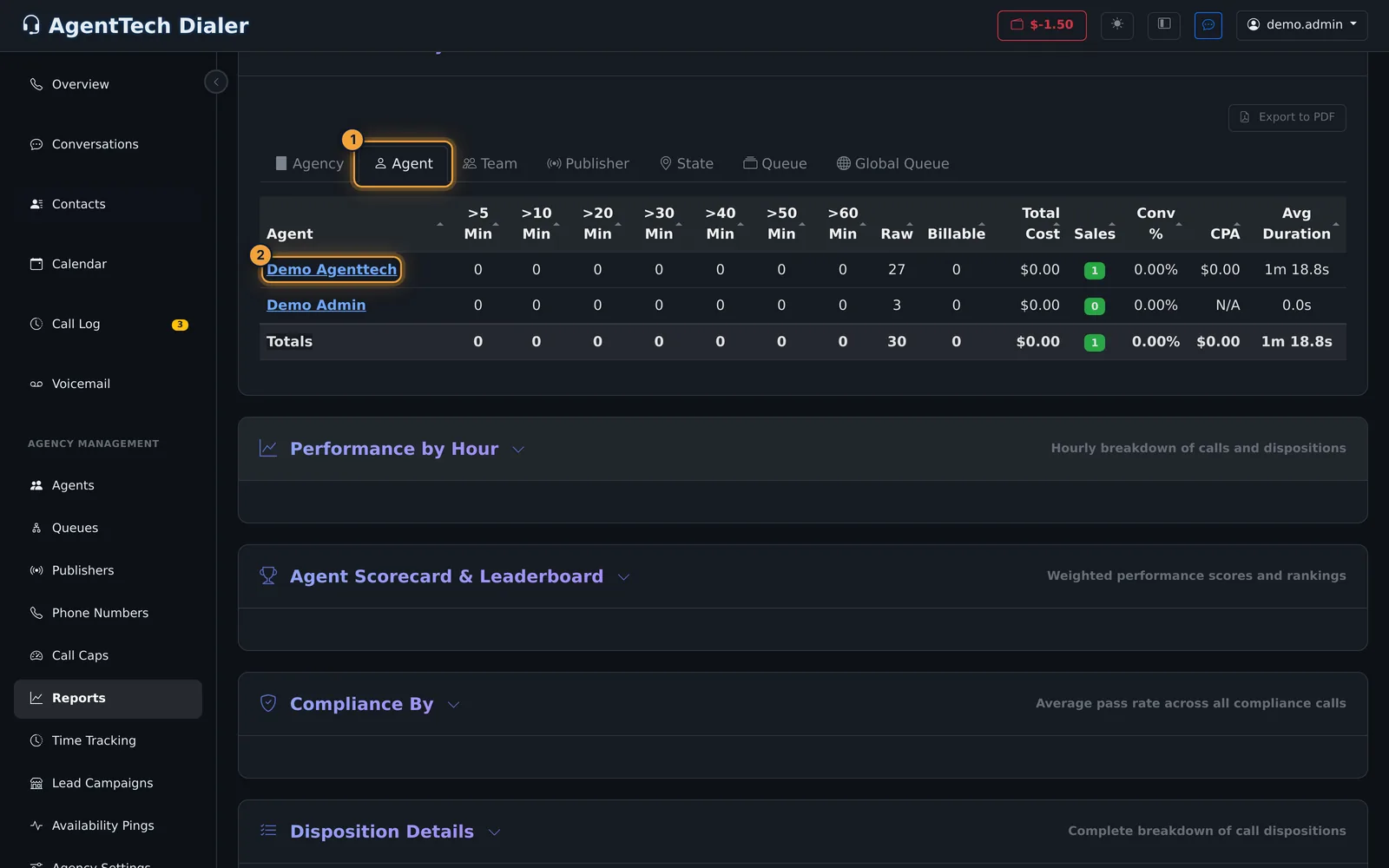
The page opens for the same date range. Its address has the agent and dates in it (/agent-analytics?user_id=...&start_date=...&end_date=...), so you can bookmark it. Back to Reports returns to Reports.
Change the date range
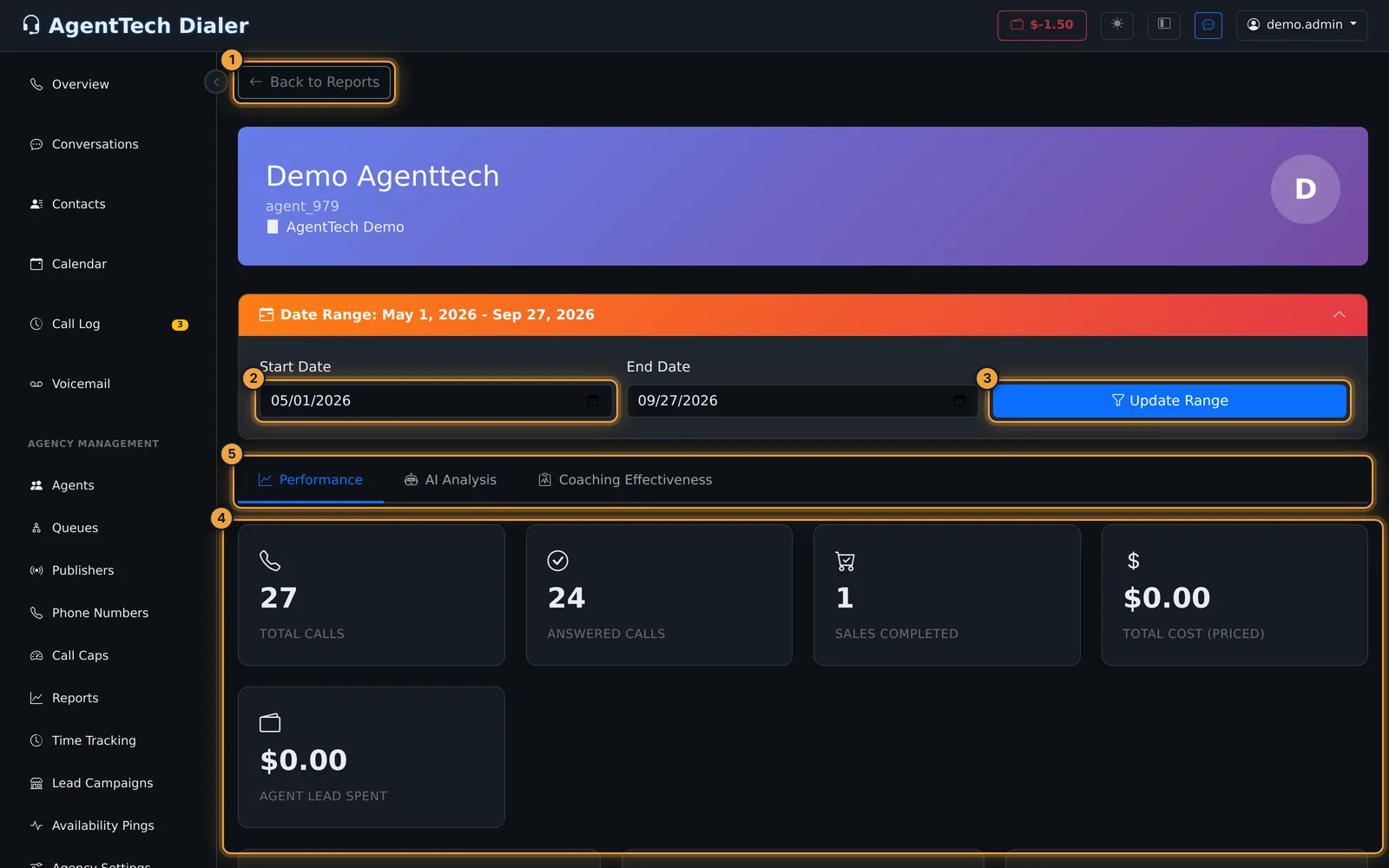
Set Start Date and End Date in the Date Range panel and select Update Range. Every card and table on the page follows it.
Performance tab
Eight cards summarise the range:
| Card | What it shows |
|---|---|
| Total Calls | All the agent's calls. |
| Answered Calls | Calls the agent answered. |
| Sales Completed | Completed sales. |
| Total Cost (Priced) | The priced cost of the agent's calls. |
| Agent Lead Spent | What was spent on leads for this agent. |
| Billable Calls | Calls that were billed. |
| Conversion Rate | The agent's conversion rate. |
| Cost Per Acquisition | Cost per sale. |
The metrics are defined in KPIs & Leaderboard. As everywhere else, Cost Per Acquisition shows N/A when the agent has no sales in the range.
Below the cards are three tables. Click a column heading to sort; long tables page 25 rows at a time.
Policy Sales lists each sale in the range: Caller Name, Sale Type, Duration, Sale Date and Actions. Each row also has Notes and View Details links for that sale.

Performance by State splits the agent's calls by the caller's state, one row per state: Total Calls, Answered, Billable, Sales, Conv Rate and Avg Duration. It matches the State tab in Reports for the same agent and range.
Recent Calls lists the agent's calls in the range, newest first: Date & Time, Caller ID, the caller's State, the Queue the call came through, Duration, Status and Disposition.
AI Analysis tab
Opening AI Analysis runs an AI review of the agent's calls in the range. It shows how many calls were analysed and when, then a Performance Summary, Top Strengths, Key Weaknesses, Actionable Improvement Steps, Objection Handling and Rapport Building. A result that was already generated for the range is reused and marked cached; the regenerate button runs the analysis again, and the analysis can be exported as a PDF.
Coaching Effectiveness tab
Coaching Effectiveness shows how the agent responded to AI Sales Coach suggestions in the range: total suggestions, the helpful rate (helpful out of the suggestions the agent rated), the dismissed rate (dismissed out of all suggestions) and the number of calls coached, then a breakdown by suggestion type and a day-by-day trend.
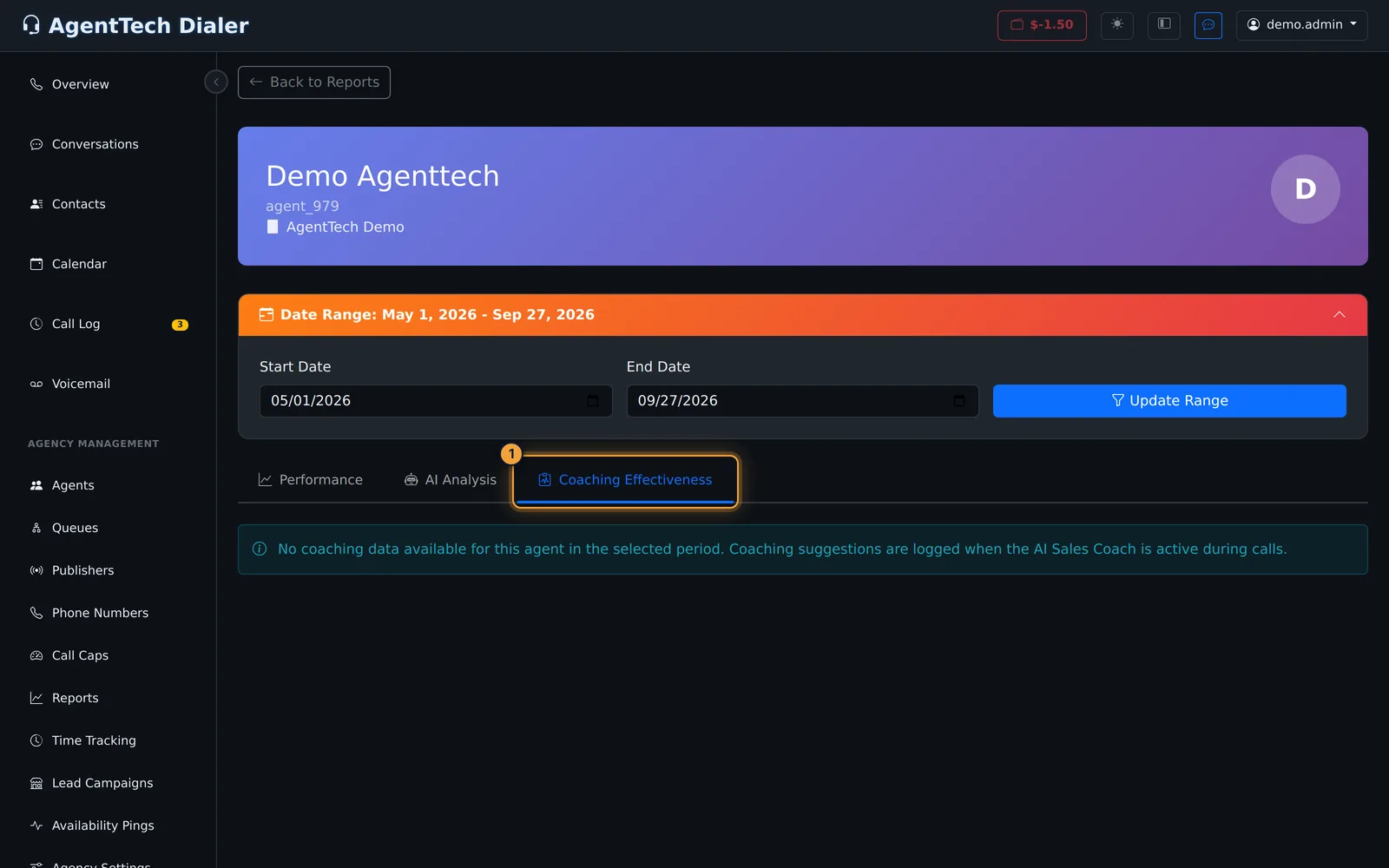
Until the AI Sales Coach has been active on the agent's calls, the tab reads "No coaching data available for this agent in the selected period."
Compare agents
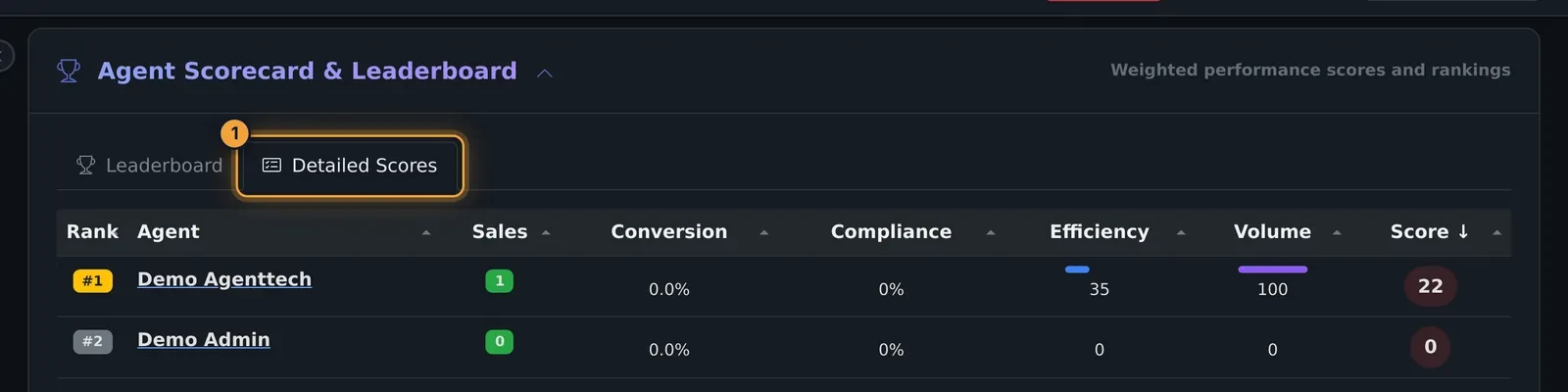
To compare agents side by side, use Reports > Agent Scorecard & Leaderboard > Detailed Scores: every agent's rank, sales, conversion, compliance, efficiency, volume and composite score. KPIs & Leaderboard explains the score.
Time tracking
Sign-in and sign-out times, time in each status and each agent's status timeline are on Agency Management > Time Tracking. See Time Tracking.
Common problems
- The cards are all zero. The agent had no calls in the range. Widen it and select Update Range.
- Coaching Effectiveness is empty. The AI Sales Coach wasn't active on the agent's calls in the range.
Related articles
Was this article helpful?
Can't find what you are looking for? Our support team can help.
Submit a support ticket