Transcript
Your agency pays for calls, numbers, texts and AI features from a prepaid wallet. Here is how to add funds by card, and top up automatically when the balance runs low.
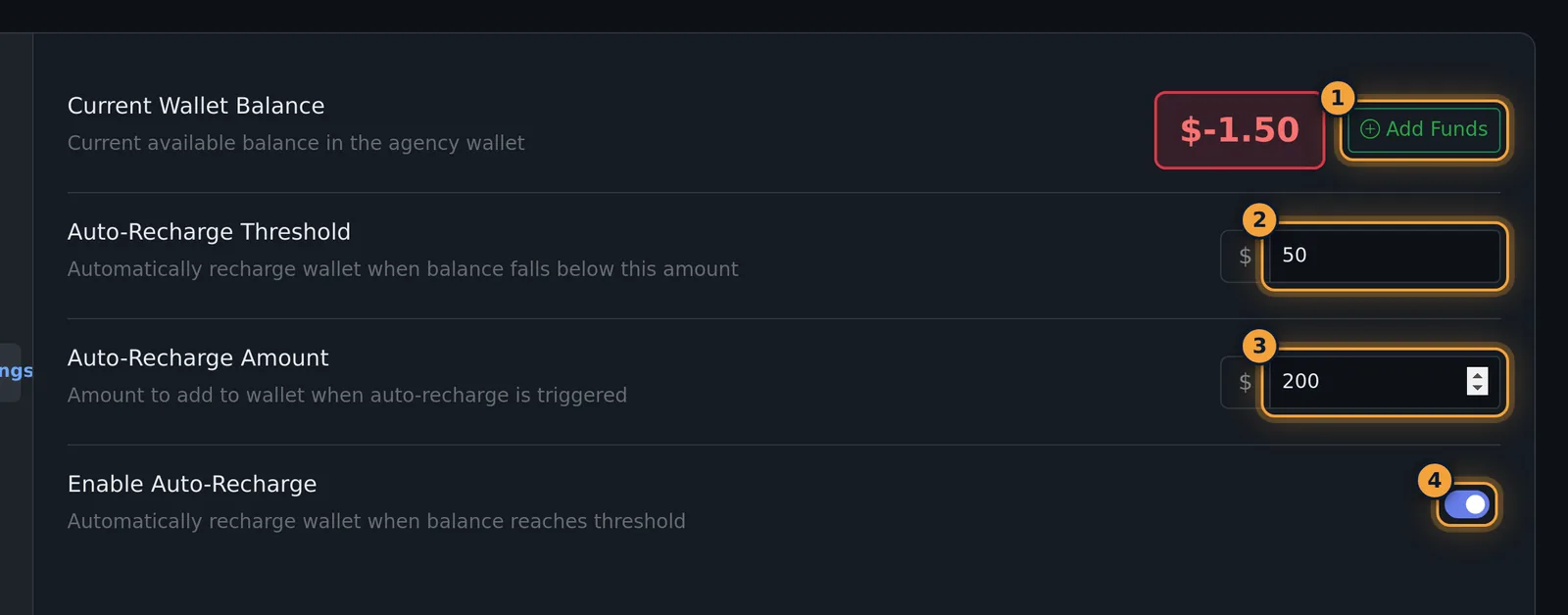
Open Agency Settings, then Billing and Wallet Settings. Select Add Funds, next to Current Wallet Balance.
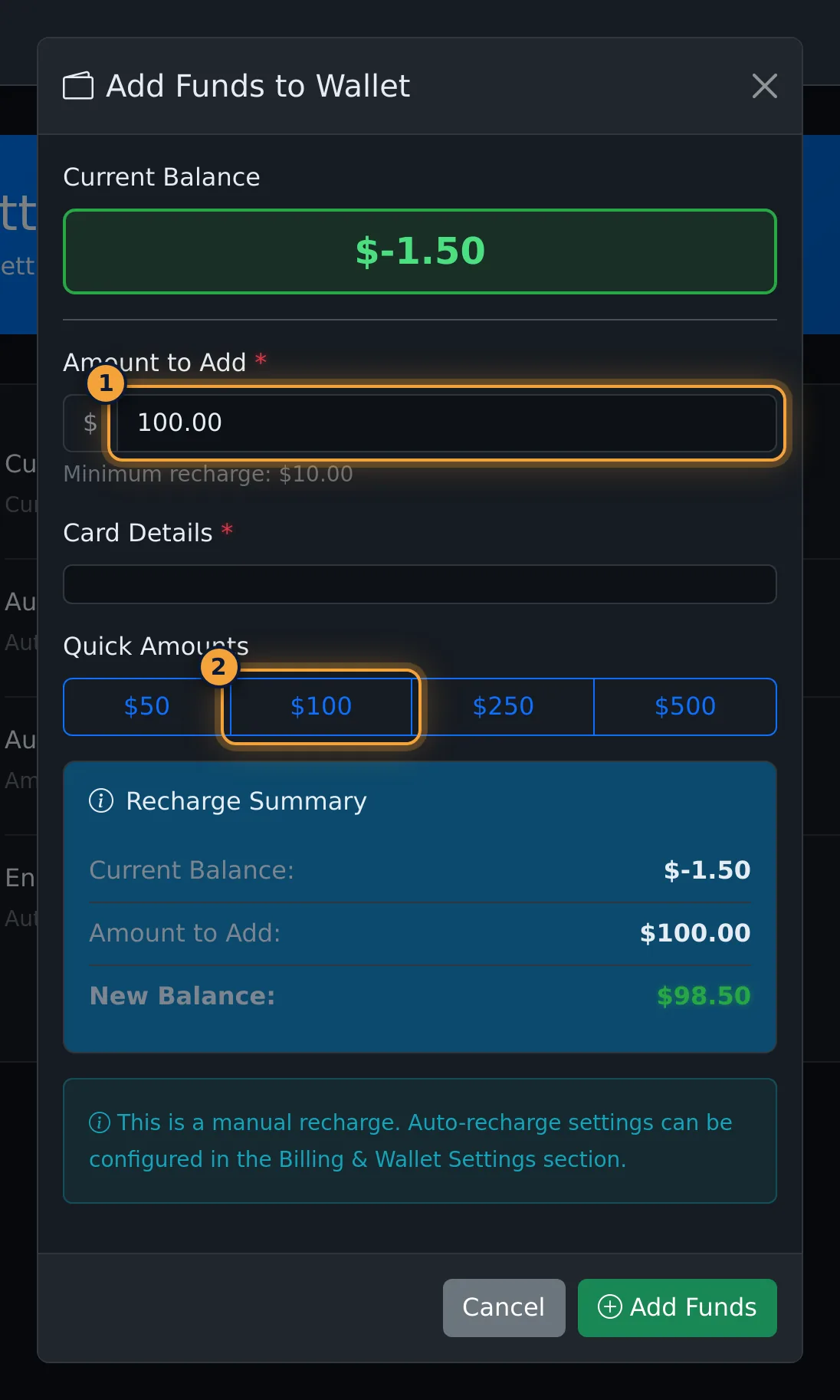
Enter the Amount to Add, or pick a Quick Amount. The minimum is ten dollars.
Enter your card in Card Details, and check the Recharge Summary: the current balance, the amount, and the new balance.
Then select Add Funds. When the payment goes through, the new balance shows straight away.
For auto-recharge, set the threshold. When the balance falls below it, a recharge starts. Then set the amount to add each time.
Turn on Enable Auto-Recharge. The settings save on their own, about a second after each change.
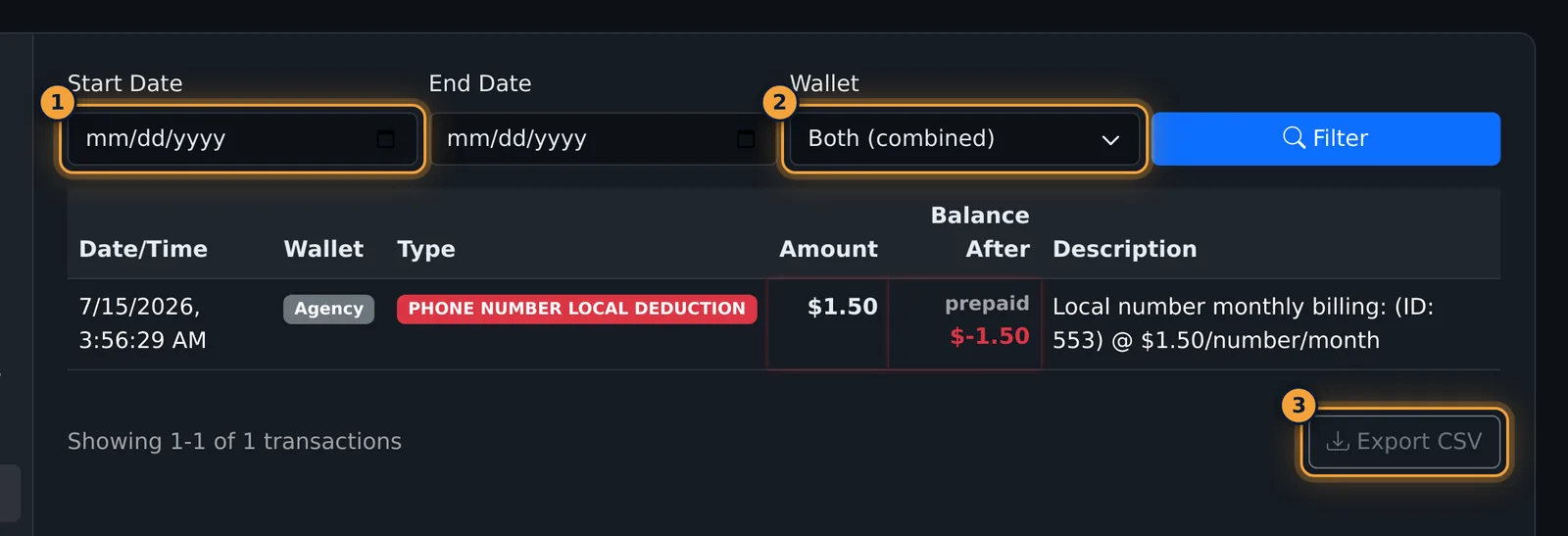
Transaction History shows every charge and top-up, with the balance after each.
Next, see what is charged to your wallet in Billing and Your Wallet.
Your agency pays for calls, numbers, texts and AI features from a prepaid wallet (see Billing & Your Wallet). You can add funds by card at any time, and set auto-recharge to top up when the balance falls below a threshold.
This article is for agency admins. Open Agency Management > Agency Settings > Billing & Wallet Settings.
Add funds by card
- Select Add Funds next to Current Wallet Balance.
- Enter the Amount to Add, or pick a Quick Amount: $50, $100, $250 or $500. The minimum is $10.00.
- Enter the card in Card Details.
- Check the Recharge Summary: current balance, amount to add and the new balance.
- Select Add Funds.
When the payment goes through, the window closes, "Payment Successful!" confirms the amount, and the balance updates.
| Field | What it does |
|---|---|
| Current Balance | Your balance before the top-up. |
| Amount to Add | Required. At least $10.00. |
| Card Details | Required. The card to charge. |
| Quick Amounts | Fill in $50, $100, $250 or $500. |
| Recharge Summary | Current balance, amount and new balance. |
Set up auto-recharge
- Set the Auto-Recharge Threshold: when the balance falls below this amount, a recharge is triggered.
- Set the Auto-Recharge Amount: how much is added each time.
- Turn on Enable Auto-Recharge.
The settings save on their own about a second after each change ("Settings saved" appears).
For example, a threshold of $50 and an amount of $200 means: when the balance falls below $50, add $200.
Check your transactions
Open Agency Settings > Transaction History to see the wallet's charges and credits with the balance after each. Filter by date or wallet, or export the list as CSV.
Common problems
- "Minimum recharge amount is $10.00": enter $10 or more.
- "Stripe payment form is unavailable": the card form couldn't load, often because of a browser extension. Try again with extensions off or in another browser.
- "Payment Failed": the card was declined or the details were wrong. The message says why; nothing was added.
- The balance stays below the threshold with auto-recharge on: check the settings saved and contact AgentTech support to check the card used for auto-recharge.
Related articles
Was this article helpful?
Can't find what you are looking for? Our support team can help.
Submit a support ticket