Transcript
Skills and state licenses decide which calls each agent can take. Here is how to set them up, and make a queue use them.
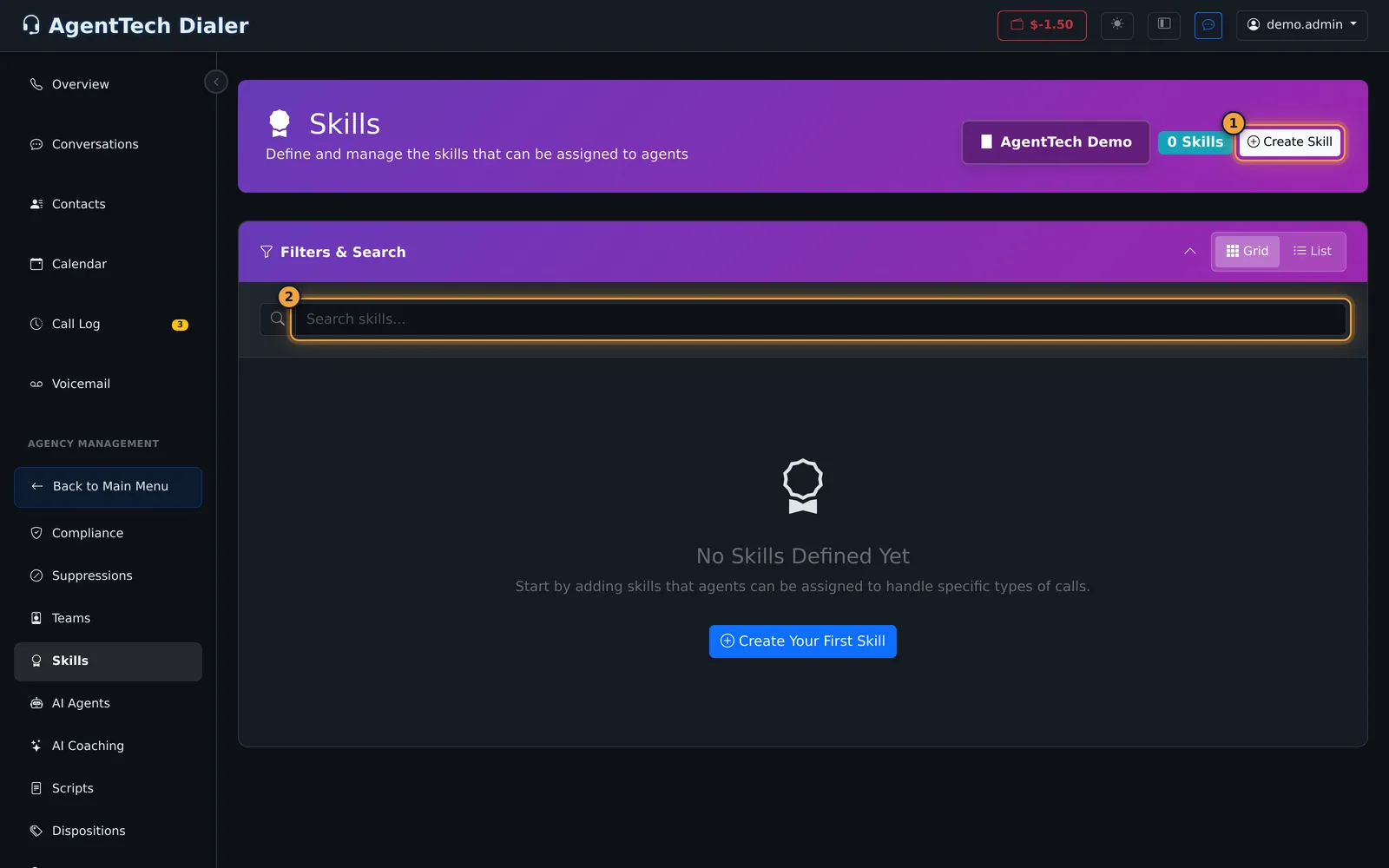
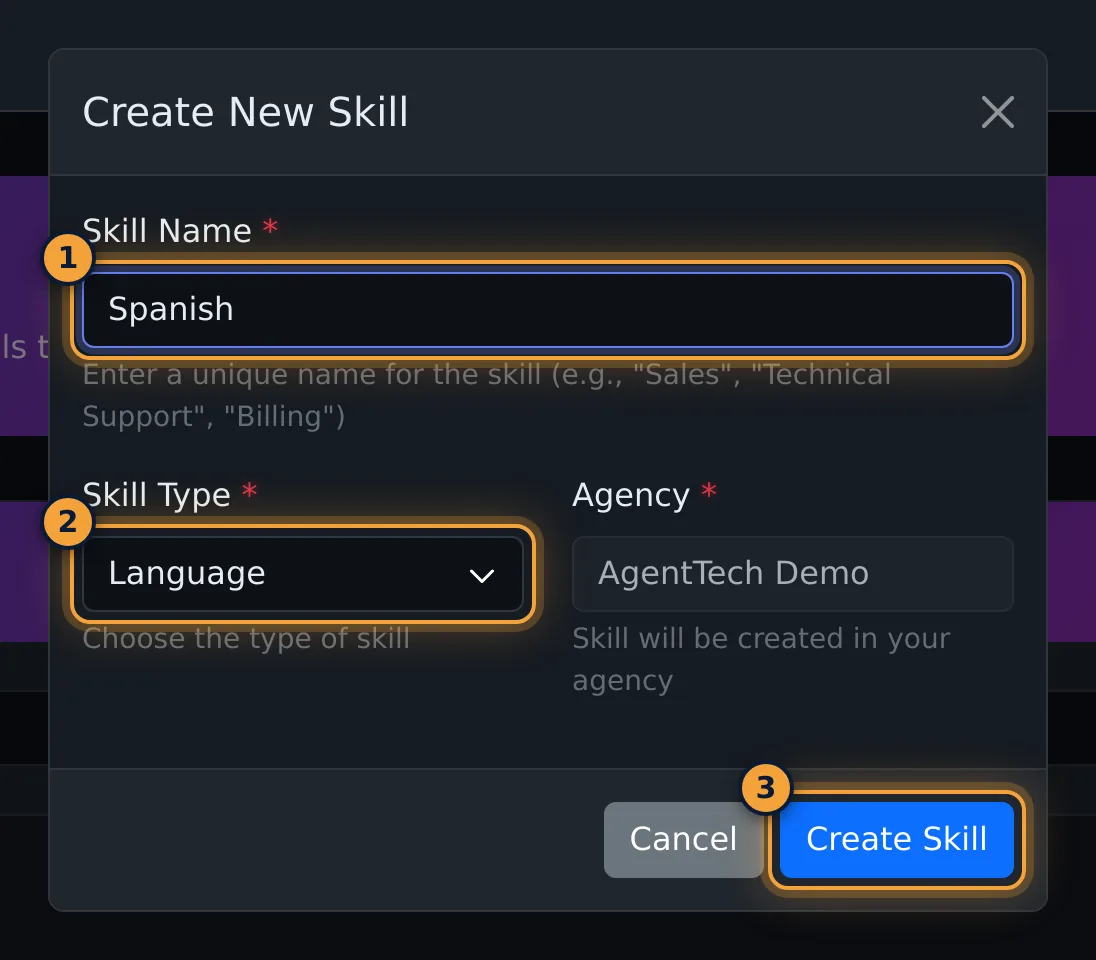
Skills live under Agency Management. Select Create Skill, and give the skill a name, like Spanish.
Pick its type: Language, Certification, or Other. Then select Create Skill.
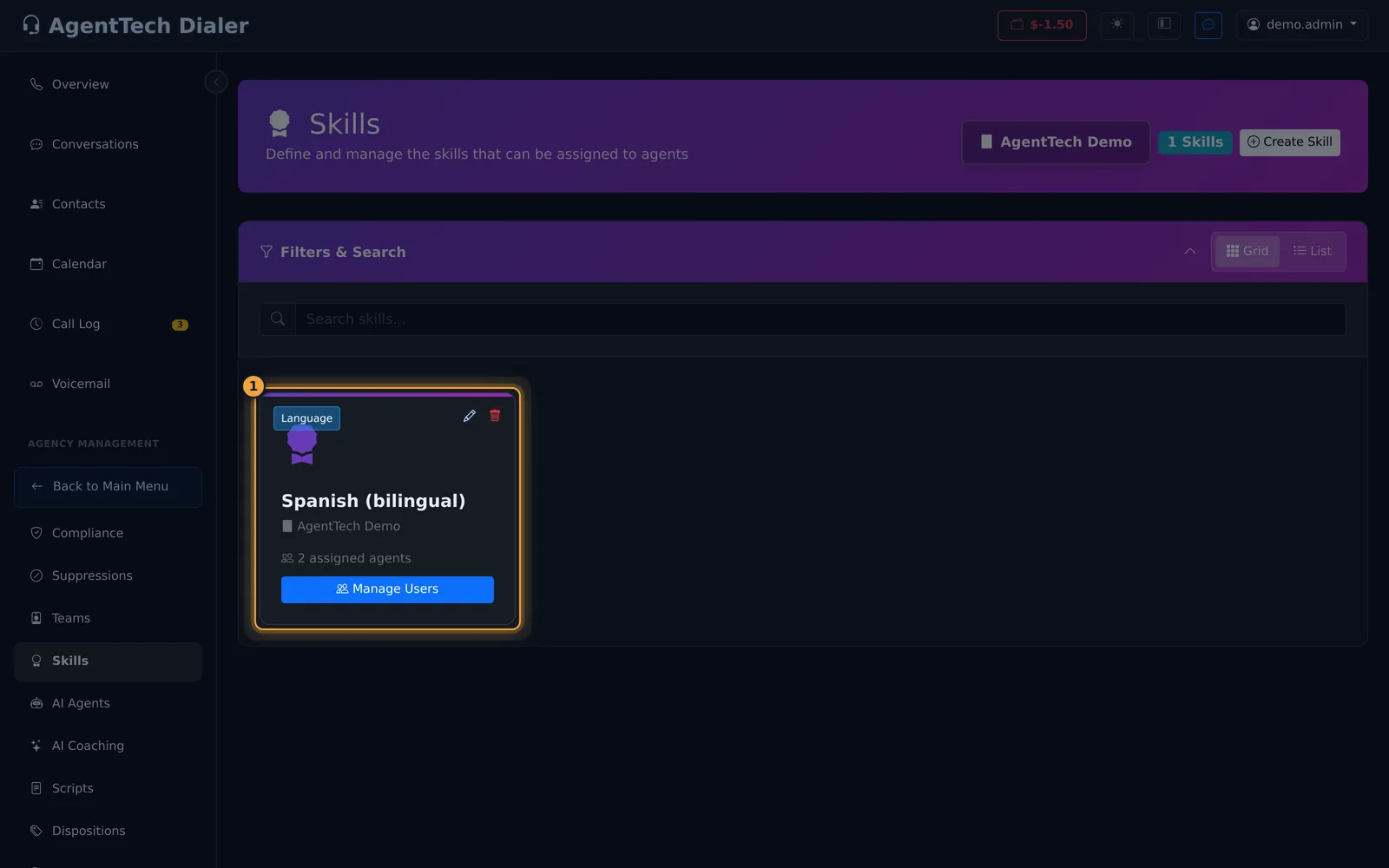
The skill appears as a card. From here you can edit it, delete it, or choose who has it.
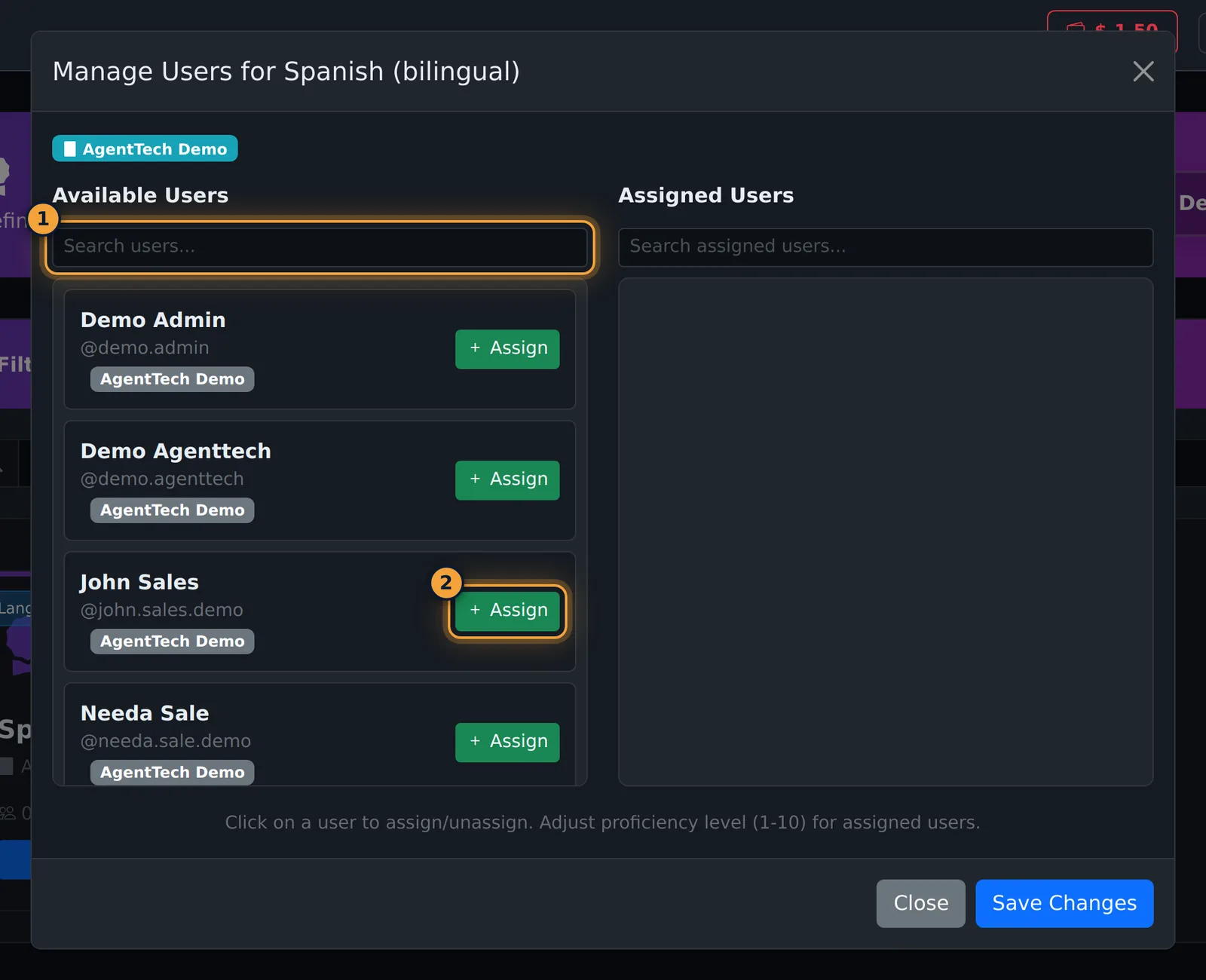
Select Manage Users. Assign each agent who has the skill. They start at a proficiency of five.
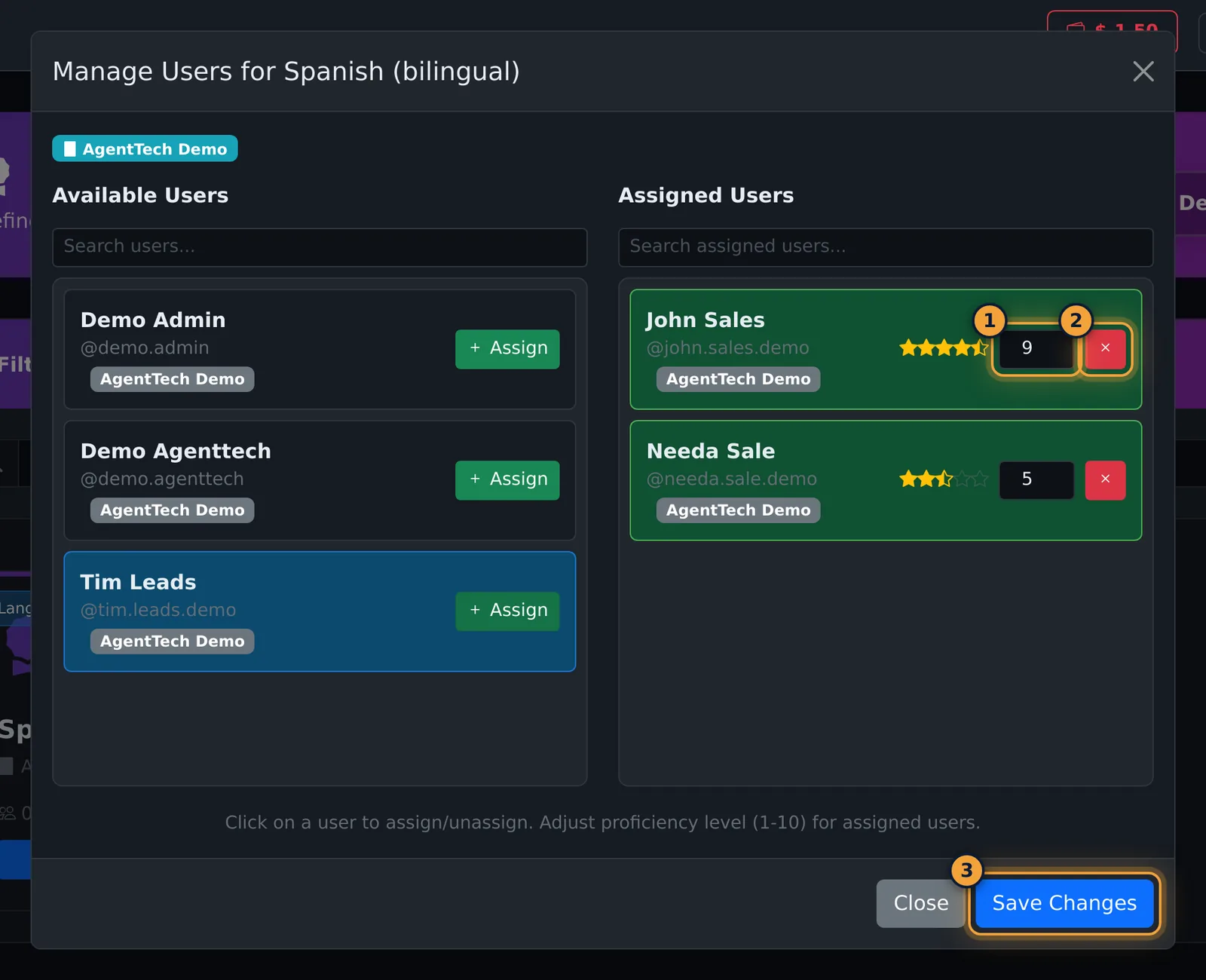
Set each agent's proficiency, from one to ten. Then save your changes.
State licenses are set on each agent. Open Agents, edit the agent, and go to the States tab.
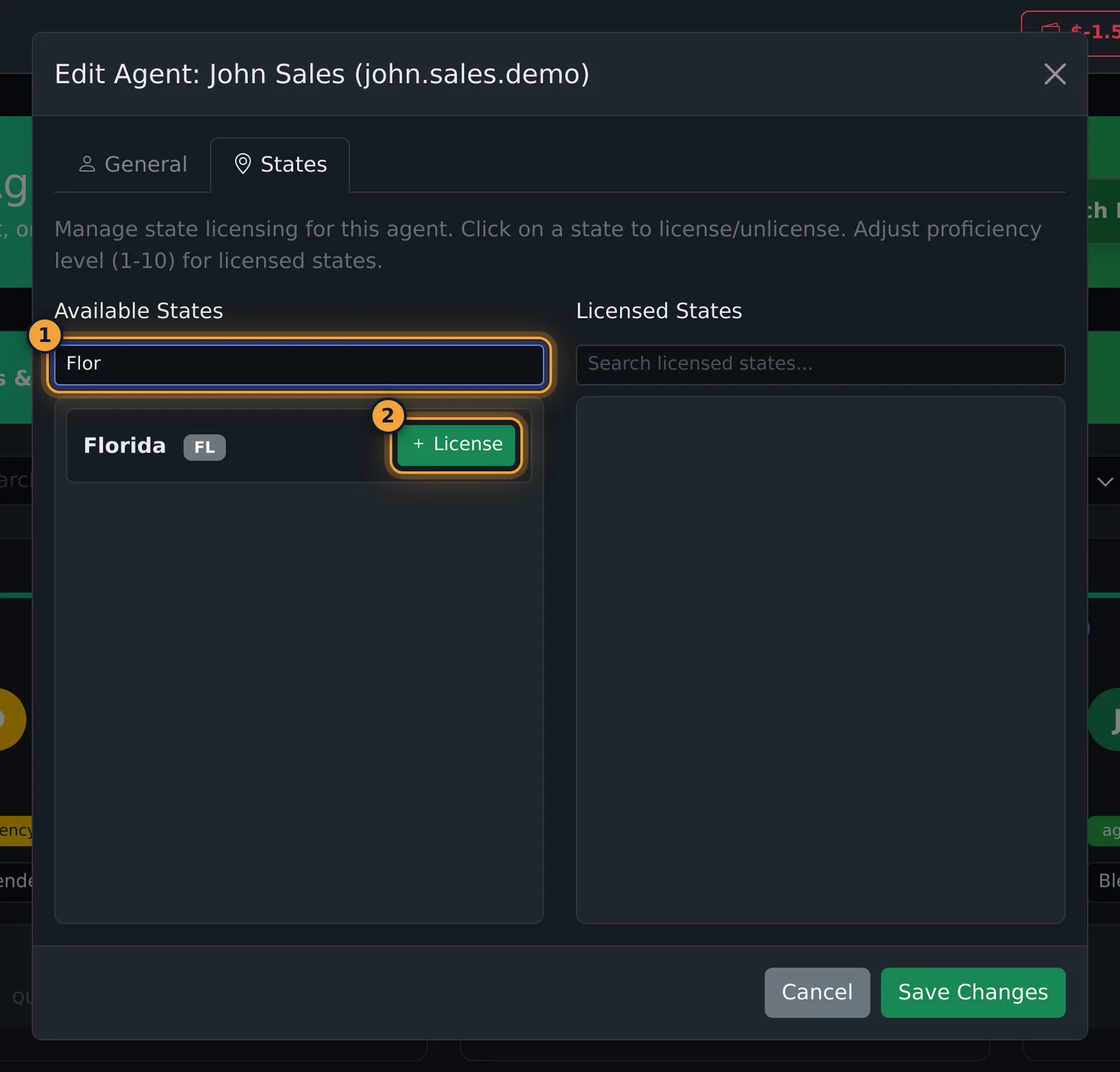
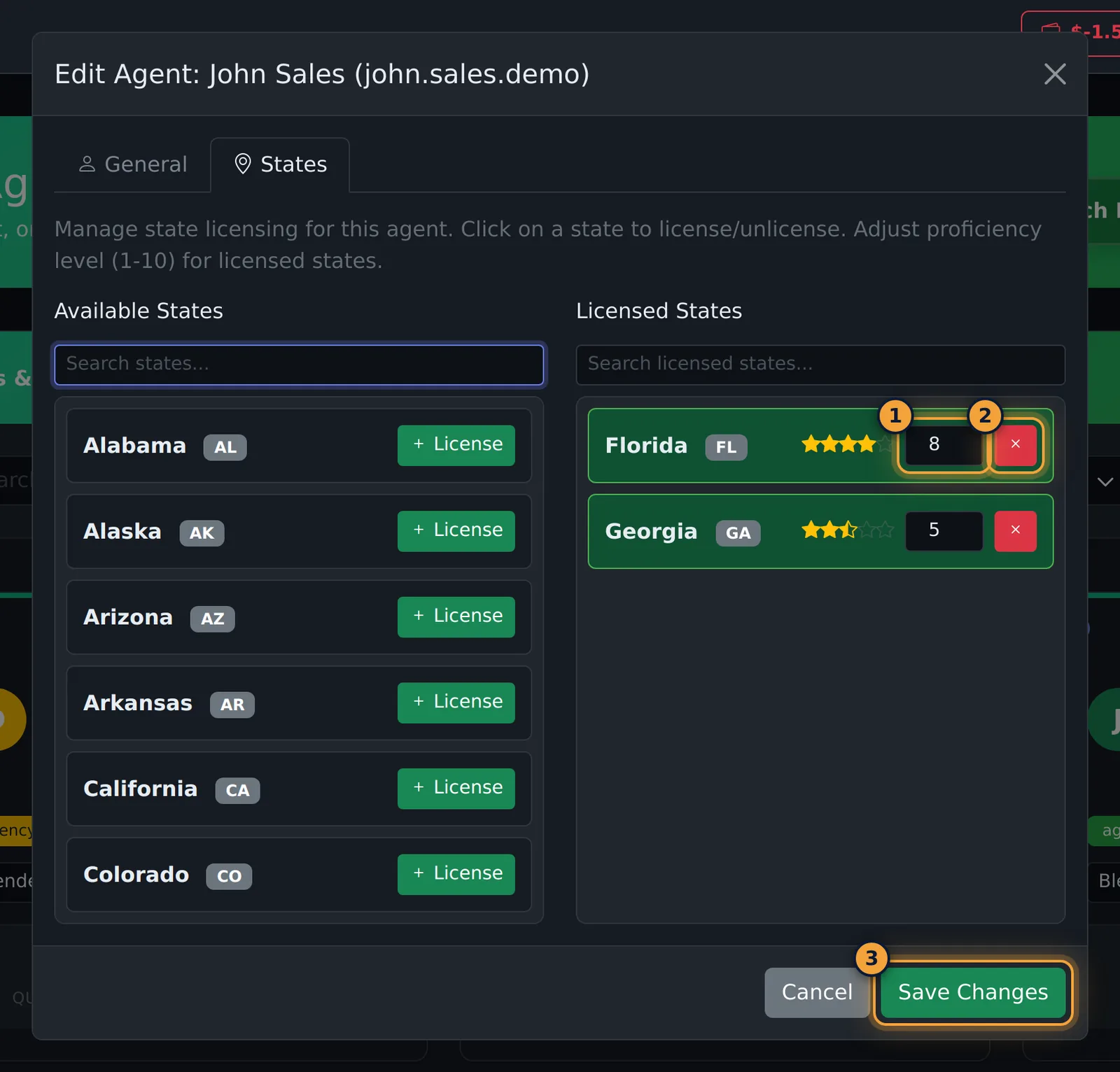
Search for a state and select License. Set the proficiency, then select Save Changes.
Last, tell the queue what it needs. Open Queues, then the queue, and go to the Skills tab.
Select the skill, and set the minimum level an agent needs. Then select Save Changes. Calls in that queue now go only to agents who qualify.
That is the whole setup. The full guide covers every option, including editing and deleting skills.
Skills and state licenses describe what each agent can take: a language, a certification, the states they are licensed to sell in. Queues then require a skill or accept calls from certain states, so calls are matched to agents who qualify.
It takes three steps:
- Create the skills your agency uses (Agency Management > Skills).
- Give agents their skills and license them in states.
- Tell each queue which skills it requires and which states it accepts (Queue Management).
This article is for agency admins.
Create a skill
- Open Agency Management > Skills. With no skills yet, the page shows Create Your First Skill.
- Select Create Skill.
- Enter a Skill Name, for example Spanish or Medicare Certified.
- Choose the Skill Type: Language, Certification or Other. Both fields are required.
- Select Create Skill.
The skill appears as a card with its type, how many agents have it, and edit, delete and Manage Users buttons.
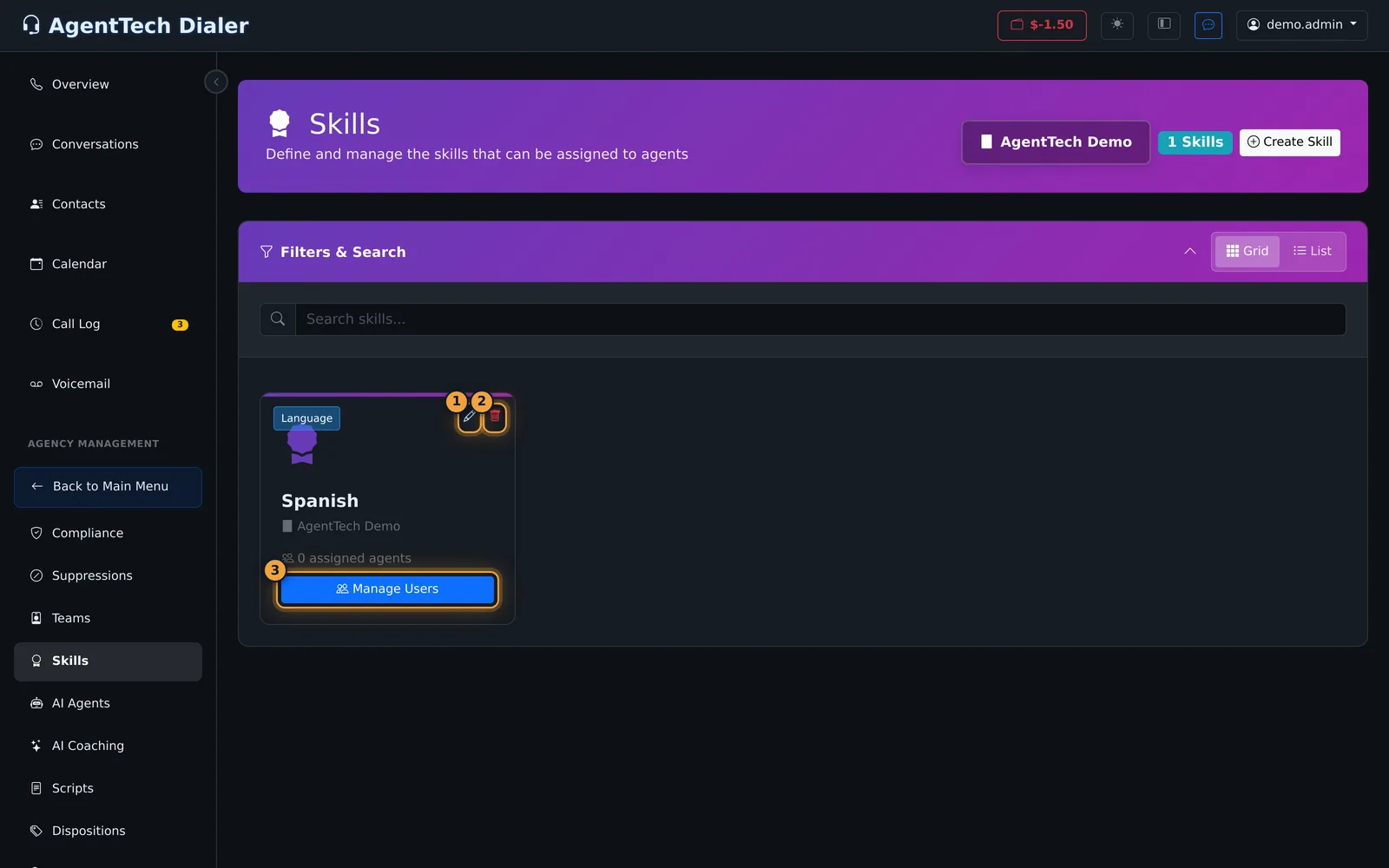
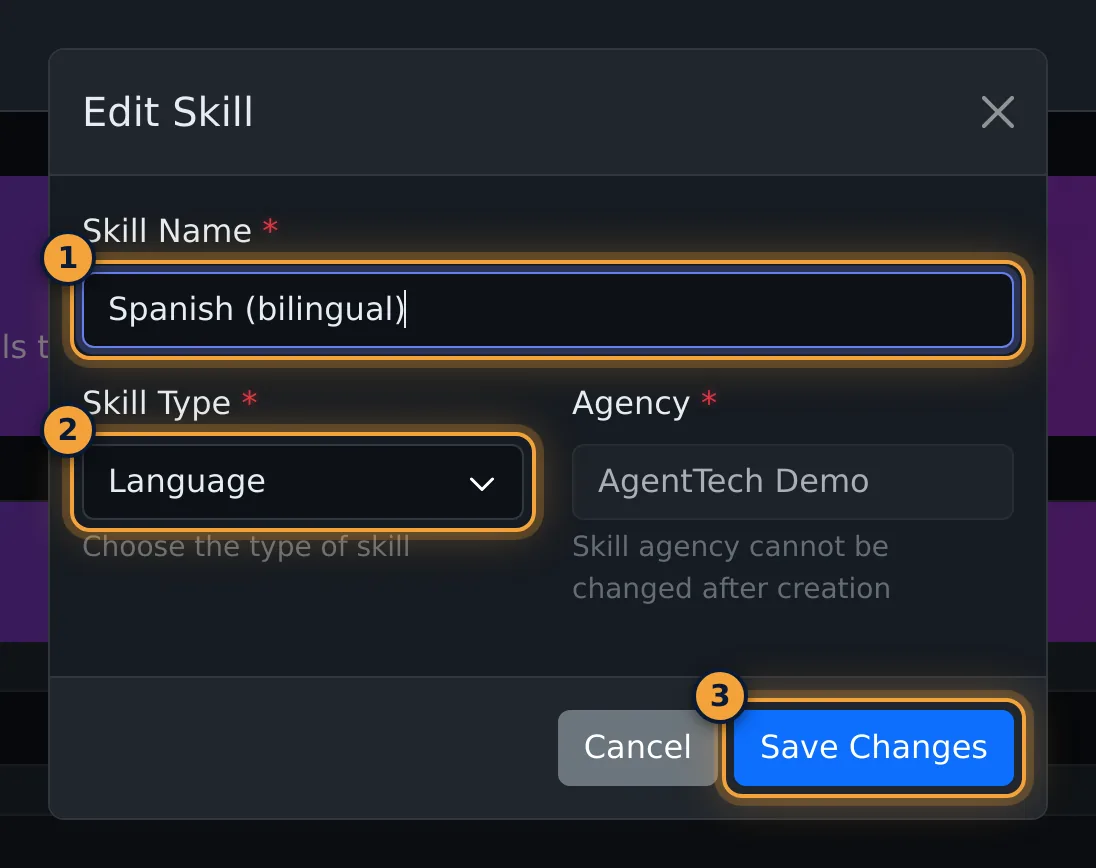
To rename a skill or change its type, select the pencil and then Save Changes. A skill can't be moved to another agency.
Give agents a skill
- On the skill's card, select Manage Users.
- Under Available Users, find the agent (use the search box) and select Assign. They move to Assigned Users with a proficiency of 5.
- Set each assigned agent's proficiency from 1 (lowest) to 10 (highest). The stars follow the number.
- To take a skill away, select the red x next to the agent.
- Select Save Changes. Close discards your changes.
After saving, the card counts the assigned agents.
License an agent in states
State licenses are set per agent on the Agents page.
- Open Agency Management > Agents and select the pencil on the agent's card.
- Open the States tab. In List view, the map-pin Manage States button opens state licensing directly.
- Search Available States and select License next to each state the agent is licensed in.
- In Licensed States, set each state's proficiency from 1 to 10 (new licenses start at 5). The red x removes a license.
- Select Save Changes. This also saves anything you changed on the General tab.
The agent's card then shows how many states they are licensed in.
Make a queue require skills and states
- Open Queues and click the queue's card to open Manage Queue.
- On the Skills tab, click a skill to require it. Set Min Level (1 to 10) for the lowest proficiency that qualifies, or tick Optional to prefer the skill without requiring it.
- On the States tab, click each state the queue accepts calls from.
- Select Save Changes.
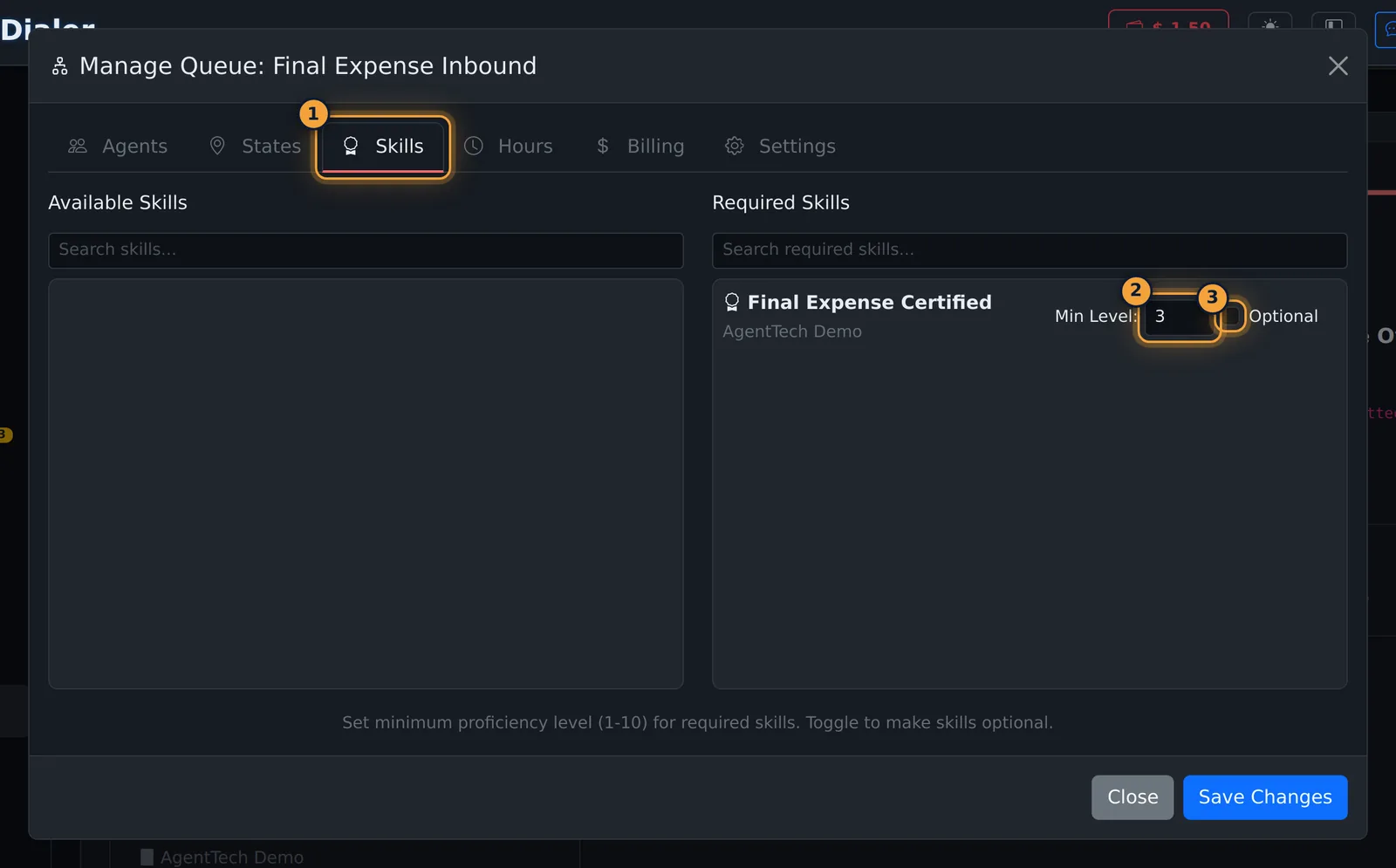
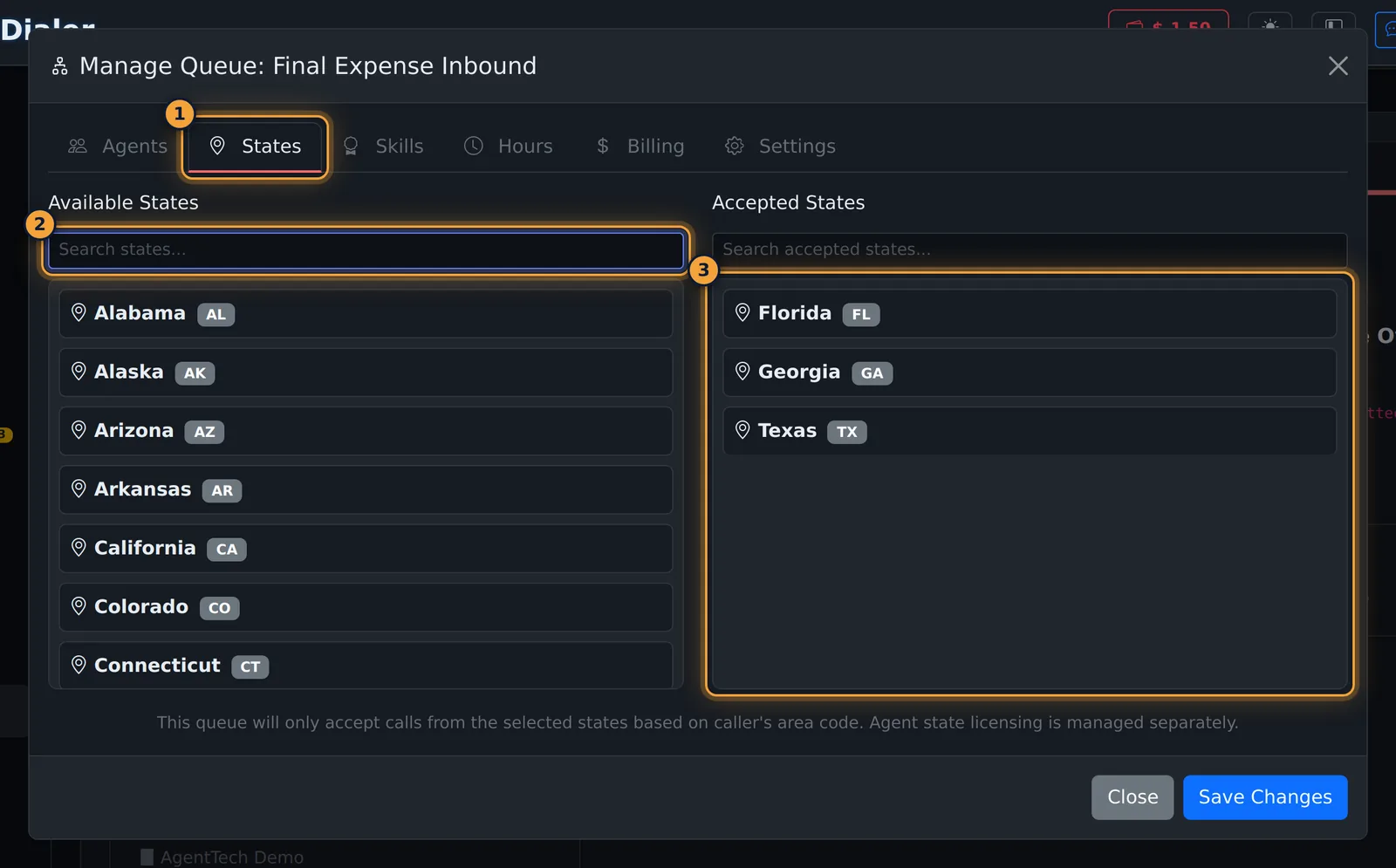
The queue card then counts its skills and states. See Queue Management for the other tabs.
Delete a skill
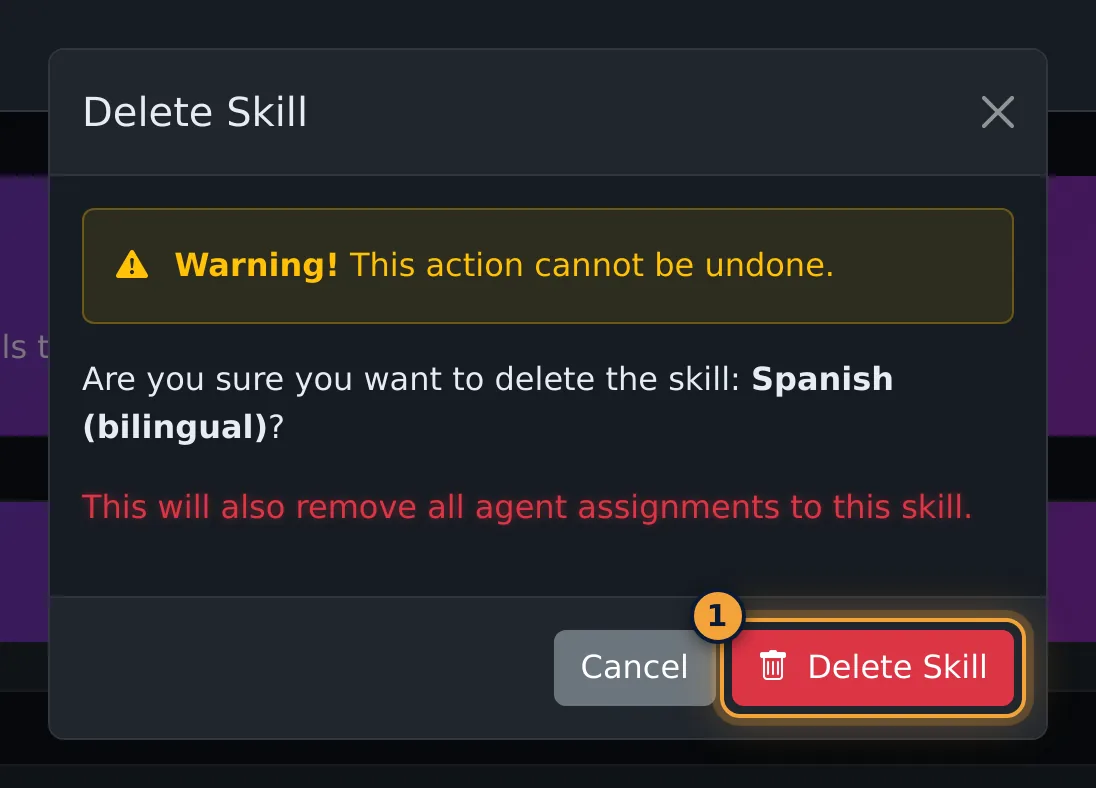
Select the bin on the skill's card and confirm with Delete Skill. This removes the skill from every agent who had it. It can't be undone.
Common problems
- "No changes to save" in Manage Users. Nothing was assigned, removed or changed since the window opened.
- A new agent doesn't get calls from a queue. Check that they have every required skill at or above its Min Level, are licensed in the caller's state if the queue accepts only some states, and are assigned to the queue.
Related articles
Was this article helpful?
Can't find what you are looking for? Our support team can help.
Submit a support ticket