A message template is a text or email you send often, such as an appointment reminder or a quote follow-up, saved once and reused. Templates can include variables like {contact.first_name} that are replaced with the contact's details when you use the template.
This article is for everyone. Agents and supervisors create their own templates; agency admins can also share templates with the whole agency or with selected agents.
Open Message Templates
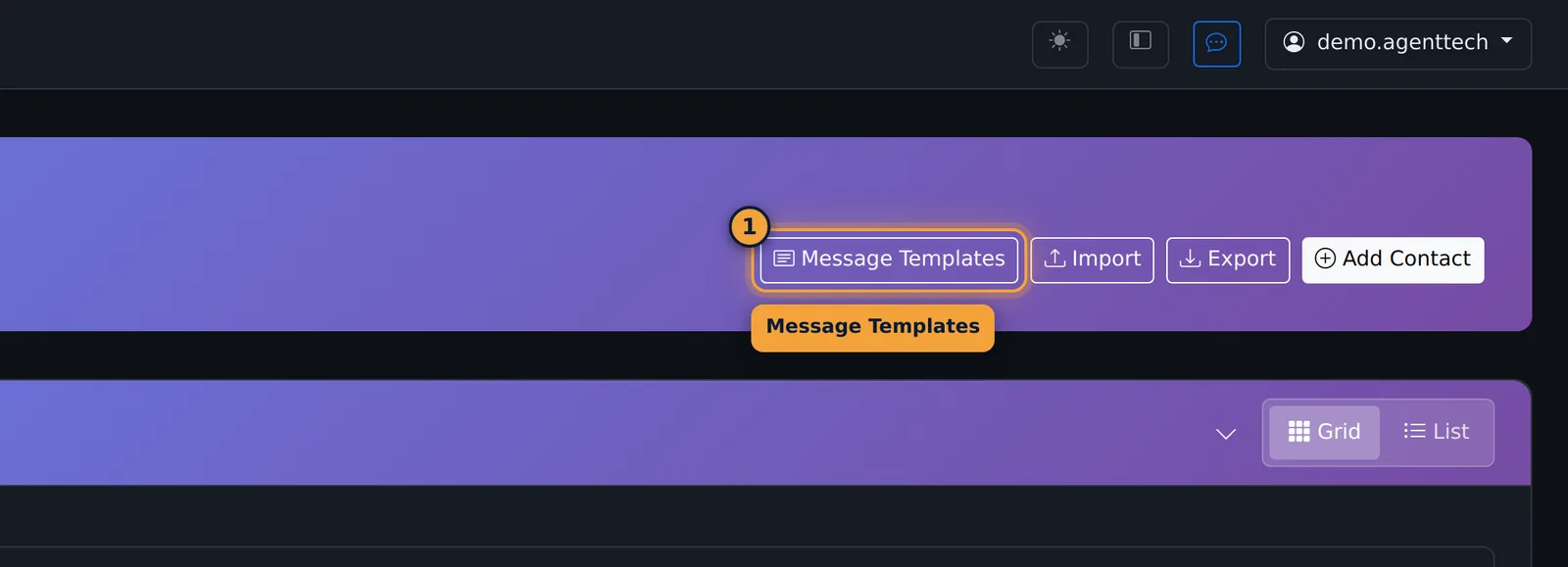
Open Contacts and select Message Templates in the page header. Back to Contacts returns to your contact list.
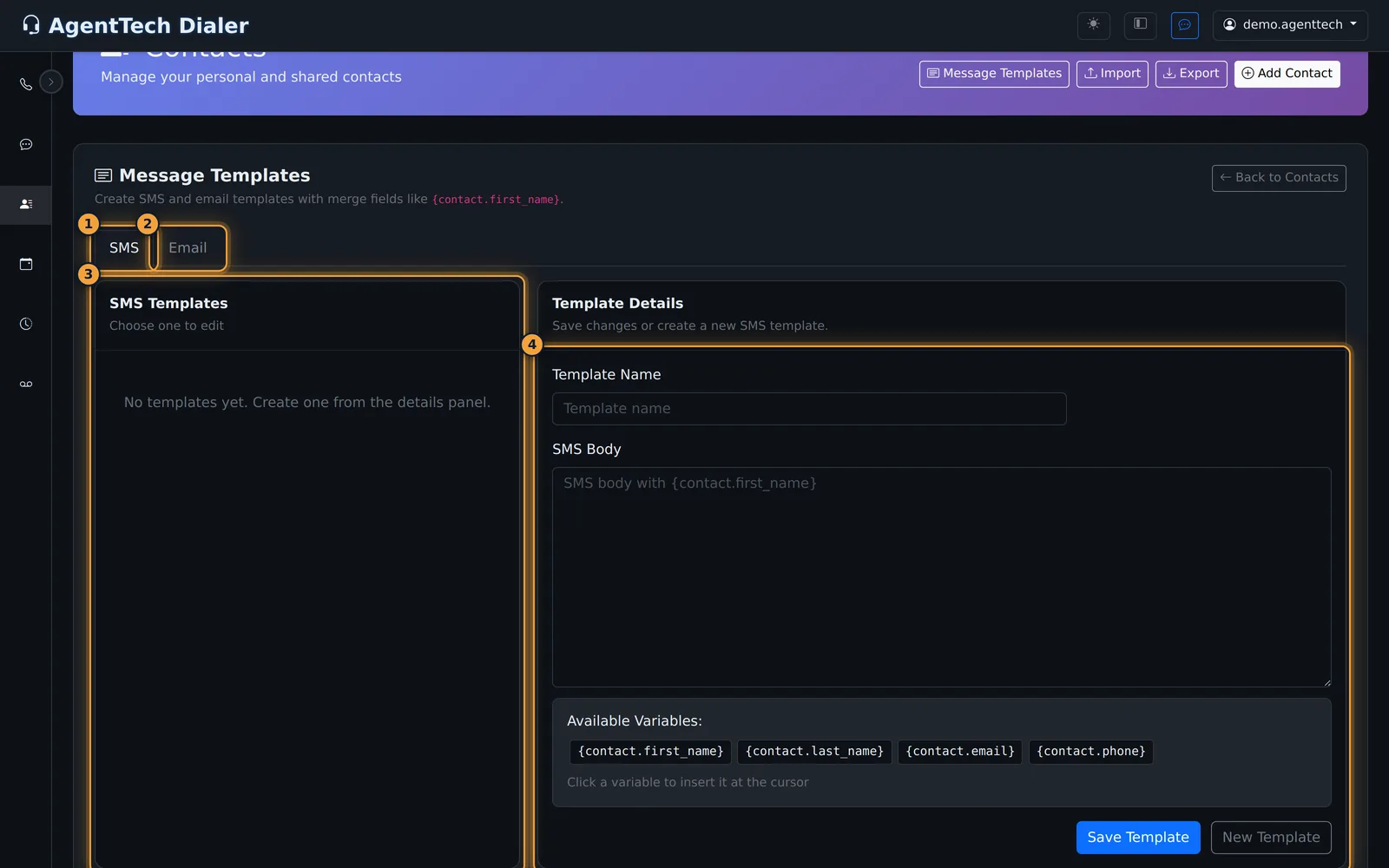
The page has two tabs, SMS and Email. Each tab lists your templates on the left and the Template Details form on the right.
Create an SMS template
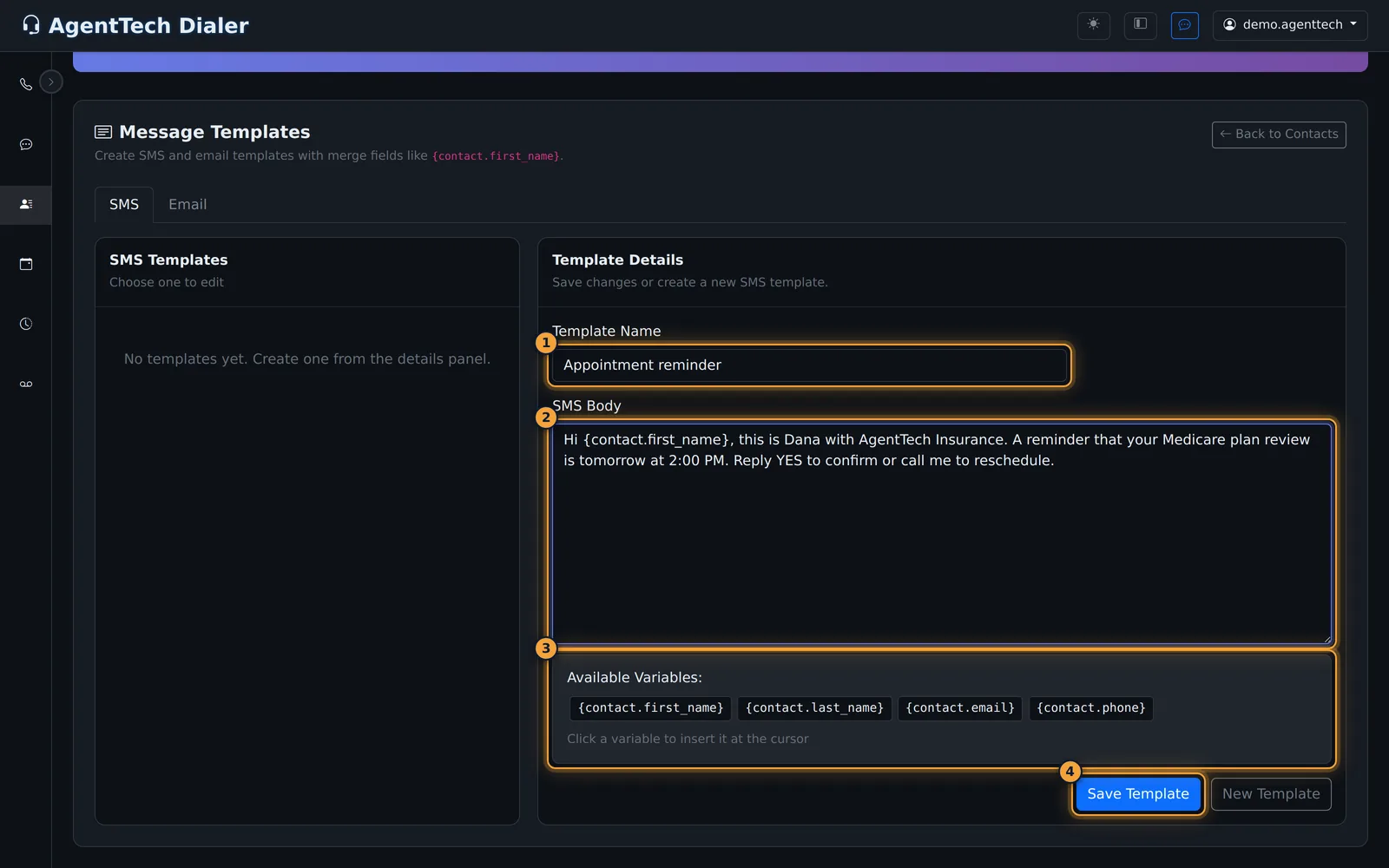
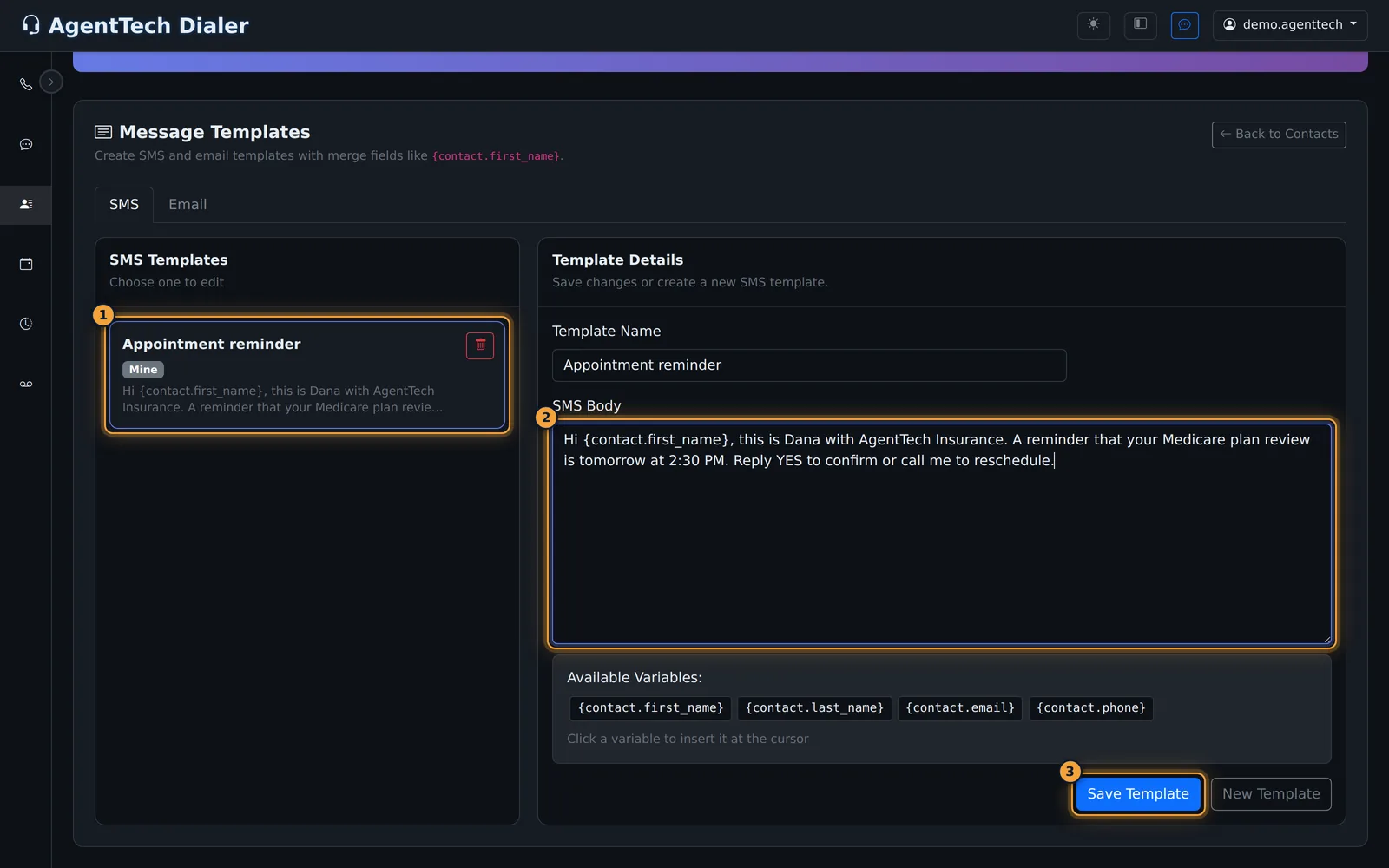
- On the SMS tab, enter a Template Name that says what it's for, for example "Appointment reminder".
- Write the text in SMS Body.
- To add a contact's details, place the cursor where they should go and click a variable under Available Variables. It's inserted at the cursor.
- Select Save Template.
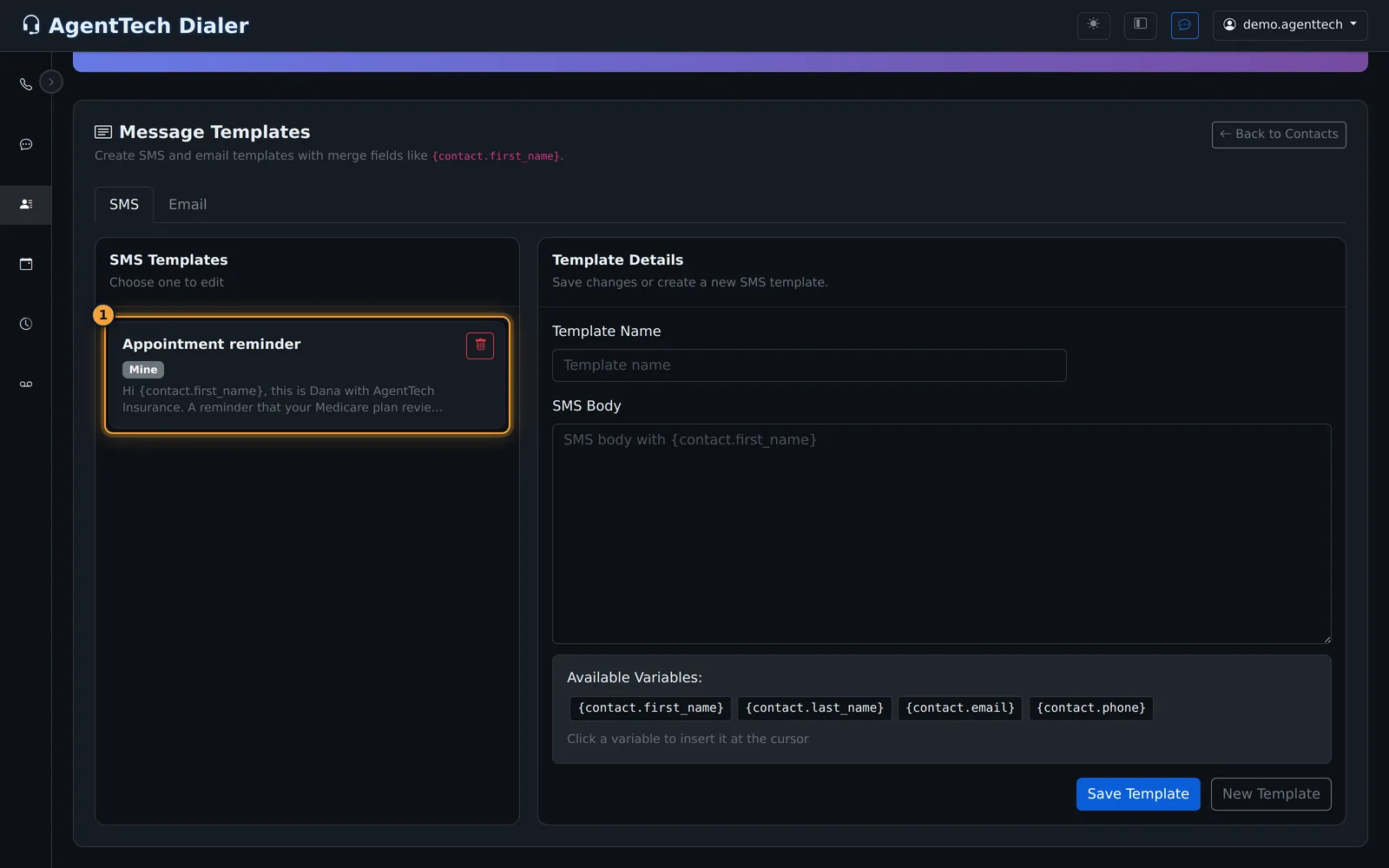
The template appears in the list with a badge showing who can use it, and the form clears for the next one. New Template also clears the form.
Create an email template
- Open the Email tab.
- Enter a Template Name, a Subject and the Email Body.
- Click variables to insert them in the body. You can also type a variable into the Subject, for example
Your quote, {contact.first_name}. - Select Save Template.
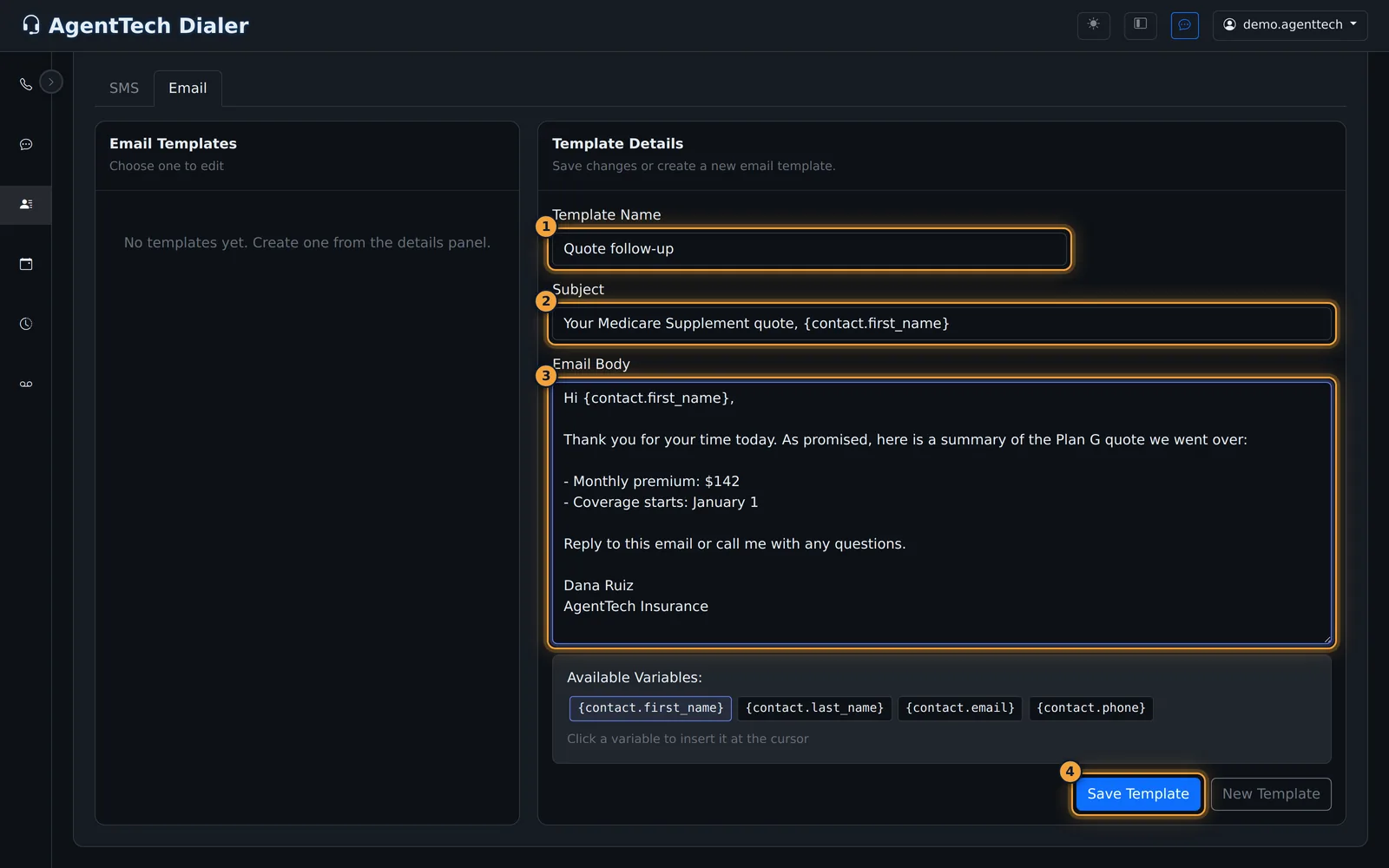
| Field | What it does |
|---|---|
| Template Name | How the template appears in the Template list when you write a message. |
| Scope | Agency admins only: Whole agency or Selected agents. |
| Visible to agents | Agency admins only, with Selected agents: who can use the template. |
| SMS Body | The text of an SMS template. |
| Subject | The subject line of an email template. |
| Email Body | The message of an email template. Line breaks are kept. |
Variables
| Variable | Replaced with |
|---|---|
{contact.first_name} | The contact's first name |
{contact.last_name} | The contact's last name |
{contact.email} | The contact's email address |
{contact.phone} | The contact's phone number |
Variables are filled in from the contact you're writing to. If the contact has no value for a variable (for example no email address), the variable text stays in the message, so read the message before you send it.
Share templates with your agency
Agency admins get a Scope list on both tabs:
- Whole agency (the default): everyone in the agency can use the template.
- Selected agents: only the agents you pick under Visible to agents can use it. Hold Ctrl (Cmd on a Mac) to select several.
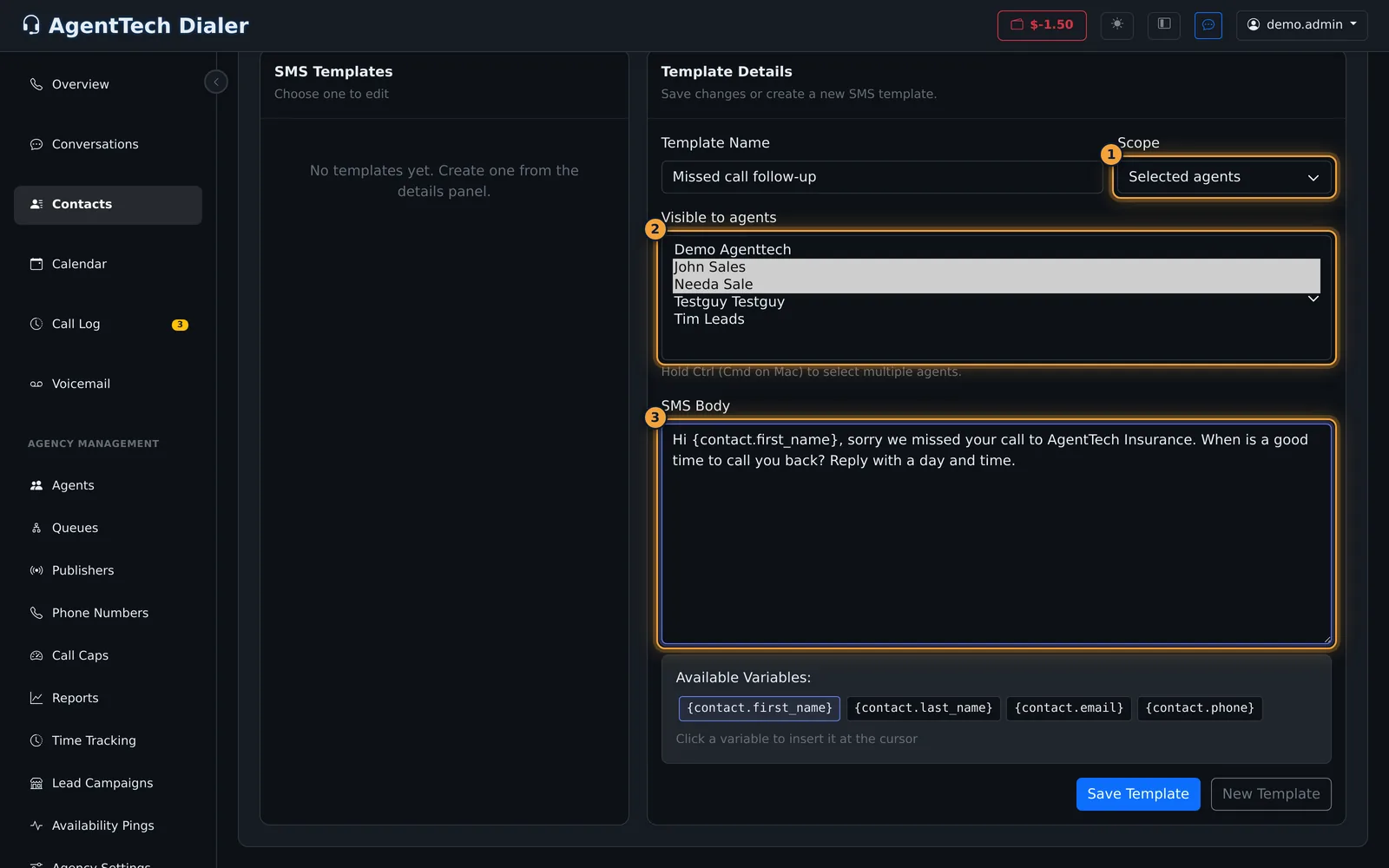
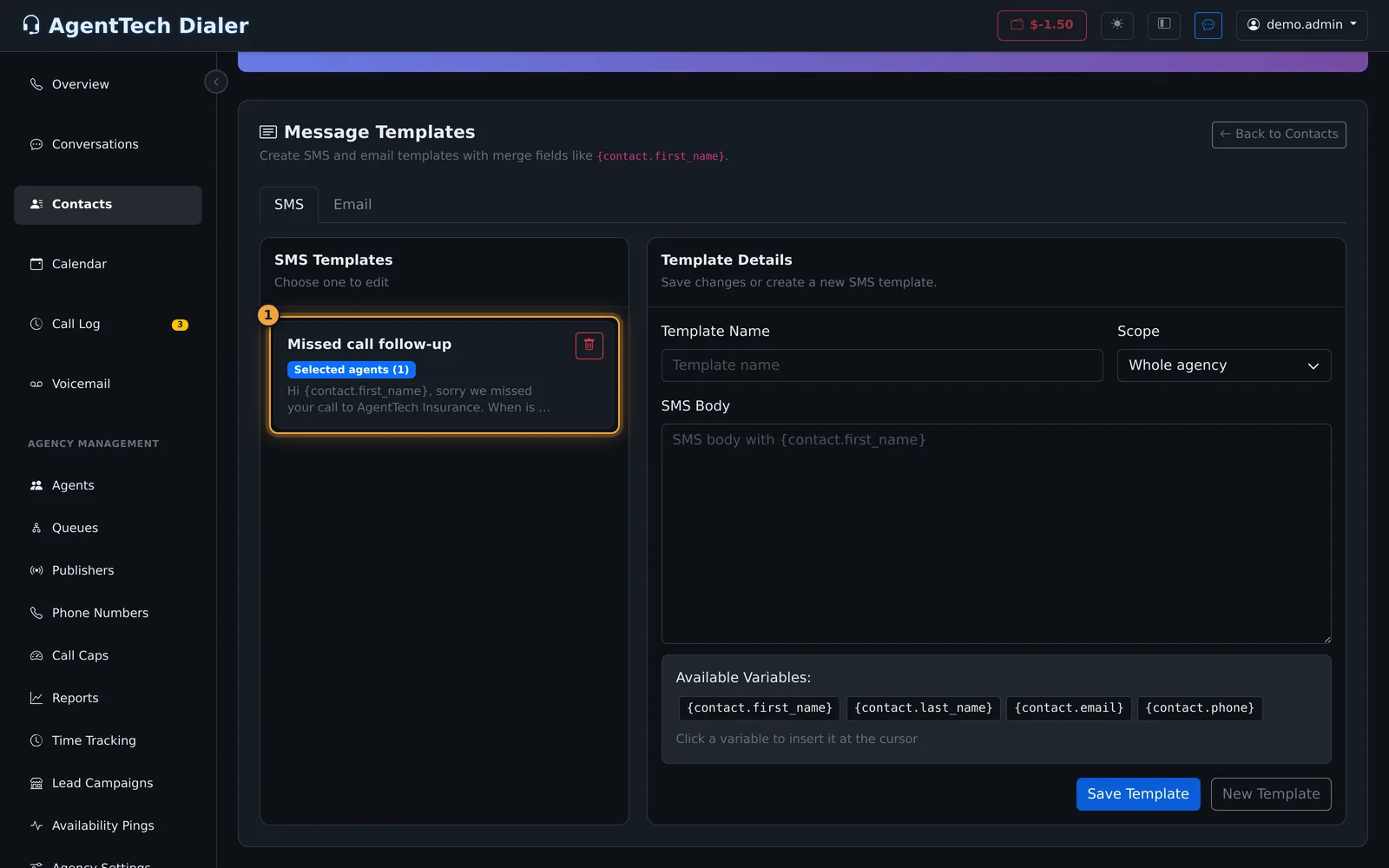
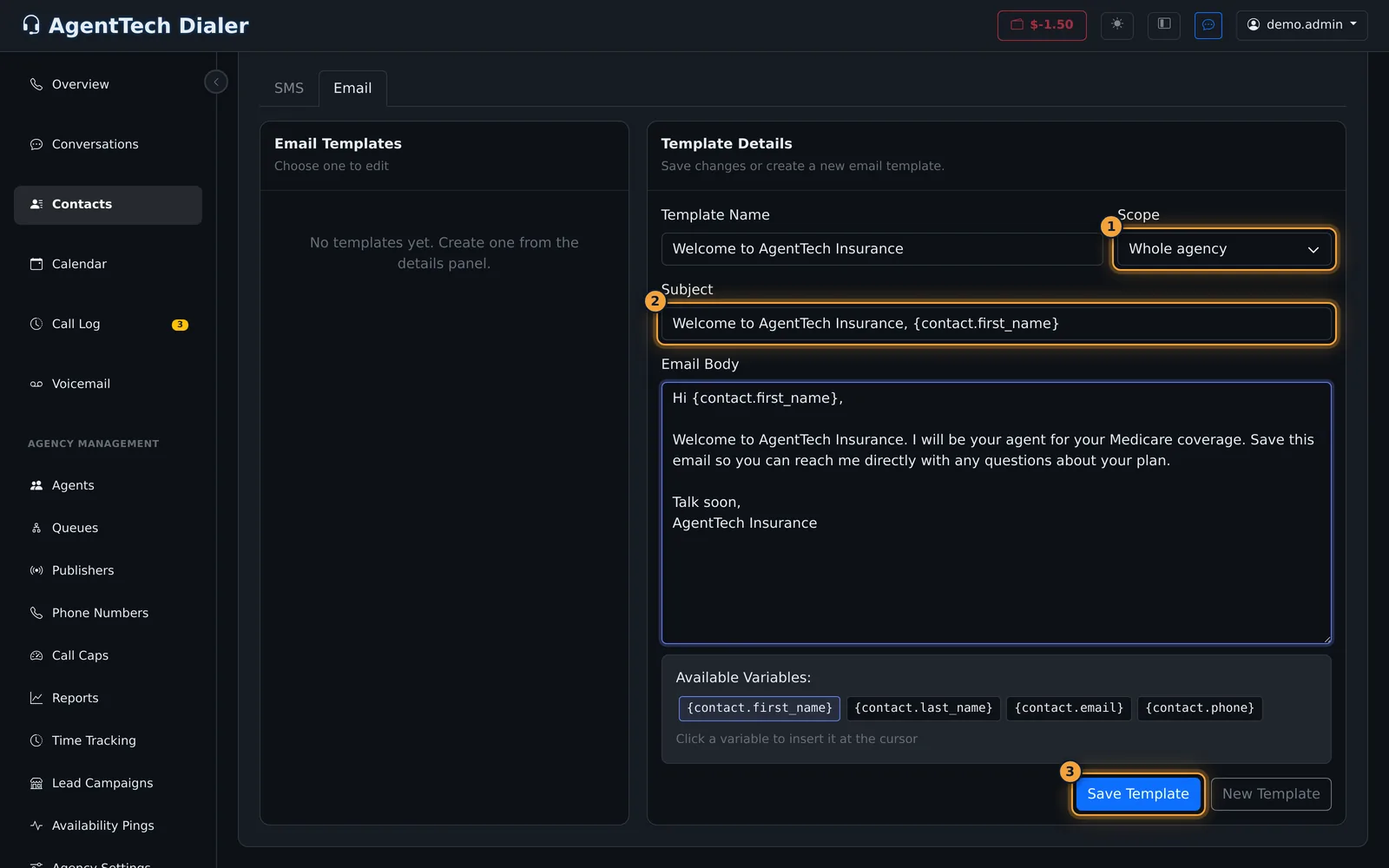
Templates you create for yourself are private and show Mine. Shared templates show Agency or Selected agents. Agents see shared templates in their lists and can use them; only agency admins can edit or delete them, so agents see Shared in place of the delete button.
Use a template in a message
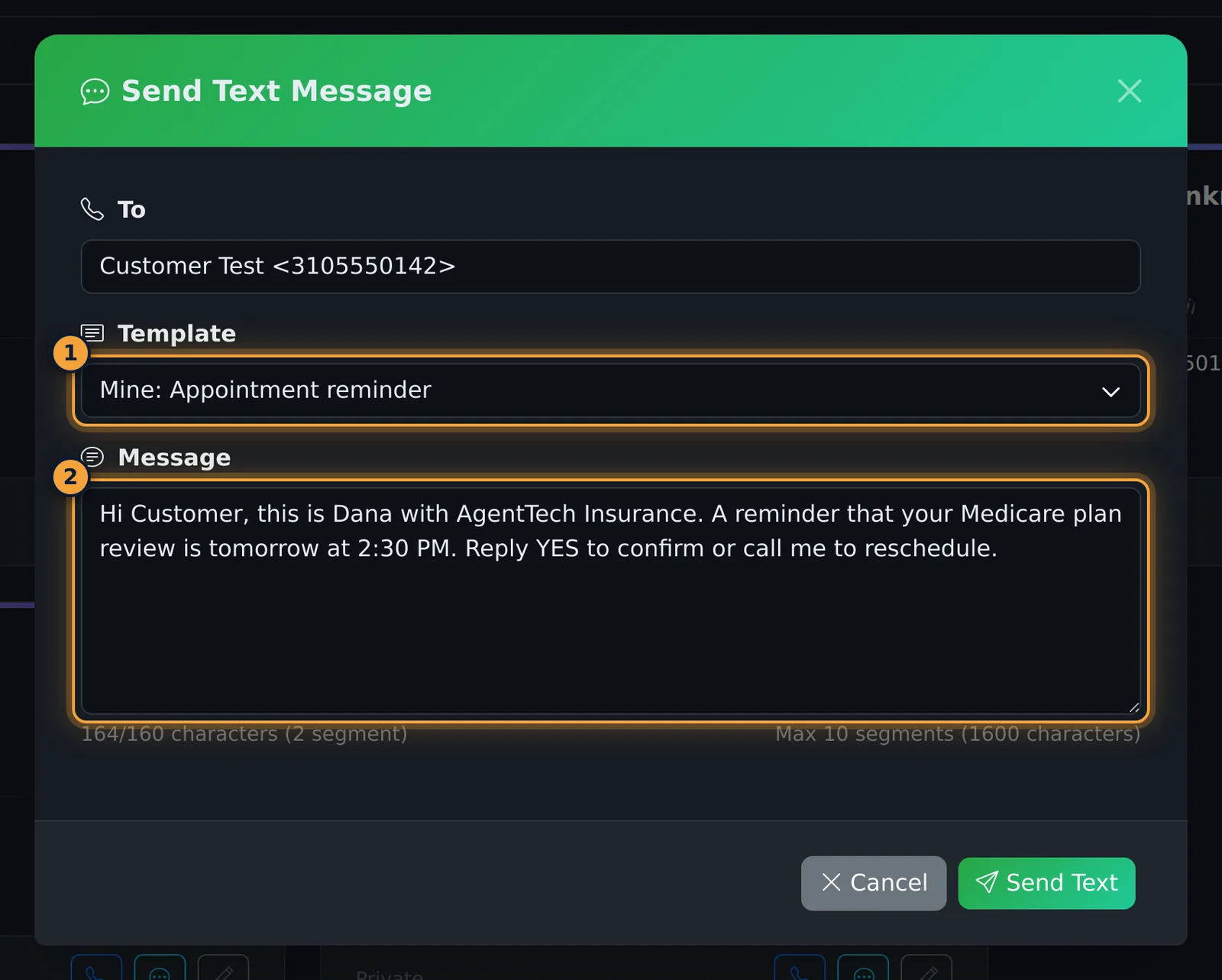
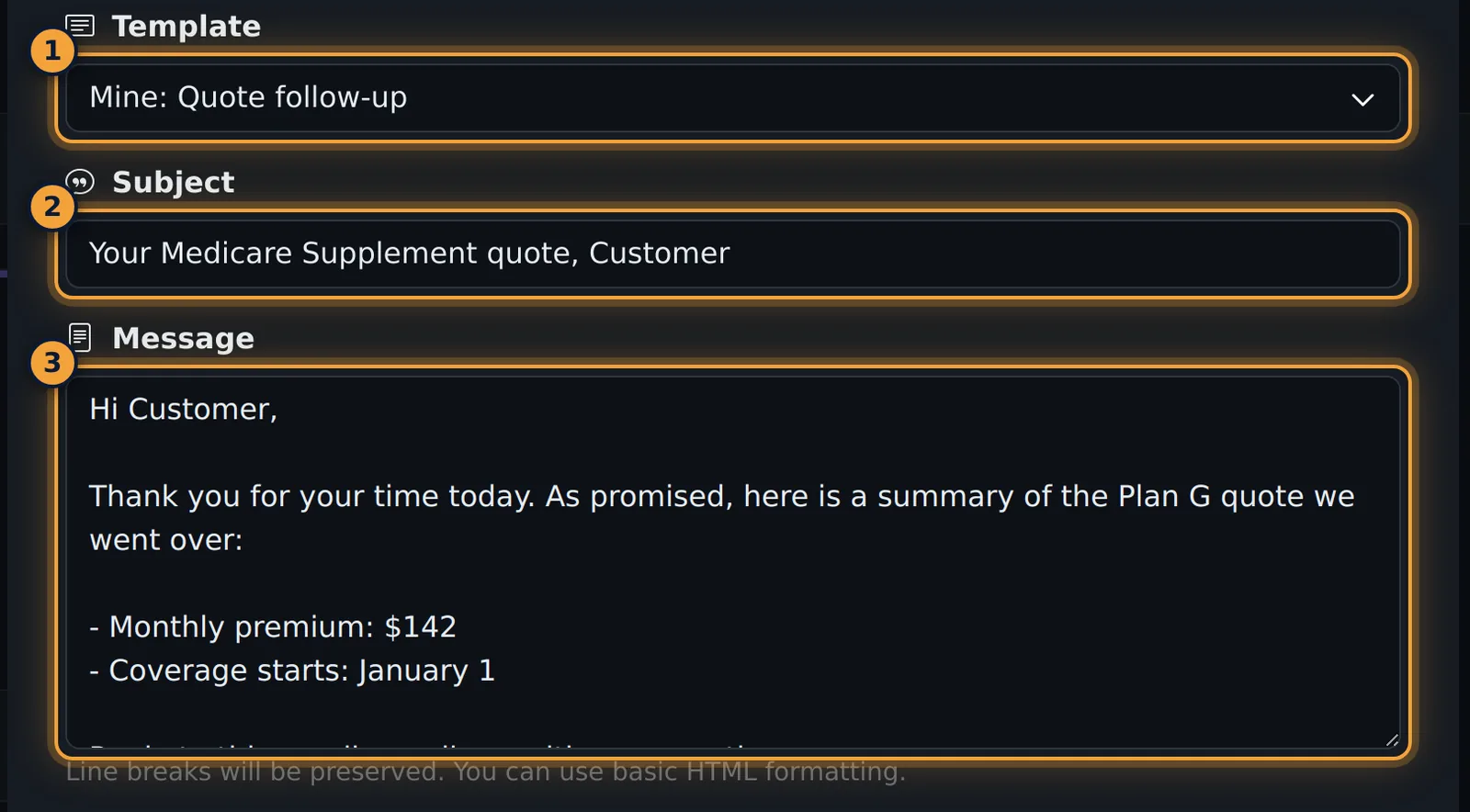
Every message window has a Template list: Send Text Message and Send Email to Contact on a contact, New Message in Conversations, the Text button in the dialer's top bar, and the bulk text and email windows. The list shows the matching templates (SMS templates for texts, email templates for emails), each labelled with its scope, for example "Mine: Appointment reminder" or "Agency: Welcome to AgentTech Insurance".
- Open the message window for the contact.
- Pick the template in Template.
- Check the message. The variables are already replaced with the contact's details, so this is your preview. Change anything you like.
- Send the message as usual.
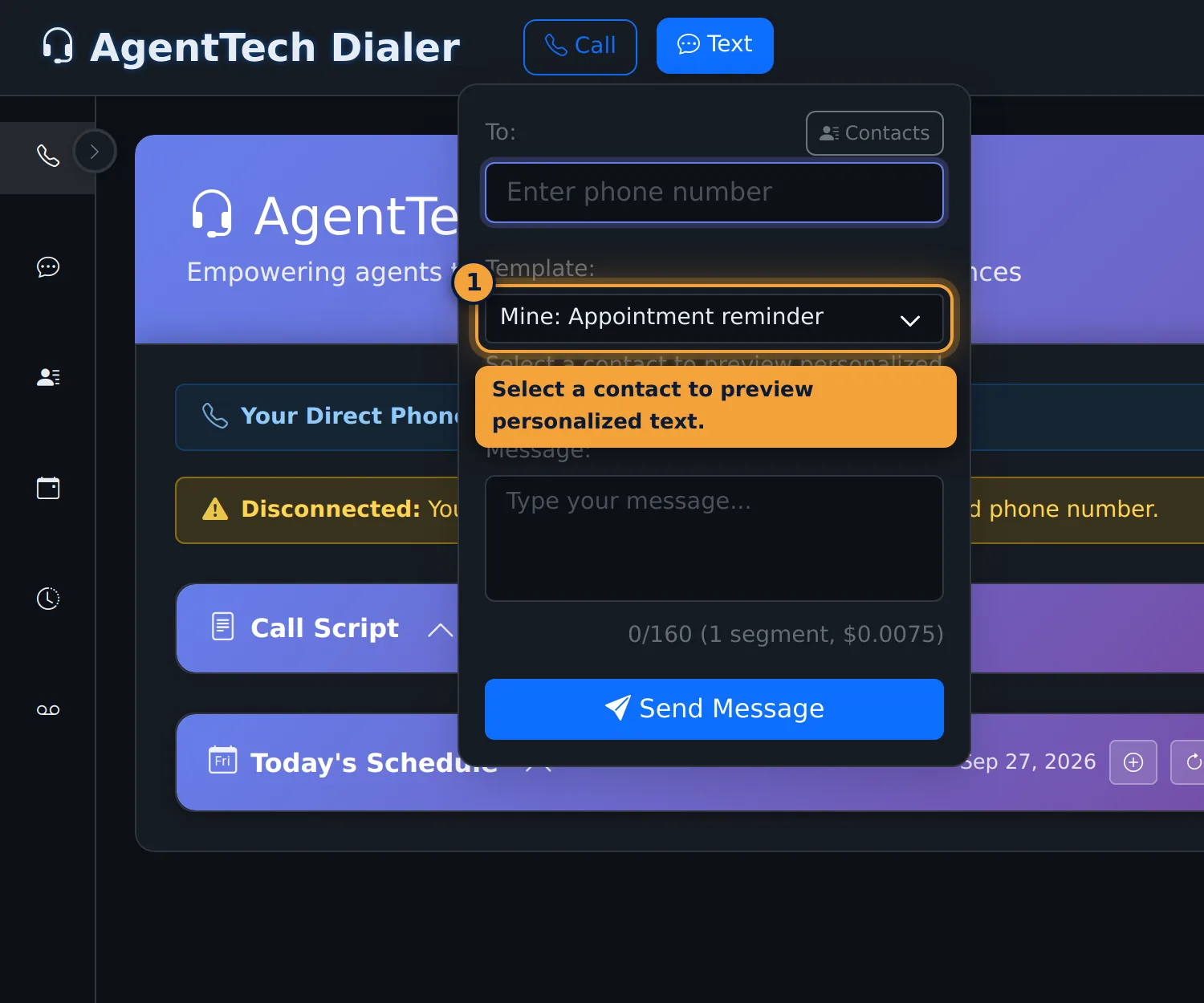
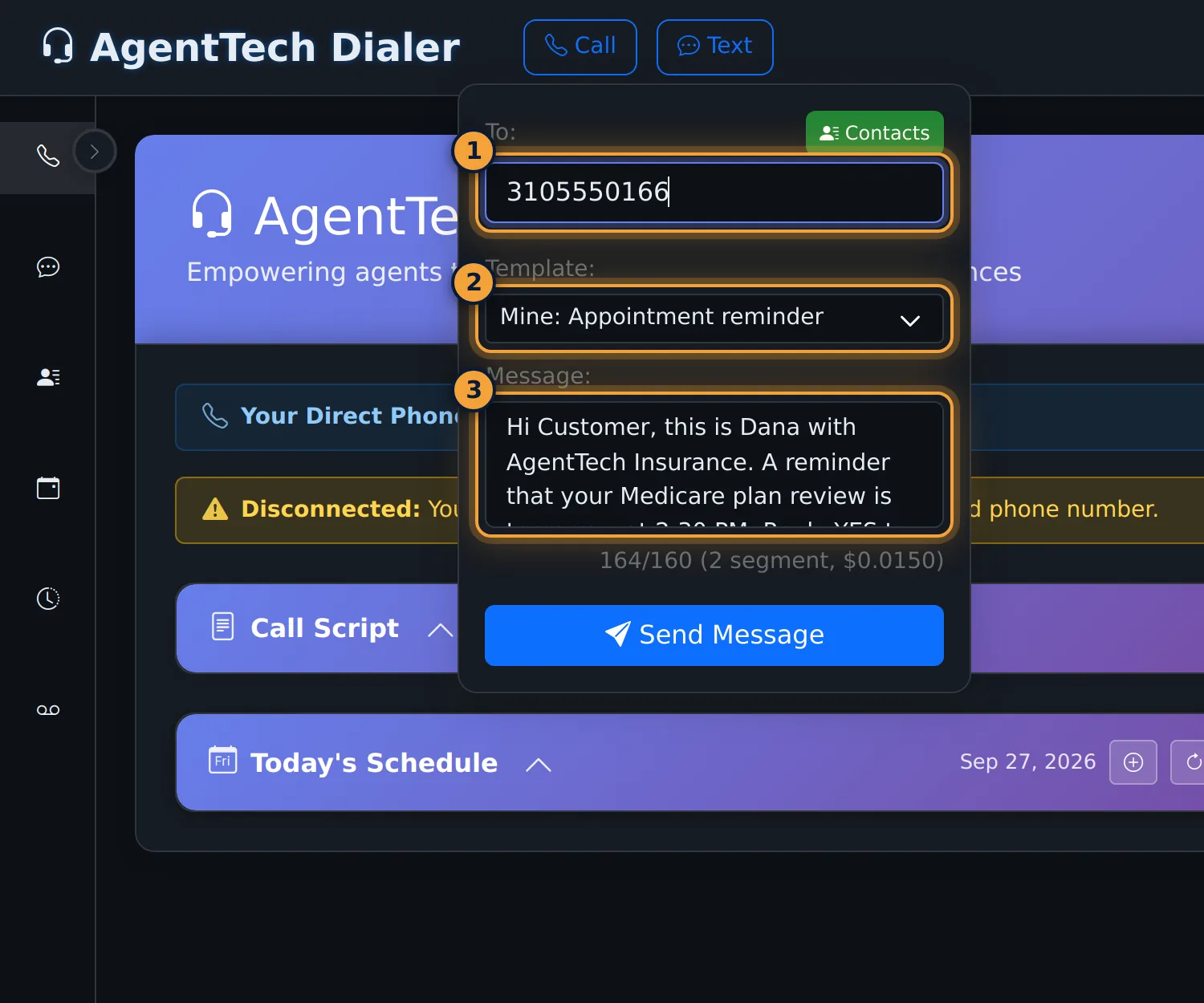
From the top-bar Text button
If you type a number instead of choosing a contact, a template with contact variables shows "Select a contact to preview personalized text." Select Contacts, pick the person, and the template fills in.
Edit or delete a template
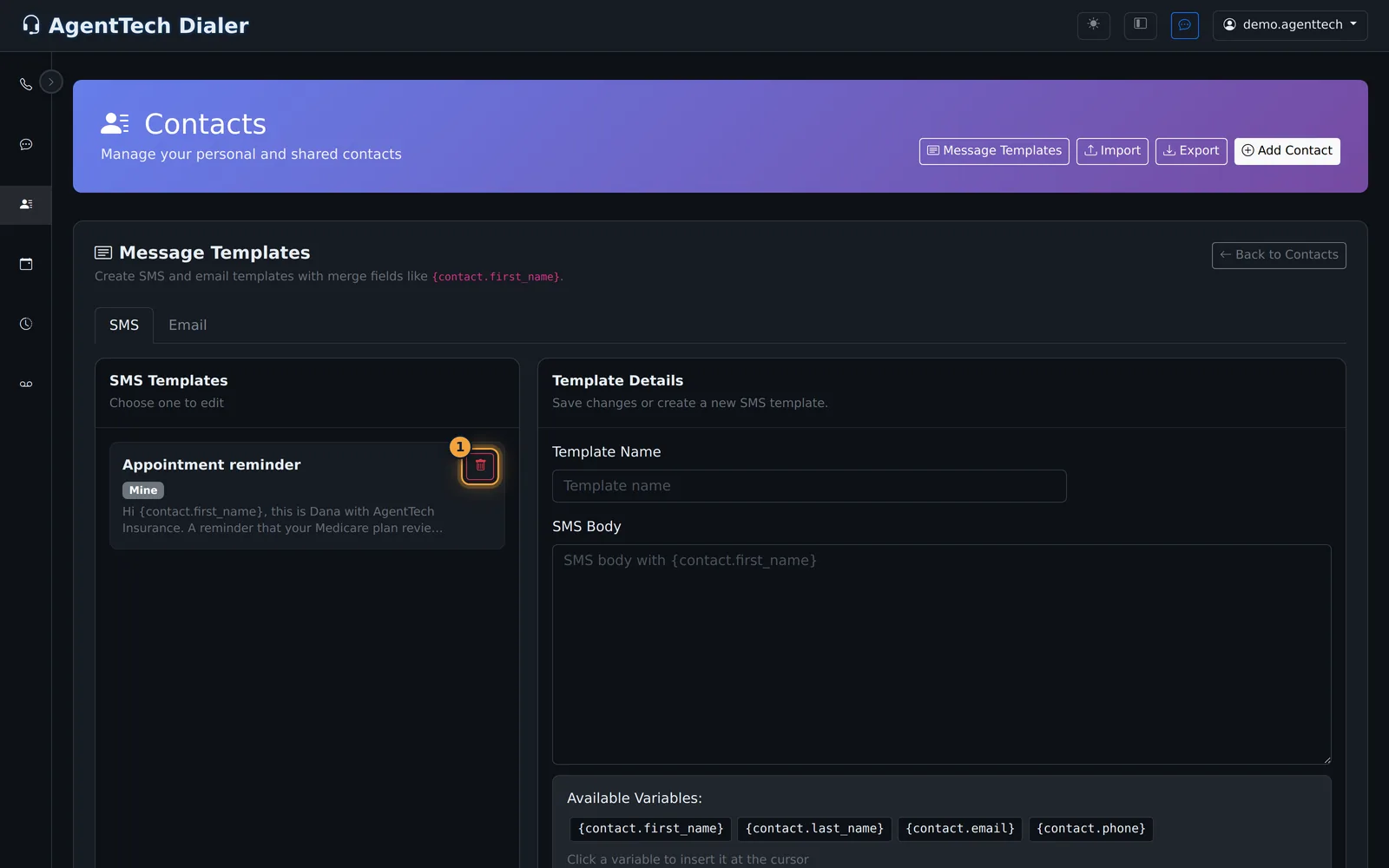
- Edit: select the template in the list. It loads into the form; change it and select Save Template. Messages you already sent don't change.
- Delete: select the bin button on the template and confirm Delete this template? in the browser. It disappears from the list and from every Template list.
Common problems
- A template isn't in the Template list: SMS templates only appear when you write a text, and email templates only when you write an email. A template shared with Selected agents only appears for those agents; ask your agency admin to add you.
- The message stays empty after picking a template: the template uses contact variables and no contact is selected. Choose the contact first.
- A variable still shows as
{contact...}: that contact has no value for it. Fill in the contact's details in Contact Management or edit the message before sending. - You can't edit a shared template: only agency admins can change Agency and Selected agents templates.
Related articles
Was this article helpful?
Can't find what you are looking for? Our support team can help.
Submit a support ticket