Transcript
The AI Sales Coach shows agents short coaching cards while they talk, drawing on knowledge your agency writes. Here is how to turn it on and build that knowledge.
In Agency Settings, under Call Settings, turn on AI Sales Coach. Call Transcription turns on with it and stays locked on, because the coach works from the live transcript.
Agents Can Override AI Coach lets agents switch coaching on or off for themselves.
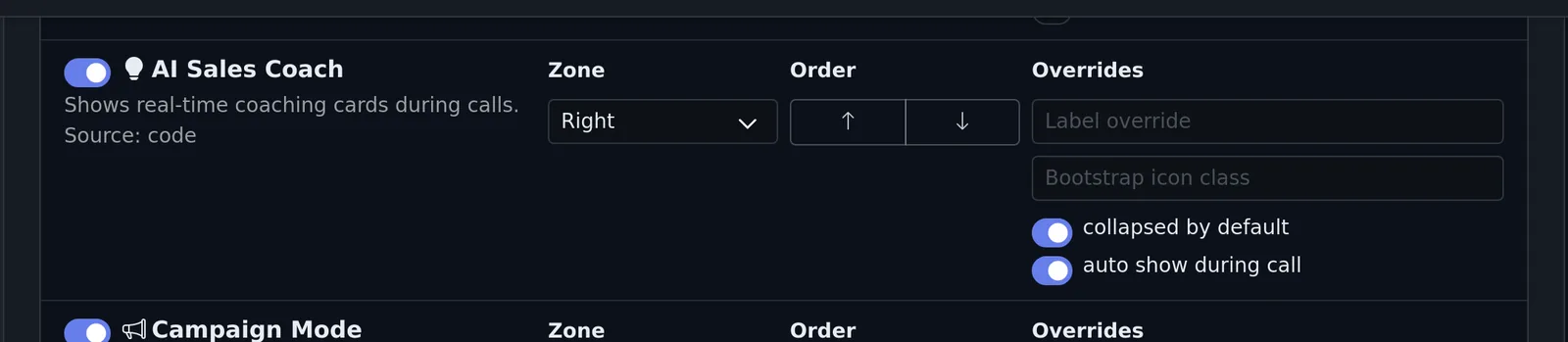
Agents see the coach as a panel on their dashboard, set under Dashboard Widgets. It opens by itself when a call starts.
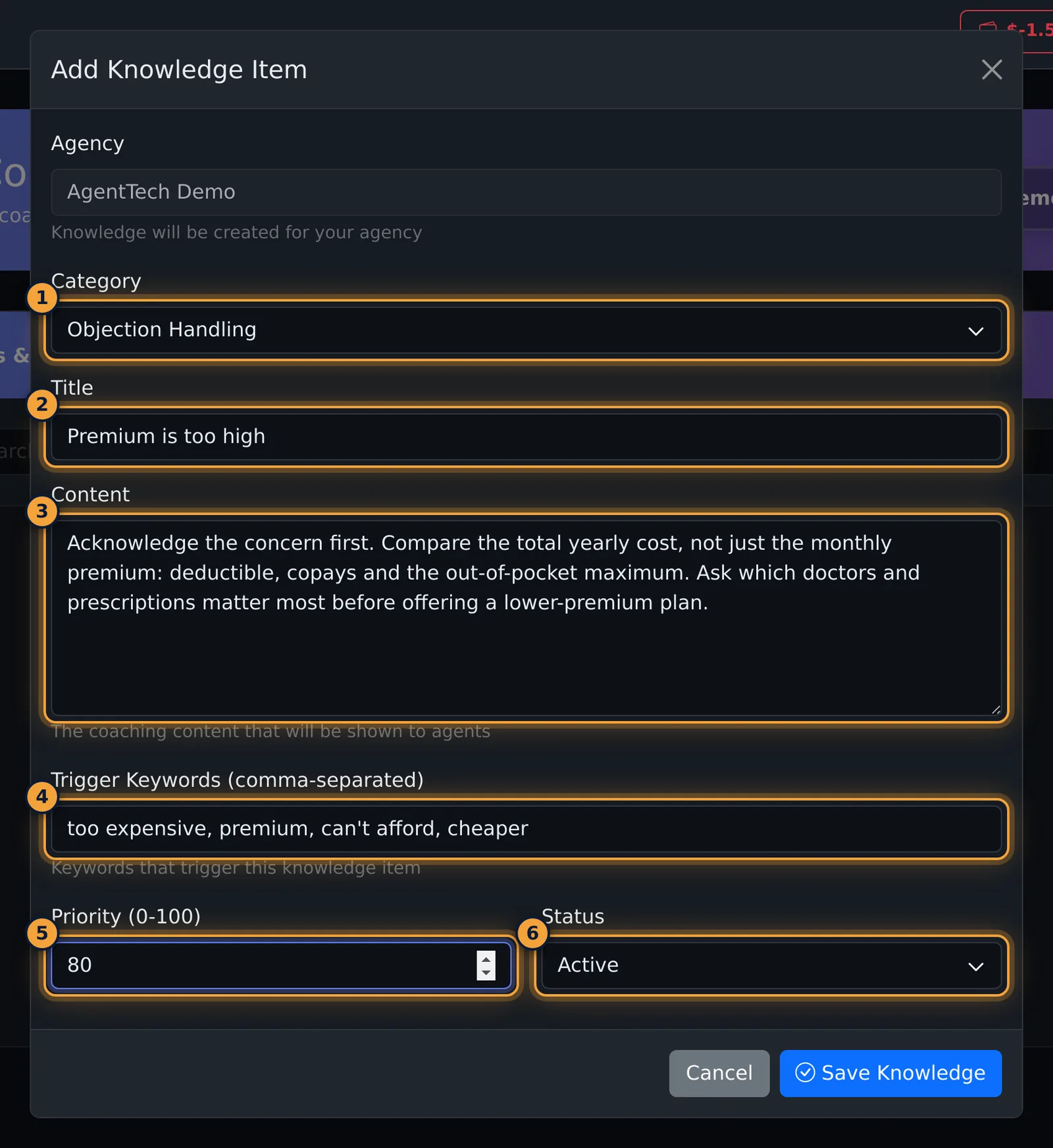
Coaching knowledge lives under Agency Management, AI Coaching. Select Add Knowledge Item, and pick the Category, such as Objection Handling.
Give it a short title, and write what the agent should say, in a few sentences they can read mid-call.
Trigger Keywords are words a caller might say, separated by commas. A higher Priority ranks the item above others. Then select Save Knowledge.
Each card shows the content, the category, the priority and the keywords. The switch turns an item off, and the pencil and bin edit or delete it.
Next, see how Agent Analytics shows whether coaching is helping.
The AI Sales Coach listens to a call through its live transcript and shows the agent short coaching cards while they talk, drawing on the coaching knowledge your agency writes: how to handle a price objection, enrollment periods, your process steps.
This article is for agency admins, who turn the coach on and manage its knowledge. Agents see the cards on their dashboard during calls.
Turn it on
- Open Agency Management > Agency Settings > Call Settings.
- Turn on AI Sales Coach. Call Transcription turns on with it and stays locked on, because the coach works from the live transcript.
- Optionally turn on Agents Can Override AI Coach so agents can switch coaching on or off for themselves.
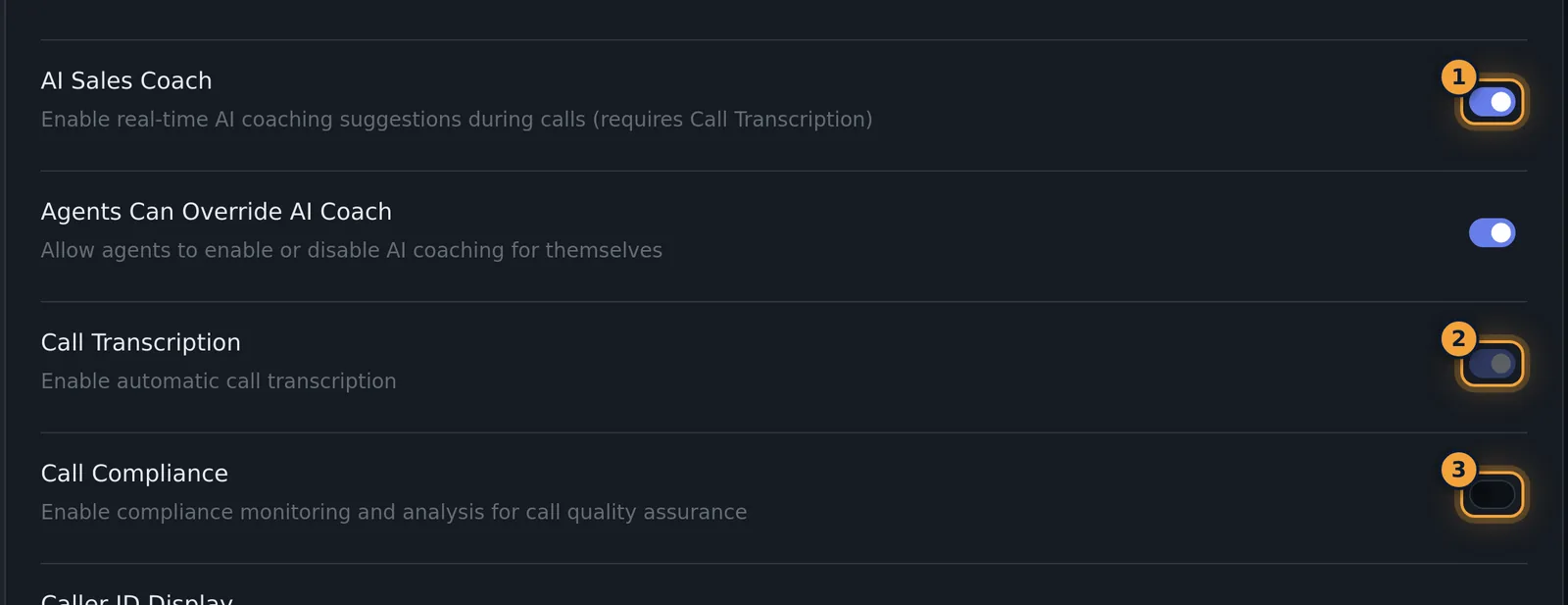
The setting saves on its own about a second after the change.
For one agent only
To turn the coach on or off for a single agent, open Agents, edit the agent, and use the AI Sales Coach switch on the General tab. The help text then reads "Override active"; Reset to Agency Default removes the exception.
Where agents see it
The AI Sales Coach panel is a widget on the agent dashboard, in the right-hand column by default. It "shows real-time coaching cards during calls". It starts collapsed and opens by itself when a call starts. You can move it or change these options under Agency Settings > Dashboard Widgets.
Build the coaching knowledge
Coaching knowledge is the material the coach draws on. Open Agency Management > AI Coaching.
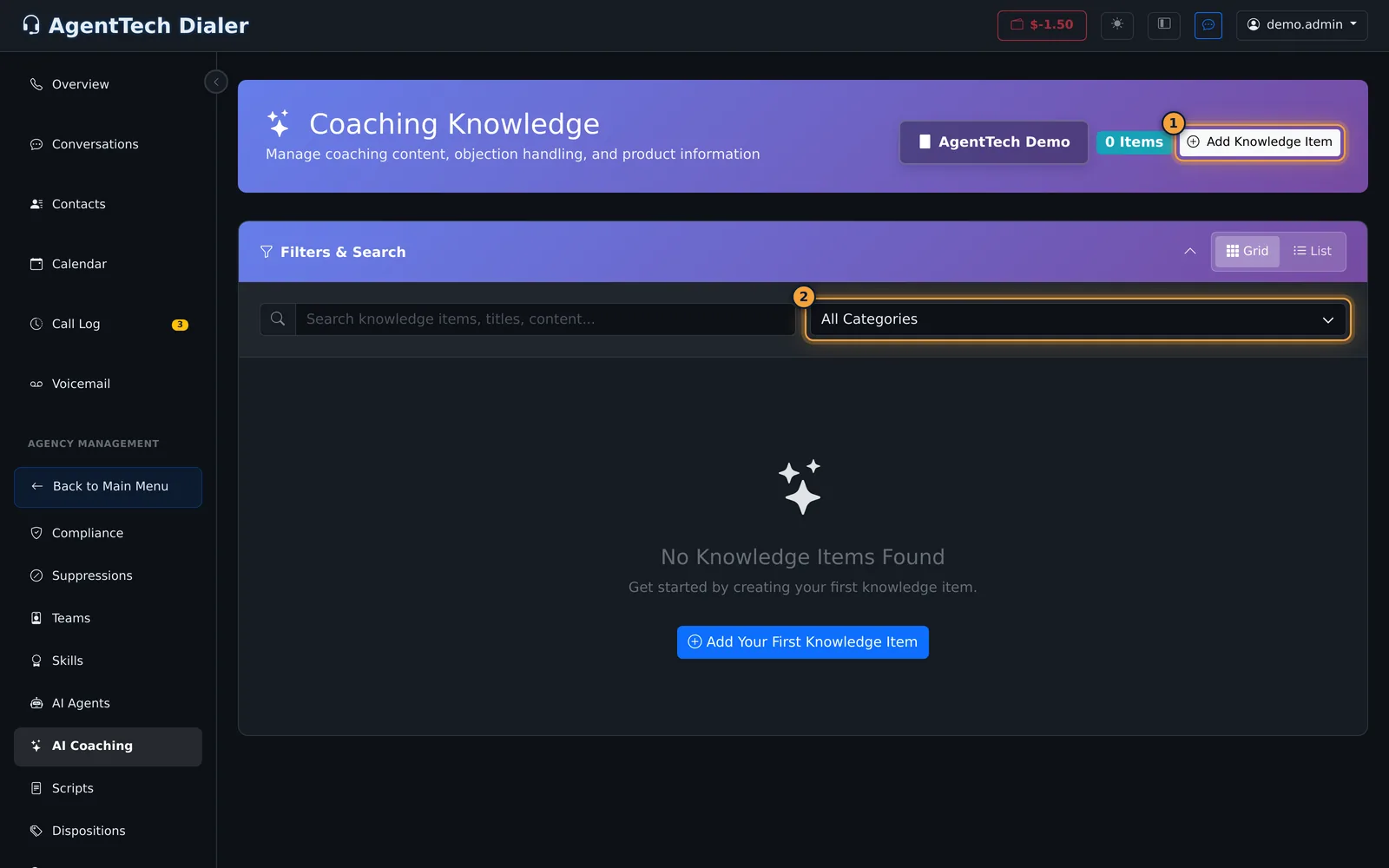
- Select Add Knowledge Item.
- Pick the Category: Objection Handling, Product Information, Competitor Battle Card, Process Guide or Custom.
- Enter a short Title, for example "Premium is too high".
- Write the Content: what the agent should say or do. Keep it to a few sentences an agent can read mid-call.
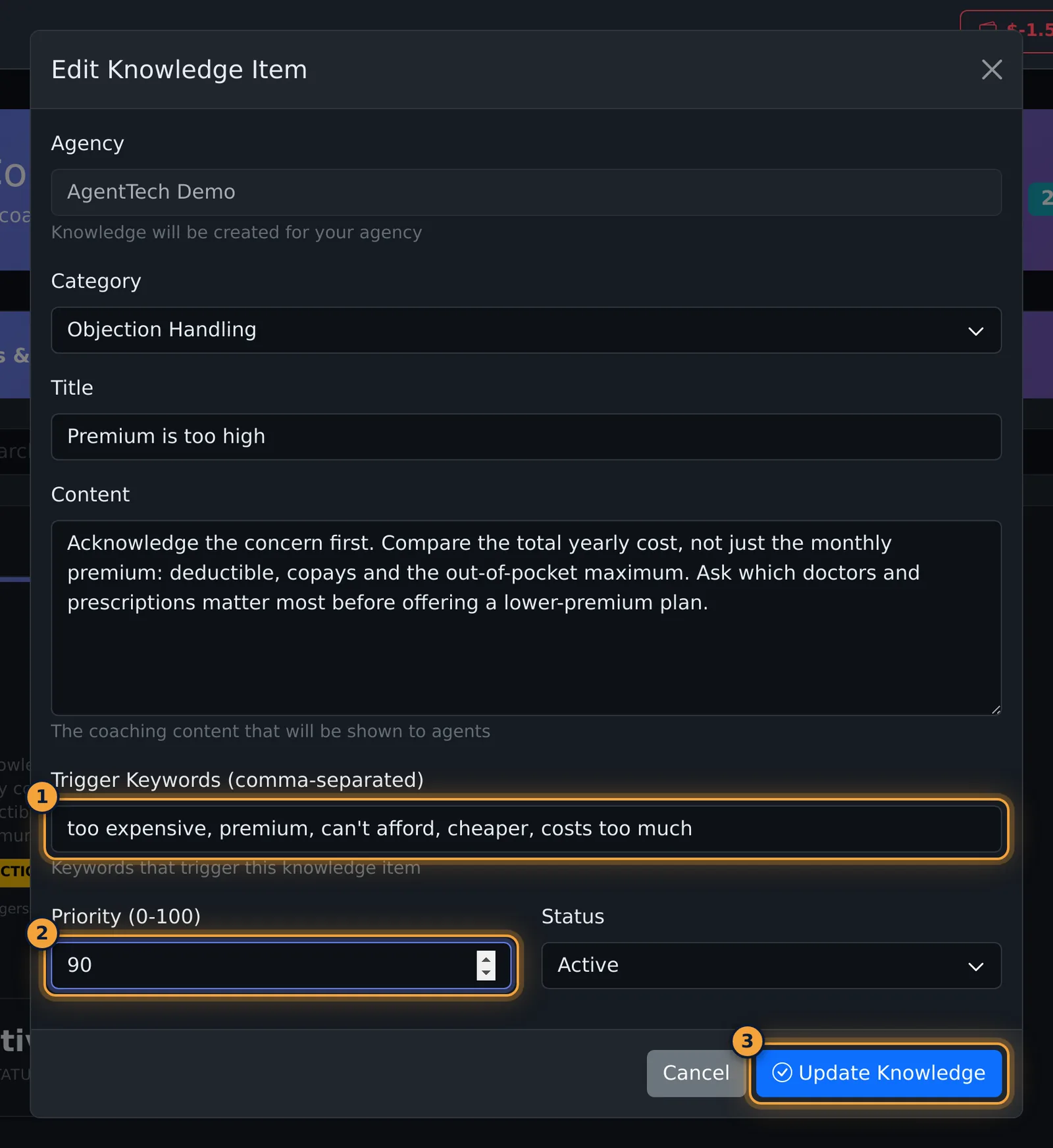
- Add Trigger Keywords, separated by commas: words a caller might say, for example "too expensive, premium, can't afford, cheaper".
- Set the Priority (0-100, default 50). Higher-priority items rank above others.
- Select Save Knowledge.
| Field | What it does |
|---|---|
| Category | Required. Groups the item and drives the category filter. |
| Title | Required. Shown on the card. |
| Content | Required. The coaching shown to agents. |
| Trigger Keywords | Optional. Comma-separated words that trigger the item. |
| Priority (0-100) | Optional, default 50. Ranks items against each other. |
| Status | Active or Inactive. |
After saving
Each card shows the content, the category, the priority and the trigger keywords.
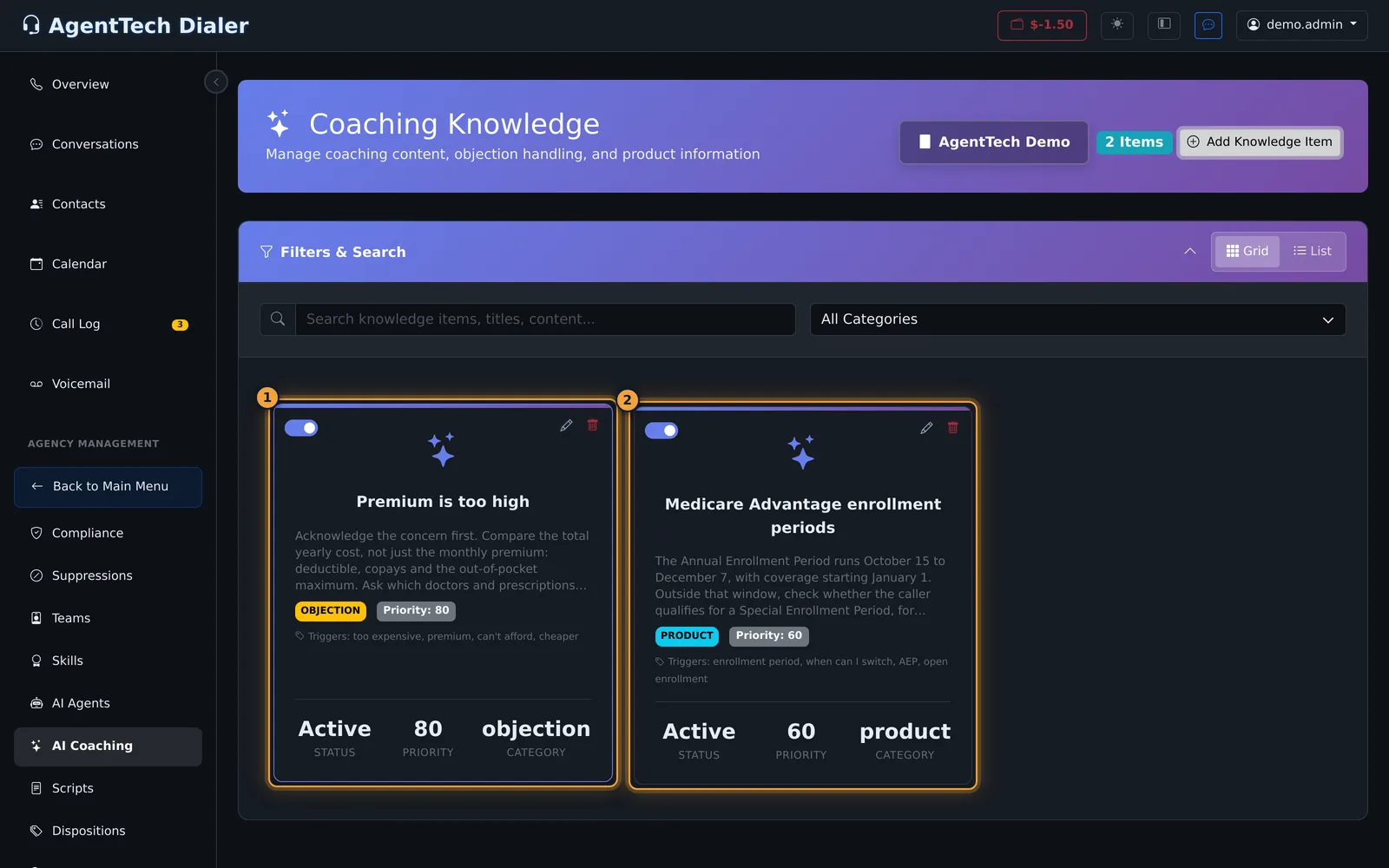
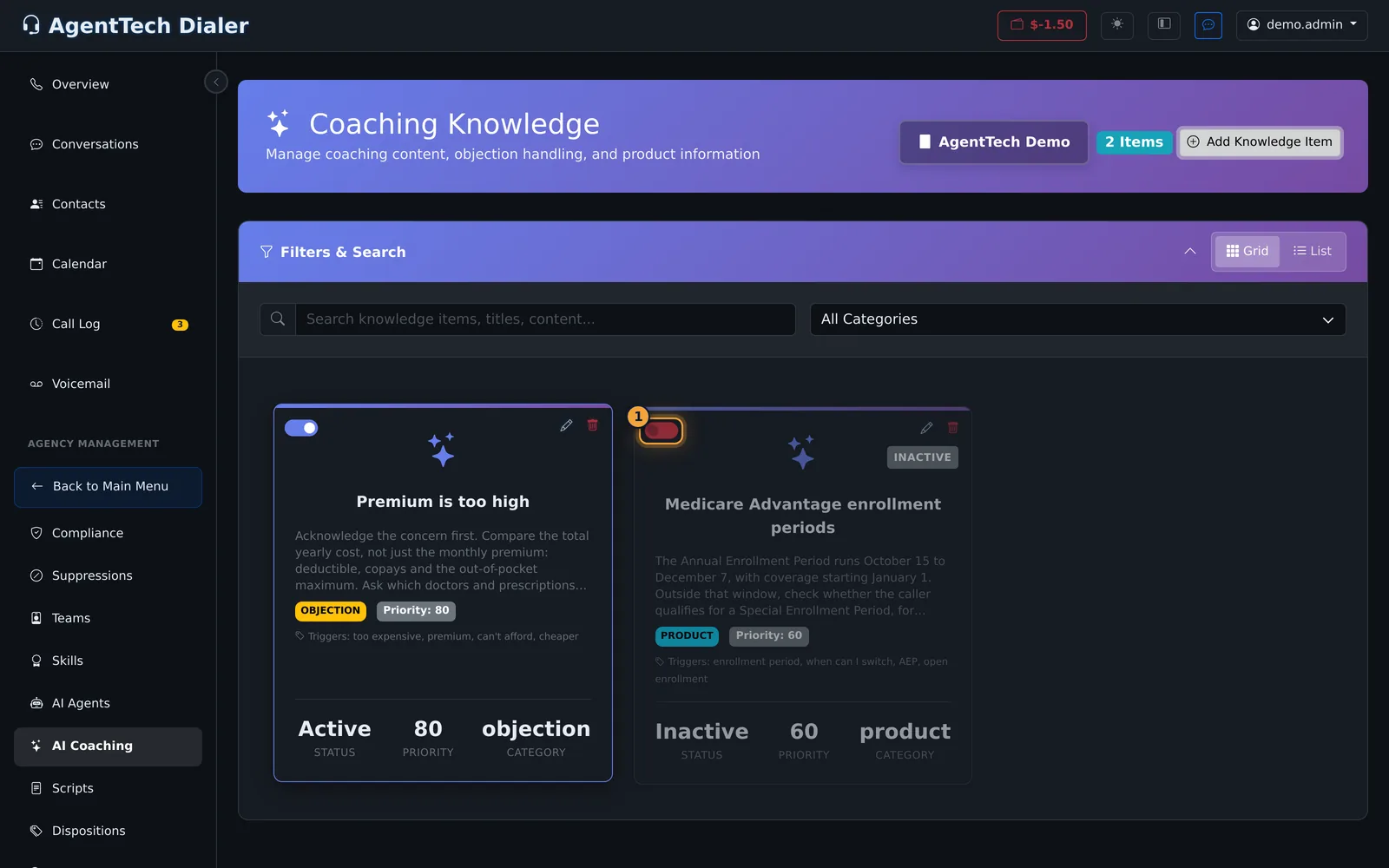
- Switch (top left of the card): turns the item off or on at once. Inactive items are dimmed and marked INACTIVE.
- Edit (pencil): opens the item as Edit Knowledge Item; save with Update Knowledge.
- Delete (bin): asks for confirmation and cannot be undone.
- Search matches words in the title, content or category; the category filter shows one category; List shows the items as a table.
See whether coaching helps
Each agent's Agent Analytics page (open it from an agent's name in Reports) has a Coaching Effectiveness tab: how many suggestions the agent received, how many were marked helpful or dismissed, and the calls coached. See Agent Analytics.
Common problems
- Agents see no coaching cards: check that AI Sales Coach is on for the agency (or for that agent), and that the AI Sales Coach widget is switched on in Dashboard Widgets.
- I can't turn off Call Transcription: turn off AI Sales Coach first.
Related articles
Was this article helpful?
Can't find what you are looking for? Our support team can help.
Submit a support ticket