Transcript
Here is how to text contacts from AgentTech Dialer: from Conversations, the top bar, a contact, or many contacts at once.
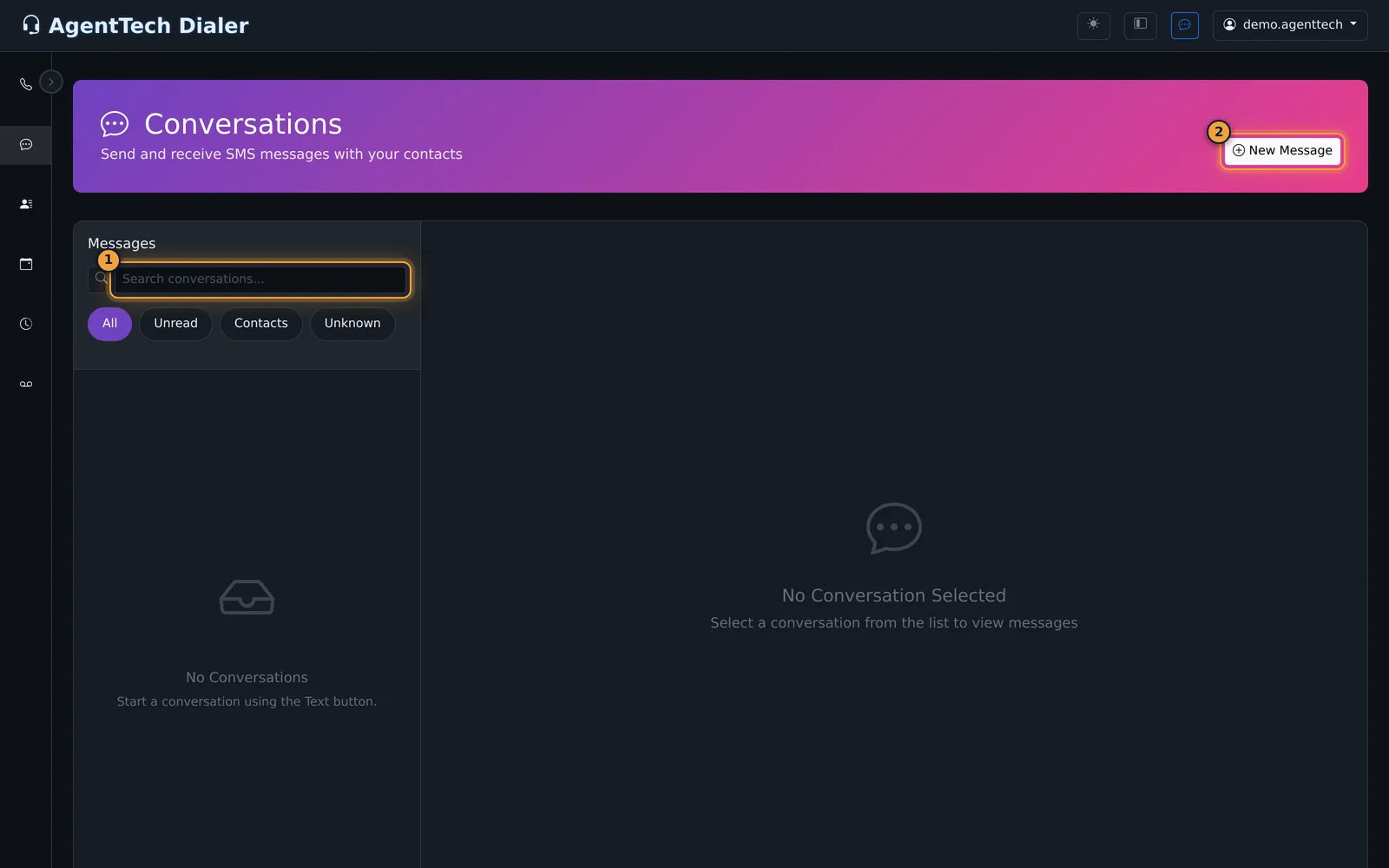
Conversations lists your text threads, newest first. Search them, or filter by All, Unread, Contacts, or Unknown.
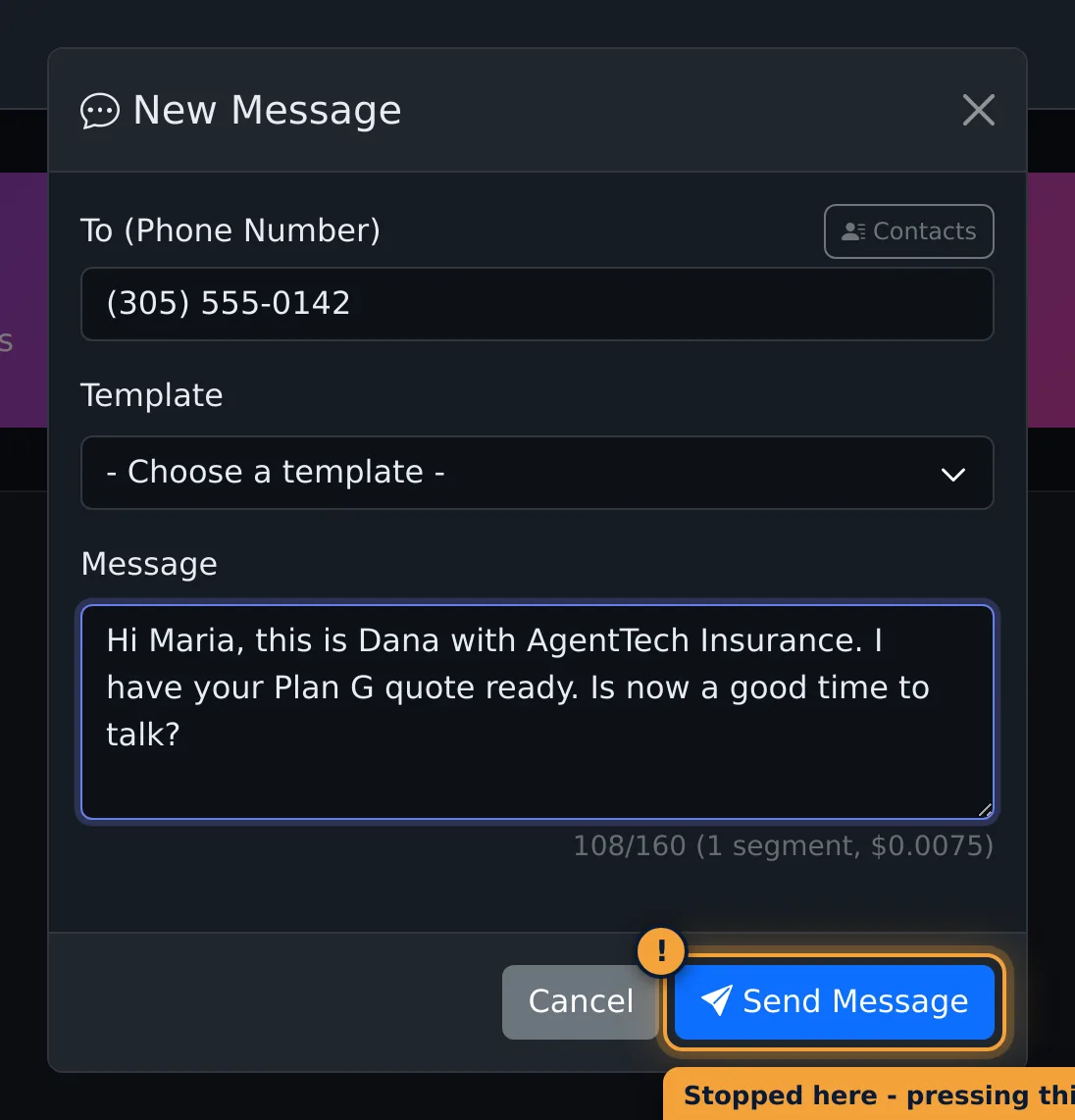
To start a conversation, select New Message. Enter the number in To, or select Contacts to pick someone.
Write the message, or pick a Template, and select Send Message.
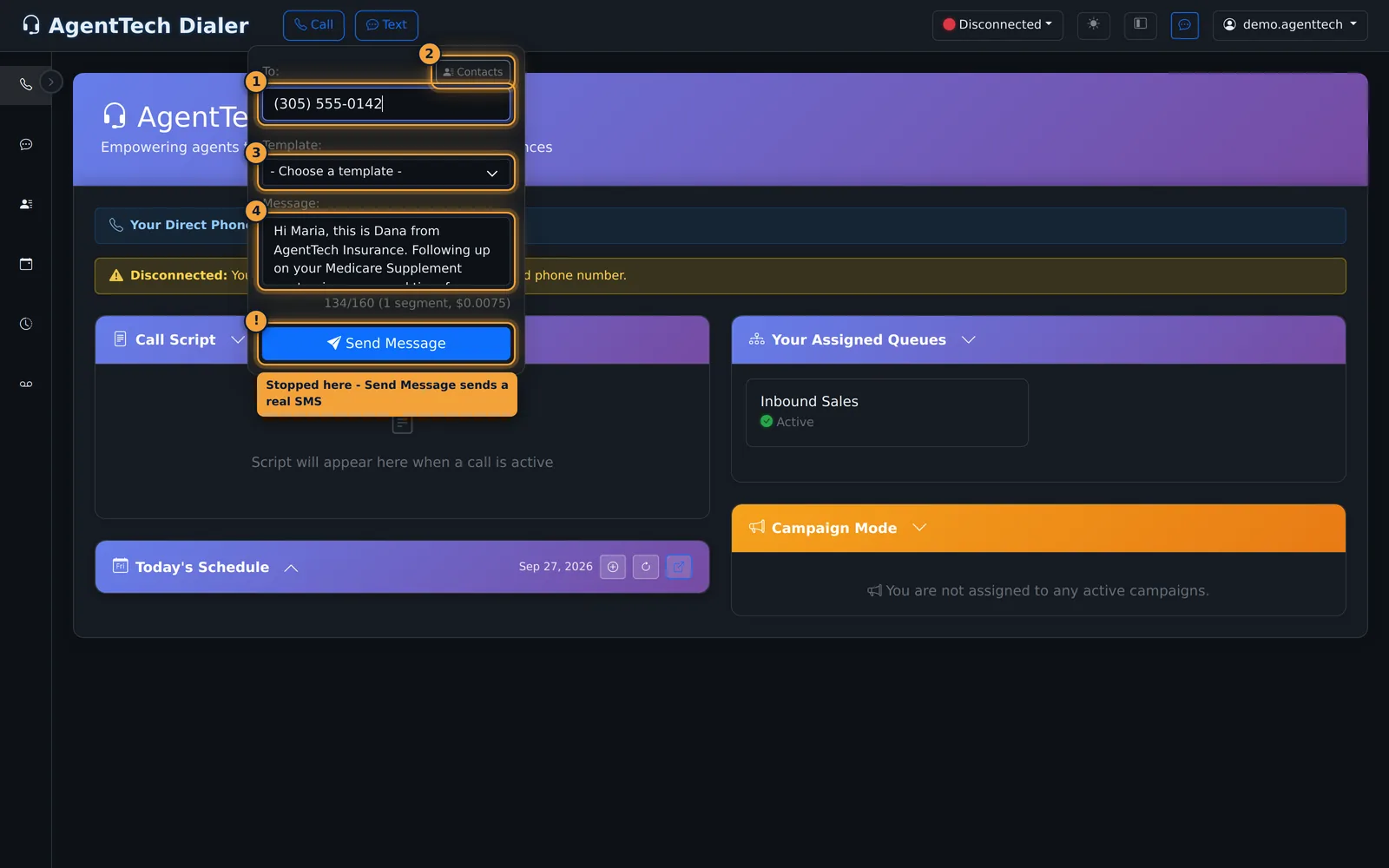
On the Overview dashboard, the Text button in the top bar opens the same composer.
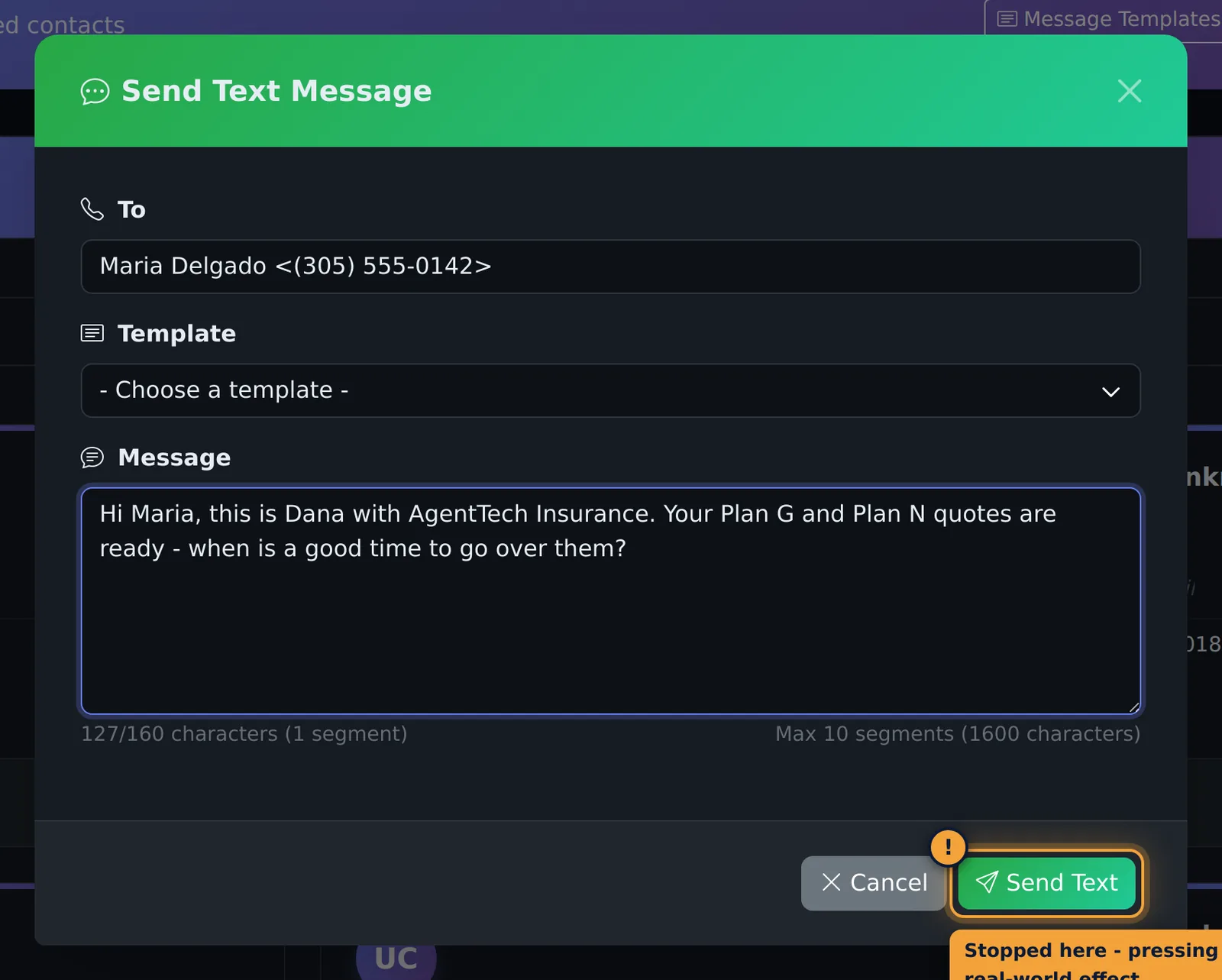
From Contacts, the text button on a contact's card opens Send Text Message, with the contact filled in.
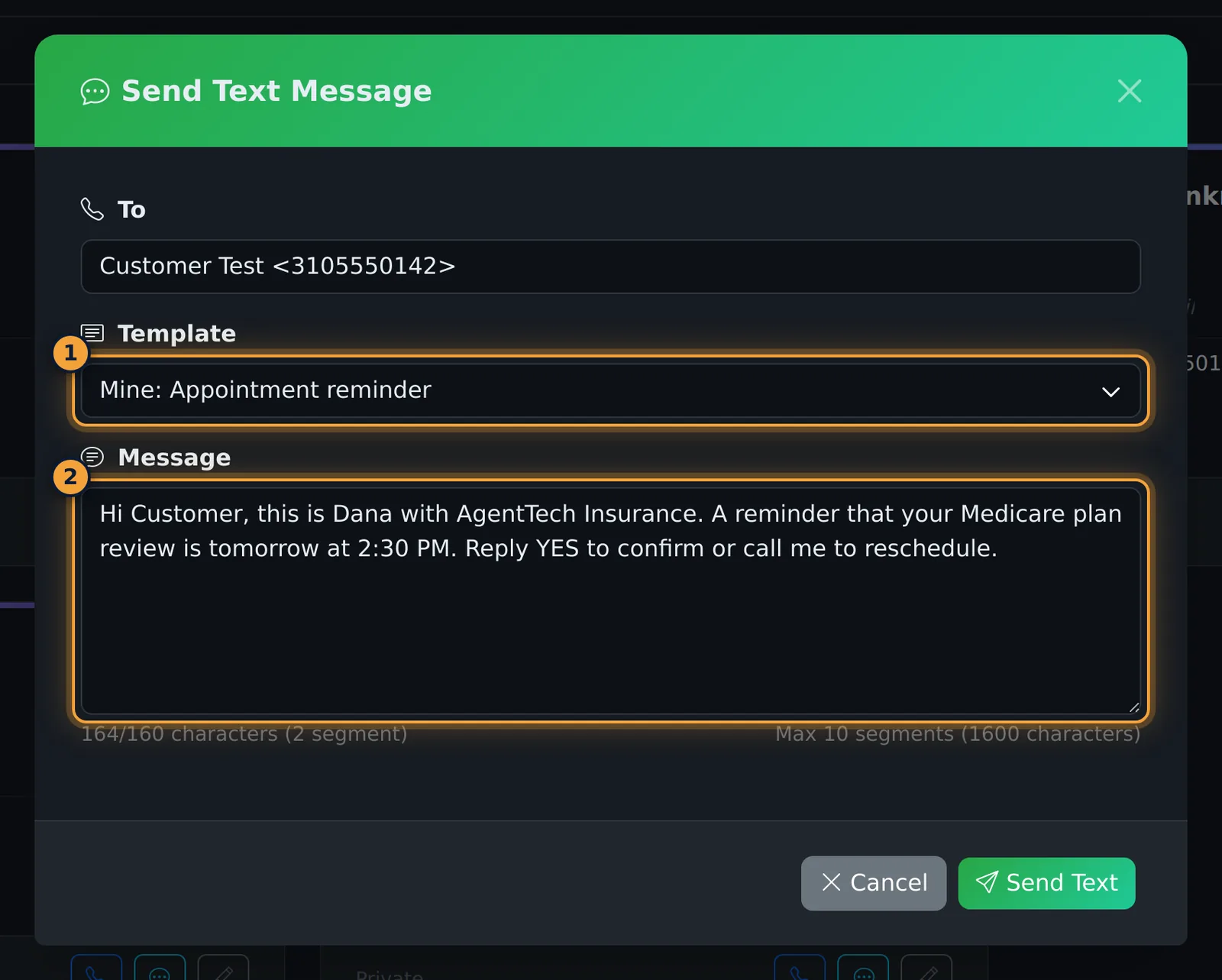
Add a template or a message, and select Send Text.
To text several contacts at once, tick them. A bar appears with Send Text, Send Email, and Delete Selected.
Select Send Text. Send Bulk Text lists the recipients, and each one gets their own copy, so replies come back as separate threads.
The counter shows the characters and segments. A segment is 160 characters, and each one is billed to your agency wallet. Then select Send Text.
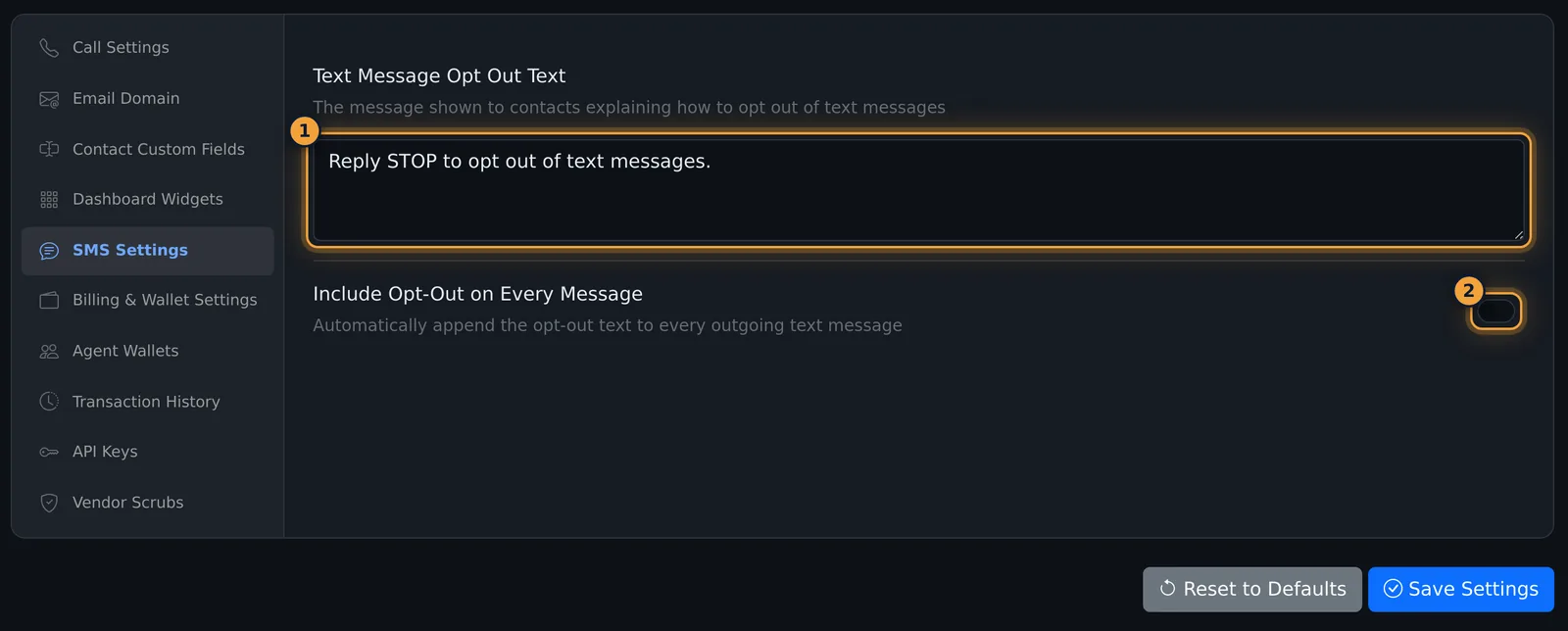
Agency admins set the opt-out text under Agency Settings, SMS Settings, and can add it to every message.
Next, save the texts you send often as templates.
You text contacts from AgentTech Dialer and read their replies in Conversations (sidebar). Texts go out from an agency phone number with SMS turned on. This article is for agents and supervisors; the opt-out settings at the end are for agency admins.
Conversations
Conversations lists your text threads, newest first. Each thread shows the contact's name (or number), the last message and, when there are new replies, an unread count. The Conversations item in the sidebar shows a badge when you have unread texts.
- Search conversations... searches your threads.
- The filters narrow the list: All, Unread, Contacts (numbers saved in your contacts) and Unknown (numbers that aren't).
Read and reply in a thread
Select a thread to open it on the right. Opening it marks the replies as read.
- The header shows the contact's name and number, with Call to phone them and View to open their contact record. For a number that isn't in your contacts, Add creates a contact from it.
- Type your reply in Type a message... and select the send button. The counter below shows the characters, the number of segments and the estimated cost.
Delete a conversation
Select the bin button on the thread, then confirm Delete Conversation. The thread is removed from your Conversations list.
Send a text
From Conversations
- Select New Message.
- Enter the number in To (Phone Number), or select Contacts to pick a contact or agent.
- Optionally pick a Template, then write or adjust the Message.
- Select Send Message.
From the top bar
On the dialer home page (for supervisors, the Overview dashboard) the top bar has Call and Text buttons. Select Text, fill To (or pick from Contacts), an optional Template and the Message, then Send Message.
From a contact
Select the text button on a contact card (Send Text in the List view's actions menu). Send Text Message opens with the contact filled in; add a template or a message and select Send Text.
To several contacts at once
- On Contacts, tick the contacts. A bar appears with Send Text, Send Email, Delete Selected and Clear Selection.
- Select Send Text. Send Bulk Text lists the recipients; contacts without a phone number are left out.
- Write the message (or pick a template without contact variables) and select Send Text.
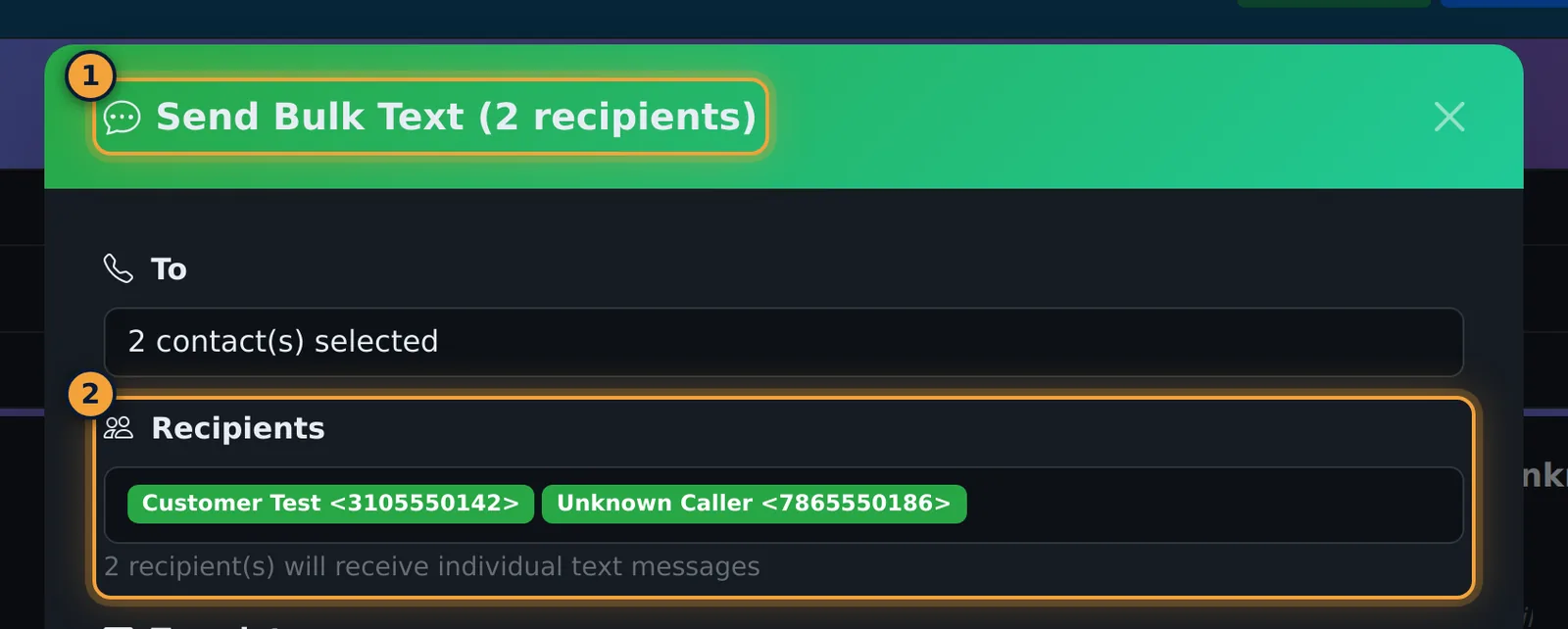
Each recipient receives an individual text, so replies come back as separate threads in Conversations.
Length and cost
A segment is 160 characters. Longer messages are sent as several segments, up to 10 segments (1,600 characters). The counter under every message box shows the count, for example "134/160 (1 segment, $0.0075)"; each segment is billed to your agency wallet. See Billing & Your Wallet.
Templates
Pick a saved text in the Template list of any message window. Variables such as {contact.first_name} are replaced with the contact's details before you send, and you can still edit the text. Create and share templates under Contacts > Message Templates; see SMS & Email Templates.
Opt-out text (agency admins)
Under Agency Management > Agency Settings > SMS Settings:
- Text Message Opt Out Text: the message shown to contacts explaining how to opt out, for example "Reply STOP to opt out of text messages."
- Include Opt-Out on Every Message: when on, the opt-out text is appended automatically to every outgoing text.
Changes on this tab save on their own about a second after you make them. See Agency Settings.
Common problems
- Nothing in Conversations: you haven't sent or received texts yet, or a filter is on. Select All and clear the search.
- A text doesn't go out: the agency number needs SMS turned on. Ask your agency admin to check the SMS switch in Phone Numbers.
- No Text button in the top bar: it's on the dialer home page (the Overview dashboard for supervisors). On other pages, text from Conversations or Contacts.
- A contact is missing from bulk recipients: they have no phone number saved. Add one in Contact Management.
Related articles
Was this article helpful?
Can't find what you are looking for? Our support team can help.
Submit a support ticket